
1. Using the AI Compliance Assistant
The Compliance Assistant is an intelligent support feature provided by Nota Sign, designed to help users quickly access reference information on electronic signature compliance, data protection, and privacy regulations across multiple countries and regions.
2. Accessing the AI Compliance Assistant
To open the AI Compliance Assistant:
-
Log in to your Nota Sign account.
-
Click Compliance Assistant located in the upper-right corner of the navigation bar.
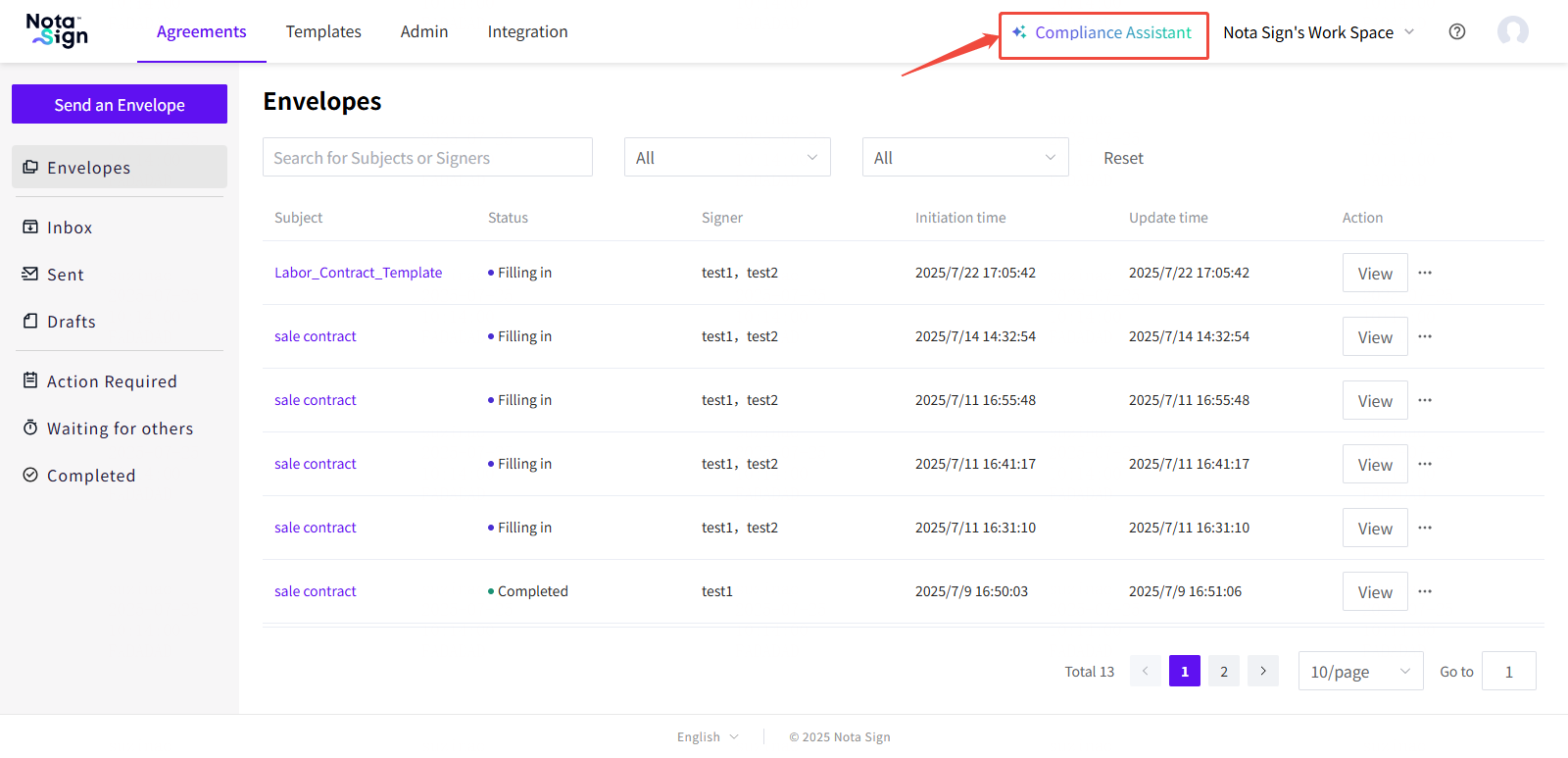
How to Use the AI Compliance Assistant
In the center of the Assistant interface, you’ll find an input field. Enter your question or relevant keywords to initiate a query.
-
“Does Japan allow electronic signatures for inheritance notarization?”
-
“Can contracts in the EU be processed using cloud storage?”
-
“What are the legal requirements for signing medical records in Brazil?”
After entering your question, click the Send icon to submit your request.
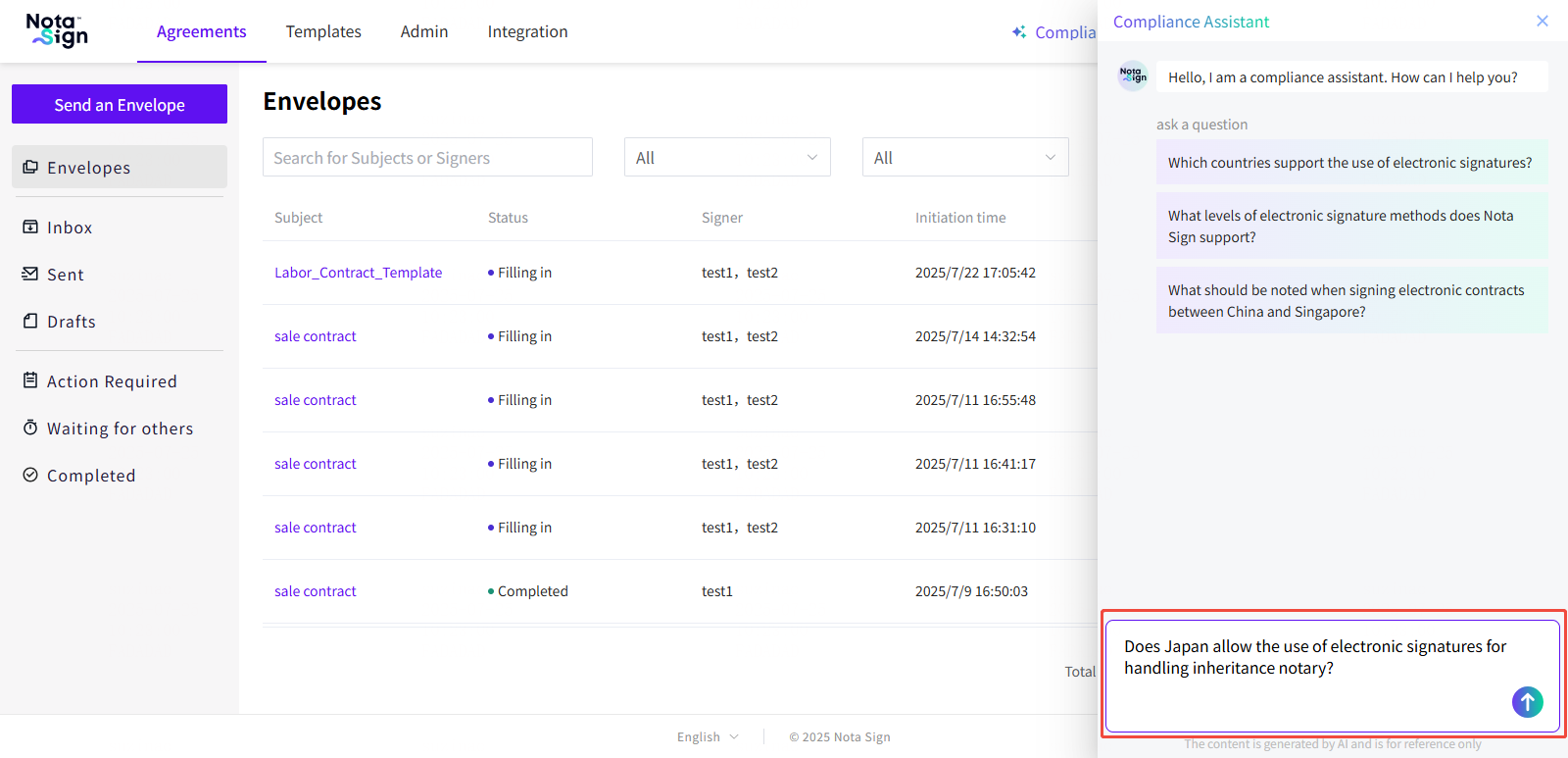
The system will automatically generate an AI-powered response that may include:
-
Applicable legal background
-
Geographic or industry-specific applicability
-
Recommended compliance practices
The results will be displayed directly in the interface for immediate review.
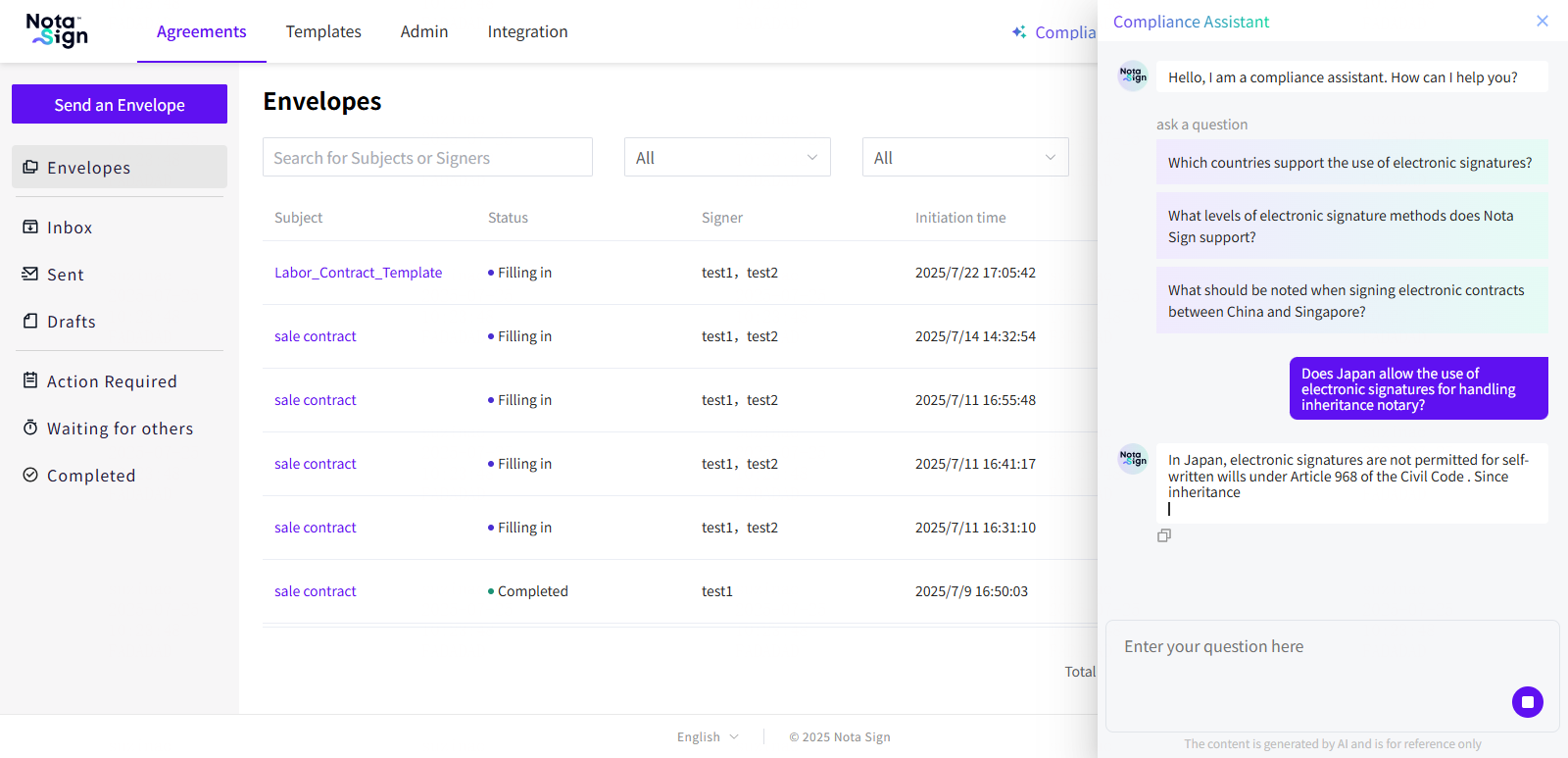
💡 Disclaimer: All responses are generated by an AI model and are intended for informational purposes only. They do not constitute legal advice and should not be used as the sole basis for decision-making. For critical business or legal decisions, consult your internal compliance team or a qualified legal advisor.
2. Using the AI Document Assistant
The AI Assistant is an intelligent document analysis tool built into Nota Sign. It offers advanced features such as document summarization, multilingual translation, and AI-powered Q&A, helping users better understand and process documents during signing workflows.
5. Accessing the AI Assistant
You can access the AI Assistant in two ways:
5.1. Option 1: From the Envelope Signing Page
While viewing a document for signing, click the Nota AI button in the right-side toolbar.
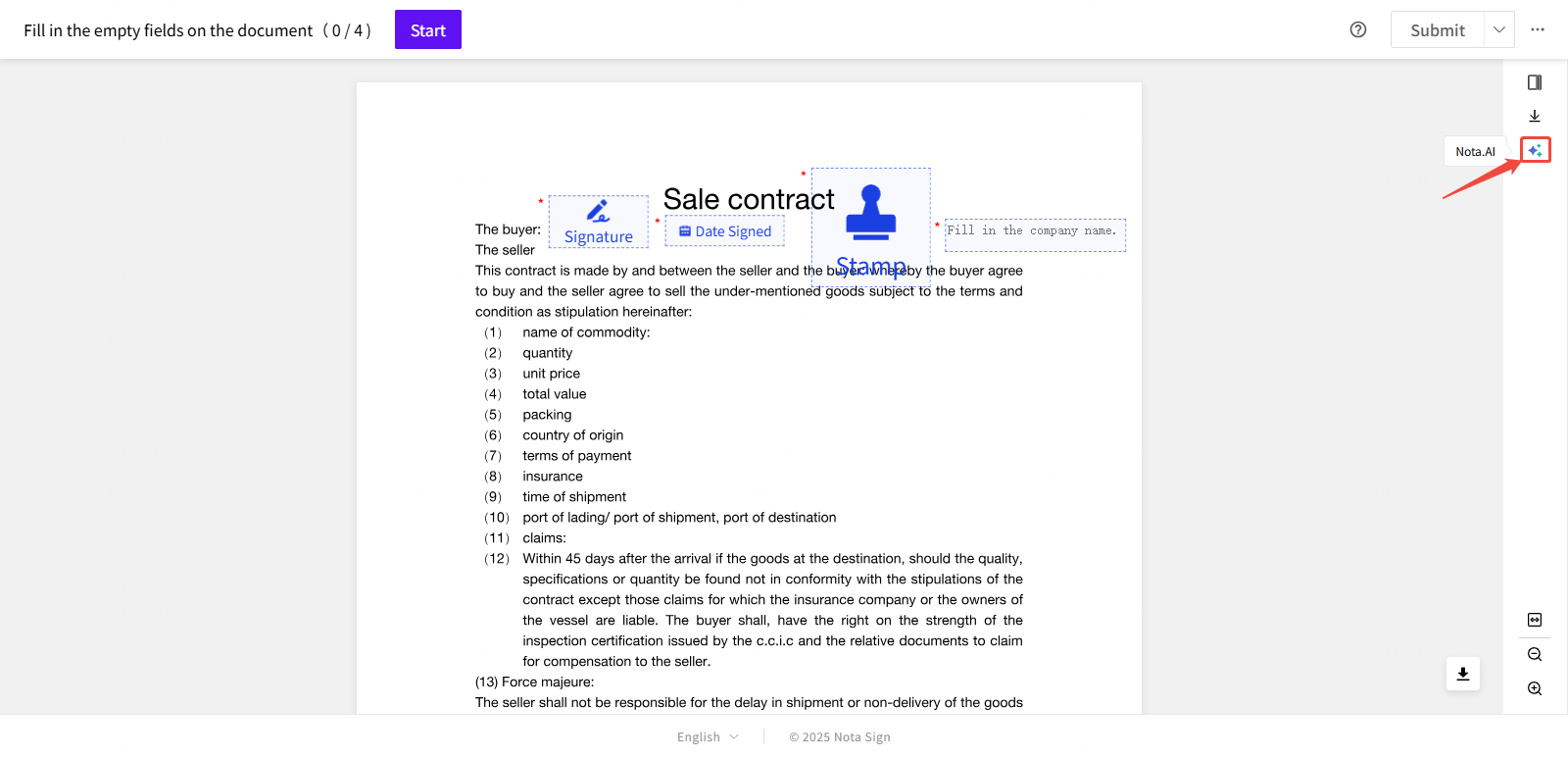
5.2. Option 2: From the Envelope Details Page
-
Log in to your Nota Sign account.
-
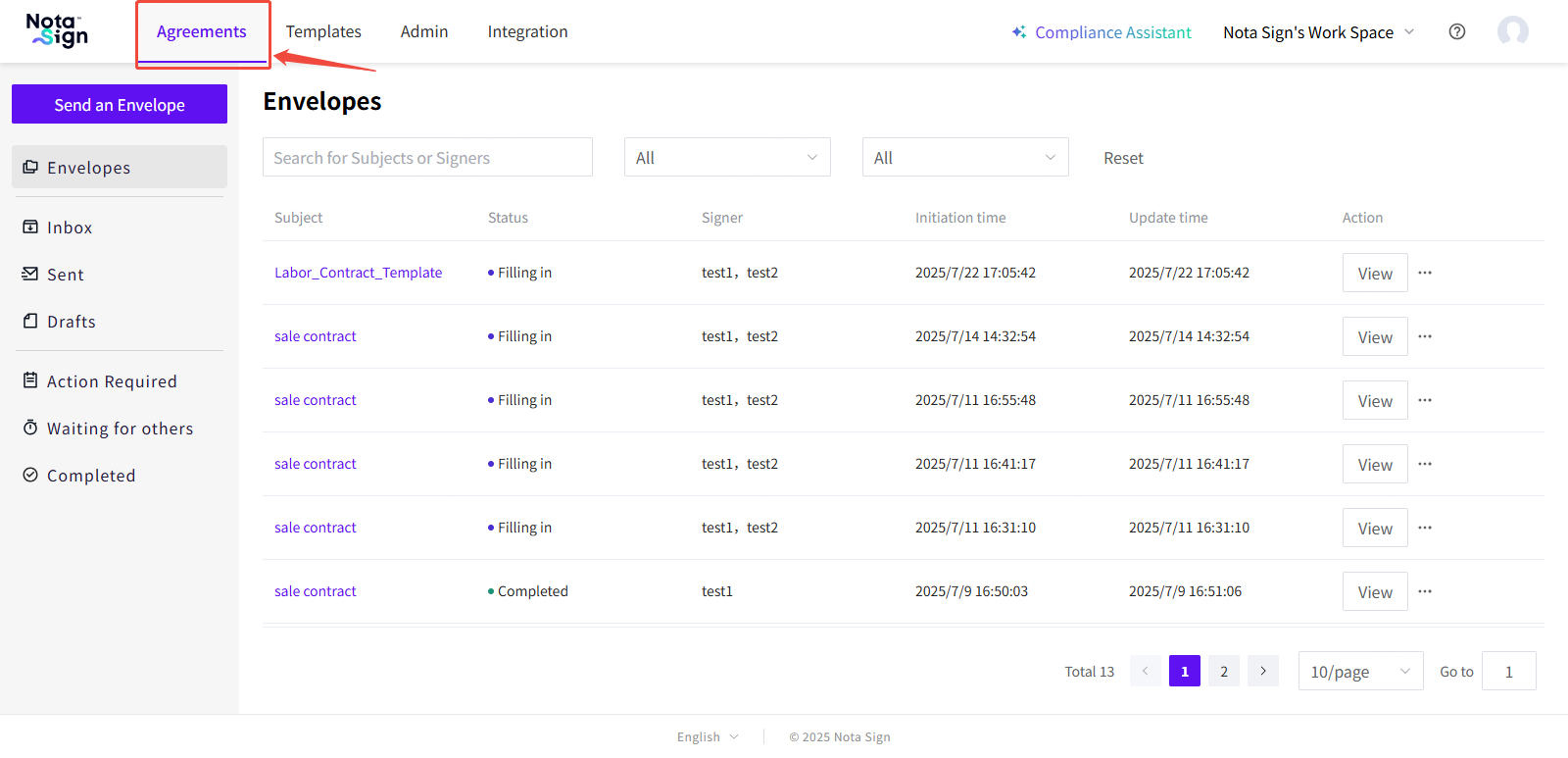
Navigate to Agreements from the top navigation bar to access your envelope dashboard.
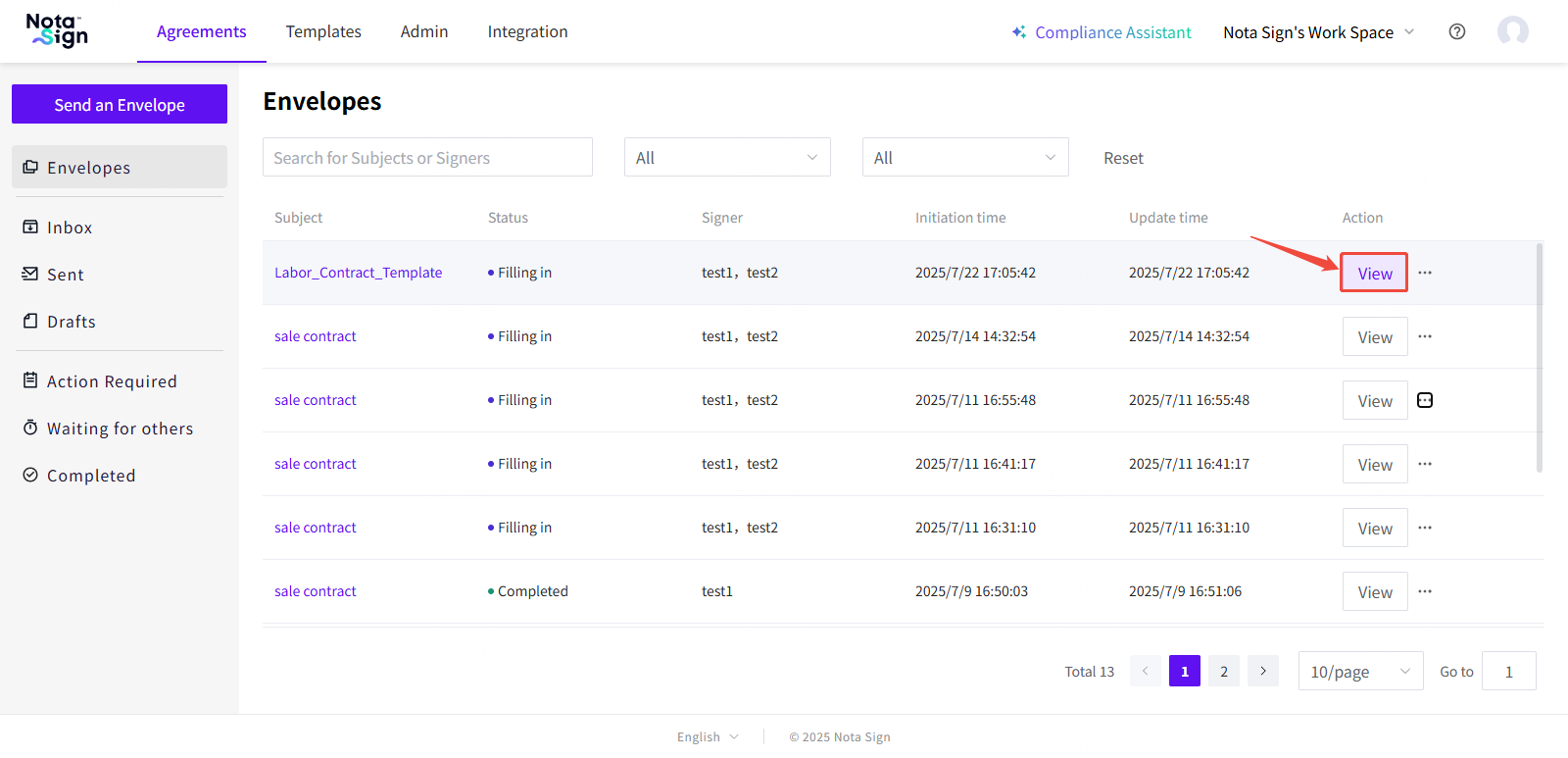
- Locate the target envelope and click View.
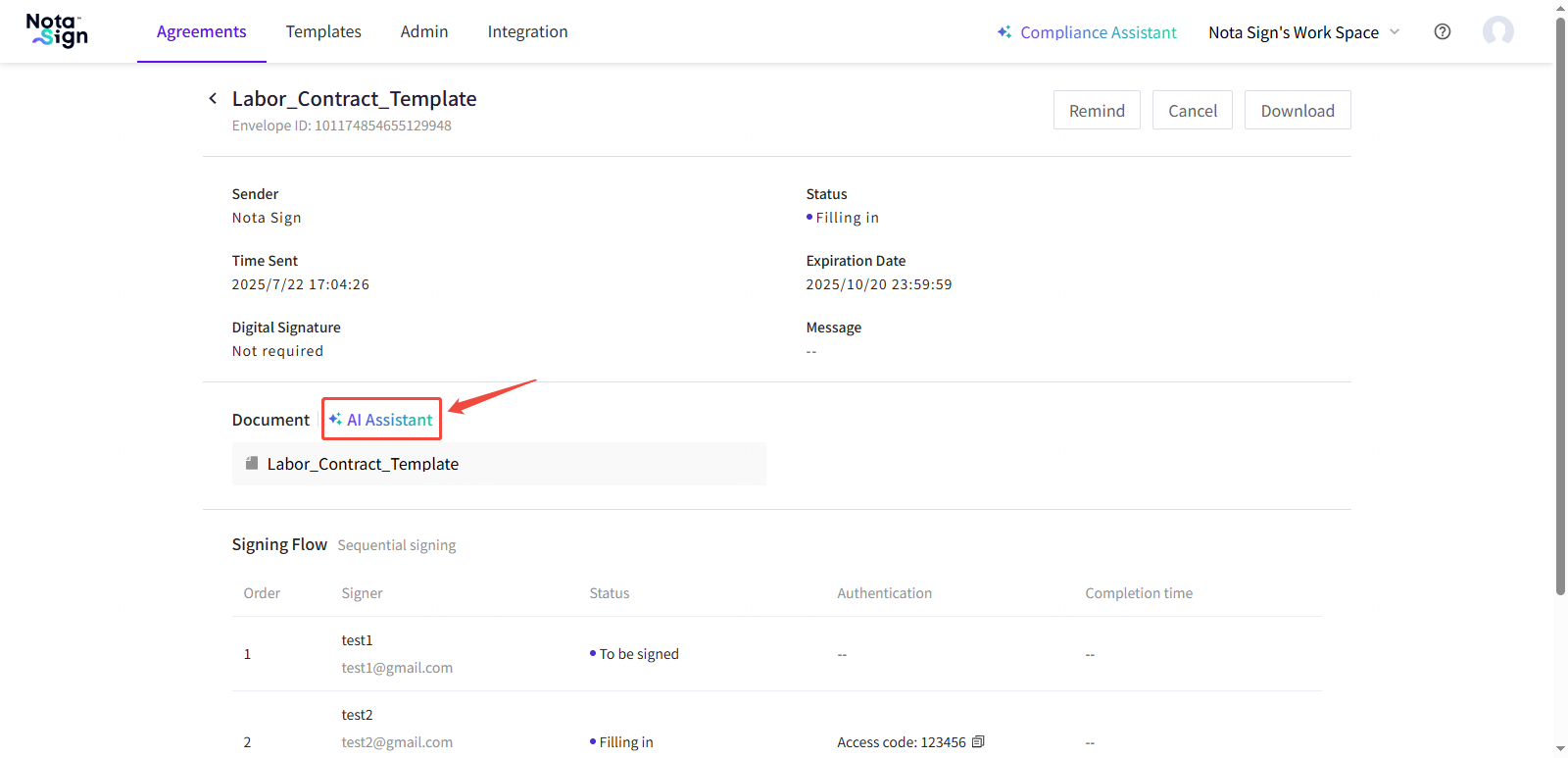
- In the Document section, click the AI Assistant button to open the assistant interface.
6. Using AI Assistant Features
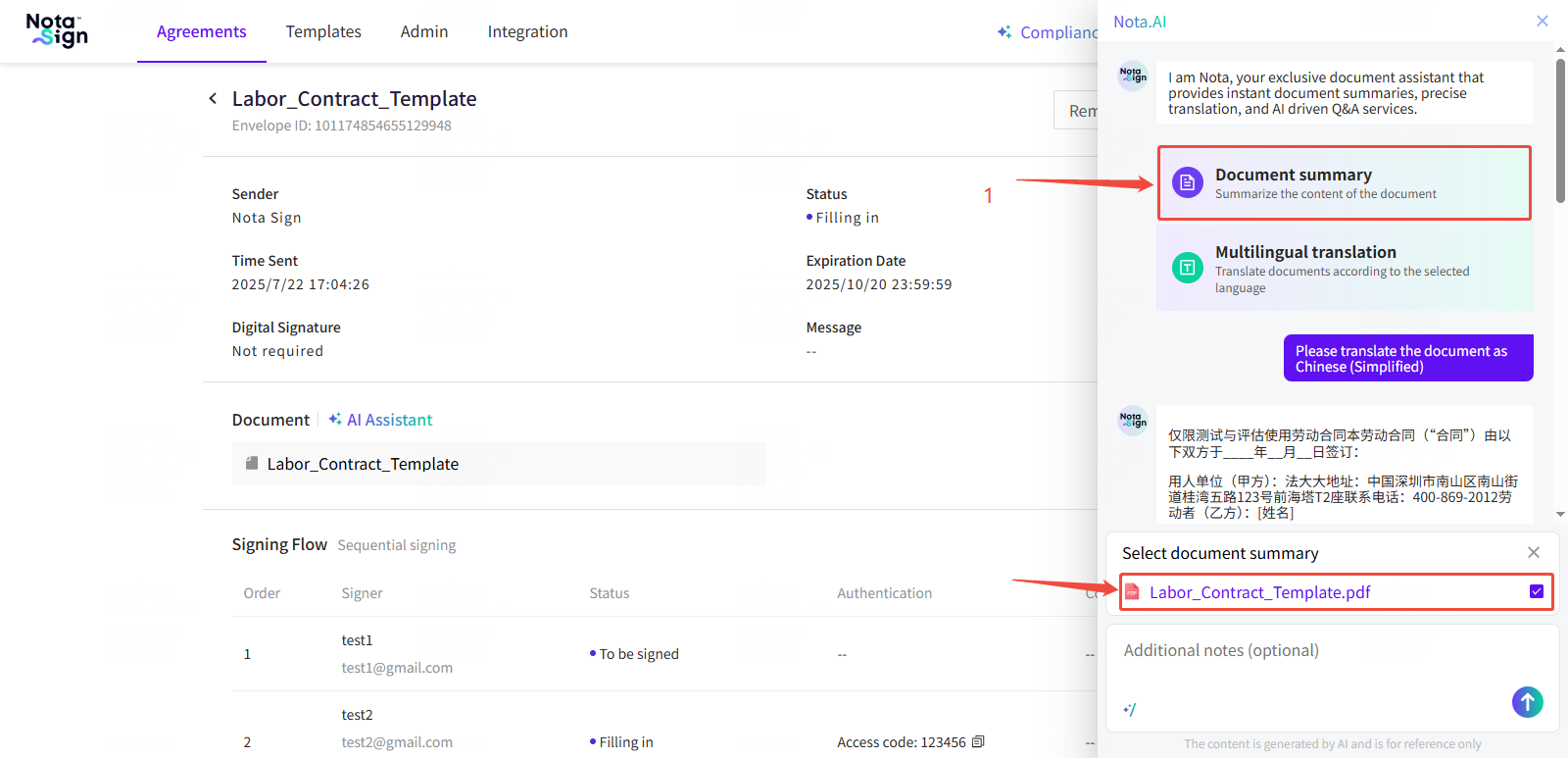
Once opened, the AI Assistant interface provides quick access to commonly used features via clearly labeled buttons.
6.1. Document Summary
Generate a concise summary of the document’s key points, helping signers quickly grasp important terms before signing.
Steps:
-
Click Document Summary.
-
Select the document you wish to summarize and click Send.
-
The system will return a summarized version of the document’s core content.
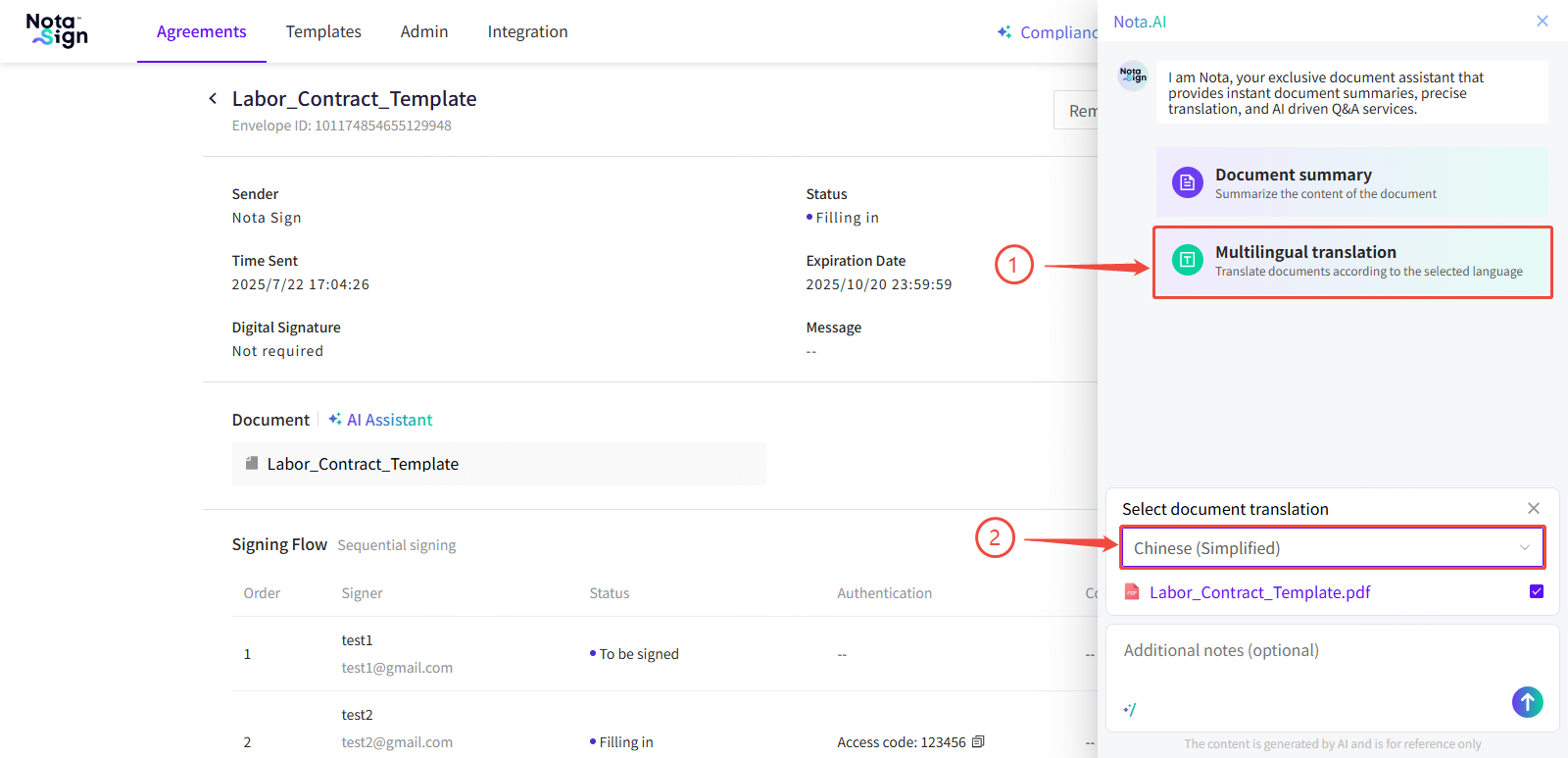
6.2. Multilingual Translation
Translate the document into multiple languages to support international signers.
Steps:
-
Click Multilingual Translation.
-
Select the target language and the document to translate.
-
The system will return the translated content.
6.3. Document Q&A
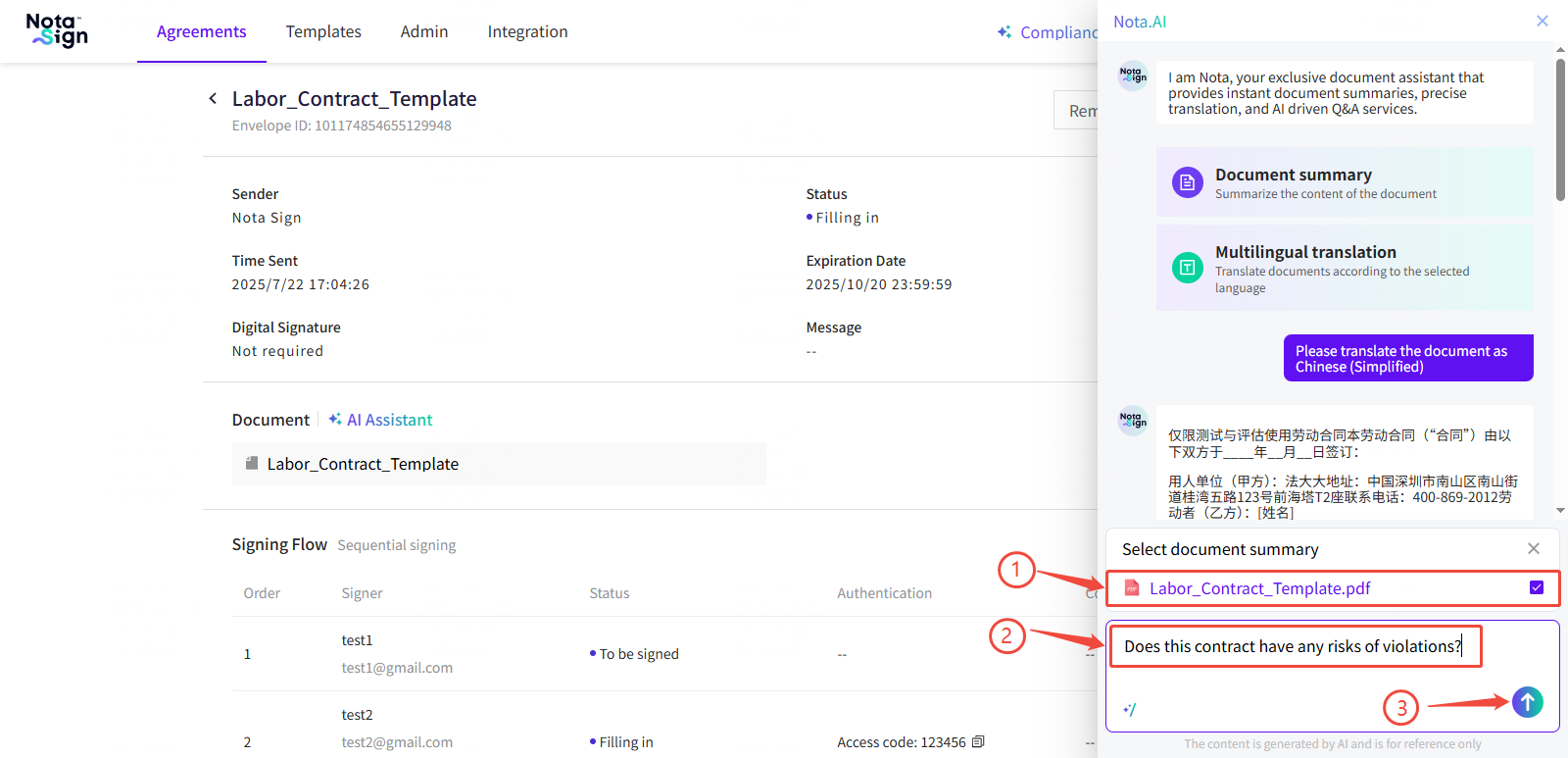
Ask specific questions about the document and receive real-time AI-generated responses based on the document’s full content.
Steps:
-
Select the relevant document.
-
Enter your question in the input field. Example questions:
-
“What is the lease term stated in this agreement?”
-
“Does the contract include an automatic renewal clause?”
- Click Send to receive an instant answer.
💡 Note: All content provided by the AI Assistant is machine-generated and for reference only. Please ensure that all critical compliance, legal, or contractual matters are reviewed and confirmed by qualified professionals prior to execution.