
When you need to quickly reuse an existing template or migrate it to another workspace, you can use the Copy, Export, and Import features. Copy is suitable for quickly generating a new template with the same configuration within the current workspace; Export and Import are suitable for transferring templates between different workspaces.
1. Copy Template
Reuse within the current workspace:
- Go to the Templates page and locate the template you want to copy;
- Click the […] on the right side and select Copy;
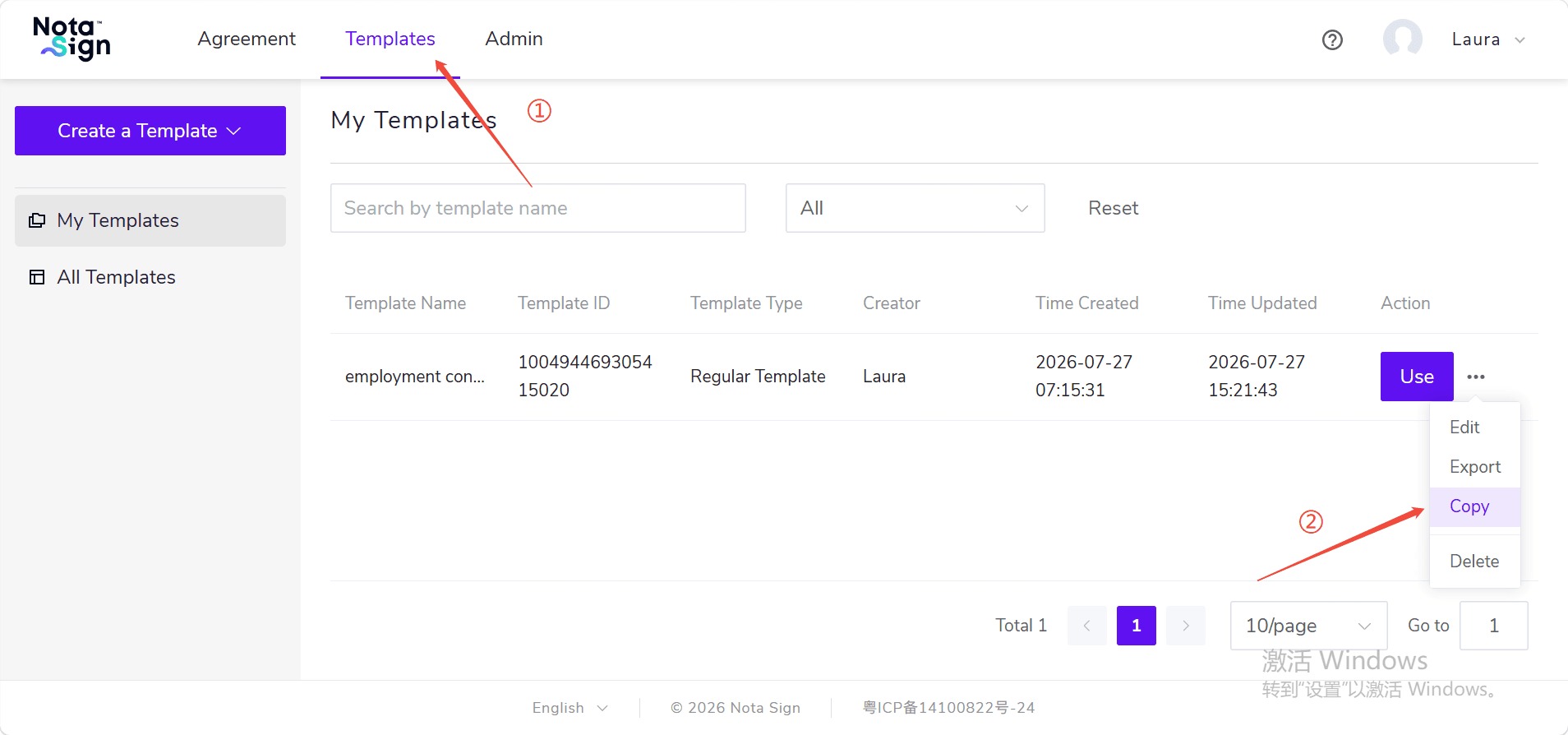
- In the pop-up window, confirm or modify the new template name;
- Click Copy.
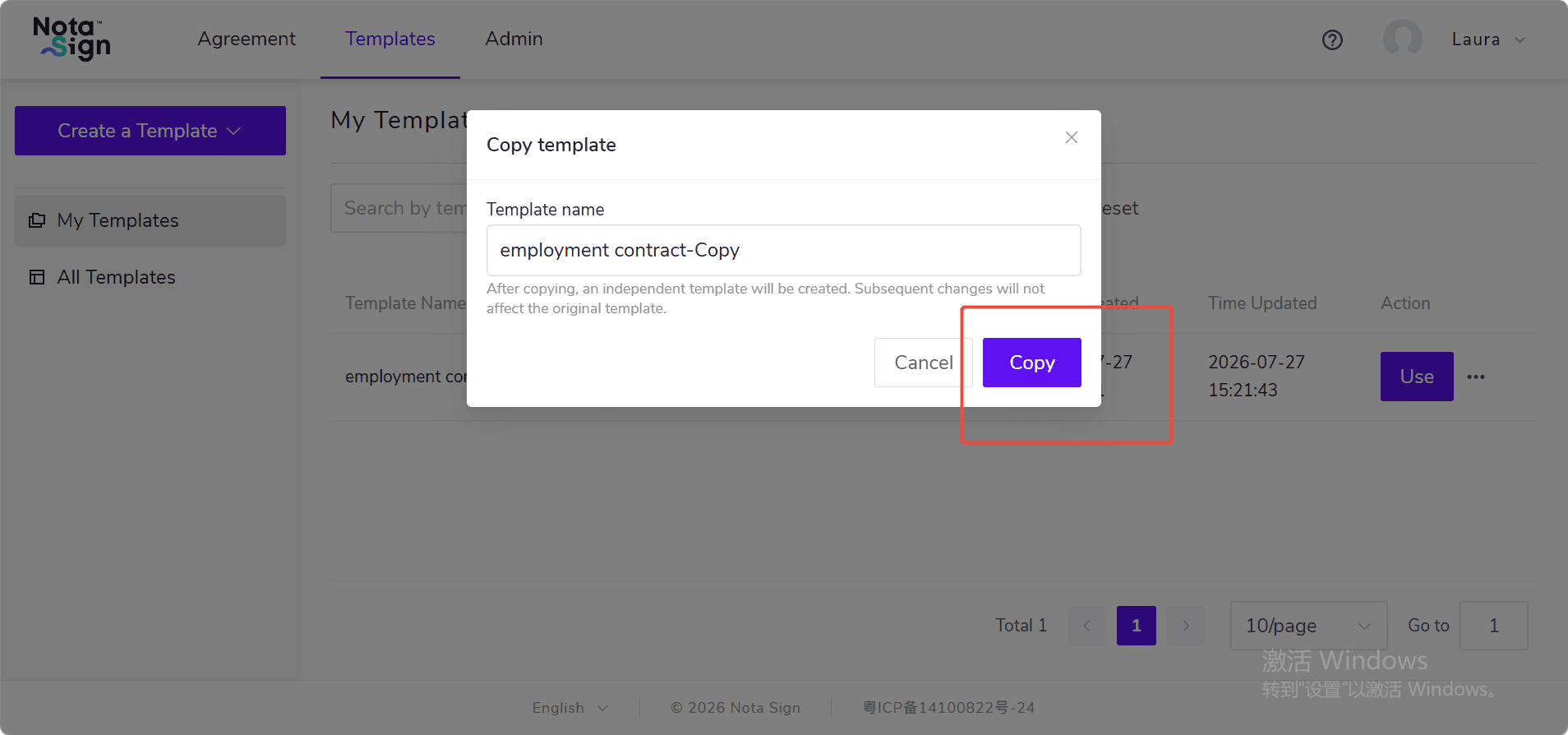
- After copying, the system will generate a new template;
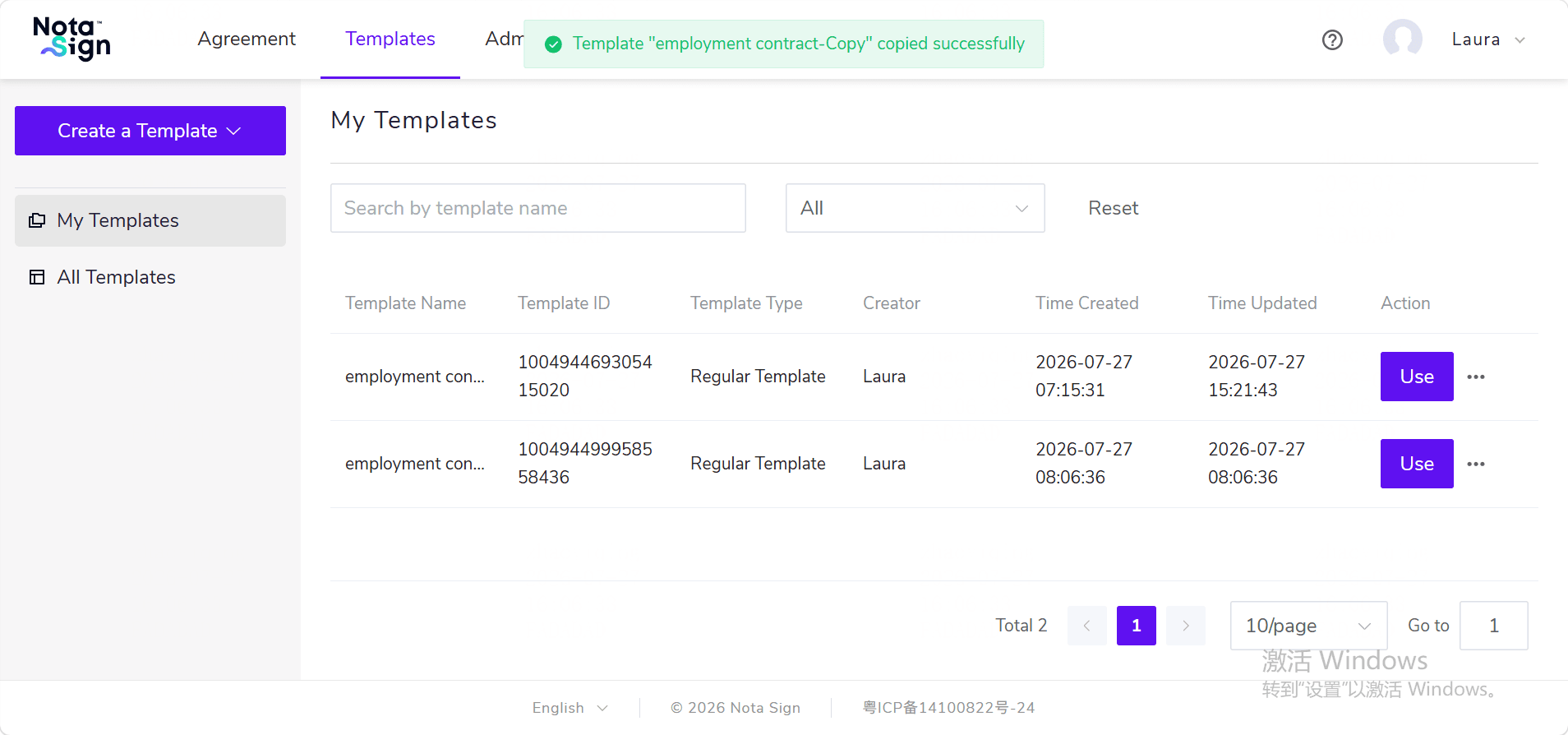
- The new template will retain the original template’s files, roles, recipients, signing controls, and related configurations;
- Historical sending records, usage statistics, and recipient data uploaded in batch sends will not be copied;
- Only the template creator can copy the template.
2. Export Template
- Go to the Templates page and locate the template you want to export;
- Click the […] on the right side and select Export;
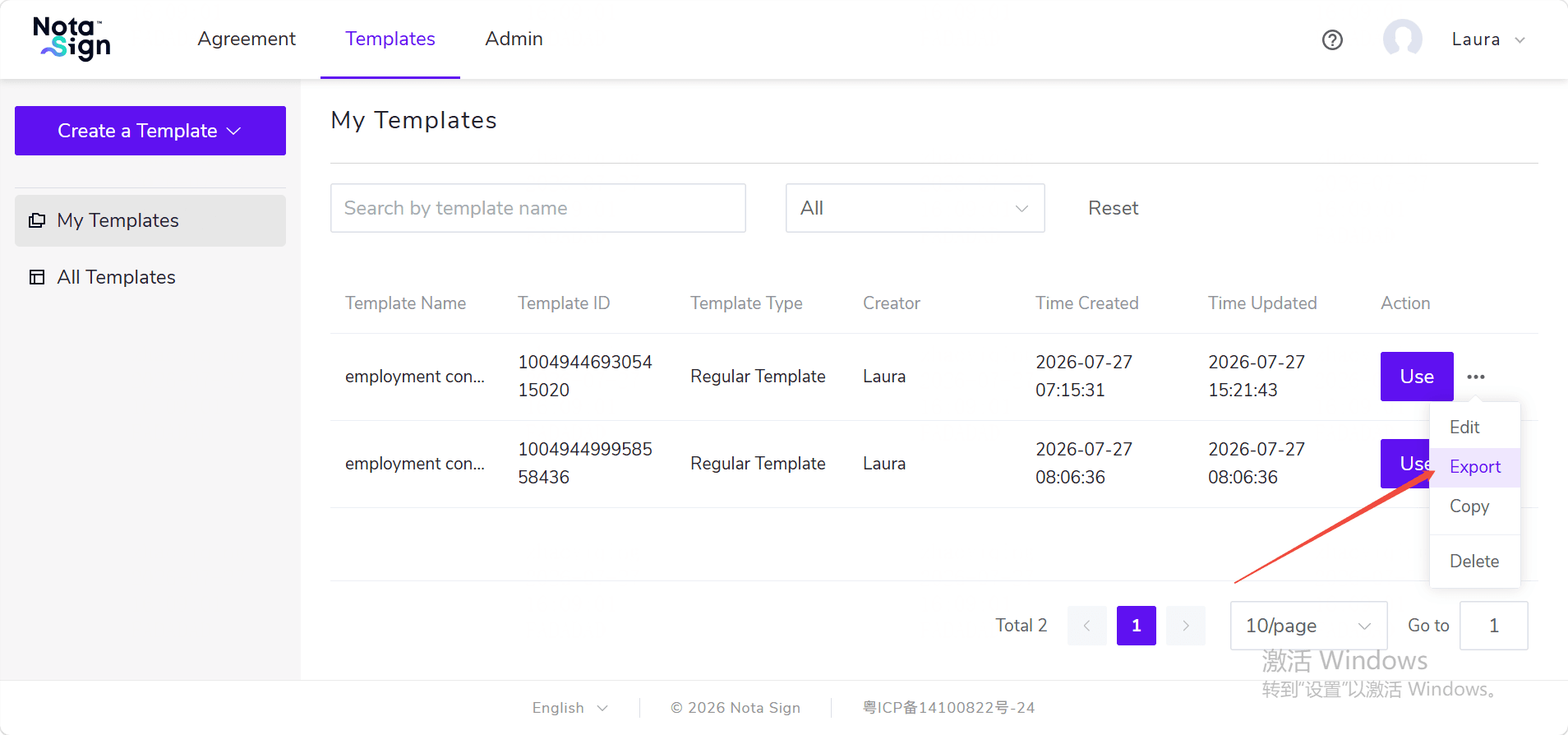
- Review the prompt information in the pop-up window;
- Click Export, and the system will download the template file.
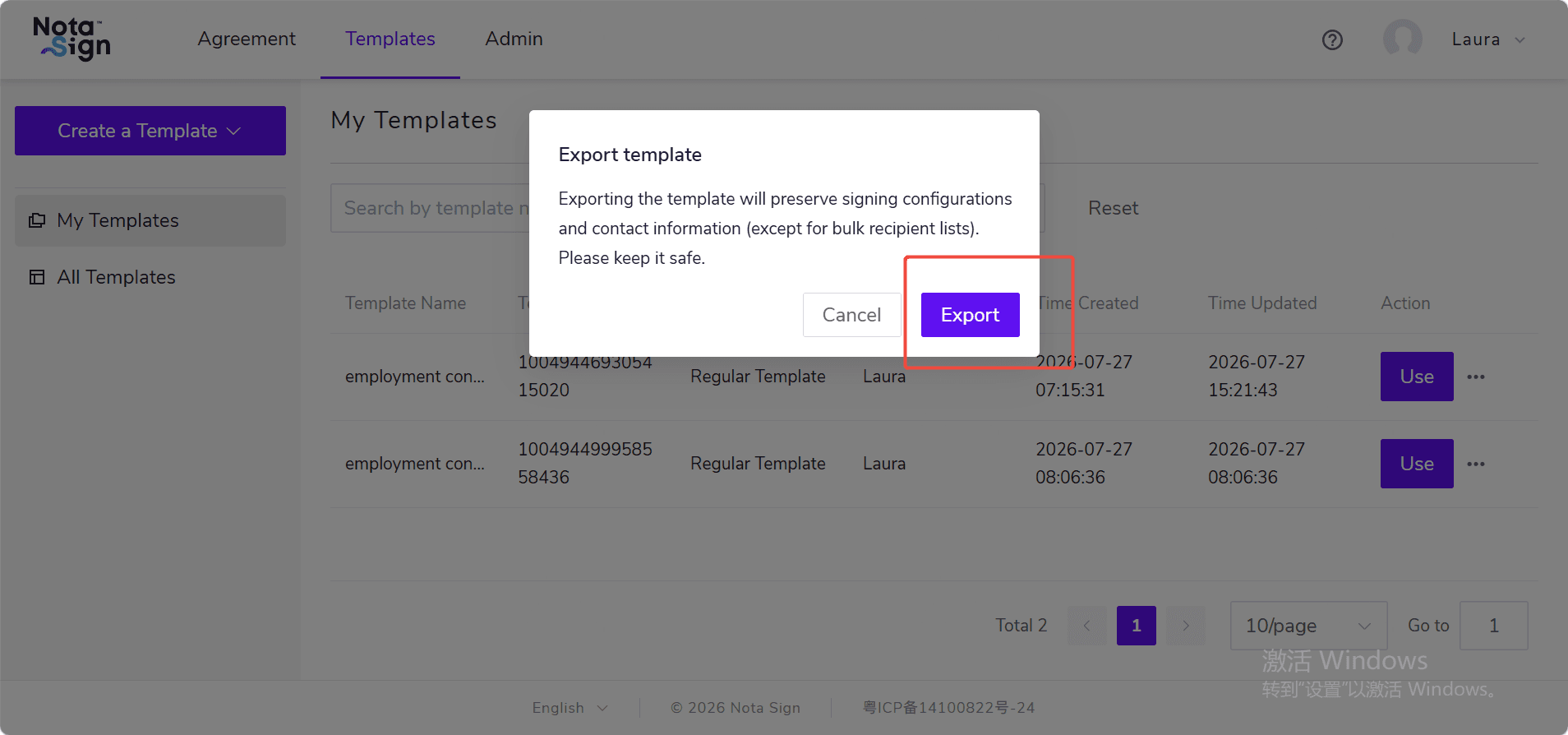
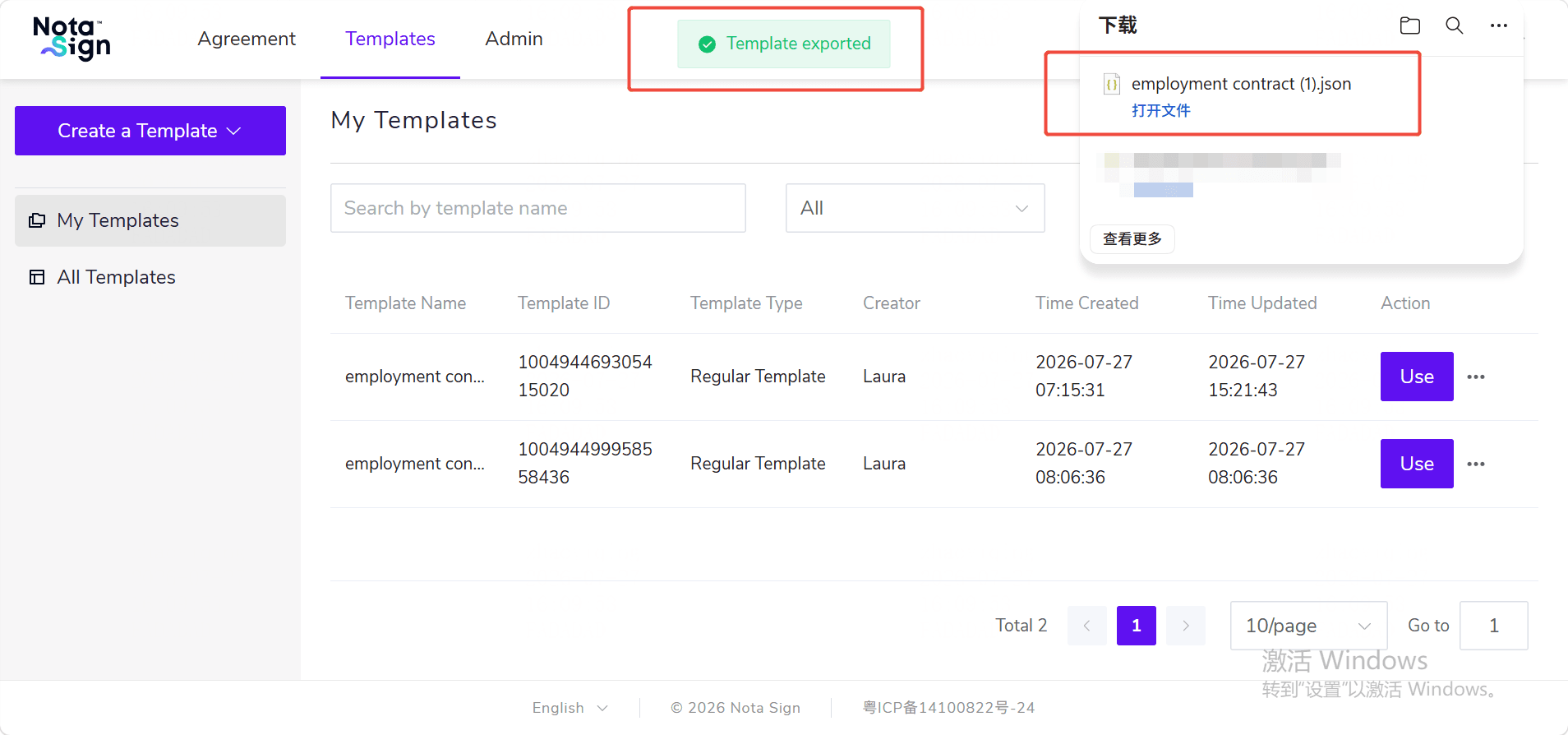
- The exported file is a Nota Sign JSON template file;
- The exported file will retain signing configurations such as template files, roles, and controls;
- Uploaded CSV and recipient data rows in batch templates will not be exported;
- Templates may contain contact information, identity verification details, and other content. Please keep the exported file secure;
- Only the template creator can export the template.
3. Import Template
Create a template from a file:
- Go to the Templates page;
- Click the dropdown button under Create Template and select Import Template;
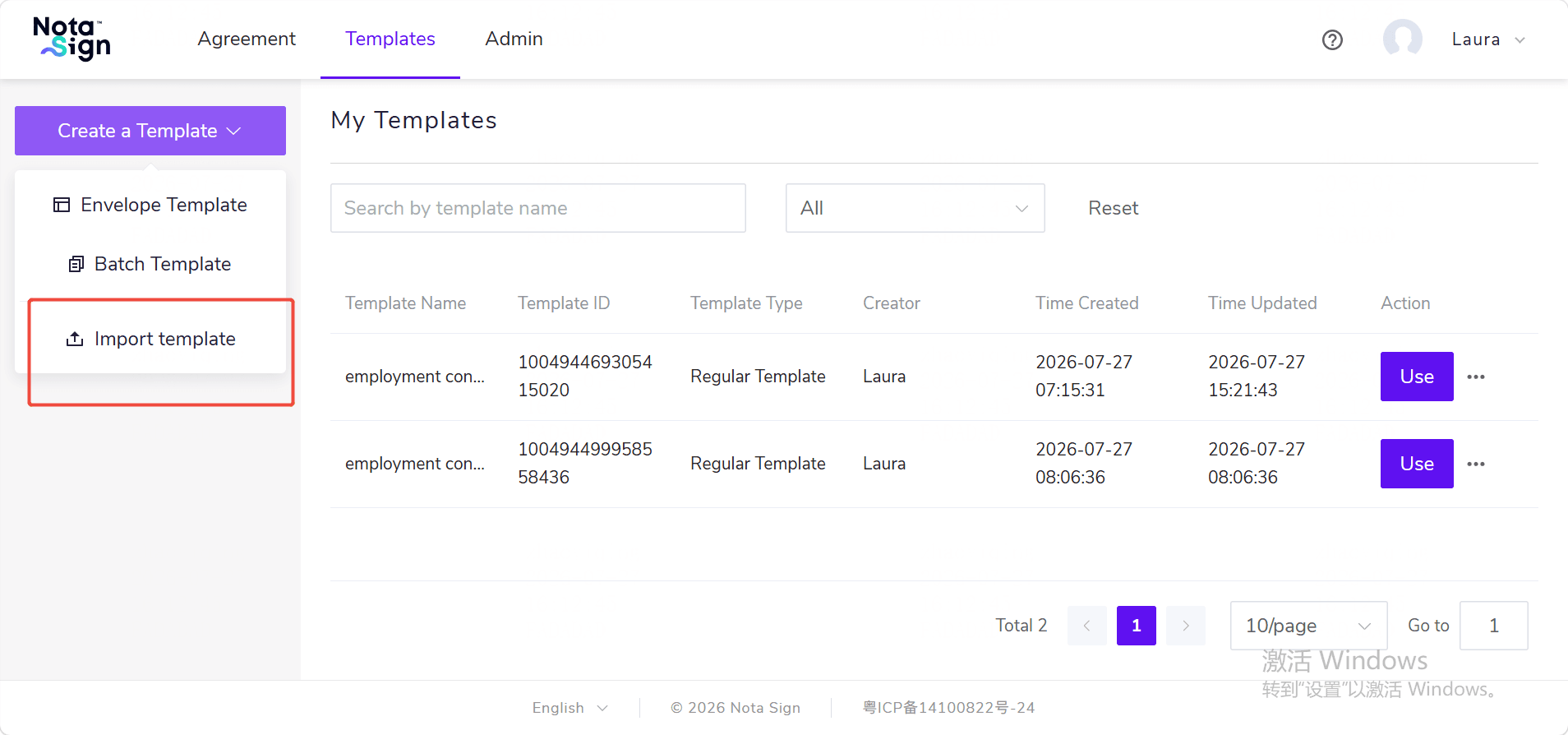
- Upload the JSON template file exported from Nota Sign;
- After the system verifies the file, confirm the template name and other information;
- Click Import;
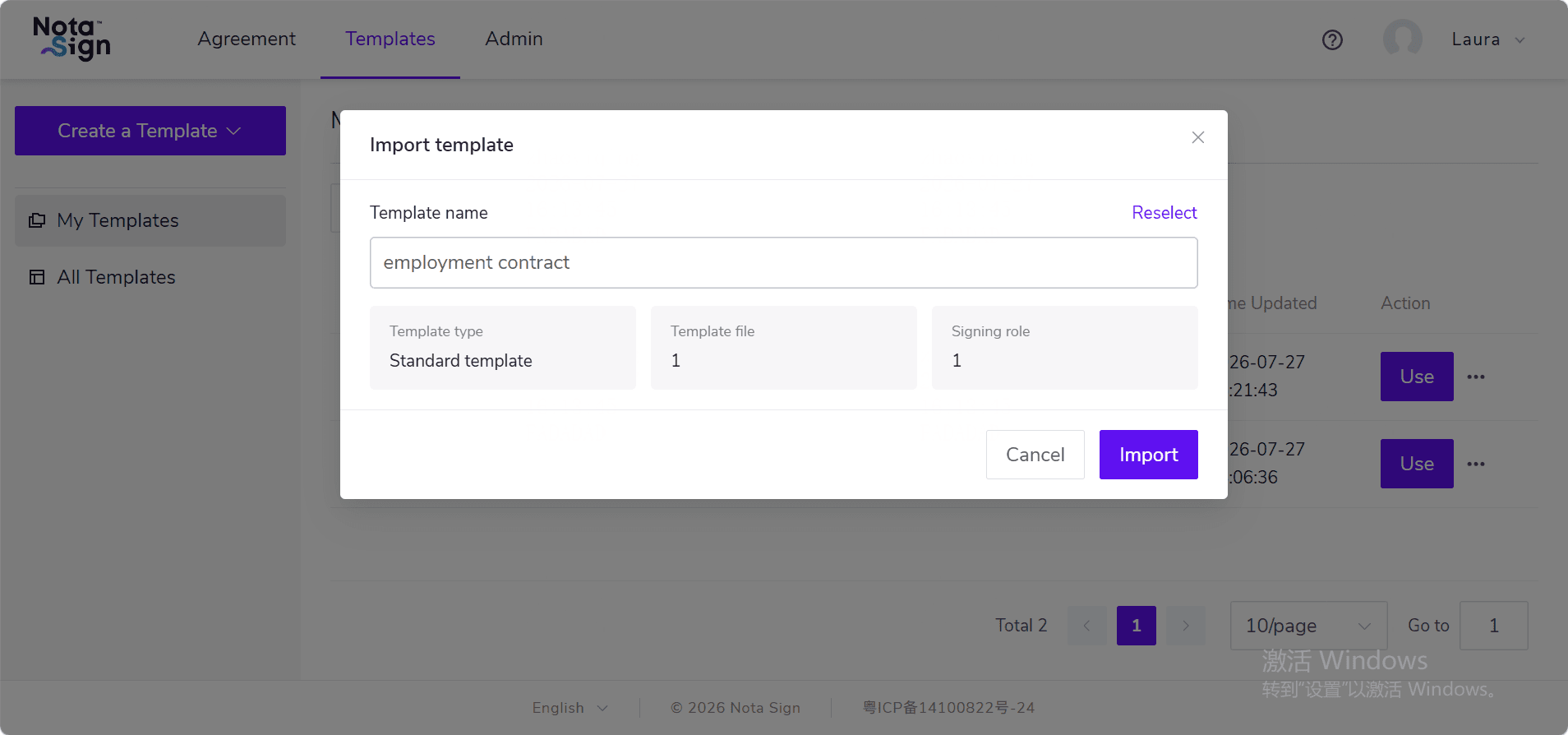
- After a successful import, you can view the new template in the template list and enter the editing page to check the content.
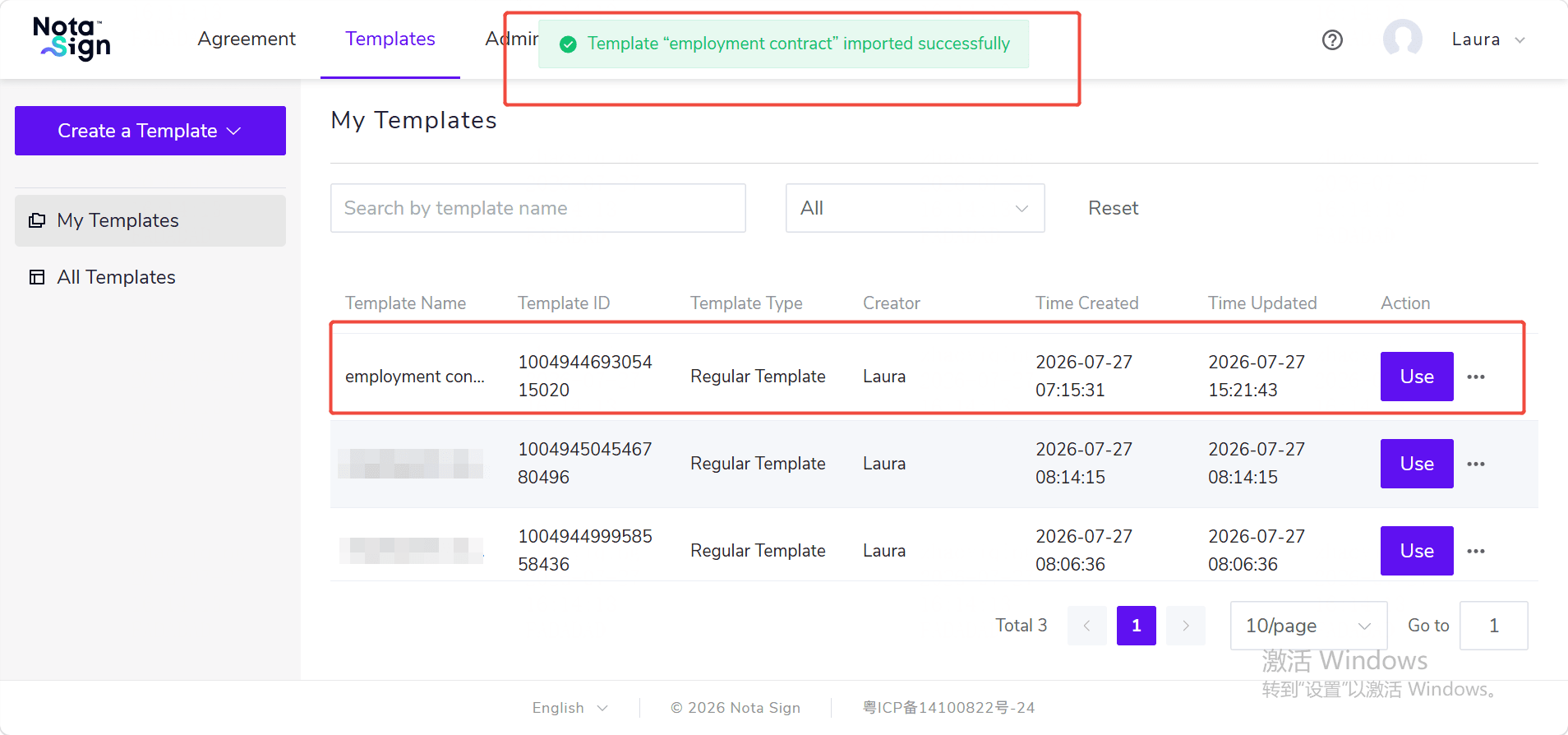
- After import, a new template will be created; existing templates will not be overwritten;
- If the template name already exists, the system will automatically append a number. You can also modify the name before importing;
- When importing a batch send template, the user must have permission to create batch send templates;
- If the current workspace does not support certain signature types, identity verification methods, control types, or related services in the template, the system will indicate the reason and will not automatically delete or downgrade the original template configuration.
4. What If Import Fails?
- If the system prompts that the file is not a Nota Sign JSON template file, please select the correct file;
- If the system prompts that the template file is corrupted or expired, please re-export it and import it again;
- If the system prompts that the current workspace does not support certain configurations, please activate the corresponding service first, or adjust the original template and re-export;
- If the system prompts that you do not have permission, please contact your administrator to confirm template creation or batch template creation permissions;
- If a network error occurs during the import process, please try re-importing.
If the import fails, the system will not generate a new template and existing templates will not be affected.