
When the document content in a template needs to be updated, but you still want to keep the existing recipients, roles, and configured signature fields, you can replace the template source document. After replacement, the system will automatically retain the original recipients, roles, controls, and field configurations, eliminating the need to recreate the template.
1. How to replace the template source document?
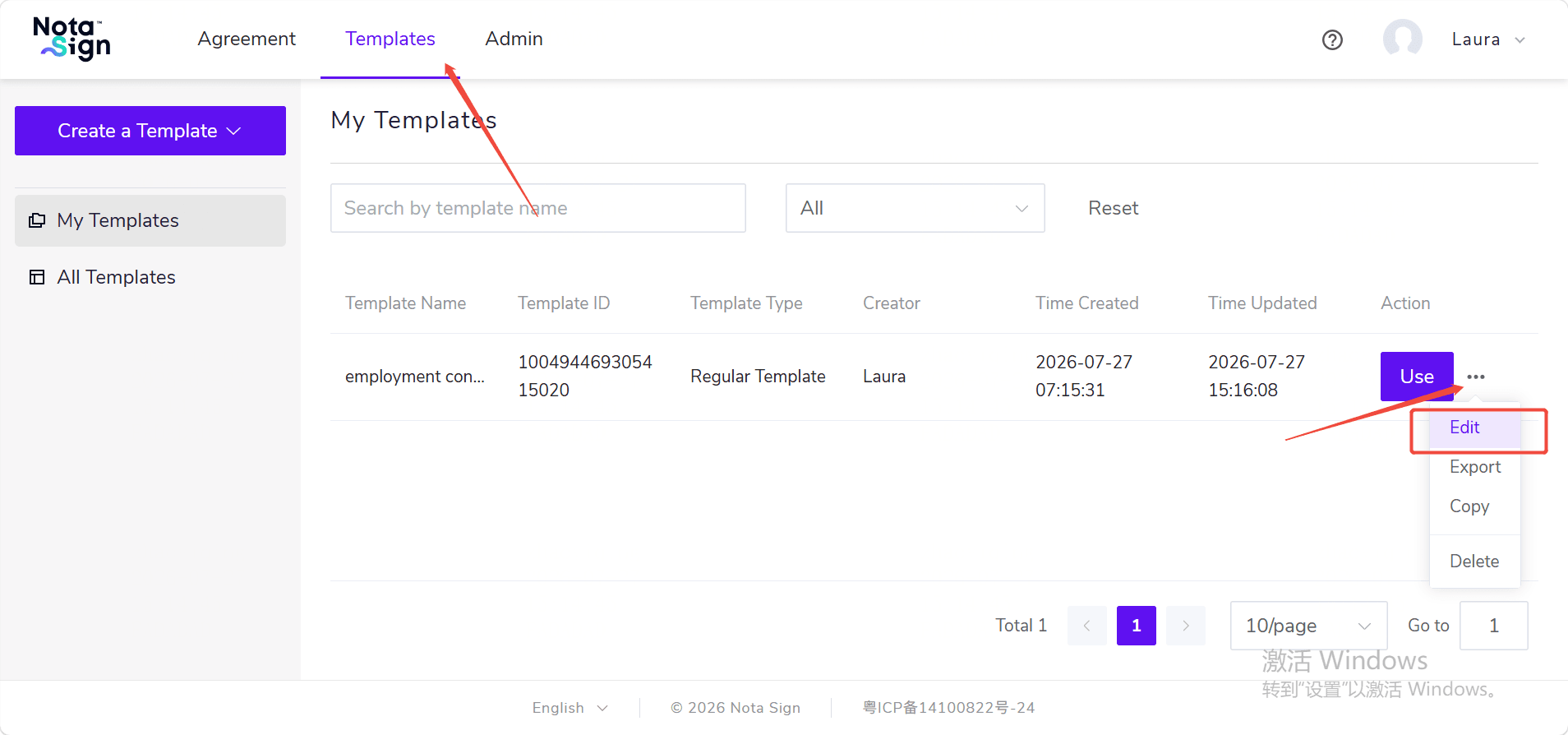
- Click 【Templates】, find the old template that needs to be updated, and enter the editing page;
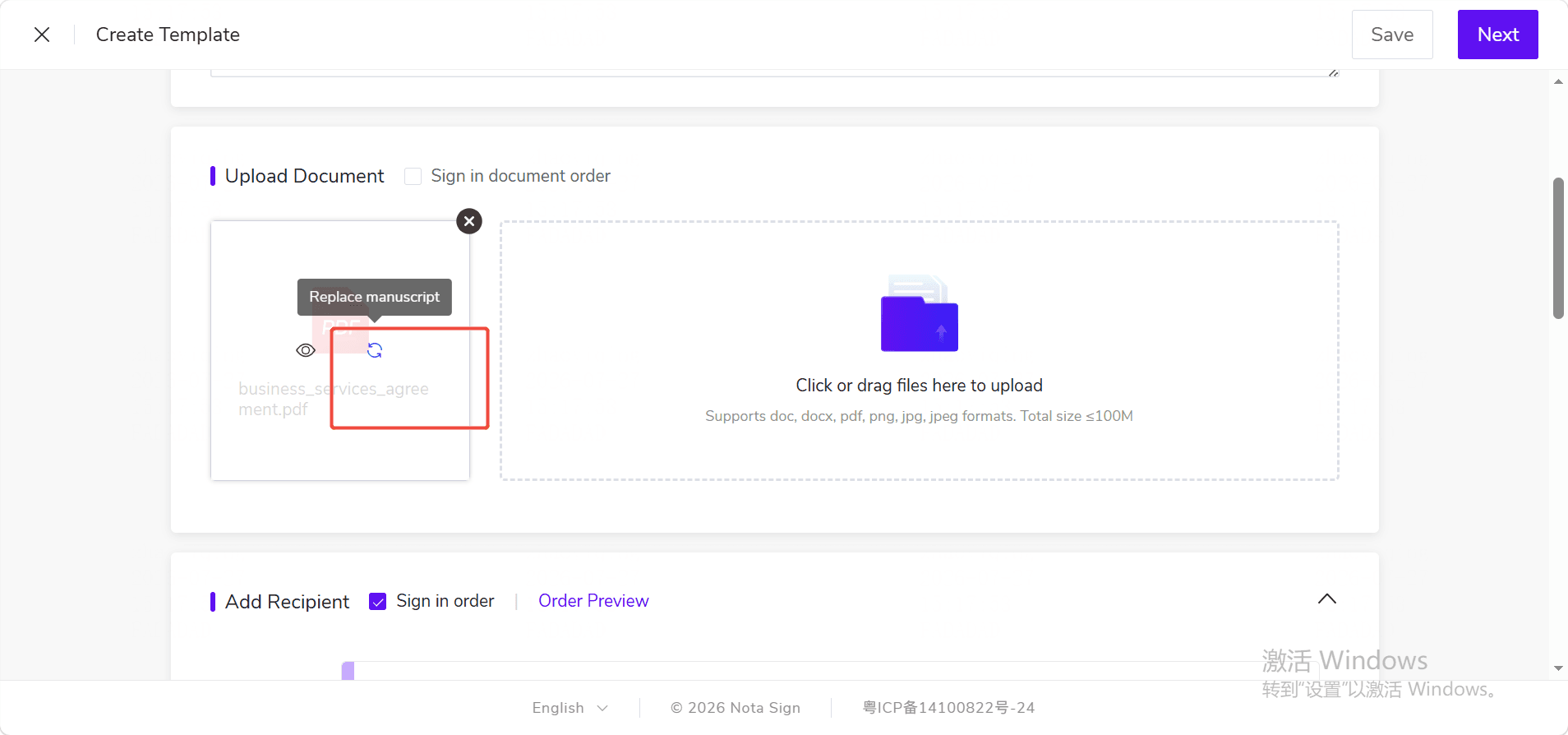
- Move your mouse over the document card that needs to be replaced. Two icons will appear. Click 【Replace Source Document】;
- Select the new source document file in the system file selection window;
- Click 【Replace】.
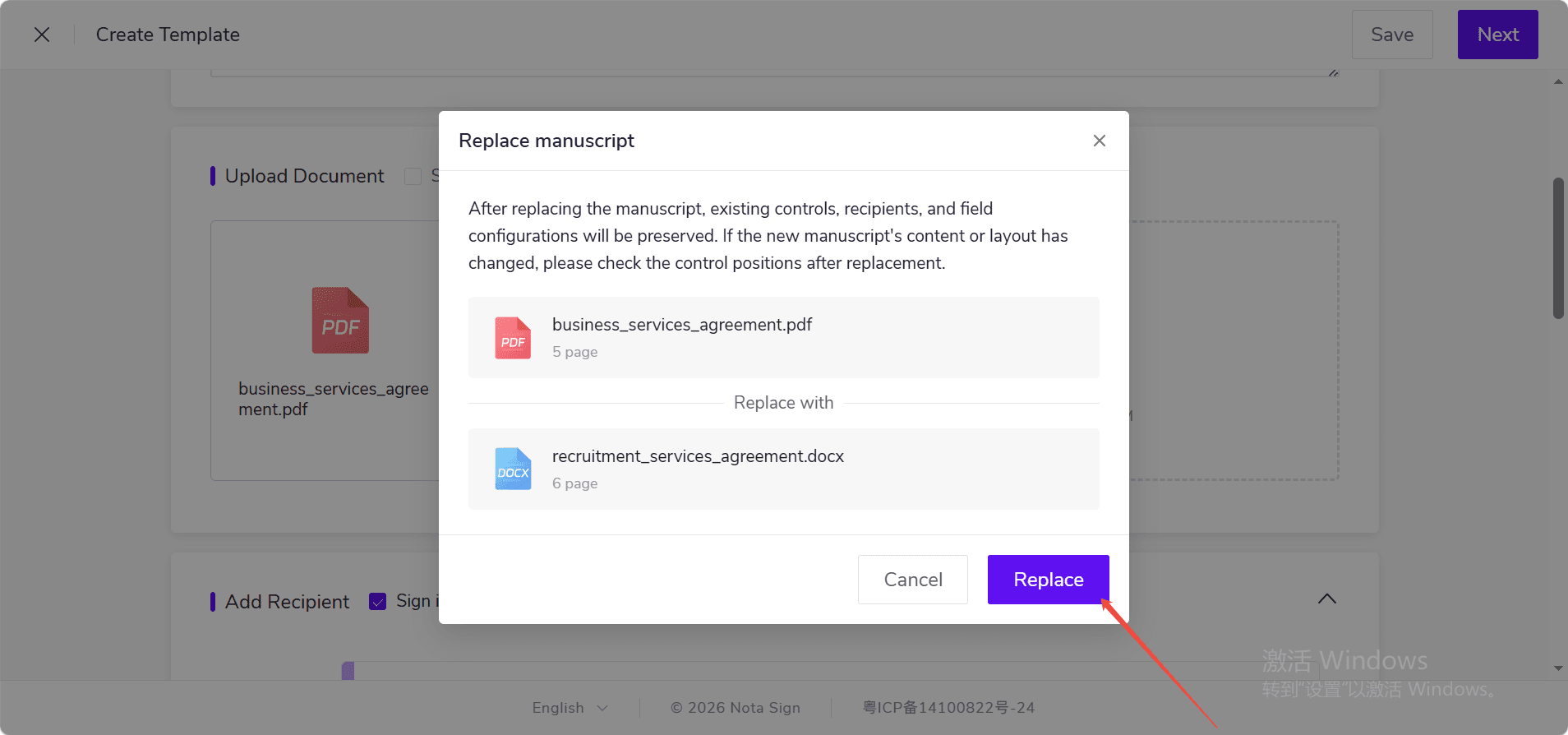
Note: If the template contains multiple documents, clicking 【Replace Source Document】 for a specific document will only replace that document and will not affect other documents.
2. What should you pay attention to after replacement?
After the replacement is completed, the original recipients, roles, signature fields, and field configurations will be retained.
However, if the content, page count, or layout of the new source document changes, the positions of the existing fields may no longer match the current document. It is recommended that you check the positions of signature fields, text fields, date fields, and other controls after replacement, and confirm everything is correct before saving or proceeding to the next step.
If the number of pages in the new source document is fewer than the last page where existing fields are located, the system will not be able to complete the replacement. You need to select another file that meets the requirements.
3. What should I do if the replacement fails?
If the replacement fails, you can handle it according to the prompts displayed on the page:
* If the file upload fails, please upload the file again; * If file parsing fails, check whether the file is corrupted and upload it again; * If file conversion fails, replace the file and upload it again; * If the new source document does not have enough pages, select a file with sufficient pages.
If you click 【Cancel】 in the confirmation dialog or close the dialog window, the replacement will not take effect. The original source document and existing configurations will remain unchanged.