
Video tutorial:
1. Step 2: Open the envelope
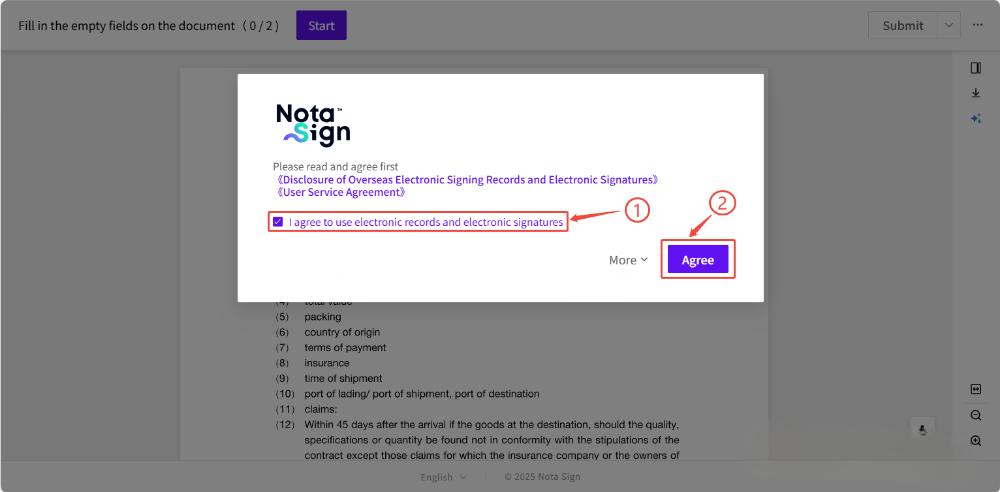
After the certificate application is successful, the system will display the relevant usage agreement;
-
Please carefully read the terms and check ‘Agree’ to confirm;
-
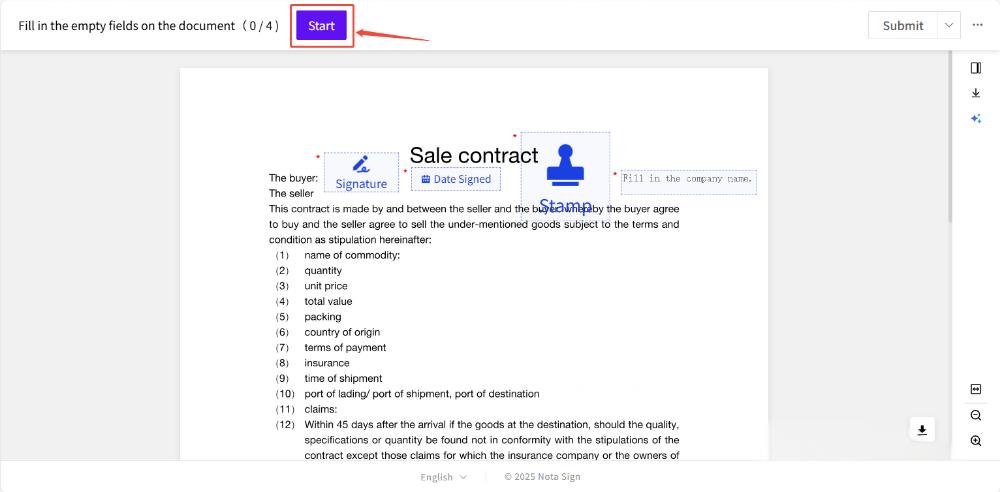
Click the [Start] button to enter the signing process.
2. Step 3: Fill in and sign
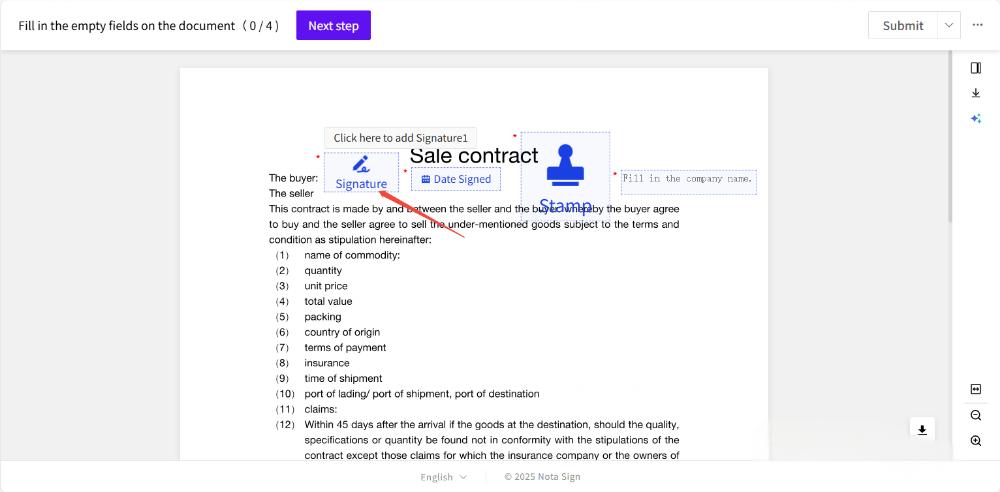
The system will guide you to complete the following control operations item by item:
-
-
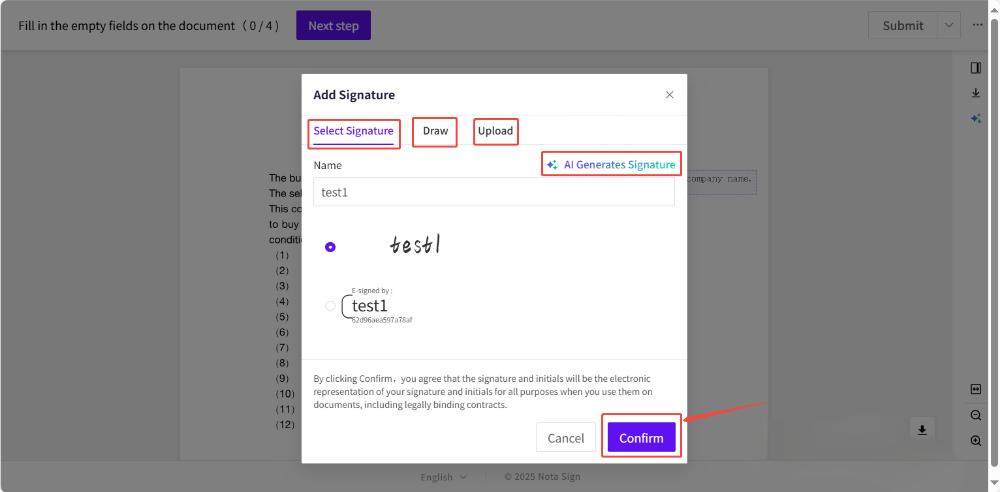
- Signature Control: * * After clicking the signature control, you can choose the following signature methods: system preset style, handwritten signature, upload signature file, AI generated signature;
-
-
-
- Date Control: * * After clicking, the system will automatically fill in the current date for recording the signing time;
-
-
-
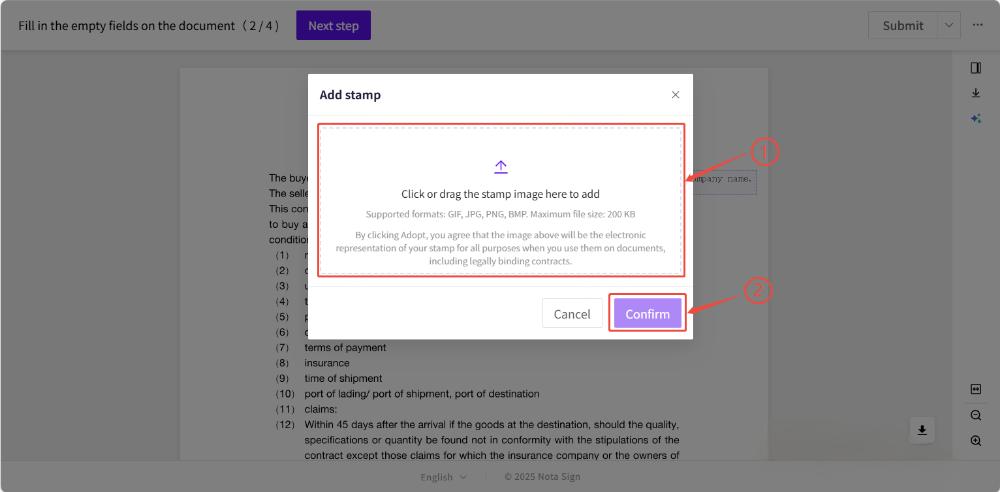
- Stamp Control: * * If you need to stamp a company or personal seal, please click on the control and upload a seal image file that meets the requirements;
-
-
-
- Text filling field: * * Used to fill in necessary information, such as name, address, number, etc. Please enter accurately according to the prompts;
-
-
-
- Check Block Control: * * Used to confirm or agree to terms, click to check.
-
-
-
- Image control: * * If you need to upload identity proof, business registration certificate, etc., please use the image control to upload content;
-
-
-
- Attachment Control: * * Used to upload supplementary documents related to signed files.
-
When using * * text to fill in field * *, the designated recipient must first complete the field before the signing process can continue. Please ensure that each recipient fills in the required fields completely to avoid delaying the overall signing process.
3. Step 4: Complete and submit for signature
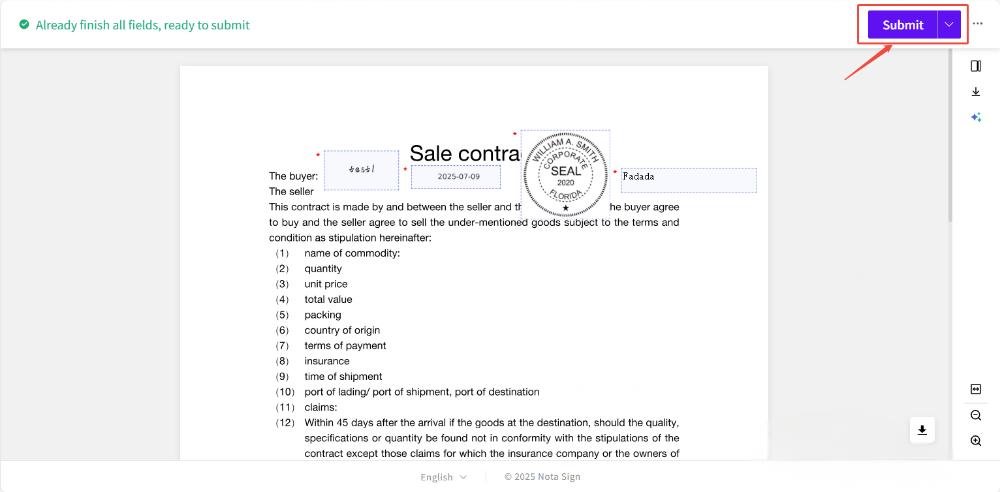
After completing all the controls, please click the ‘Submit’ button in the upper right corner of the page, and the system will automatically send out and complete the entire signing process.
After the signing is completed, both you and the initiator will receive an email notification of the completion of the signing, and you can view the signing record at any time on the [Signing] page.