
When signing documents on your phone, you can sign them by handwriting. If your name is long, you can also move the canvas left and right to get more writing space.
1, Enter handwritten signature
Click on the signature control on the signature page, select ‘Hand drawn Signature’, and enter the handwritten signature page.

2, How to sign
- Slide the canvas with two fingers and write a signature with one finger. During the writing process, you can click the arrow in the lower right corner to return to the previous step, or click the button in the upper right corner to preview the signature. After completing the writing, click [Finish] and the signature will appear in the signed document.
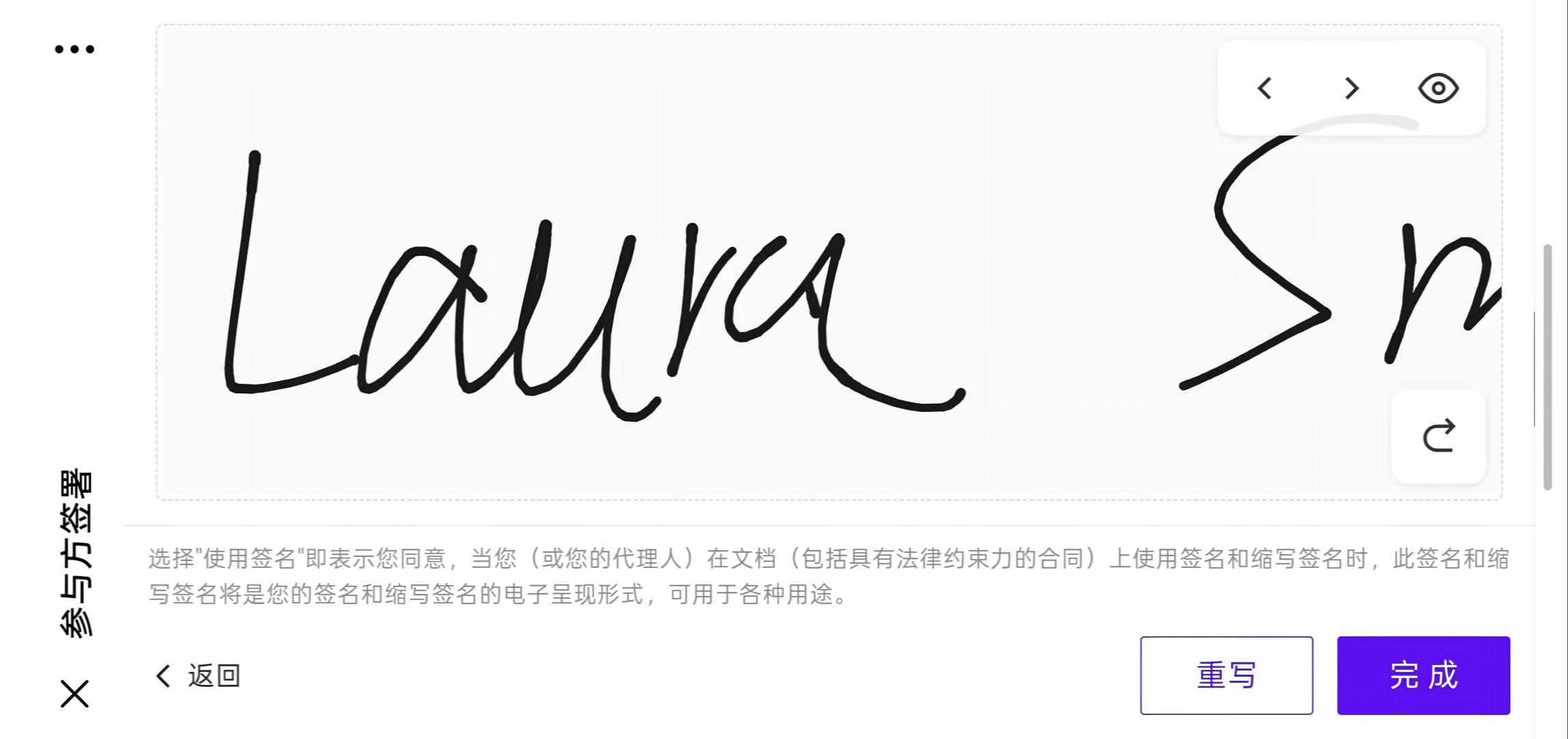
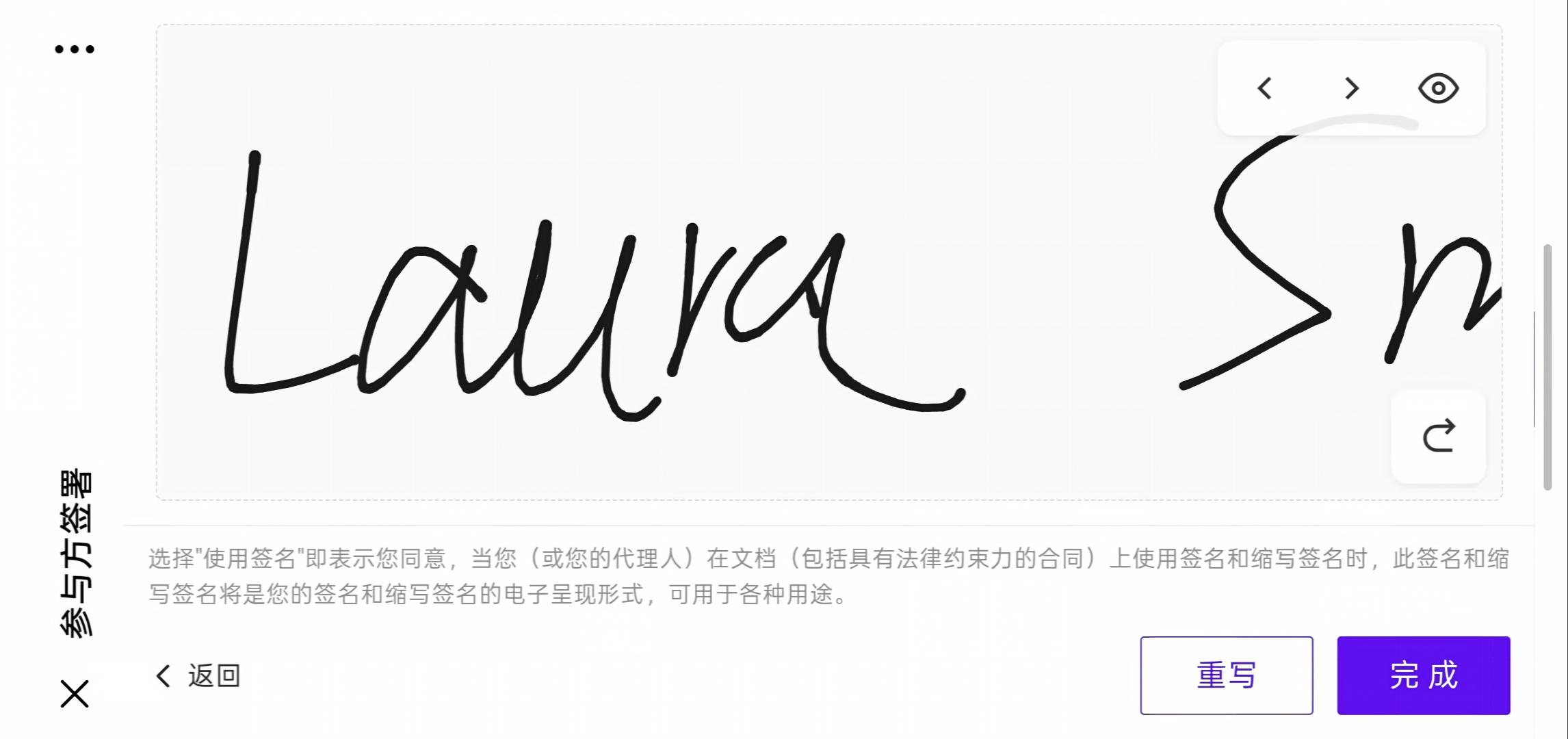
If you are not satisfied with the signature, click [Rewrite] to clear and rewrite it.
3, Precautions
-No matter where you write on the canvas, clicking ‘Finish’ will generate a signature based on the real handwriting -When touching the canvas with one finger, it is in writing mode. Sliding with two fingers will trigger the page to scroll left and right