
After the administrator sends the invitation, members can add the workspace by sending the invitation link via email.
Video tutorial:
1, Add new member
1) Administrators need to complete the following operations
- Log in to the Nota Sign workbench, click on [Management] - [Member Management];
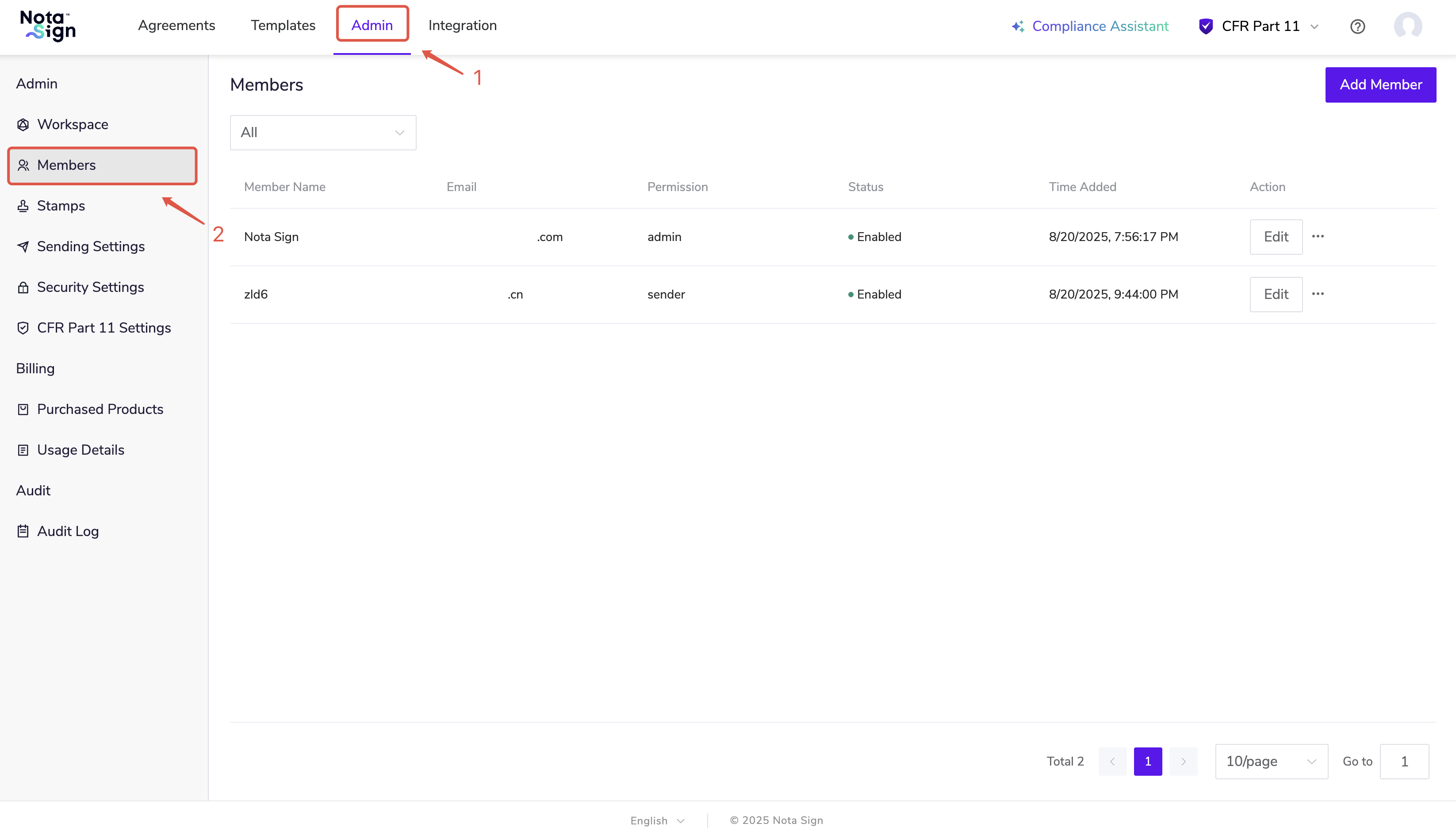
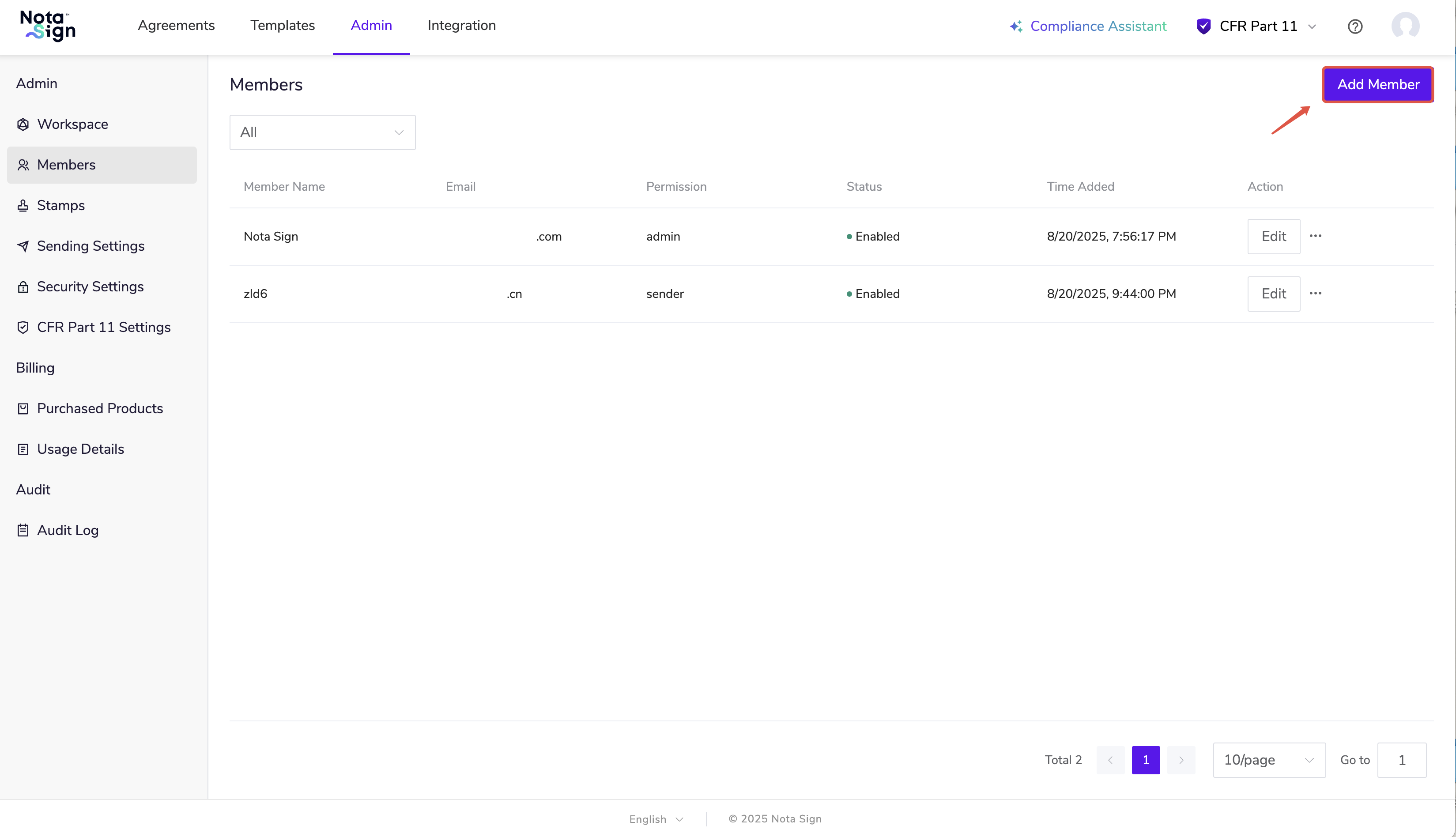
- On the member management page, click the “Add Member” button in the upper right corner to start inviting new members.
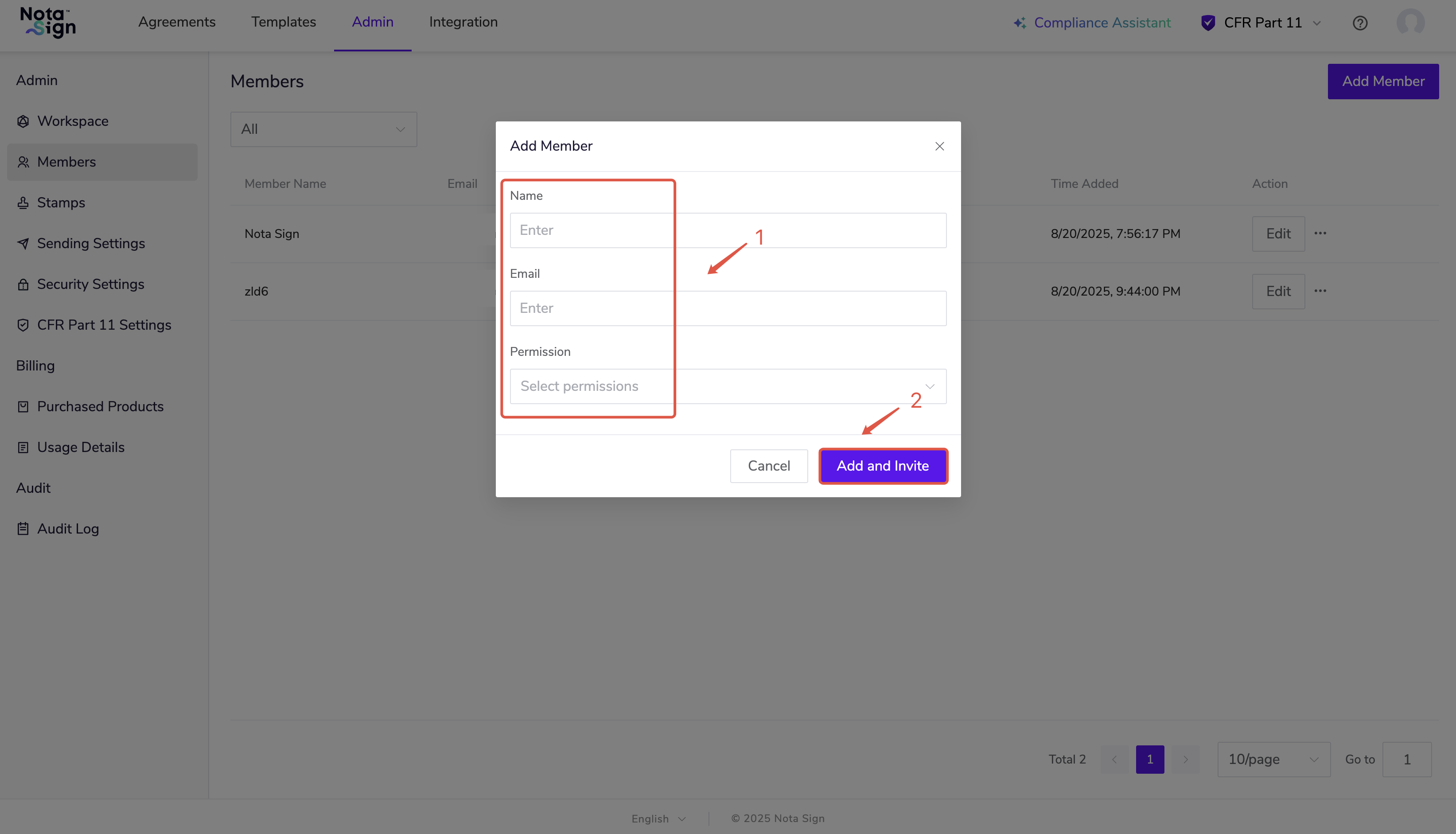
- In the pop-up invitation window, fill in the following information:
-Member names
-Email address (please confirm that it is filled in correctly, as it will be the only proof of receiving the invitation)
-Role permissions (see below for details)
Permission Role Description
-Administrator: * * has full control permissions, including: managing workspace members, viewing purchased products, viewing product usage, viewing audit logs, managing integrated applications, etc;
-Sender: * * has permission to send signing requests and use templates, but does not have access to member management and integrated configuration functions.
2) Members need to complete the following operations
- The invited user’s email will receive an email titled ‘Nota Sign Space Account Activation’.
Click on ‘Activate Now’ in the email, and the system will guide you to the activation page.
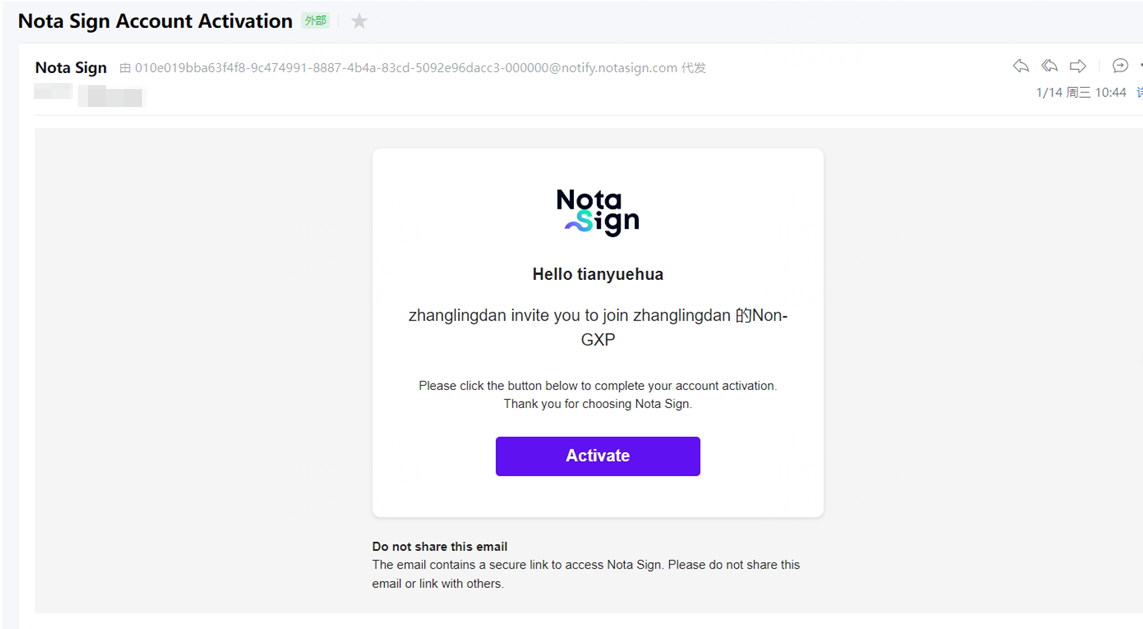
- Click continue to complete the activation operation
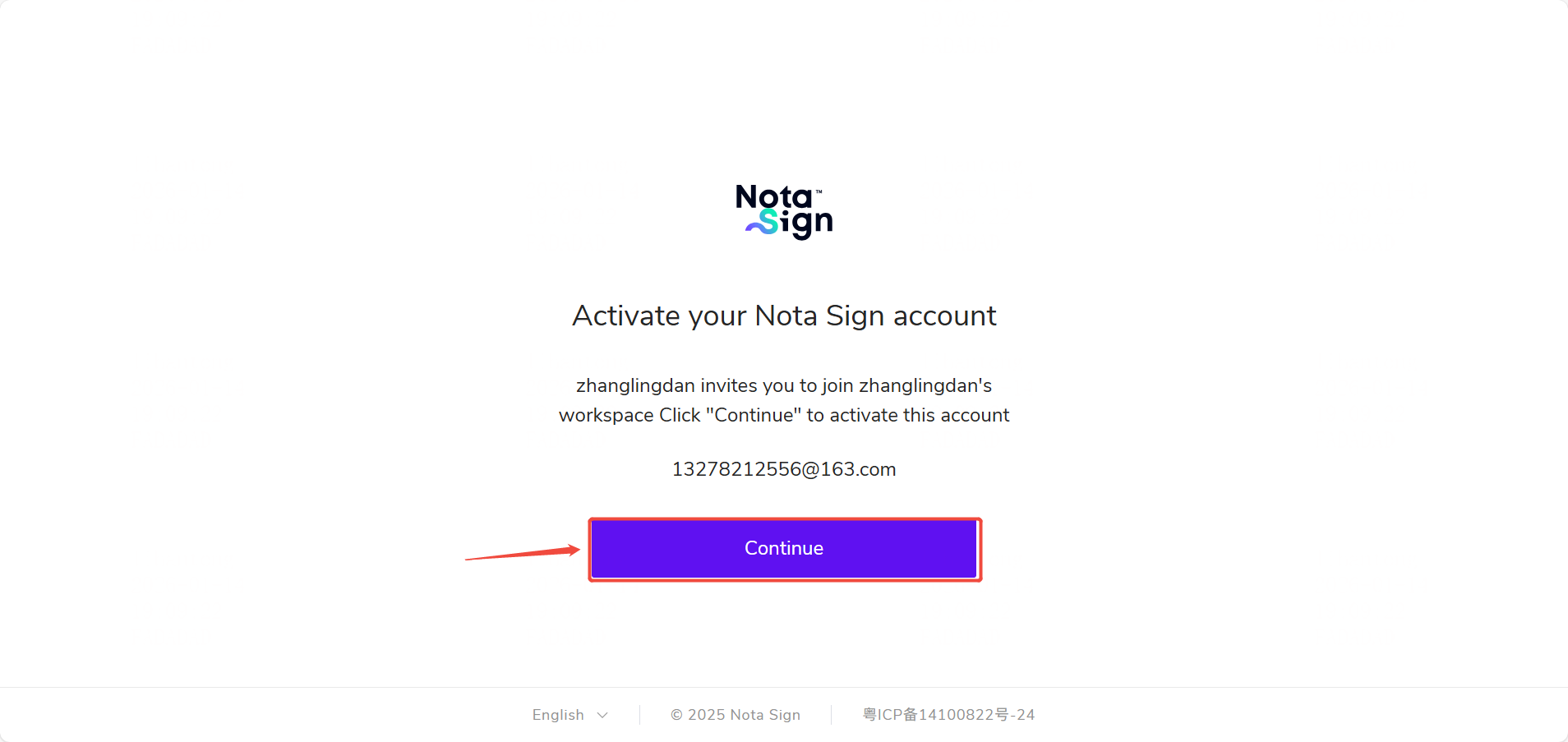
- Select operation based on registration status
**If you already have a Nota Sign account * *:
(1) Enter your account password to log in.
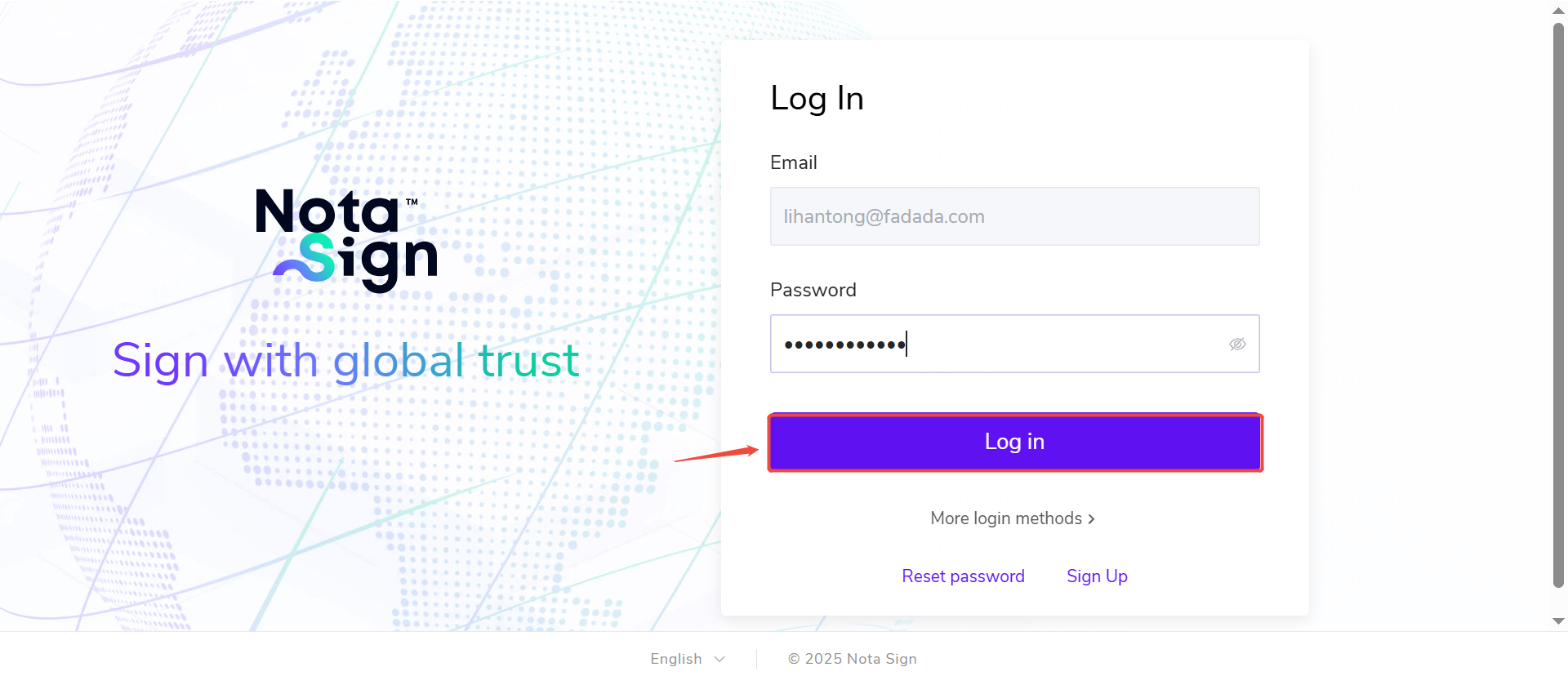
(2) After successful login, you will directly enter the invitation space.
**If not registered * *:
(1) Email verification (OTP): Enter the verification code for verification.
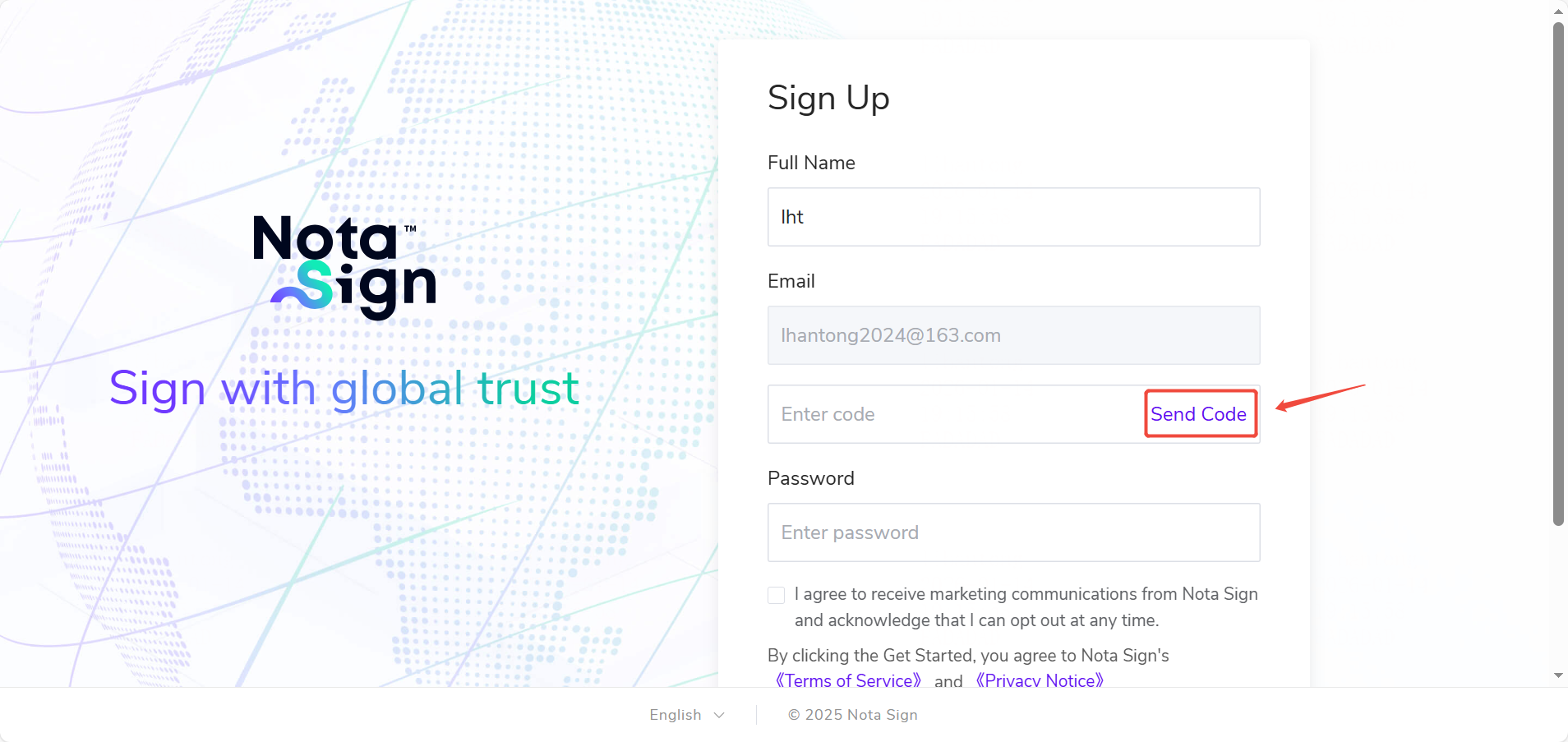
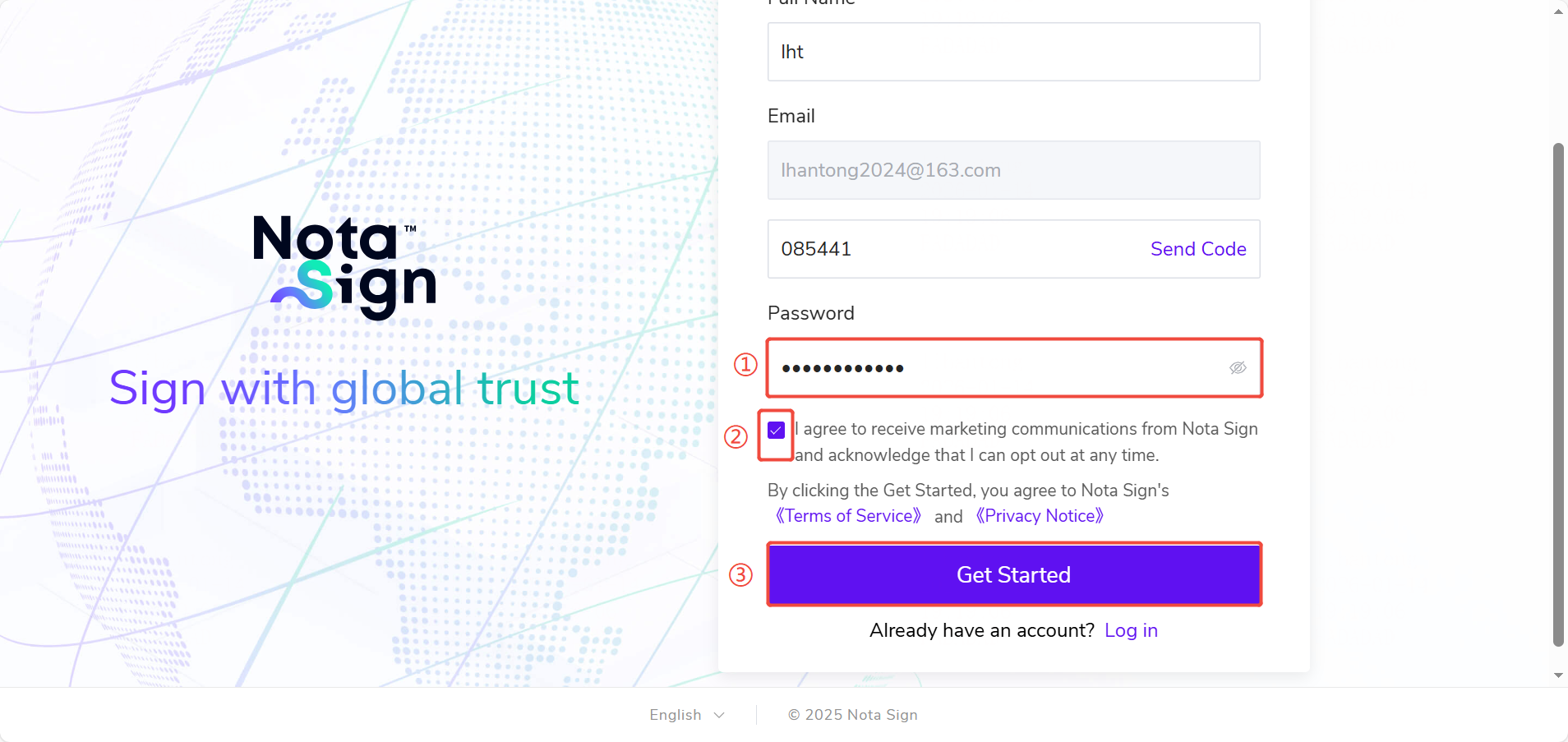
(2) Set personal information and password
(3) Complete activation: Click “Start Now” and directly enter the corresponding invitation space.
2, Batch import members
When you already have member data from other system platforms or need to add a large number of members at once and want to keep their original settings information, you can use batch import to quickly complete it.
Operation steps:
-
Log in to the Nota Sign workbench;
-
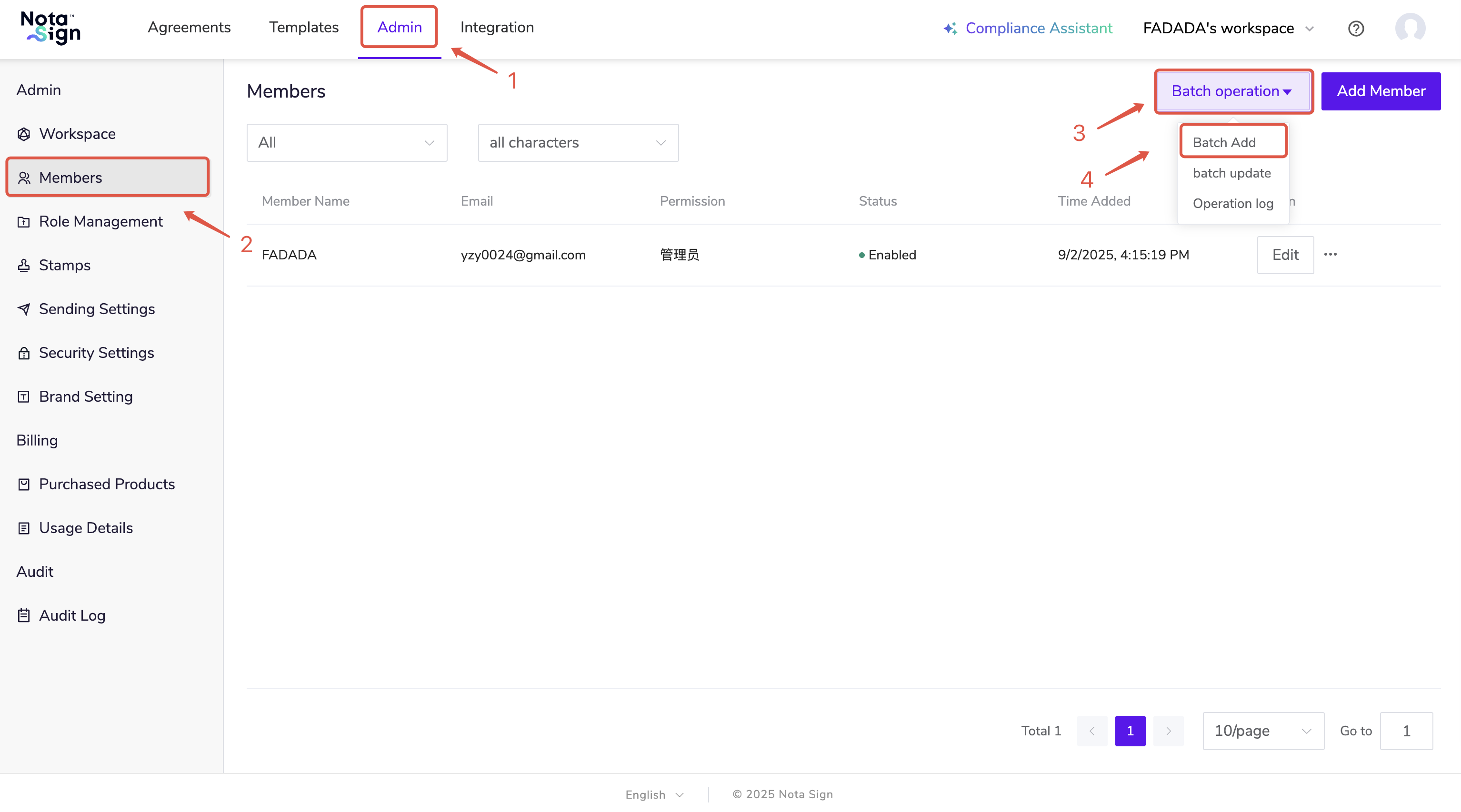
Click on [Management] - [Member Management] - [Batch Operation], and select [Batch Add];
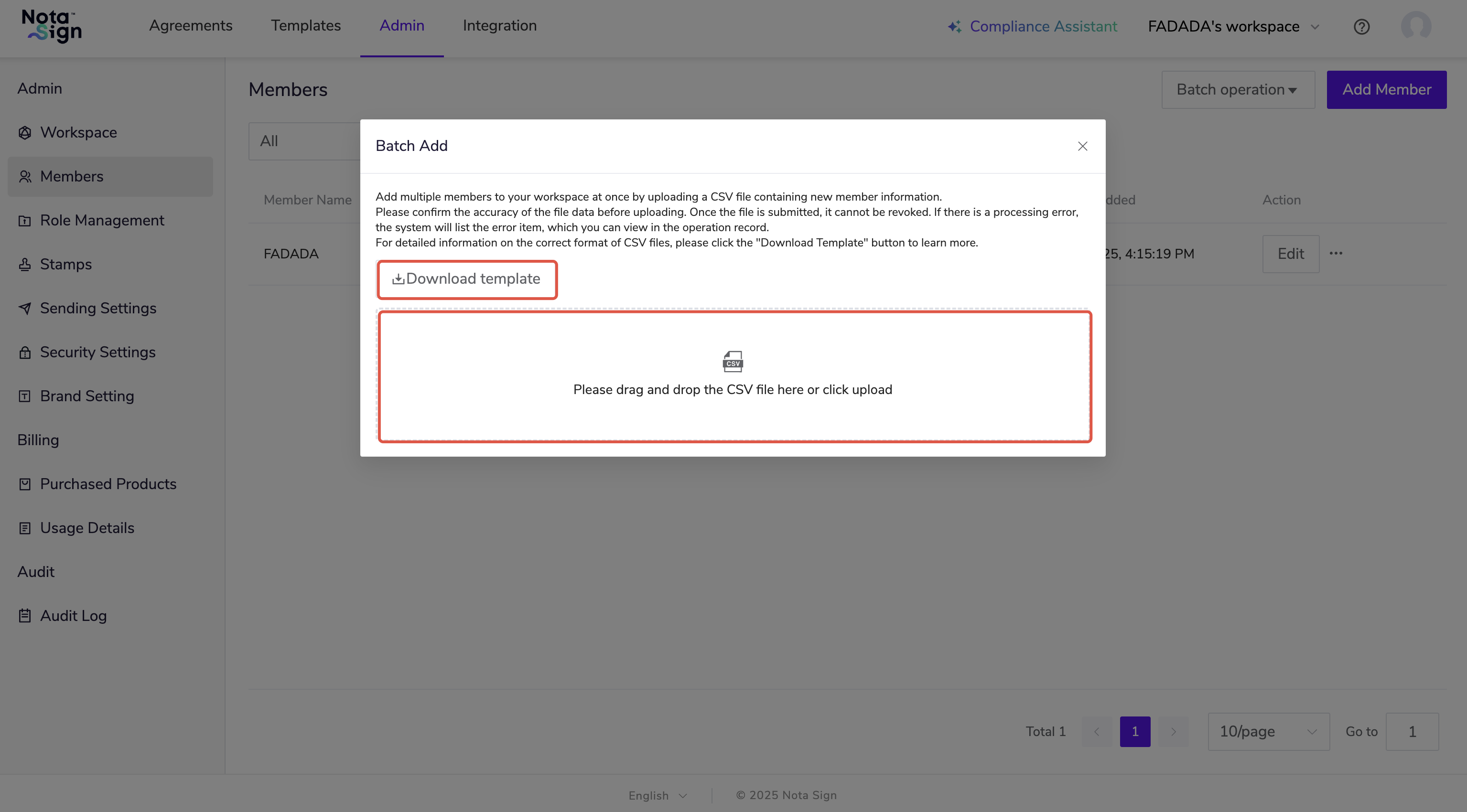
- Drag and drop or click to upload CSV format files, and click to download templates;
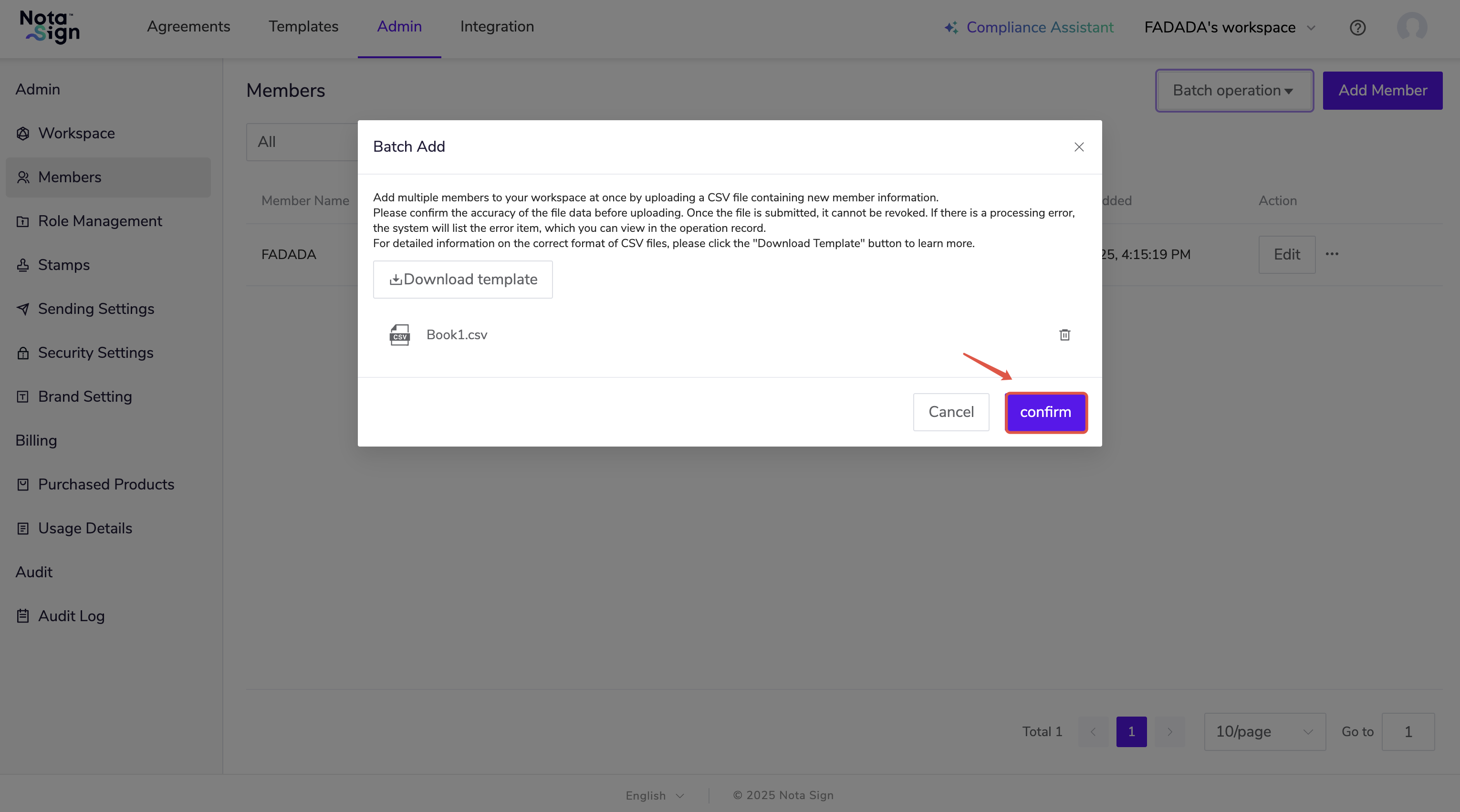
- Click [OK] to import.
- Members need to complete the corresponding activation operations