
1. Feature Overview
CFR envelopes support the use of electronic seals (eSeal) for stamping. Administrators can manage electronic seals in the GxP workspace and enable the electronic seal feature. After configuration, senders can add electronic seal participants and place electronic seal controls when creating CFR envelopes.
When an electronic seal is applied, the system will perform the corresponding GxP verification in accordance with the existing CFR Part 11 signing process, and record the signing reason and related signing information.
2. Step-by-Step Instructions
2.1 Managing Electronic Seals
1. Log in to Nota Sign and enter the corresponding GxP workspace;
2. Click [Manage] → [Electronic Seals] to enter the electronic seal management page;
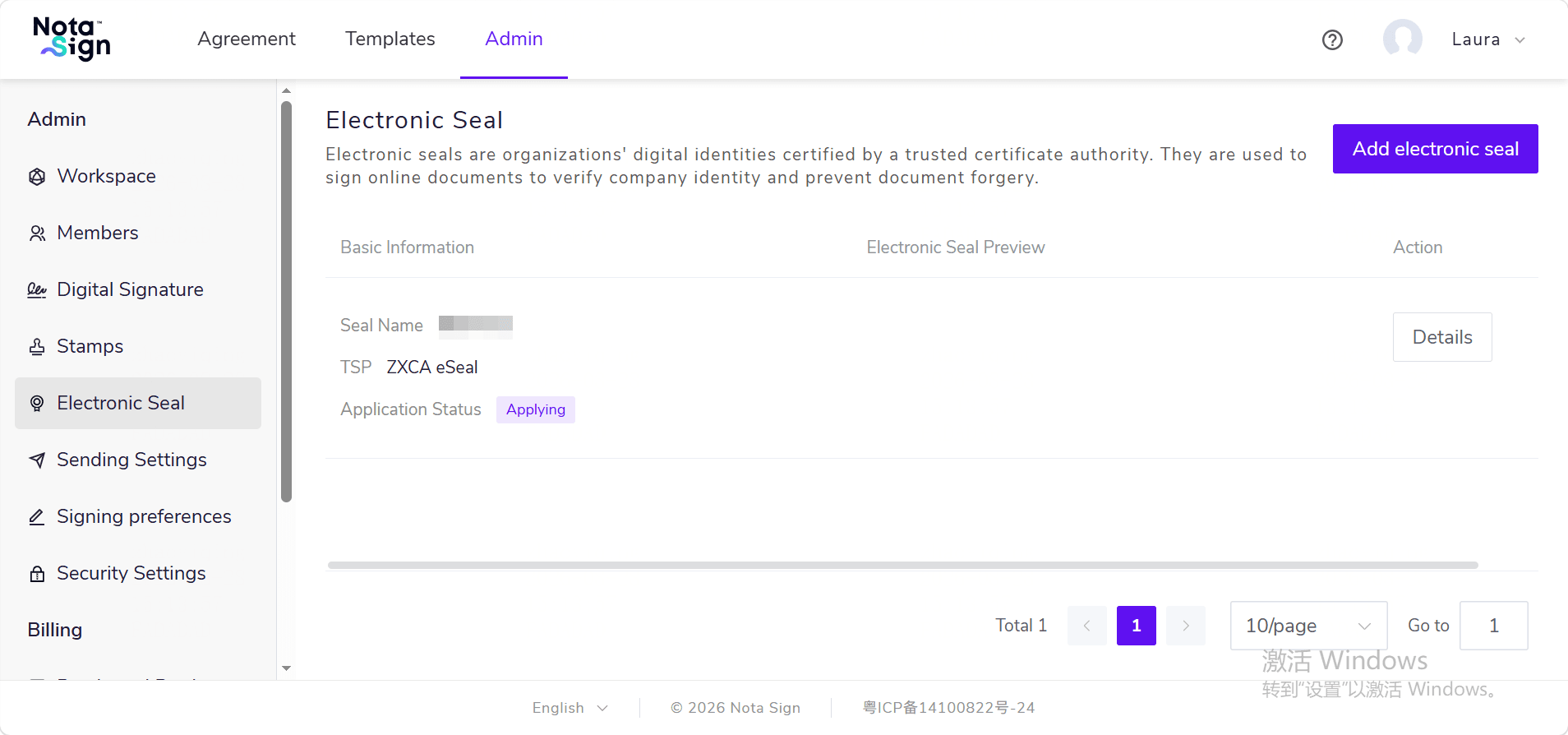
3. Complete the application, binding, and seal user management for electronic seals according to actual business needs.
If there are already available electronic seals in the workspace, you can use them directly without creating new ones.
The application, binding, and seal user management for electronic seals follow the existing electronic seal functionality.
2.2 Enabling the Electronic Seal Feature
1. Click [Manage] → [Sending Settings] → [Control Settings];
2. Locate [Enable Electronic Seal] and turn on the feature.
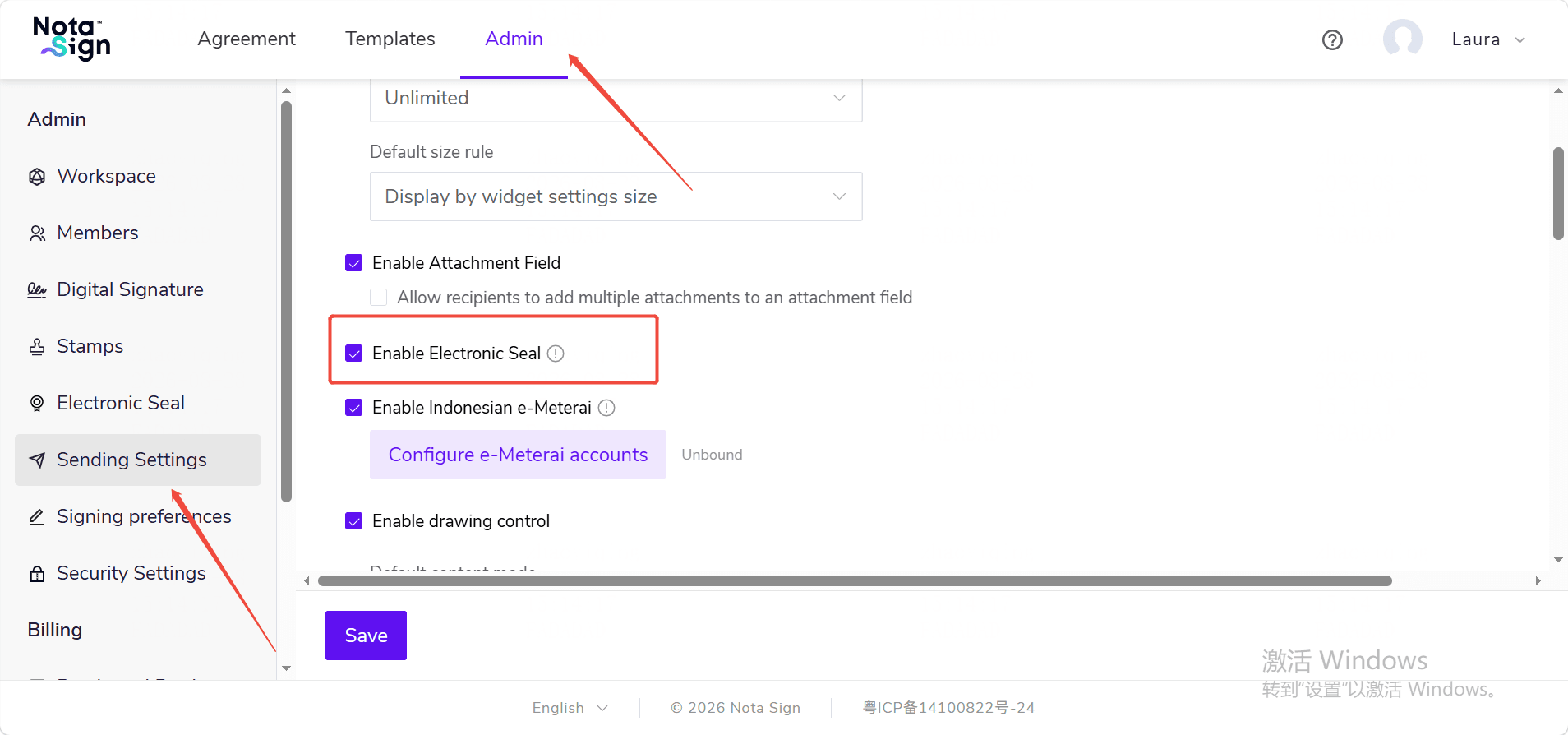
After enabling:
- When creating a CFR envelope, the [Add Electronic Seal] entry will be displayed;
- Senders can add electronic seal participants to the envelope;
- After entering the control settings page, senders can add an [Electronic Seal] control for the electronic seal participant.
If [Enable Electronic Seal] is turned off, electronic seal participants cannot be added when creating or editing CFR envelopes. Existing electronic seal participant and control data already saved in templates, batch send tasks, and other scenarios will not be deleted.
2.3 Configuring Electronic Seal Signing Preferences
To configure signing preferences related to electronic seals:
1. Click [Manage] → [Signing Preferences];
2. Locate the electronic seal-related settings;
3. Complete the configuration according to actual business needs and save.
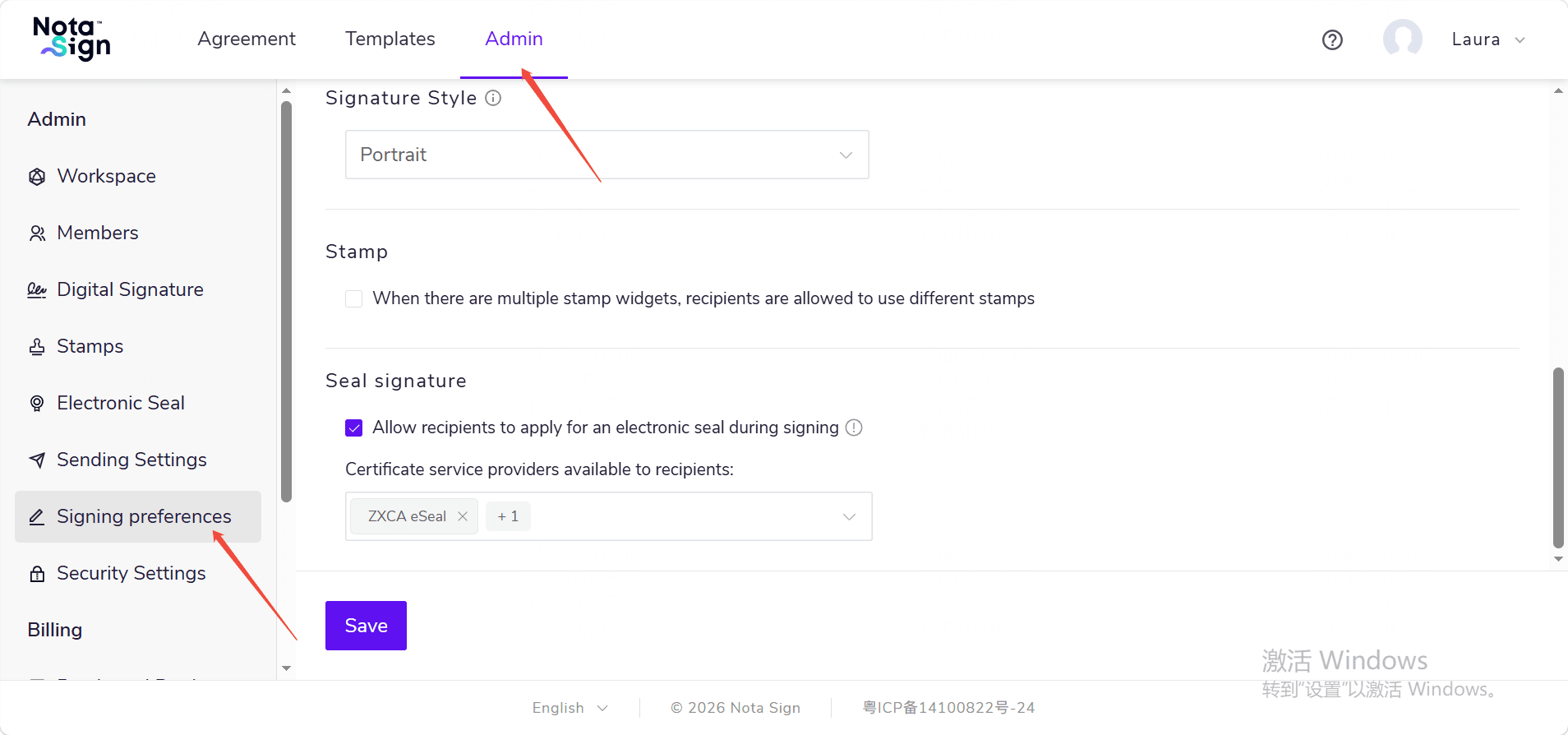
After completing the above configuration, senders can add and use electronic seals in CFR envelopes.