
When the sender allows recipients to change their name, you can adjust your name during the signing process according to the actual situation. If the sender does not allow name changes, you must use the recipient name filled in by the sender to complete signing. If this name does not match your ID document name, you may need to contact the sender for assistance.
I. When Can You Change Your Name
Whether you can change your name depends on the sender’s settings when sending the envelope.
Generally, if the name input field on the page is editable, it means you can modify your name. If the name input field is not editable, it means the current envelope does not allow you to change your name.
If you have already completed identity verification, the system will use the name that passed verification, and the name cannot be modified thereafter.
If you are unsure whether you can change your name, please refer to the actual display on the signing page.
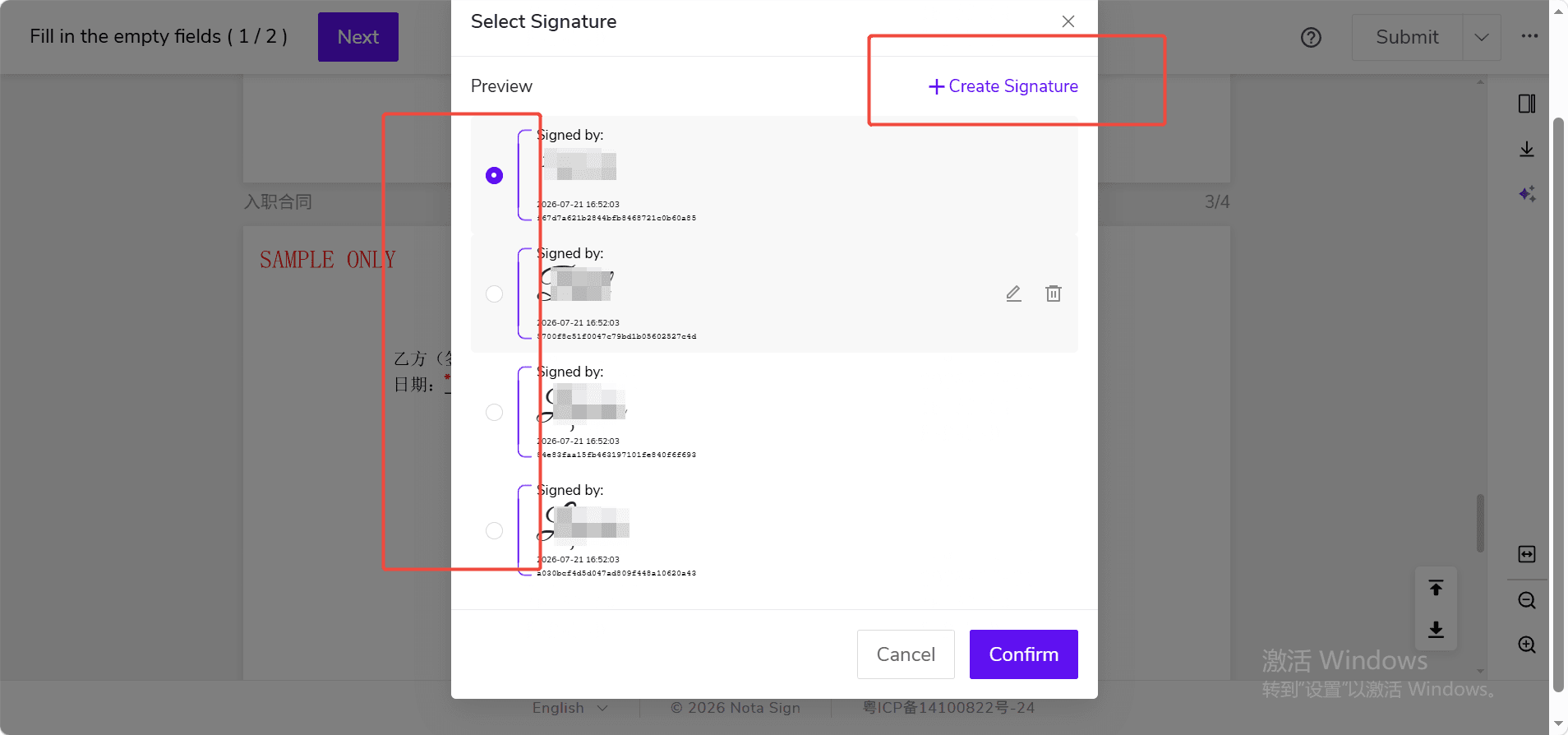
II. Changing Your Name When Adding or Selecting a Signature
When you click on a signature control in the document, the system will open a pop-up for adding or selecting a signature. You can choose an existing signature or add a new one.
III. Changing Your Name During Identity Verification
If the envelope requires you to complete identity verification, the system will guide you to the identity verification page. You will need to confirm your name, country/region, ID type, and other information, and complete the verification as prompted.
1. Open the signing task and enter the identity verification page;
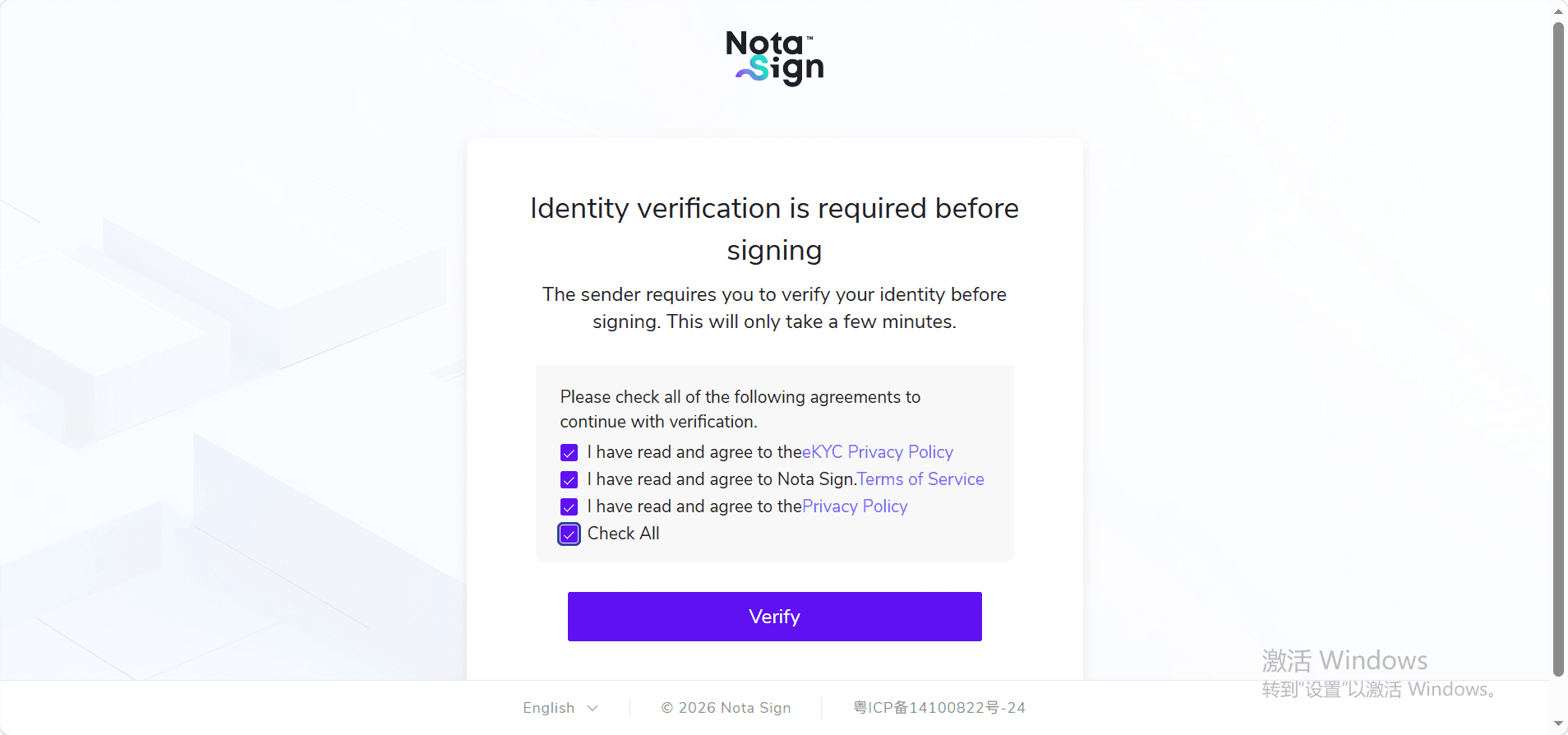
2. Check the name in the name input field. If the name input field is editable, it is recommended to fill in the name that matches your ID document. If the name input field is not editable, please use the name displayed on the page to proceed;
3. Select the country/region and ID type;
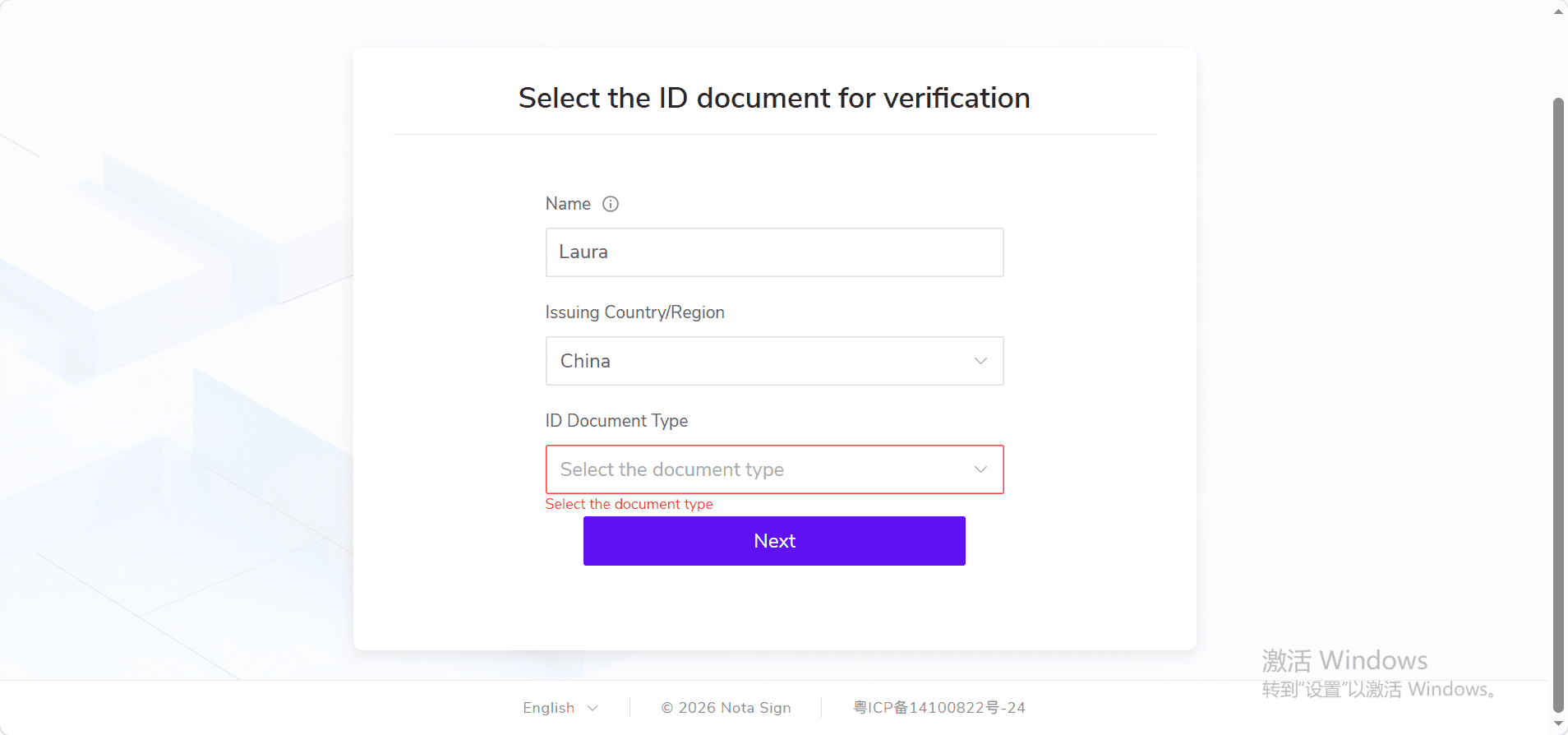
4. Click [Next];
5. Complete identity verification as prompted on the page.
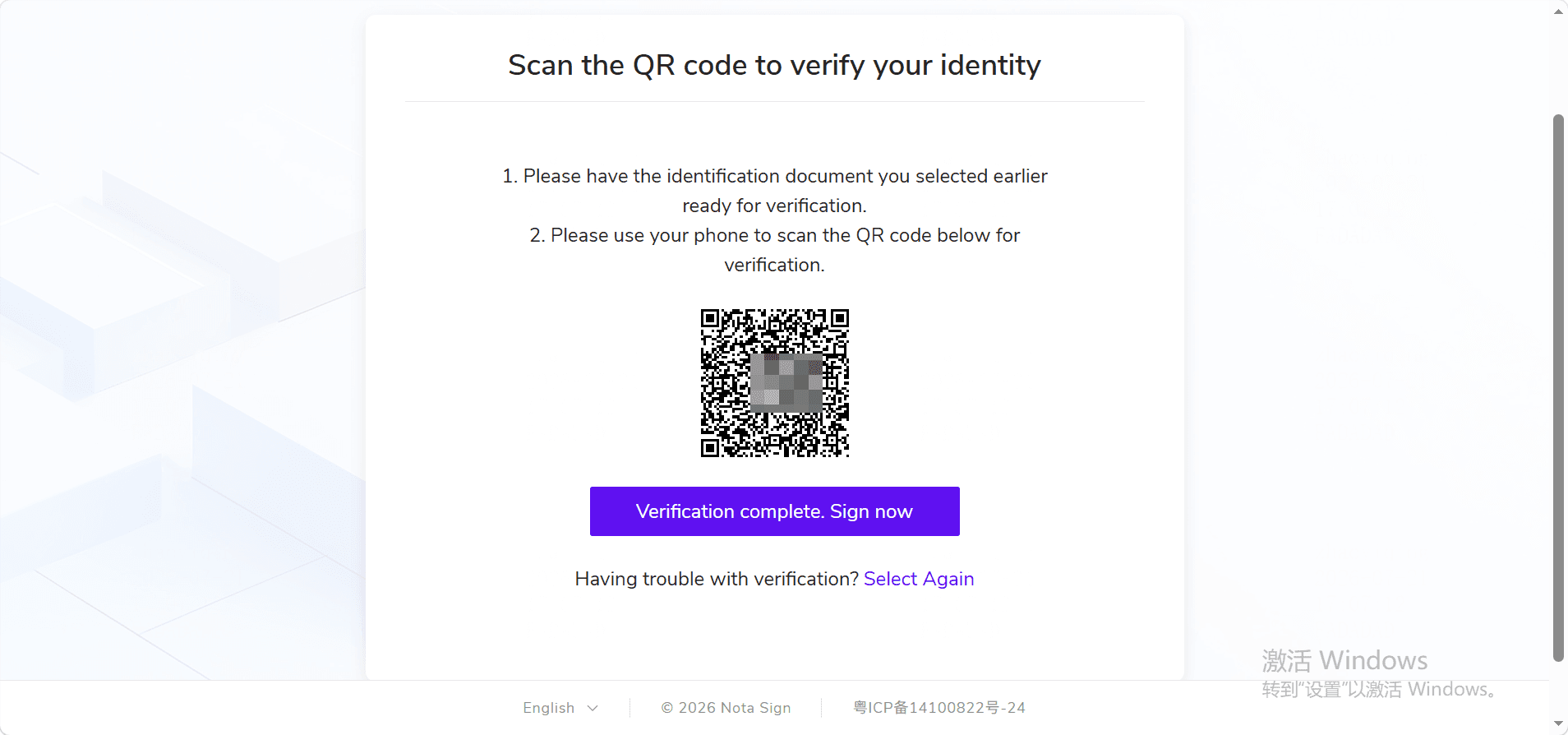
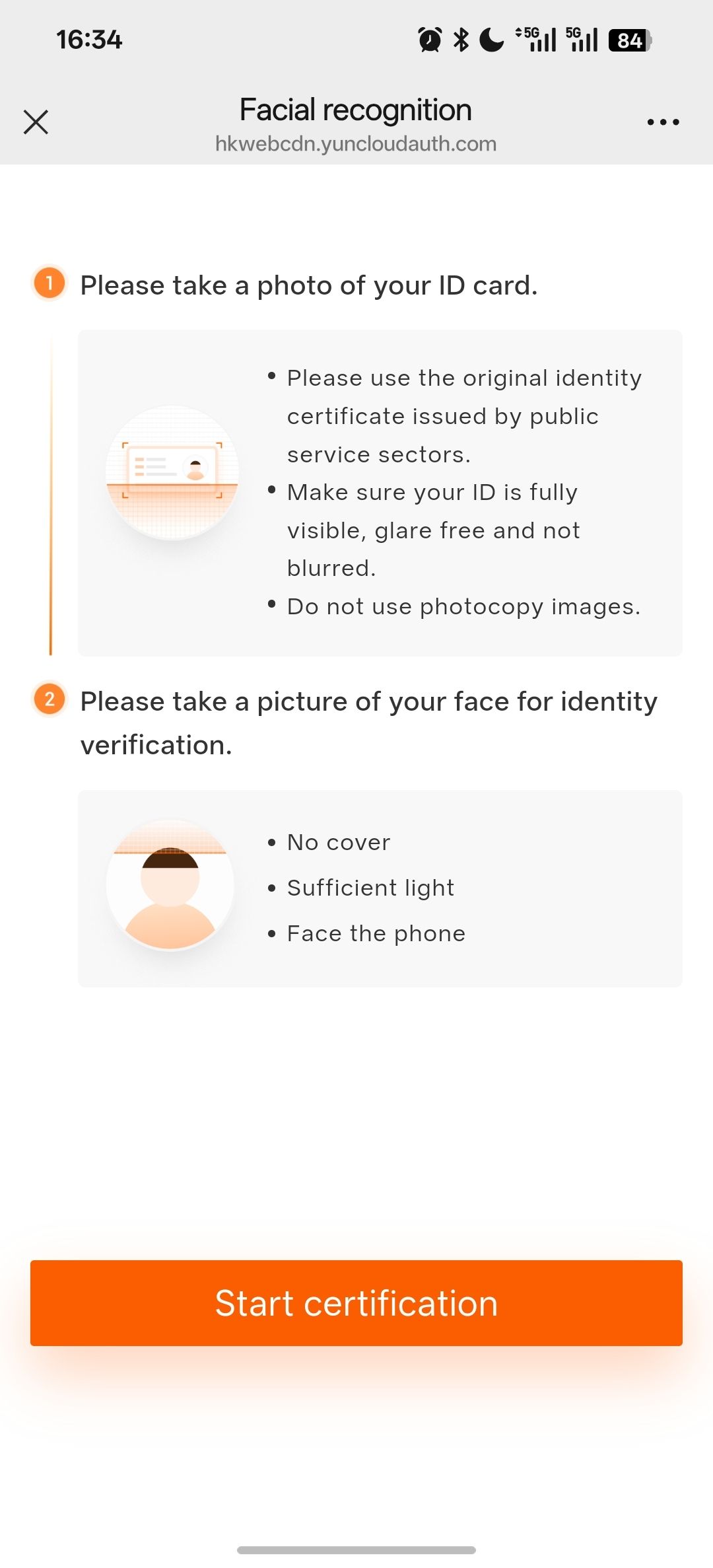
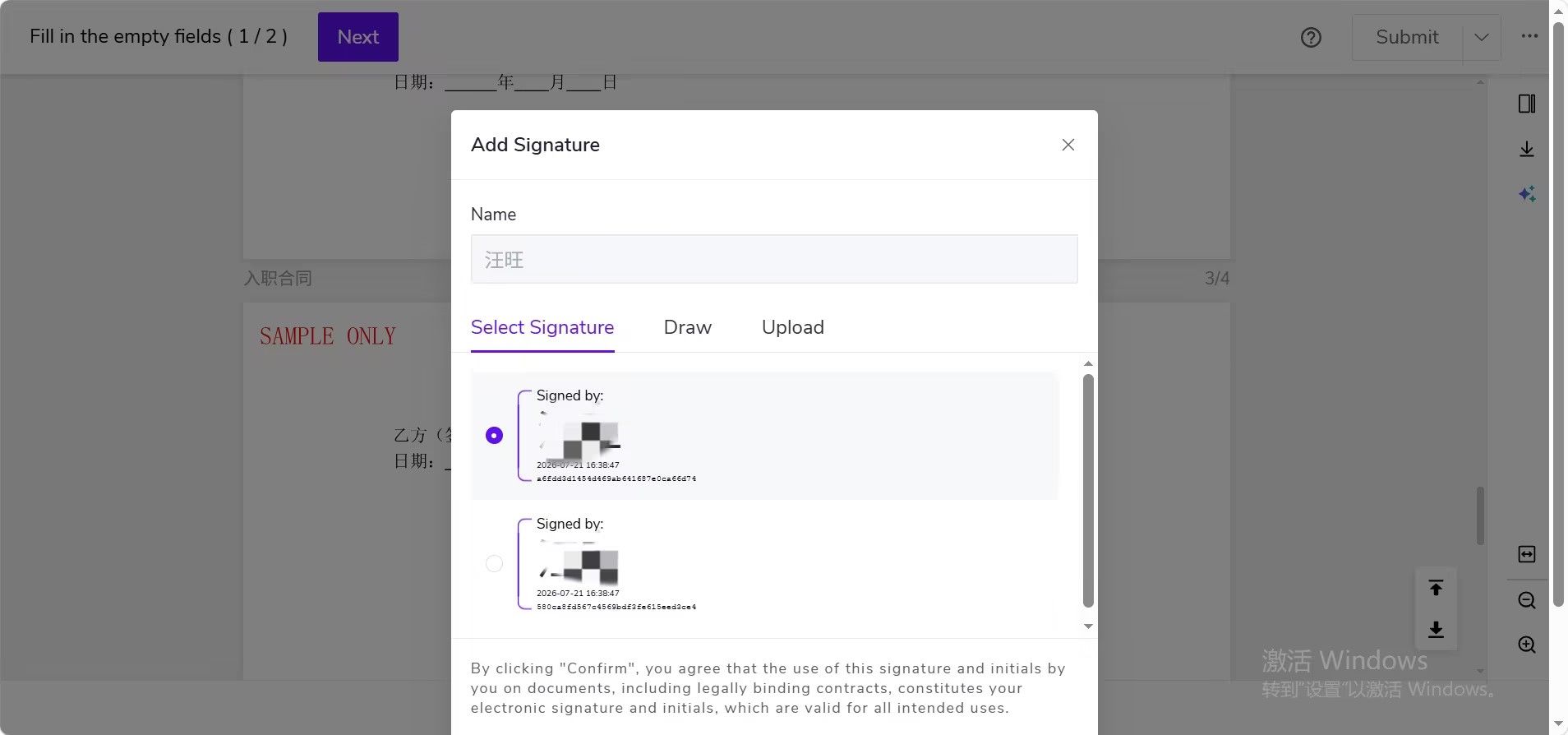
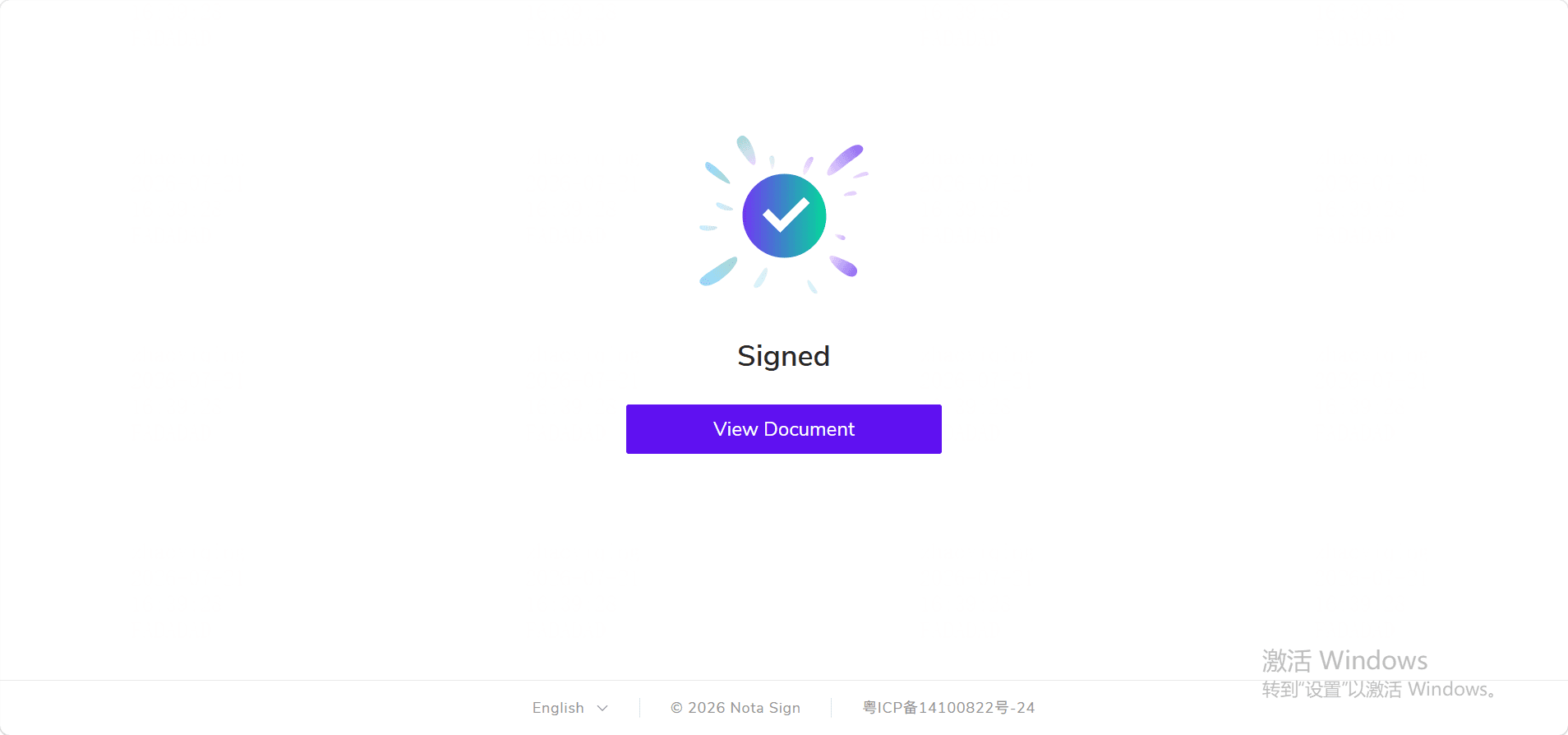
After identity verification is completed, the system will compare the ID document name with the current recipient name. If they match, you can proceed with signing.
If the system indicates that the names do not match, the page will display the following prompt:
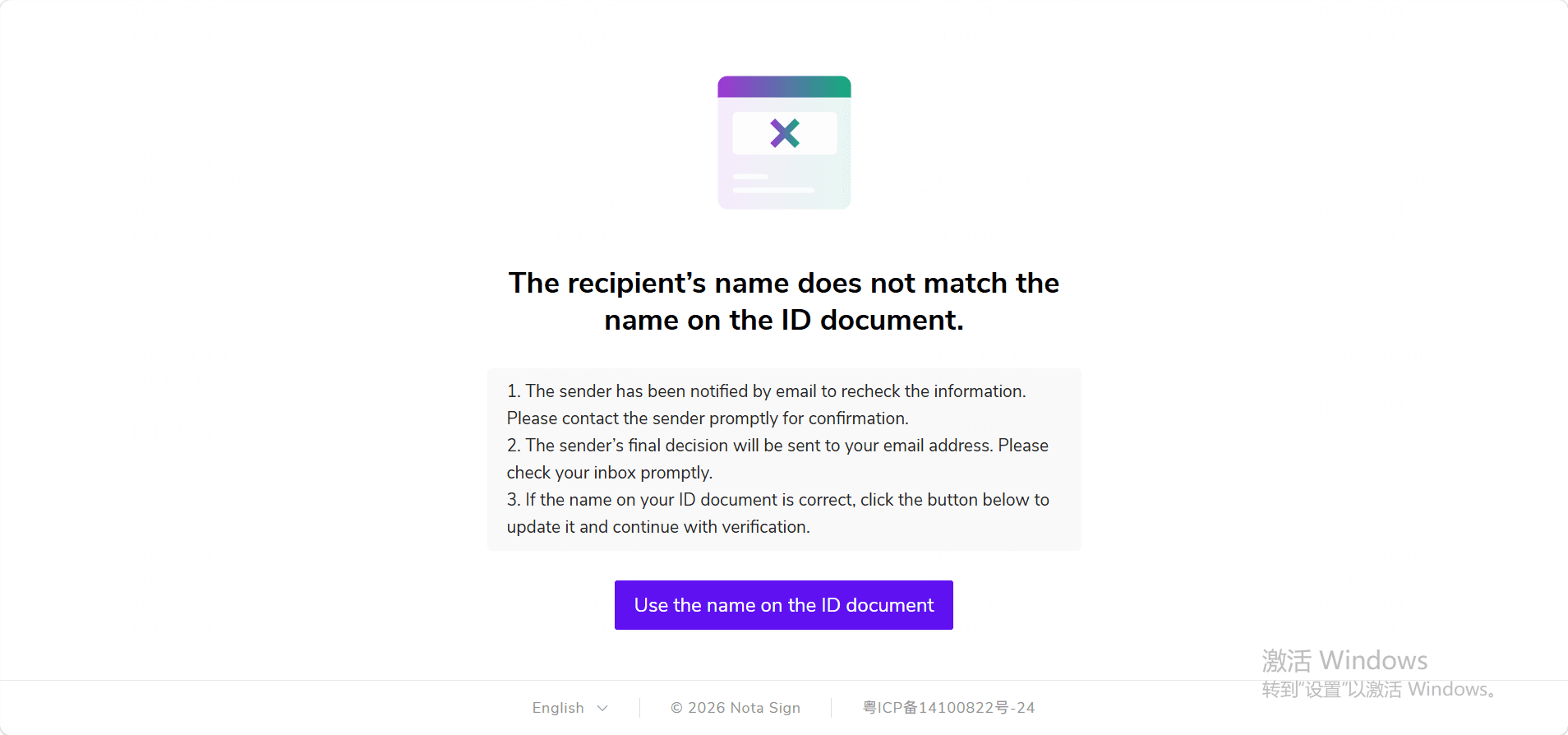 You can click [Use ID Document Name] and continue with signing.
If the page only indicates a name mismatch but does not provide a button to update the name, it means the current envelope does not allow you to change your name. In this case, you will need to contact the sender for assistance. After the sender takes action, you can reopen the signing task and continue:
- If the sender has updated the recipient name, you can proceed with signing;
- If the sender requires re-verification, you will need to re-enter the identity verification process;
- If the sender has not yet taken action, you will remain on the name mismatch page and temporarily cannot proceed with signing.