I. Initiating a Digital Signature Envelope
- Log in to the Nota Sign workspace, go to [Sign] - [Initiate], and select [Initiate Envelope];
- Upload the documents to be signed;
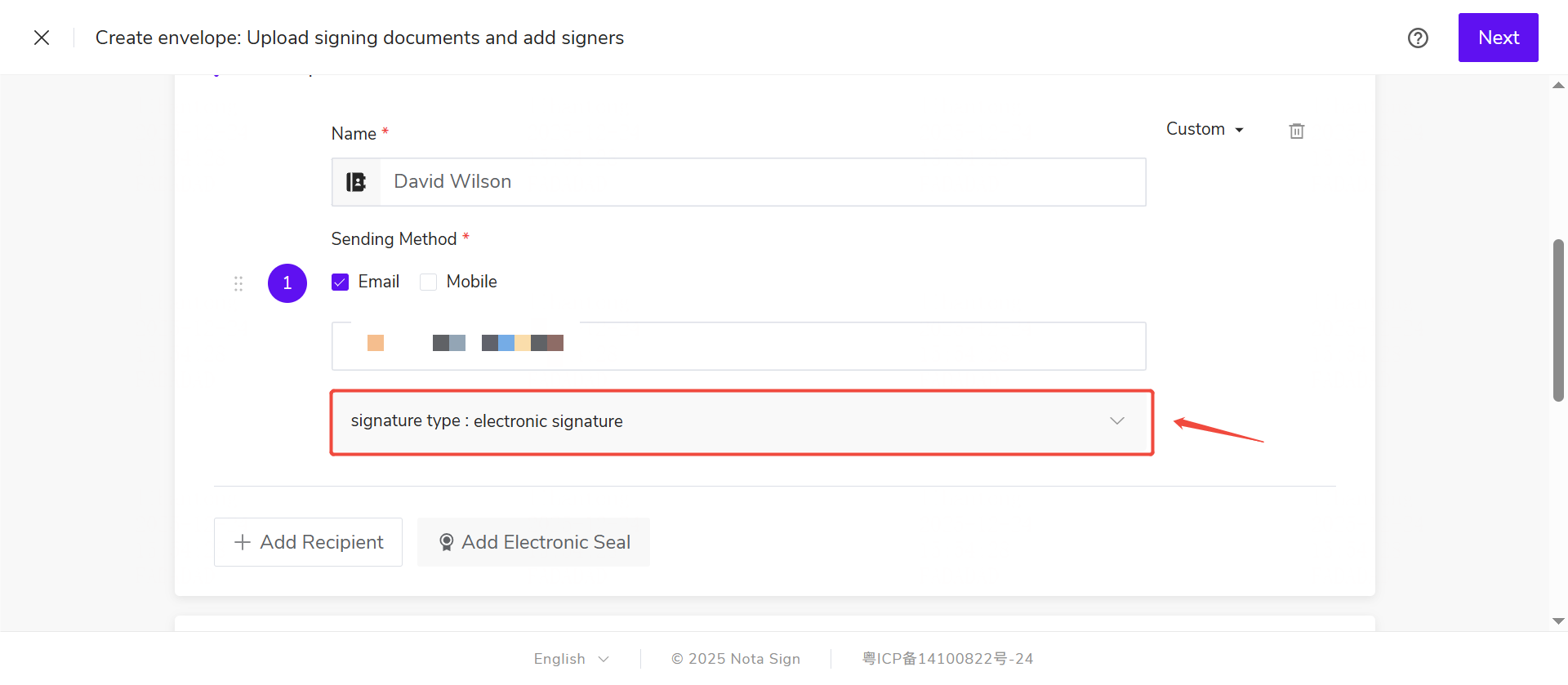
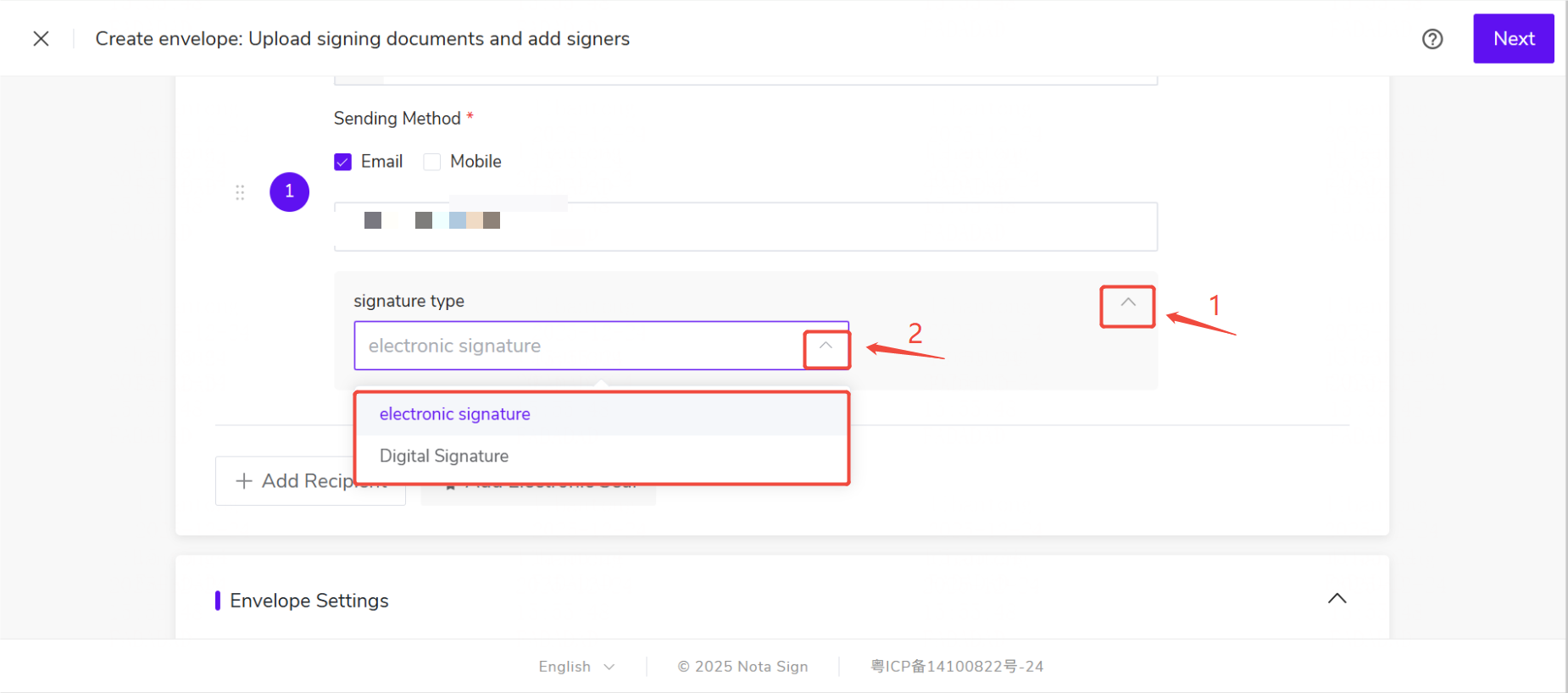
- Add recipient information and select [Digital Signature] as the signature type;
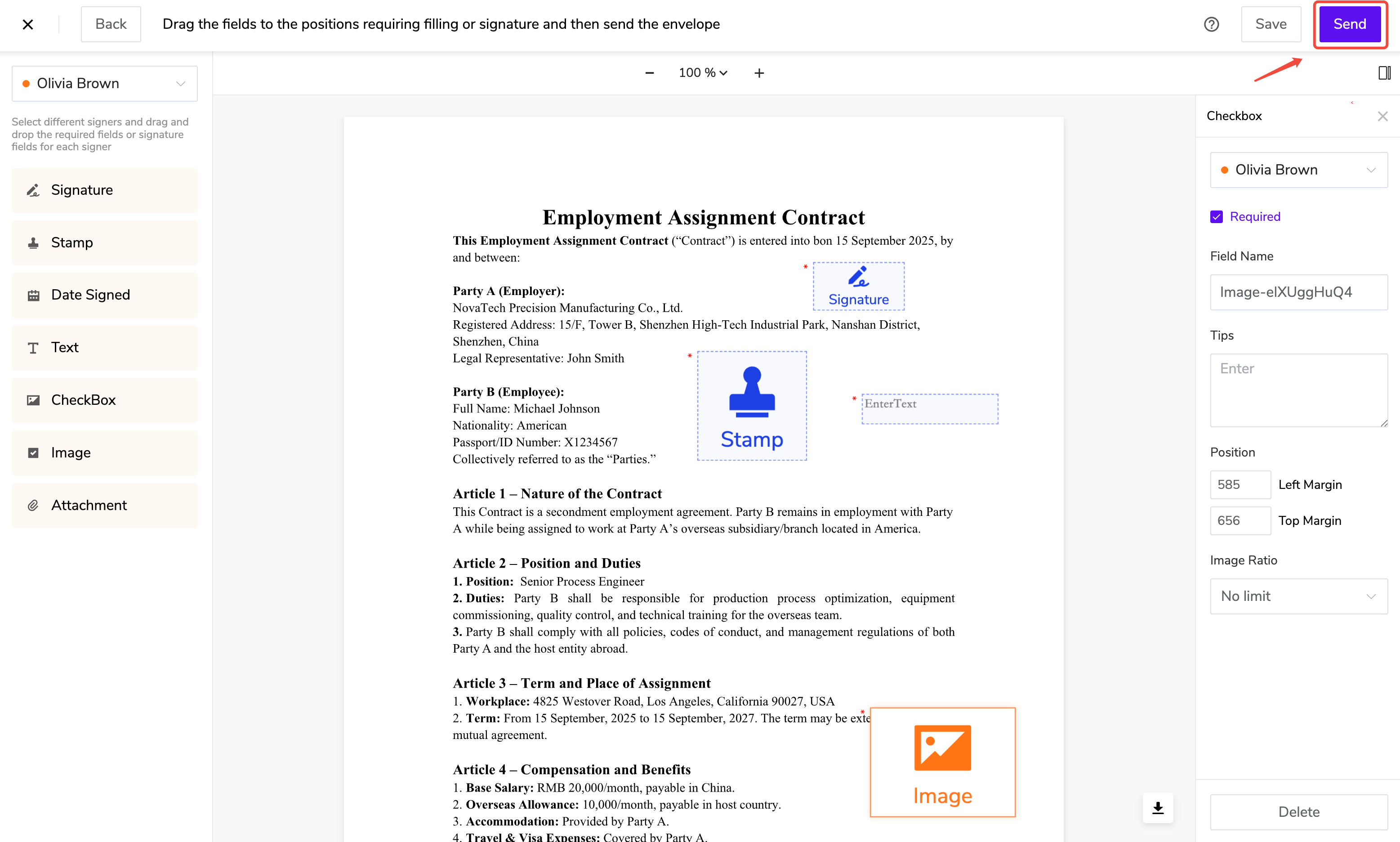
- After completing the signing control settings, click [Send] to send the envelope.
II. Configuring FPT Digital Signature
If the workspace has subscribed to the FPT digital signature service, senders can specify that recipients use FPT Digital Signature for digital signing when sending envelopes.
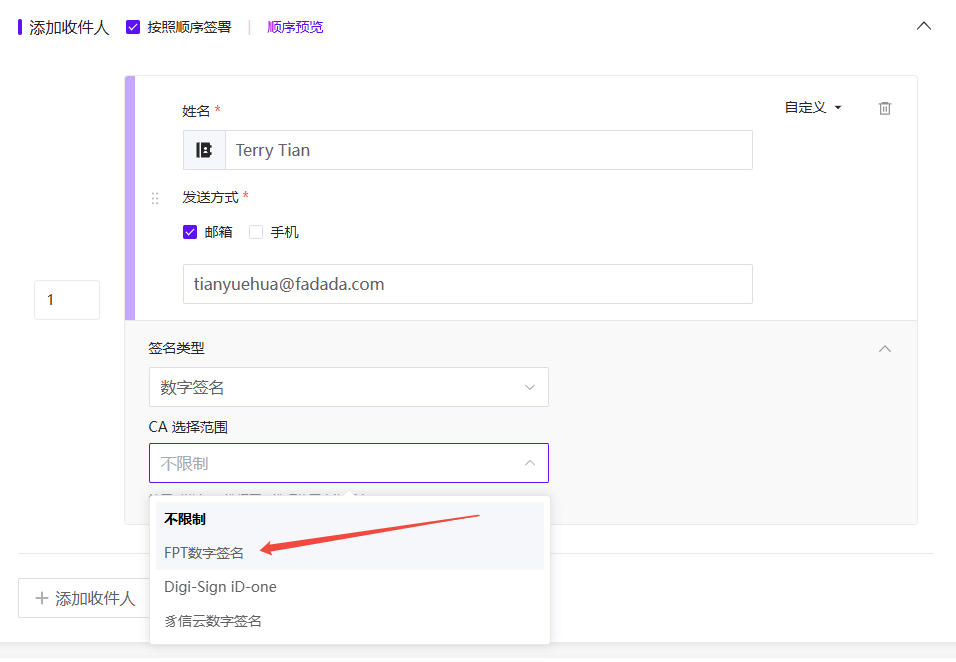
III. Configuring Singpass Digital Signature
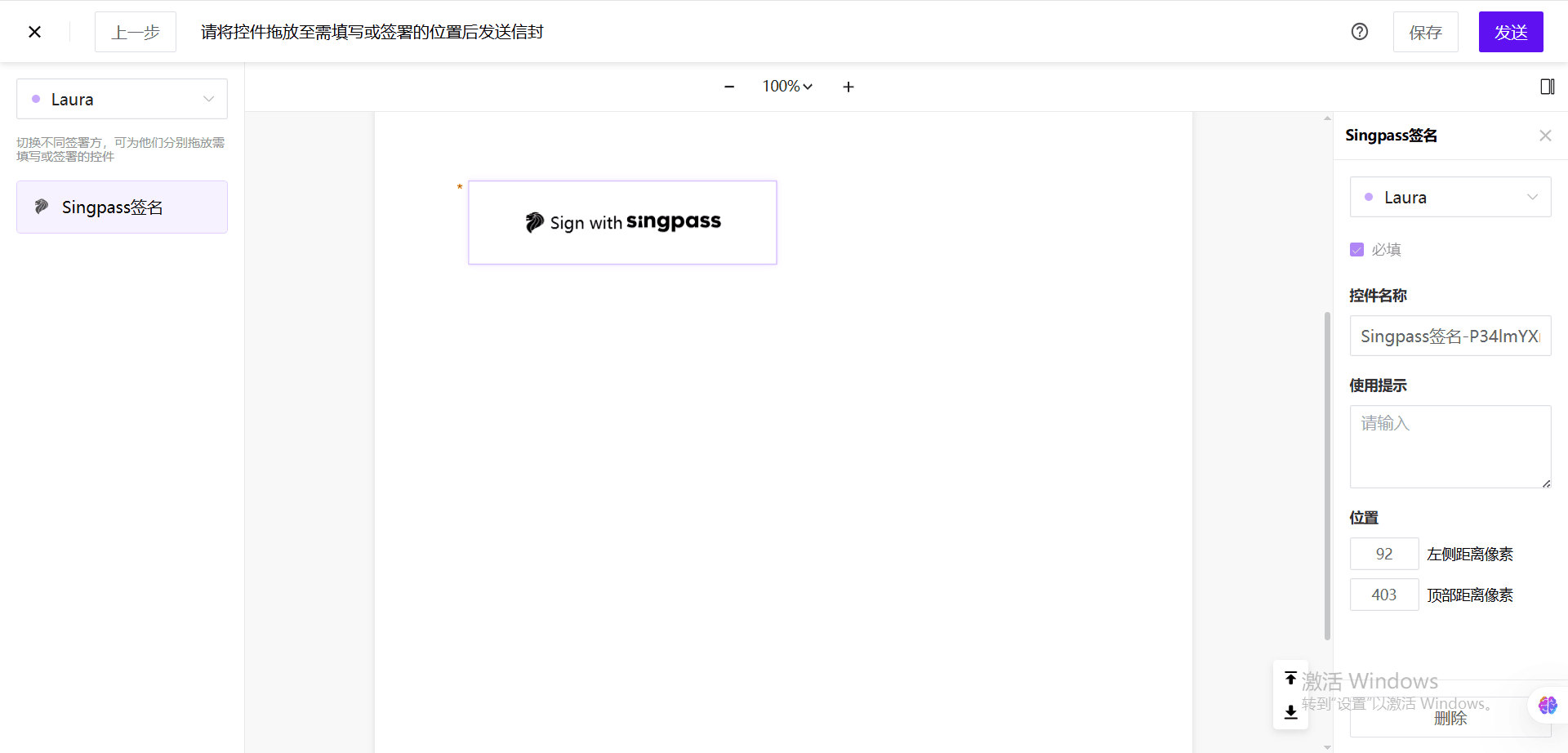
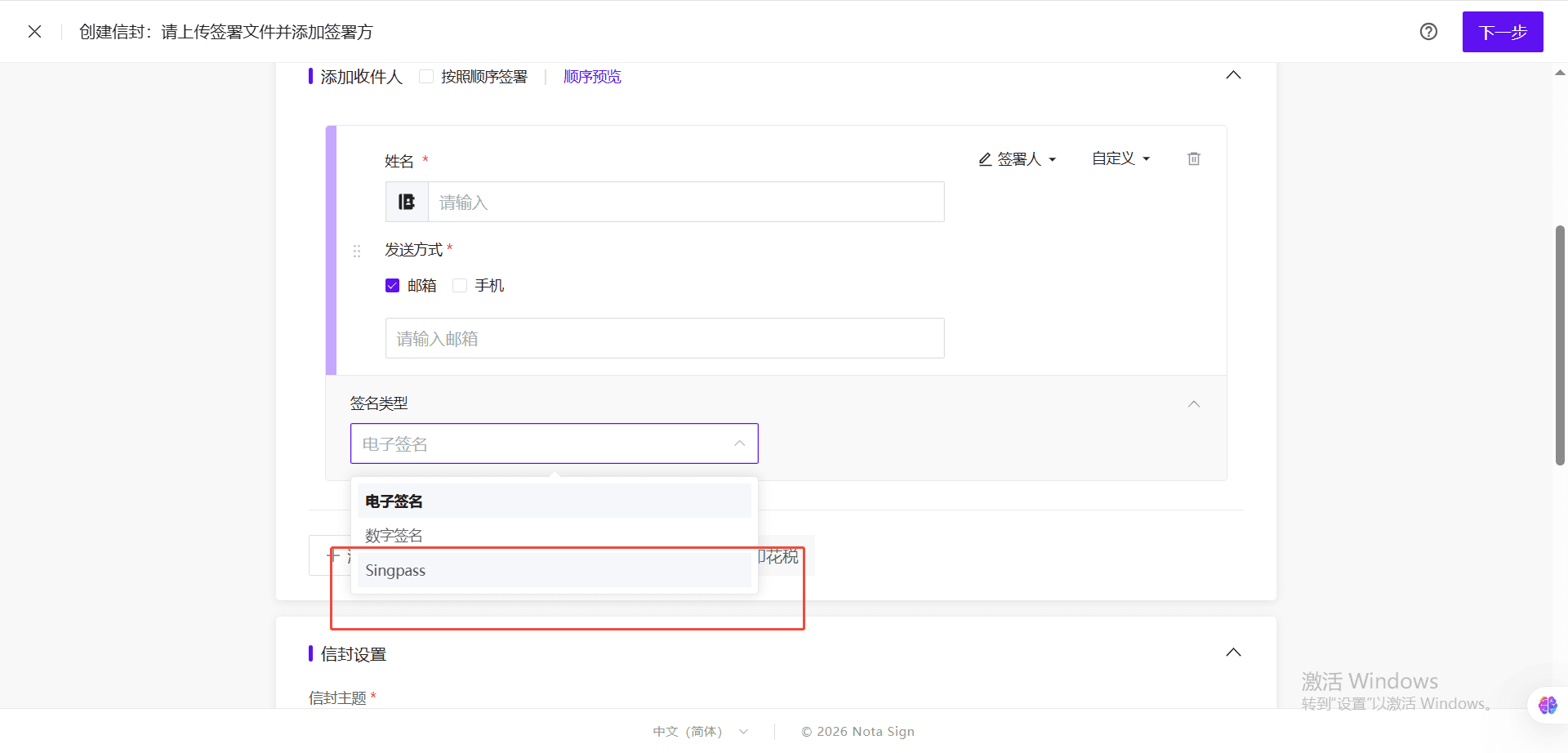
1. When initiating the envelope, select Singpass as the signature type
2. Set the Singpass signing position for the signer, then click Send