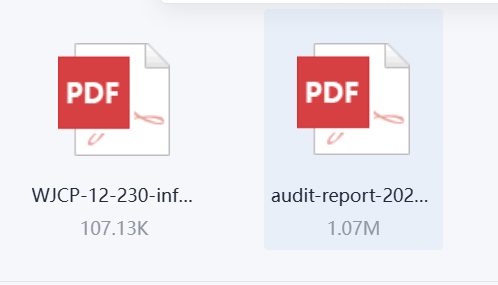
When the signing process is completed, you can download the signed documents and the corresponding signing record report (audit report) in multiple ways. The audit report contains a complete signing log to meet compliance and archiving requirements.
I. Downloading Signed Documents and the Audit Report
When the signing process is completed, you can download the signed documents and the corresponding signing record report in the following four ways.
1. Method 1: Download via the Signing Completion Page
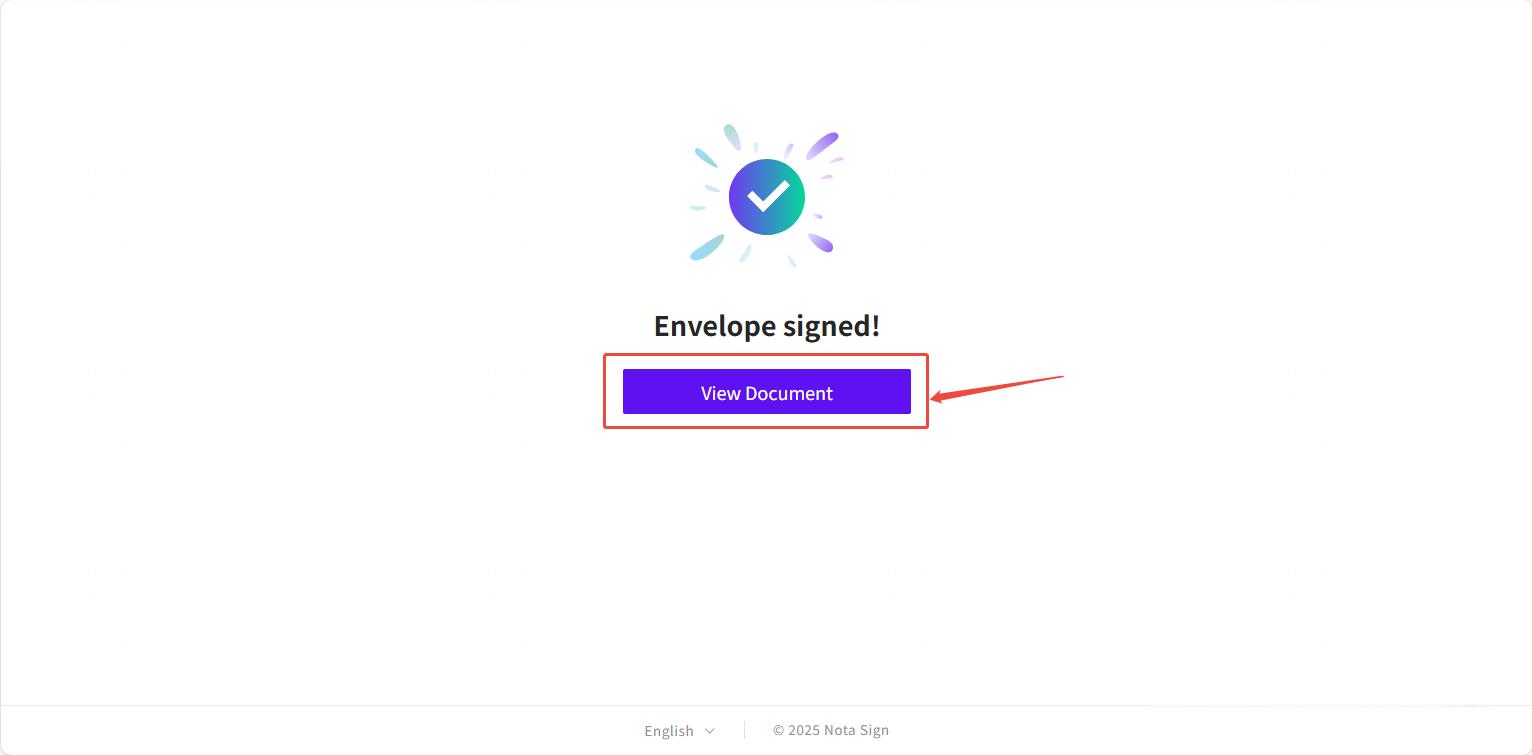
(1) After the signing process is completed, the system will automatically redirect to the completion page;
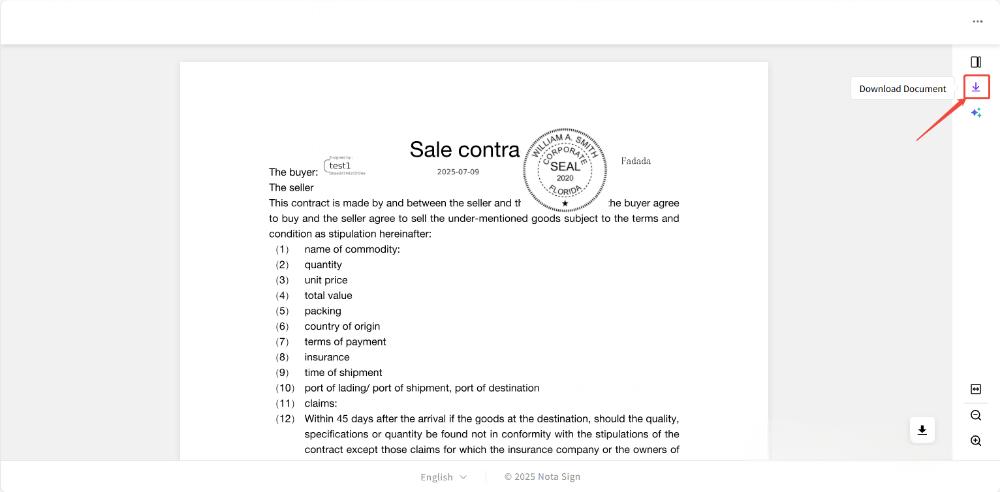
(2) Click [View Document] to enter the document preview page;
(3) On the document preview page, click the download button on the right side to download the signed documents and the signing record report.
2. Method 2: Download Directly via Email Attachment
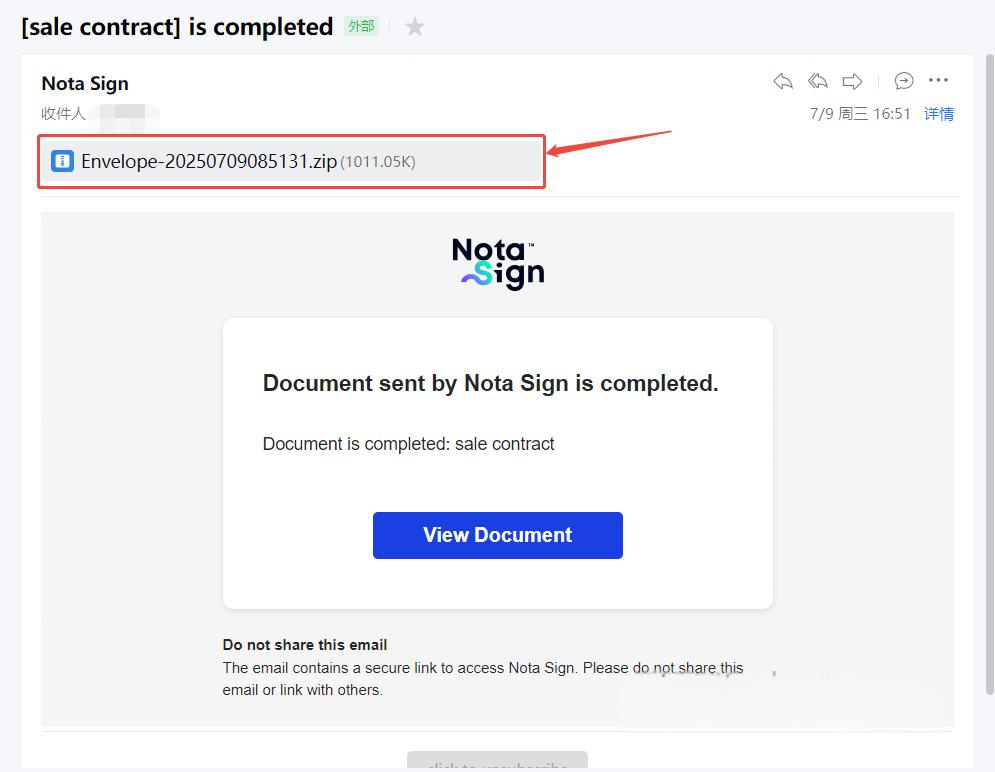
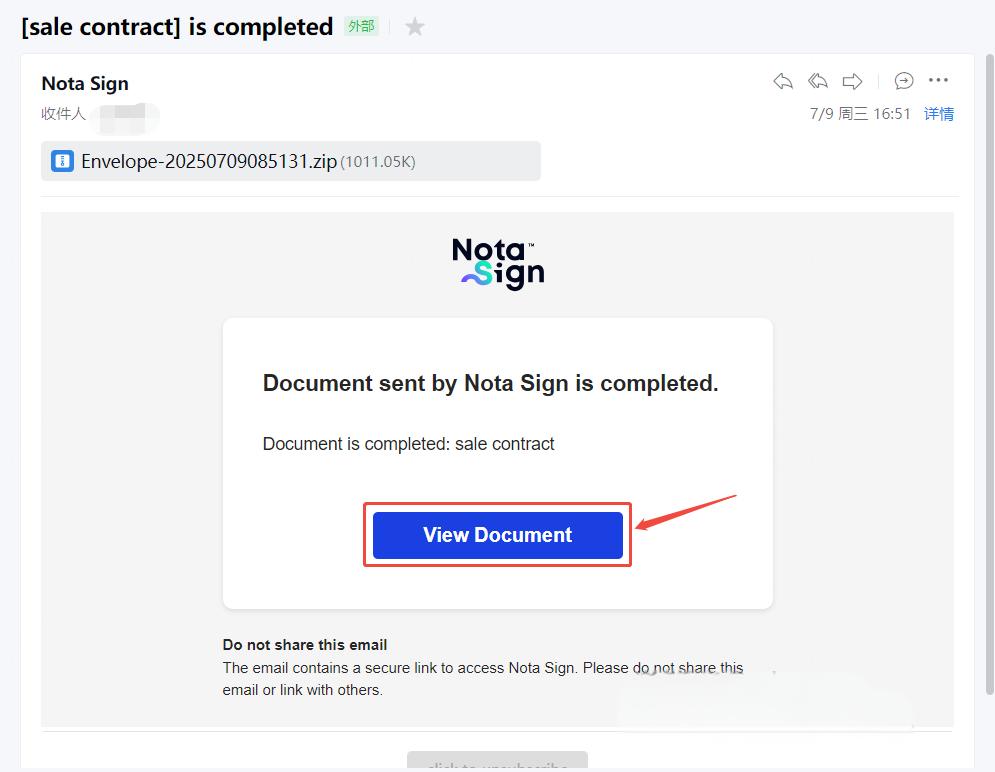
(1) After the document signing is completed, the system will automatically send a notification to each recipient;
(2) Click the attachment in the email to directly download the complete signed documents and the signing report.
3. Method 3: Download via the Email Link
(1) In the signing completion notification email, click [View Document] to enter the document preview page;
(2) On the document preview page, click the download button on the right side to download the signed documents and the signing record report.
4. Method 4: Download within the Nota Sign Workspace
(1) Log in to the Nota Sign workspace;
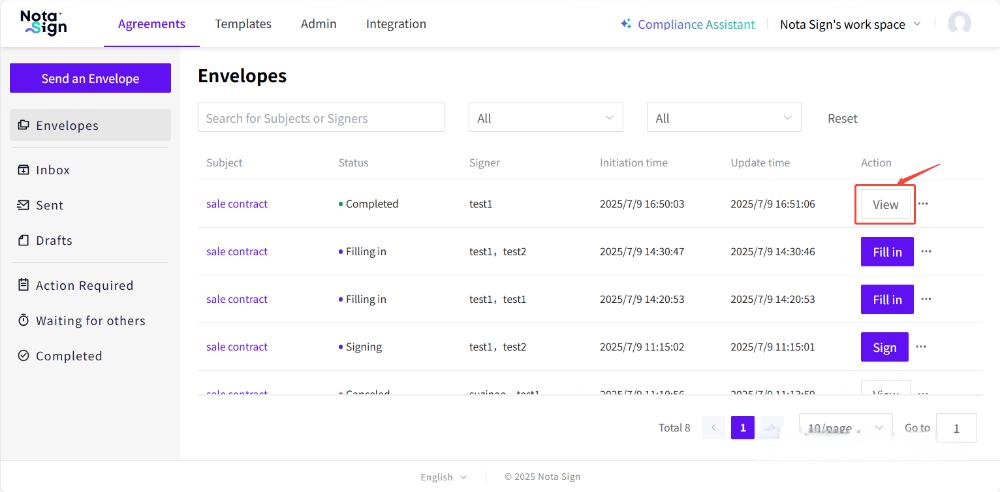
(2) Click [Agreements] at the top to enter the envelope management page;
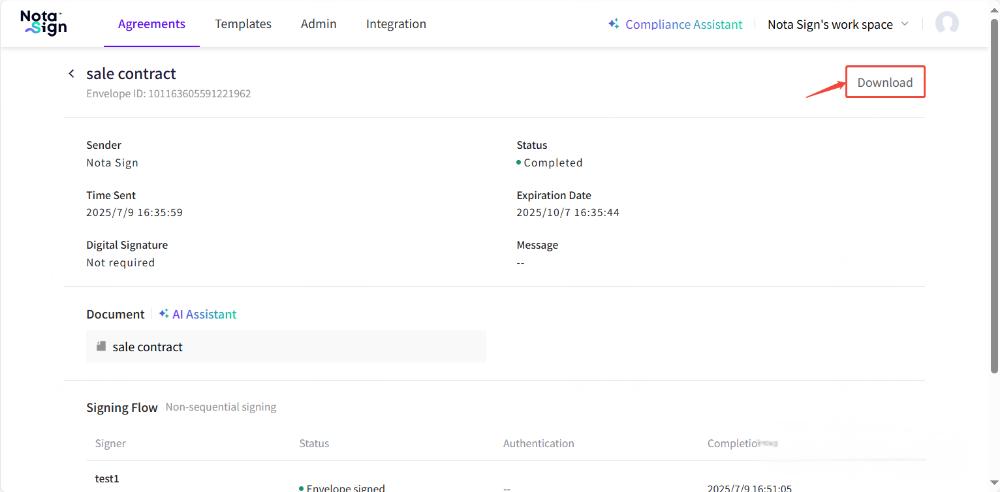
(3) Find the target envelope and click the [View] button on the right to enter the envelope details page;
(4) Click the [Download] button in the upper-right corner to download the signed documents and the signing record report.
II. Merging Signed Documents and the Audit Report
If you want to obtain both the signed documents and the audit report after signing is completed, you can configure the merge settings as described below. Note that this feature only applies to envelopes that do not require digital signatures.
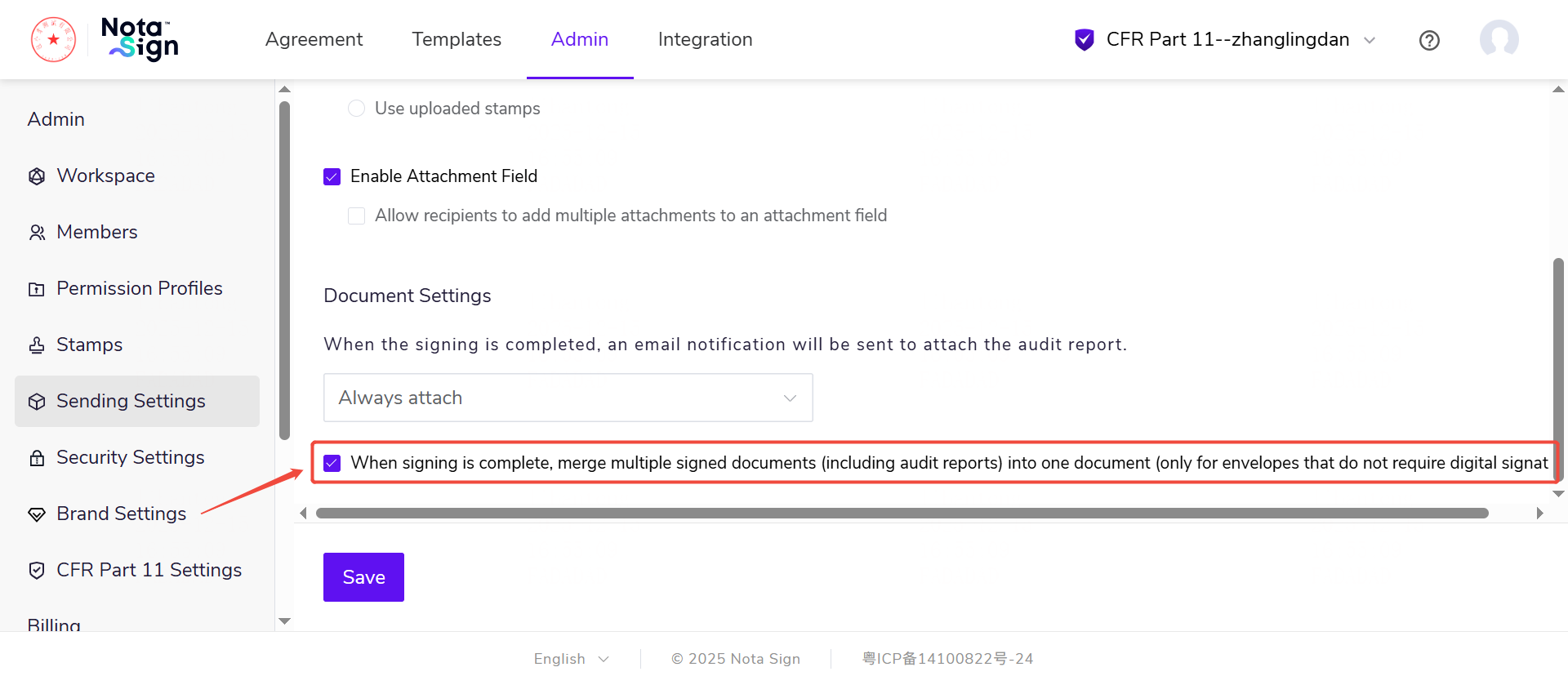
1. Click [Manage] and find [Sending Settings] in the left menu.
2. Find the [Document Settings] section at the bottom of the page and configure [Merge multiple signed documents into one file upon signing completion]:
- Not checked: Documents remain independent. Signed documents and the audit report will exist as separate files.
- Checked: Merge for archiving. The system will automatically merge all signed documents and the audit report (if permissions allow) into a single PDF document.
If the user selects “Merge Files” and there is only one final document, the system will directly download that PDF file. If the user selects “Do Not Merge,” the system will automatically package and download a ZIP archive. In addition, users can still download the standard audit report separately from the [Signing Log].
Special Case: Attachment documents uploaded by participants themselves (non-main signing documents) are not subject to the above “merge configuration.” They will always remain as separate files, and the receiving rules are consistent with the existing logic.
III. Attaching the Audit Report to Signing Completion Notification Emails
In addition to the four methods of downloading signed documents and audit reports, users can also attach the audit report to the signing completion notification email. To ensure data privacy and security while optimizing the recipient experience, users can decide for themselves whether the audit report should be included in the notification emails sent to recipients and senders after signing is completed, thereby preventing sensitive audit data from being circulated in unnecessary emails.
1. Click [Manage] and find [Sending Settings] in the left menu.
2. Find the [Document Settings] section at the bottom of the page and configure [Attach audit report to email notifications upon signing completion].
This option controls whether the system automatically includes an audit report attachment in the “Signing Completion Notification” email when the signing process ends.
Users can select one of the following three modes from the dropdown list as needed:
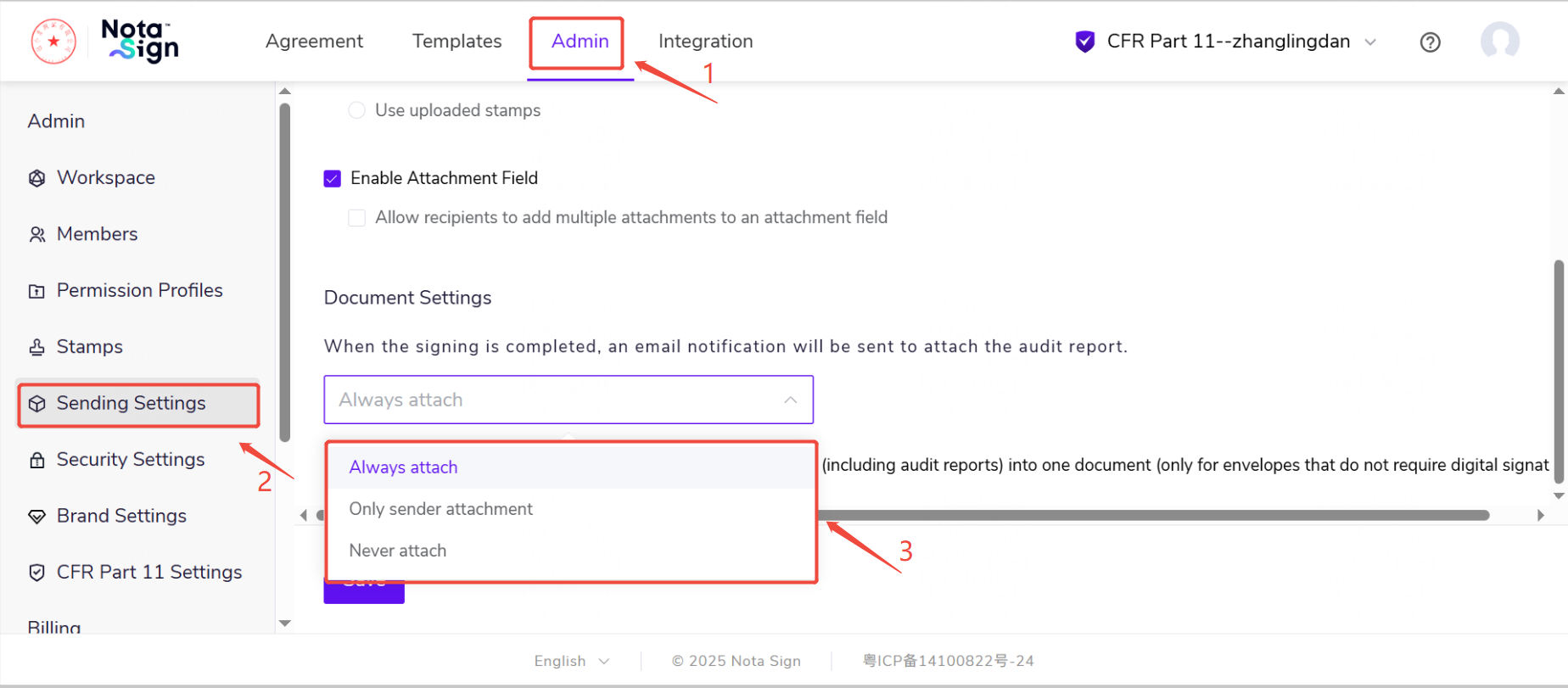
(1) Always: Both senders and recipients (including CC recipients) will receive the completion email with the audit report attached.
(2) Senders Only: Only senders receive the email with the audit report attached; recipients and CC recipients’ emails do not include the audit report.
(3) Never: Neither senders nor recipients (including CC recipients) receive the audit report as an attachment in the email.
If the audit report is attached to the email as an attachment, users can obtain the audit report from their mailbox after signing is completed.