
Bulk Signing
1. Feature Overview
When you need to sign a large number of contracts, agreements, or other documents, opening each envelope, completing the signing steps, and submitting them one by one can be time-consuming and repetitive.
To address this, Nota Sign offers Bulk Signing, allowing you to process multiple envelopes awaiting your signature in one place, reduce repetitive actions, and improve signing efficiency.
2. Start Bulk Signing
You can select multiple envelopes for signing, or use the option to sign all envelopes.
2.1 Select Multiple Envelopes and Sign
- Go to [Signing - Action Required].
- Select the envelopes you want to sign in bulk.
- Click [Sign] above the list.
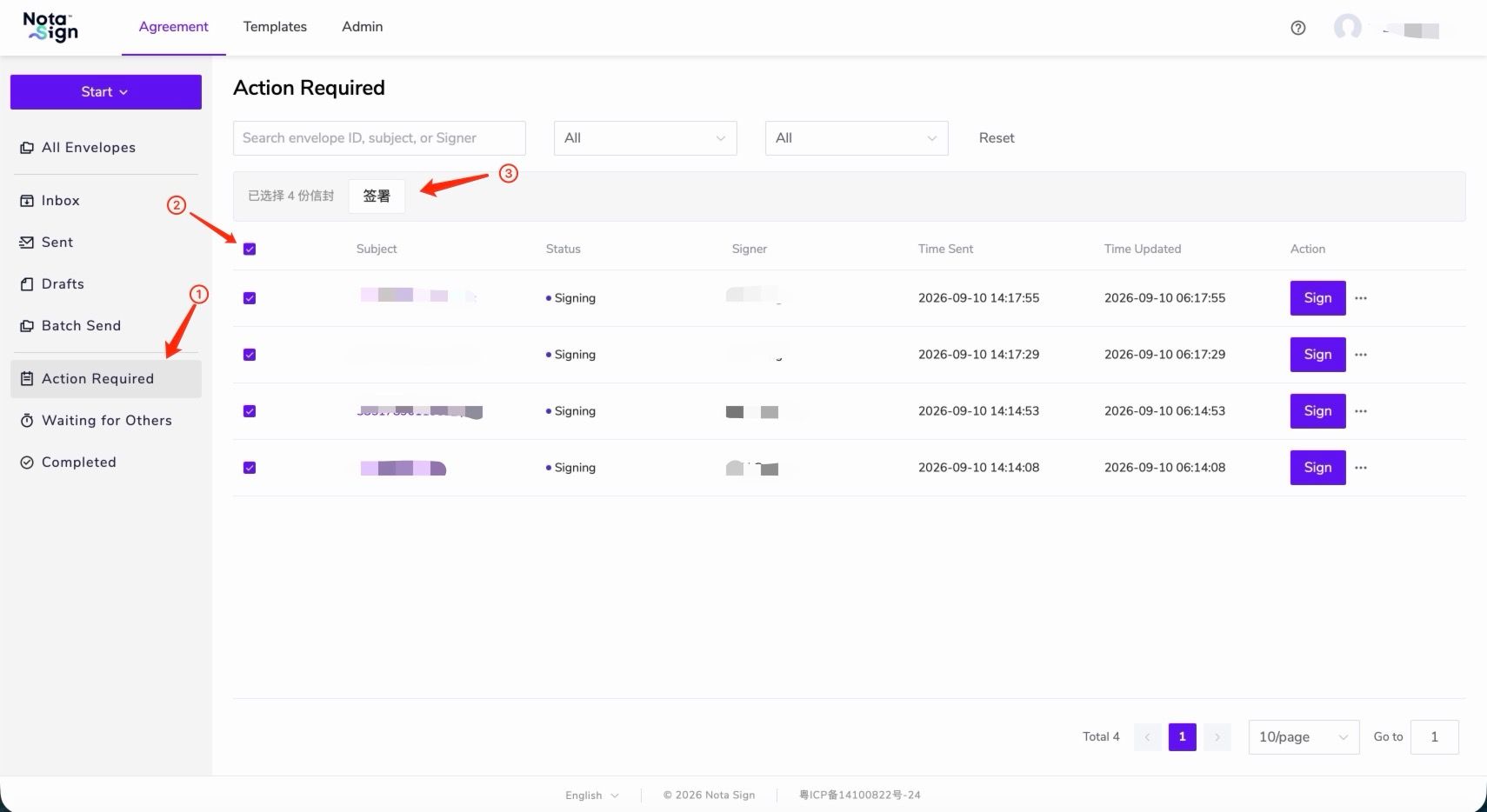
You can also select the envelopes you want to sign from [All Envelopes] and click [Sign] above the list.
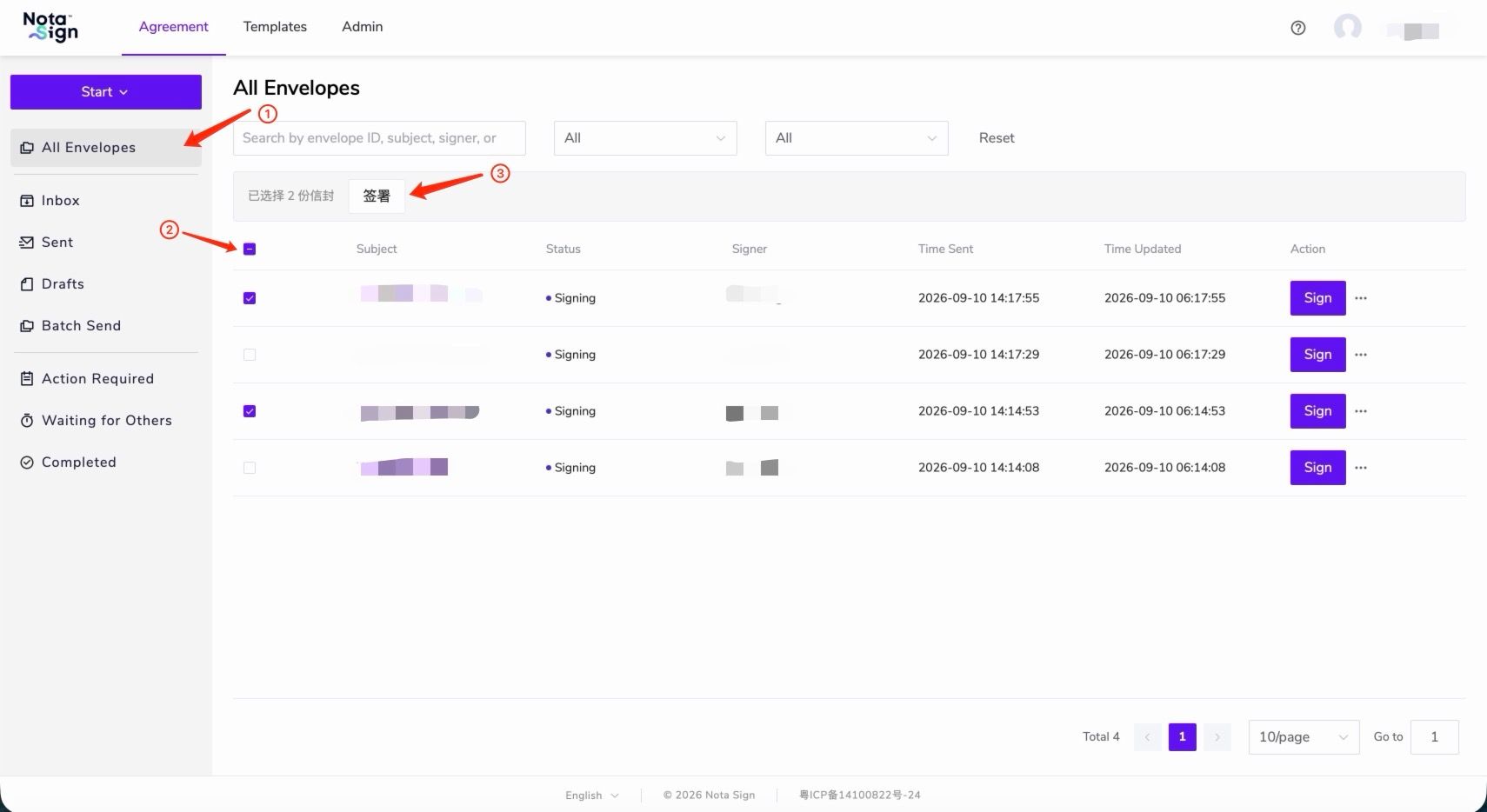
The system will start the bulk signing workflow. For the next steps, see Section 3.
2.2 Start Signing All Envelopes in One Click
- Go to [All Envelopes].
- Select the envelopes you want to process in bulk.
- Click [Sign] above the list.
Envelopes that do not meet the requirements for bulk signing will be automatically filtered out.
3. Automatically Group Envelopes for Bulk Signing by Type
When the selected envelopes cannot be processed together, the system automatically divides them into batches based on their signing requirements.
If only one batch is generated, the system proceeds directly to the bulk signing workflow. If multiple batches are generated, you can select any batch and click [Bulk Signing] to proceed. After completing the current batch, you can continue with the other batches.
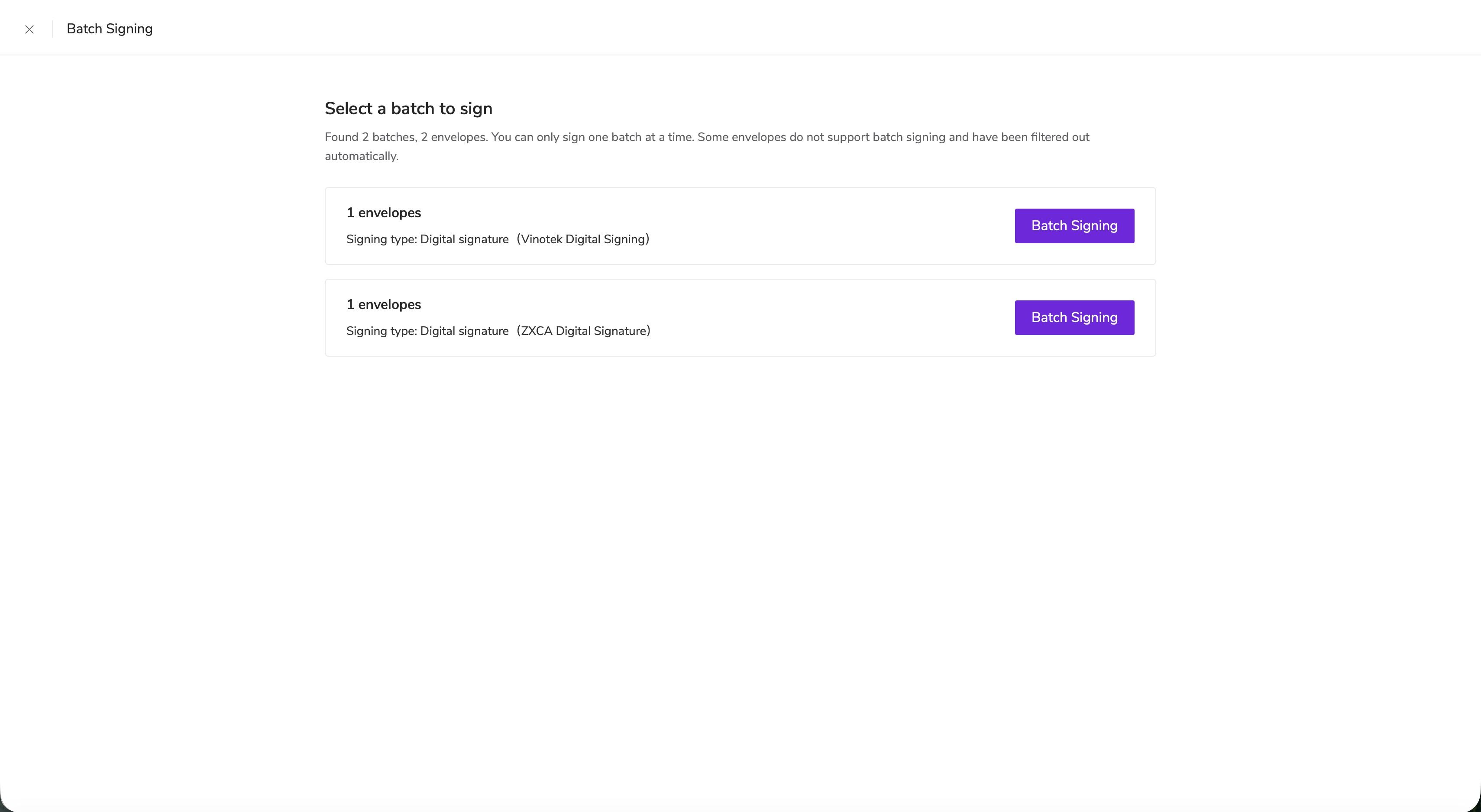
4. Set Signing Information
On the bulk signing page, you can view the processing status of the envelopes in the current batch. For envelopes marked [Pending], the system shows the items that still need to be completed, such as signatures, seals, or other required fields.
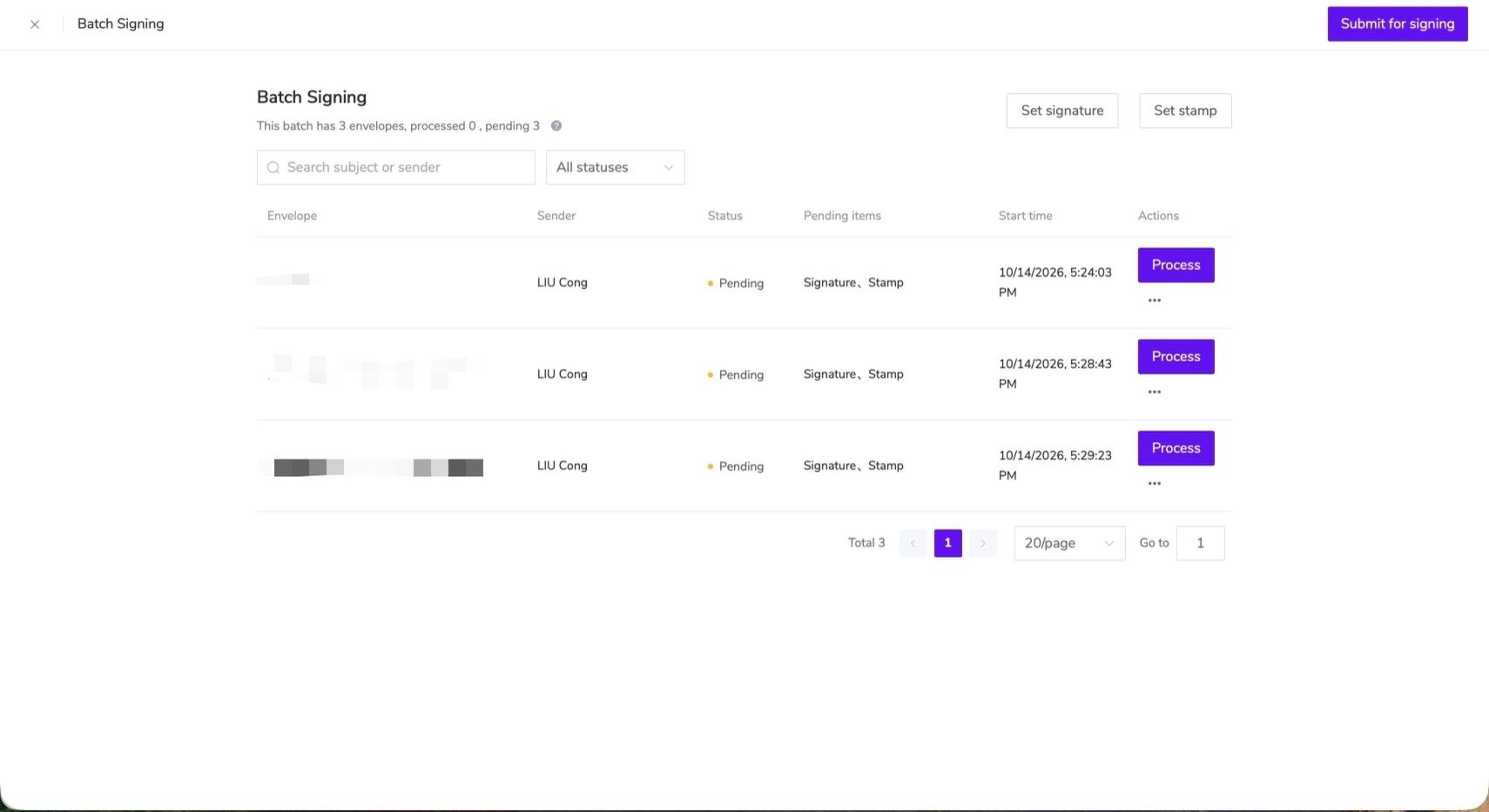
4.1 Set Signatures in Bulk
If the envelopes in the current batch contain signature fields, the [Set Signature] option will appear:
- Click [Set Signature].
- Select the signature you want to use.
- Click [Confirm].
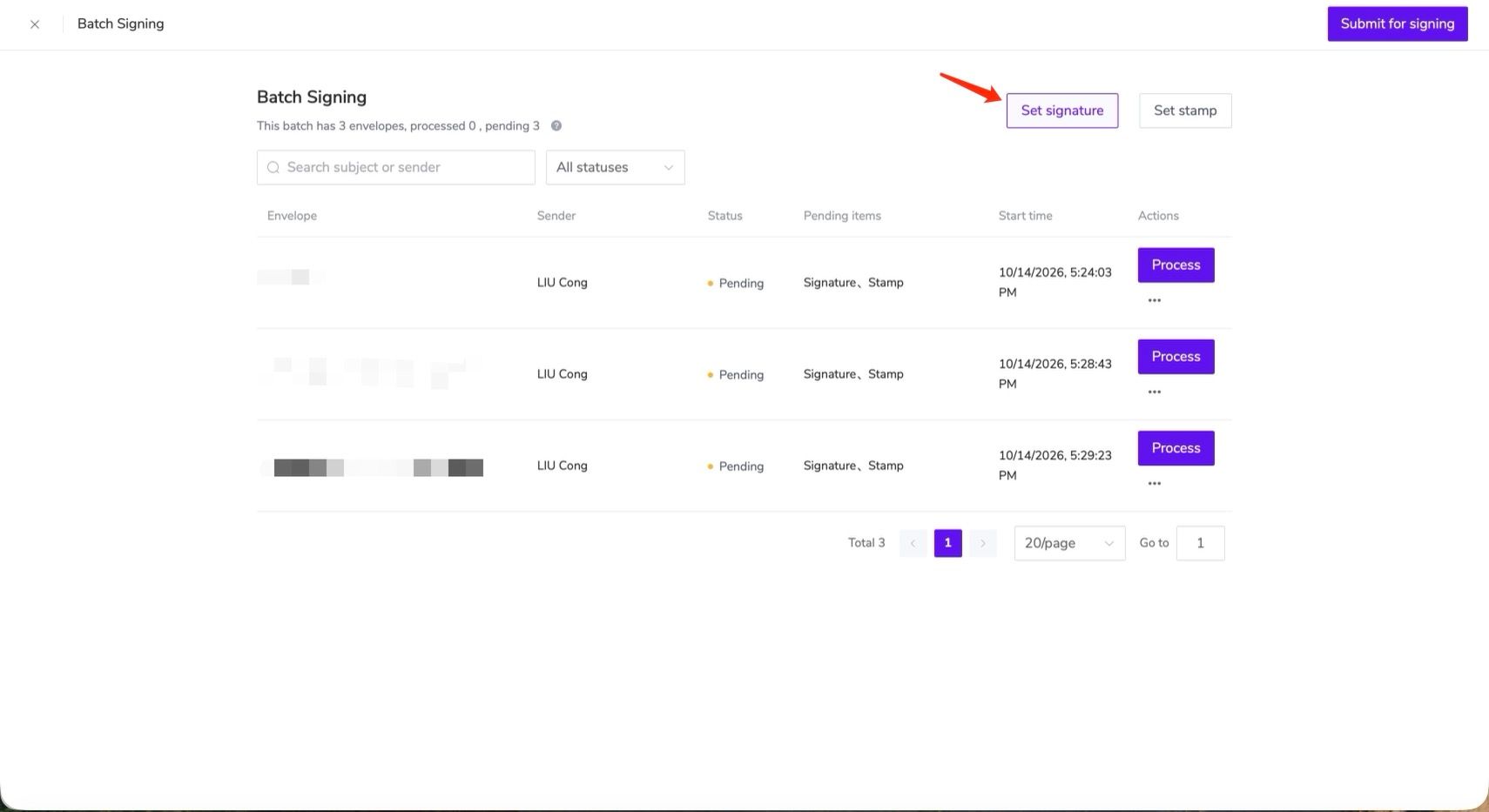
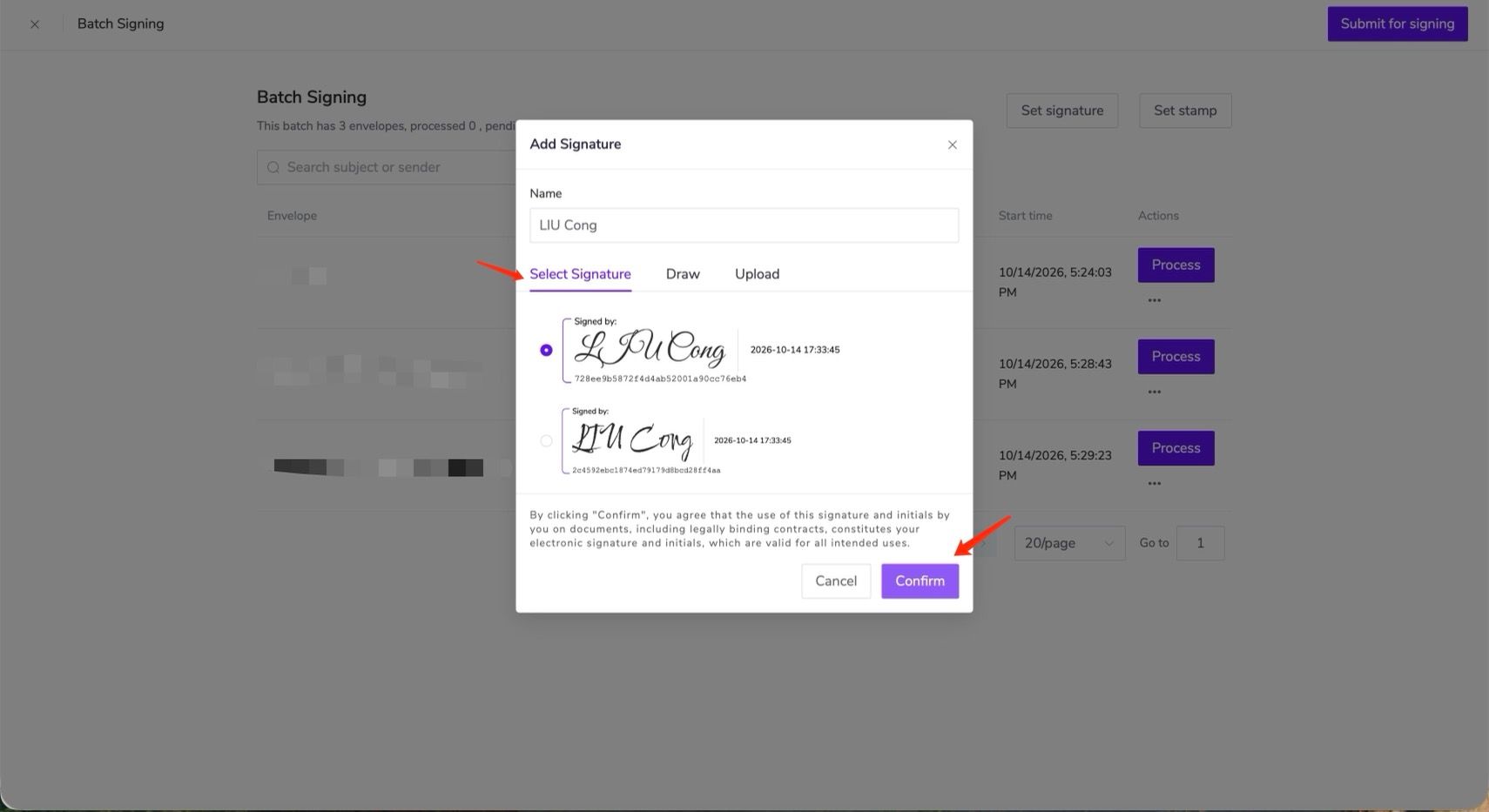
Once set, the signature will be applied to the envelopes in the selected batch.
Setting a signature in bulk applies it to the entire current batch. You cannot use this bulk action to assign different signatures to individual envelopes.
4.2 Set Seals in Bulk
If the current batch contains seal fields, you can use [Set Seal] to configure them together.
Steps:
- Click [Set Seal].
- Select an existing authorized seal or upload a seal.
- Click [Confirm] to complete the setup.
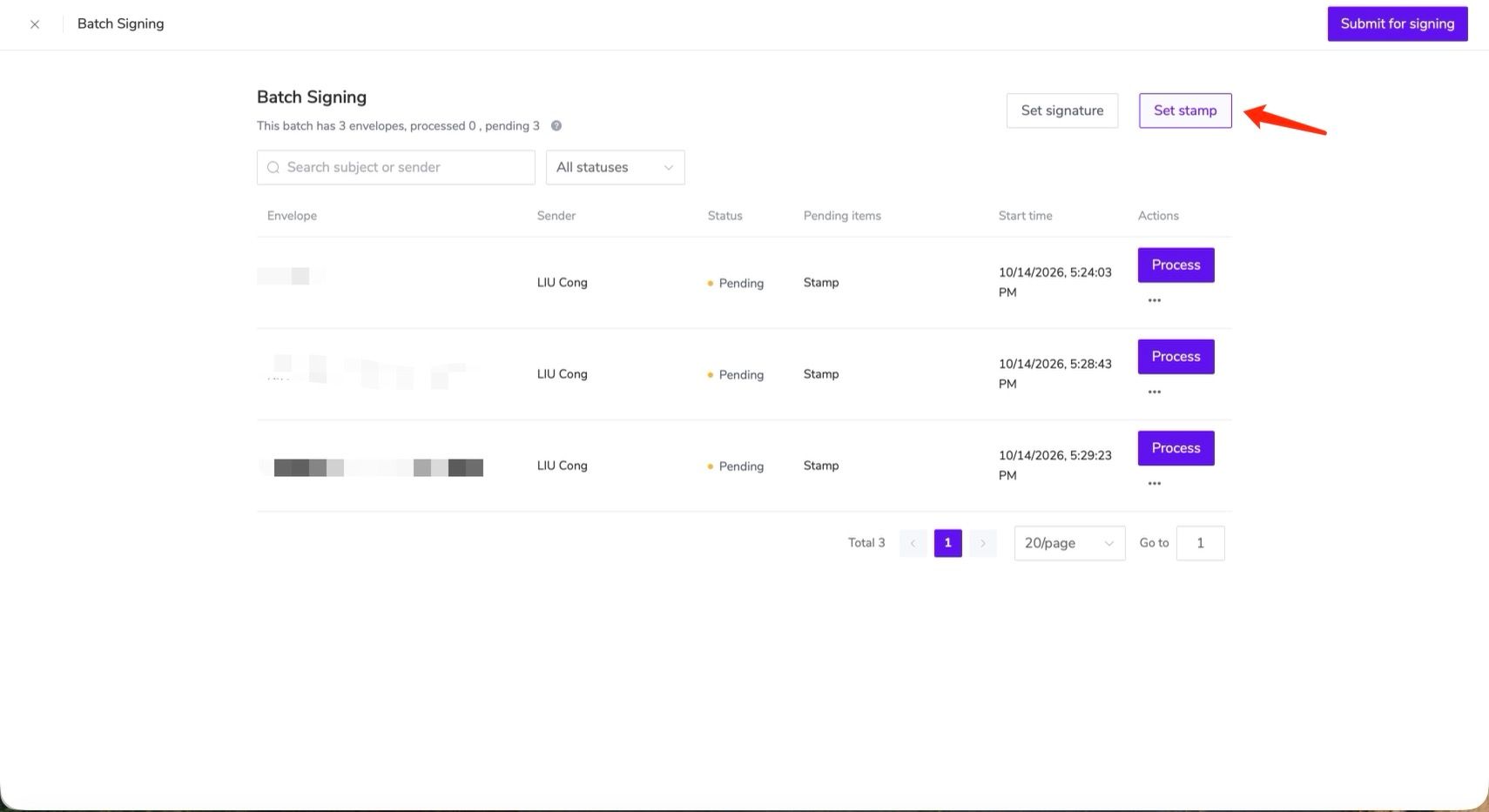
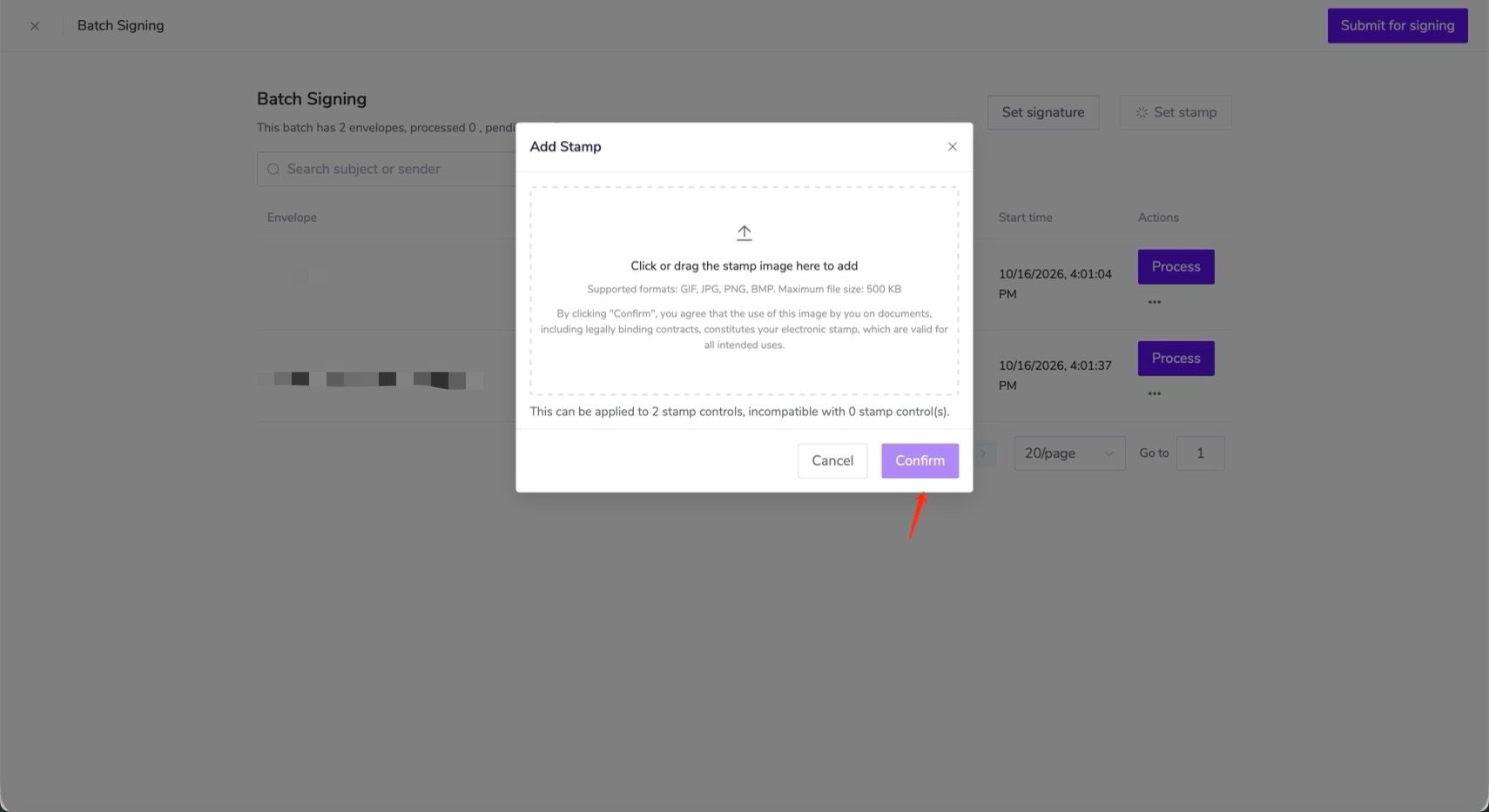
If some fields do not support the selected seal, those fields must be handled individually.
4.3 Set Electronic Seals in Bulk
If the current batch requires electronic seal signing, the [Set Electronic Seal] option will appear.
Steps:
- Click [Set Electronic Seal].
- Select an available electronic seal.
- Click [Confirm] to complete the setup.
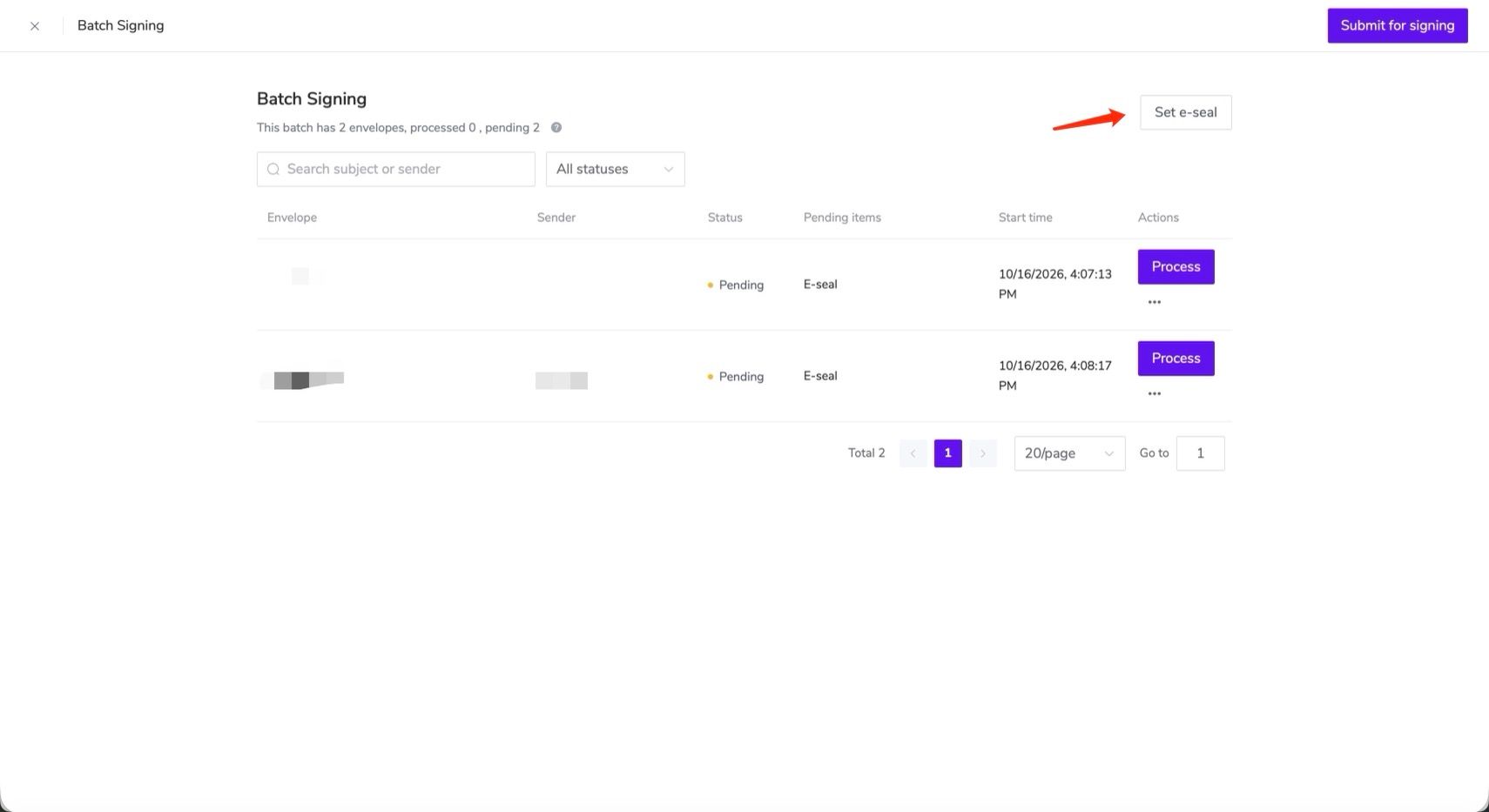
Once set, the electronic seal will be applied to eligible envelopes in the current batch.
After completing all pending items for every envelope, you can submit the bulk signing task.
5. Process an Individual Pending Envelope
If some envelopes still have required items to complete, such as text, attachments, or date fields, or require individual adjustments to signatures, seals, or electronic seals, you can open those envelopes to finish the remaining items.
- On the bulk signing page, find an envelope marked [Pending] and click [Process] on the right.
- On the individual signing page, complete the required items.
- Click [Save] to return to the bulk signing page.
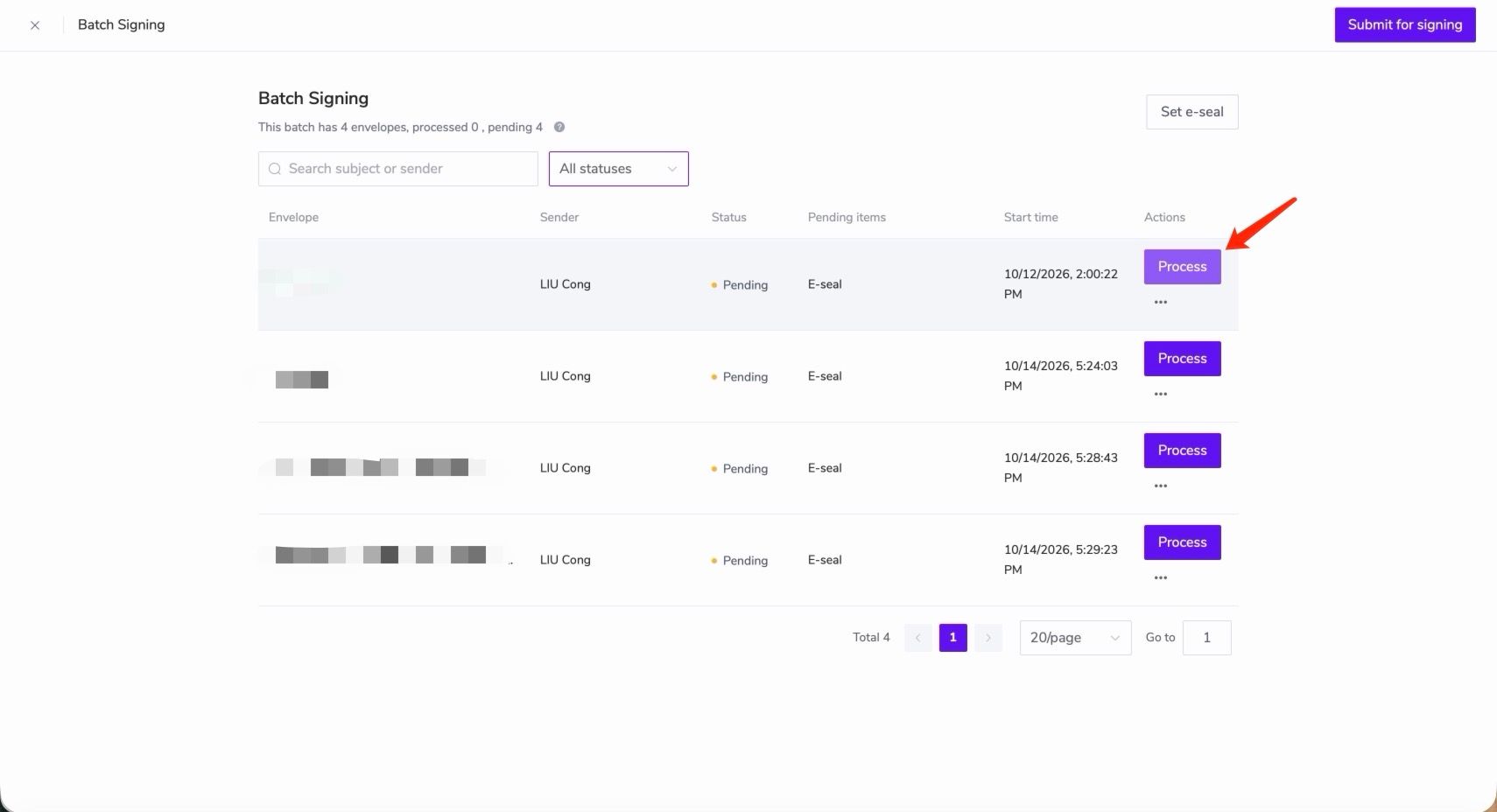
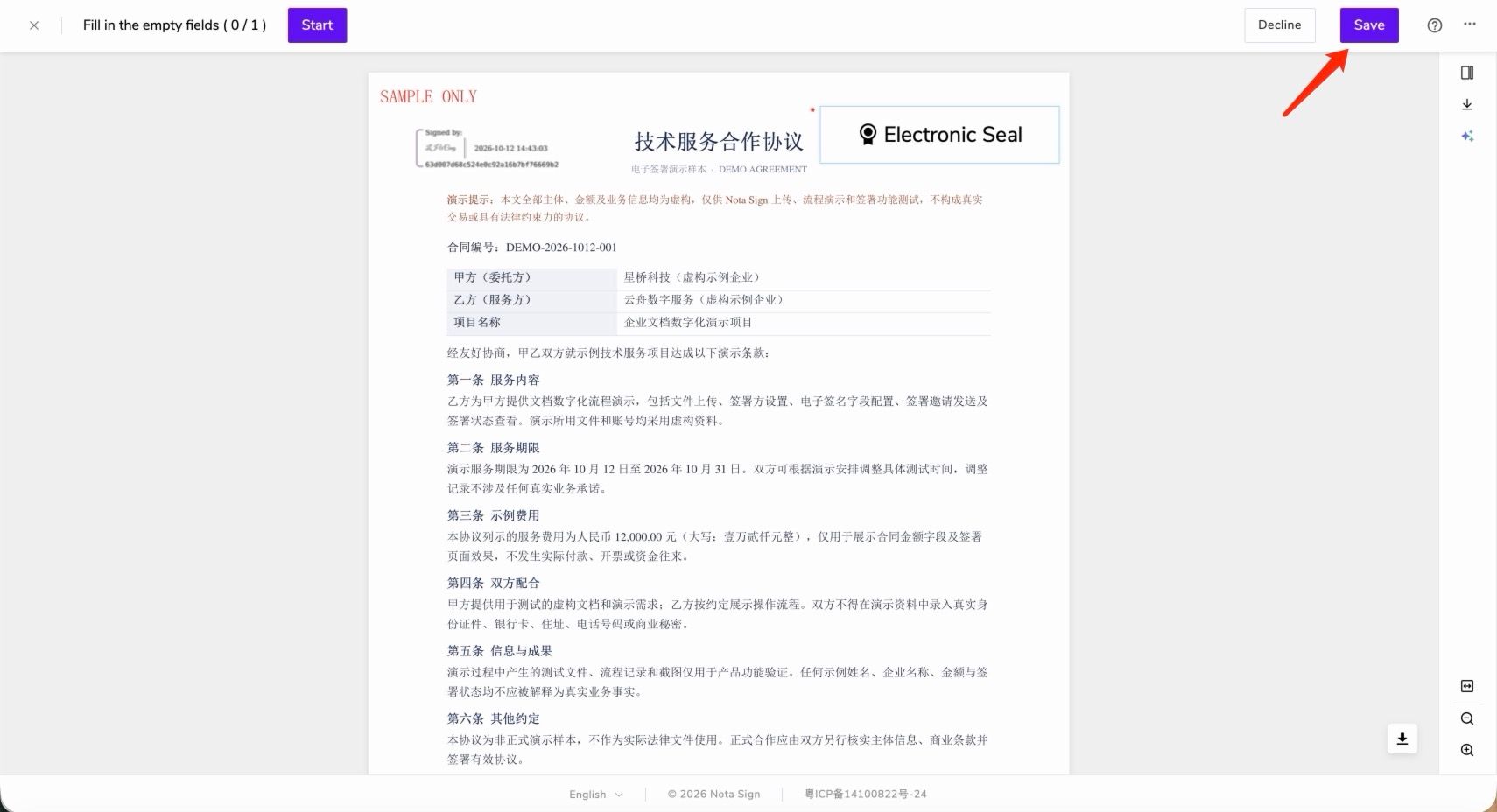
After completing an individual envelope, click [Save]. You cannot submit the signature directly from this page. Return to the bulk signing page to submit the batch together.
6. Search and Filter Envelopes
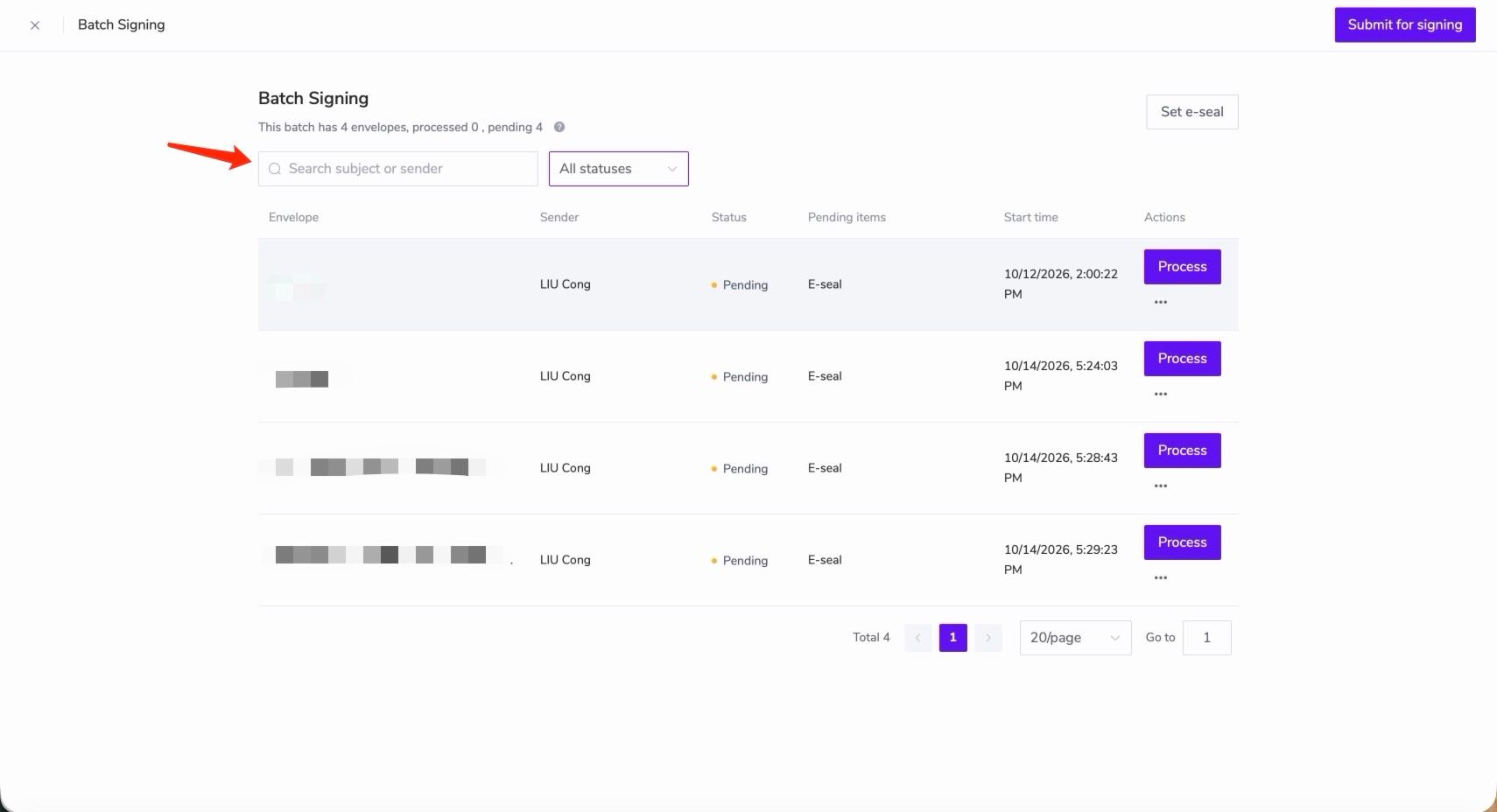
When a batch contains many envelopes and you need to find a specific one, you can search by envelope subject or sender name. You can also filter by [All Statuses], [Pending], or [Processed] to quickly locate the envelope you need.
7. Submit Bulk Signing
After confirming that all envelopes in the current batch have no remaining pending items, click [Submit Signing].
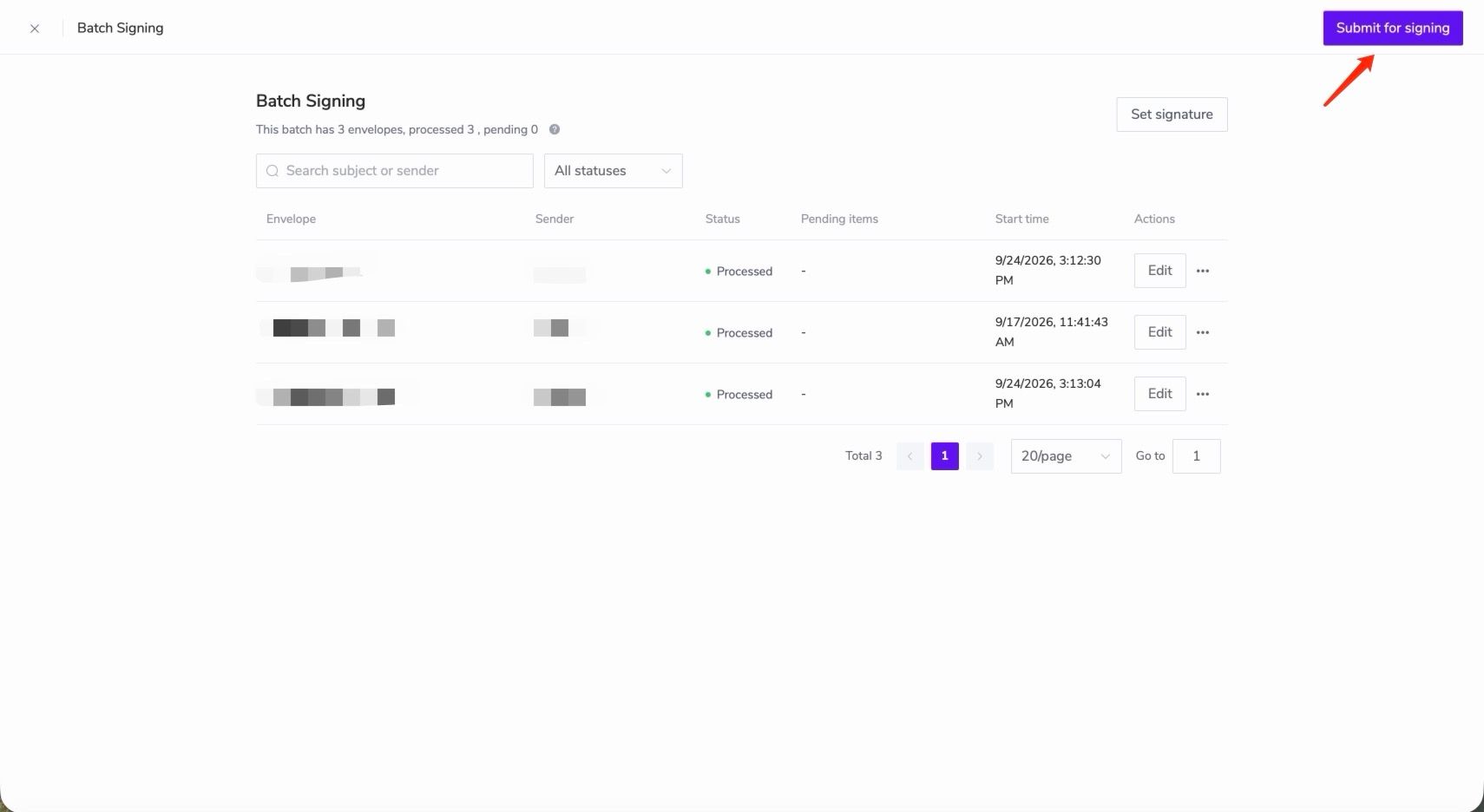
Depending on the signing method, the system may require digital signature authentication, electronic seal authentication, or OTP verification. Follow the on-screen instructions to complete verification and submit the bulk signing task.
8. After Submitting Bulk Signing
Once you have completed any required signing verification and successfully submitted the task, the page will display [Bulk Signing Submitted]. This means the signing task for the current batch has been initiated, and the system will continue processing its envelopes.
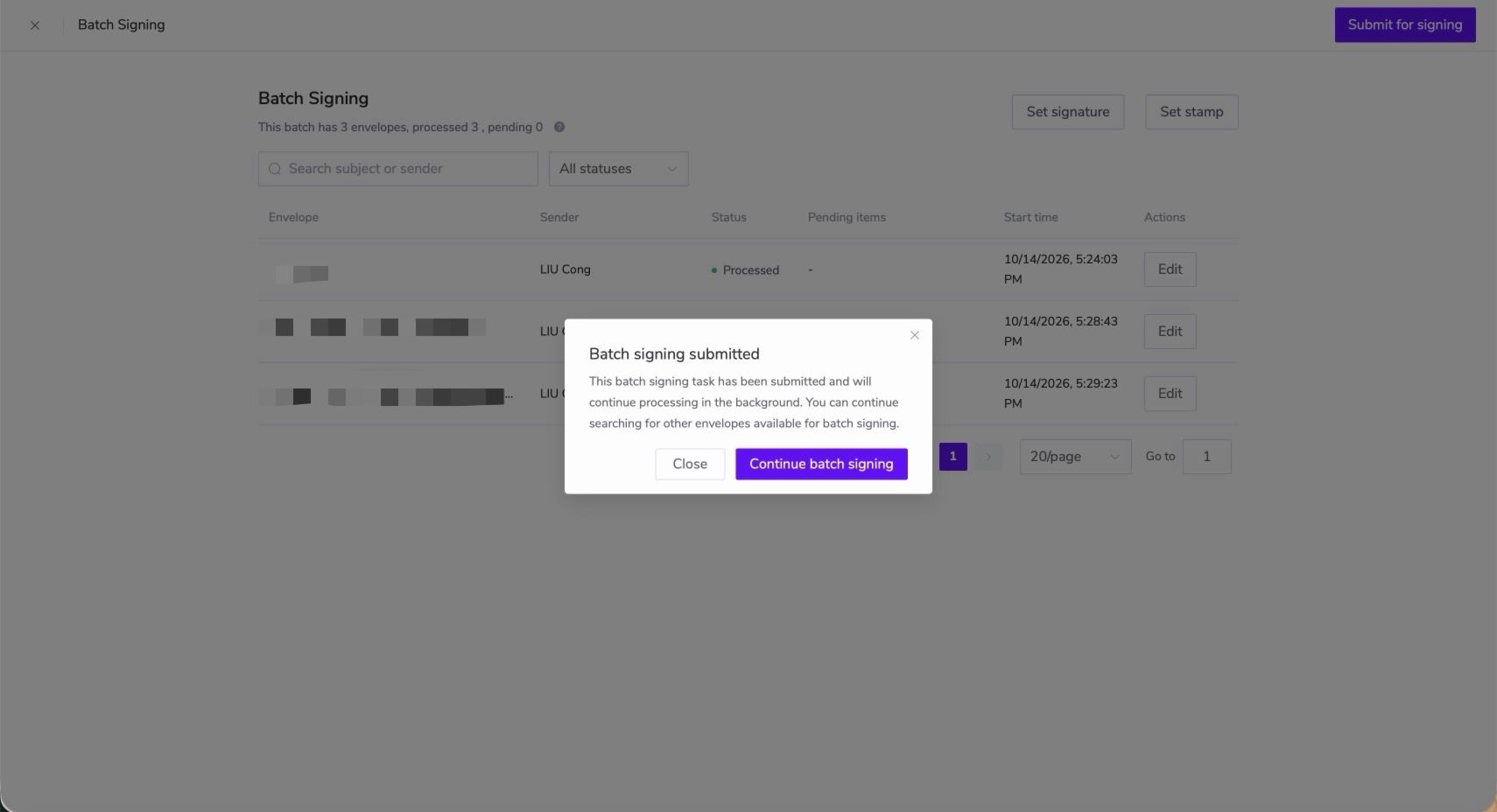
Please note: A submitted task does not mean that every envelope has been signed successfully.
Next, you can:
- Click [Close] to return to the envelope list and check the signing results later.
- Click [Continue Bulk Signing] to see the available batches again and continue signing other batches.
How can I check the signing results?
While the system is processing the task, the affected envelopes will show [Signing in Progress] and cannot be signed again temporarily. You can return to the envelope list later to check the results:
- Signed successfully: The envelope completes the current signing step and continues through its normal workflow.
- Signing failed: The envelope becomes available for action again. You can review the failure message and try again.
If any envelopes in the batch fail to sign, the system will also send a failure notification to the task initiator’s account email after processing is complete, including the failed envelopes, reasons, and suggested actions. Follow the email instructions to resolve the issues and sign again.
9. FAQ
9.1 Why were some envelopes excluded from bulk signing?
The system automatically filters out envelopes that do not meet the requirements for bulk signing. As a result, some selected envelopes may not be included in the current bulk signing workflow.
9.2 Can I make changes after submitting bulk signing?
While submitted envelopes are being processed, they cannot be modified or signed again. Make sure all pending items are completed before submission.
9.3 What should I do if bulk signing fails?
Failed envelopes become available for action again, and the system displays the failure reason. Check the message, resolve the issue, and process the affected envelopes again.