
I. Entering the Verification Page
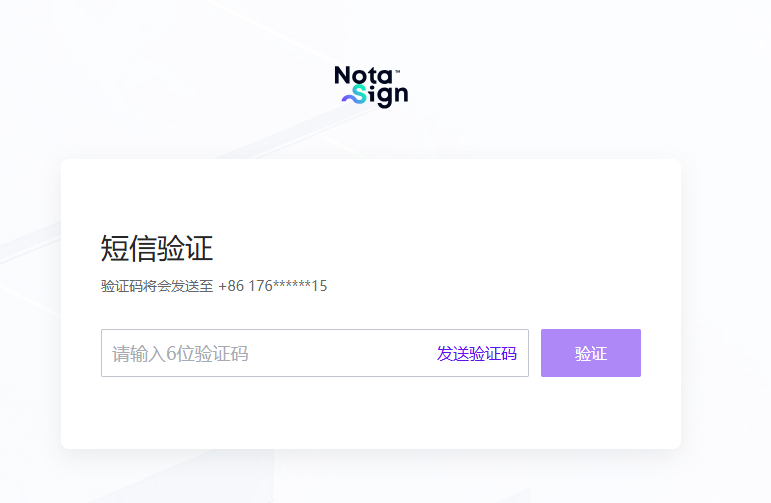
After opening the signing link, the page displays “We need to verify your phone” along with your phone number.
II. Obtaining the Verification Code
Click [Get Verification Code], and the system will send an SMS to your phone. The button enters a 60-second countdown, during which it cannot be clicked again.
III. Entering the Verification Code
After receiving the SMS, enter the 6-digit verification code in the input field and click [Confirm] to enter the signing page.
IV. Frequently Asked Questions
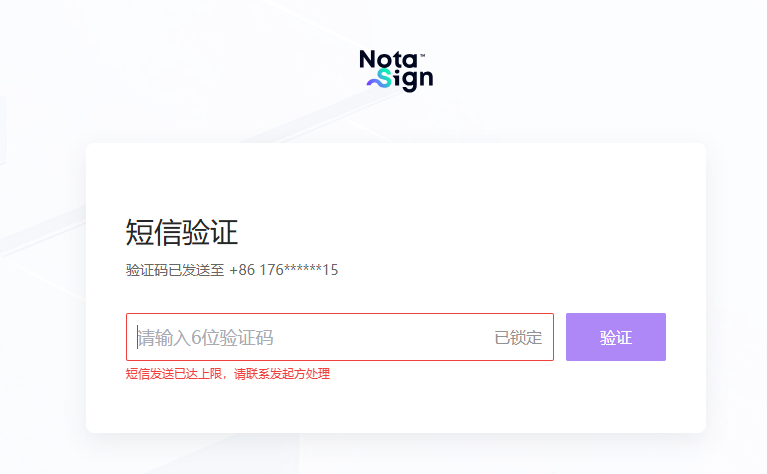
1. What if the verification code request limit is reached?
The same recipient can request a verification code up to 5 times in total. After reaching the limit, the page will display “Limit reached,” and the button becomes disabled. You will need to contact the sender and ask them to unlock it for you from the envelope details page.
2. Not receiving the verification code
- Check whether your phone number was entered correctly;
- Confirm that the network signal in your area is normal;
- If you still do not receive it, please contact the sender. The sender can modify your phone number through [Envelope Correction In Progress].
3. Entered the wrong verification code
After a certain number of consecutive incorrect attempts, you will see a prompt saying “Too many failed attempts.” You will need to wait 60 seconds before retrying or contact the sender to unlock it.