
The sender can set SMS OTP verification for the recipient when creating the envelope. Before the recipient signs the document, they need to enter the verification code received on their mobile phone to ensure the authenticity of their identity.
1, Configure SMS OTP
1. Select SMS verification
When creating an envelope, select ‘SMS’ from the recipient’s identity verification options.
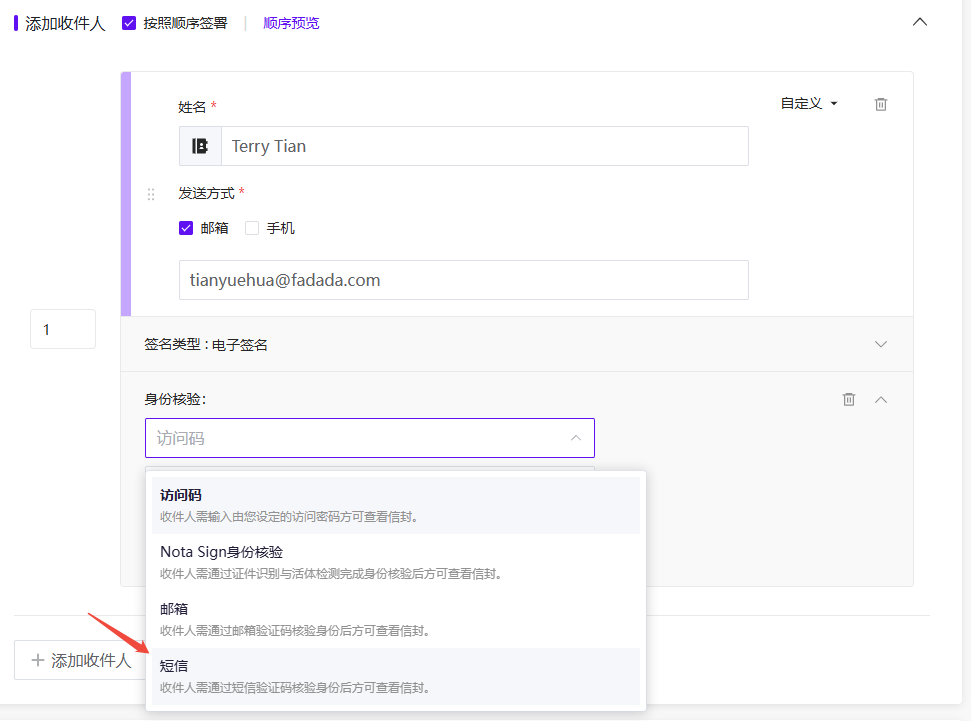
If the recipient’s sending method has selected mobile phone, the system will automatically reuse the phone number; If no mobile phone is selected as the sending method, an additional mobile phone number needs to be filled in.
2. Fill in your phone number
If the sending method is not selected as mobile phone, you need to fill in Mobile area code and Mobile phone number
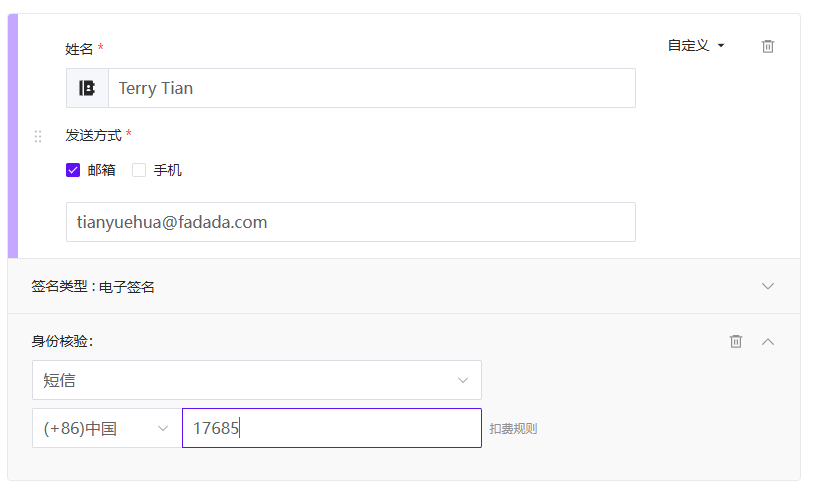 Continue sending the envelope after filling it out.