
You can configure a [Terms Confirmation Pop-up] for designated signers. When signers click [Submit] after completing signatures, fill-ins, and other actions, the system will display a terms confirmation pop-up. Signers must check to confirm all terms before they can proceed to submit.
I. Enabling the Terms Confirmation Pop-up
1. In Manage -> Send Settings, enable the [Enable Terms Confirmation Pop-up] toggle;
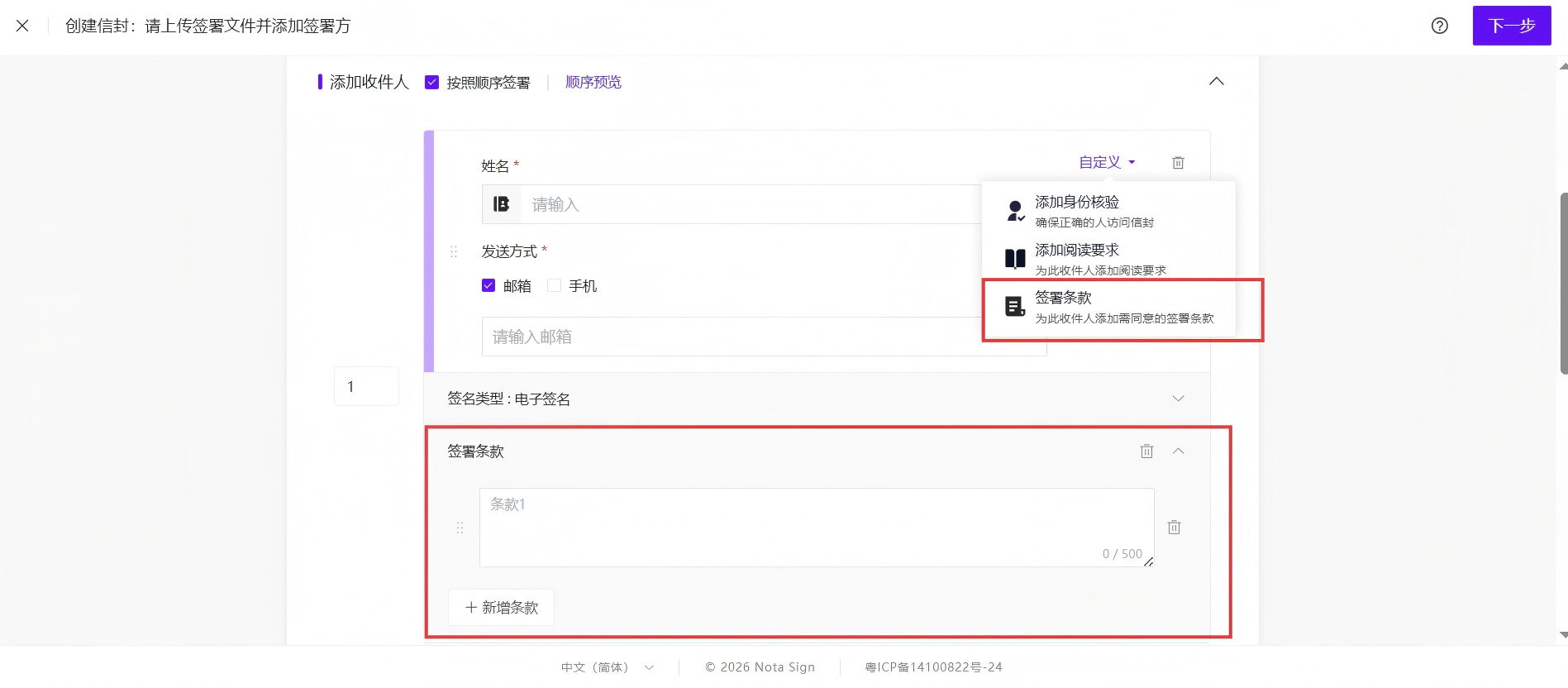
2. After enabling, the [Terms Confirmation Pop-up] entry will appear in the signer settings for envelope initiation, templates, and batch sending;
 After disabling, new envelopes, templates, and batch sending will no longer display the entry, but configurations in existing drafts, templates, and envelopes already initiated will not be affected.
💡 Note: GxP workspaces do not display this toggle; Singpass-specific signing processes do not support this feature.
II. Configuring Terms and Initiating Envelopes
1. In the signer settings when initiating an envelope, enable the [Terms Confirmation Pop-up] for the signer;
2. Click [Add Terms] in the terms configuration panel and enter the terms content that the signer needs to confirm;
Each signer must have at least 1 valid term and up to 20 terms, with each term limited to 500 characters; Supports adding, editing, and deleting terms. The term order determines the display order in the pop-up on the signing side; Pure spaces, line breaks, or empty content are not counted as valid terms. Enabling with no valid terms will not allow saving or sending.
Terms are configured per signer, not per signature control. If a signer has multiple signature controls, the pop-up will only appear once before submission.
III. Configuring in Templates
(1) [Terms Confirmation Pop-up] can be configured in the template role settings, and will display correctly when reopened after saving; (2) When creating envelopes using the template, the configuration will be inherited by the corresponding signers.
IV. Configuring in Batch Send Tasks
1. Configuring in Batch Send
(1) [Terms Confirmation Pop-up] can be configured in the role settings of a batch send task; (2) Generated signing tasks will trigger the pop-up according to the role configuration.
2. Configuring in Batch Send Templates
(1) [Terms Confirmation Pop-up] can be configured in the role settings of a batch send template, and will display correctly when reopened after saving; (2) When initiating a batch send using this template, the configuration will be inherited by the corresponding signing tasks.
V. Signing Confirmation
1. The signer completes signatures, fill-ins, and other actions, then clicks [Submit];
2. The pop-up displays all terms configured for that signer, with a checkbox before each term;
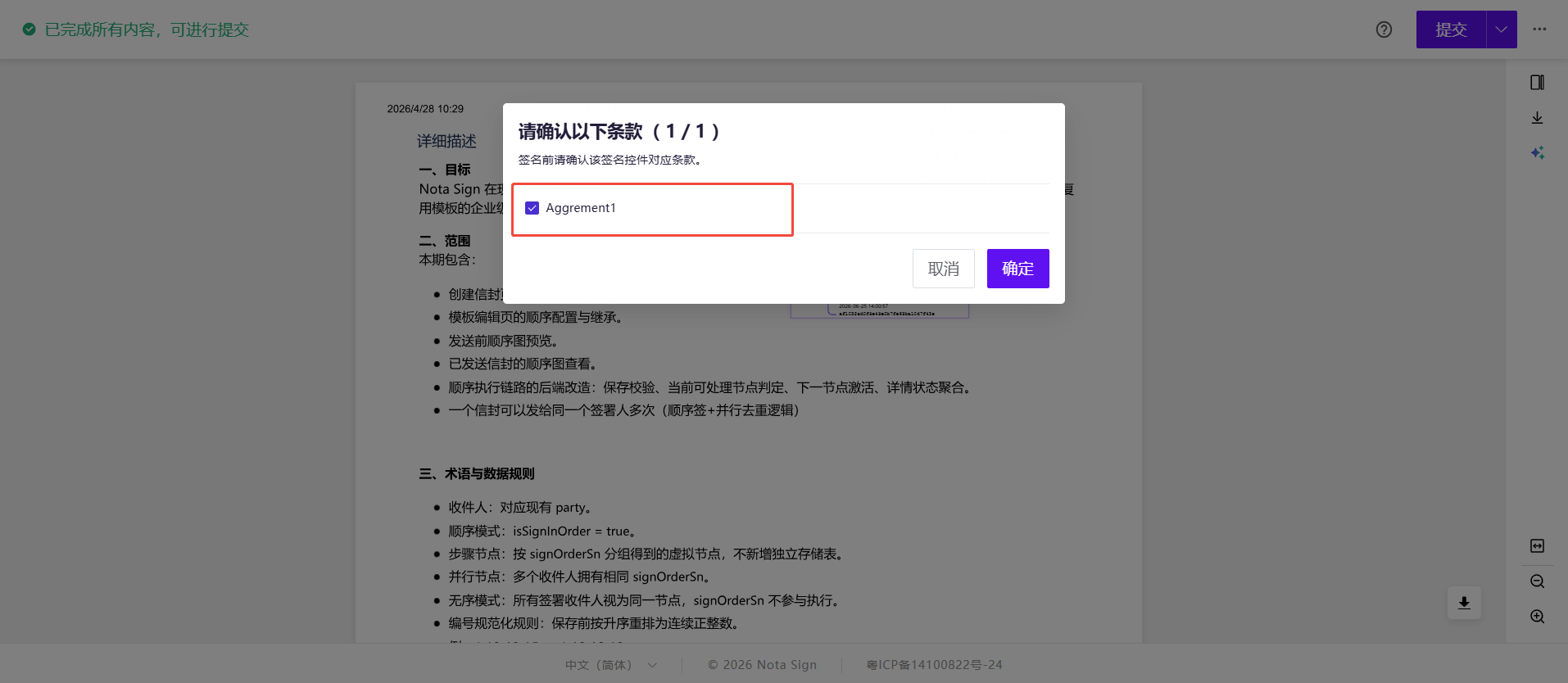
3. The signer must check all terms and click [Confirm and Submit] to proceed with submitting the signing.
VI. History and Audit
1. After the signer checks all terms and submits successfully, a “Confirmed all terms in the pre-submission terms confirmation pop-up” event is added to the envelope history;
2. The history displays the complete details of all terms confirmed by the signer, not just the number of terms;
3. The audit report displays the signer, confirmation time, confirmation result, and a complete snapshot of the terms;
4. The term order is consistent with the pop-up on the signing side; signers who do not have the terms confirmation pop-up configured will not show related records.
💡 Note: The term snapshot is fixed when the envelope is sent, the template generates an envelope, or the batch task generates signing tasks. The signing-side display and history both use the snapshot content and are not affected by subsequent configuration changes. The signed PDF body does not include additional terms confirmation content.