
Send Signing Notifications via WhatsApp
Send signing links and related notifications to recipients through WhatsApp. Recipients can open the link in the message to review and sign documents in Nota Sign.
WhatsApp can be used alongside email and SMS. Choose the notification methods that best suit each recipient.
1. Before You Start
Before using WhatsApp notifications, make sure:
- Your workspace has an active WhatsApp messaging package with sufficient remaining usage.
- You have the recipient’s WhatsApp mobile number and country or region code.
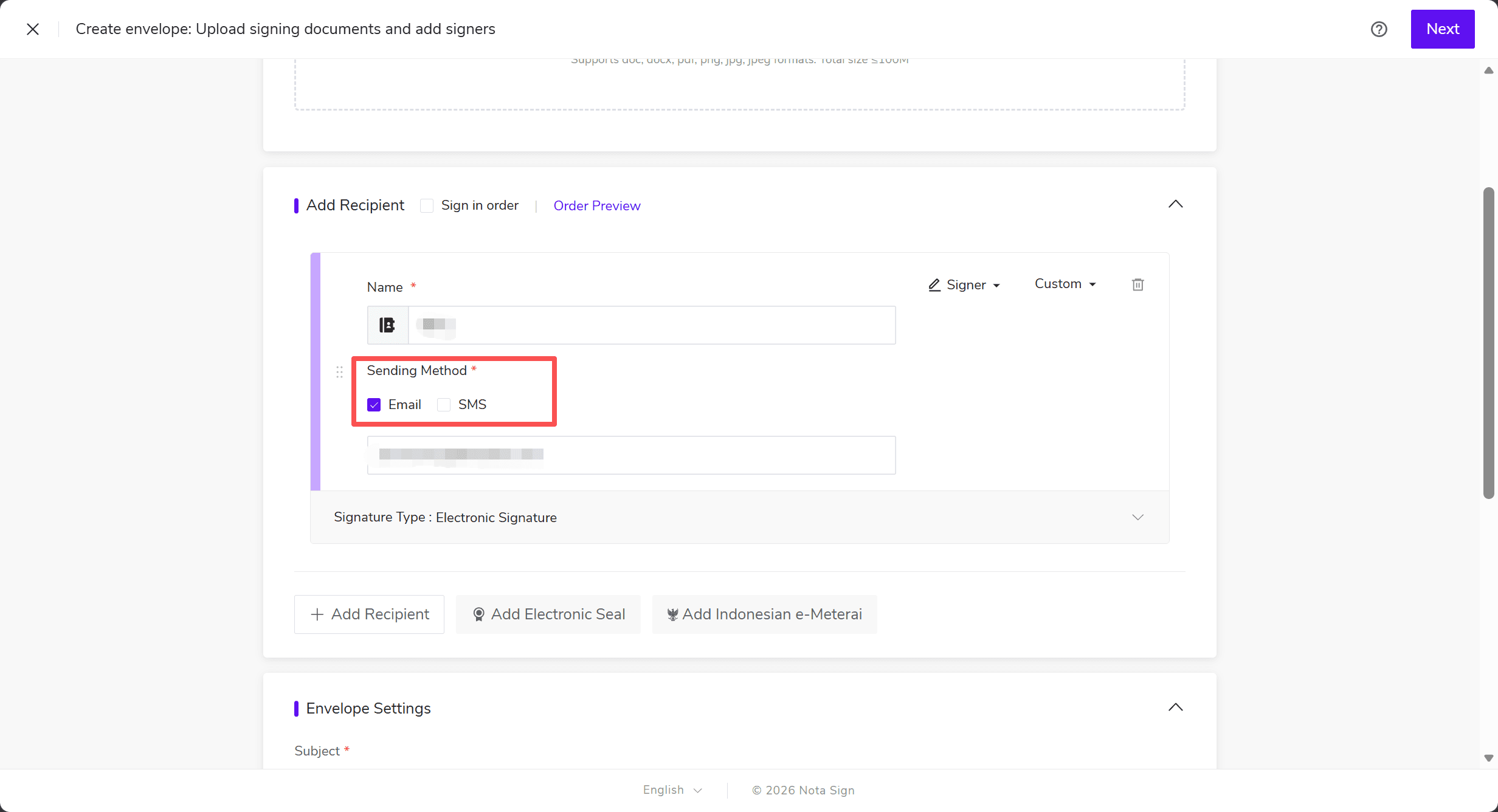
If WhatsApp has not been enabled for your workspace, the WhatsApp option will not appear under the recipient’s Sending Method, as shown below. To enable it, contact Nota Sign Sales.
2. Send WhatsApp Signing Notifications
- Log in to the Nota Sign dashboard, create an envelope, and go to the Add Recipient section.
- Enter the recipient’s name and select WhatsApp under Sending Method.
- Select the country or region code and enter the recipient’s WhatsApp mobile number.
- To also send email notifications, select Email and enter the recipient’s email address.
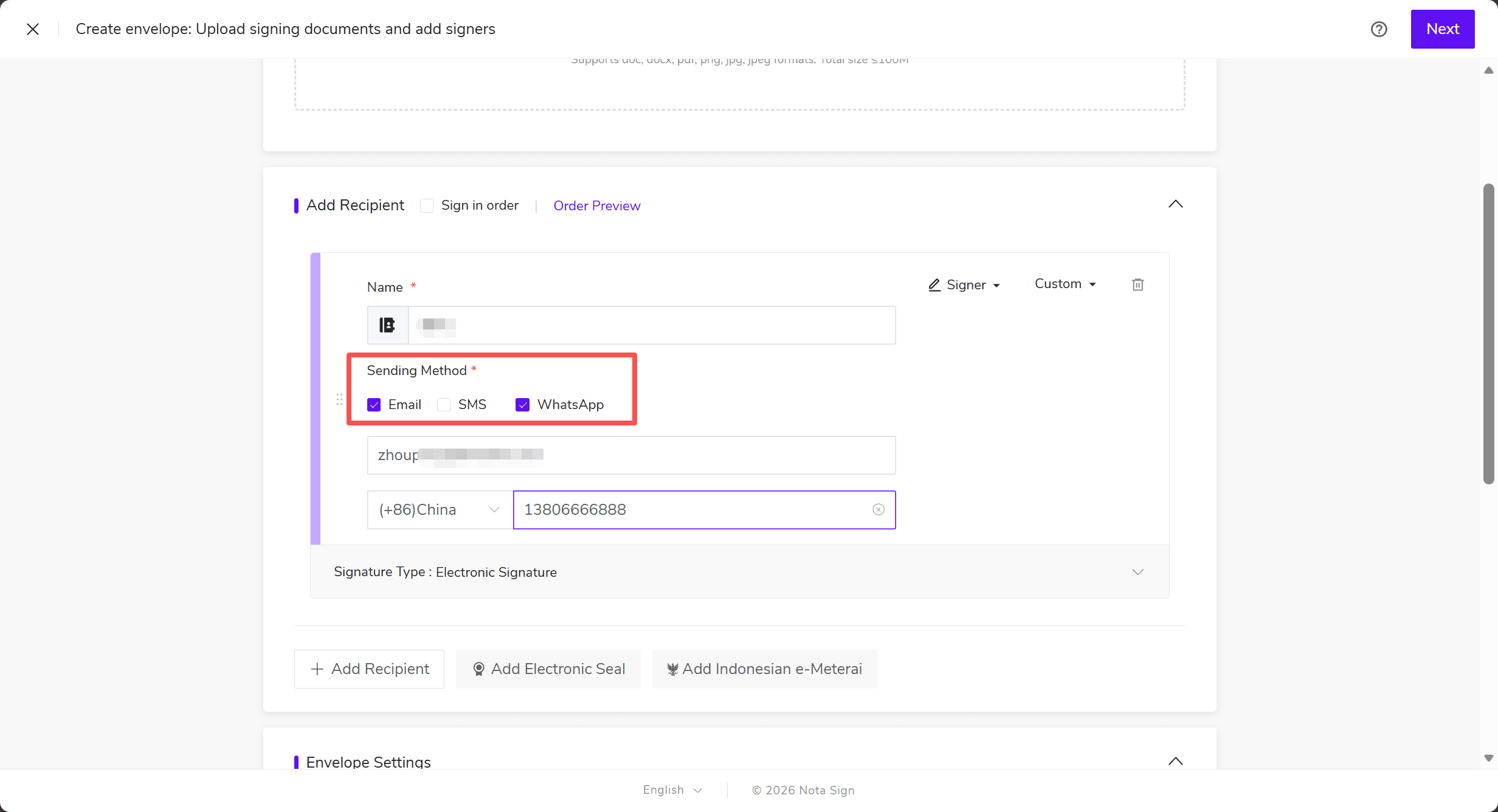
- Check the recipient details and notification methods, then continue to configure the signing fields and send the envelope.
Note: SMS and WhatsApp can both be selected. They use the same mobile number. Before sending, make sure the number can receive messages through the selected channels.
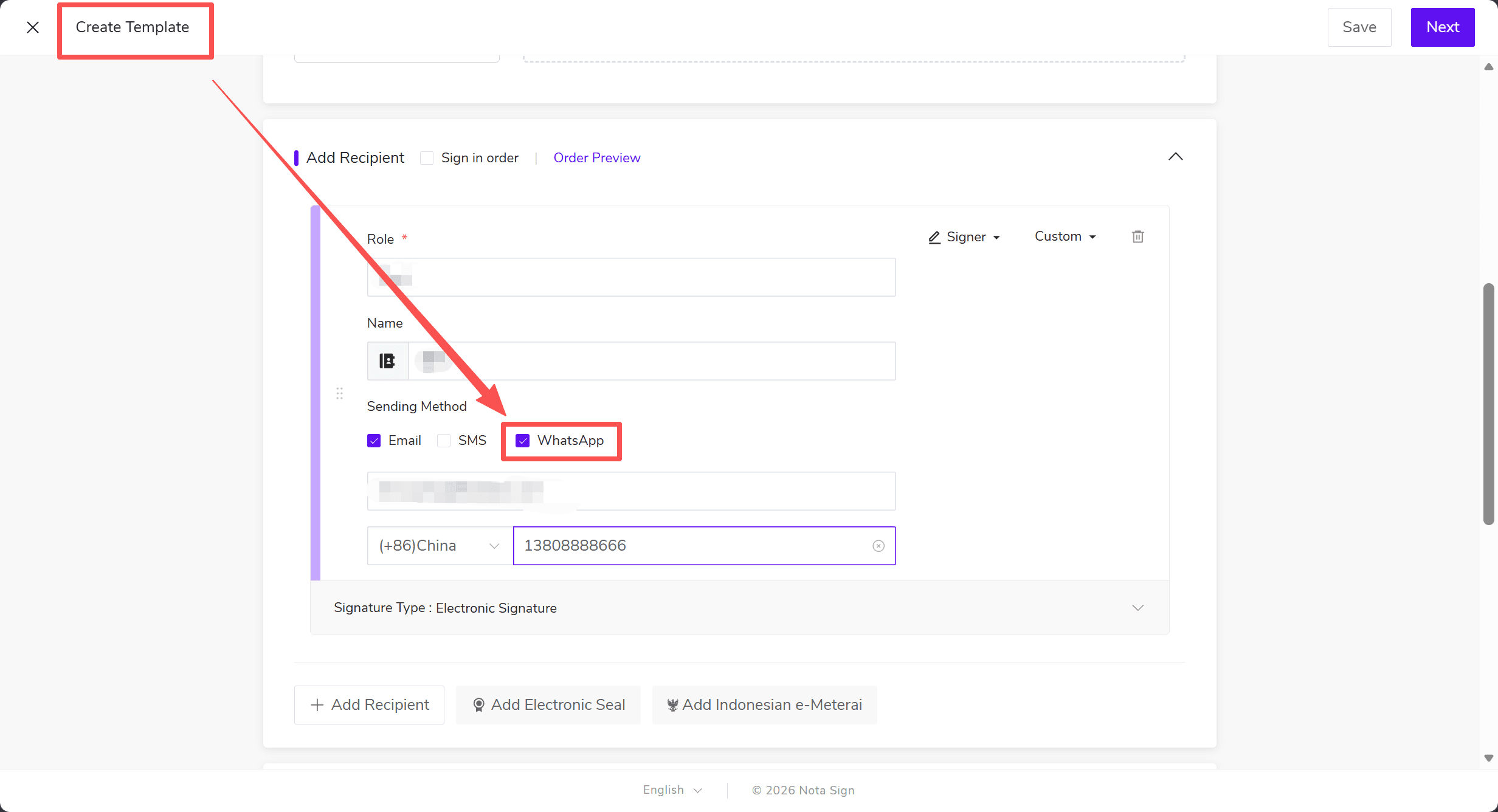
You can also select WhatsApp for recipients in the same way when creating a template or sending an envelope using a template.
3. Use WhatsApp with Bulk Send
Bulk send tasks and bulk send templates both support WhatsApp notifications. You can choose notification methods for individual recipients in the recipient list.
1. Add the Mobile Number Field
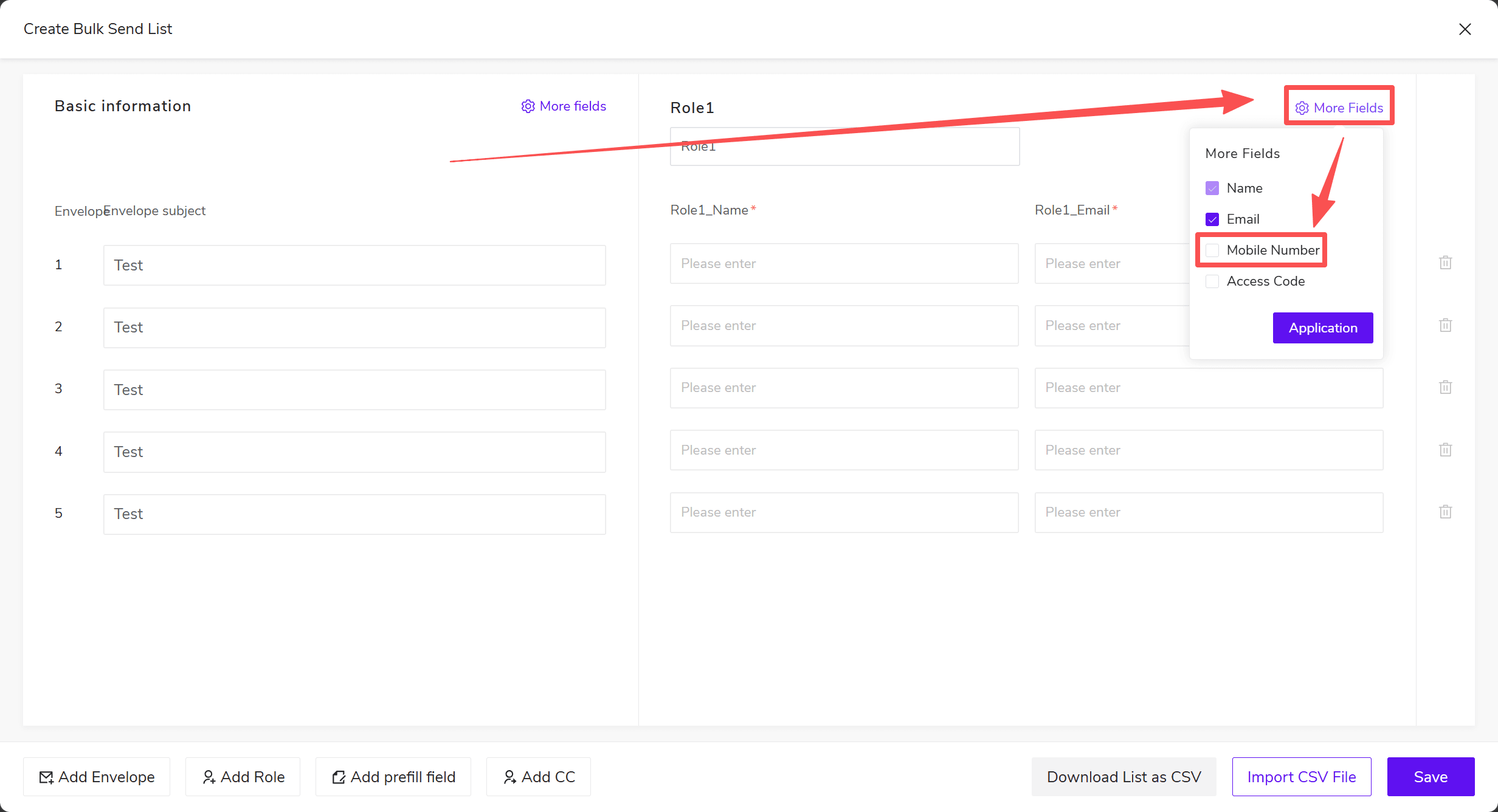
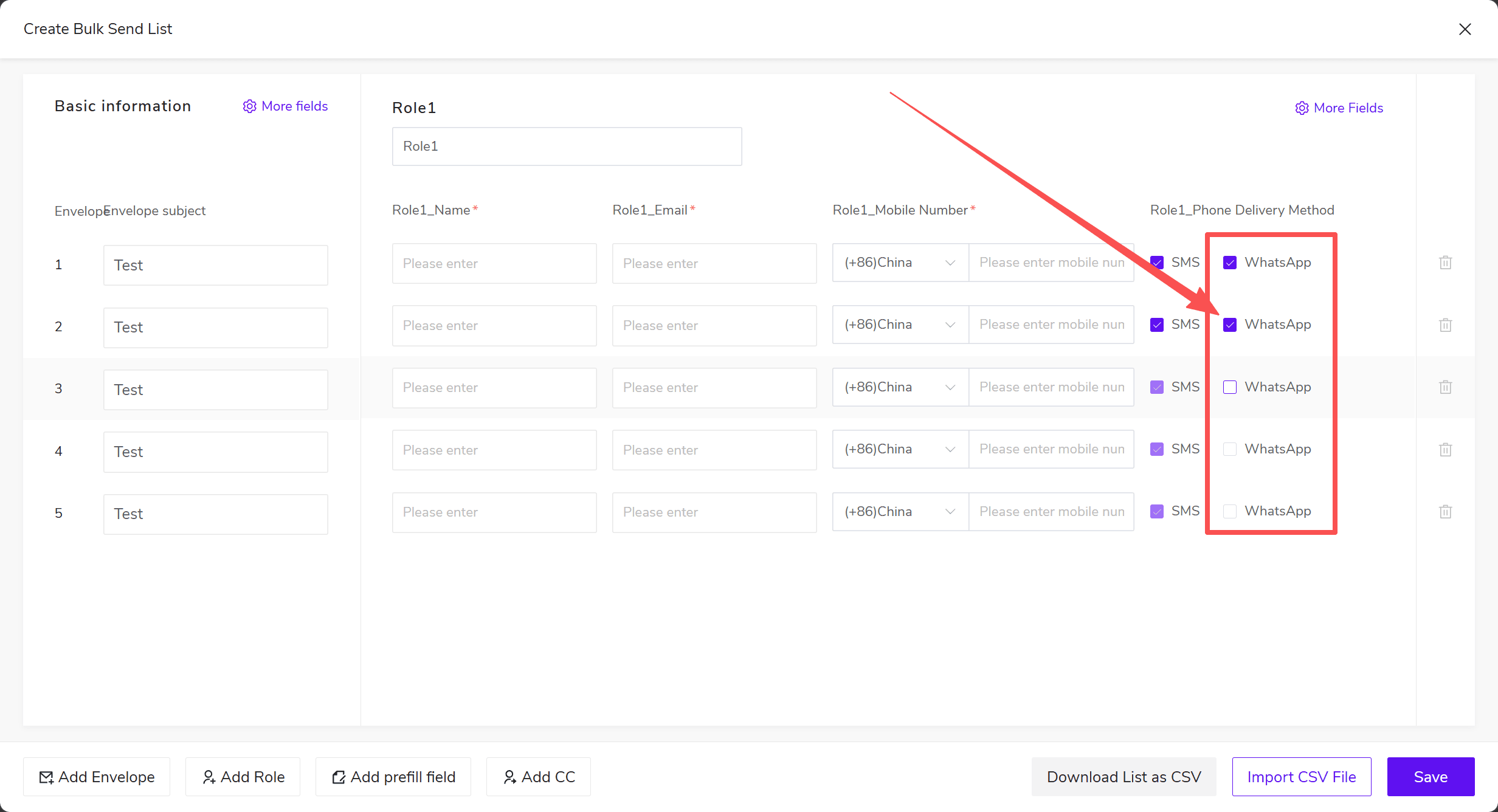
On the bulk send list page, click More Fields in the upper-right corner of the relevant role, select Mobile Number, and apply the selection by clicking Application, as shown in the screenshot.
2. Enter Mobile Numbers and Choose Notification Methods
Once the fields have been added, enter each recipient’s country or region code and mobile number in the corresponding row, then select WhatsApp under Phone Delivery Method.
To also send SMS notifications, select SMS as well.
3. Save the List and Send
Check the recipient details and notification methods in each row, then click Save in the lower-right corner. Continue to configure and send the envelopes.
If you are importing the list from a file, first download the list template provided on the current page. Fill it in as instructed without changing the field names, then import the file and check the entries.
Tip: Before starting a bulk send, make sure your remaining WhatsApp usage covers the number of recipients using WhatsApp in this batch.
4. View a Recipient’s Notification Method
After sending, open the envelope details and check the recipient’s contact information under Signing Process. Recipients using WhatsApp notifications will have a WhatsApp label next to their mobile number.
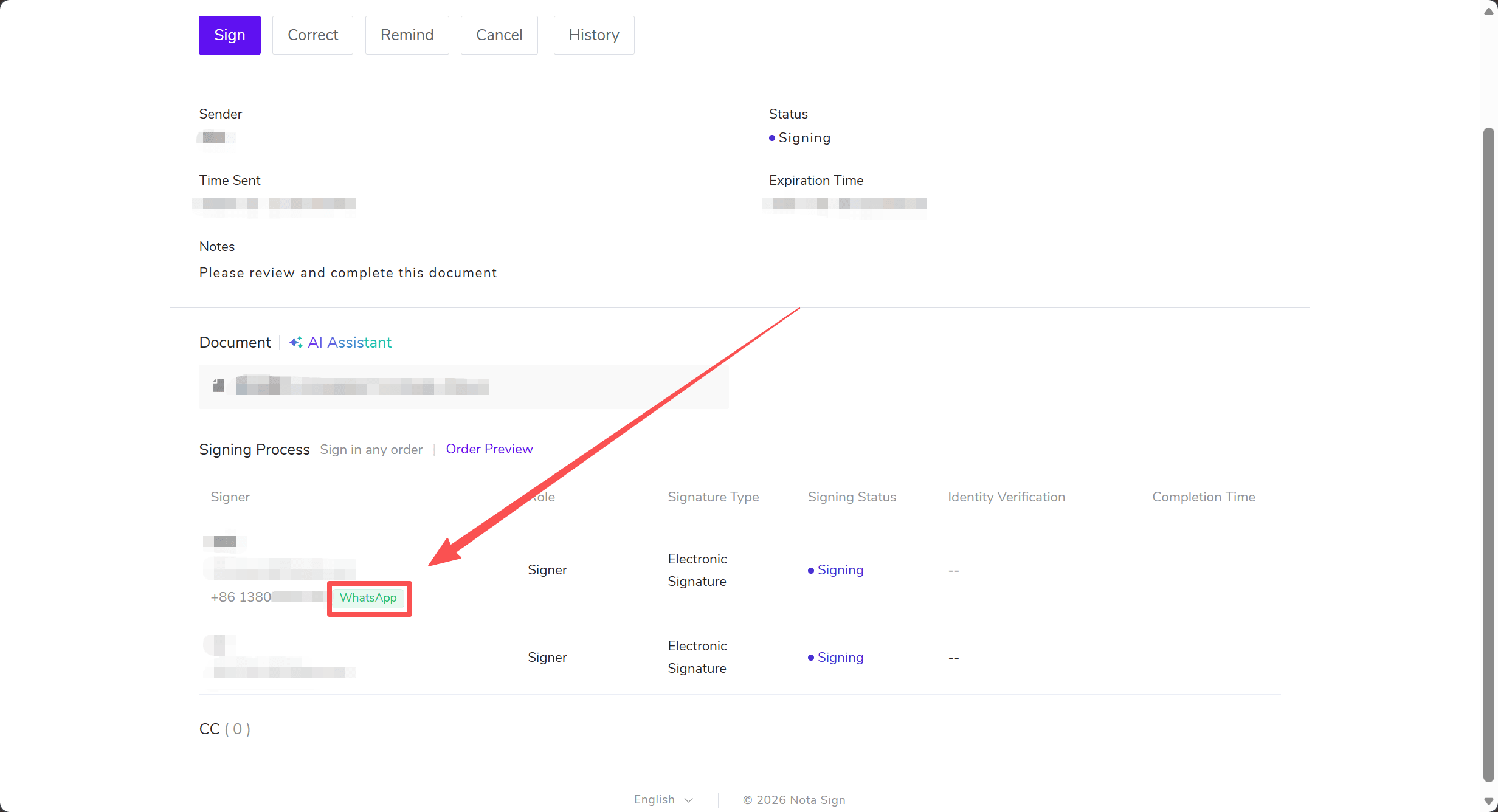
To see the notification channels recorded for related sending events, check the envelope logs.
5. Manage Your WhatsApp Notification Preferences
If you have a registered Nota Sign account, you can choose which WhatsApp notifications to receive as a recipient in Notification Settings.
- Click your profile avatar in the upper-right corner of the dashboard and select Manage Profile.
- Click Notification Settings in the left menu and select the Recipient tab.
- In the WhatsApp column, select or clear the checkboxes for the notification events you want to enable or disable.
- Click Save to apply your preferences.
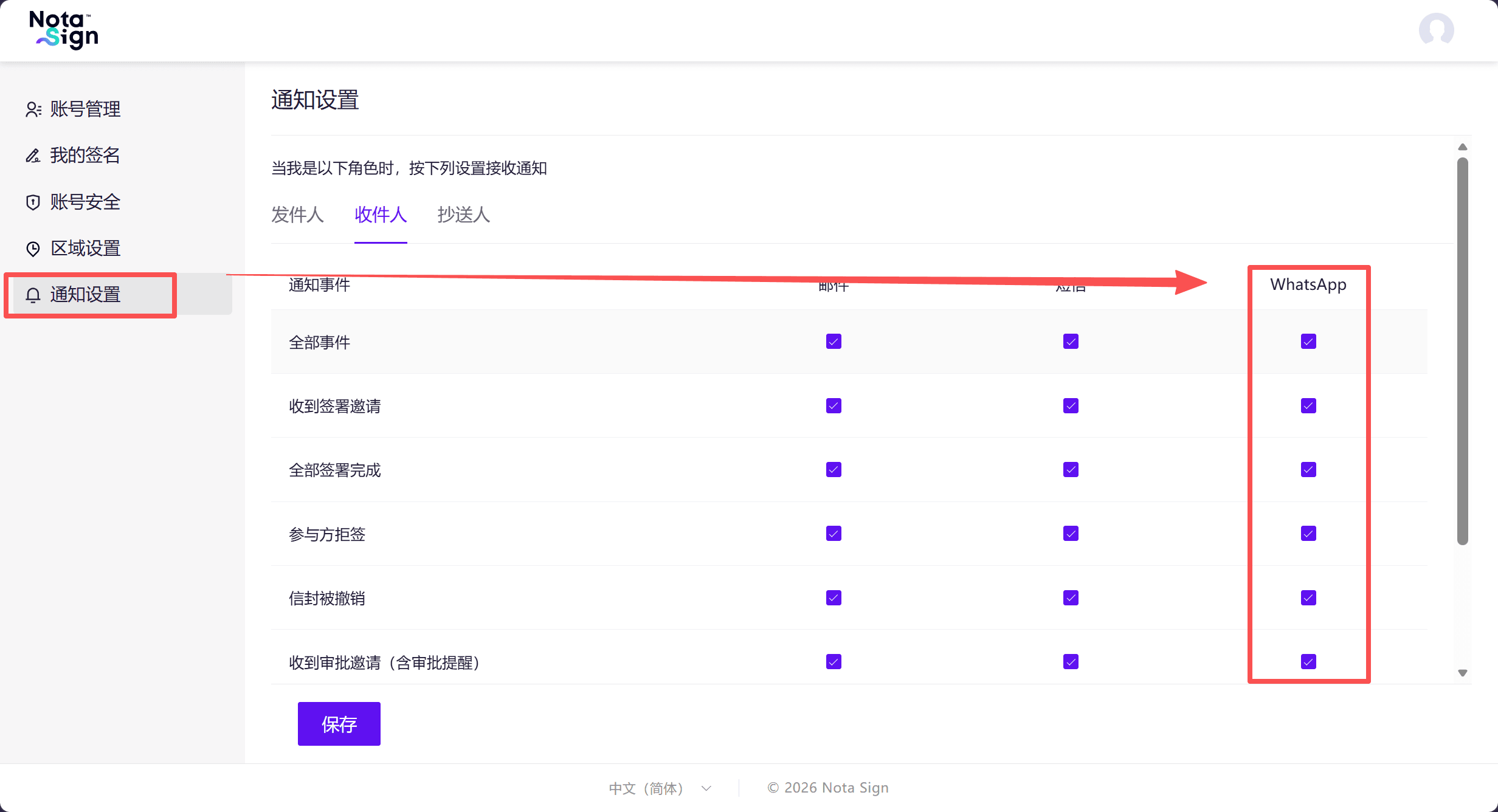
All WhatsApp notifications are selected by default. If you clear the checkbox for an event, you will no longer receive WhatsApp notifications for that event.
Note: If a recipient has disabled a WhatsApp notification event, that notification will not be sent via WhatsApp, even if the sender selects WhatsApp. The system will not automatically send an SMS instead.
6. Frequently Asked Questions
1. What should I do if there is insufficient WhatsApp usage remaining?
If there is insufficient usage remaining, the system will display a message and prevent sending. Contact Nota Sign Sales to purchase additional usage, or follow the on-screen instructions to enter recipient email addresses or change the notification methods before trying again.
Before sending from a saved draft or template, also check the available notification methods and remaining usage. You can check your purchased products and remaining usage under Manage → Purchased Products.
2. Will the system automatically send an SMS if WhatsApp delivery fails?
No. A failed WhatsApp notification will not automatically be sent by SMS. Check the recipient’s mobile number and notification preferences. If you need to use another channel, arrange an alternative notification method.
3. Can WhatsApp be used to receive signing verification codes?
This feature is for signing-related notifications. SMS OTP verification still uses SMS. WhatsApp does not replace SMS verification codes.
4. Which notifications does WhatsApp support?
WhatsApp supports the following events:
- Signing invitations and reminders;
- Completion of all signatures;
- A recipient declining to sign or an envelope being canceled;
- Approval invitations and reminders, and an approver rejecting a document;
- Invitations and reminders to view documents;
- Reminders that a document is about to expire.
Whether a notification is sent depends on the event, the selected notification methods, and the recipient’s notification preferences.