
Customize Recipient Email Language and Content
When sending an envelope, you can select a language and customize the email subject and body for individual recipients. This feature is available in standard and GxP workspaces on the Nota Sign web platform and requires a Professional plan subscription.
I. Enable the Feature in Sending Settings
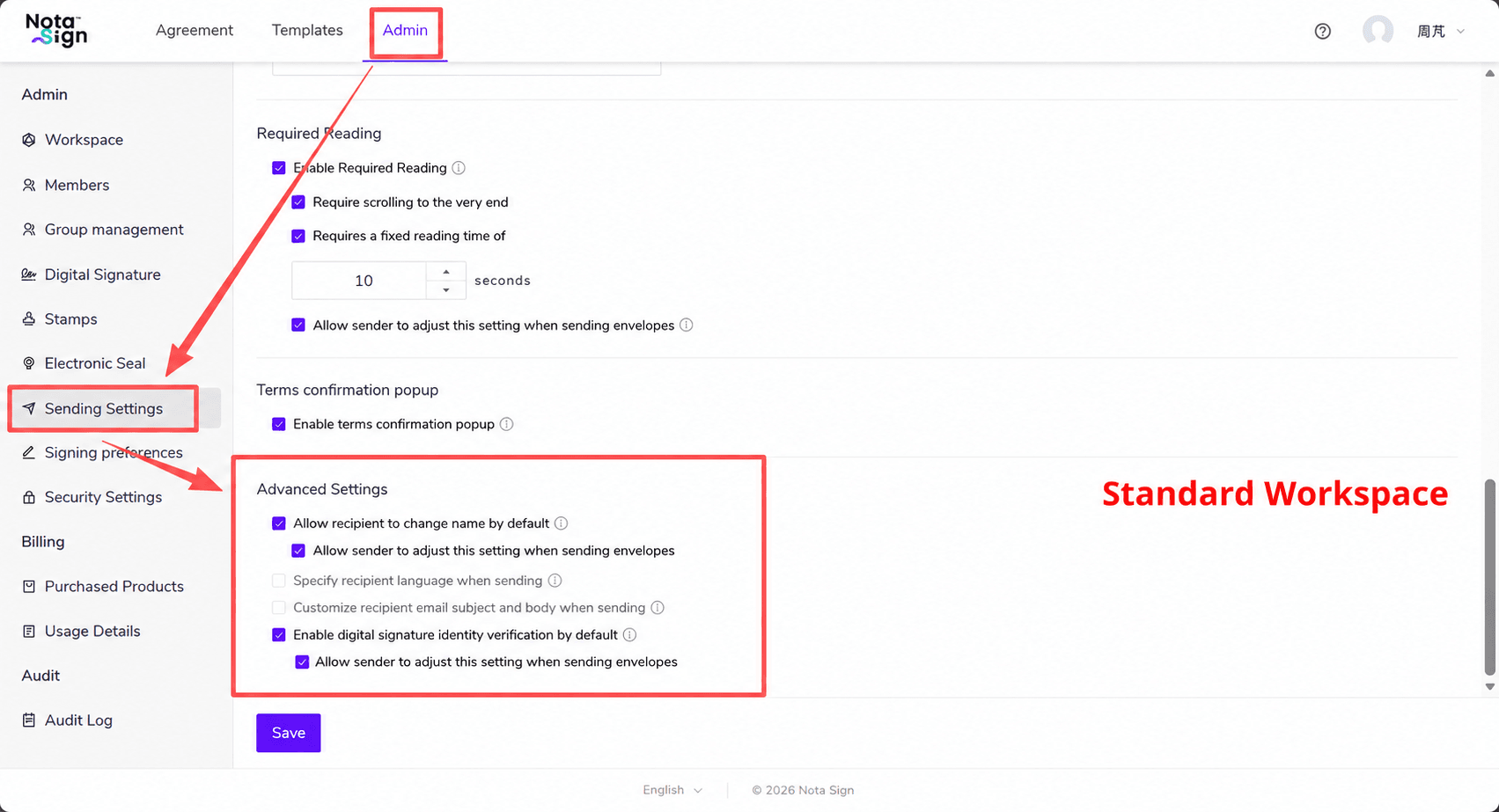
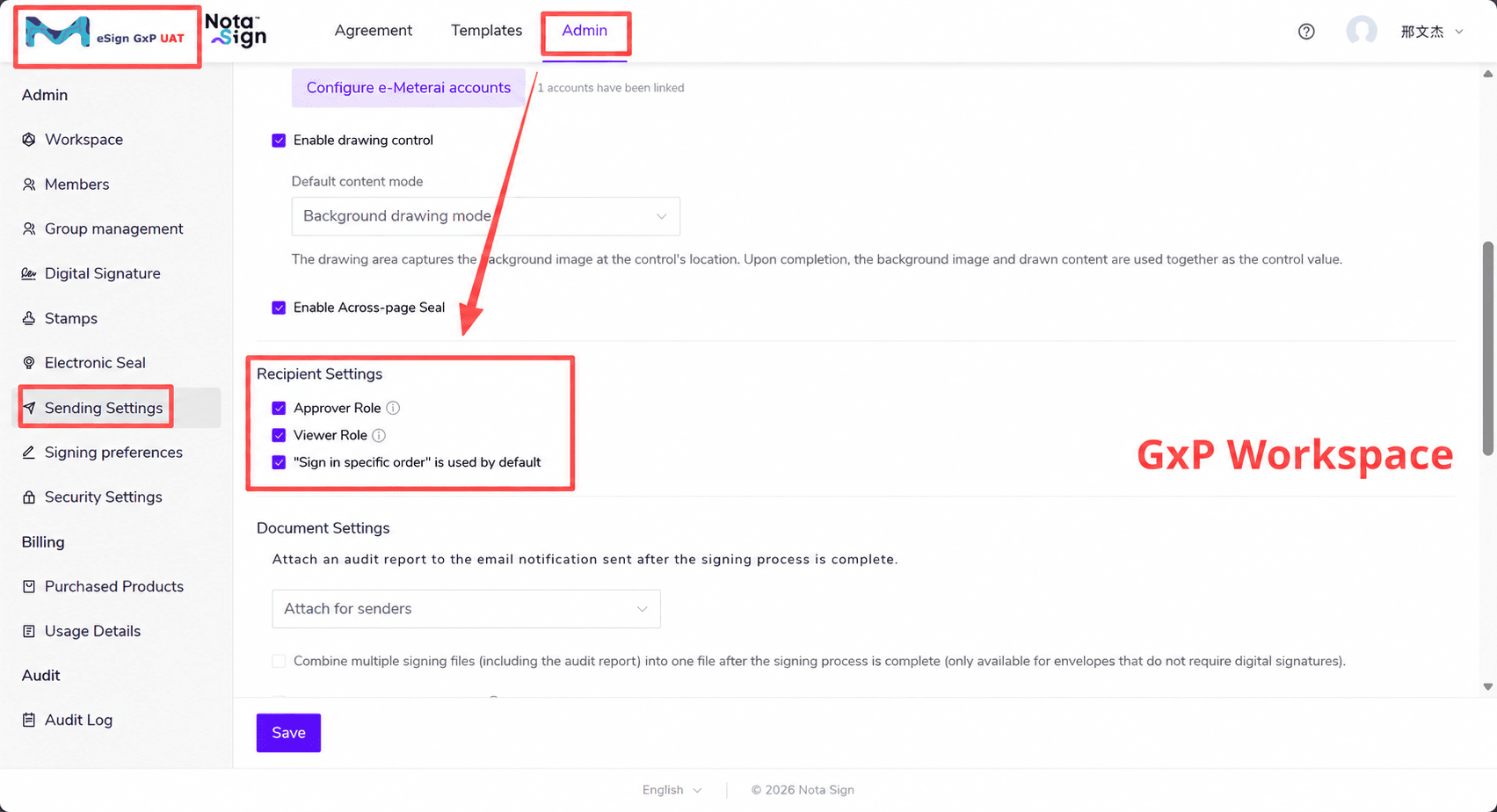
- Log in to the Nota Sign dashboard and click [Admin] → [Sending Settings].
- In a standard workspace, go to [Advanced Settings]. In a GxP workspace, go to [Recipient Settings].
- Enable [Specify recipient language when sending] or [Customize recipient email subject and body when sending] as needed, then click [Save]. Both options are off by default and can be enabled independently. Once enabled, the corresponding options appear in each recipient’s [Advanced Settings].
II. Configure Settings When Creating an Envelope
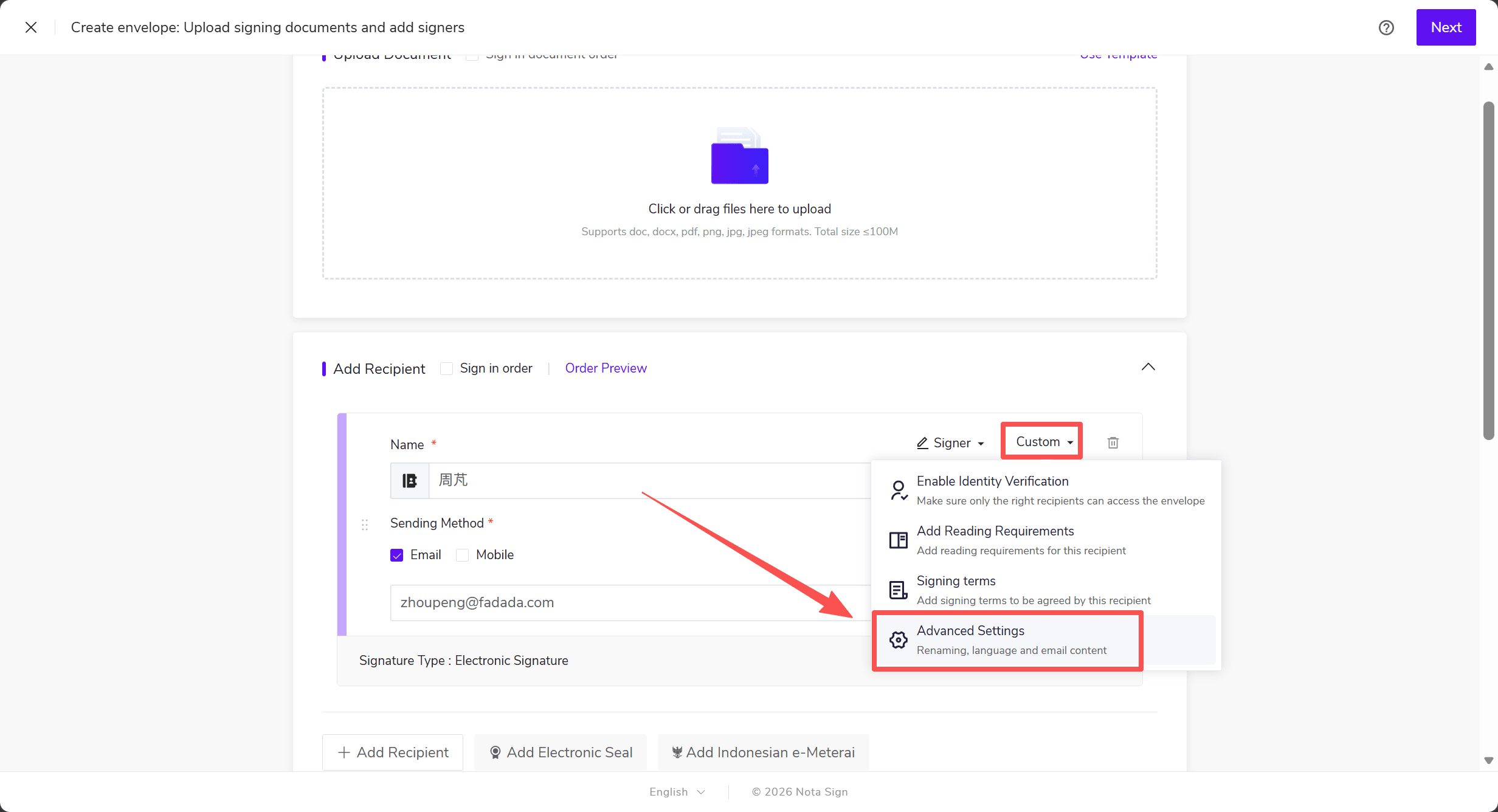
- Add a recipient on the envelope creation page and open the recipient’s [Advanced Settings].
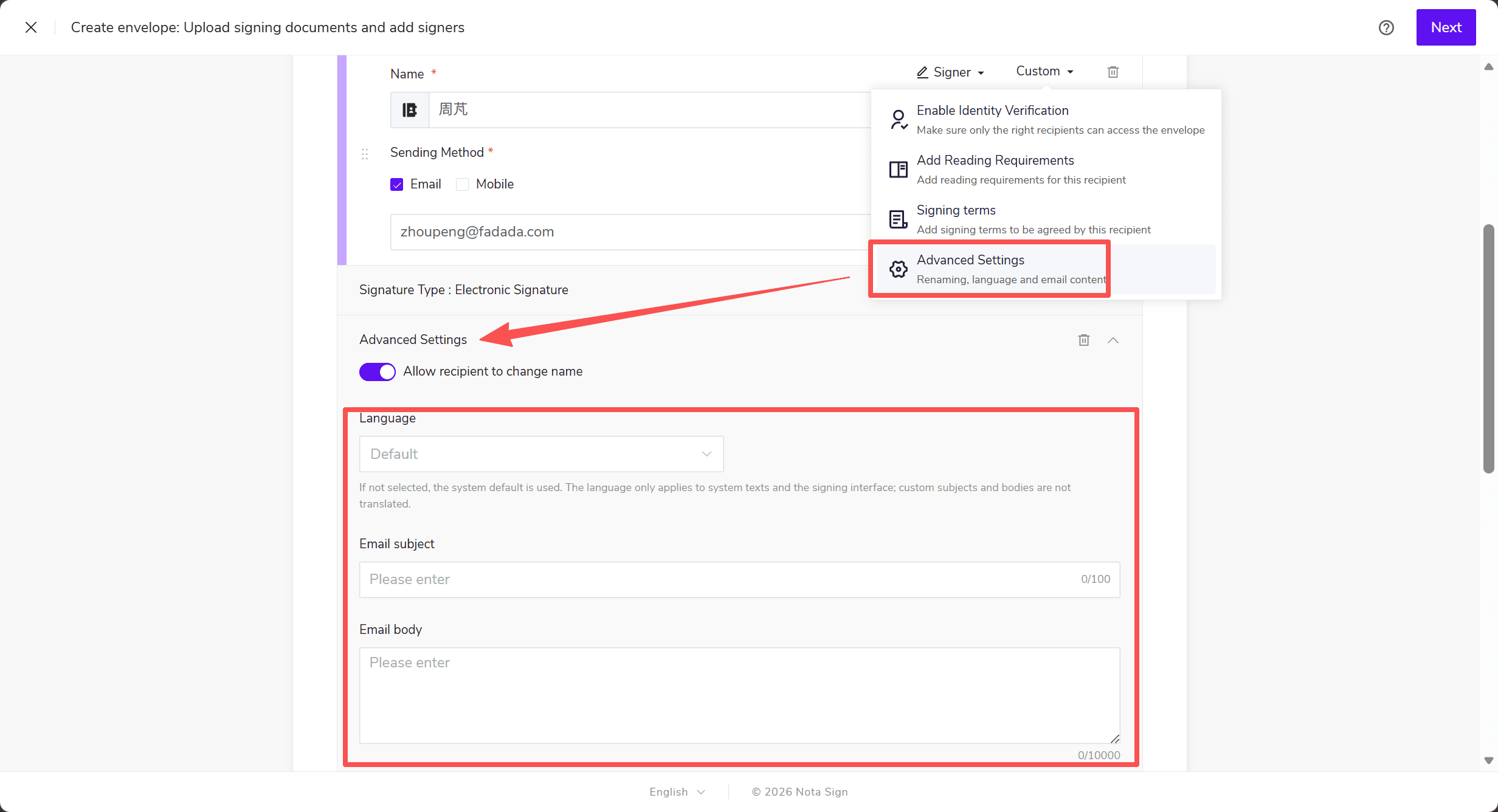
- Under [Language], select the language for this recipient. This setting applies to system notification text and the signing interface.
- Under [Email Subject and Body], enter the recipient’s [Email subject] and [Email body]. The subject supports up to 100 characters, and the body supports up to 10,000 characters.
- To configure other recipients individually, repeat these steps on their recipient cards. When finished, click [Next], configure the signing fields, and send the envelope.
These settings are supported for signers, approvers, and viewers. CC recipients use the envelope-level content. Separate settings are not supported for electronic seal or Indonesian e-Meterai participants.
Note Custom email subjects and bodies take effect only when email notifications are enabled for the recipient and apply to signing invitations and reminder emails. Text is sent exactly as entered. Enter the subject and body in the intended language. The envelope list, envelope details, signing page, and audit report continue to use the envelope subject and notes.
III. Examples of Emails Before and After Customization
1. Without Recipient Language or Email Content Settings
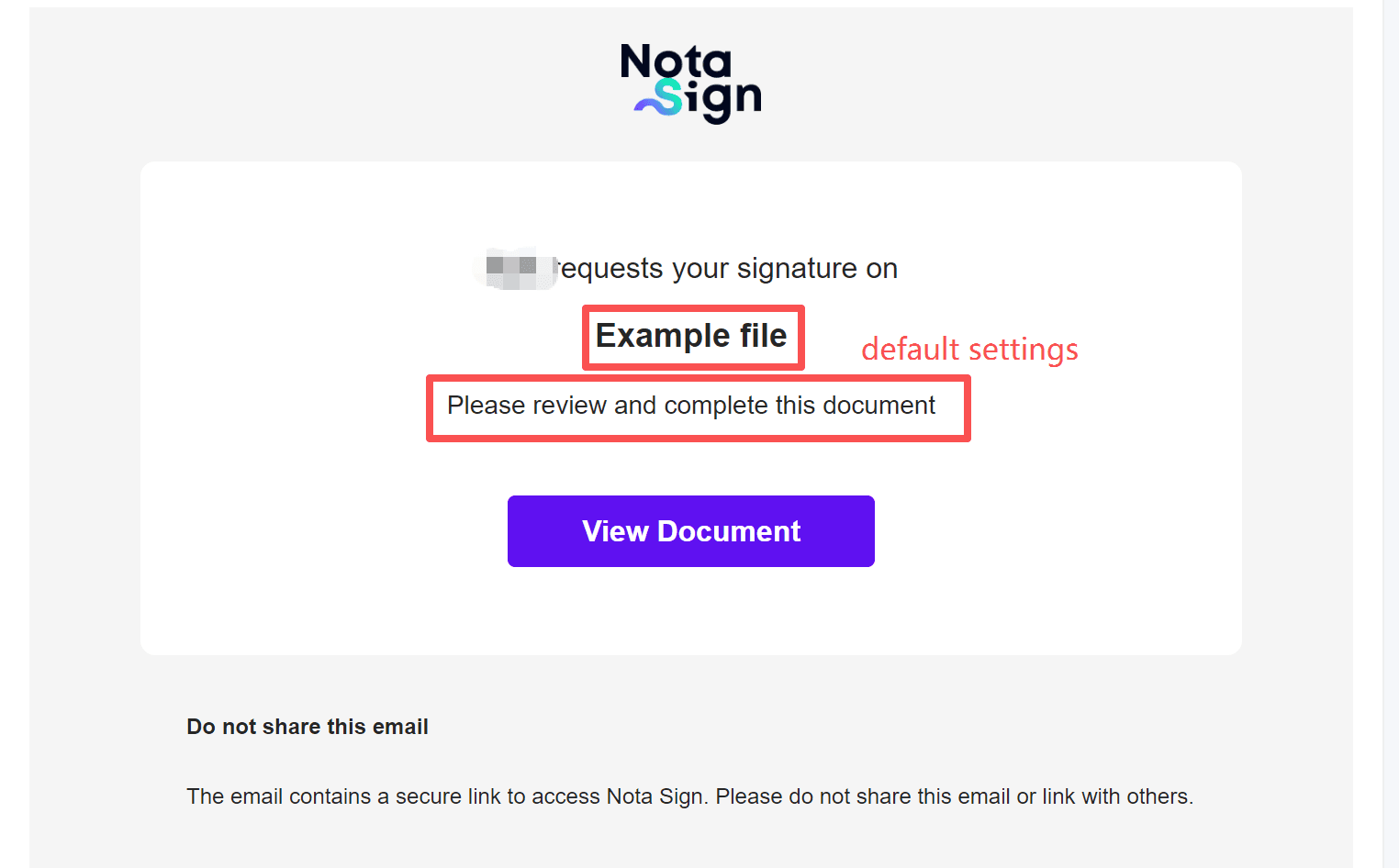
If you leave the recipient’s email subject and body blank, the system uses the envelope subject and notes, respectively. If you enter only an email subject, the email body still uses the envelope notes.
If no recipient language is selected, system notification text and the signing interface use the following language settings.
| Recipient | System Text in Emails | Signing Interface |
|---|---|---|
| Registered | Account language | Account language |
| Unregistered | English | Browser language |
In this example, the interface is in English, and the recipient’s default email language is English. Enter the following information under [Envelope Settings] and leave the recipient’s language, email subject, and email body blank.
| Setting | Example Content |
|---|---|
| Envelope subject | Example file |
| Envelope notes | Please review and complete this document |
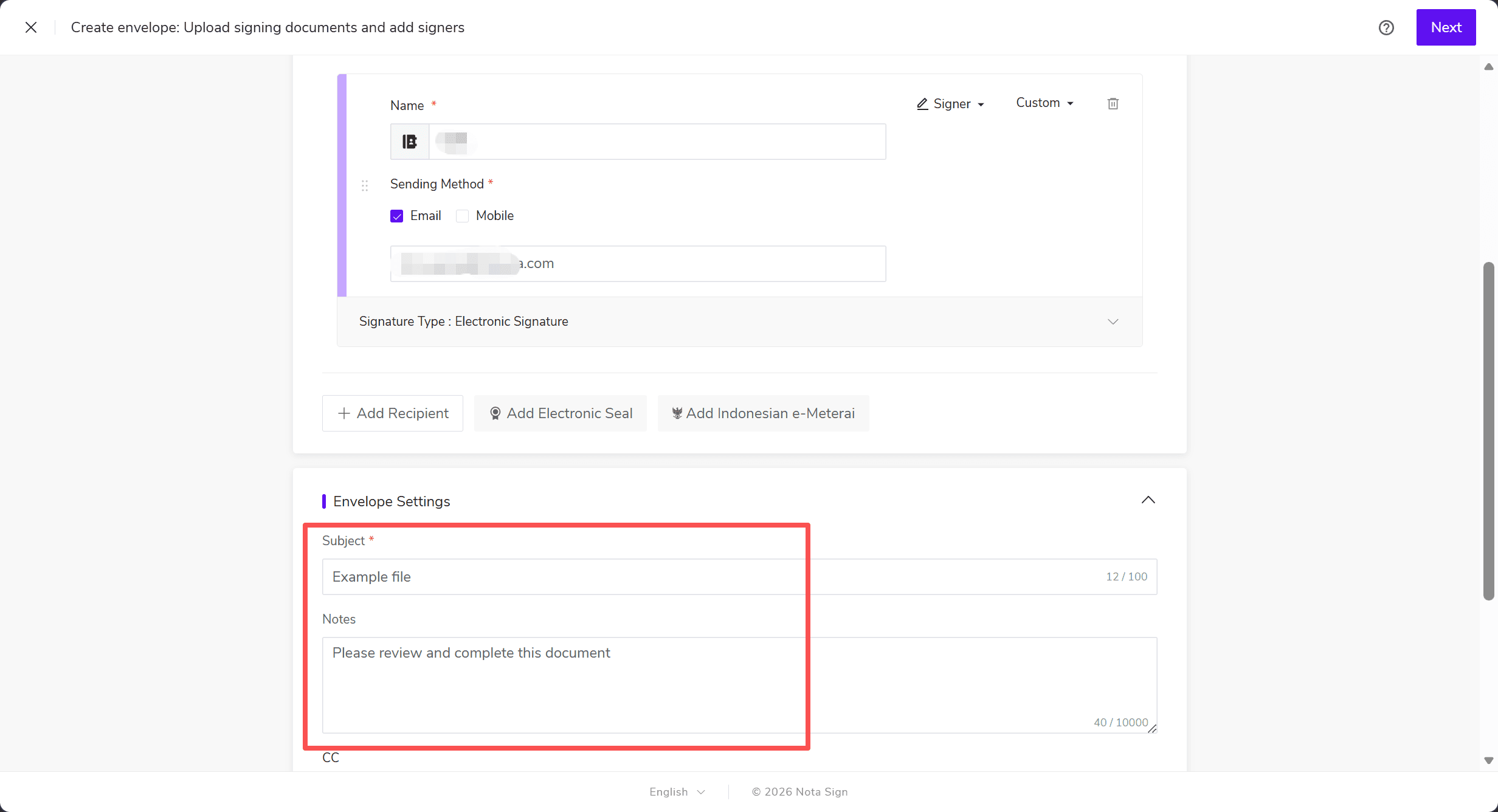
After the envelope is sent, the recipient receives an email with system text and a [View Document] button in English. The email displays the envelope subject and notes as its subject and body.
2. With Recipient Language and Email Content Settings
To customize the settings for this recipient, click [Custom] → [Advanced Settings] on the recipient card and enter the following information.
| Setting | Example Content |
|---|---|
| Language | Simplified Chinese |
| Email subject | Sprite or coke, which do you prefer? |
| Email body | Sorry, I prefer fanta. |
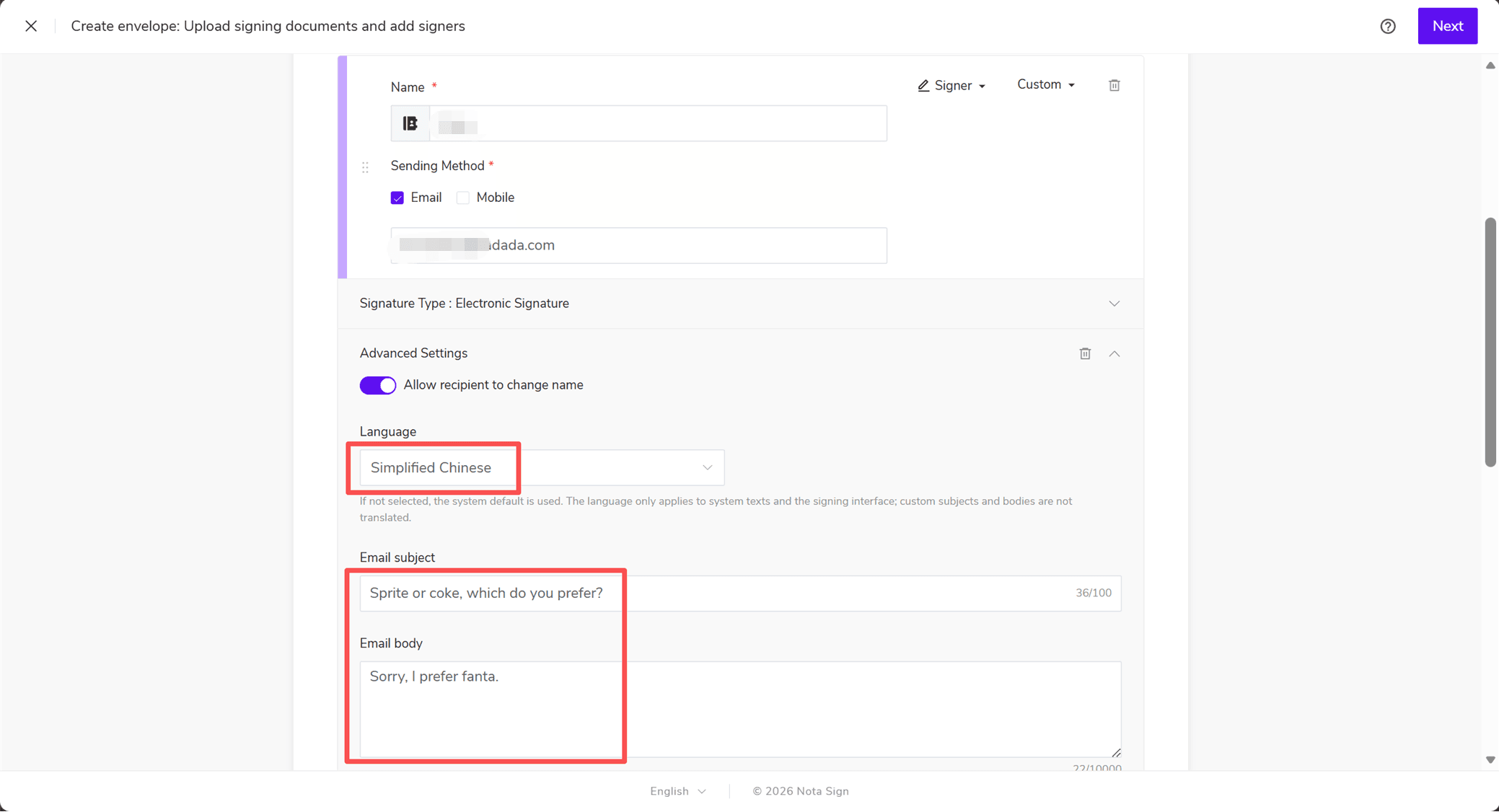
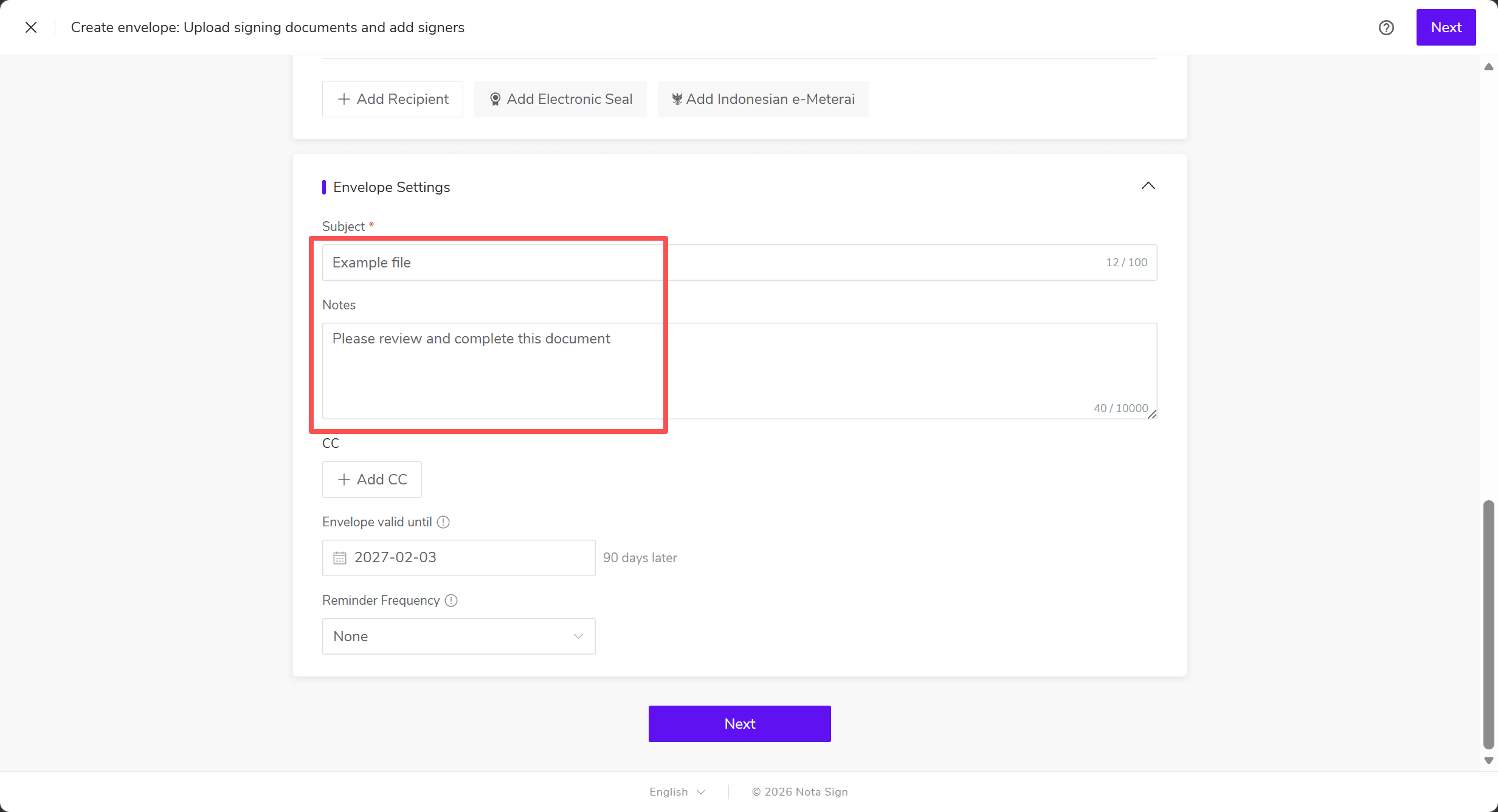
This example keeps the original envelope subject, “Example file”, and notes, “Please review and complete this document”.
After the envelope is sent, the recipient’s email displays the custom subject and body. The system text, [查看文档] (View Document) button, and security notice appear in Simplified Chinese.
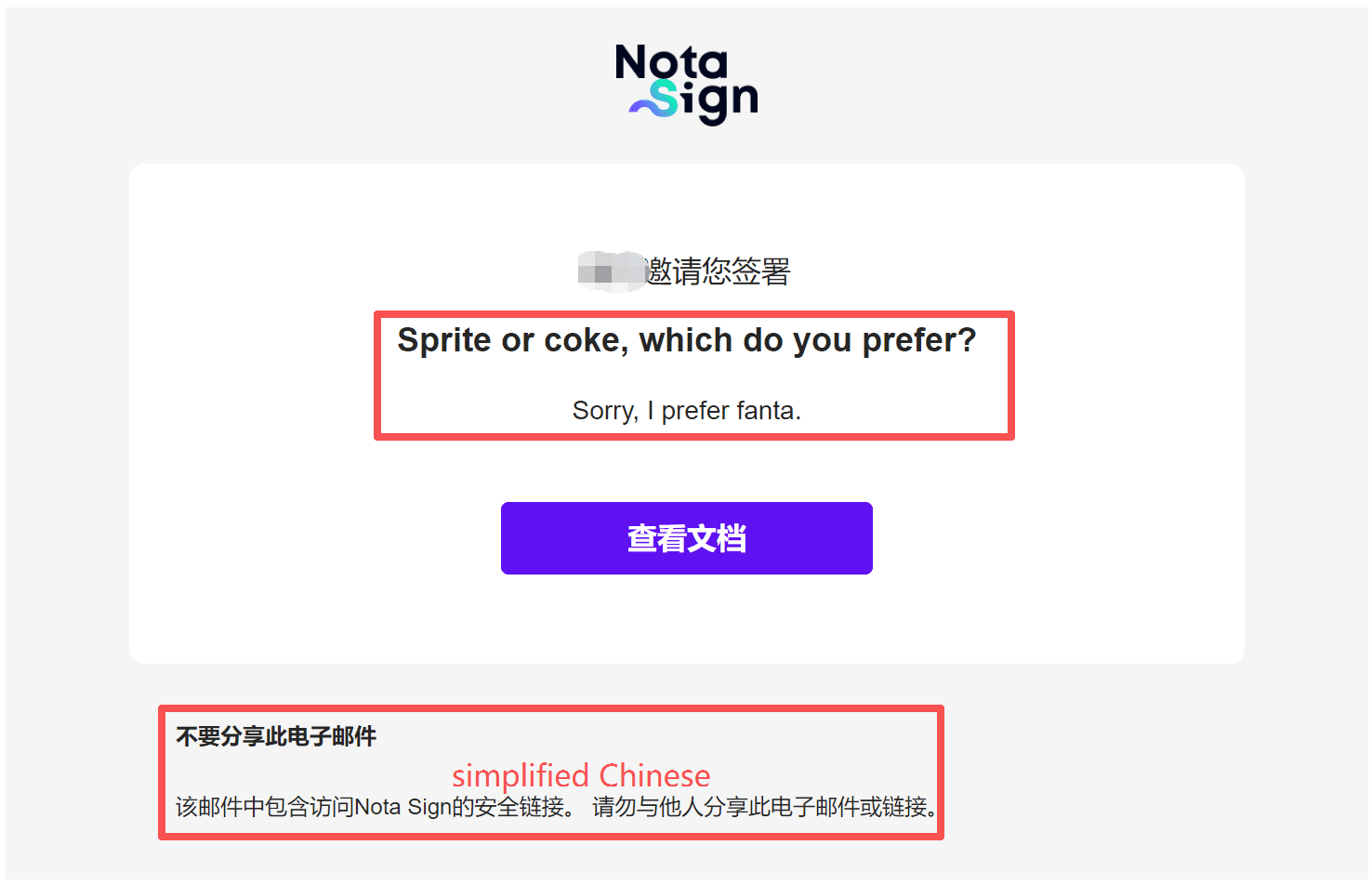
Note [Language] controls only system notification text and the signing interface. Custom email subjects and bodies are displayed exactly as entered, so the two English texts in this example remain in English.
IV. Configure Settings in Templates and Batch Send
- Templates and batch send templates. When creating a template, you can configure the language, email subject, and email body for each role. These settings are saved with the role and applied to the corresponding role when you create an envelope from the template. If the corresponding option in Sending Settings is disabled, the template retains the saved settings, but those settings are not applied to the new envelope.
- Batch Send. Configure the language, email subject, and email body by role in a batch send task. All recipients assigned to the same role use the same settings. The batch send list does not currently support configuring these three settings for individual rows.
V. Update Settings During Envelope Correction
Start the correction process from the envelope action bar. You can then update the language, email subject, and email body for recipients who have not completed signing.
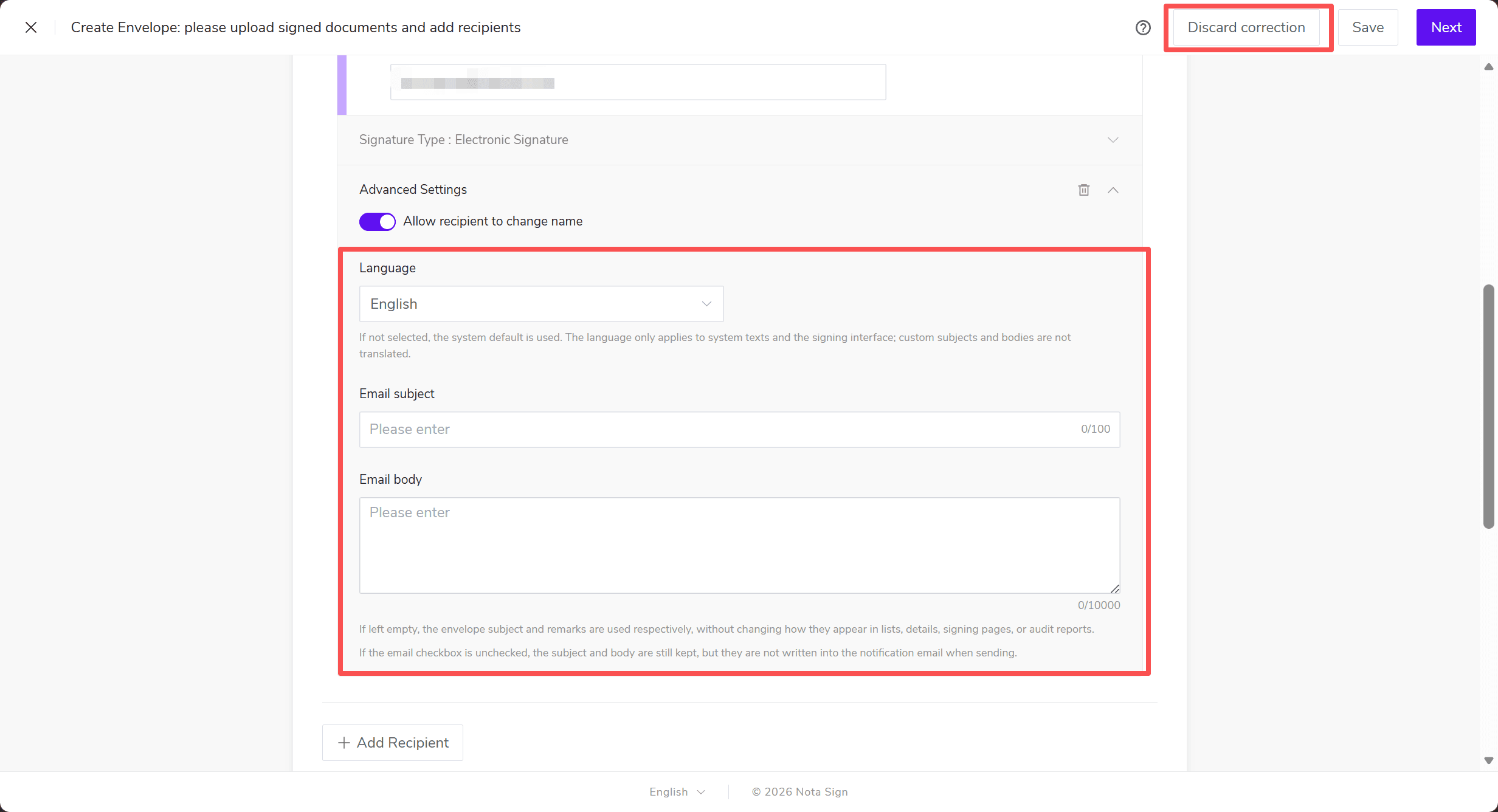
Settings cannot be changed for recipients who have completed signing. Emails already sent retain their original content. Subsequent notifications and reminder emails use the latest saved settings.
VI. Manage Existing Drafts After Disabling the Feature
If a draft already contains recipient language or custom email content settings and the corresponding feature is later disabled in [Sending Settings], the draft retains those settings. However, the related configuration options are hidden, and you cannot proceed to the next step.
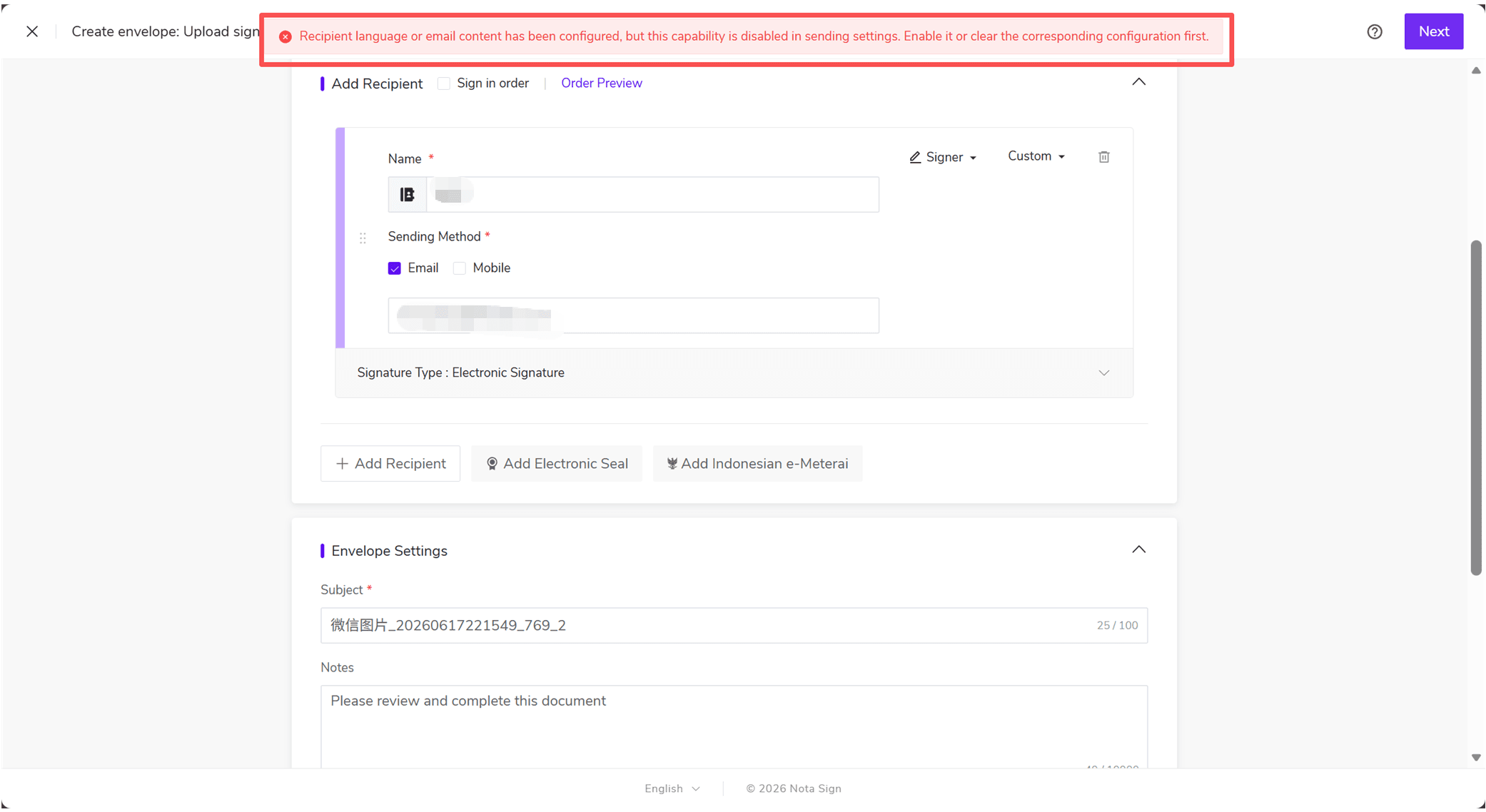
Re-enable the corresponding feature in [Sending Settings], then return to the draft to continue.