
Configure Signature Timestamp Services (FPT, Intesi)
1. Introduction
A signature timestamp service records the time information associated with a digital signature during the signing process.
In some countries or regions, local compliance or legal requirements may require the use of a specified signature timestamp service.
Nota Sign allows workspace administrators to configure specified signature timestamp services and set the signing scopes to which they apply.
2. Before You Begin
Before configuring a specified signature timestamp service, make sure that:
- You are an administrator of the current workspace;
- The current workspace has purchased the Vietnam FPT timestamp service or Italy Intesi timestamp service.
To purchase a specified signature timestamp service, contact the Nota Sign Sales team: Talk to Nota Sign Sales
3. Configure a Signature Timestamp Service
3.1 Go to Signature Timestamp Settings
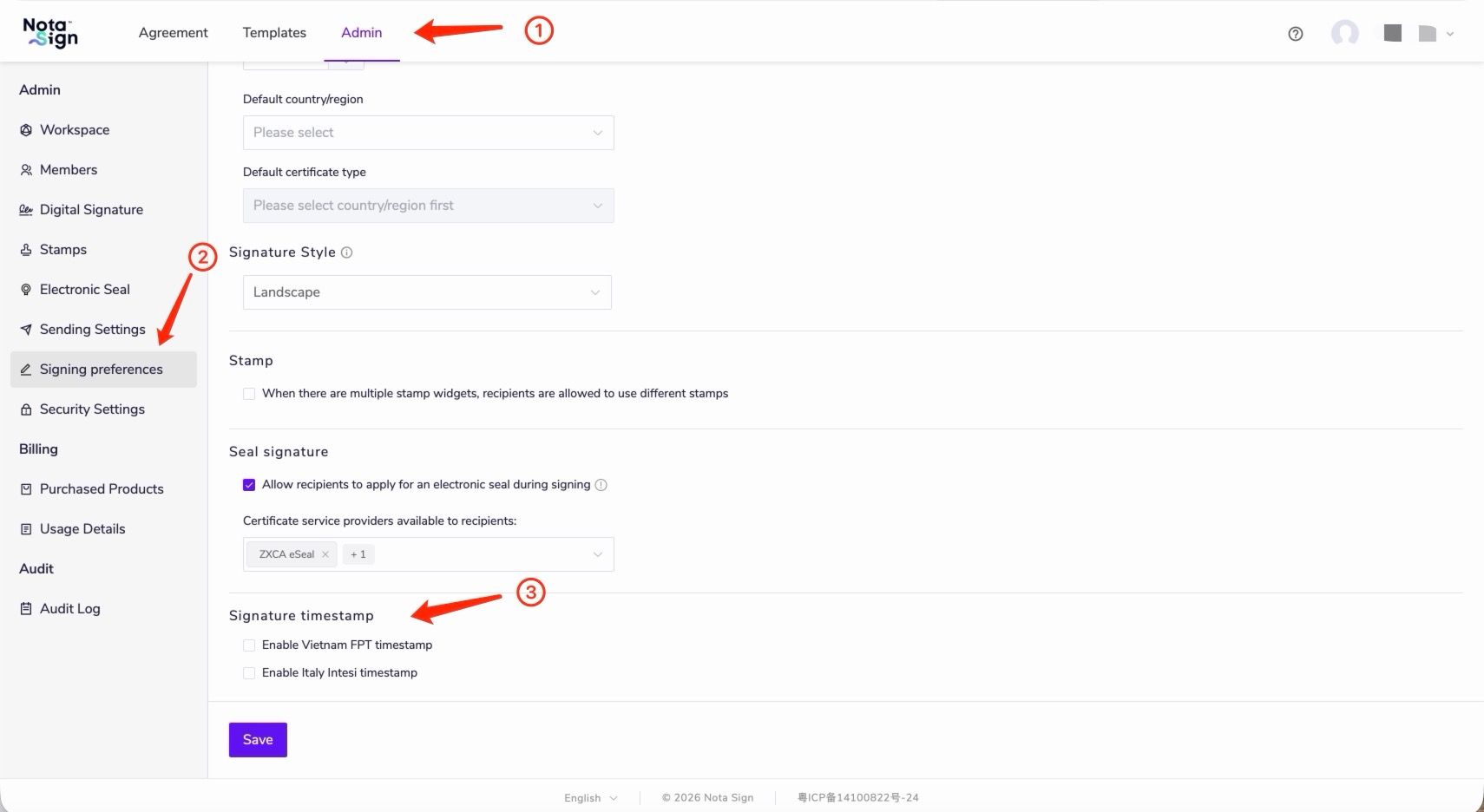
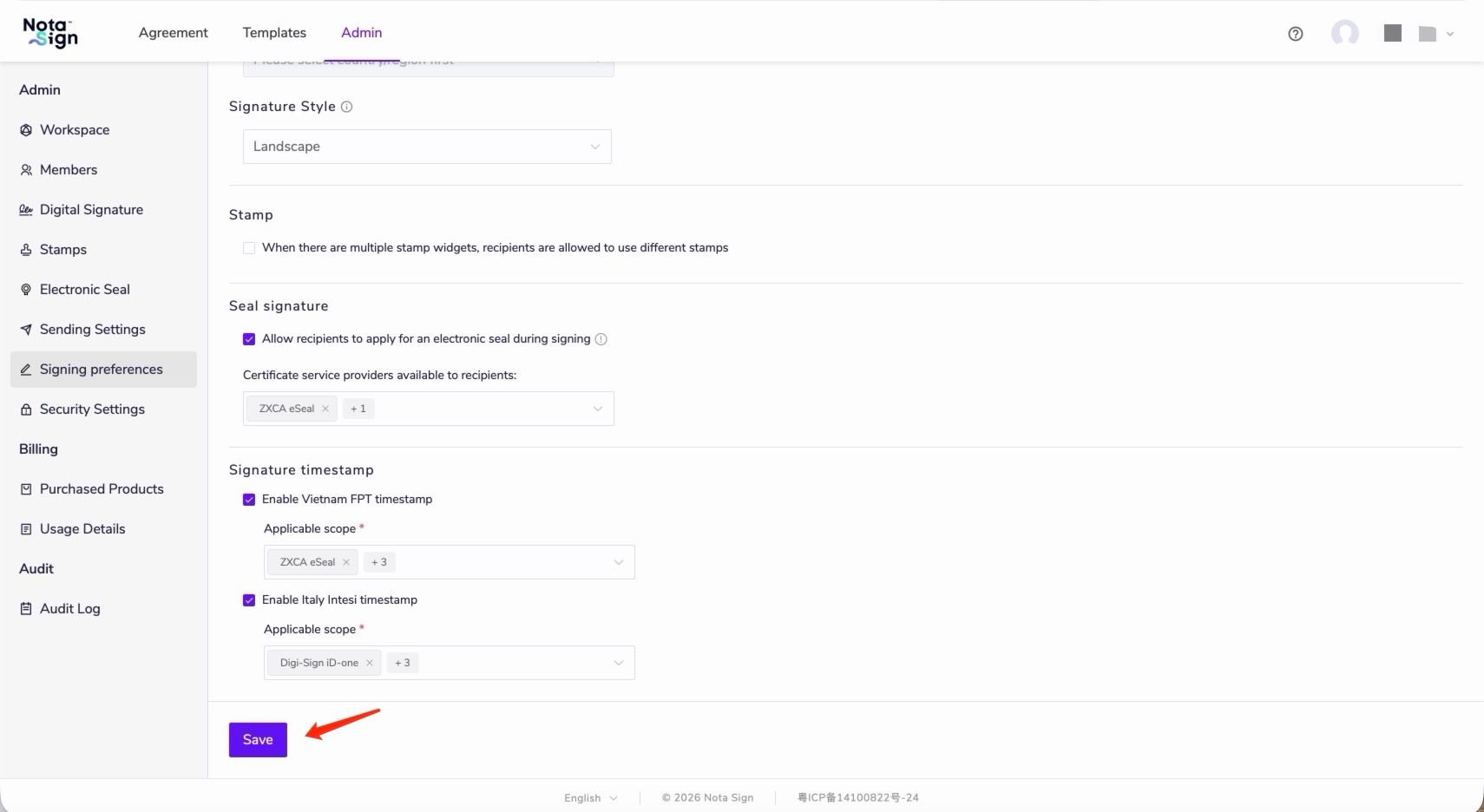
Go to 【Admin】-【Signing preferences】 and find 【Signature timestamp】.
Note: The 【Signature timestamp】 section is displayed only when the current workspace has subscribed to the Vietnam FPT timestamp service or Italy Intesi timestamp service.
3.2 Enable a Specified Timestamp Service
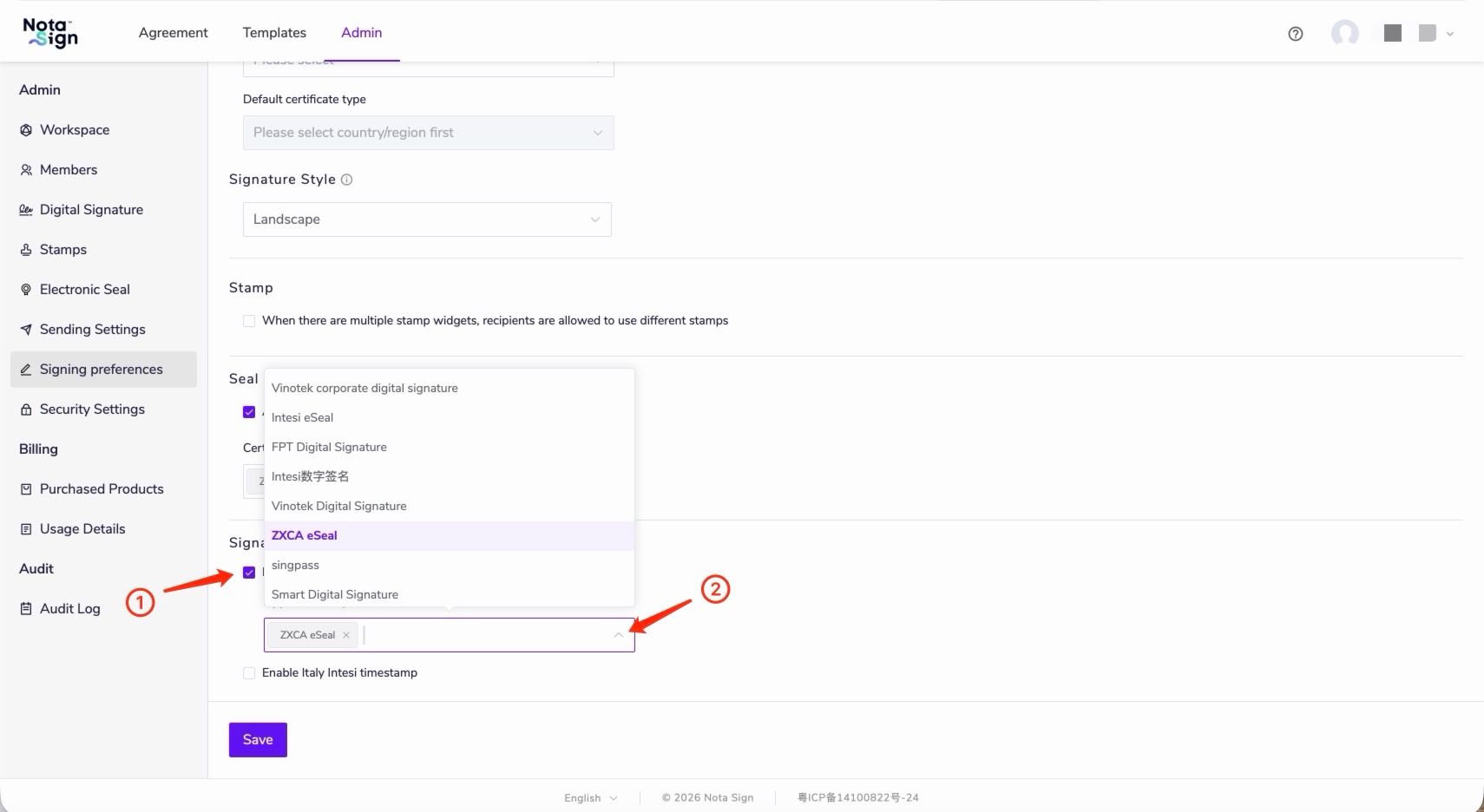
Select 【Enable Vietnam FPT timestamp】 or 【Enable Italy Intesi timestamp】 as needed.
After enabling a specified timestamp service, the corresponding 【Applicable scope】 setting will be displayed.
3.3 Set the Applicable Scope
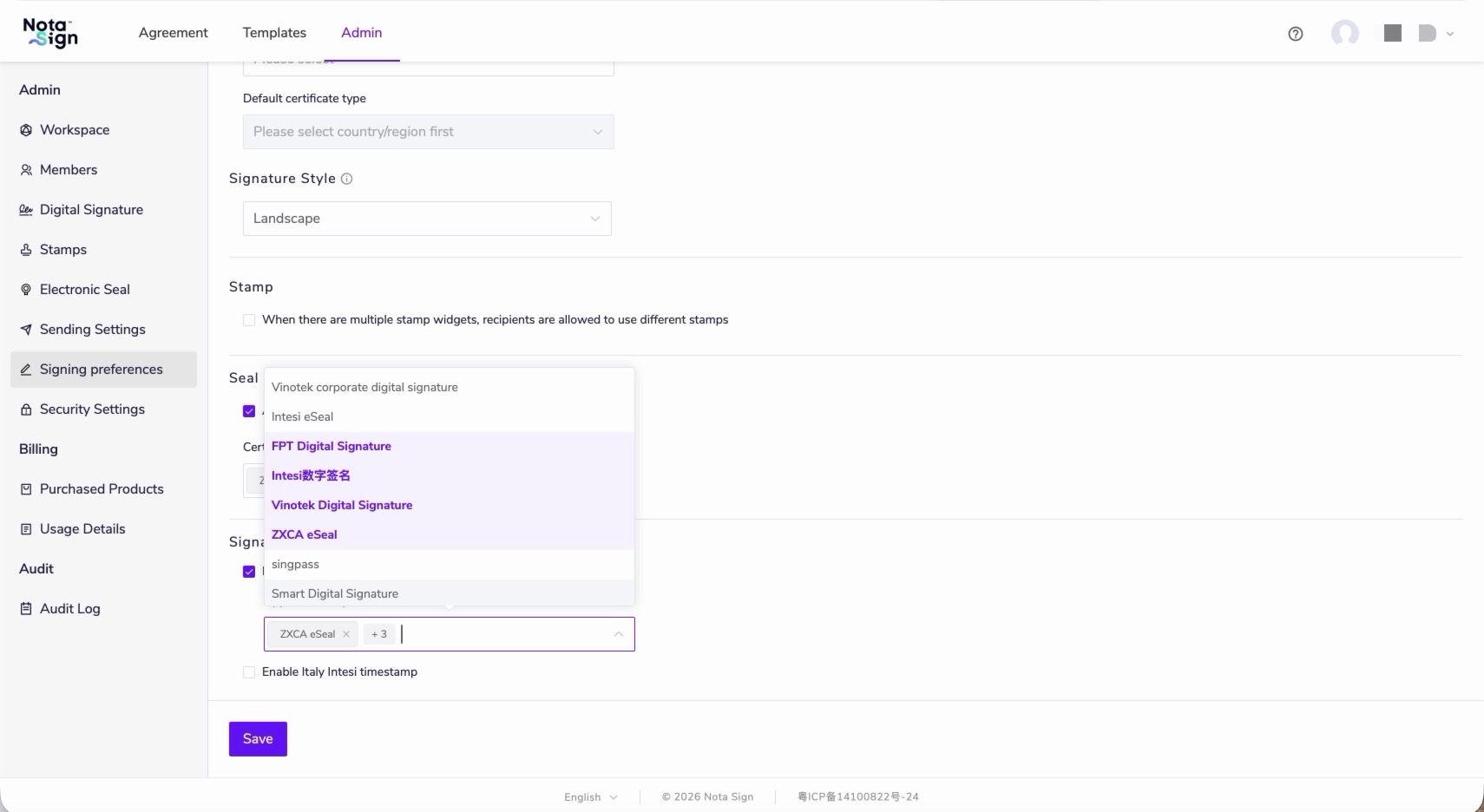
Click 【Applicable scope】 and select the signing scopes that should use the timestamp service. You can select one or more scopes.
The same digital signature application cannot be assigned to multiple enabled timestamp services at the same time.
For example, if a digital signature application has already been configured to use the FPT timestamp service, it will no longer be available when configuring Intesi.
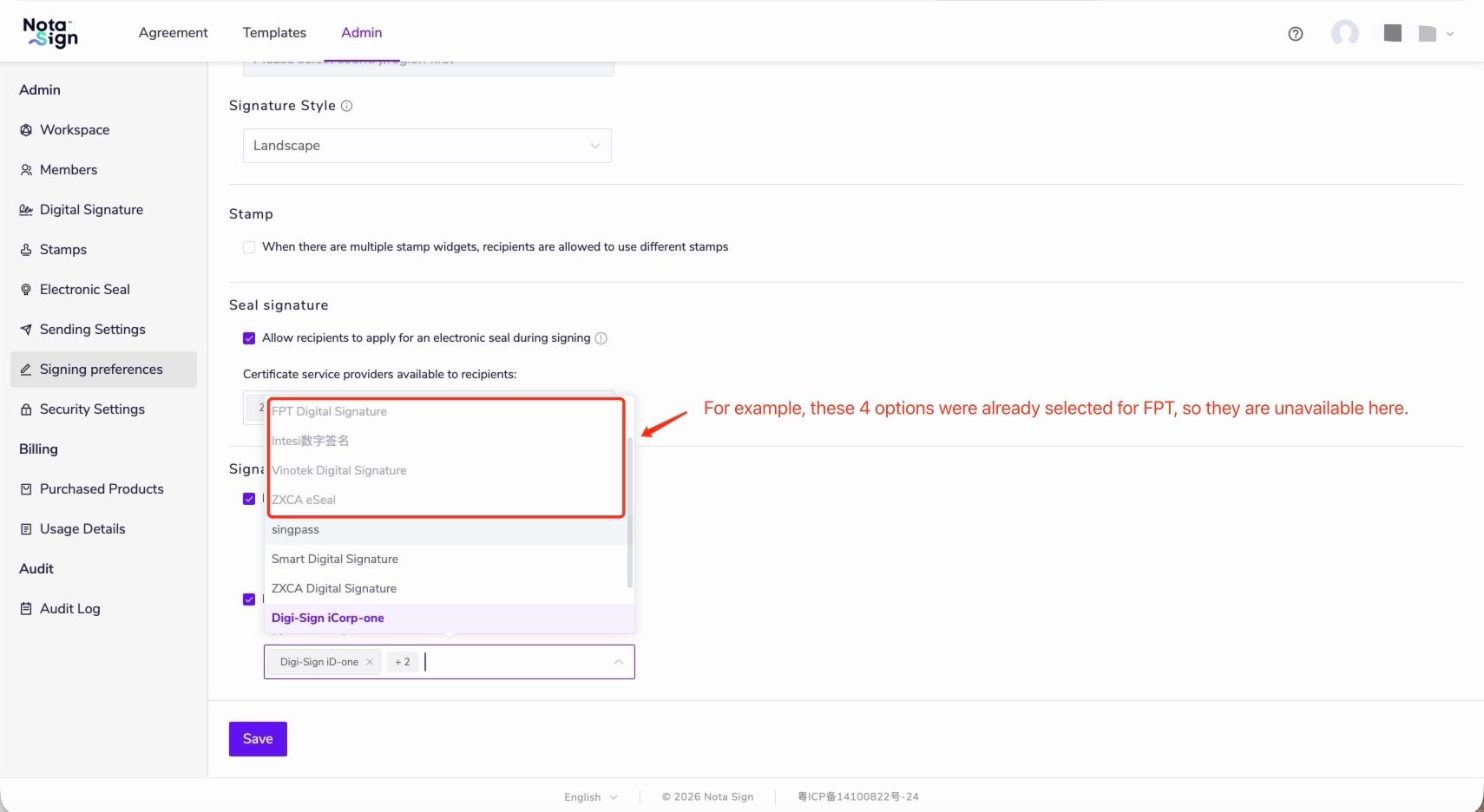
After making your selections, confirm that the required scopes are selected and click 【Save】.
4. How the Configuration Takes Effect
When an envelope is created, the system saves the enabled status and applicable scope of each specified timestamp service configured under 【Signing preferences】-【Signature timestamp】 as part of the envelope configuration snapshot.
When a bulk send task is created, the system also saves the timestamp configuration at that time. All envelopes subsequently generated from the task use the same timestamp configuration snapshot.
After an envelope or bulk send task is created, later changes to the timestamp settings under 【Signing preferences】 will not affect the configuration already saved for that envelope or task.
When a recipient submits a digital signature, the system matches the digital signature application actually used against the saved configuration:
- If the signature matches the applicable scope of FPT, the FPT timestamp service is used;
- If the signature matches the applicable scope of Intesi, the Intesi timestamp service is used;
- If the signature does not match any specified timestamp service, DigiCert continues to be used.
Only one timestamp service is used for each signature.
5. View the Timestamp Service Actually Used
5.1 Envelope Log
After a recipient completes a digital signature, you can view the timestamp service provider actually used for the signature in the corresponding signing log.
The timestamp service provider may be:
- FPT;
- Intesi;
- DigiCert.
5.2 Audit Report
In the digital signature record of the Audit Report, you can view the timestamp service provider actually used under the 【Timestamp】 information.
6. FAQ
6.1 Why can’t I see the 【Signature timestamp】 settings?
If the current workspace has never purchased an FPT or Intesi timestamp service, the 【Signature timestamp】 section will not be displayed.
6.2 What happens if the FPT or Intesi timestamp quota is insufficient?
Even if the specified timestamp service has expired or has no remaining quota, administrators can still view and modify the corresponding configuration.
However, if a signature matches that timestamp service and there is insufficient quota, the system will not automatically switch to DigiCert. Instead, it will display a message indicating that the corresponding timestamp service has insufficient usage quota.
6.3 Will changes to the timestamp configuration affect envelopes that have already been sent?
No.
An existing envelope uses the timestamp configuration saved when the envelope was created. Later changes under 【Signing preferences】 will not change the configuration of existing envelopes.