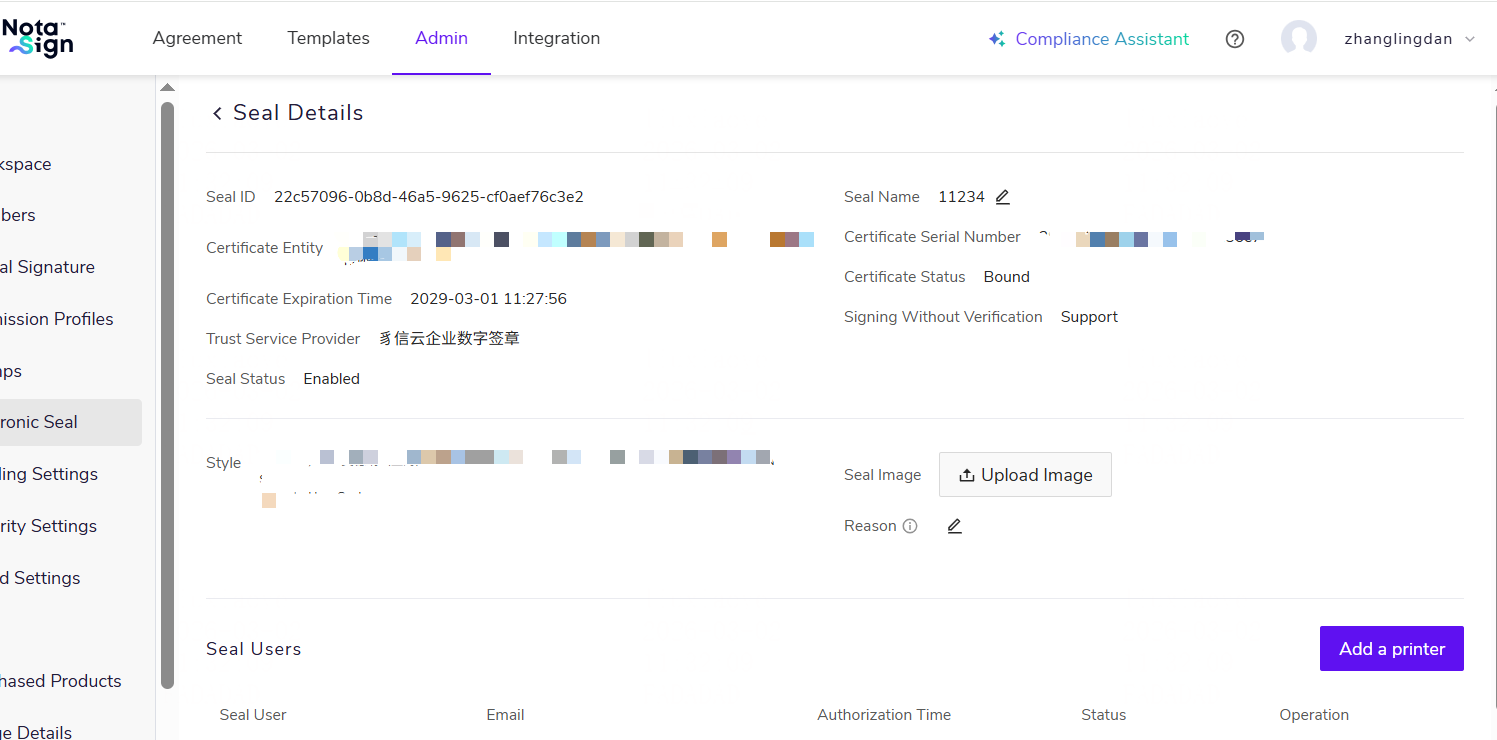
This function provides officially recognized electronic seal application services for companies registered in Mainland China, serving as a valid digital identity for your enterprise when signing documents.
1. Purchase and Enable Digital Signature
-
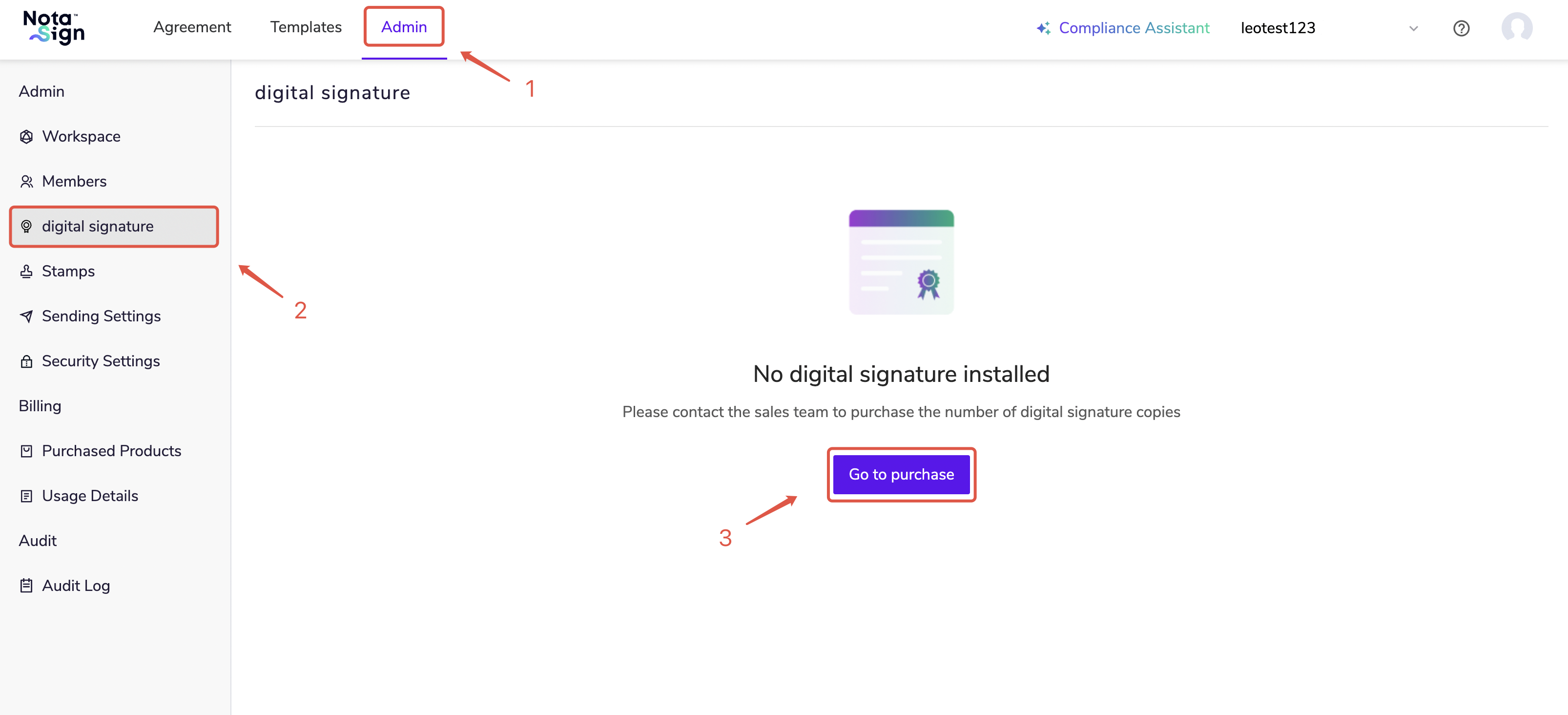
Log in to the Nota Sign workspace, click [Manage] - [Digital Signature] to enter the digital signature management page;
-
If you have not purchased any digital signature, click [Purchase] to contact sales to purchase the corresponding number of digital signatures. After purchase, the digital signature will be installed automatically;
-
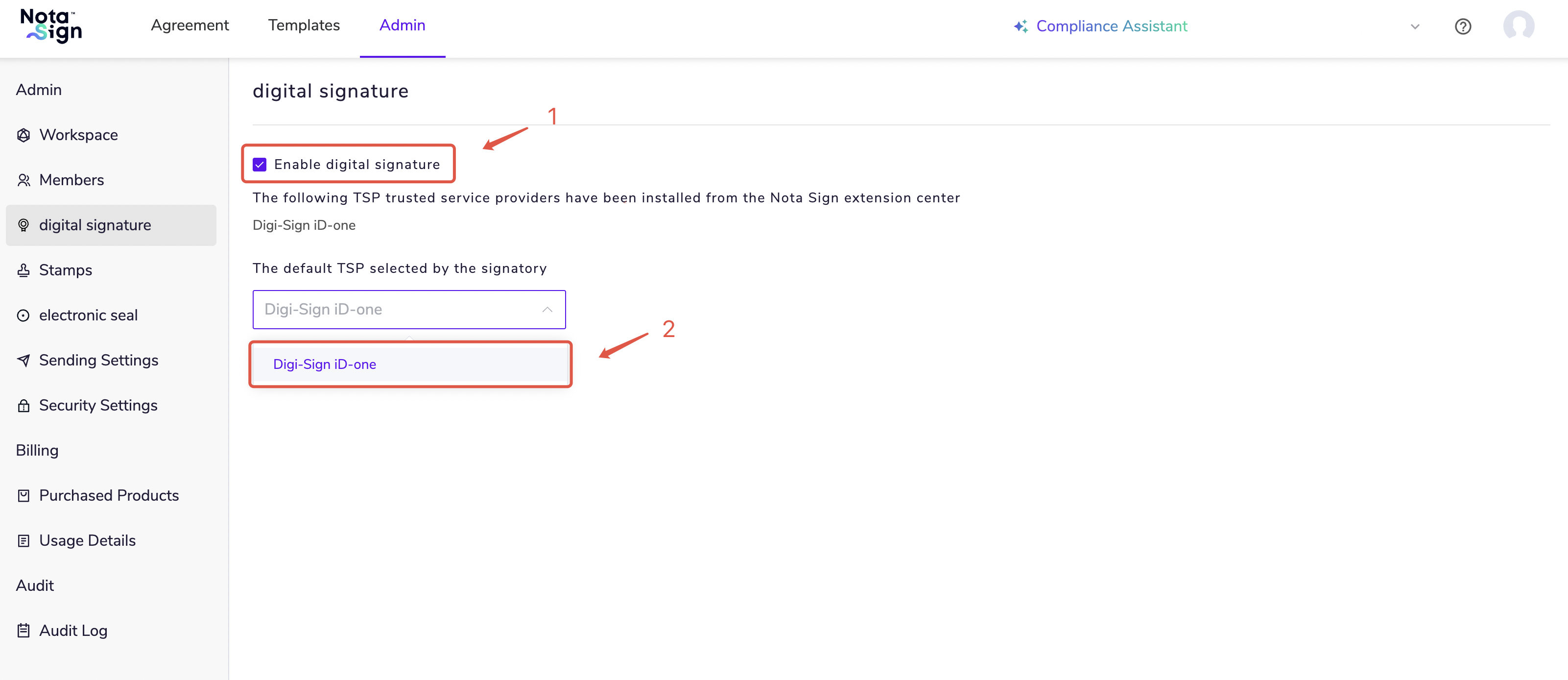
If you have purchased and installed digital signatures, the digital signature page will display all types of digital signatures you have purchased;
-
Check [Enable Digital Signature] and select the digital signature type you want to use.
2. Apply for Zhixin Enterprise Certificate
2.1. Enter the Certificate Application Page
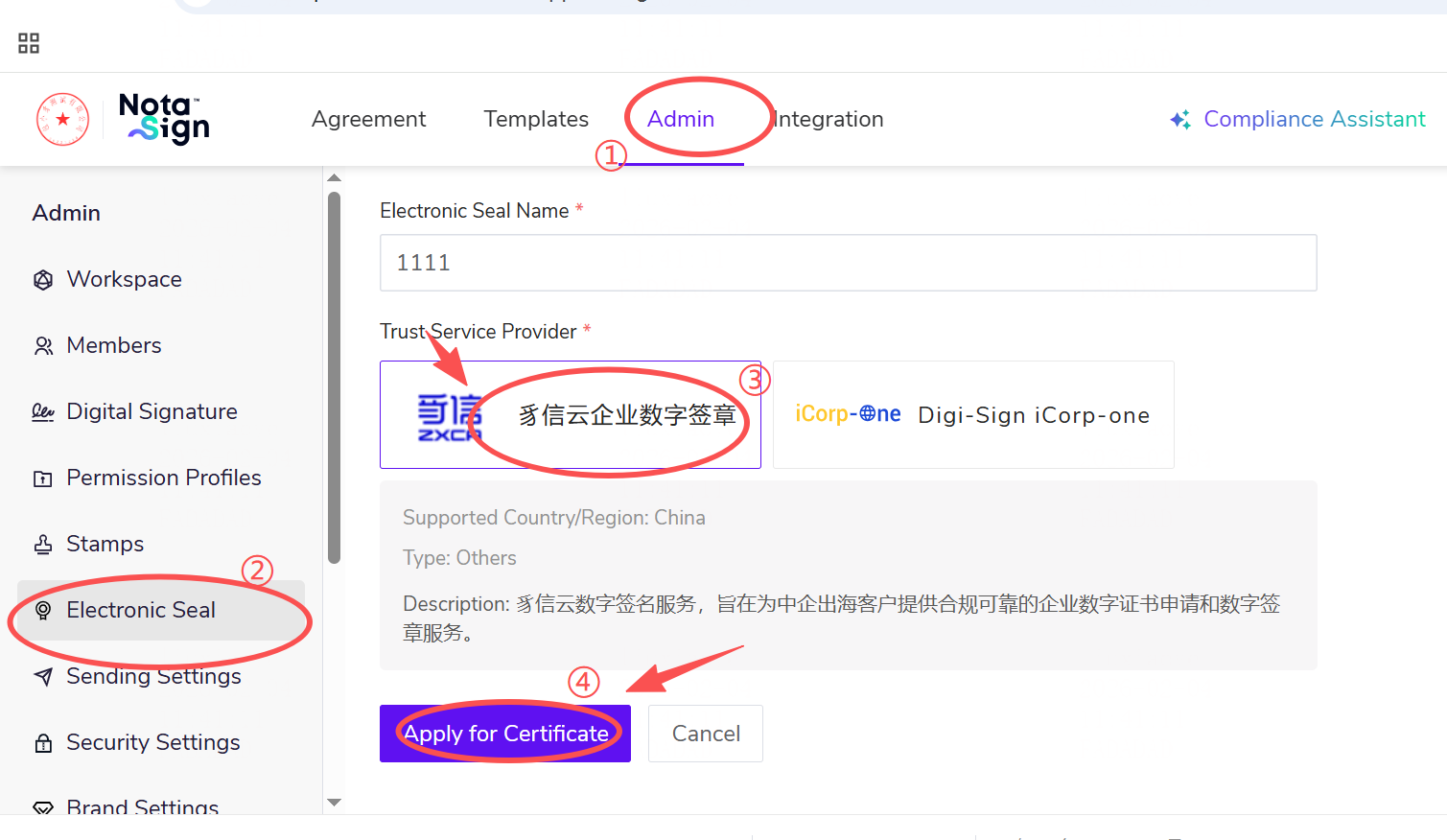
Click on Admin in the top navigation bar, select Electronic Seal from the menu, then choose Trust Service Provider from the options below. You can select one according to your needs, and finally click Apply for Certificate.
2.2. Generate Certificate Number
The page will redirect and generate a Certificate Number, then click Continue below.
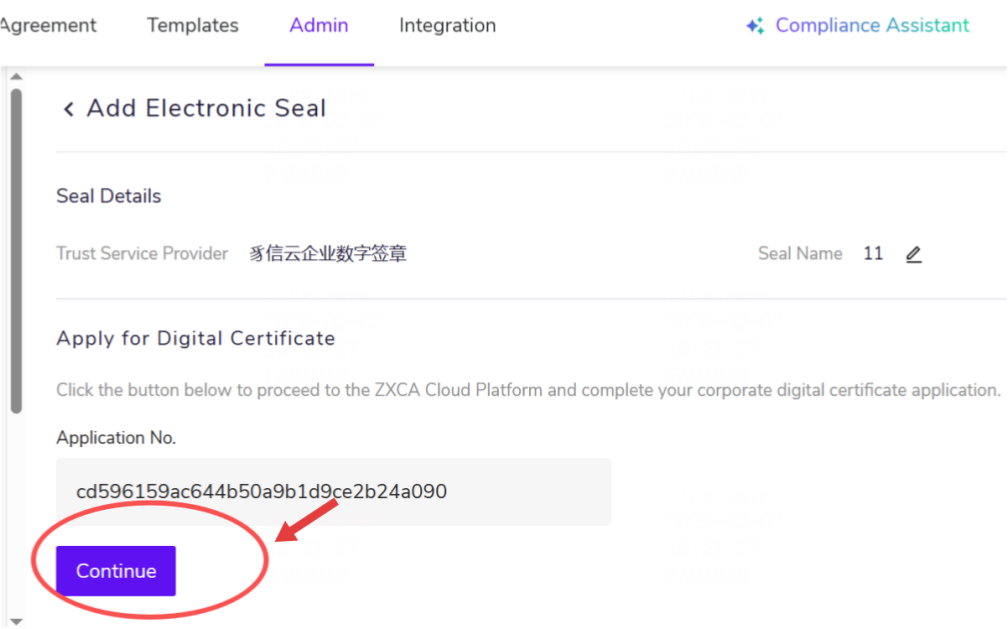
2.3. First-Time Login to Zhixin Cloud
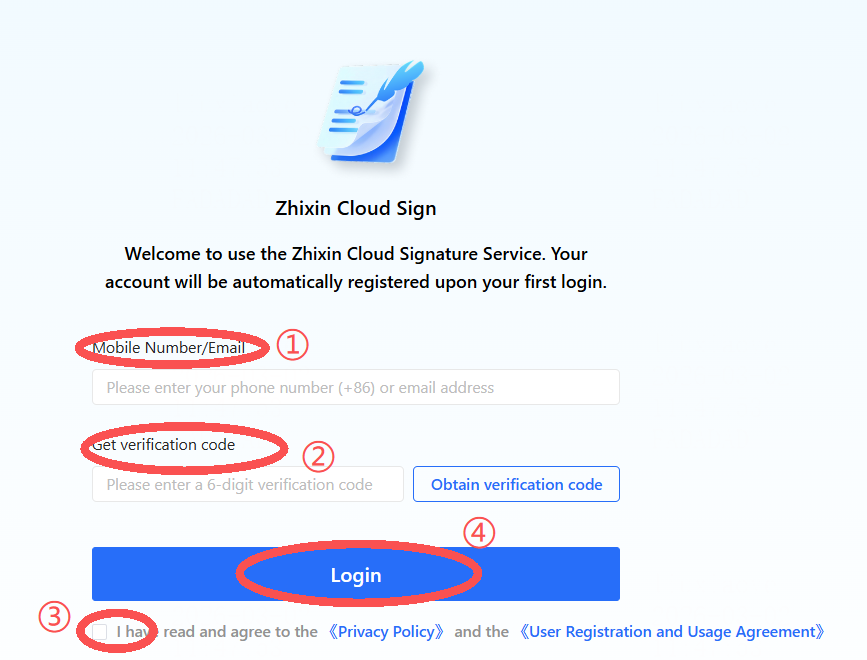
First-time login will redirect to the Zhixin Cloud login page. Enter your mobile number/email and obtain a verification code to log in.
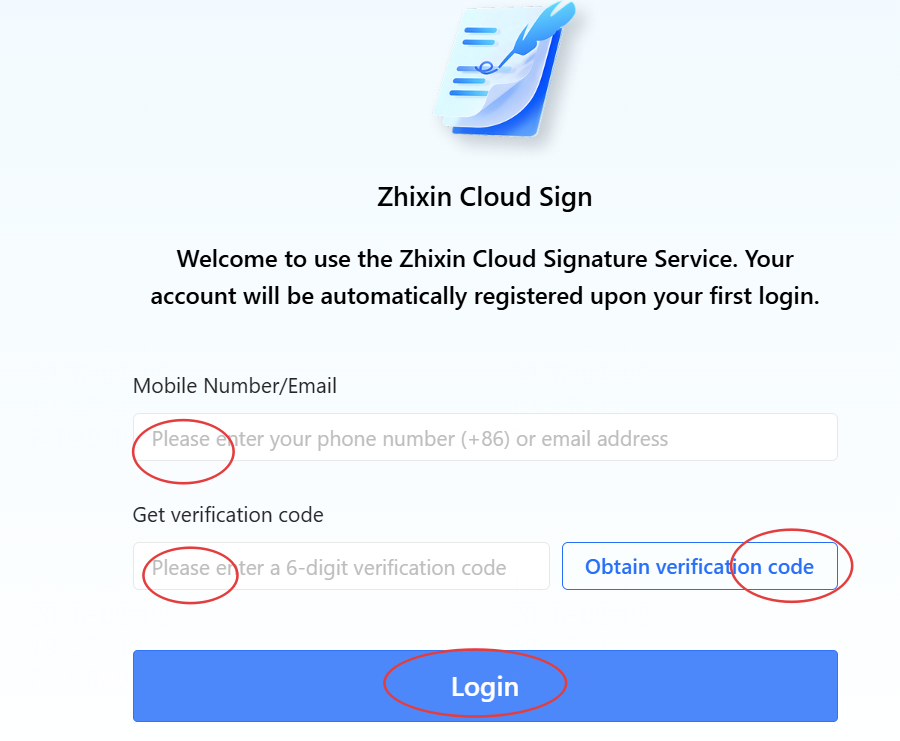
2.4. Personal Information Authorization
After first login, you will be redirected to the personal information authorization interface. Fill in the relevant personal authentication information. There are three verification methods: Face Recognition Authentication; Mobile Number Authentication; Bank Card Authentication. You can freely choose, agree to the relevant agreements, and then click Next.
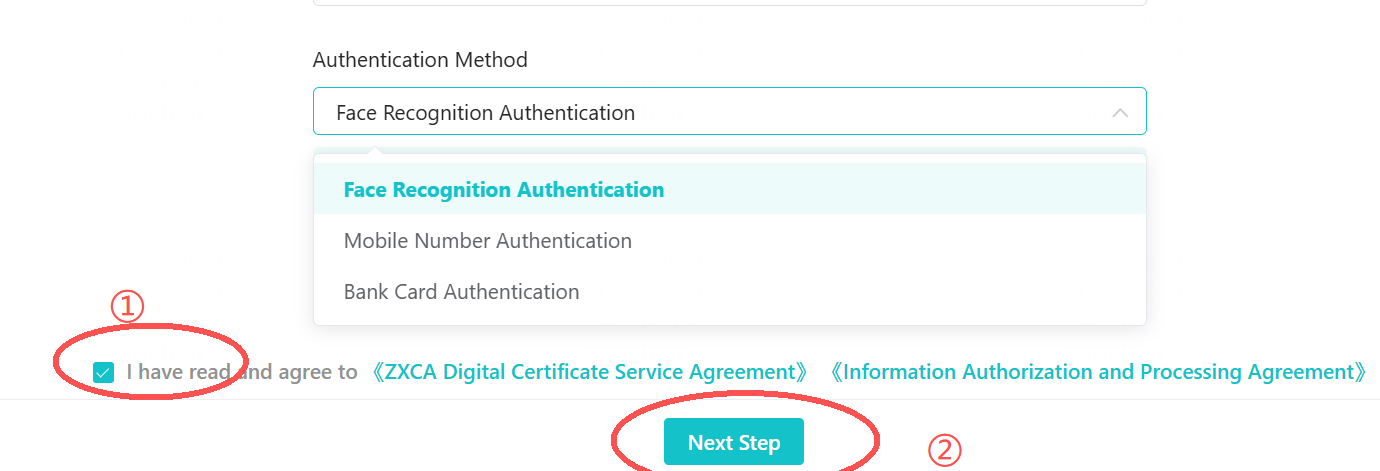
2.5. Complete Personal Information Authorization via QR Code
Scan the QR code with your mobile phone to complete the personal information authorization process.
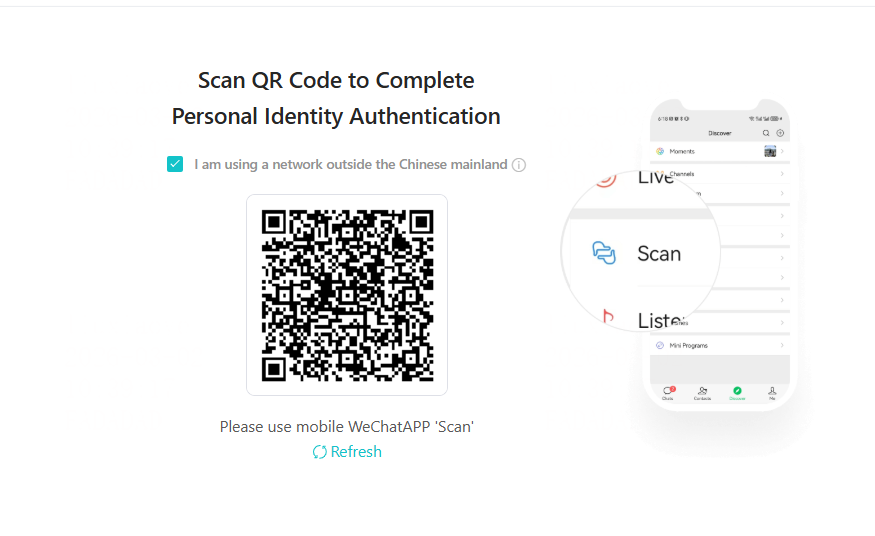
2.6. Enterprise Certification (Business License Recognition)
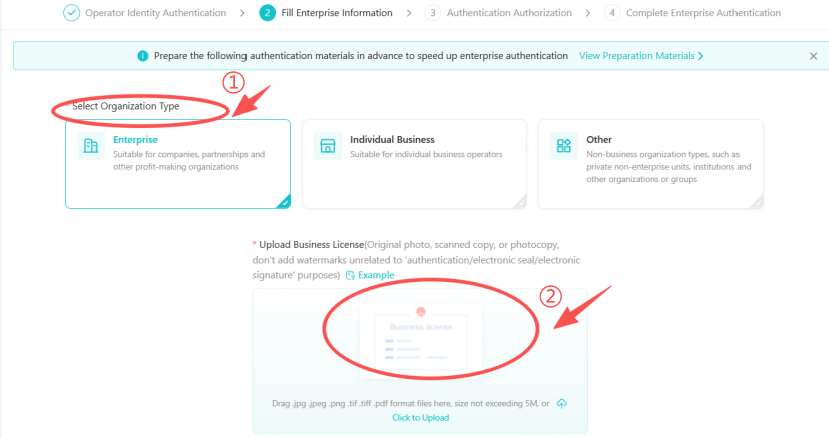
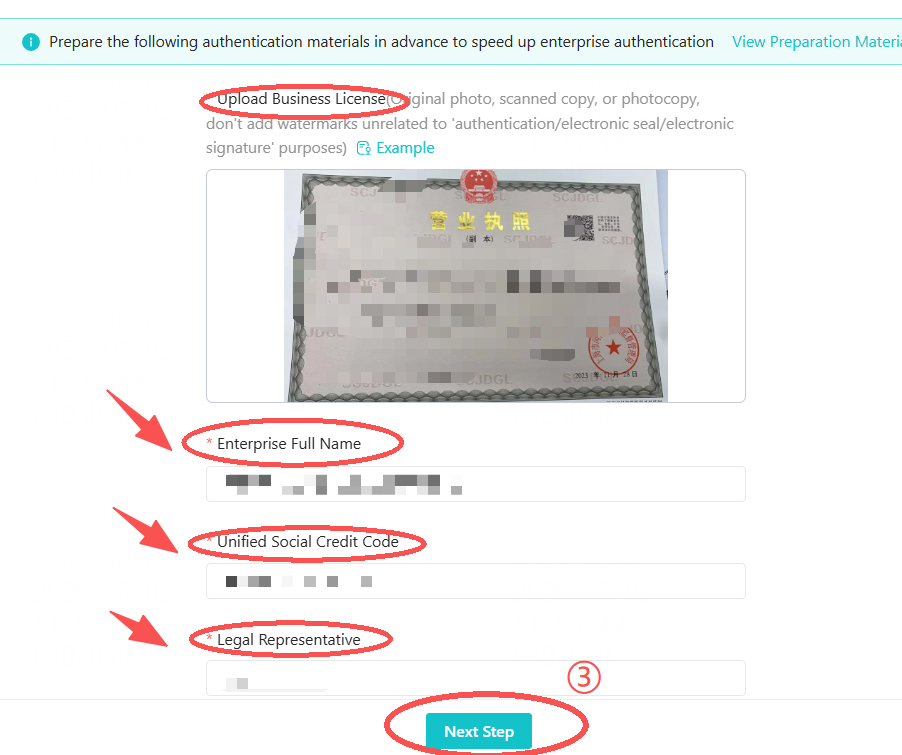
After personal information authorization, you will automatically be redirected to the enterprise certification step. Select the organization type and upload the relevant business license. The system will automatically recognize the Enterprise Full Name, Unified Social Credit Code, and Legal Representative fields and auto-fill them.
2.7. Enter the Authorization and Certification Step
Then click Next Step, and you will automatically be redirected to the Authorization and Certification step. The system defaults to selecting Invite Legal Representative for Online Authorization. You can change the authorization method in the upper right corner.
2.8. Select Authorization Method
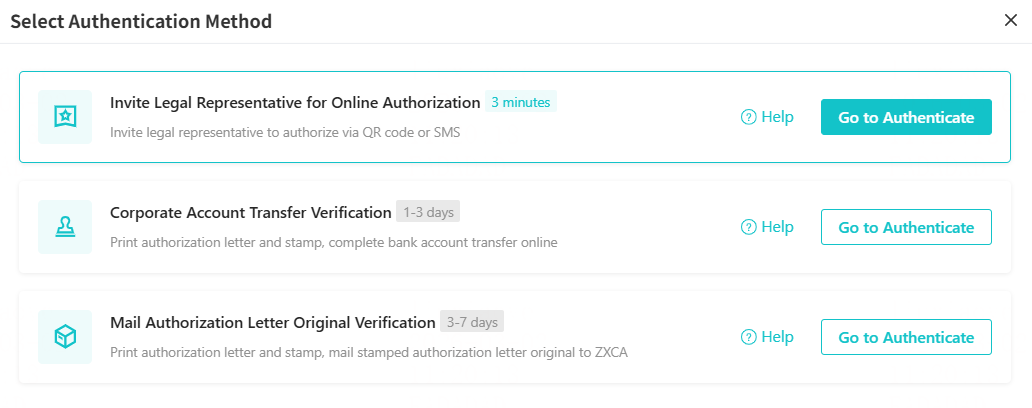
In the upper right corner of the page, you can choose three different authorization methods, including Invite Legal Representative for Online Authorization (results available in about 3 minutes), Corporate Account Verification Transfer Verification, and Mail Authorization Letter Original Verification.
2.9. Online Authorization by Legal Representative
Under the Invite Legal Representative Authorization verification method, invite the legal representative for authentication via QR Code Invitation or SMS Invitation.
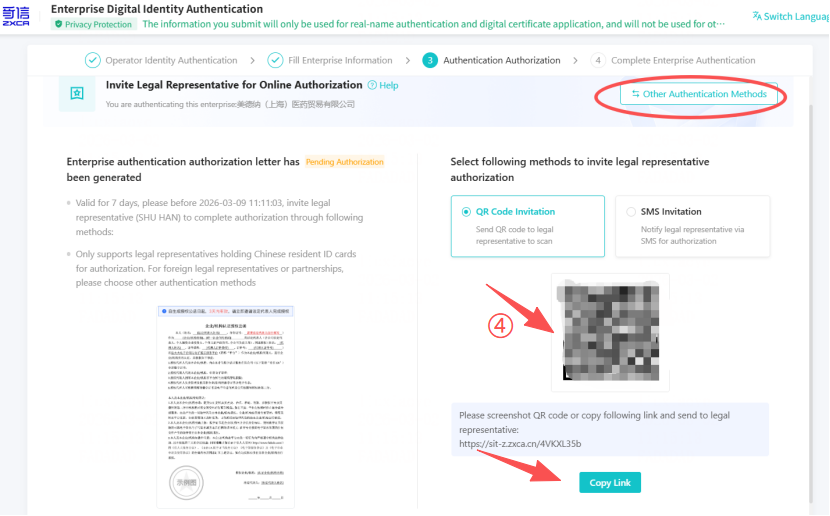
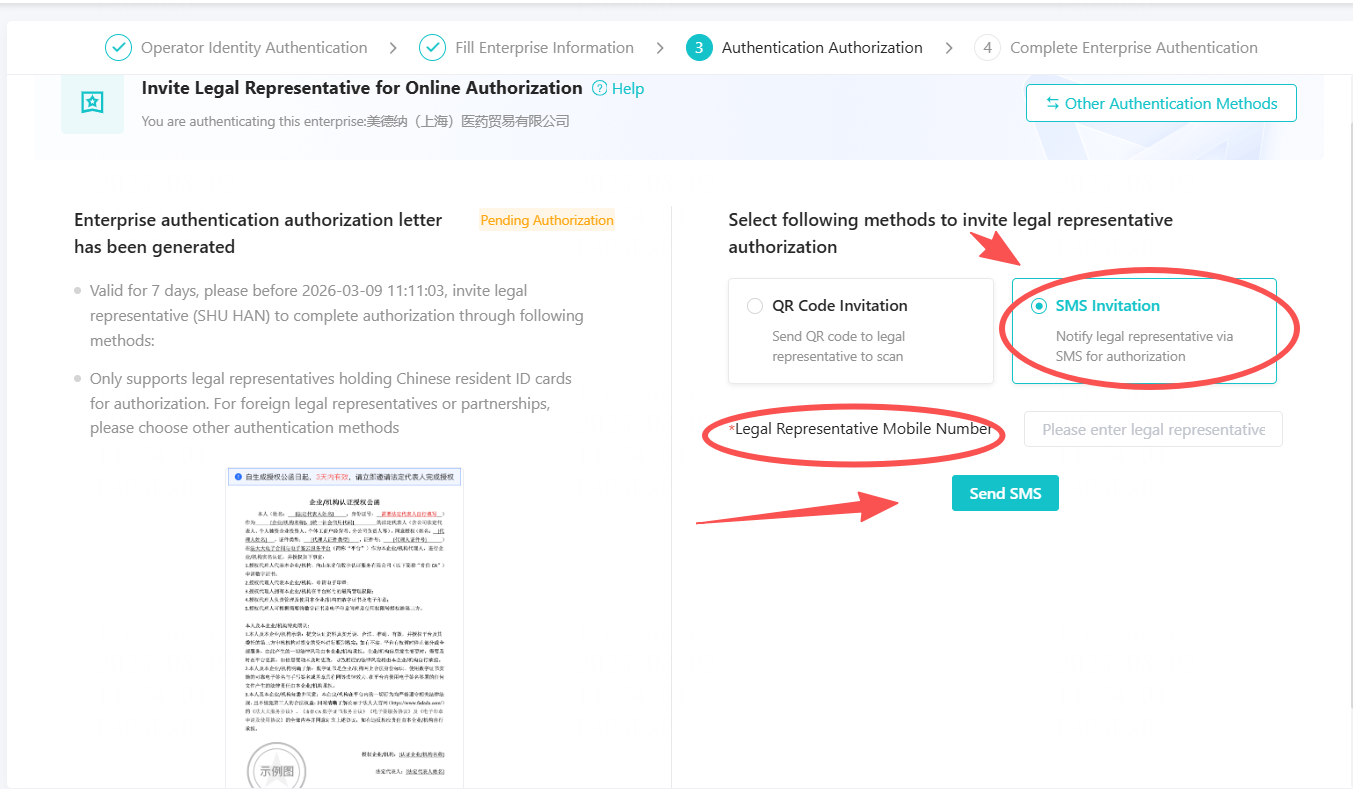
After entering the verification page, complete the operations in sequence.
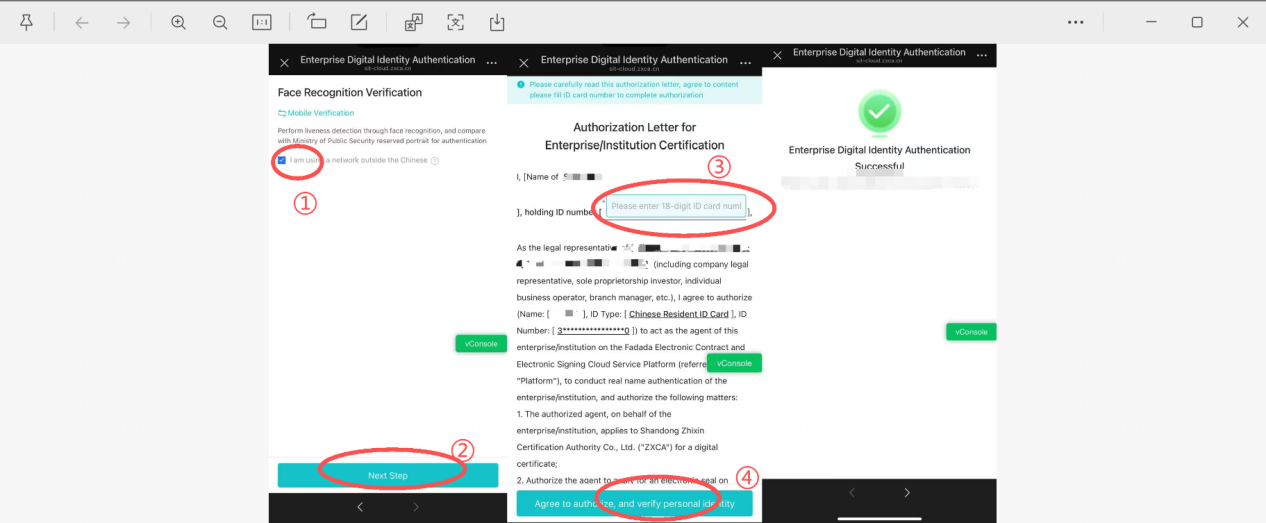
2.10. Corporate Account Transfer Verification
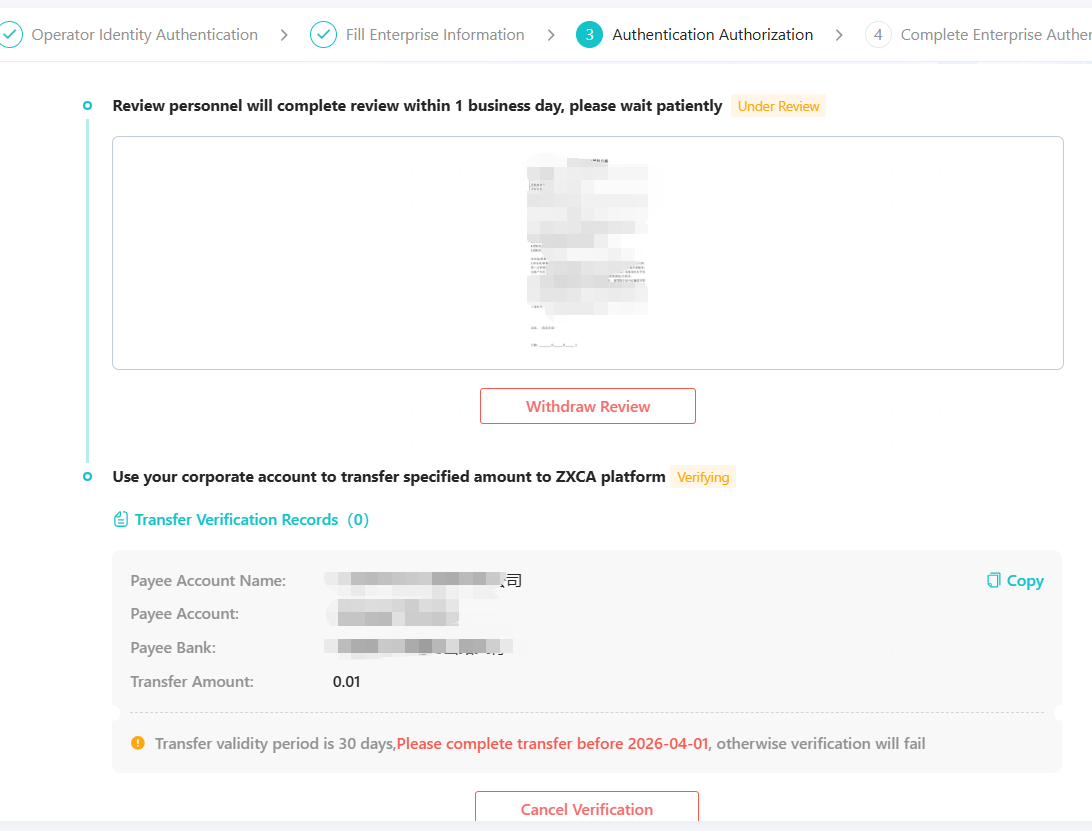
Under the Corporate Account Verification Transfer Verification method, download the authorization letter and affix the seal. Then take a photo or scan it and upload it here to submit for verification. You can choose between two different transfer methods: “Zhixin platform will transfer a random amount to your corporate account” or “Use your company’s corporate account to transfer a specified amount to the Zhixin platform”. And fill in the relevant information.
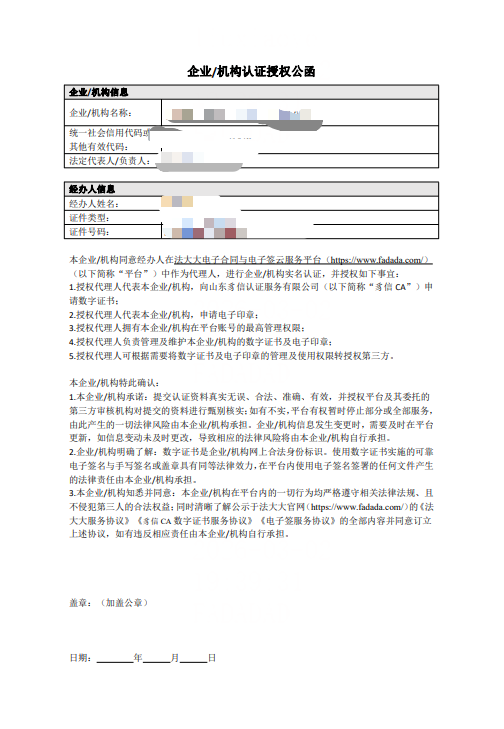
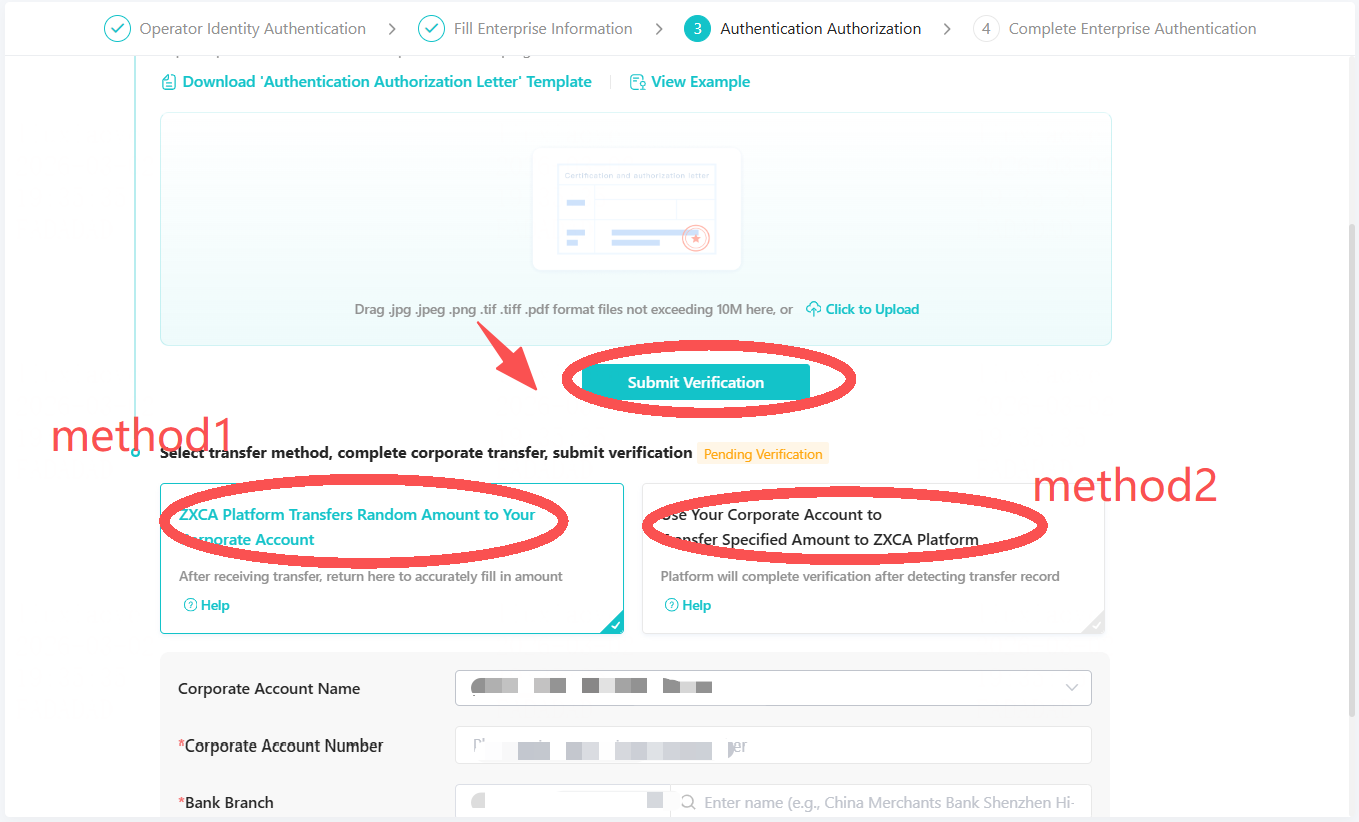
After submitting all information, wait for backend review to complete the relevant certification.
2.11. Mail Authorization Letter Verification
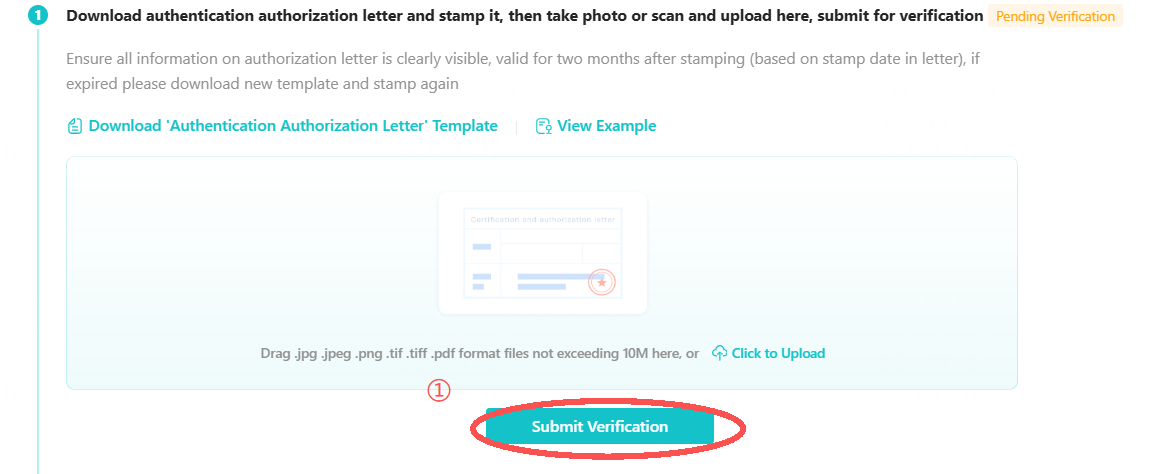
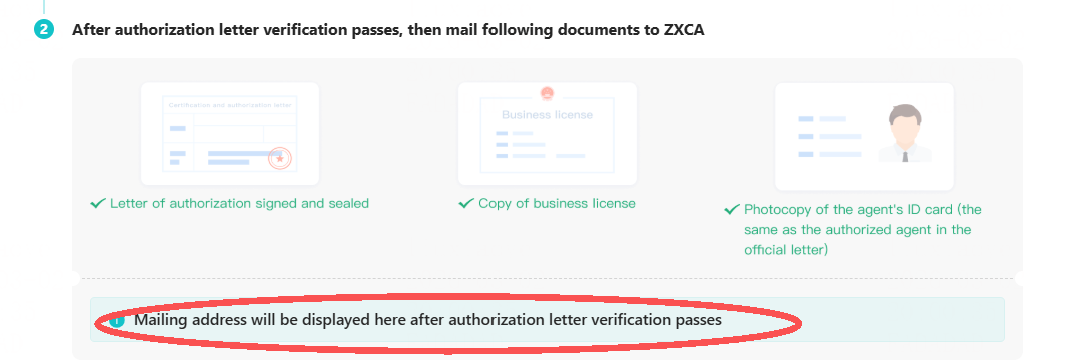
Under the Mail Authorization Letter Original Verification method, download the authorization letter and affix the seal. Then take a photo or scan it and upload it to the system to submit for verification. After the authorization letter is verified, mail the following documents to Zhixin: Signed and stamped authorization letter, copy of business license, copy of the handler’s ID card (must be consistent with the authorized handler in the letter).
2.12. Complete Final Authorization
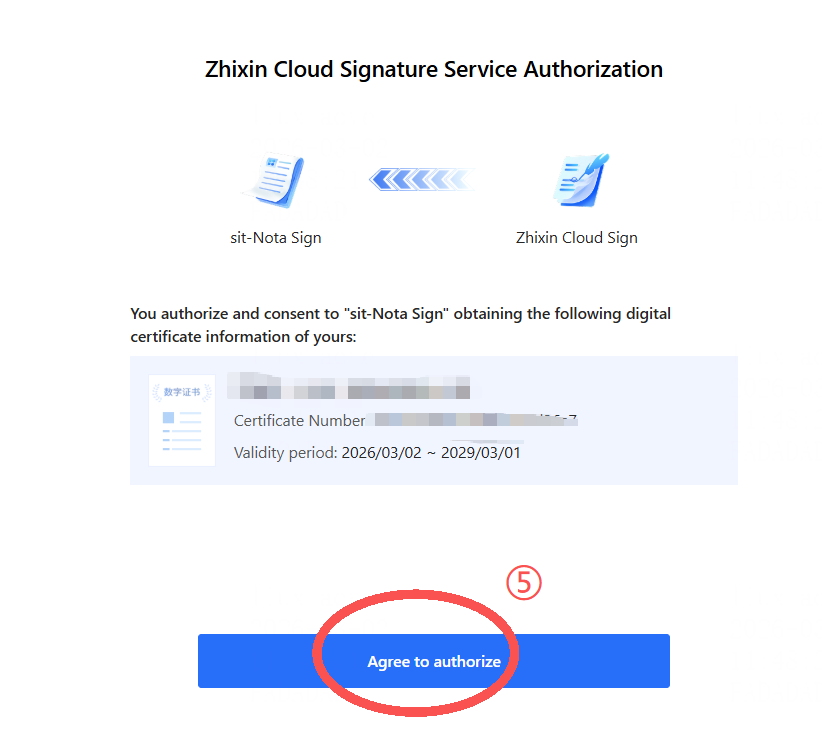
After the authorization is confirmed to be correct, the system will automatically redirect to the Zhixin Cloud login interface. Upon successful authentication, the final authorization is completed.
2.13. Set PIN Code
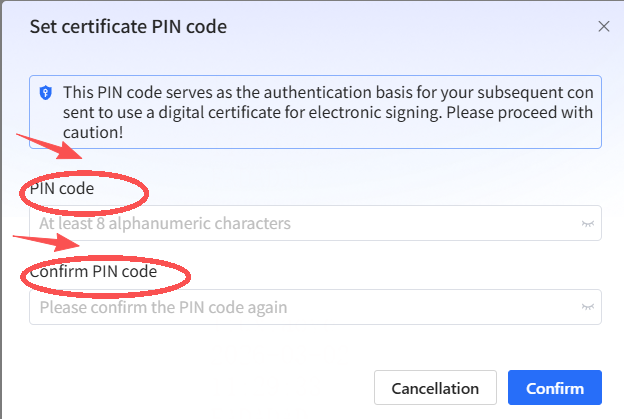
After the initial authorization is completed, you need to set a PIN code. This PIN code will be used as the identity verification basis for your subsequent consent to use the digital certificate for electronic signatures. Please choose it carefully.
2.14. Complete Application
After setting the PIN code, you will automatically be redirected to the successful application interface. The seal has been added and can be used subsequently without reapplying.