iAM Smart is an electronic identity authentication platform launched by the Hong Kong government. Nota Sign supports account login and digital signing via iAM Smart. This document covers the complete workflow of iAM Smart account login, envelope initiation, and signing.
1. Log in with iAM Smart
Video Tutorial:
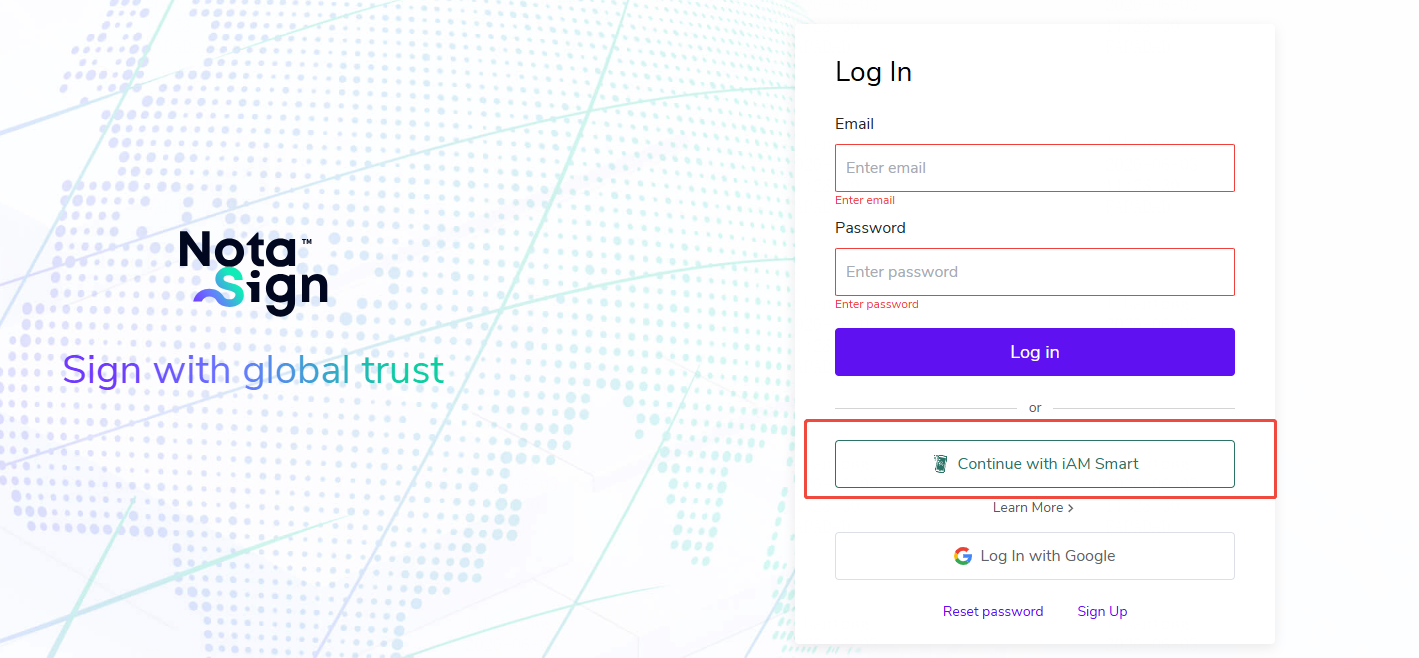
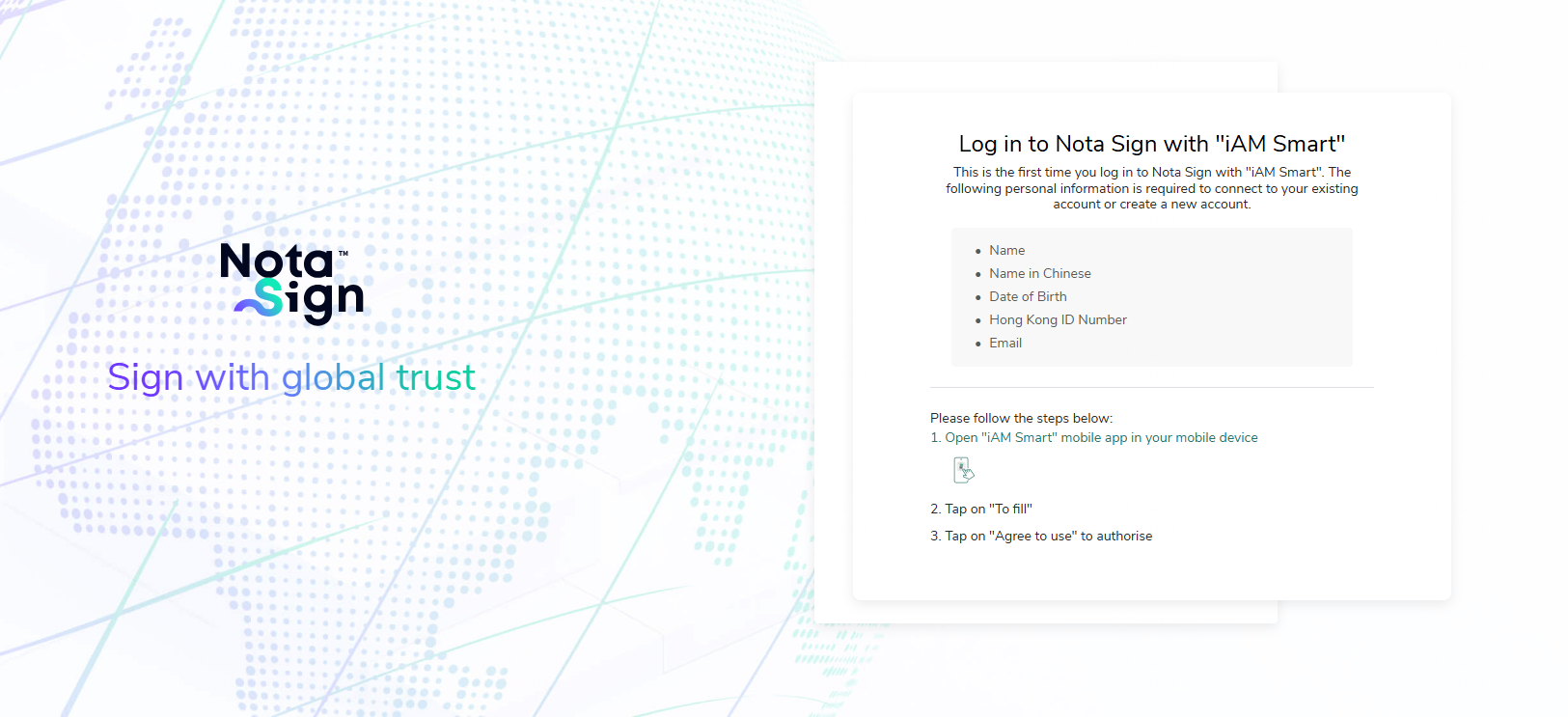
1. Select “Continue with iAM Smart”
On the Nota Sign login page, select “Continue with iAM Smart”.
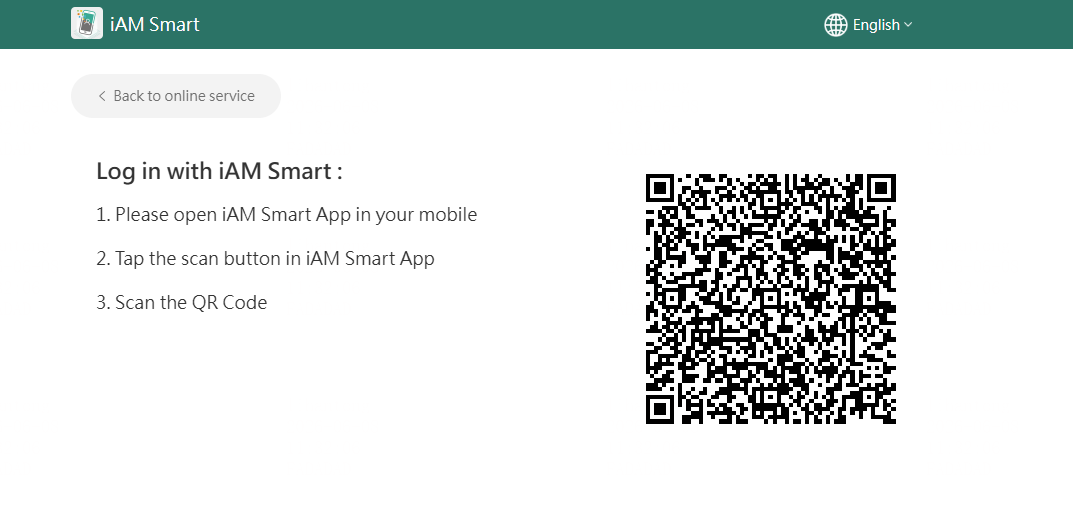
2. Scan the QR Code
Use the “Scan” function at the bottom of the iAM Smart app homepage to scan the QR code on your computer, then tap “Continue” to return.
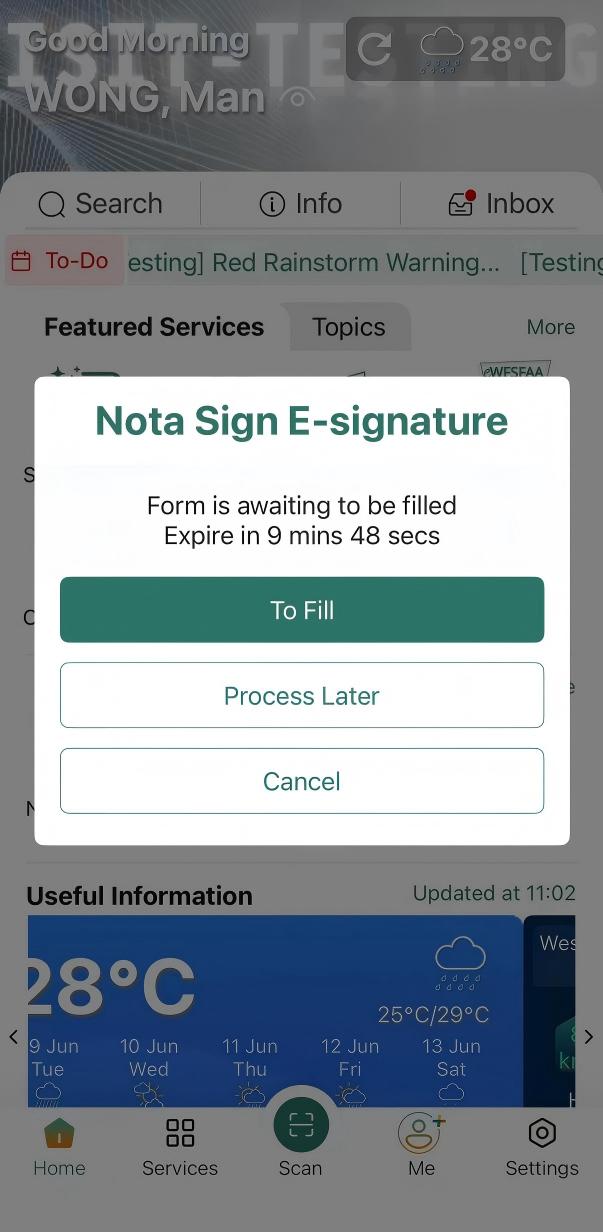
3. Fill in the Mobile Form
Fill in the form that appears in the mobile app and tap “Continue”.
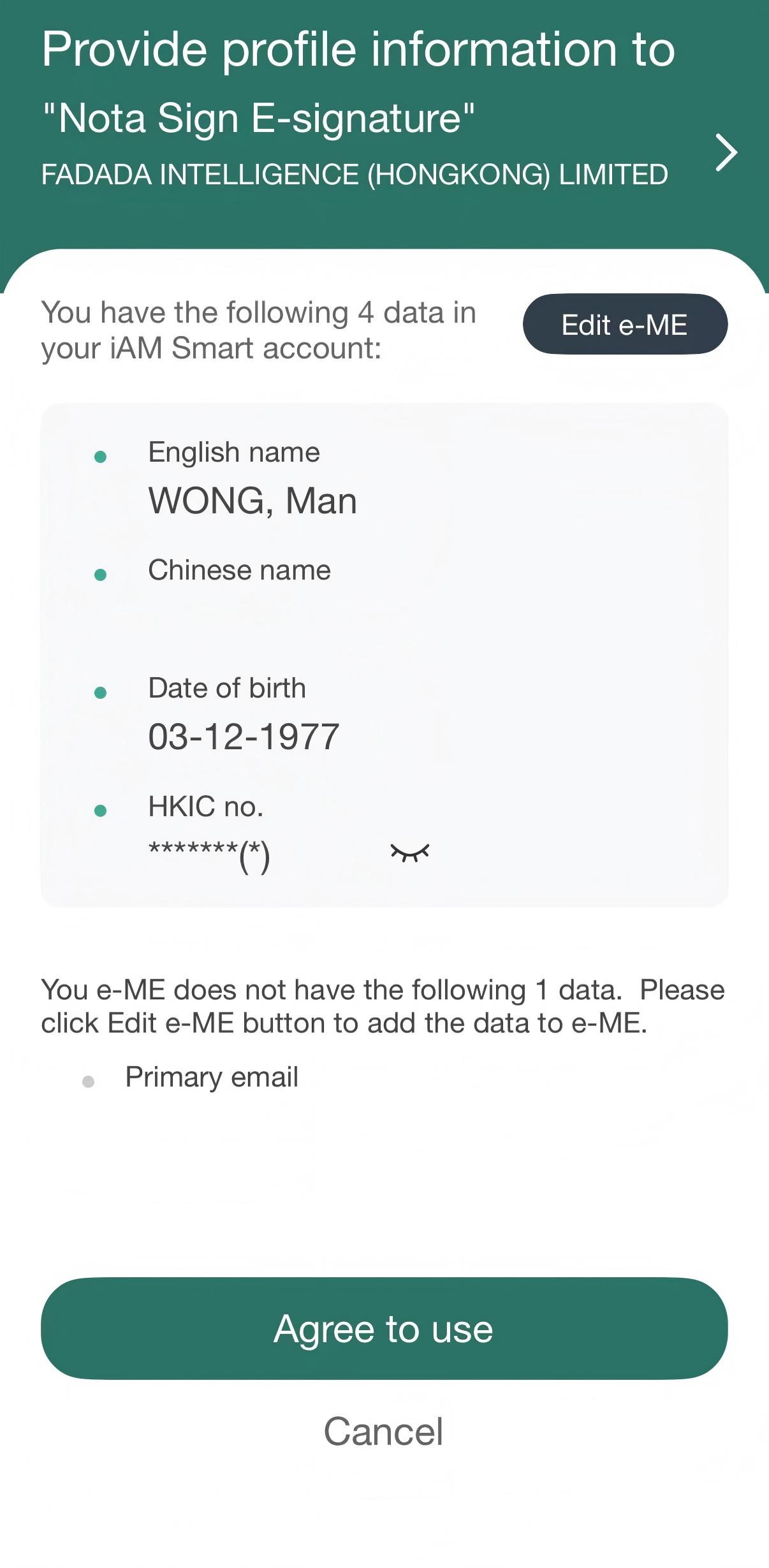
4. Agree and Complete the Login
Tap “Agree”, return to your computer to enter your email address, receive and enter the verification code, and complete the login.
 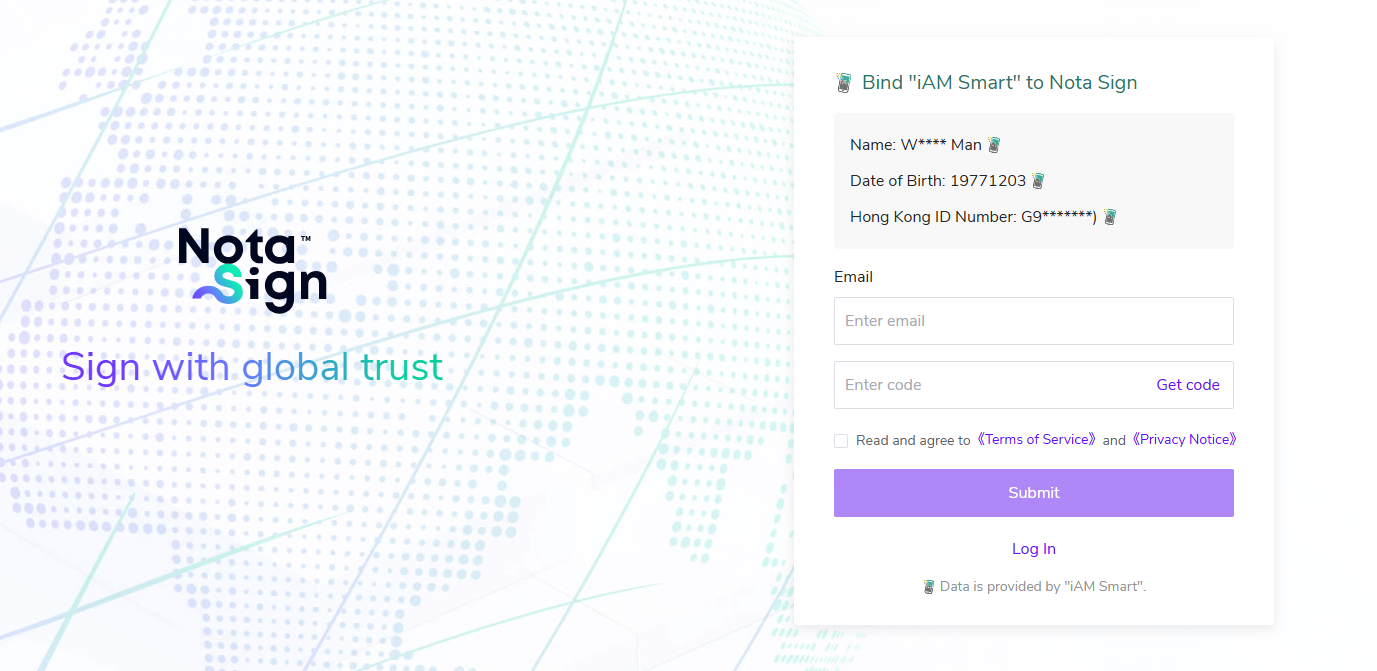

2. Sign with iAM Smart
Video Tutorial:
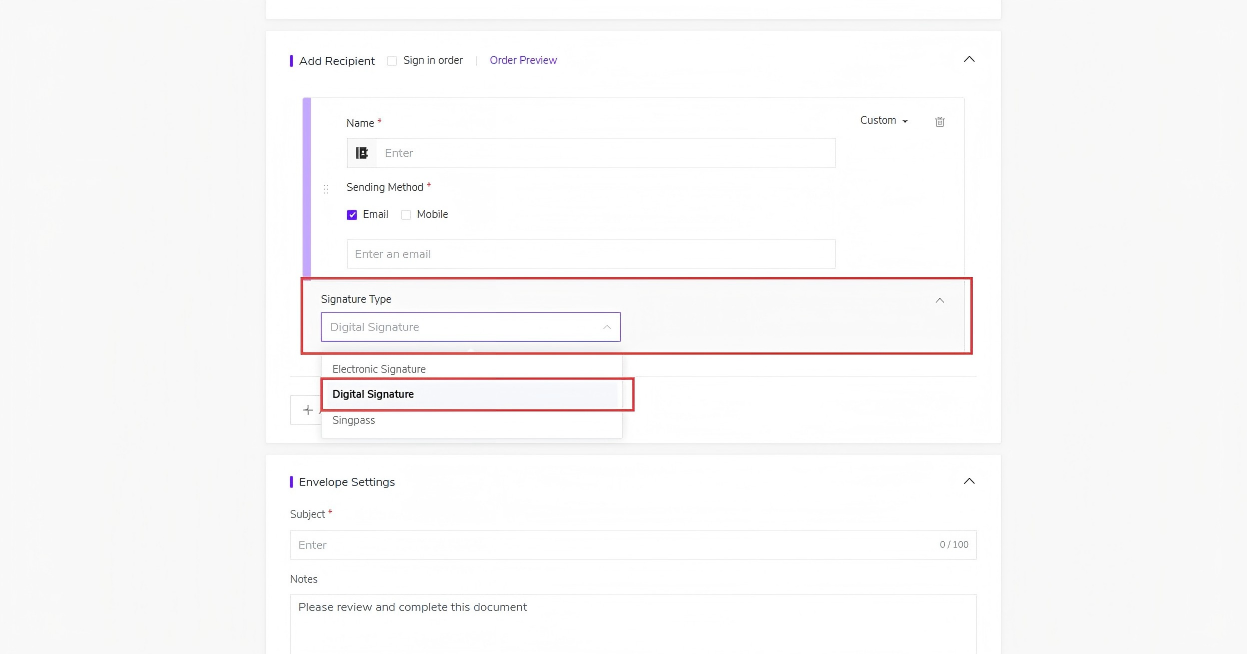
1. Select Digital Signature
When the sender sends out the envelope, the signature type must be selected as digital signature.
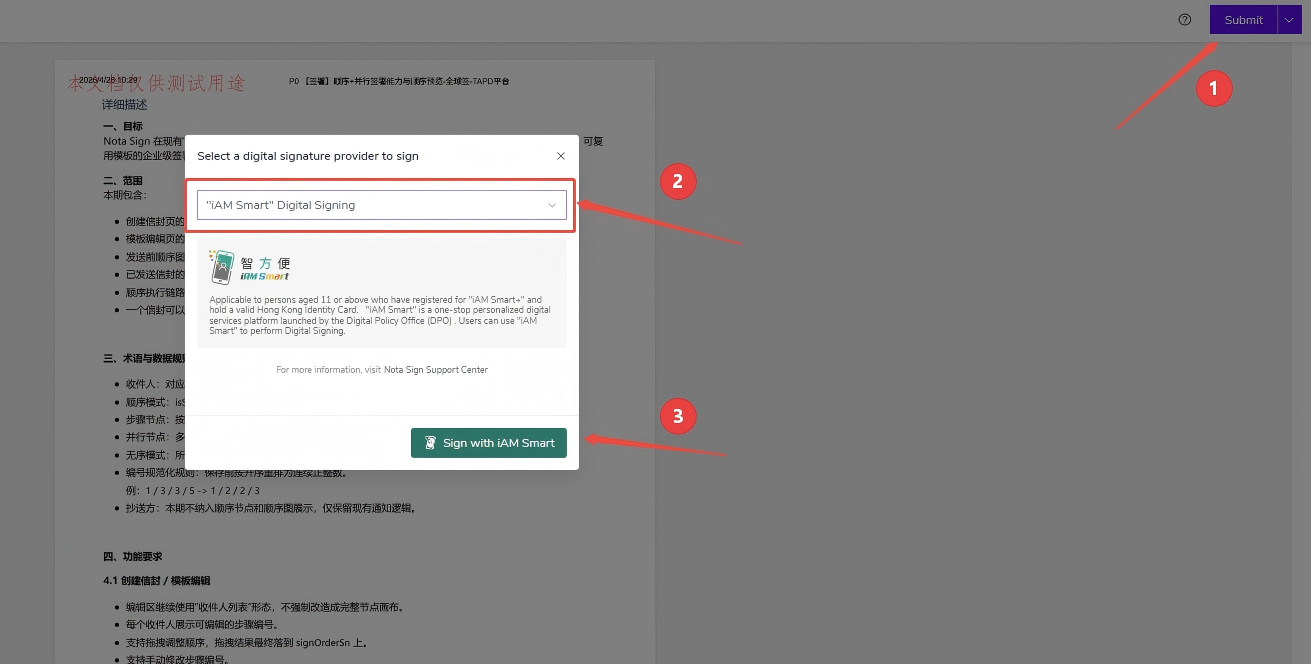
2. Submit and Choose “iAM Smart Digital Signing”
Select the document to sign. After completing the signature, click “Submit” and select “iAM Smart Digital Signing” as the digital signature provider.
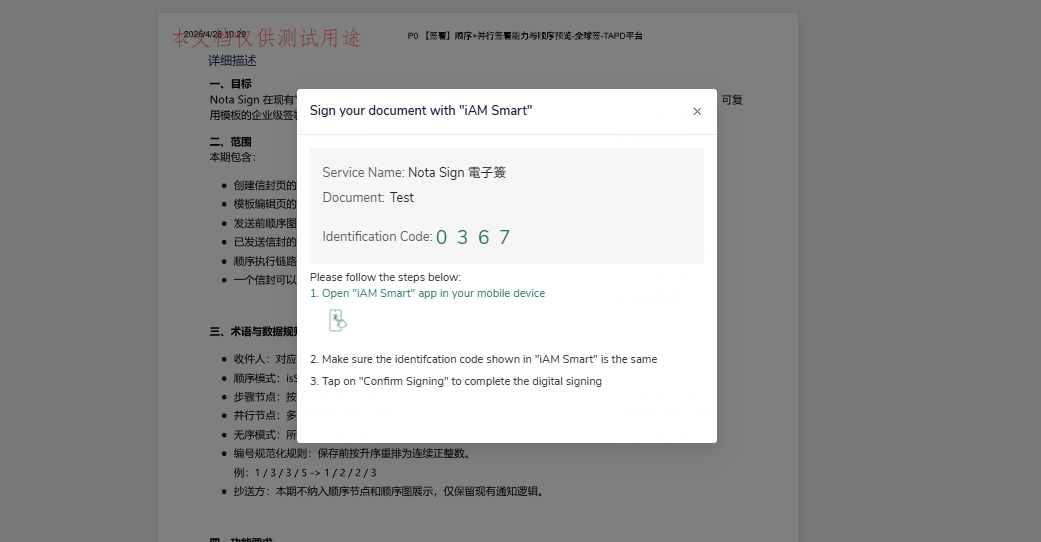
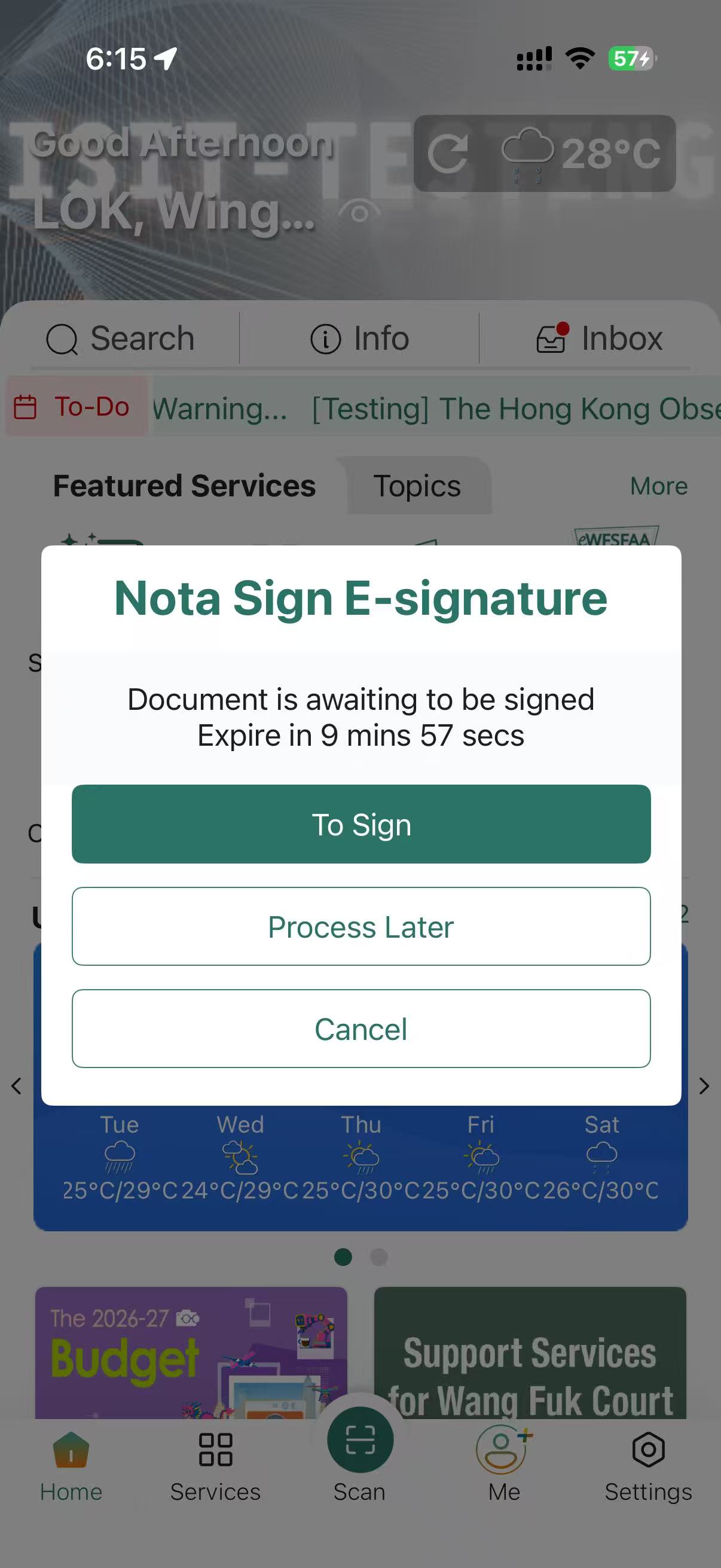
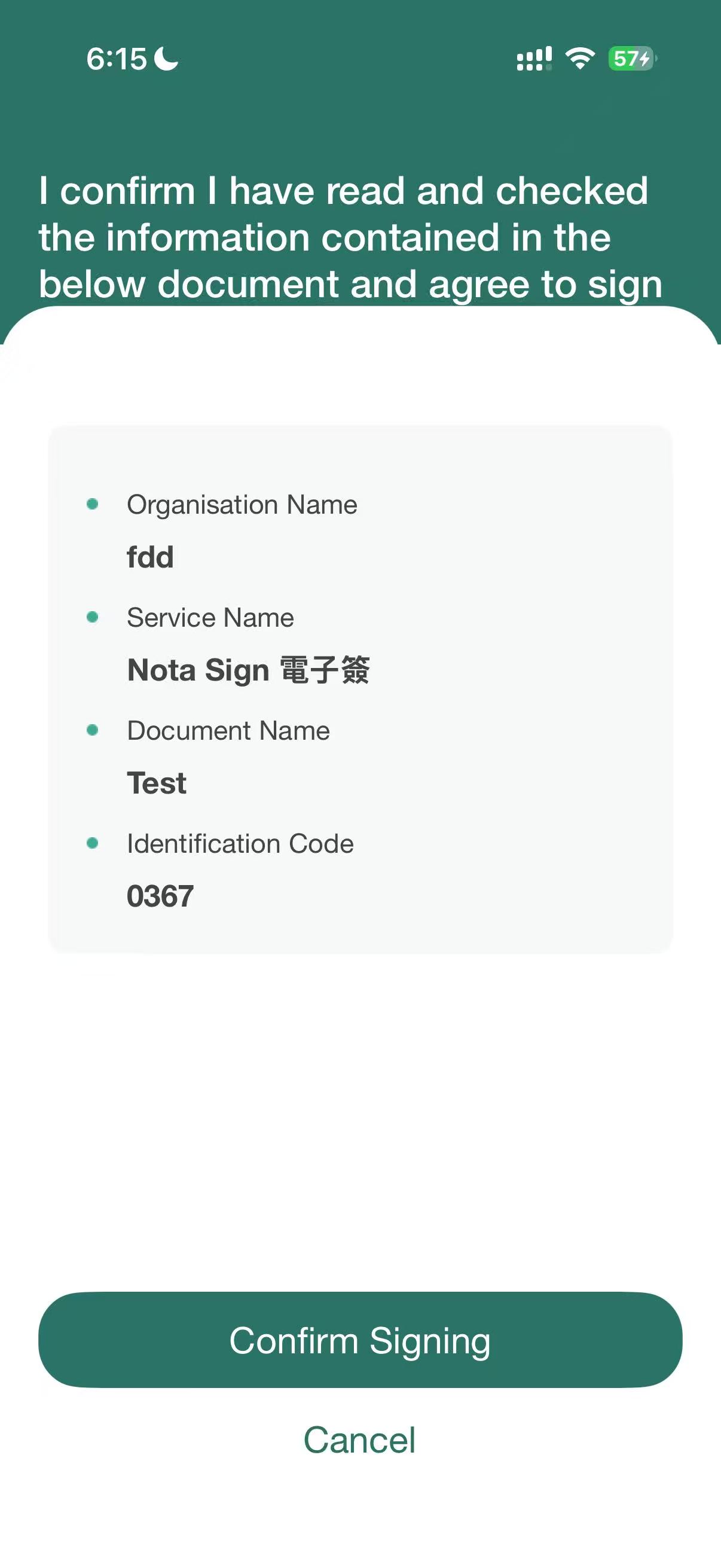
3. Complete Signing on Mobile
Receive the signing notification on the iAM Smart mobile app, verify the identification code and select “Agree to Sign” to complete the signing process.