
Indonesia Vinotek Enterprise Digital Seal
Nota Sign supports applying for a Vinotek enterprise certificate and using the completed enterprise certificate for enterprise electronic seal signing.
Enterprise administrators can apply for a Vinotek enterprise certificate and configure an enterprise electronic seal; members who have been granted seal usage permission can use the corresponding Vinotek enterprise electronic seal to complete document signing.
I. Signing with a Vinotek Enterprise Electronic Seal
When you are authorized to use a Vinotek enterprise electronic seal, you can select the corresponding enterprise electronic seal during the signing process and complete signing intent verification via a verification code.
1. Selecting a Vinotek Enterprise Electronic Seal
Open the document to be signed and complete the relevant signing operations as prompted on the page.
When you need to use an enterprise electronic seal, click the corresponding electronic seal signing position and select an authorized Vinotek enterprise electronic seal.
After confirming the use of the Vinotek enterprise electronic seal, the system will open the 〖Signing Intent Verification〗 window.
2. Obtaining the Signing Verification Code
In the 〖Signing Intent Verification〗 window, the 〖Enterprise Certificate Email〗 is automatically populated by the system and does not need to be filled in manually.
Click 〖Get Verification Code〗.
Vinotek will send a signing verification code to the enterprise certificate email and any added CC Emails.
If you have seal usage permission for this electronic seal but cannot receive the verification code, please contact your enterprise administrator to confirm whether your email has been added as a Vinotek CC Email.
3. Completing the Enterprise Electronic Seal Signing
After receiving the verification code, enter the received code in 〖Verification Code〗, then click 〖Confirm〗.
After verification passes, the Vinotek enterprise electronic seal signing is complete.
When using a Vinotek enterprise electronic seal, verification code verification is required for every signing.
II. Applying for a Vinotek Enterprise Certificate
Enterprise administrators can add an electronic seal on the electronic seal management page, select Vinotek as the trust service provider, and fill in the company name and application email to initiate an enterprise certificate application.
After the application is submitted, Vinotek will send a certificate application email to the application email address. You need to open the link in the email and follow the Vinotek page instructions to complete the enterprise information filling, identity verification, and certificate application.
After completing the enterprise certificate application process on the Vinotek side, please return to Nota Sign to check the certificate application progress. Once the enterprise certificate application is completed, the corresponding Vinotek enterprise electronic seal can proceed to the subsequent usage process.
The application email does not need to match the current Nota Sign login email. Please fill in an email address that is actually used by the enterprise for this application and can normally receive Vinotek emails.
Only users with electronic seal management permissions can initiate a Vinotek enterprise certificate application.
1. Adding an Electronic Seal
- Log in to Nota Sign and click 〖Admin〗 at the top;
- Click 〖Electronic Seal〗 in the left menu;
- Click 〖Add electronic seal〗 in the upper-right corner of the page;
- In the pop-up window, select 〖Apply for new enterprise certificate〗, then click 〖OK〗.
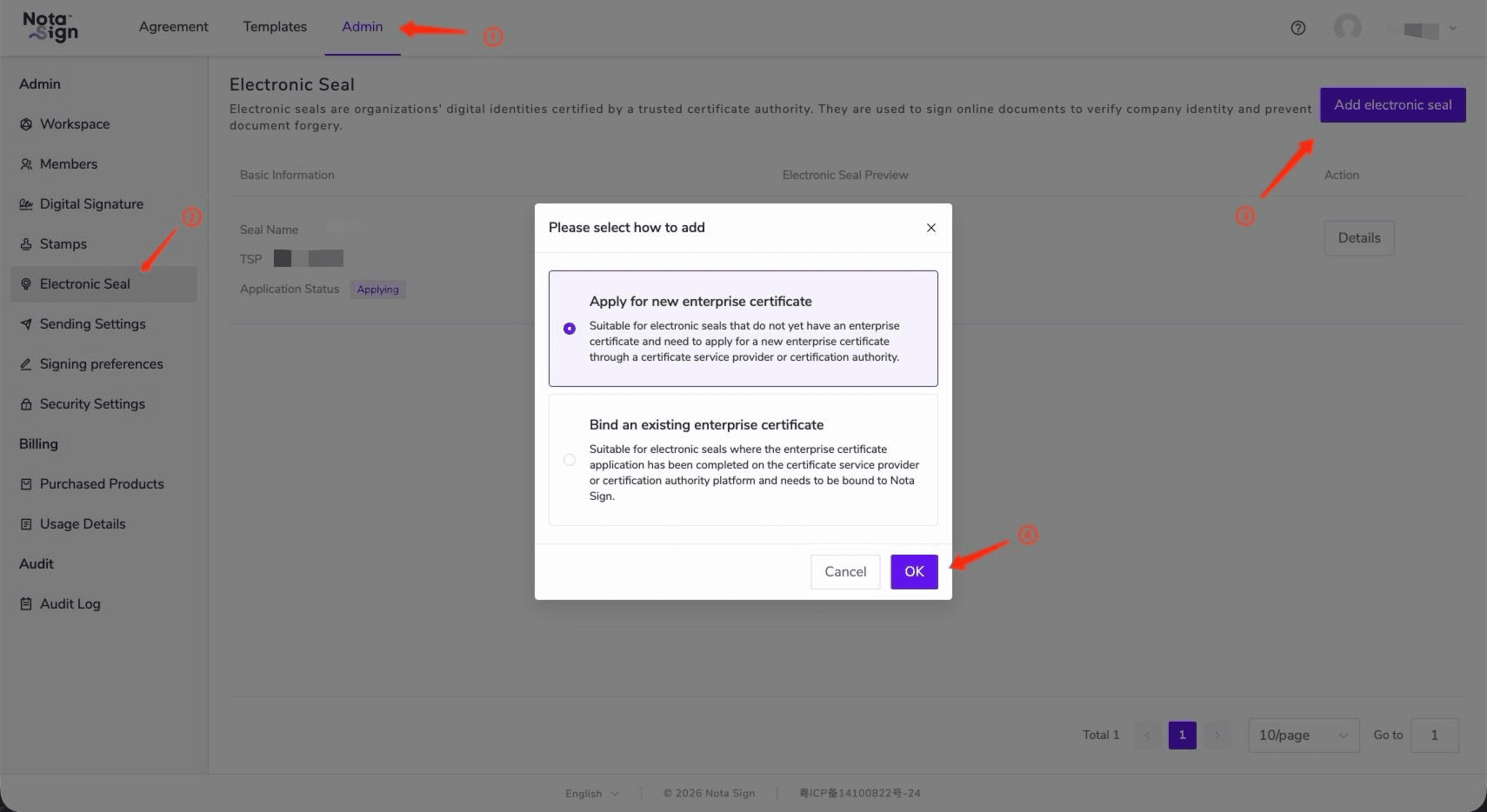
After proceeding to the next step, the system will open the 〖Add Electronic Seal〗 page.
Whether the Vinotek option is displayed depends on whether the Vinotek enterprise digital signature application has been installed in the current workspace. Vinotek will only appear in the selectable trust service providers after the Vinotek application is installed.
2. Applying for a Vinotek Enterprise Certificate
After entering the 〖Add Electronic Seal〗 page, first fill in the 〖Electronic Seal Name〗.
-
Select 〖Vinotek corporate digital signature〗 in 〖Trust Service Provider〗;
-
Click 〖Apply for Certificate〗;
-
After the system opens the 〖Apply Vinotek Corporate Certificate〗 window, fill in the following information:
- 〖Company Name〗: Fill in the company name corresponding to this enterprise certificate application;
- 〖Application Email〗: Fill in the email address used to receive the Vinotek enterprise certificate application email.
Both 〖Company Name〗 and 〖Application Email〗 are required fields.
Vinotek will send the enterprise certificate application email to the Application Email you filled in, so please ensure that this email address is valid and can normally receive emails.
- After confirming that the company name and application email are correct, click 〖Confirm〗.
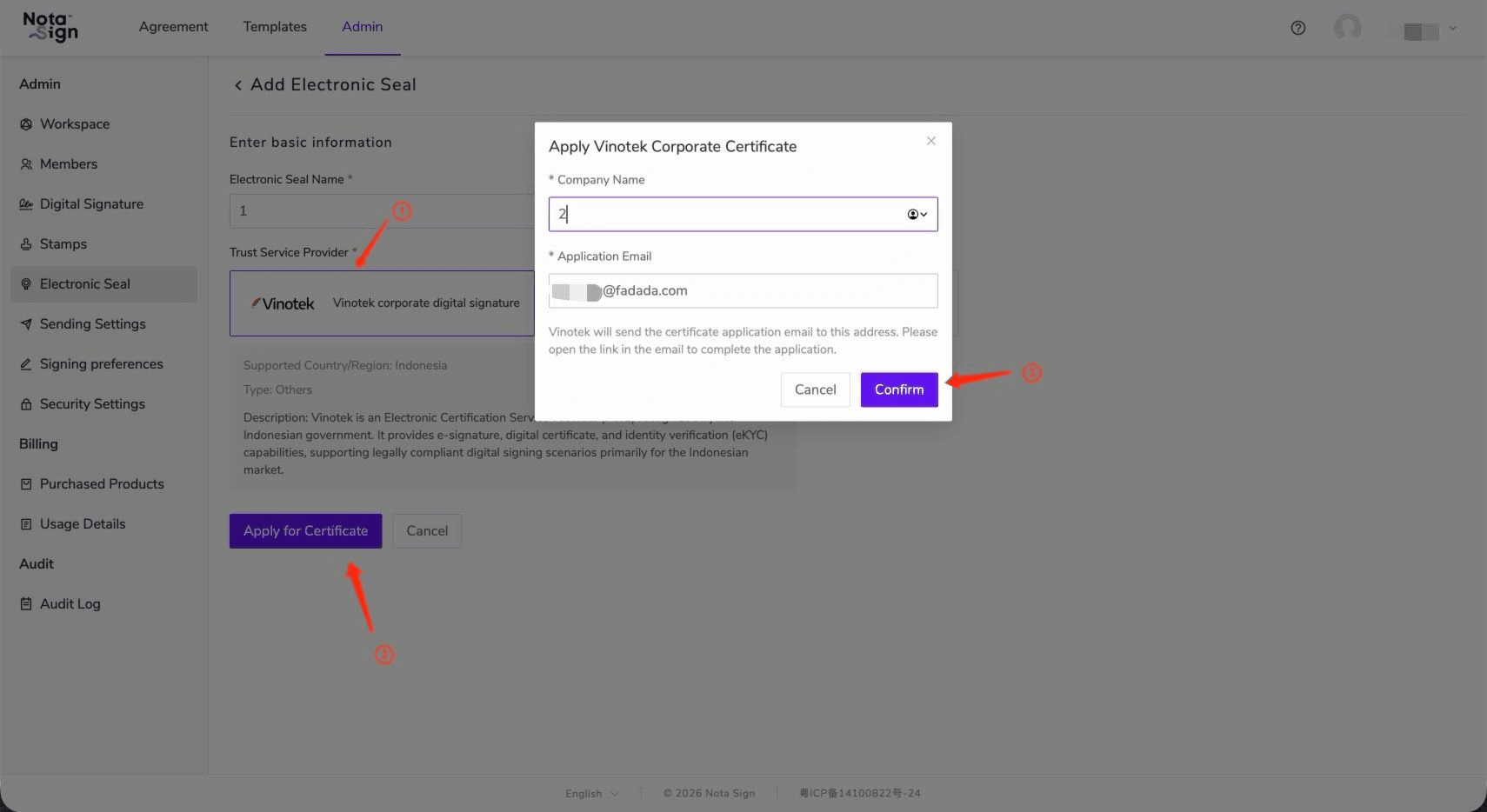
After successful submission, Nota Sign will create this enterprise certificate application record and enter the certificate application in progress status.
If you click 〖Cancel〗 or directly close the application window, this enterprise certificate application will not be submitted.
One application email can only be used for one Vinotek enterprise certificate application. If Vinotek indicates that the email has already been registered, please change to another valid application email and resubmit.
3. Viewing Enterprise Certificate Application Details
After successfully submitting the enterprise certificate application, return to the 〖Electronic Seal〗 list.
- Check the 〖Application Status〗 of the corresponding electronic seal. During the application process, the status displays as 〖Applying〗;
- Click 〖Details〗 on the right to enter the enterprise certificate application details page.
After entering the application details page, you can view the information for this enterprise certificate application, including:
- 〖Trust Service Provider〗;
- 〖Seal Name〗;
- 〖Application ID〗;
- 〖Company Name〗;
- 〖Application Email〗;
- 〖Status〗.
While the enterprise certificate is still in the application process, 〖Status〗 will display as certificate application in progress.
4. Completing the Enterprise Certificate Application via the Vinotek Email
After the enterprise certificate application is successfully submitted, Vinotek will send an enterprise certificate application email to the Application Email filled in this time.
Please follow the process below to continue completing the application:
- Open the email inbox used for this application;
- Check for the enterprise certificate application email sent by Vinotek;
- Open the Vinotek enterprise certificate application link in the email;
- Follow the Vinotek page instructions to complete the enterprise information filling, identity verification, and enterprise certificate application.
After completing the application process on the Vinotek page, return to Nota Sign to check the latest status of the enterprise certificate.
Nota Sign does not provide a button to directly open the email inbox or continue the Vinotek application process. Please complete the subsequent application through the link in the Vinotek email.
5. Resending the Application Email
If the enterprise certificate is still in the application process but you have not received the enterprise certificate application email sent by Vinotek, you can resend the email from the application details page.
Click the resend application email icon to the right of 〖Application Email〗.
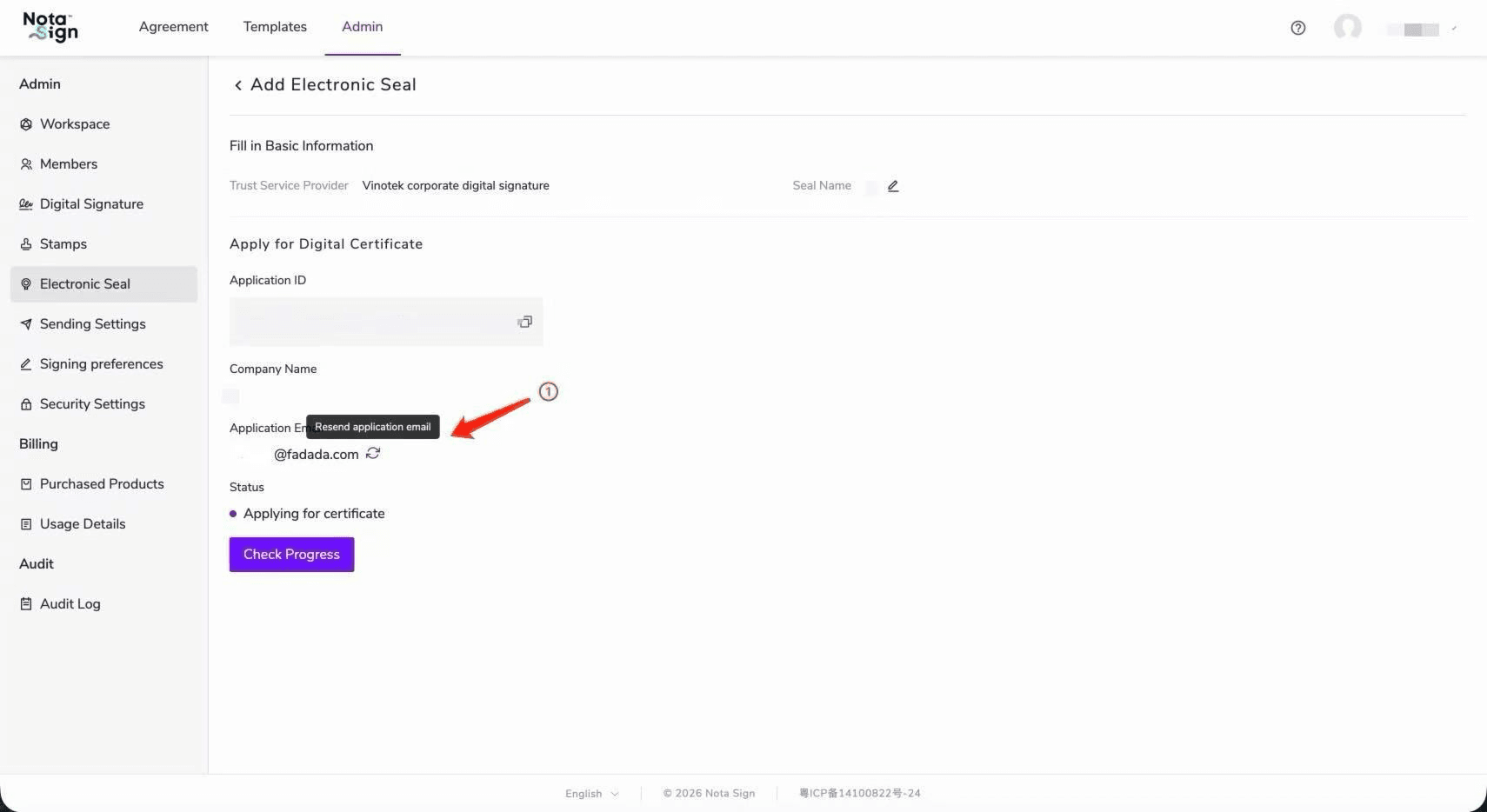
After the resend is successful, Vinotek will send the enterprise certificate application email again to the current application email.
After the resend is successful, this entry will be locked for 60 seconds. During the lock period, the icon will temporarily be unclickable.
Please wait to receive the new Vinotek enterprise certificate application email, then continue completing the application through the link in the email.
Resending the application email is only applicable when the current enterprise certificate is still in the application process.
6. Checking Enterprise Certificate Application Progress
After completing the enterprise certificate application process in the Vinotek email, please return to the enterprise certificate application details page in Nota Sign.
Click 〖Check Progress〗 to check the latest application status of the current enterprise certificate.
If the enterprise certificate is still in the application or processing stage, the page will continue to display the certificate application in progress status.
If the enterprise certificate application has been completed, Nota Sign will synchronize the latest status and proceed to the subsequent usage process of the enterprise electronic seal.
After completing the application process in the Vinotek email, please return to Nota Sign and click 〖Check Progress〗 to obtain the latest application status.
7. Enterprise Certificate Application Failure and Reapplication
If the Vinotek enterprise certificate application is not approved, Nota Sign will display 〖Certificate application failed〗.
If the system is able to obtain the specific failure reason, the page will also display the corresponding failure information.
After the enterprise certificate application fails, there is no need to create a new electronic seal. You can re-initiate the enterprise certificate application within the current application record.
After clicking 〖Reapply〗, the system will display the company name and application email again and automatically populate the previously filled information.
After confirming that the relevant application information is correct, click 〖Confirm Application〗 to resubmit.
After the reapplication is successful, Vinotek will send a new enterprise certificate application email. Please open the new email link and follow the Vinotek page instructions to complete the enterprise certificate application again.
When the enterprise certificate is in the application process but you have not received the email, you can use the resend application email function. After the enterprise certificate application fails, please use 〖Reapply〗 to re-initiate the application.
If the Vinotek enterprise certificate application is still not completed after more than 90 days and becomes invalid, Nota Sign will restore the application to the pending application status.
At this point, when you enter the application record again, the page will return to the trust service provider selection page, and you will need to reselect Vinotek and re-initiate the enterprise certificate application.
8. After the Enterprise Certificate Application Is Completed
When the Vinotek enterprise certificate application is completed, the corresponding enterprise electronic seal will enter the effective status.
Enterprise administrators can enter the details page of the enterprise electronic seal to view related information and manage the seal users who can use this electronic seal.
Note that the 〖Seal User〗 permission in Nota Sign and the Vinotek verification code receiving email are two different configurations:
- Seal User: Determines whether a member can use the corresponding enterprise electronic seal in Nota Sign;
- Vinotek CC Email: Determines whether a member can also receive the signing verification code sent by Vinotek.
Therefore, after adding a member as a seal user, if you also need that member to receive the verification code during signing, you need to add that member’s email as a CC Email in Vinotek.
The configuration method for Vinotek CC Email is as follows:
- Open the certificate page link in the Vinotek enterprise certificate application completion email;
- Click 〖CC Session Code〗 on the Vinotek certificate completion page to enter the CC email list;
- Click 〖Add Email CC〗 to add the email addresses of members who need to receive verification codes.
After adding, these email addresses will also receive the signing verification code sent by Vinotek during the subsequent enterprise electronic seal signing process.
Nota Sign is only responsible for managing whether members have permission to use the enterprise electronic seal. It does not provide the ability to add, delete, or modify Vinotek CC Emails.