
Intesi is a certification authority (CA) in Italy, providing legally binding digital seal services for enterprises. If your enterprise already holds an Intesi digital certificate, you can bind it for use through Nota Sign.
When using an Intesi enterprise digital seal in Nota Sign for the first time, you need to bind your existing Intesi enterprise digital certificate first.
I. Binding an Intesi Enterprise Digital Certificate
Before using an Intesi enterprise digital seal for the first time, you need to bind your existing Intesi enterprise digital certificate to Nota Sign.
1. Add an Electronic Seal
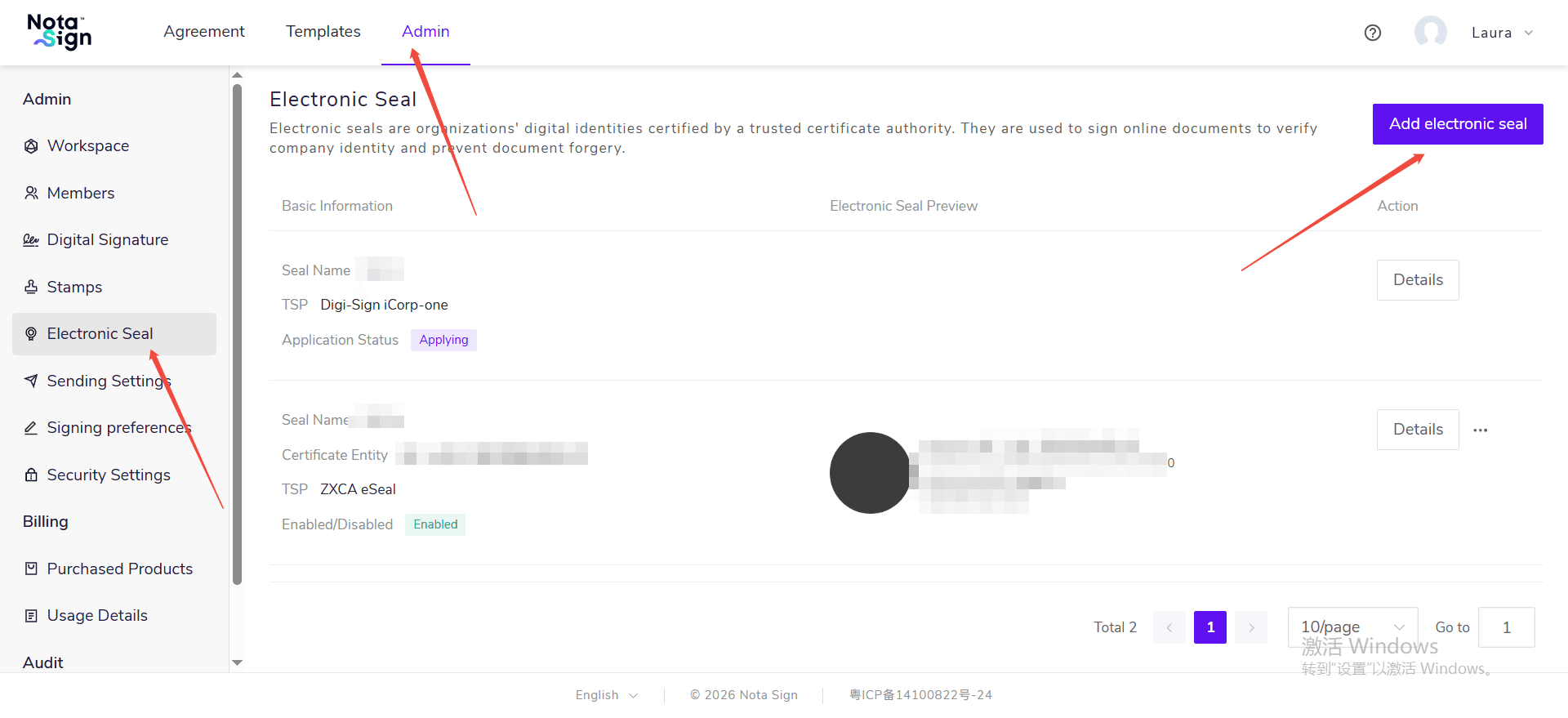
Go to [Manage] -> [Electronic Seals] page and click [Add Electronic Seal];
2. Select Intesi Enterprise Digital Seal
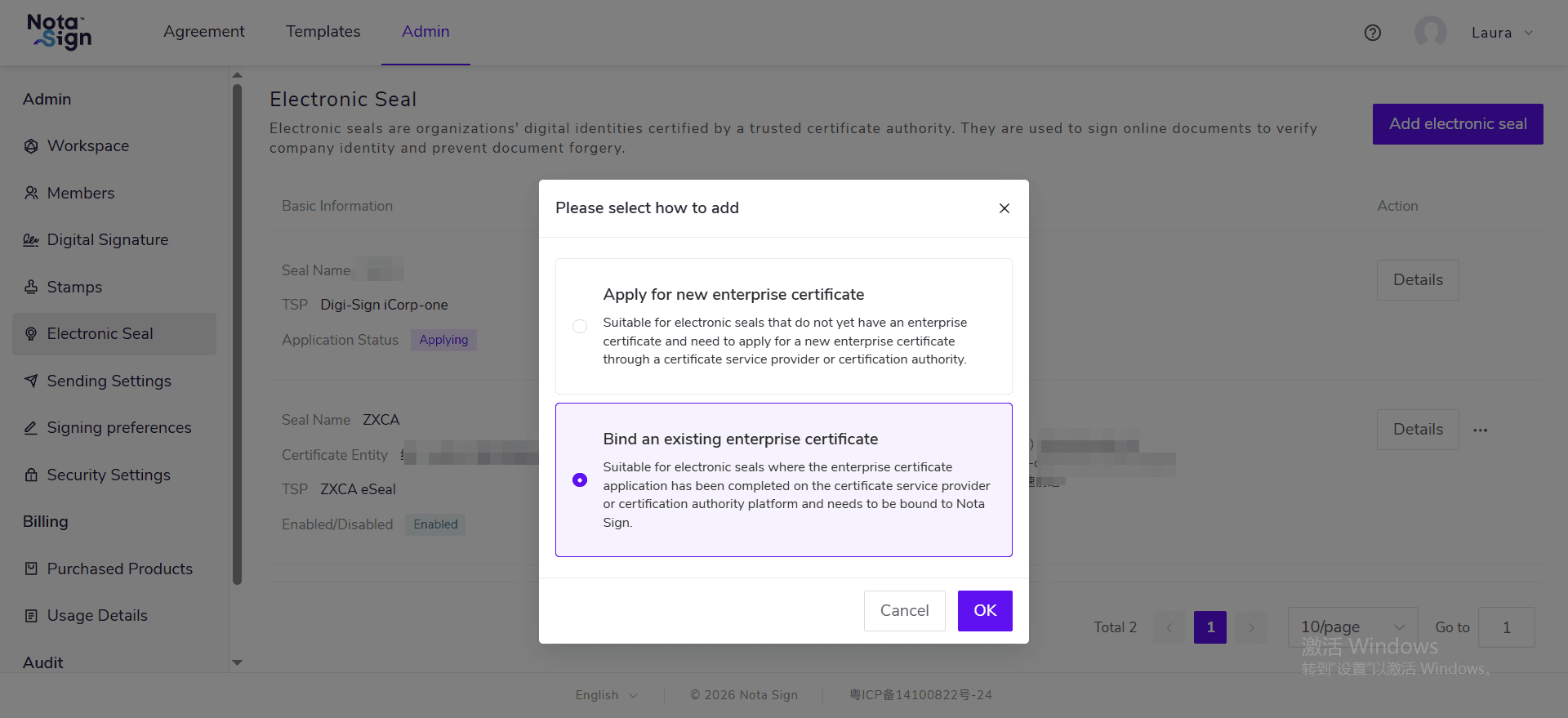
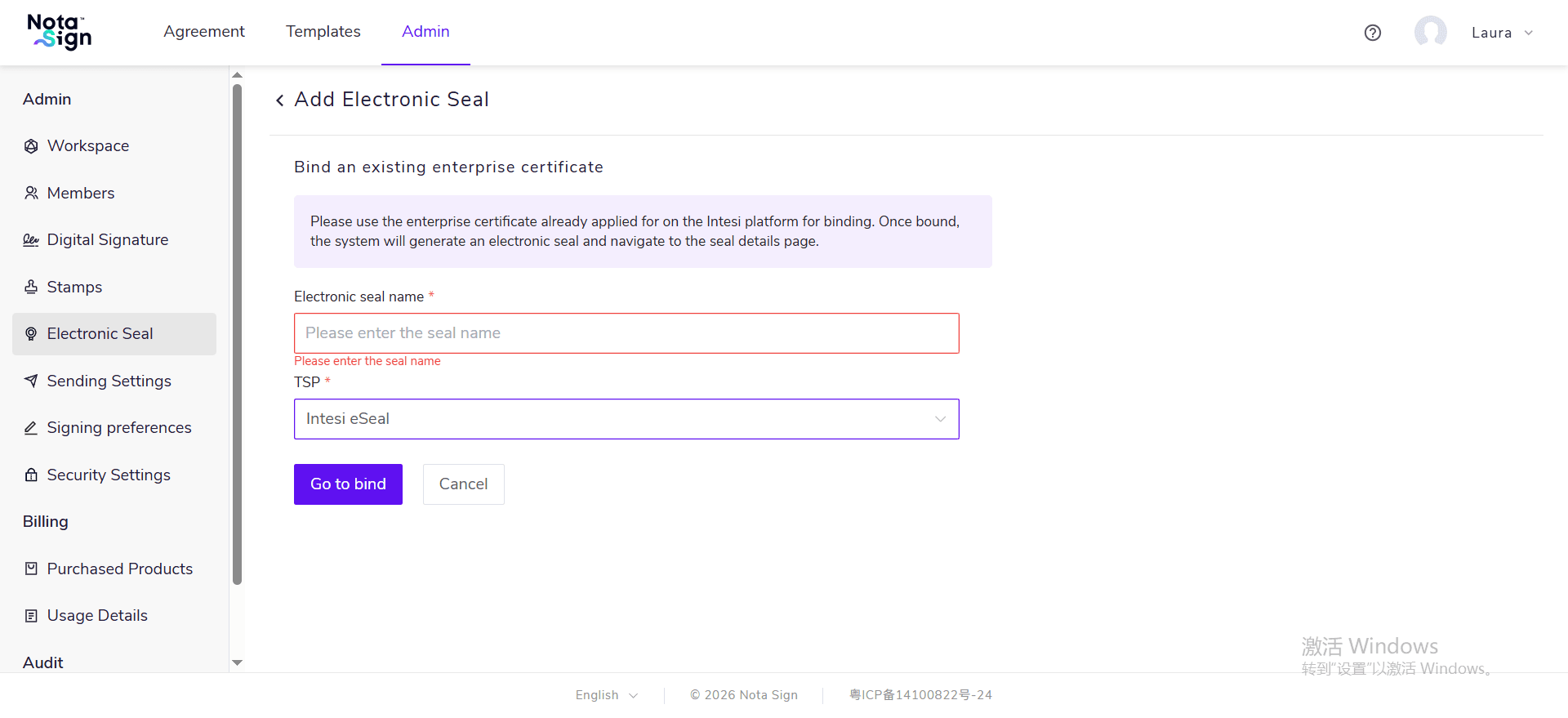
Select “Bind existing enterprise certificate”, select “Intesi Enterprise Digital Seal” as the TSP, then click “Go to Bind”. You will be redirected to the Intesi login page. Enter your Intesi account and password to complete the binding;
3. Log in to or Register an Intesi Account
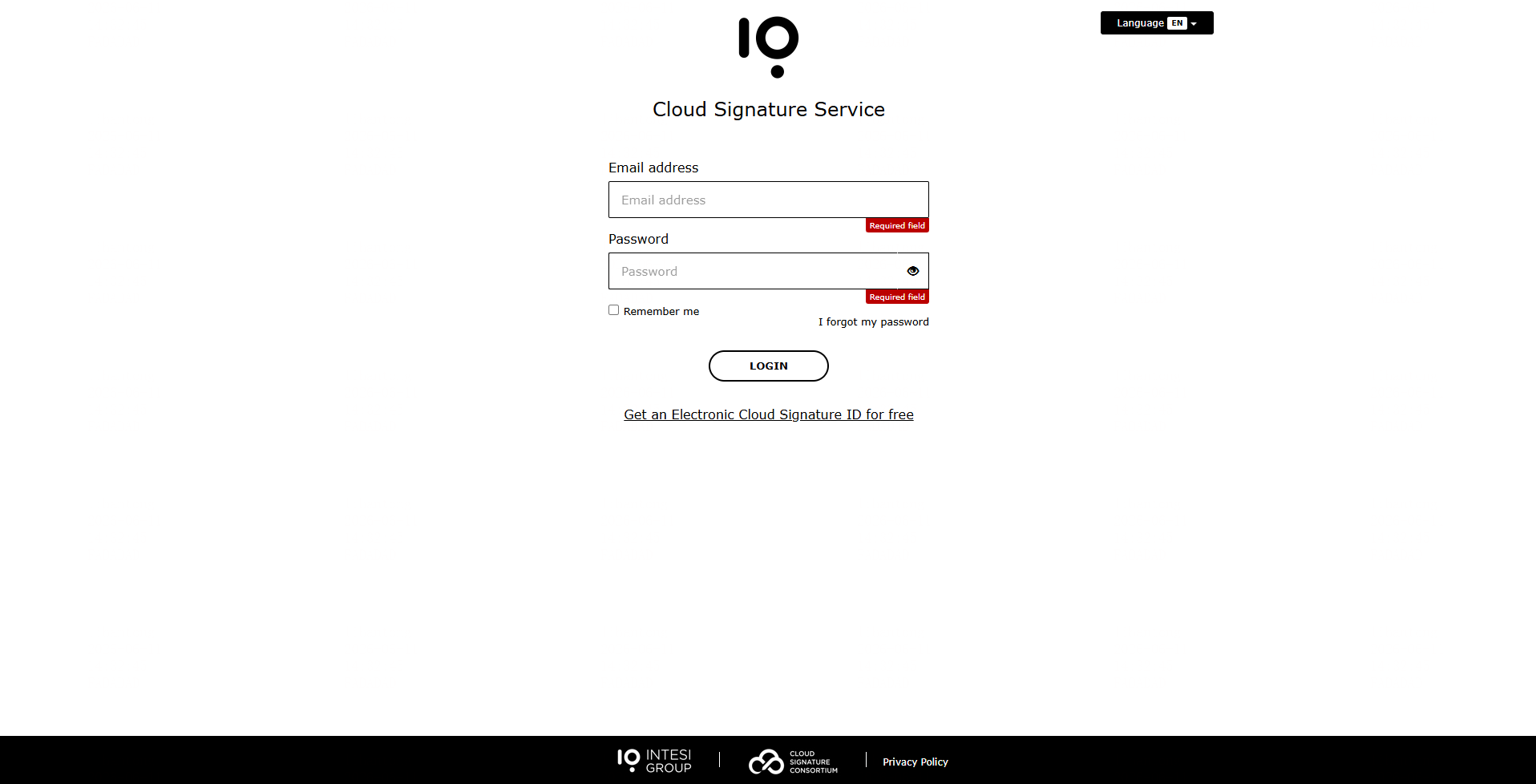
After clicking [Go to Bind], the page will redirect to the Intesi login page. If you already have an Intesi account, enter your Intesi account and password to log in. If you have not yet registered an Intesi account, please complete the registration according to the page prompts.
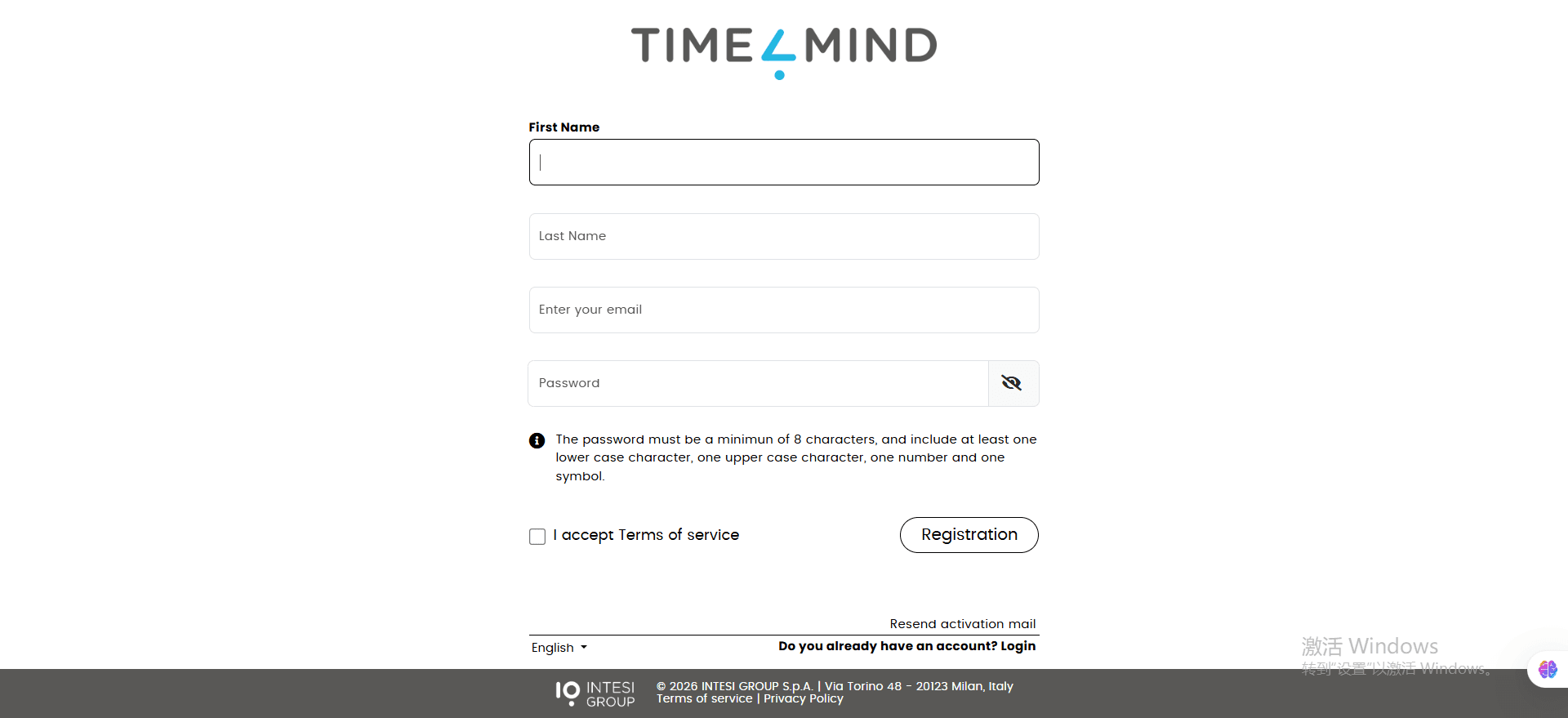
After successful binding, the corresponding Intesi enterprise digital seal can be used in Nota Sign.
II. Signing an Envelope with an Intesi Enterprise Digital Seal
After completing the binding of the Intesi enterprise digital certificate, you can use the corresponding Intesi enterprise digital seal when signing documents.
1. Entering the Signing Page
The recipient enters the signing page via the link in the signing invitation email or through the Nota Sign inbox.
2. Starting to Sign
After reading and agreeing to the relevant terms of use, enter the signing process.
3. Completing Document Fill-in
Complete all required controls in the document as prompted on the page.
When the document contains an electronic seal control, click the corresponding electronic seal control and select a bound and authorized Intesi seal.
After completing all controls, click [Submit].
4. Selecting Intesi to Complete the Digital Seal
On the digital seal page, select [Intesi] as the certification authority (CA).
Enter the PIN code corresponding to your Intesi account for identity verification.
Note: When using an Intesi enterprise digital seal, the PIN code required for signing is your Intesi account password.
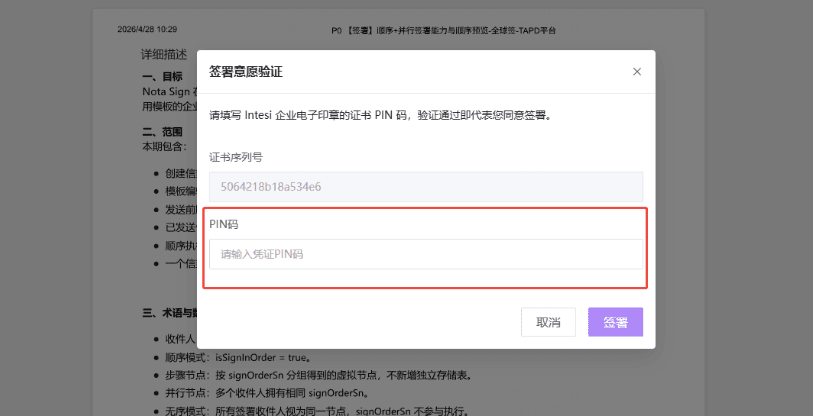
5. Completing the Signing
After verification passes, confirm the signing to complete the Intesi enterprise digital seal process.