
Trans Sped is a qualified trust service provider (QTSP) in Romania that offers digital signature services compliant with applicable EU standards. Nota Sign supports signing authorization with your Trans Sped digital certificate, making it easy to sign documents.
This article explains how to apply for and activate a Trans Sped digital certificate, and how to use it to sign documents in Nota Sign.
1. Before you sign
Before using a Trans Sped digital signature, you need to purchase and activate a Trans Sped Qualified certificate in the cloud. If you already hold a valid certificate of this type, go directly to Section 3.
Trans Sped offers qualified cloud certificates with different validity periods. Choose one that meets your signing needs. Refer to the official Trans Sped website for application requirements and fees.
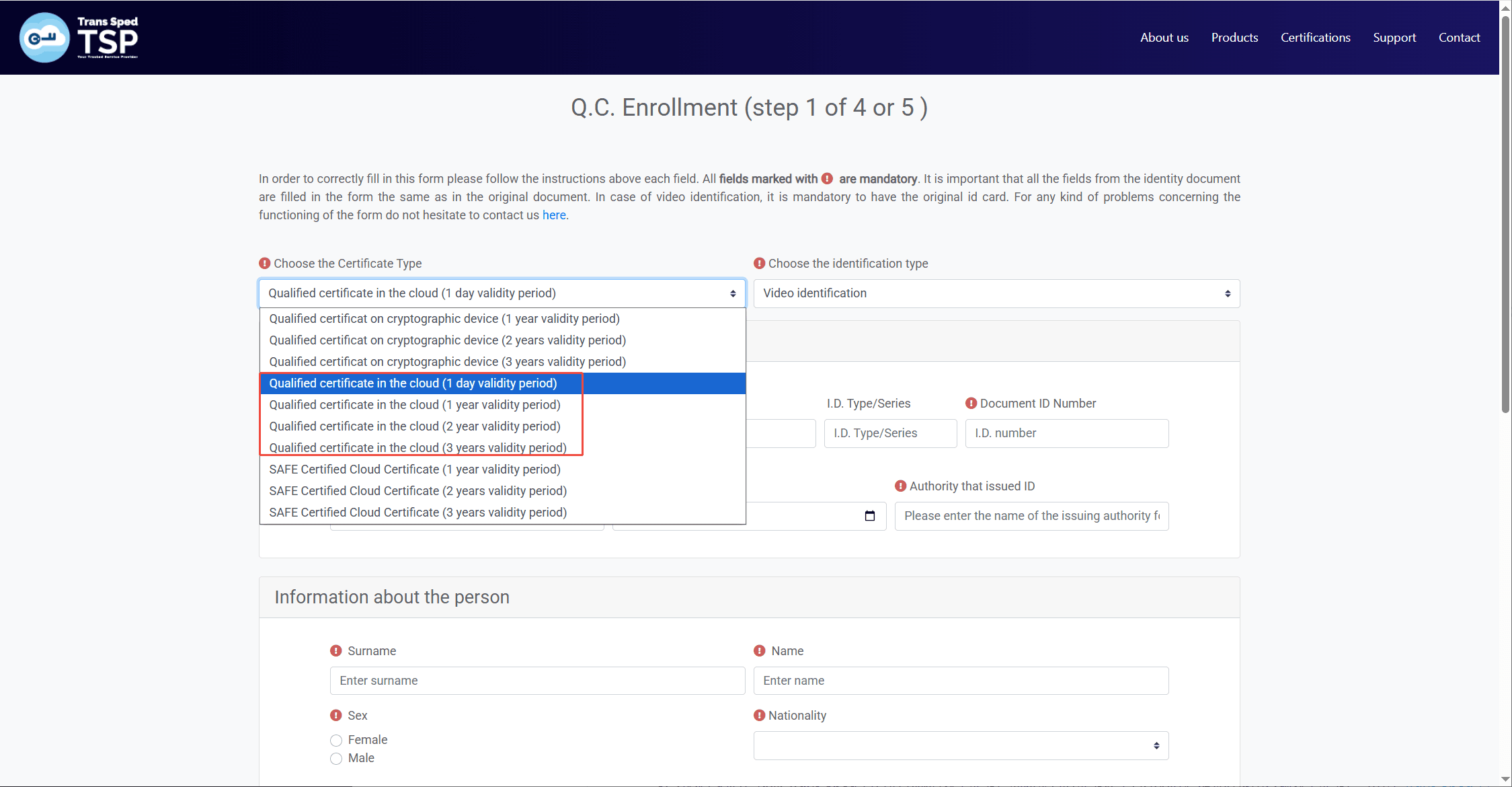
2. Apply for and activate a Trans Sped digital certificate
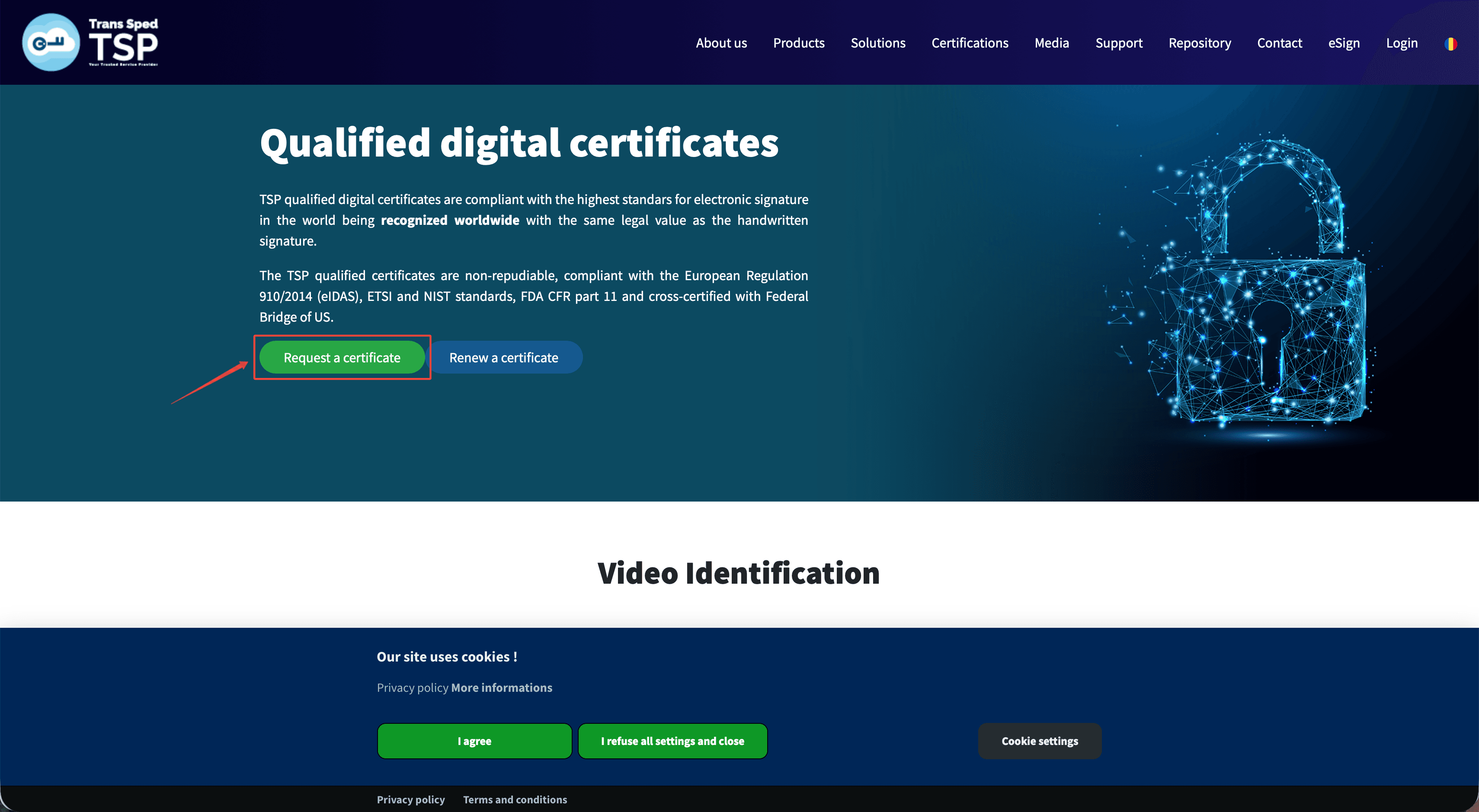
- Visit the official Trans Sped website, go to the digital certificates page, and click Request a certificate to start your application.
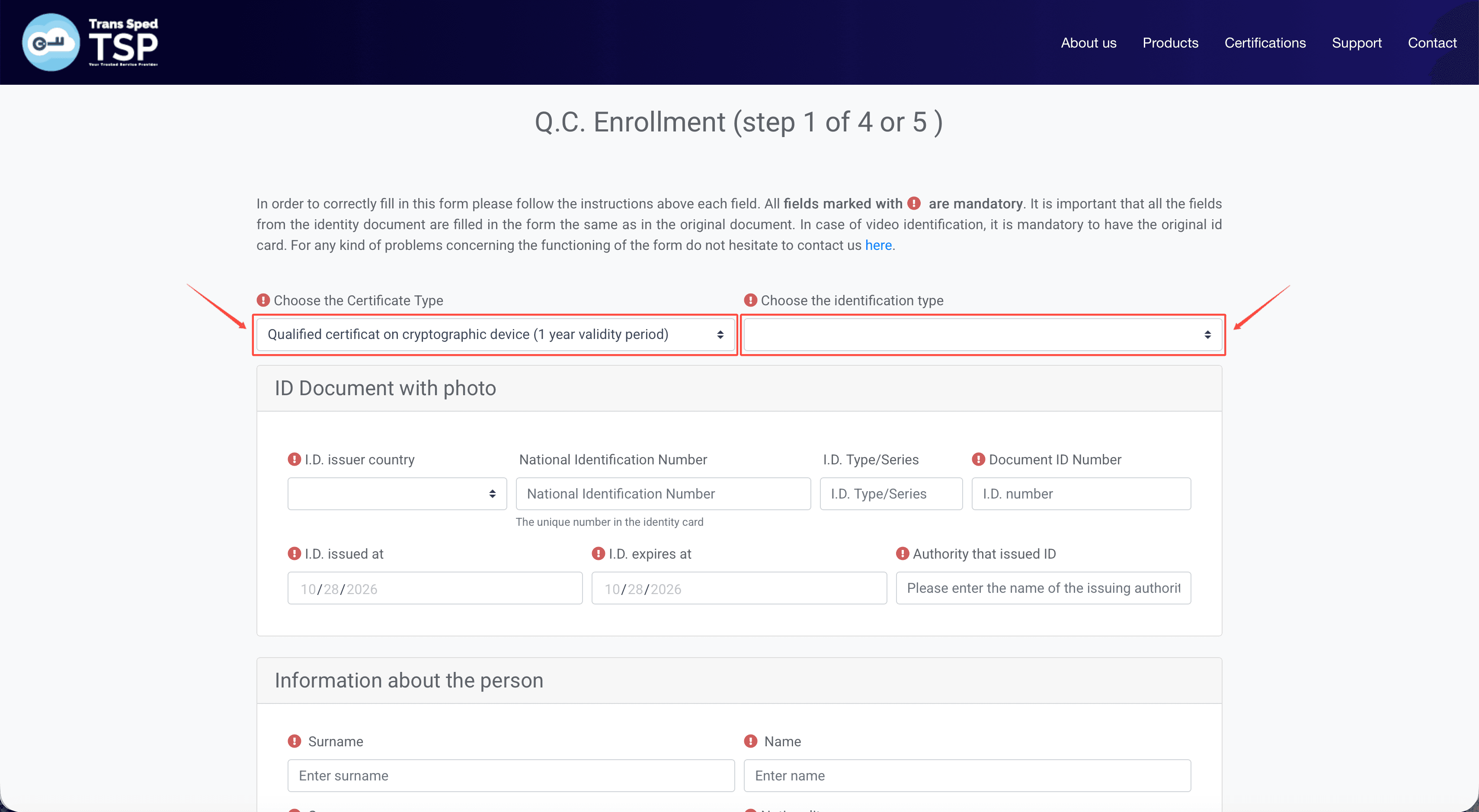
- Select the certificate type, validity period, and identity verification method that meet your needs. Enter your identity document details, personal information, and contact details, then follow the on-screen instructions to continue.
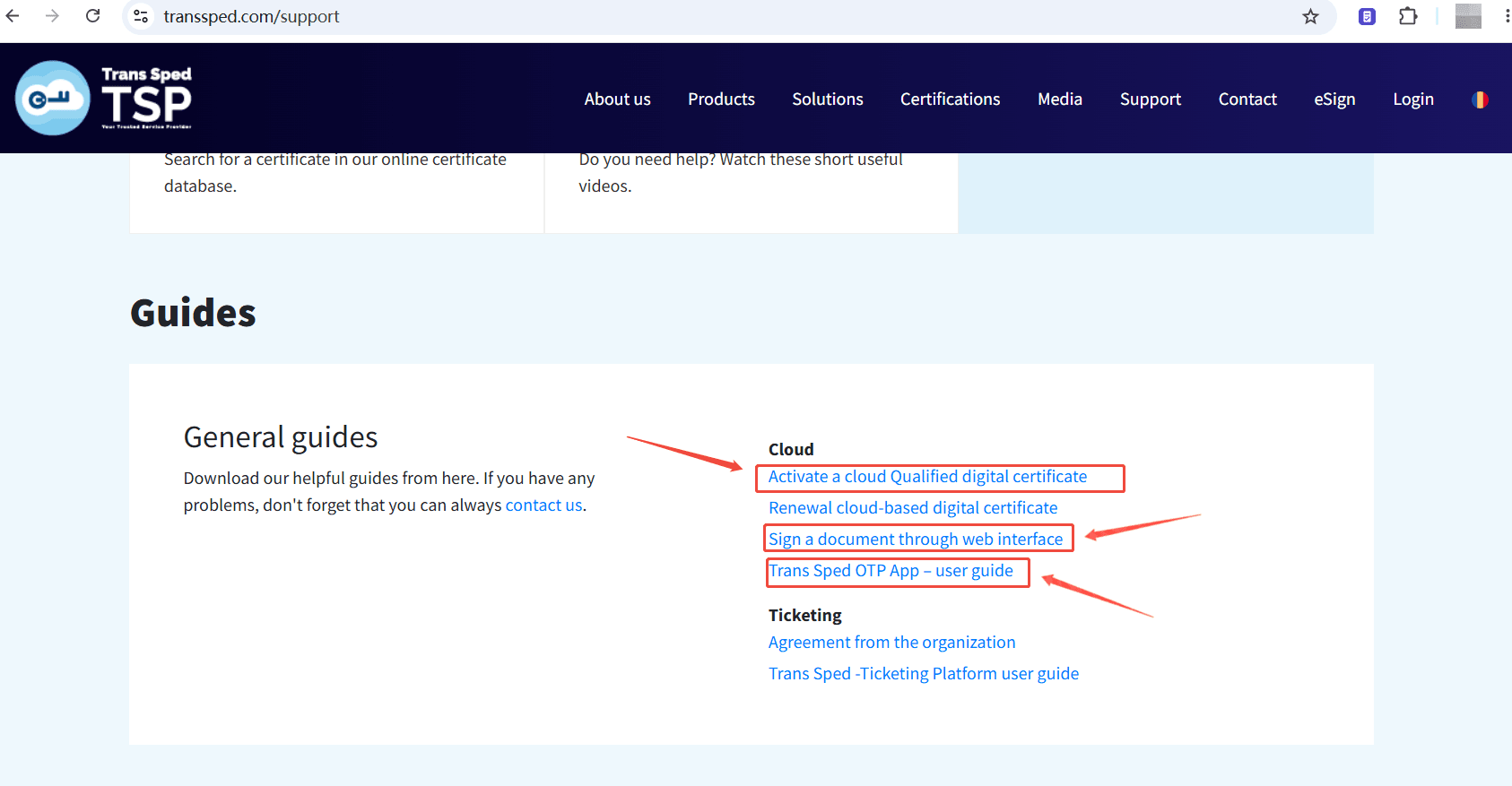
- After completing your application, follow the official Trans Sped instructions to activate your digital certificate and ensure that it is valid when you sign. If you use a cloud certificate, visit the official Trans Sped support center for the relevant certificate activation guide.
3. Sign with Trans Sped in Nota Sign
Step 1: Open the document to sign
Open the signing link sent by Nota Sign, review the document, and complete the signature fields and any other required fields. When you are done, click Submit in the upper-right corner.
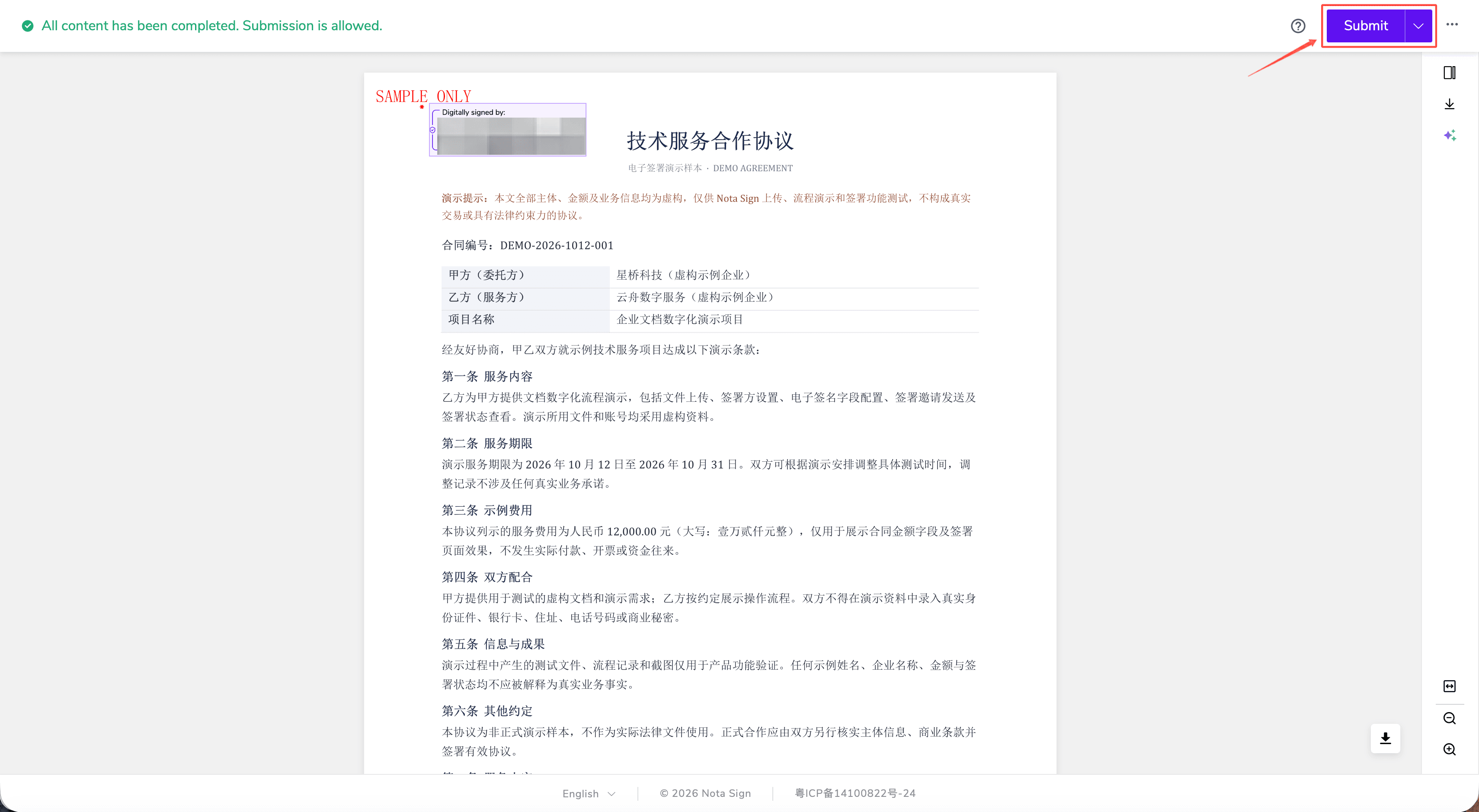
Step 2: Select Trans Sped Digital Signature
In the digital signature service selection window, select Romania Trans Sped Digital Signature. Review the service information, then click Next.
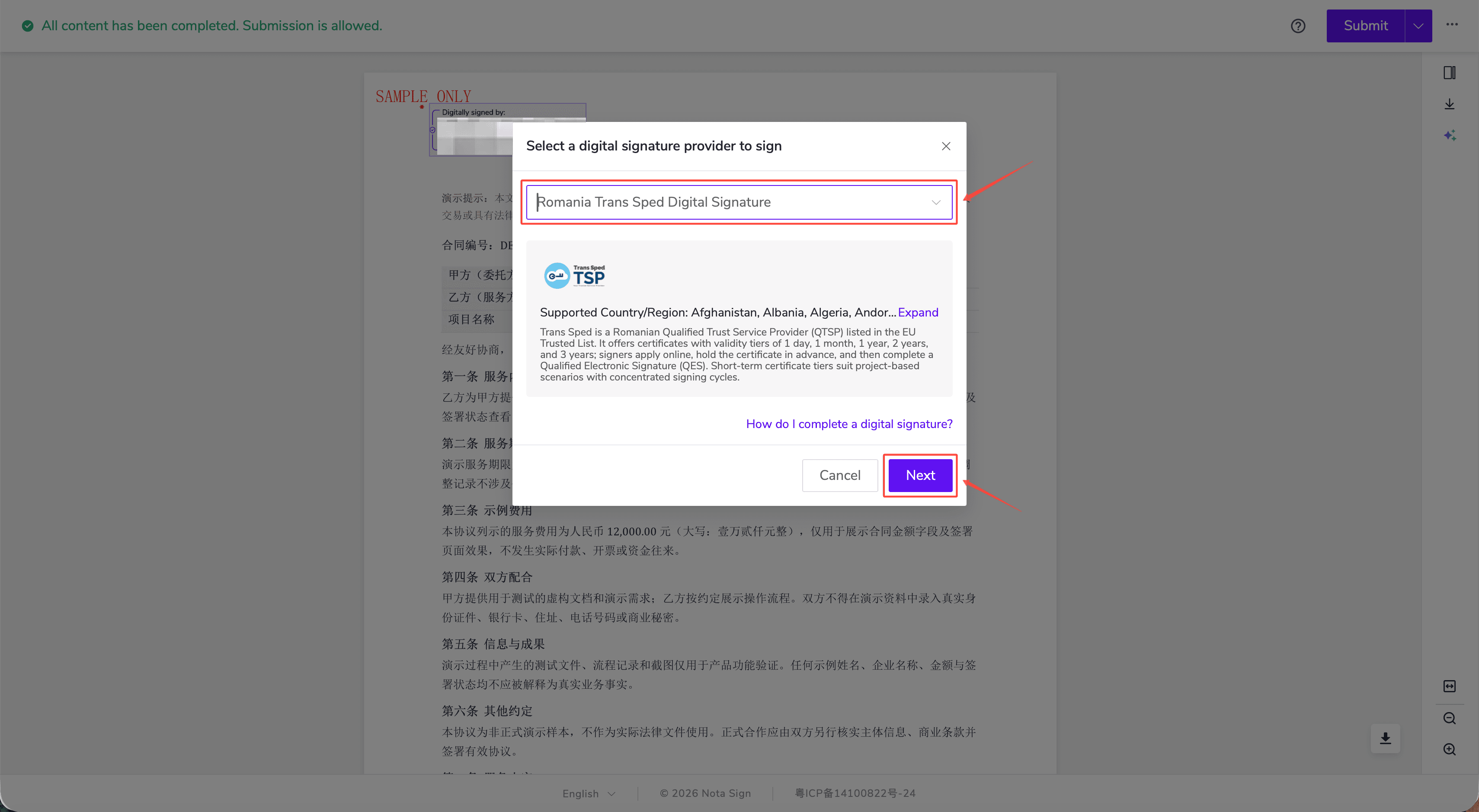
Step 3: Log in to Trans Sped and complete verification
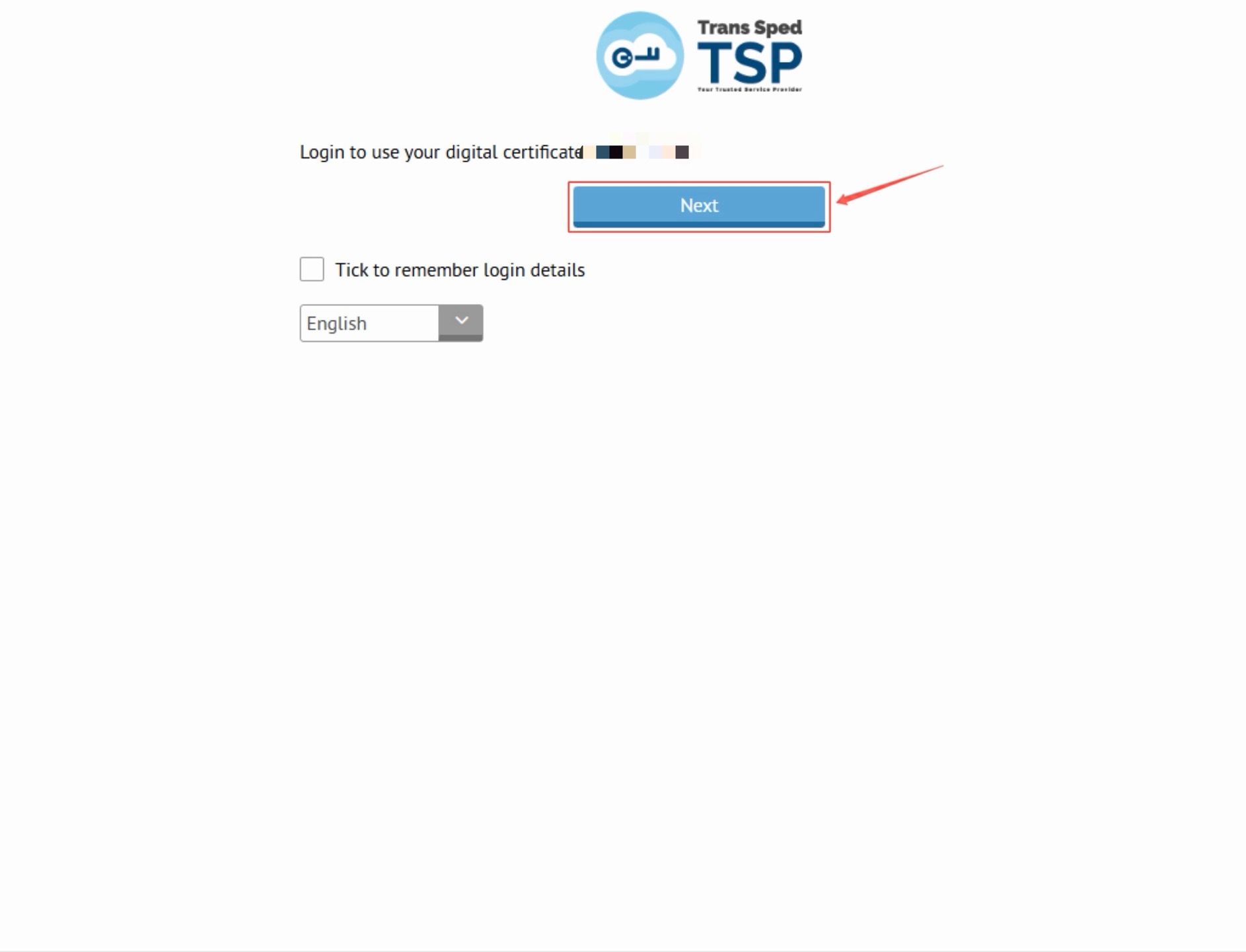
After you click Next, the Trans Sped verification page opens. Follow the on-screen instructions to complete these steps:
- Click Next on the Trans Sped verification entry page.
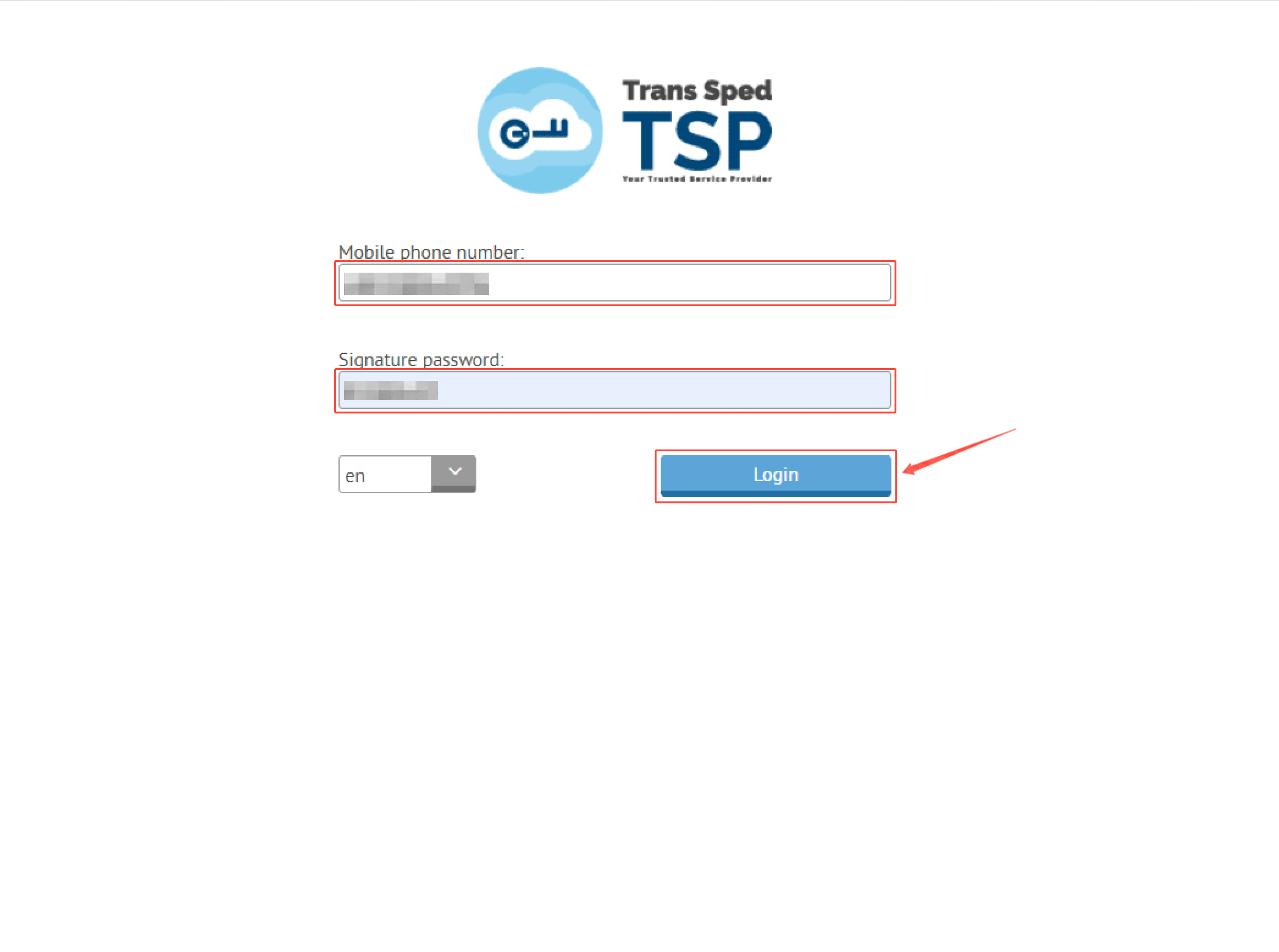
- Enter the phone number linked to your Trans Sped account and your signature password, then click Login.
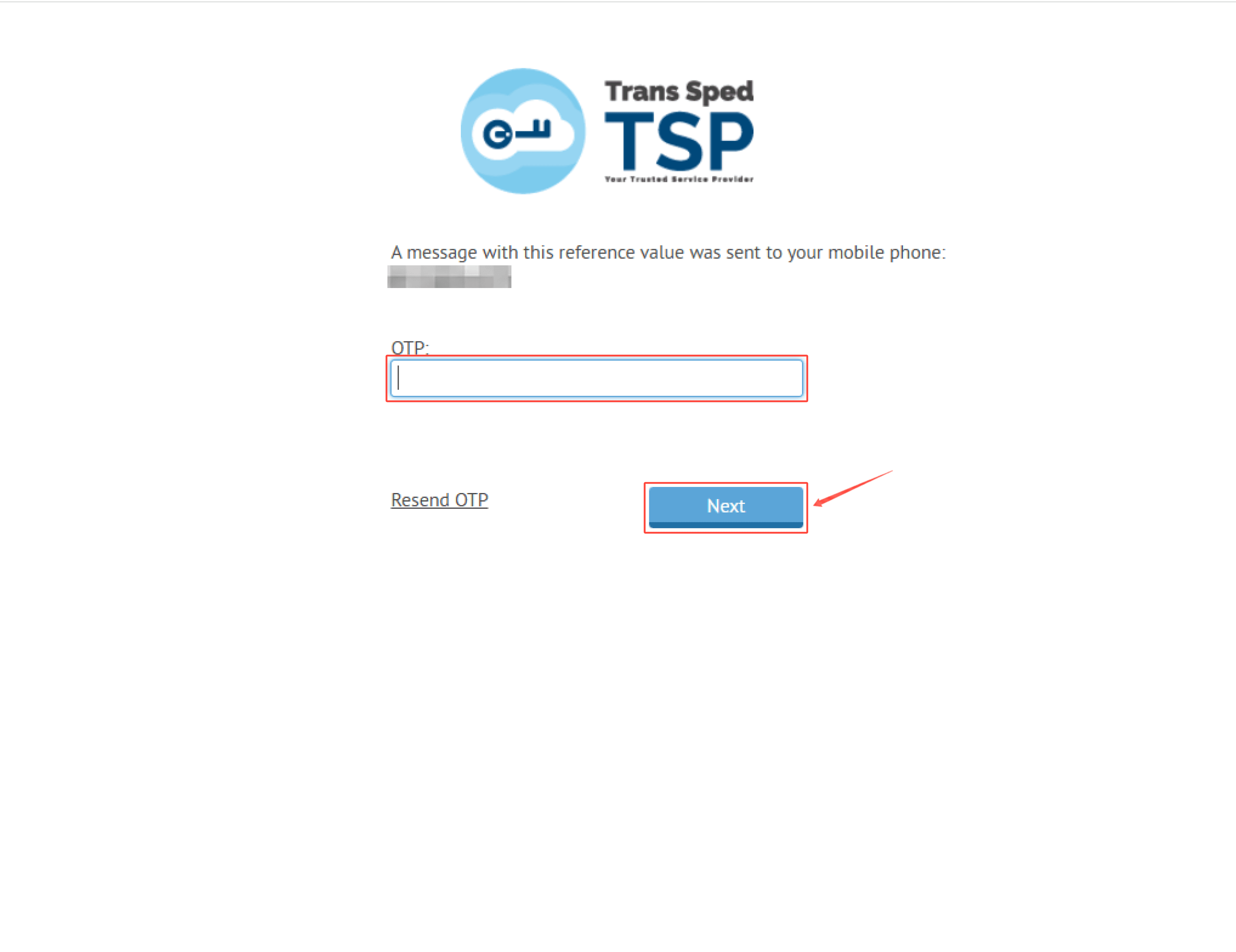
- Follow the on-screen instructions to receive a one-time verification code by email or SMS. Enter the code, then click Next.
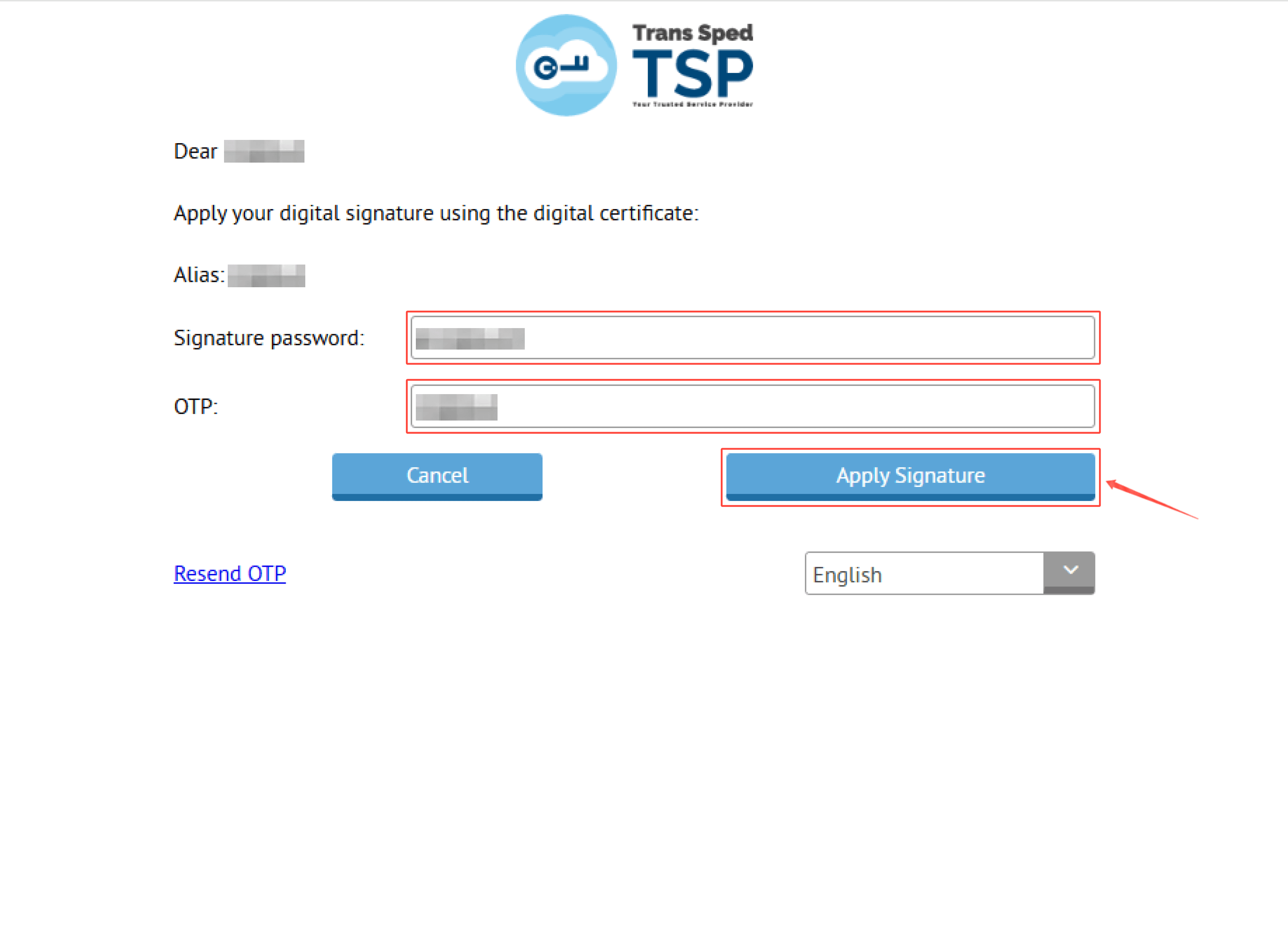
- On the signing confirmation page, enter your signature password and one-time verification code as required, then click Apply Signature to authorize the signature.
Step 4: Check the signing result
After authorizing the signature in Trans Sped, return to the Nota Sign signing page. The system will confirm the signing result and generate the signed document.
4. Important notes
- Digital certificate: You must purchase and activate a Trans Sped qualified cloud certificate before signing. Apply for, purchase, and activate the certificate on the Trans Sped platform. Nota Sign does not handle these processes on your behalf.
- Certificate fees: Signers are responsible for Trans Sped certificate fees. Refer to the official Trans Sped information for current pricing. The sending organization enables the digital signature service in Nota Sign; signers do not need to purchase a separate Nota Sign digital signature package.
- Trans Sped is unavailable: If Trans Sped does not appear on the signing page, the sender may not have enabled the service, or the current signing task may not support it. Contact the document sender to confirm.
- Signing fails or the certificate is invalid: If the page offers an option to sign again, follow the prompts to retry. If your certificate is invalid or has not been activated, resolve the certificate issue on the Trans Sped platform, then return to Nota Sign to continue signing.