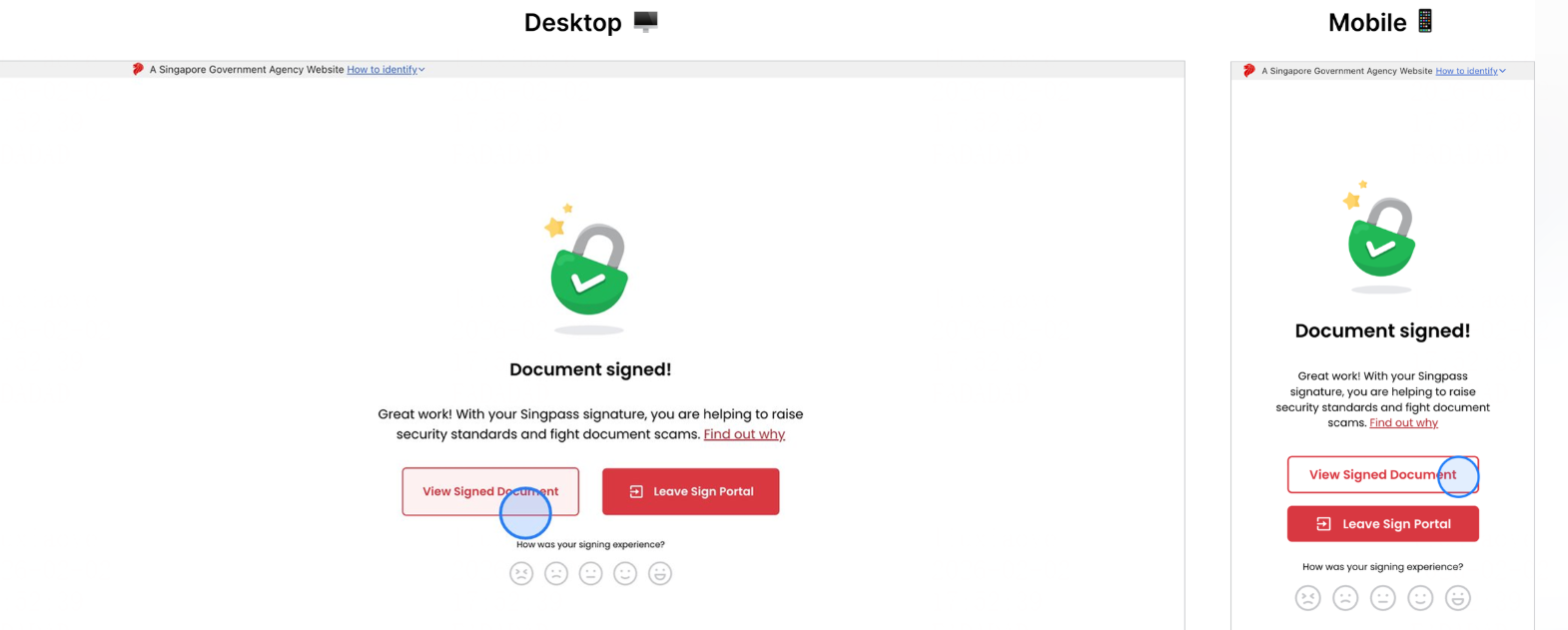
Singpass is Singapore’s electronic identity authentication system. Nota Sign supports identity authentication and digital signing via Singpass. This document covers the complete workflow from creating a Singpass envelope to completing signing.
1. Sign with Singpass
Video Tutorial:
1.1 After initiation, you can select “Sign with Singpass”.
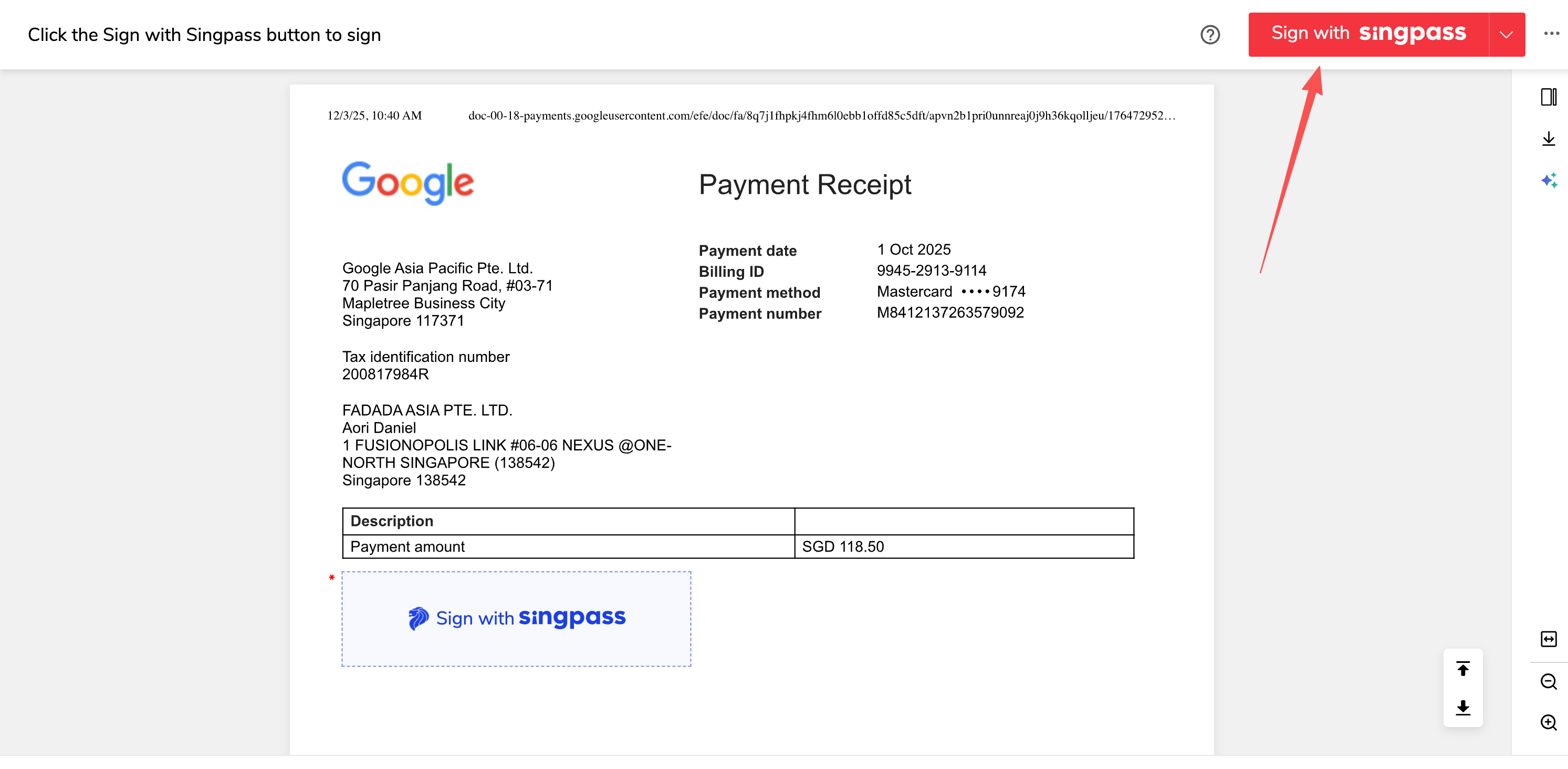
1.2 After opening the envelope, choose to sign using Singpass. Login is required first. If you are already logged in with Singpass, NotaSign will automatically proceed to step 2.
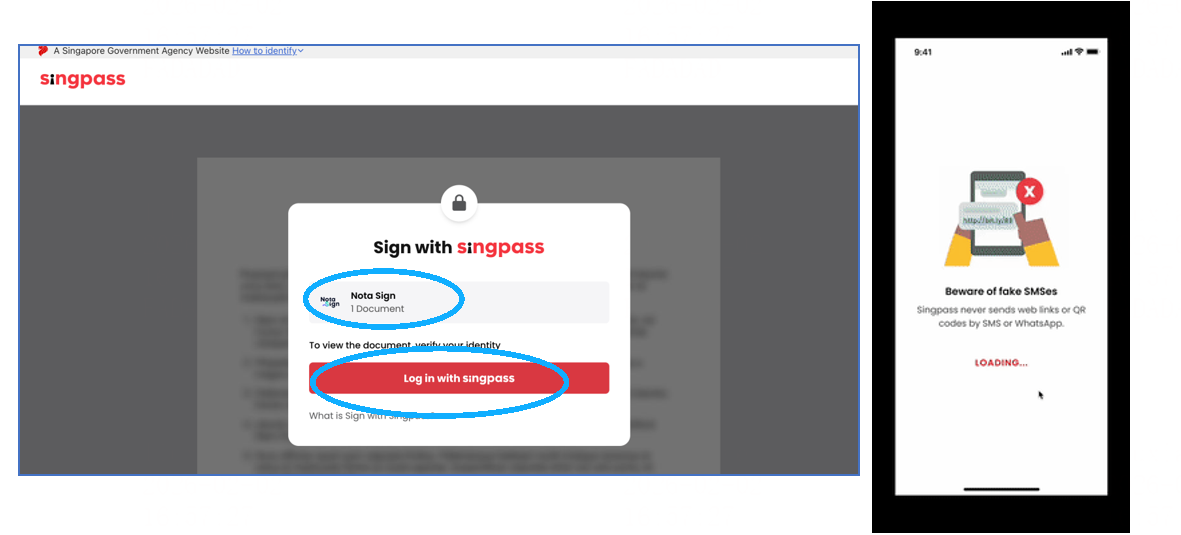
1.3 After opening the envelope and choosing to sign using Singpass, if you are not logged in, you need to scan the QR code to bind your Singpass application.
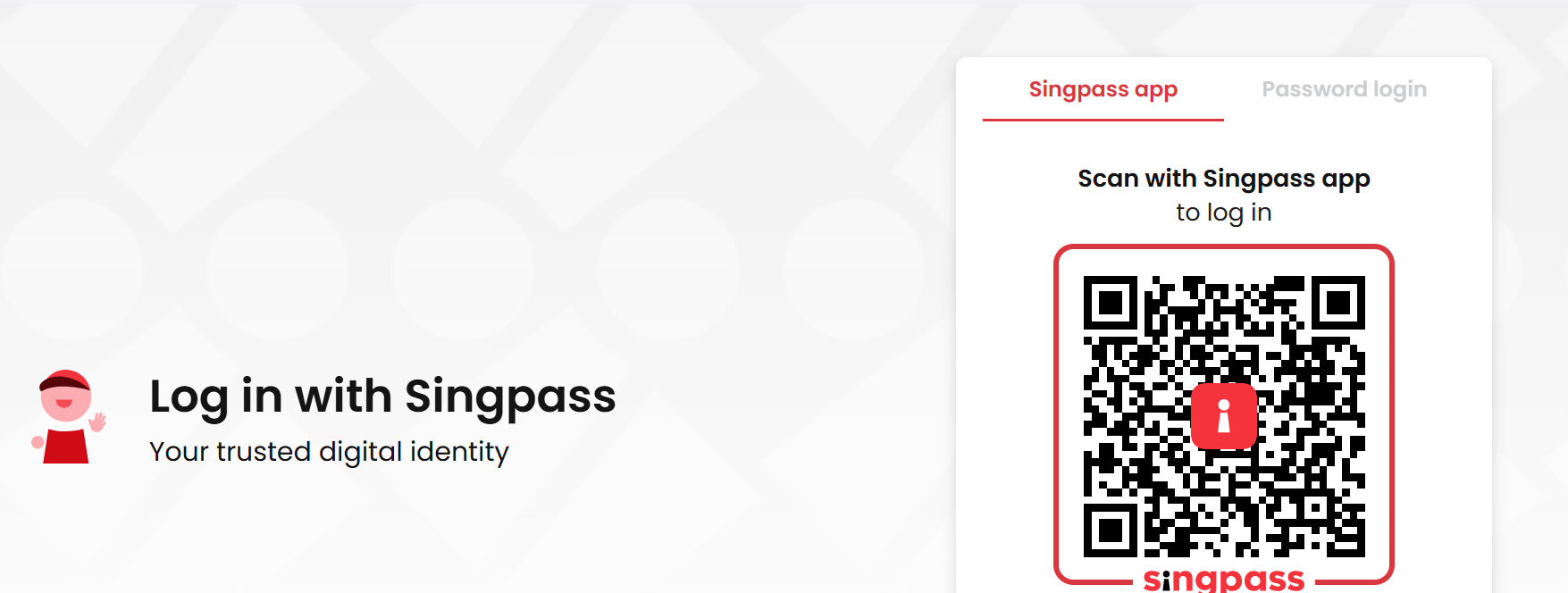
1.4 After successful authorization, you can review the information on both the mobile application and the web page.
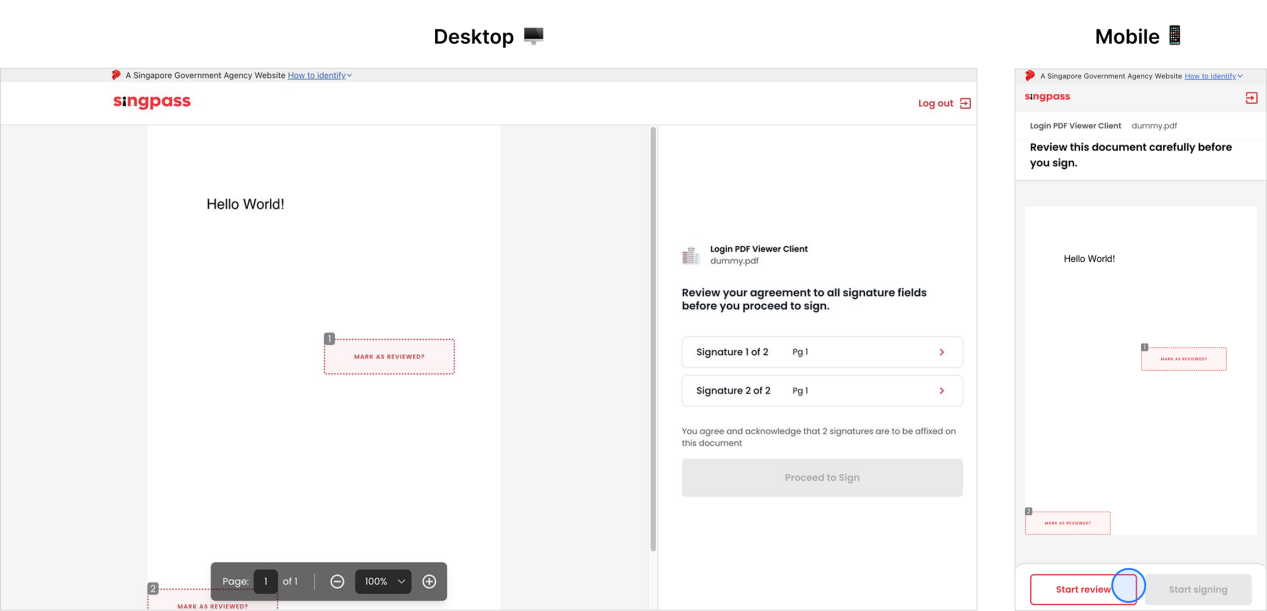
1.5 You can click on the signature field to review it.
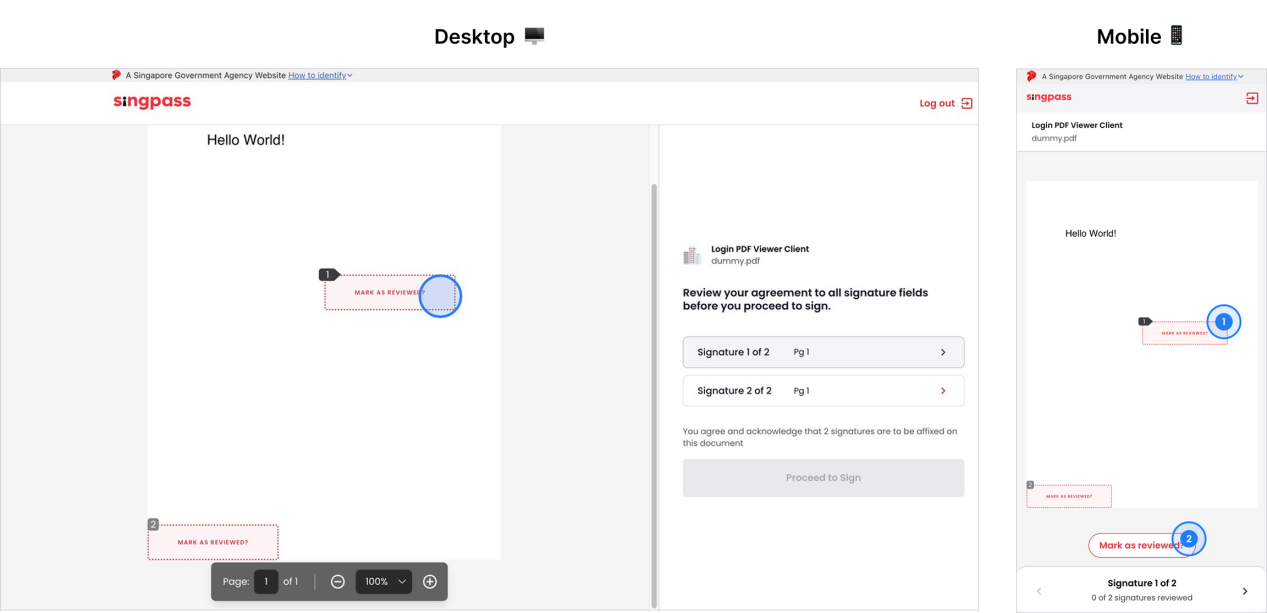
1.6 After reviewing all fields, you can proceed with the signing operation, and the Sign button will become active.
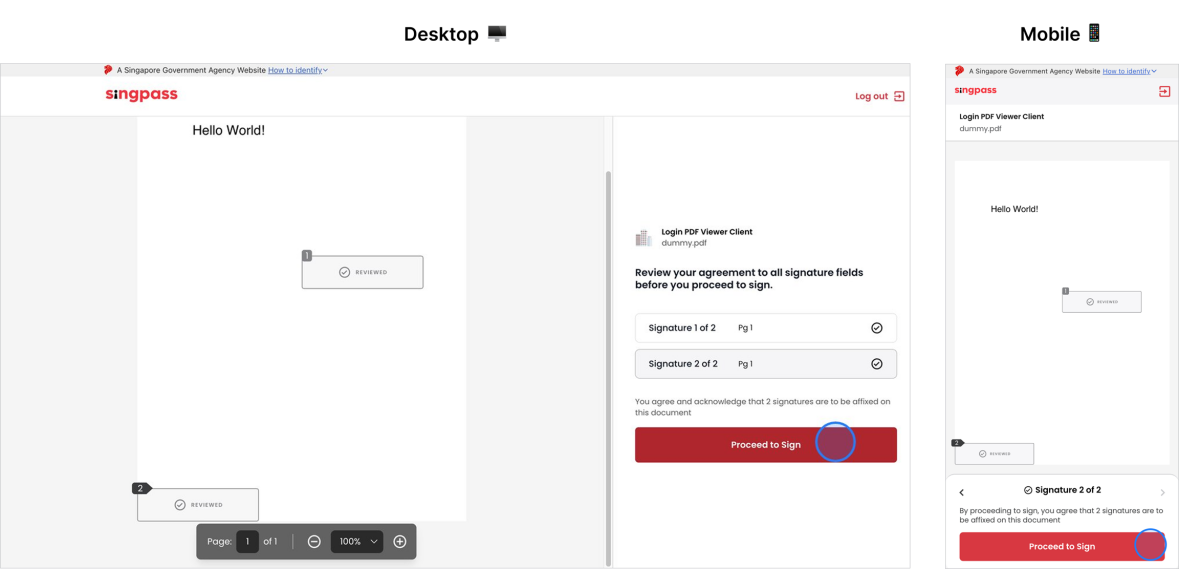
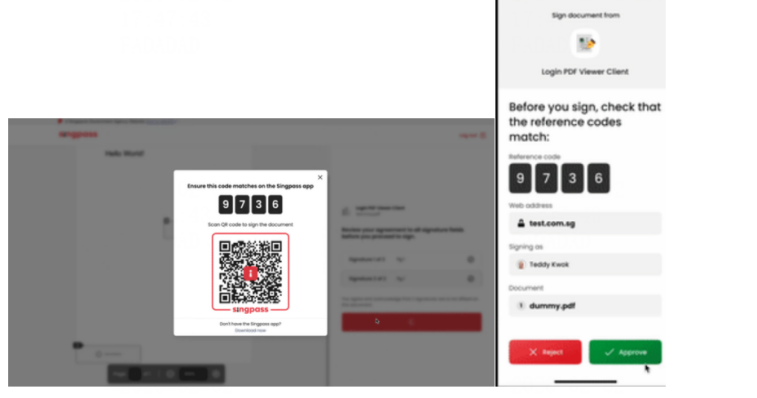
1.7 After clicking “Continue to Sign”, the webpage will redirect to show a verification code, and the application will also redirect simultaneously. The signing is successful after approving the request on the mobile device.
2. Viewing Singpass Signed Documents
After successful signing, you can clikc to view the signed document(s).