iCorp-One is a corporate digital certificate service provided by Tradelink Hong Kong, suitable for enterprise signing scenarios in Hong Kong and internationally. By binding your iCorp-One certificate through Nota Sign, you can use legally binding corporate electronic seals during the signing process.
I. Signing an Envelope (Using ICorp-One Corporate Digital Seal)
Video Tutorial:
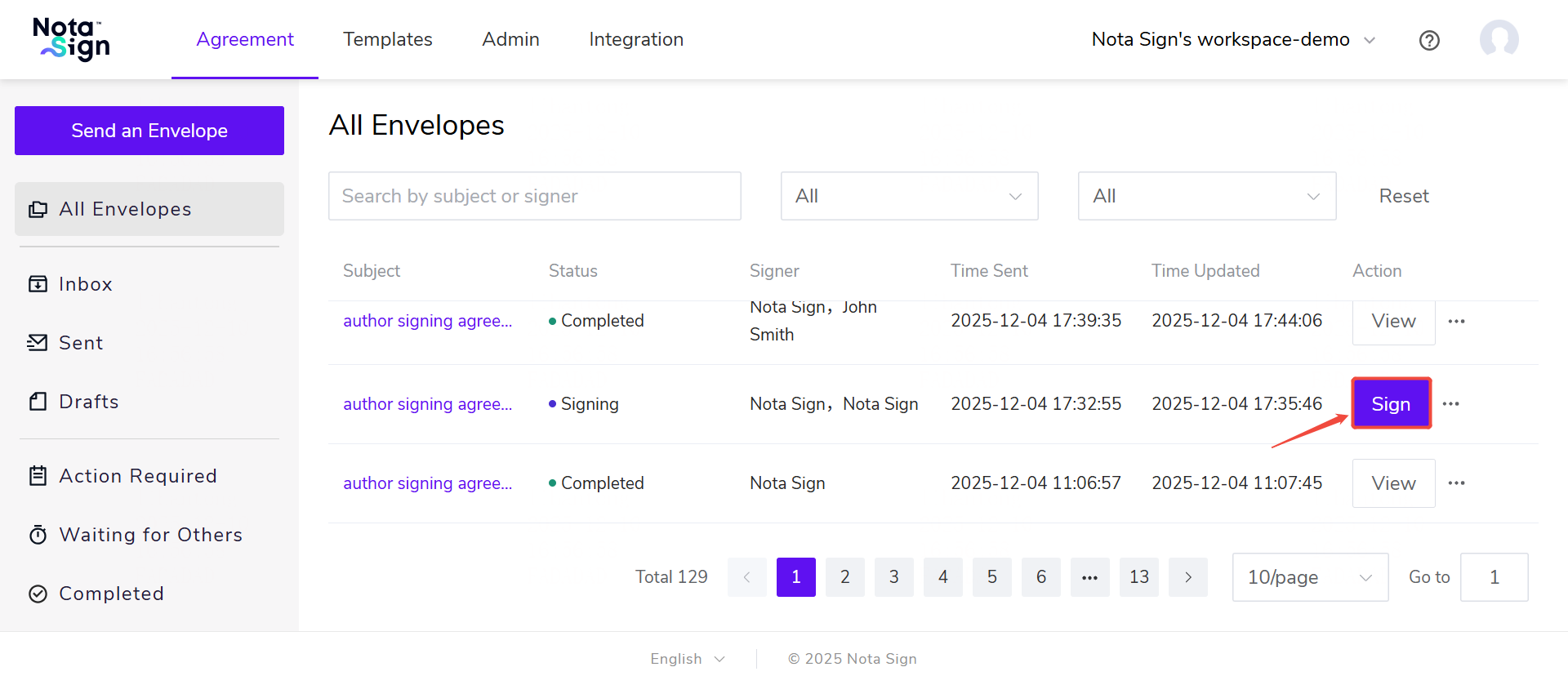
1. Locate the document to be signed and click [Sign]
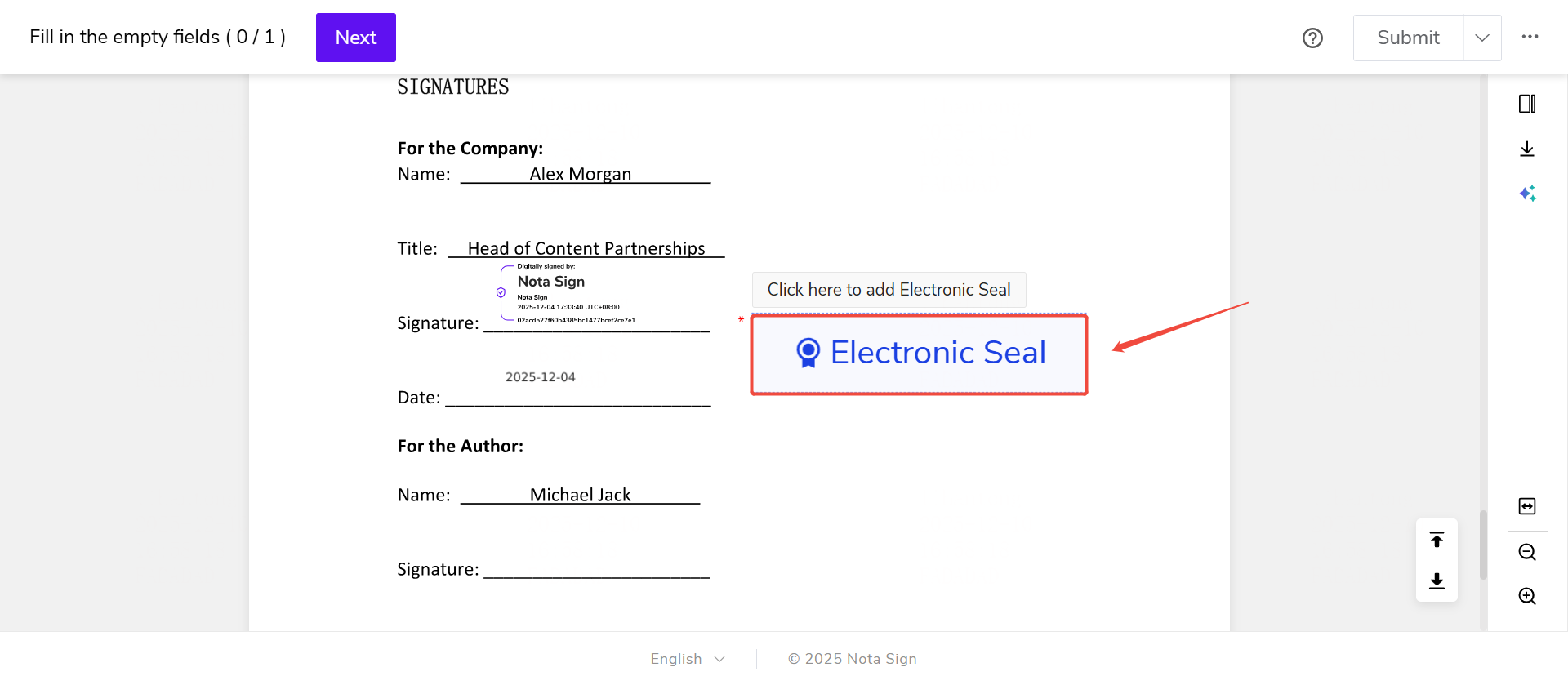
2. Click on the electronic seal control
3. Select an authorized electronic seal, click Submit, and complete email verification code verification.
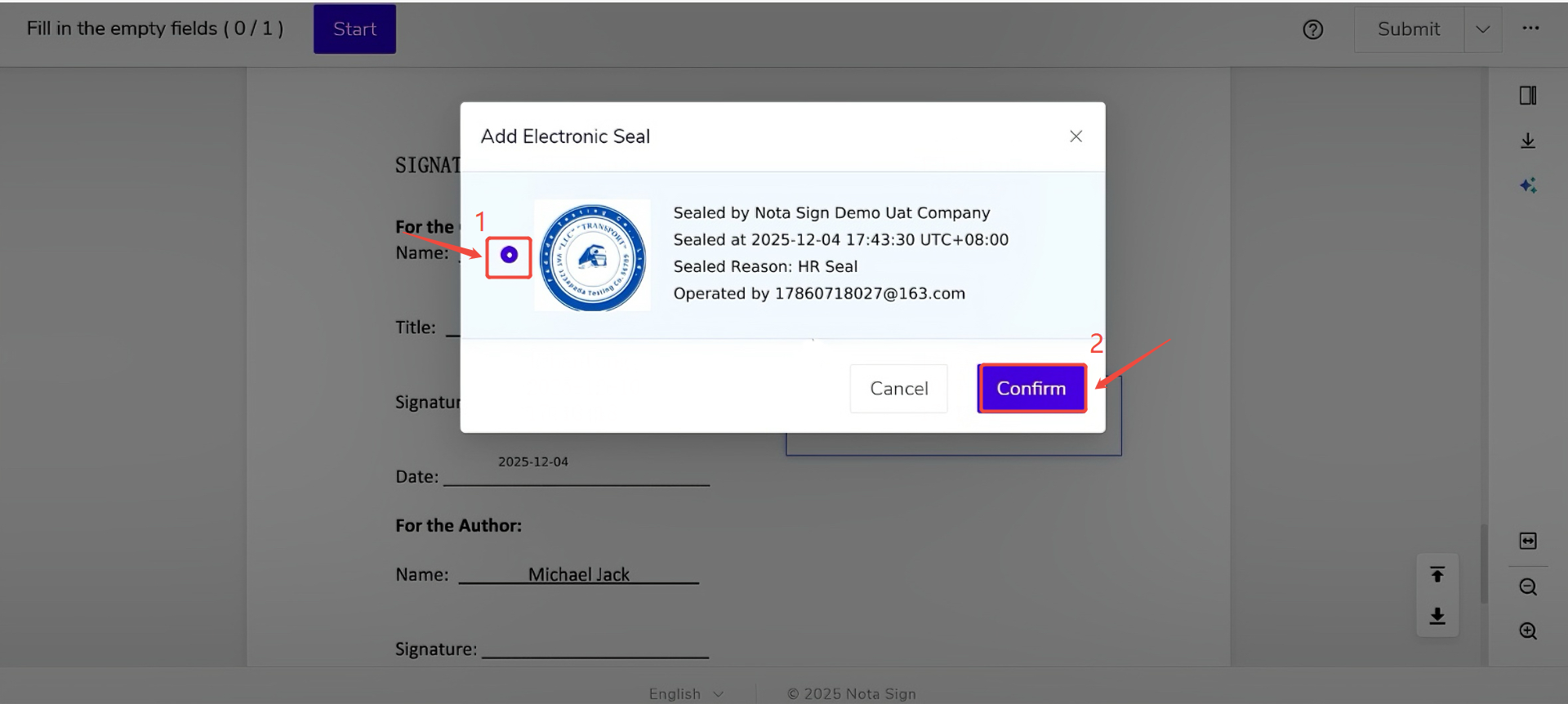
Note: If the signer does not have an authorized electronic seal, they need to apply first (see next section: II. Applying for an iCorp-One Digital Certificate).
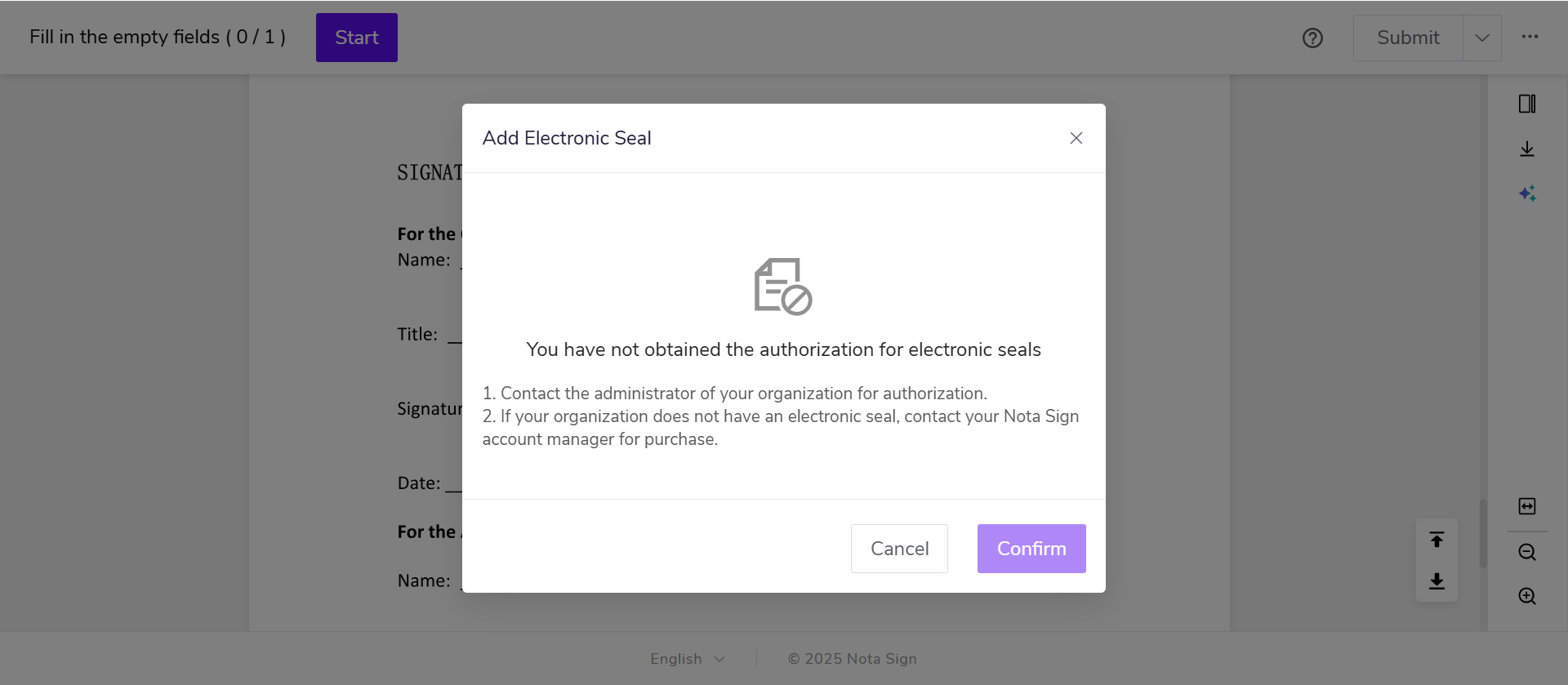
II. Applying for an iCorp-One Digital Certificate
1. Step 1: Apply for an Electronic Seal
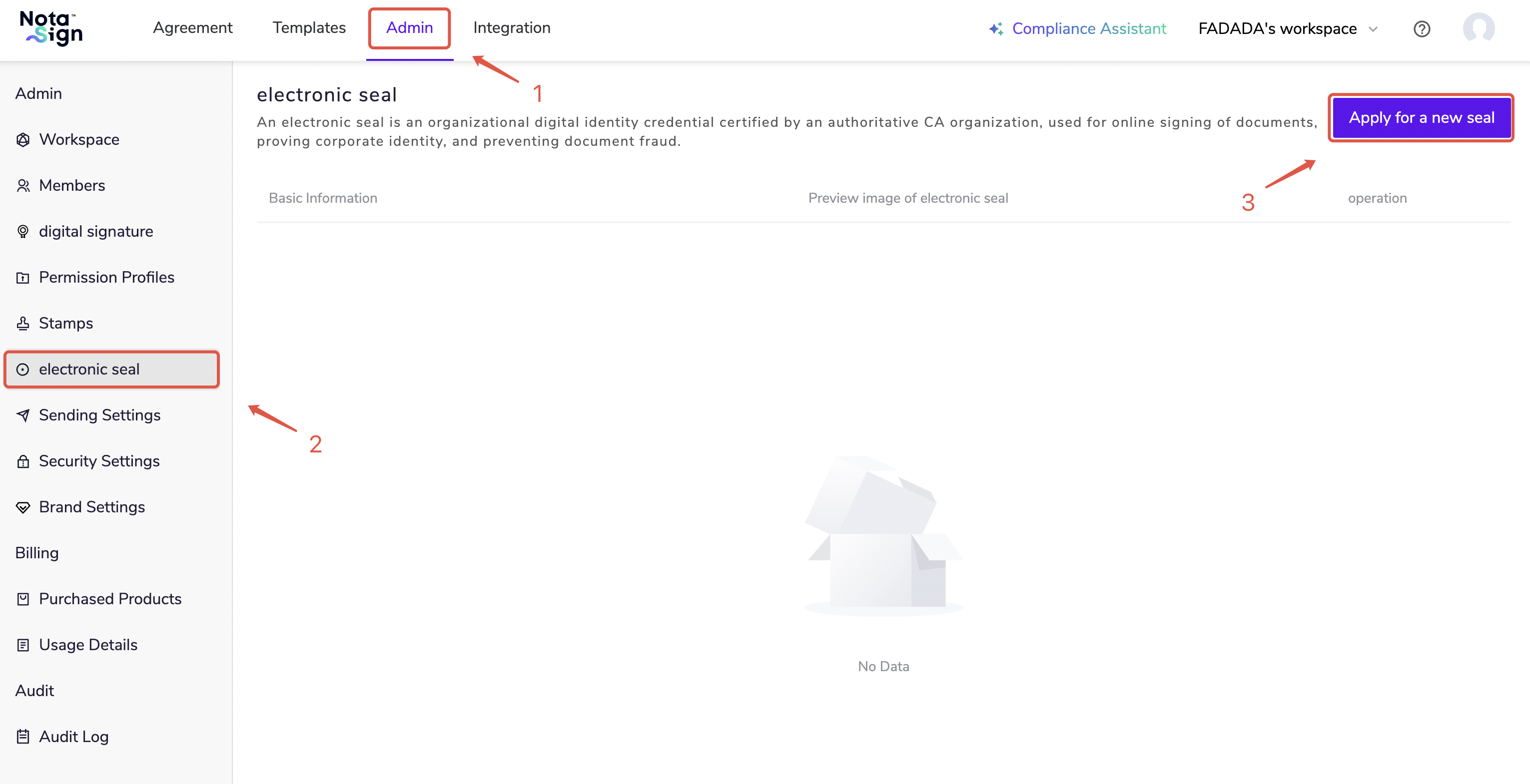
(1) The administrator must log in to the Nota Sign workspace and click Manage > Electronic Seals > Apply for New Seal. For details, see Seal Management.
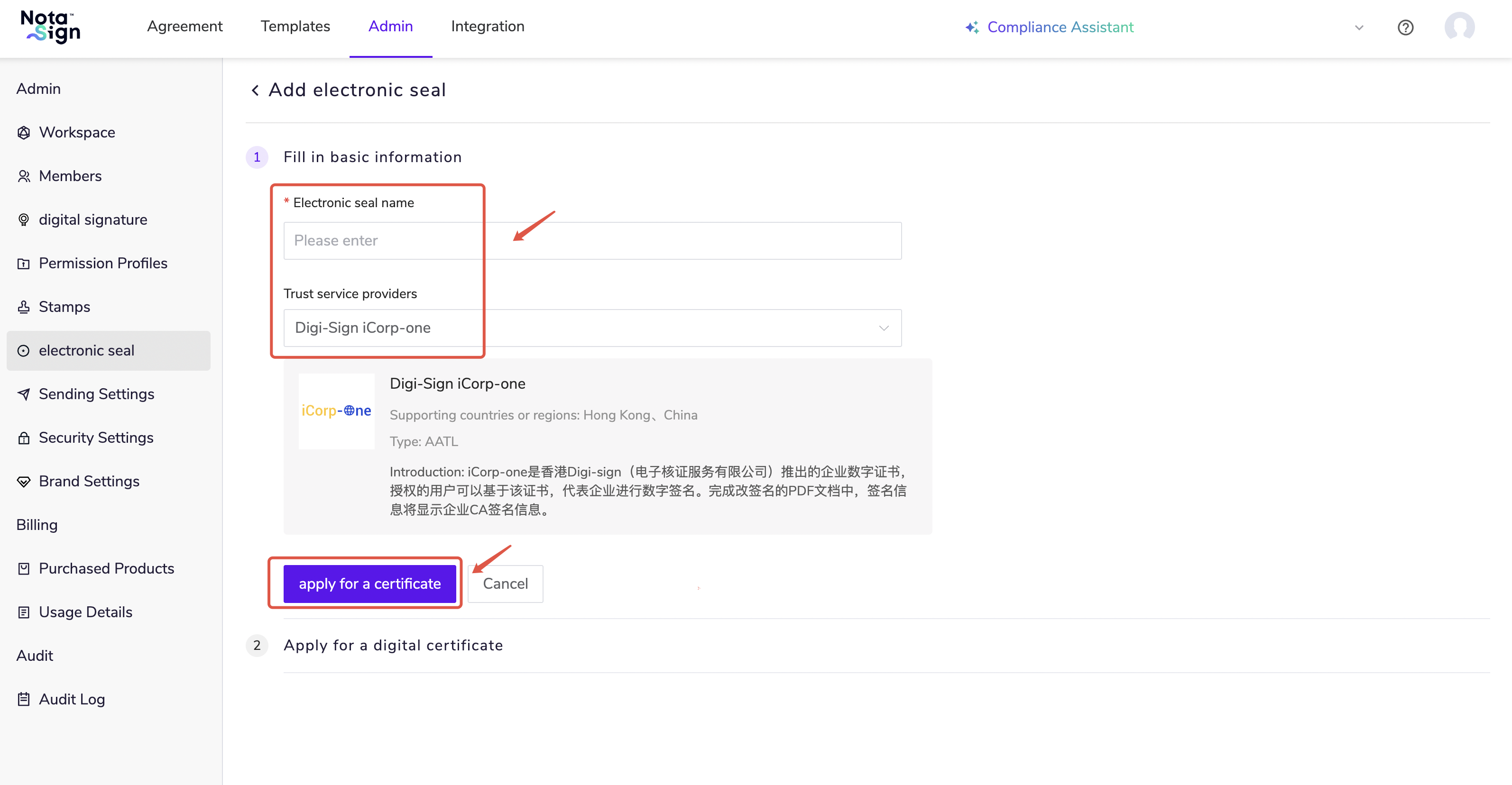
(2) Enter the new seal name, select the enabled trust service provider, and then click Apply for Certificate.
2. Step 2: Obtain the iCorp-One Application Reference Number
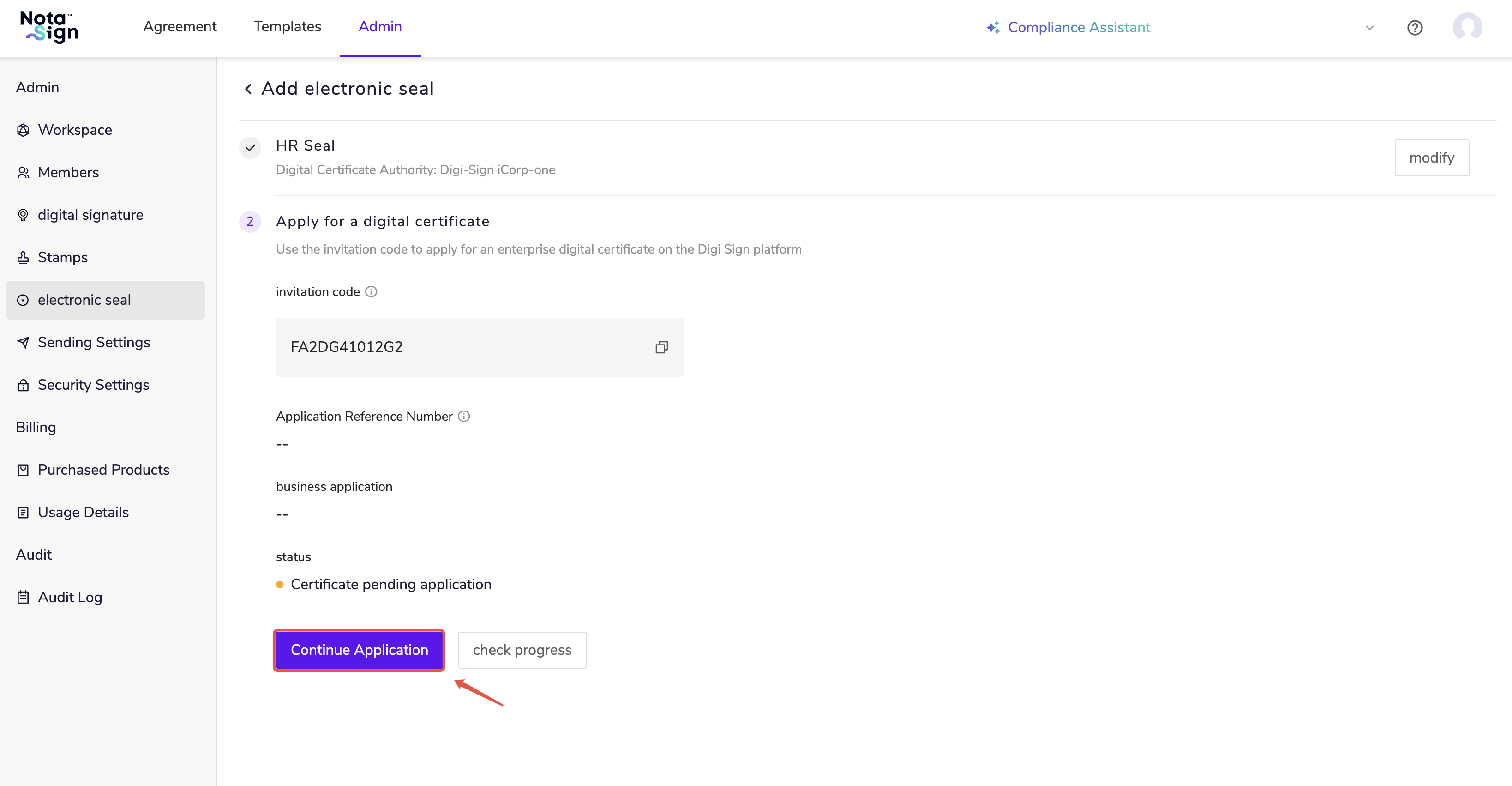
(1) Copy the invitation code generated by the system and click Go to Apply.
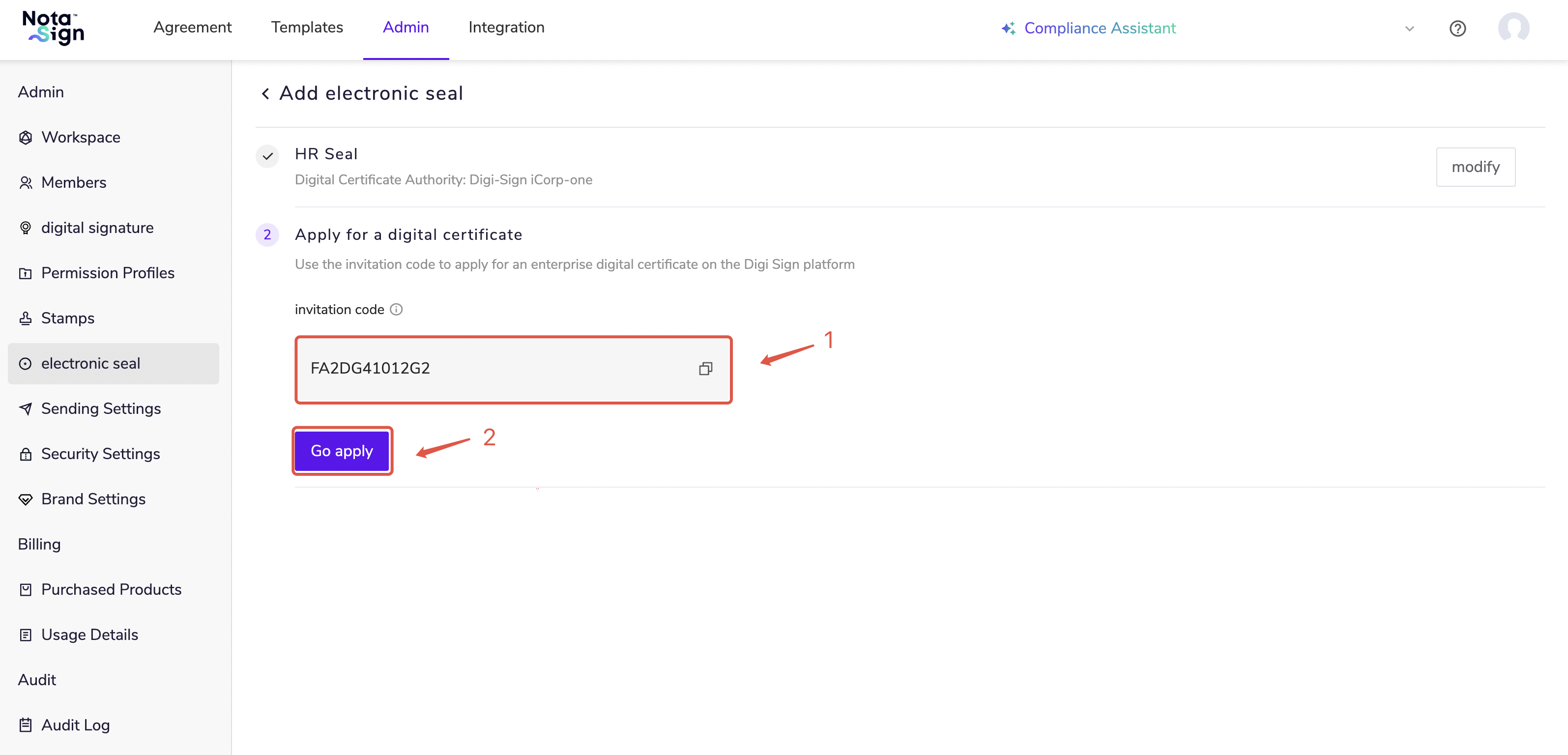
Important Notes: ① After entering the activation code in the Tradelink Sign App, please complete and submit the entire iD-One application within 30 minutes; otherwise, the application may fail due to timeout. ② When applying for iD-One through the iCorp-One Portal, the invitation code provided on the page can be reused until the application is successful.
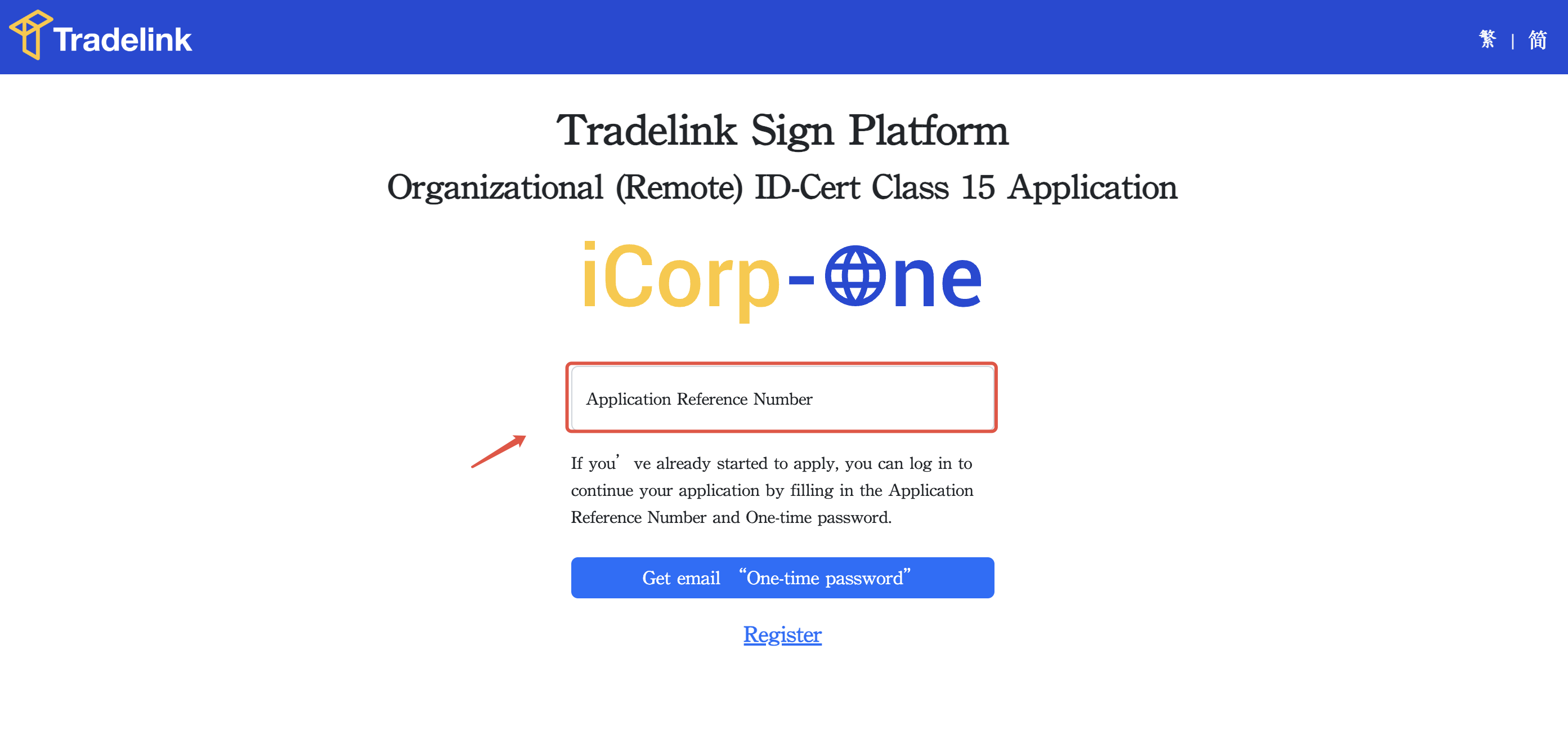
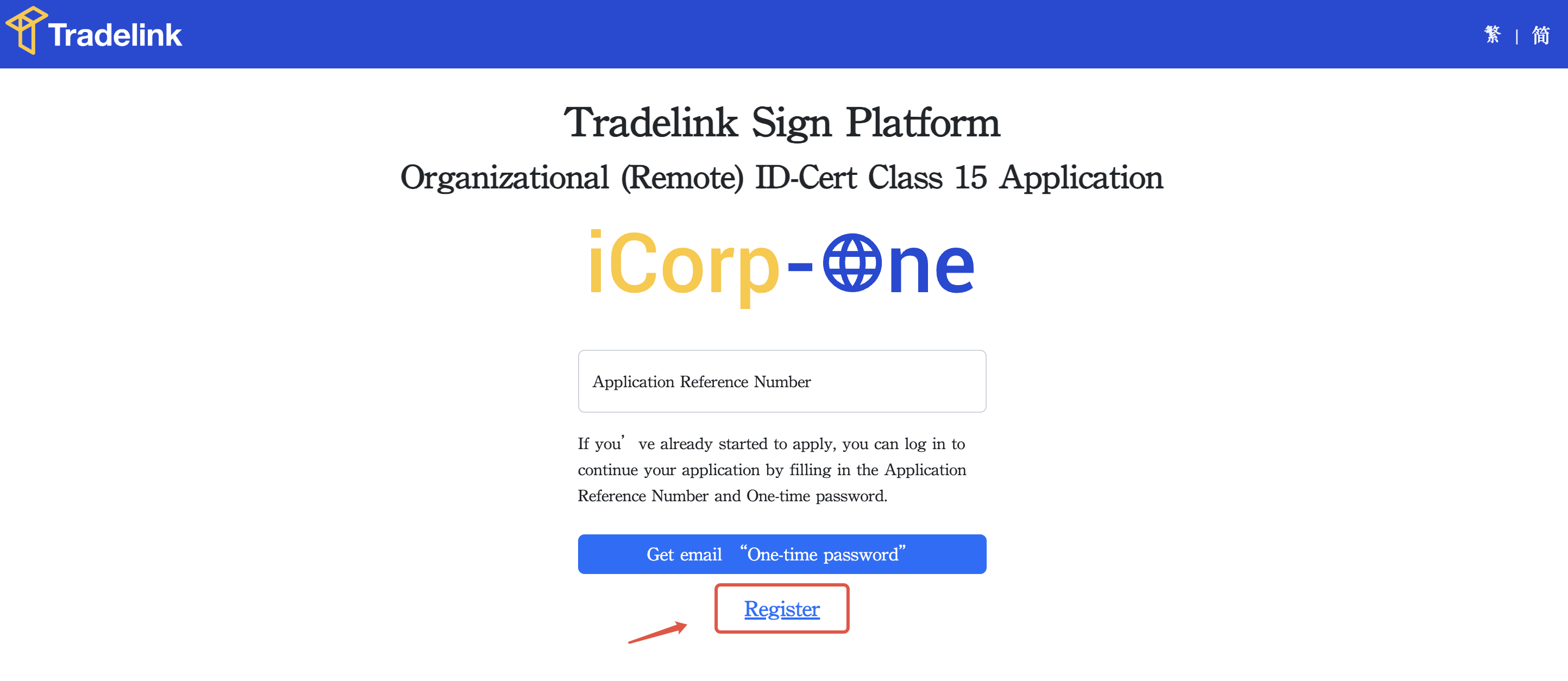
(2) You will be redirected to the Tradelink platform. Click Register.
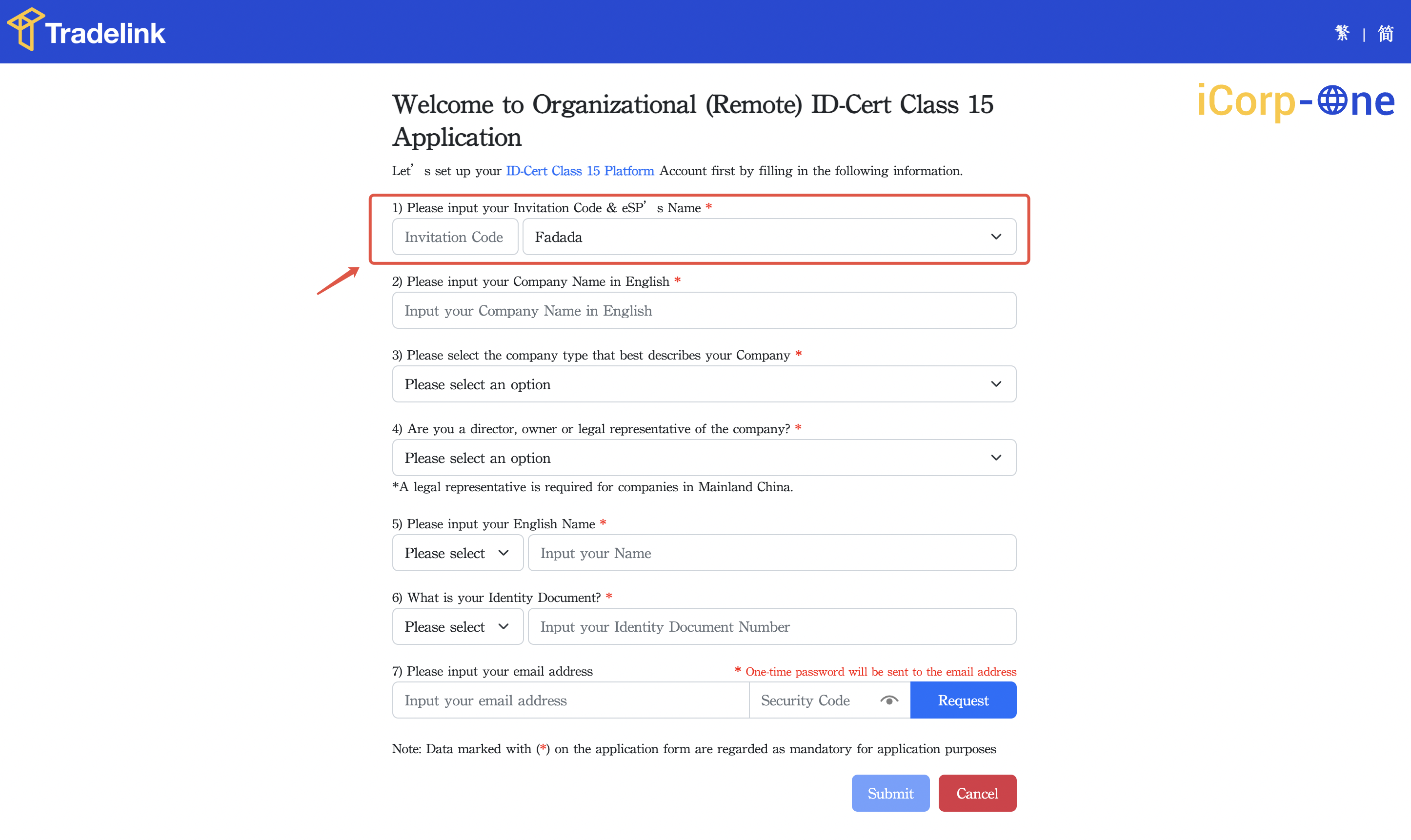
(3) Paste the invitation code copied from Nota Sign, select Fadada as the electronic service provider, and fill in the remaining company information.
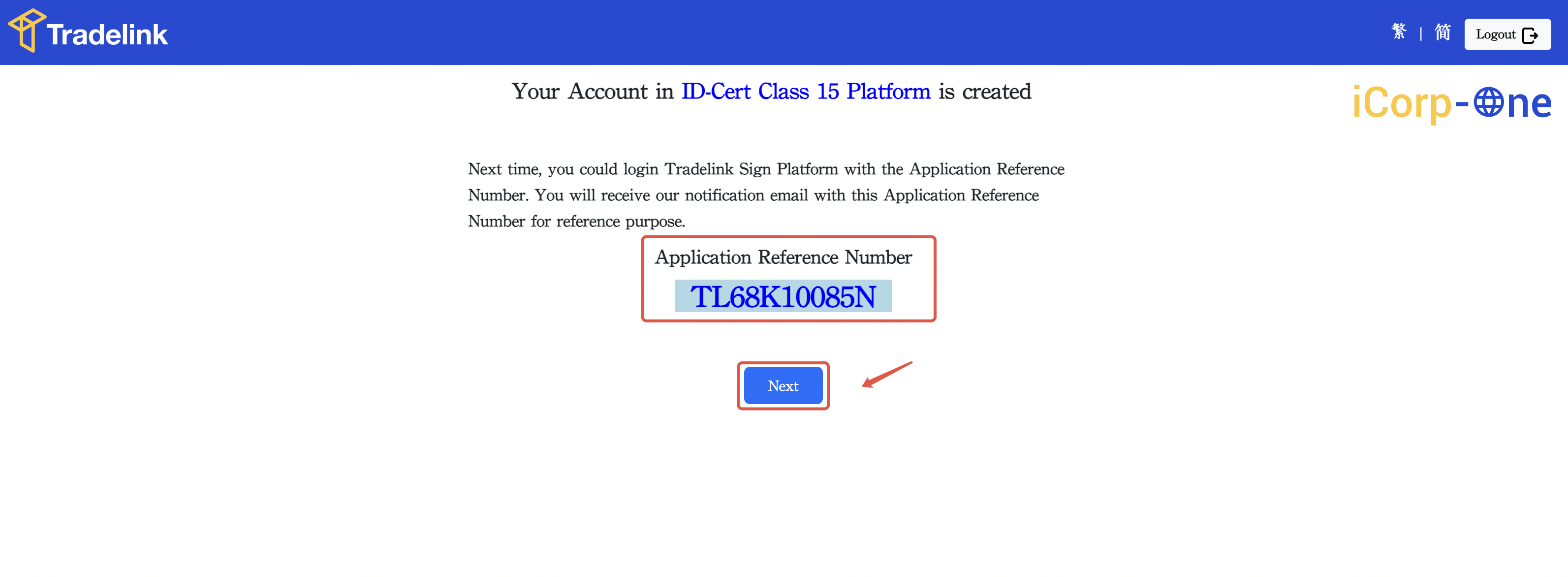
(4) Click Submit to complete account registration and obtain the iCorp-One Application Reference Number.
3. Step 3: Apply for a Digi-Sign ID-One Personal Digital Signature
If you do not yet have an iD-One, click Go to continue with the application. For operational guidance, please refer to Applying for an iD-One Digital Certificate.
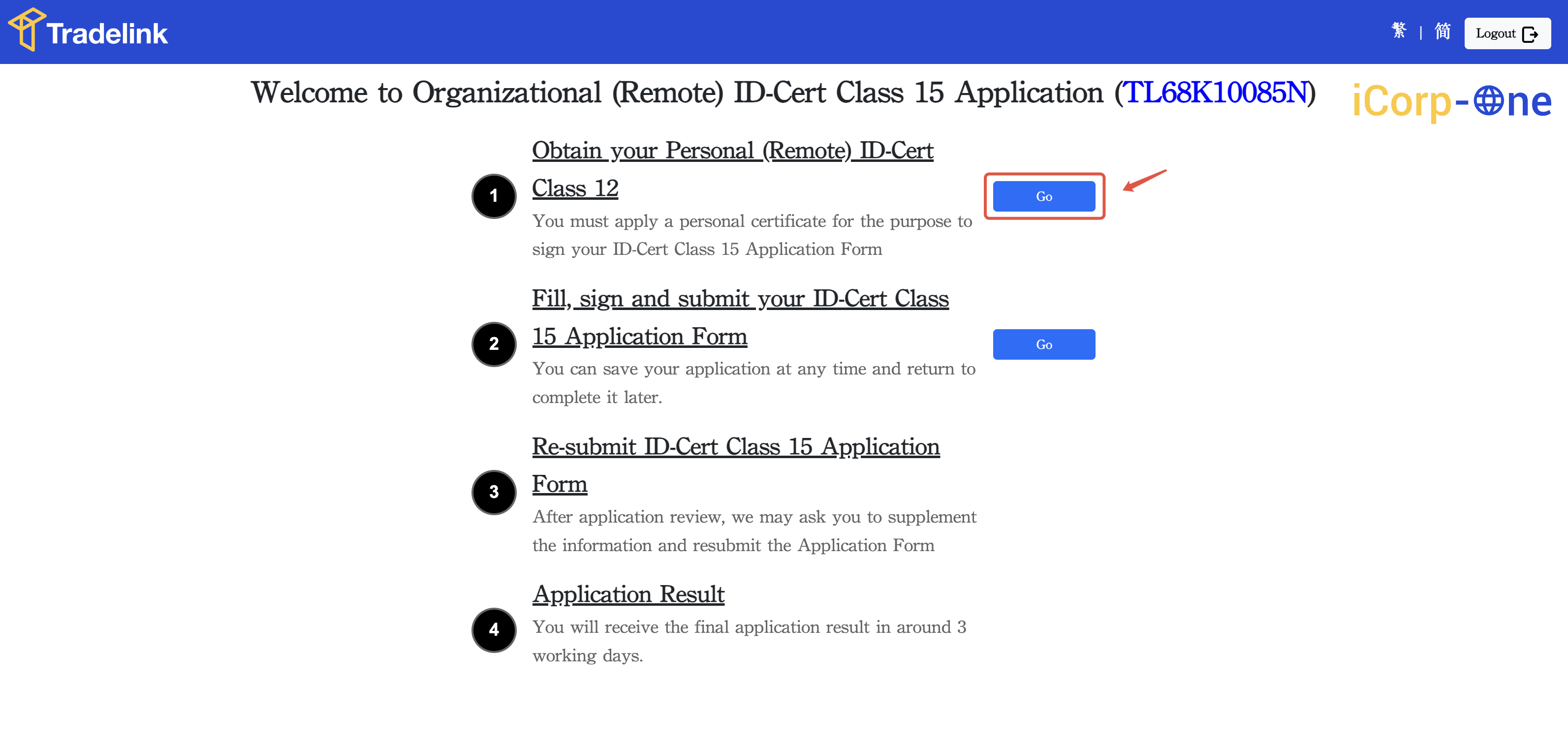
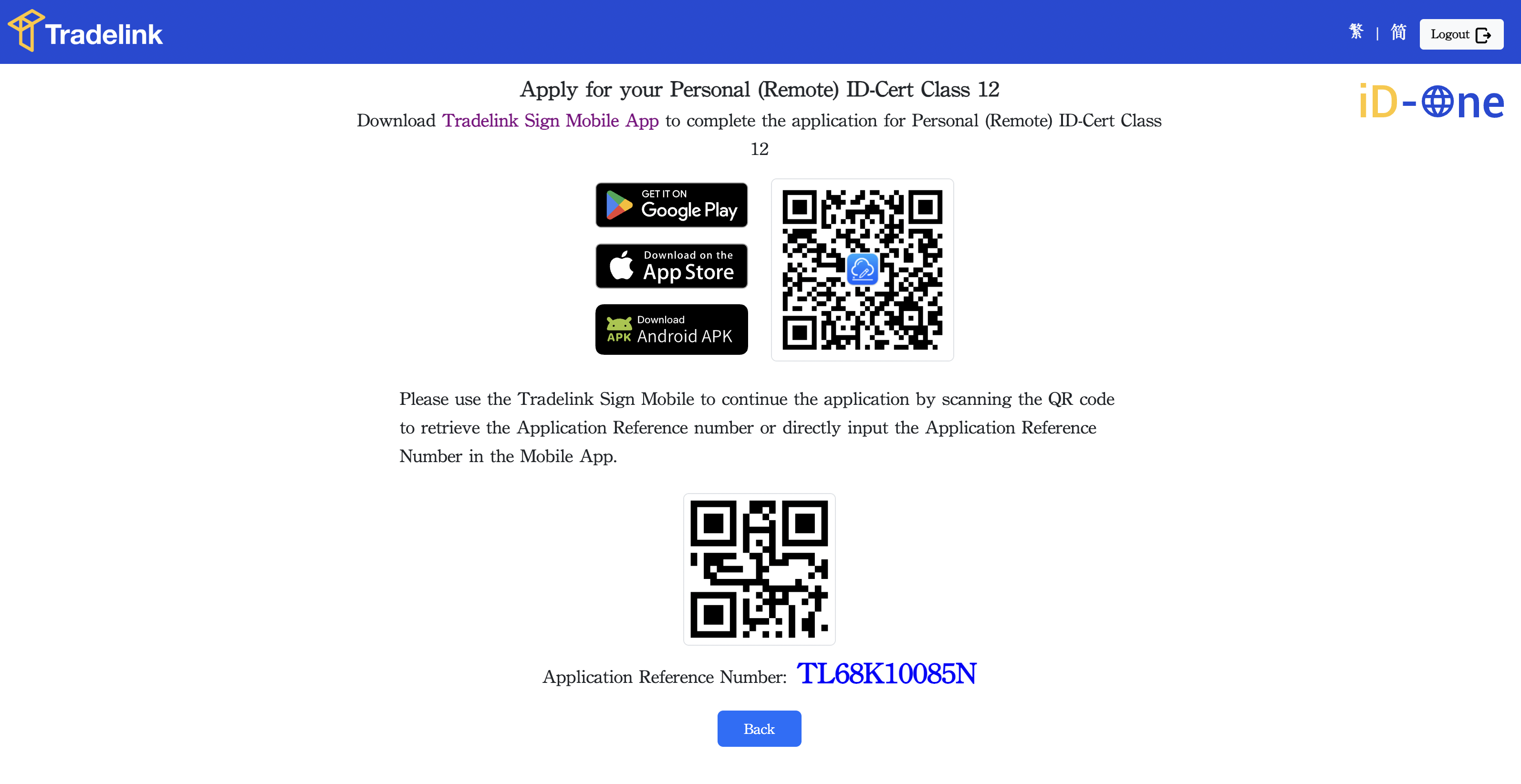
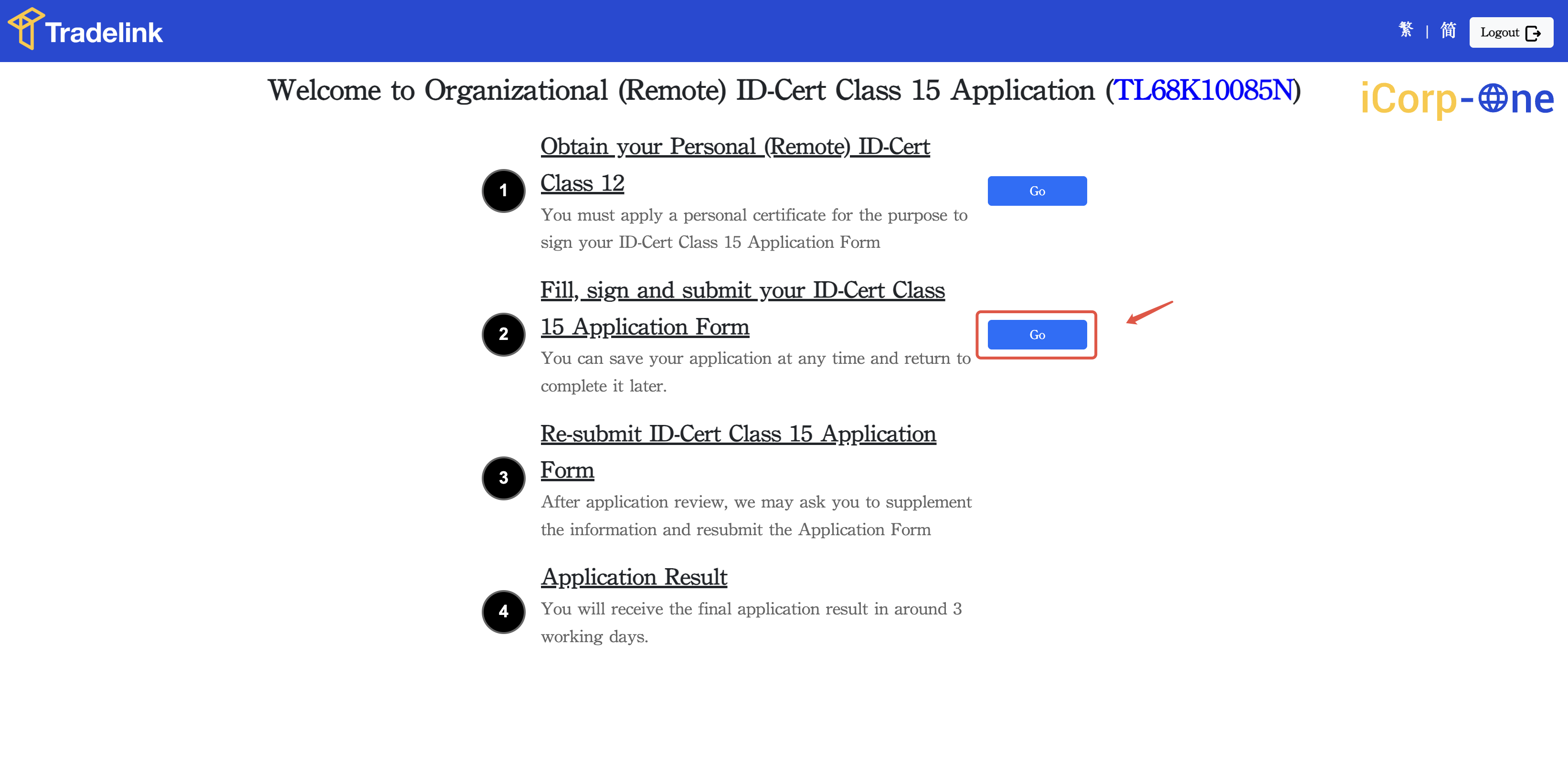
4. Step 4: Apply for a Hong Kong Digi-Sign ICorp-One Corporate Digital Seal
If you already have an iD-One or have completed the application, click Go to proceed with the application. Fill in the iCorp-One application form and follow the instructions.
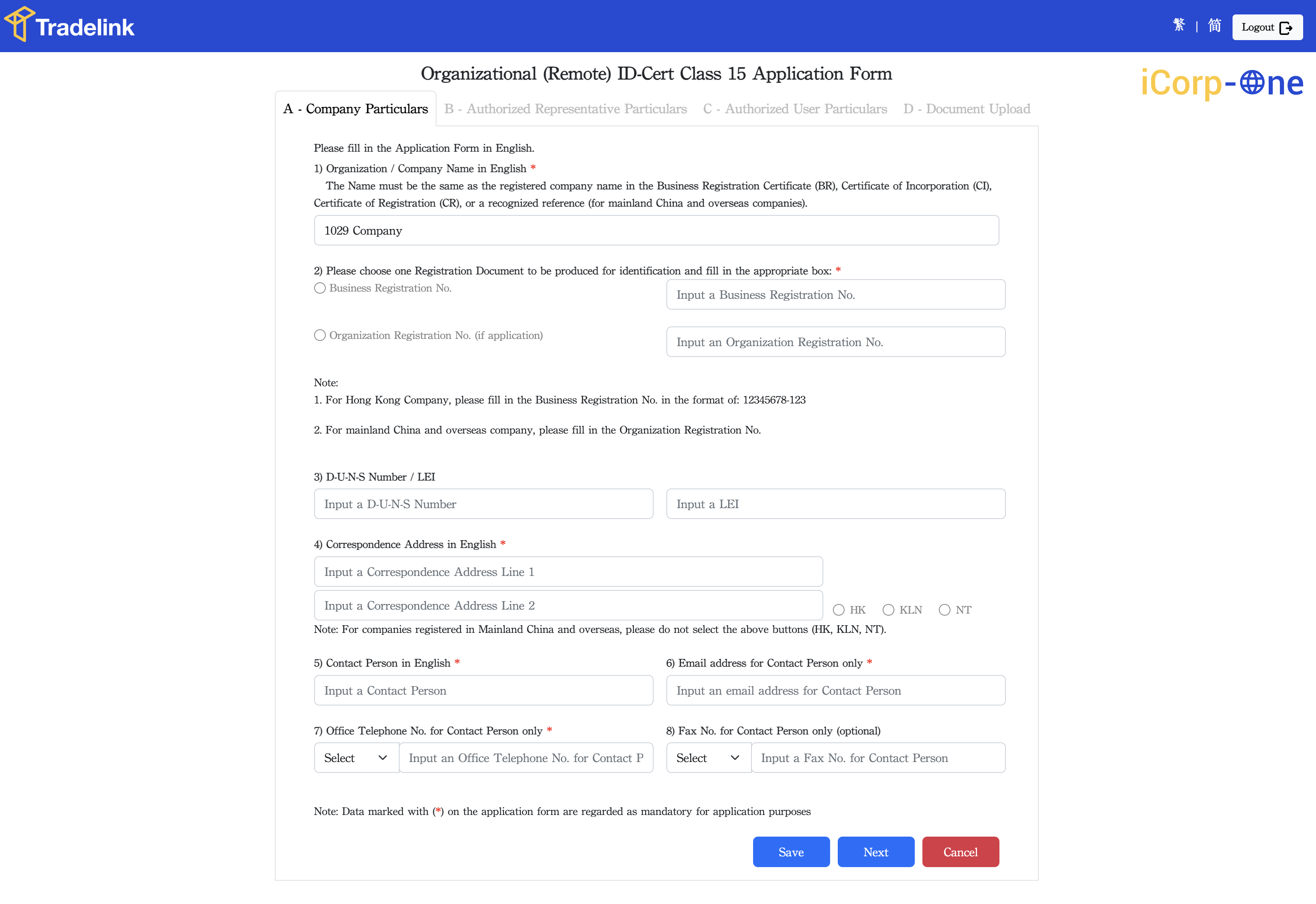
(1) Fill in the company’s basic information
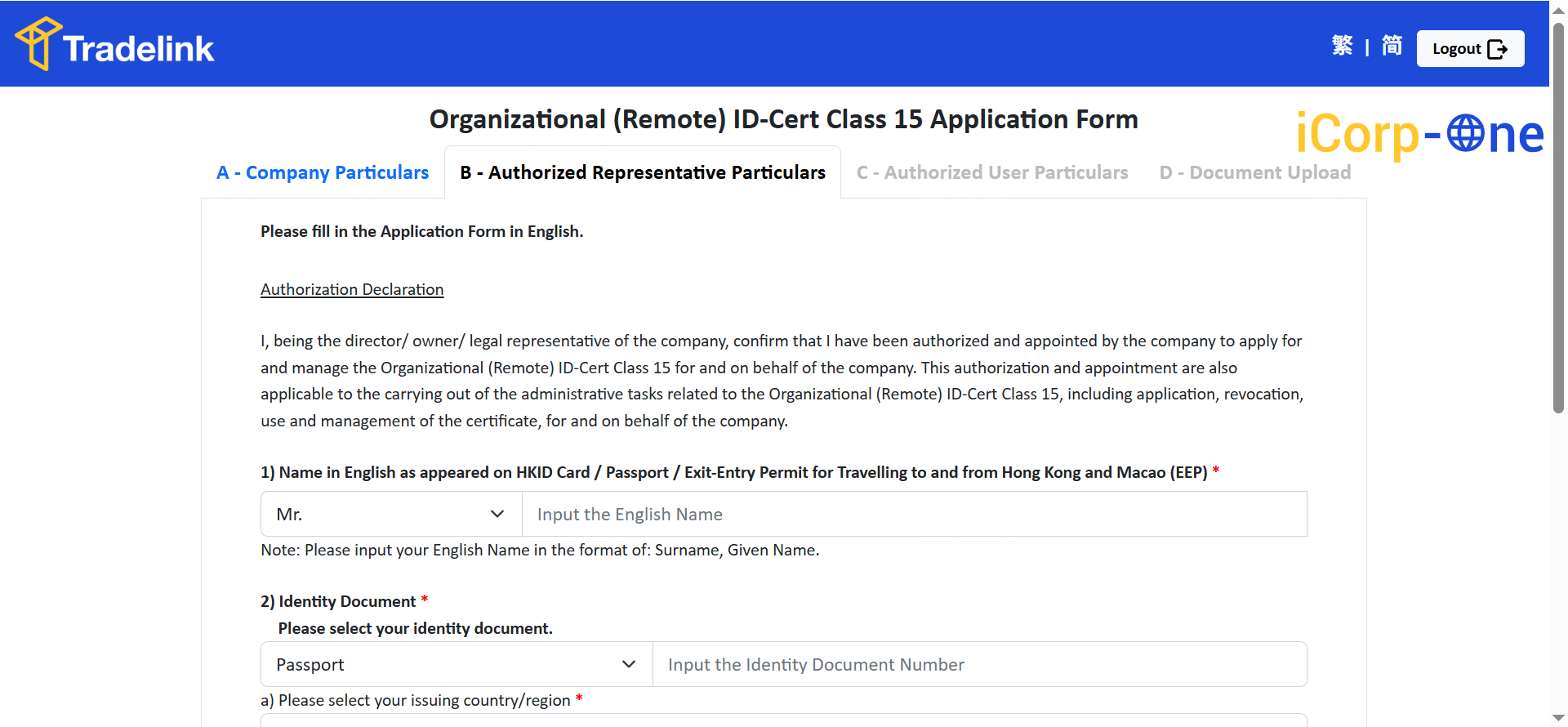
(2) Fill in the Authorized Representative information
(3) Fill in the Authorized User information
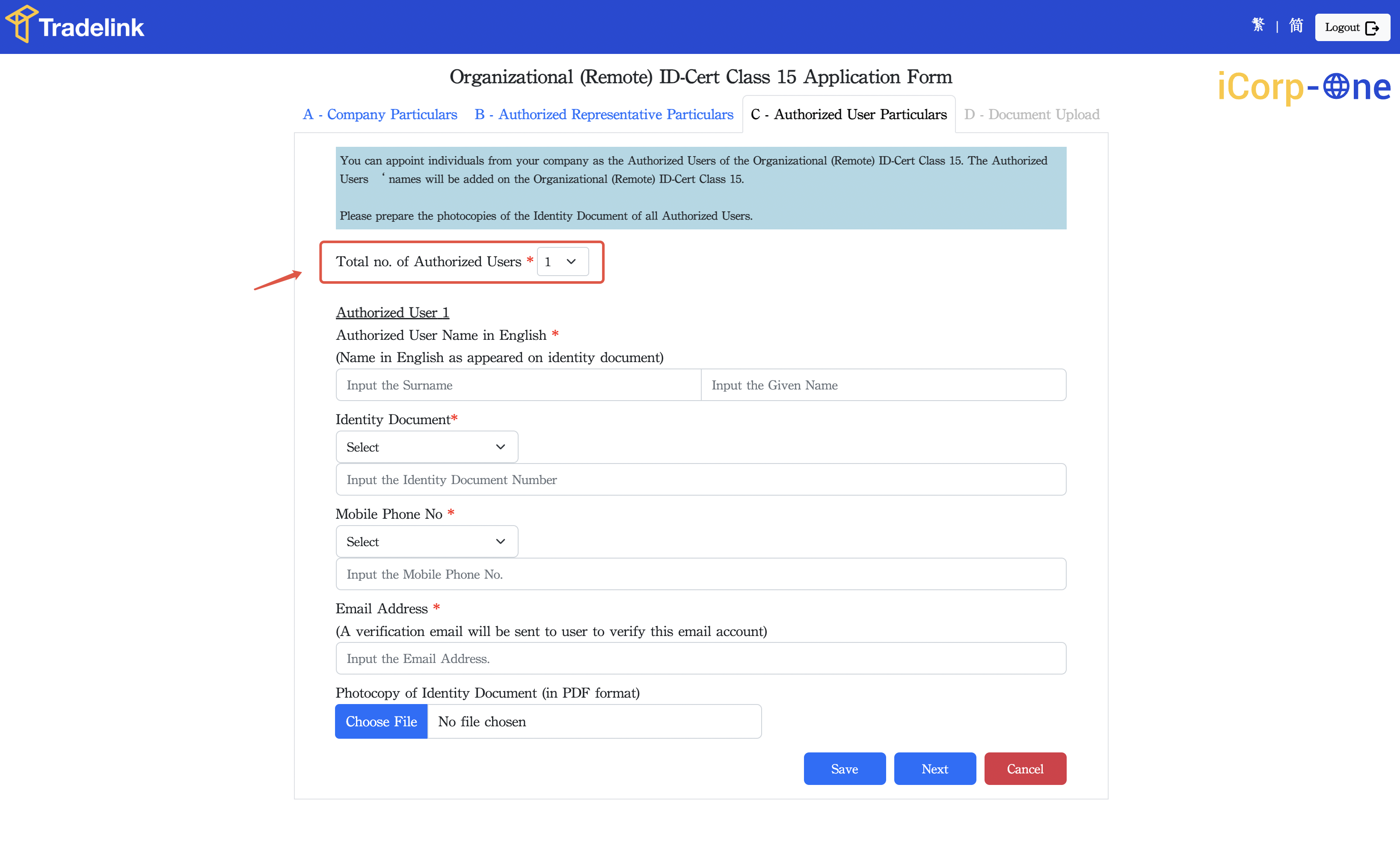
Important Notes: ① Some less common email domain suffixes may not be included in the CA system’s whitelist, which could cause application failure. In such cases, we recommend switching to common email domains such as .com or Gmail and reapplying. ② If the issue persists, please contact Nota Sign customer support for assistance. * When filling in the Authorized User information, note that the last character of the Hong Kong ID card number must use English half-width parentheses, for example:
M087752(3). ③ When uploading a copy of the Authorized User’s identity document, please use PDF format and ensure the file size does not exceed 4 MB.
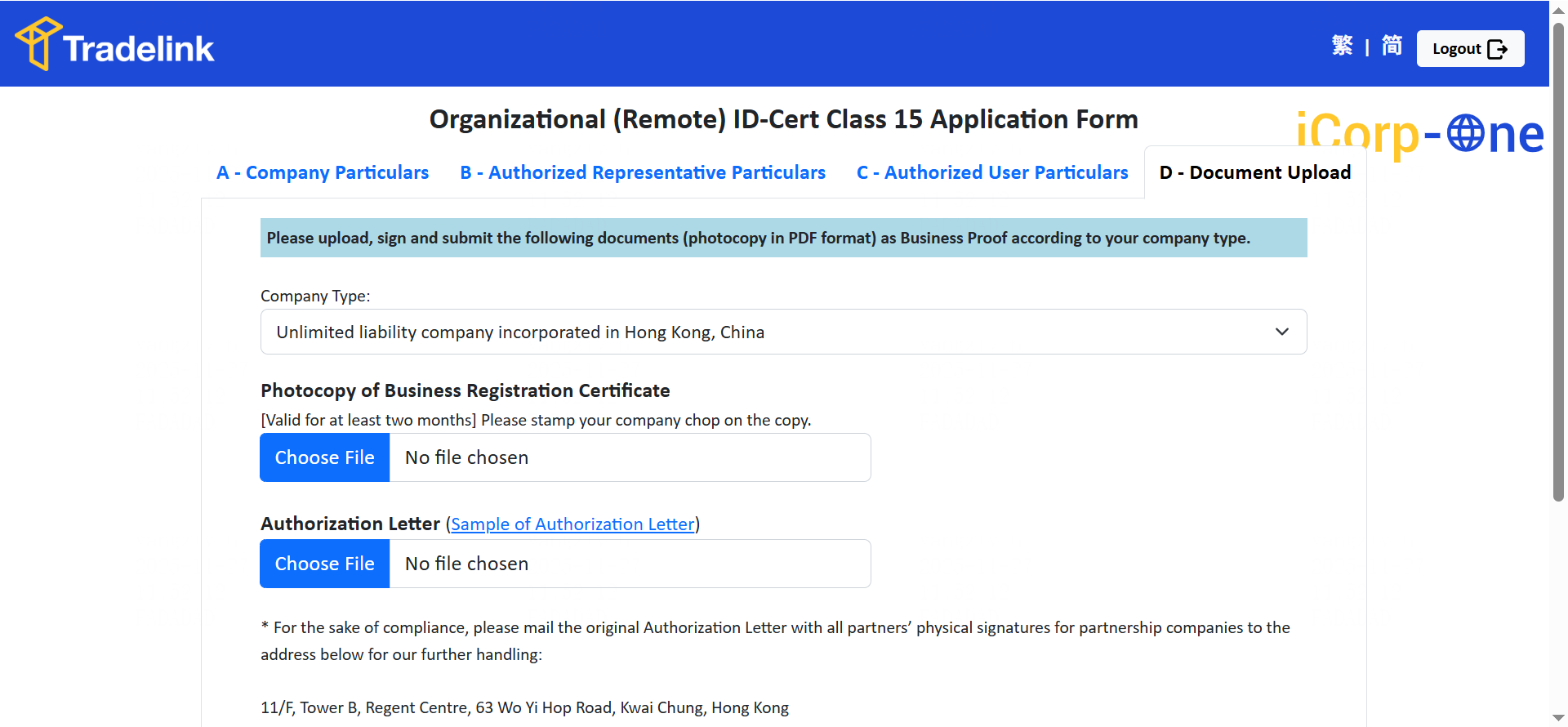
(4) Upload company documents
When uploading company documents, please use PDF format and ensure the file size does not exceed 4 MB.
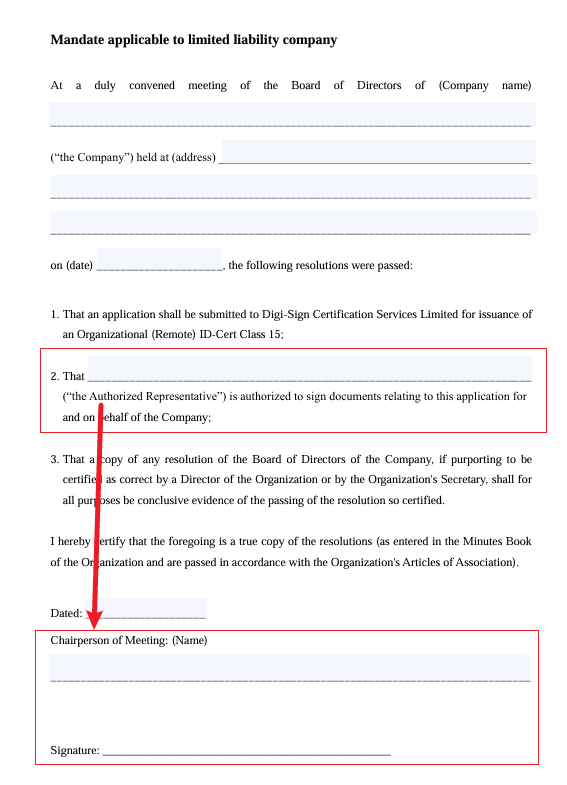
Important Notes: ① The Authorized Representative serves as the company’s seal administrator, while the Authorized User is the seal operator. During the application process, you will need to fill in the information of the authorized electronic seal user. Once submitted, the authorized electronic seal user cannot be modified. ② The name of the “Authorized Representative” in the Board Resolution must match the name of the “Chairperson of Meeting.” These names must also match exactly the English name on the uploaded identity document of the Authorized Representative. >
If you exit the application midway, click Continue Application to return to the Tradelink platform, enter your iCorp-One Application Reference Number, and continue.