
ZXCA is a certification authority (CA) in Mainland China, providing users with legally binding personal digital signature services. By applying for a ZXCA personal digital certificate, you can use personal digital signatures when signing envelopes, ensuring the security and legal validity of signed documents.
1. Signing an Envelope
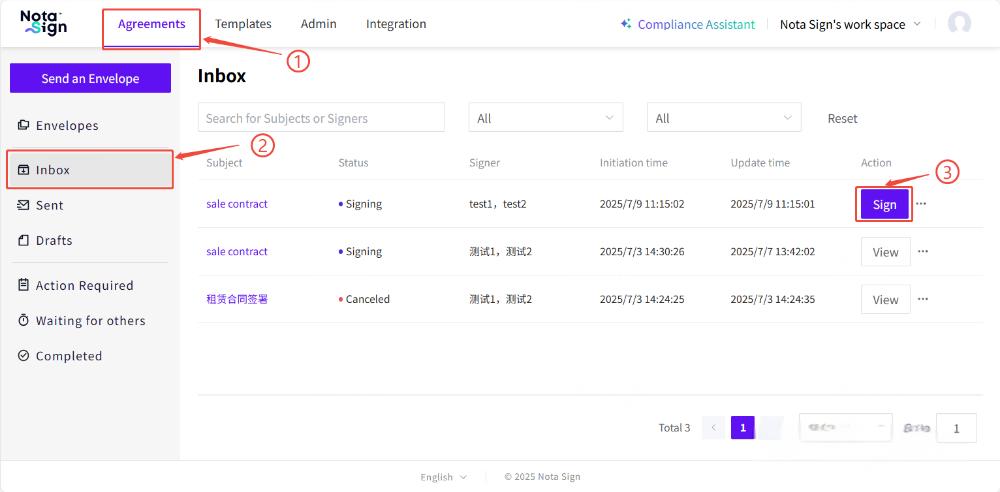
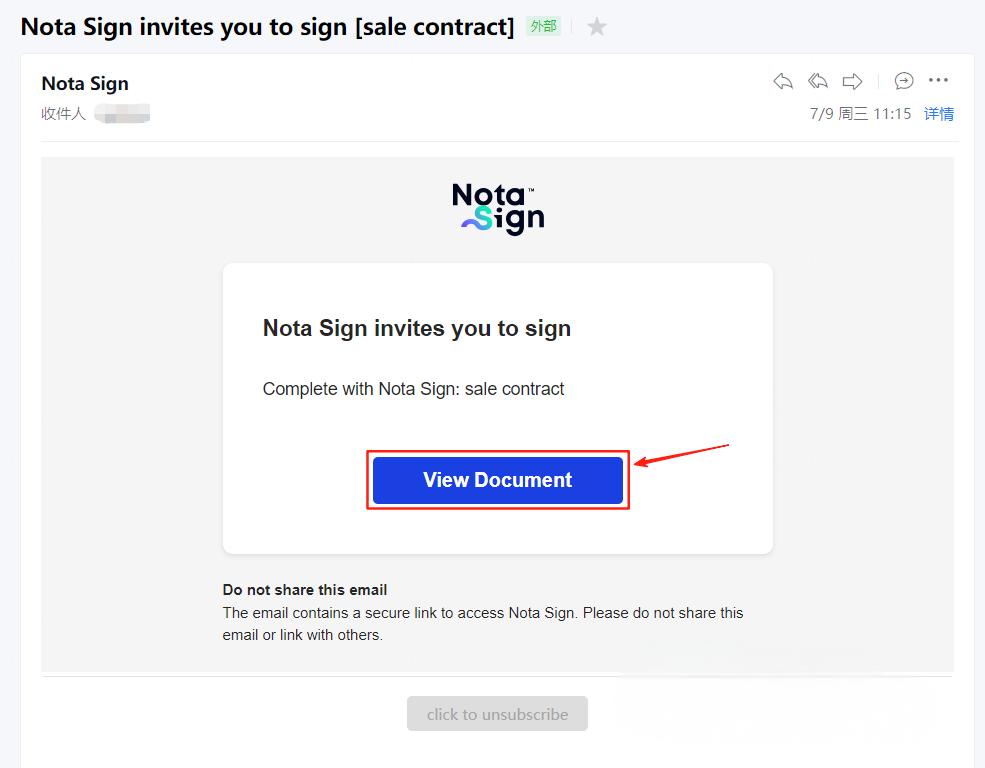
1.1 Recipient accesses the signing page via email link or inbox;
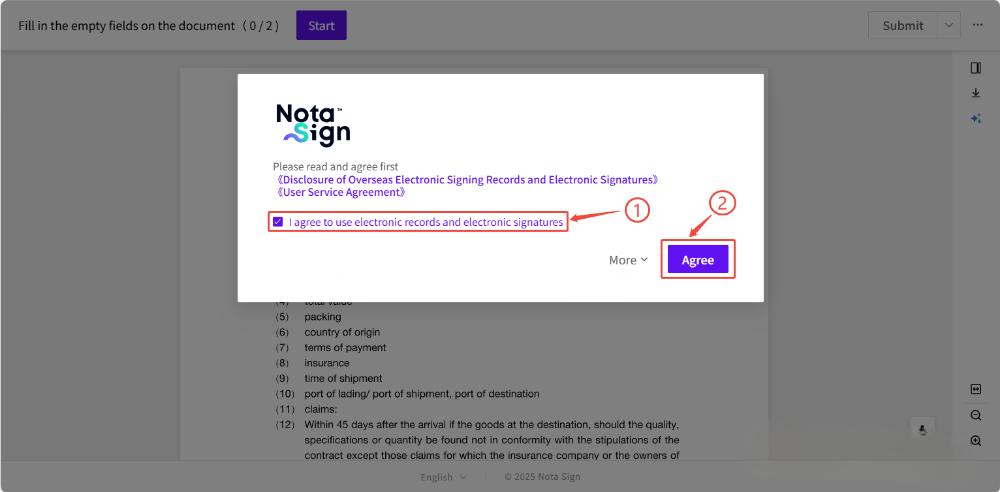
1.2 Agree to the terms of use to enter the signing process;
1.3 After completing all required fields, click [Submit];
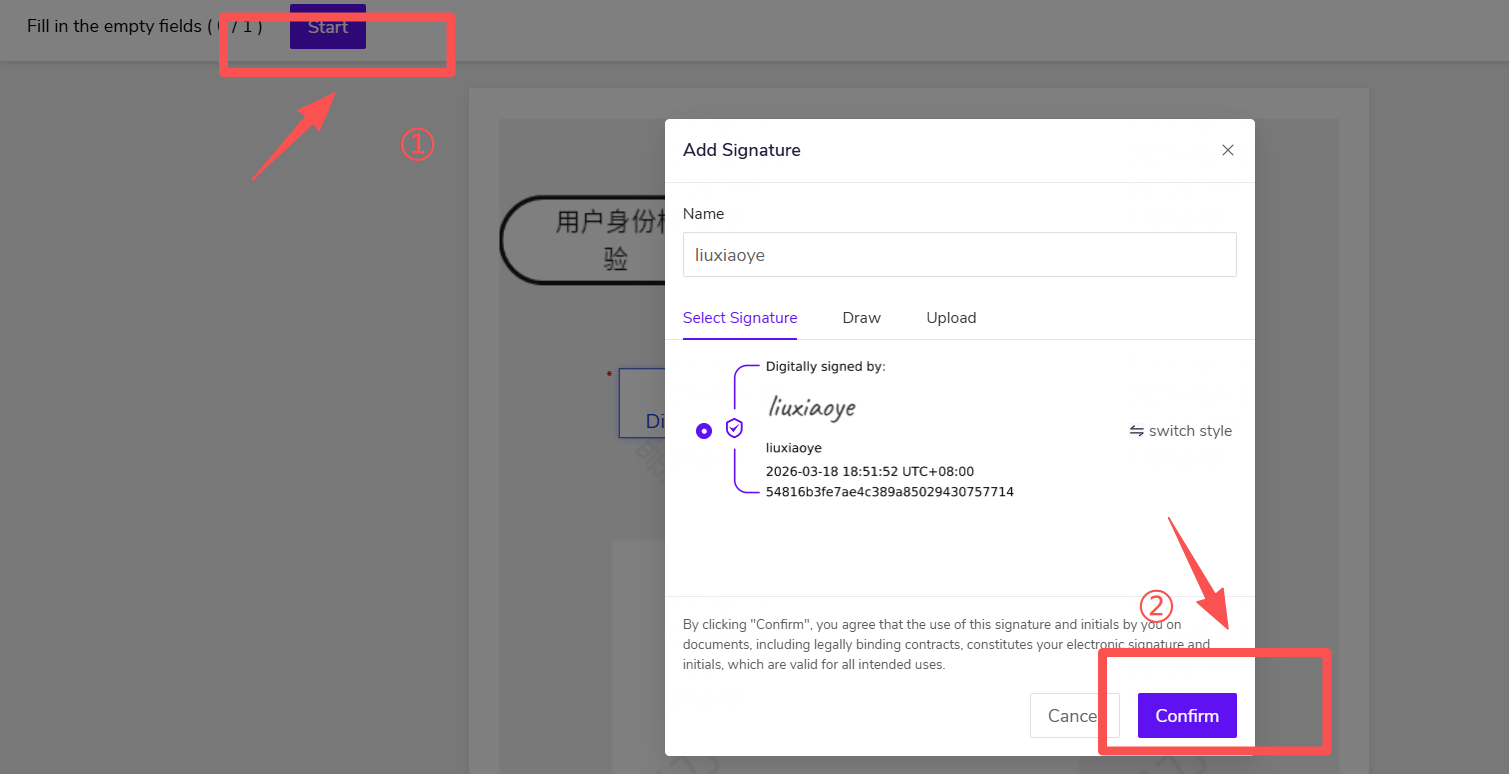
1.4 In the CA selection dialog, select the digital signature to use. If using this digital certificate for the first time, you will be redirected to the application page;
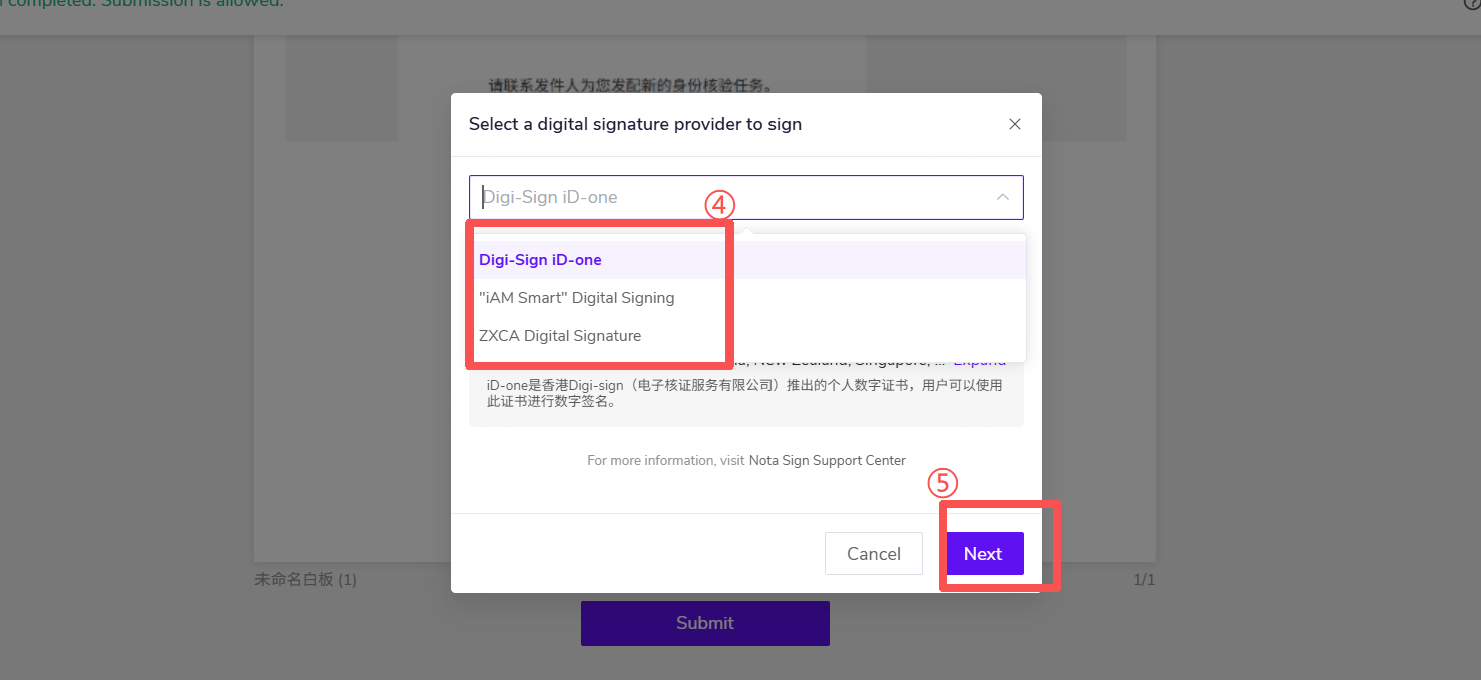
2. Applying for a ZXCA Personal Digital Certificate
If you do not yet hold a valid ZXCA personal digital certificate, the system will enter the certificate application process.
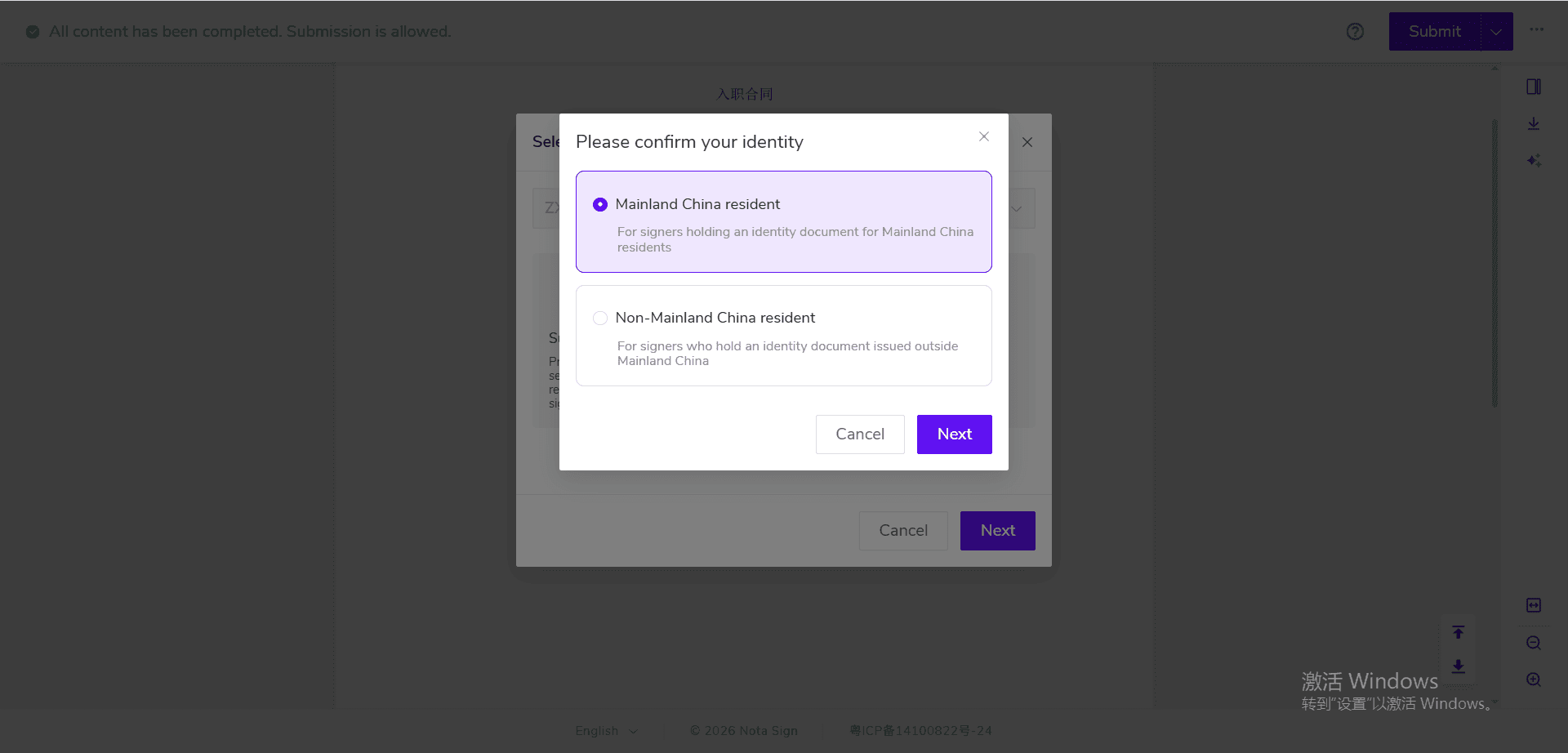
2.1 Selecting [Mainland China Resident]
Depending on the signer’s identity, the system will provide different certificate application processes:
- Mainland China Resident: Apply for the Mainland China version ZXCA personal digital certificate;
- Non-Mainland China Resident: Apply for the International version ZXCA personal digital certificate. The system will enter the Mainland China version personal digital certificate application process.
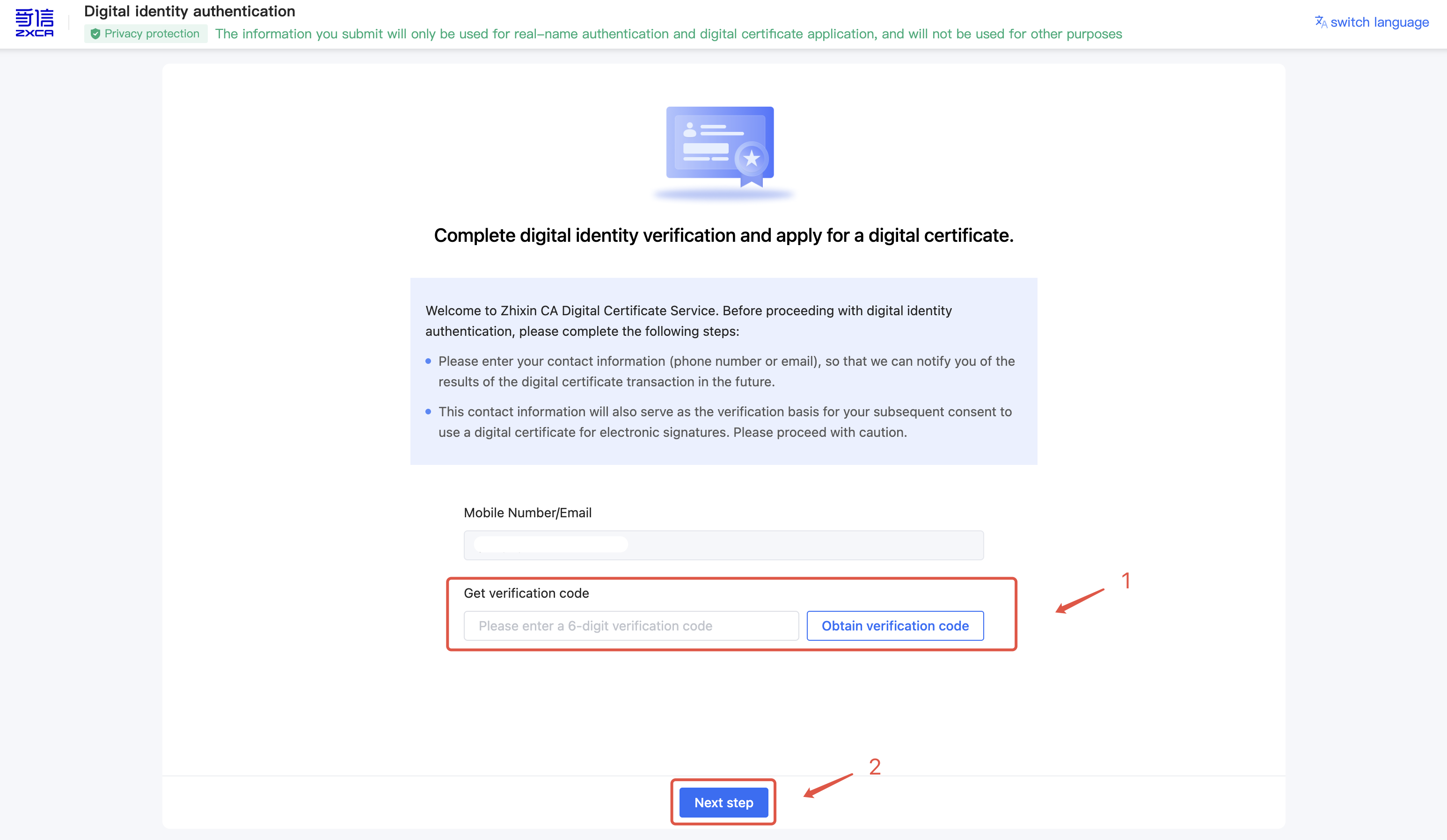
2.2 Enter your mobile phone number or email address, obtain a one-time verification code, and click [Next];
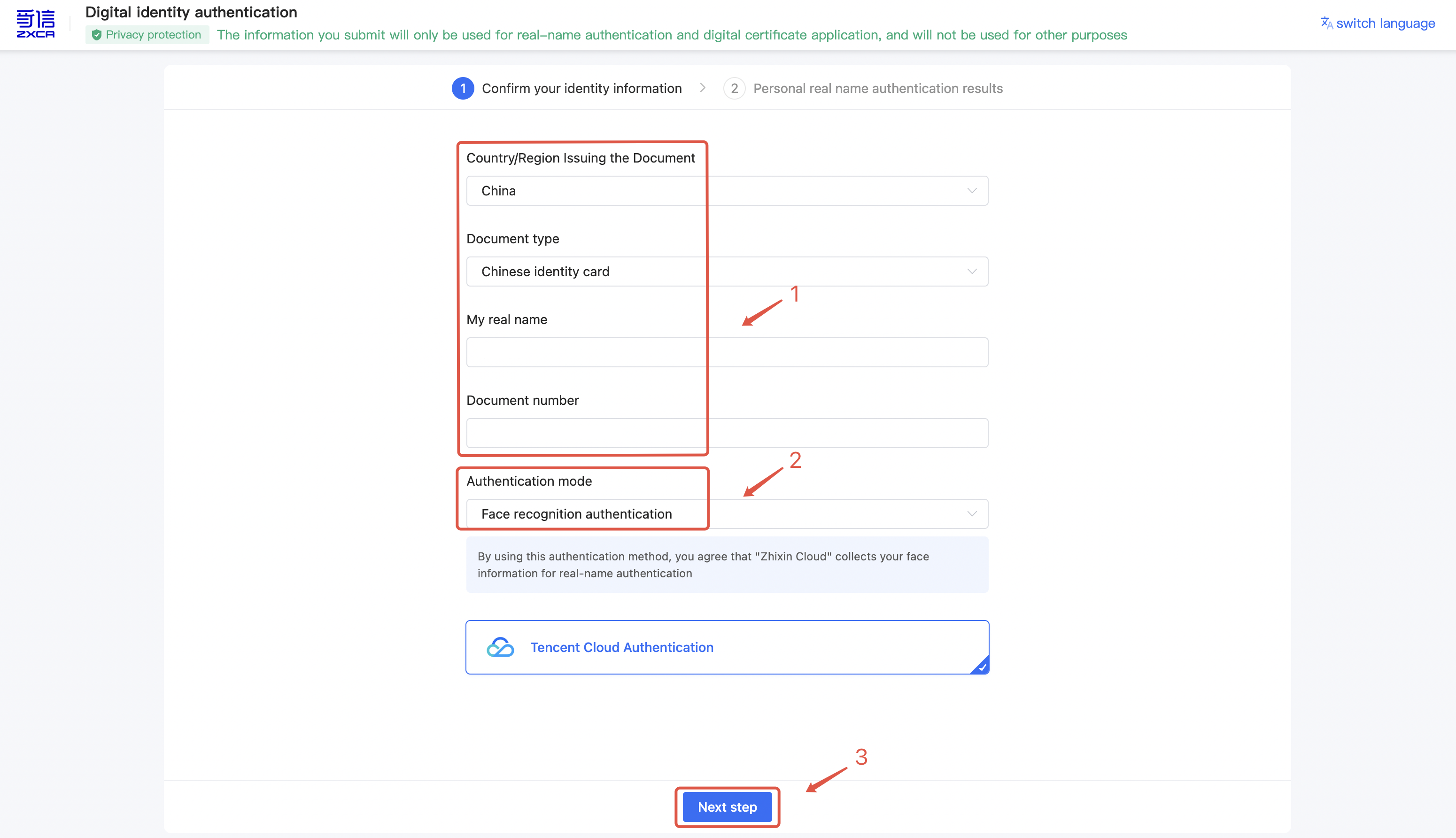
2.3 Fill in your personal information and select a verification method;
2.4 Complete verification.
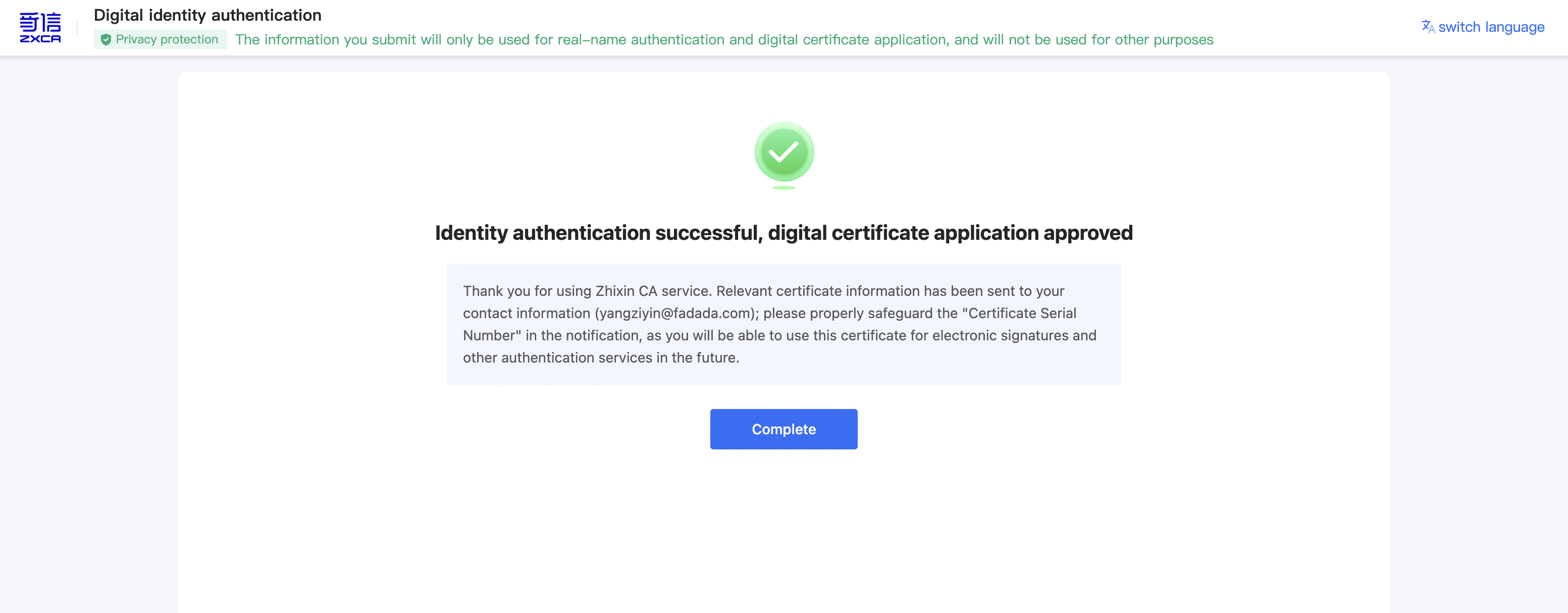
3. Digital Signature Intent Confirmation
3.1 The system will authenticate your identity based on the registered email/mobile phone number. Enter the verification code to complete verification;
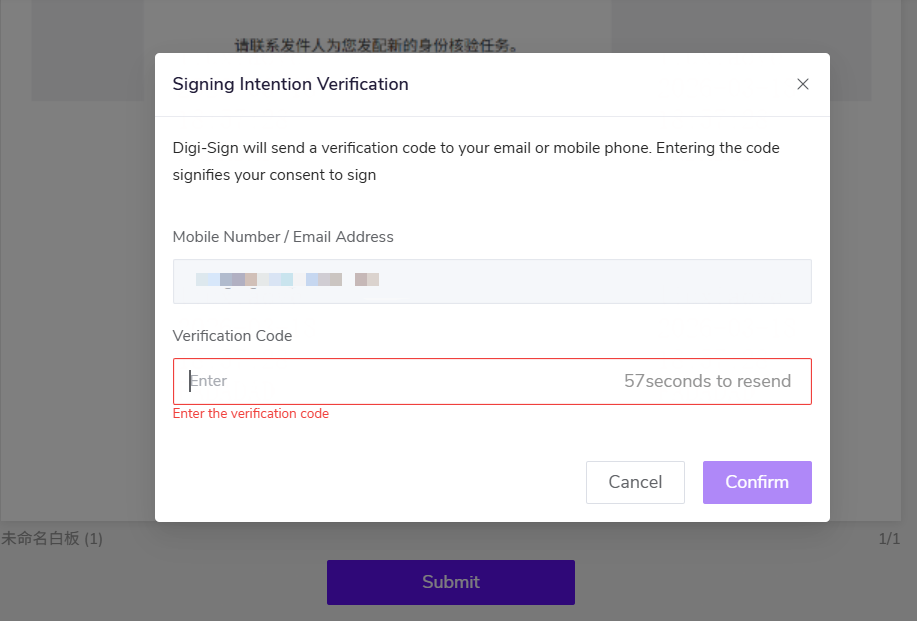
3.2 After successful authentication, the signing is complete.
4. Completing the Signing
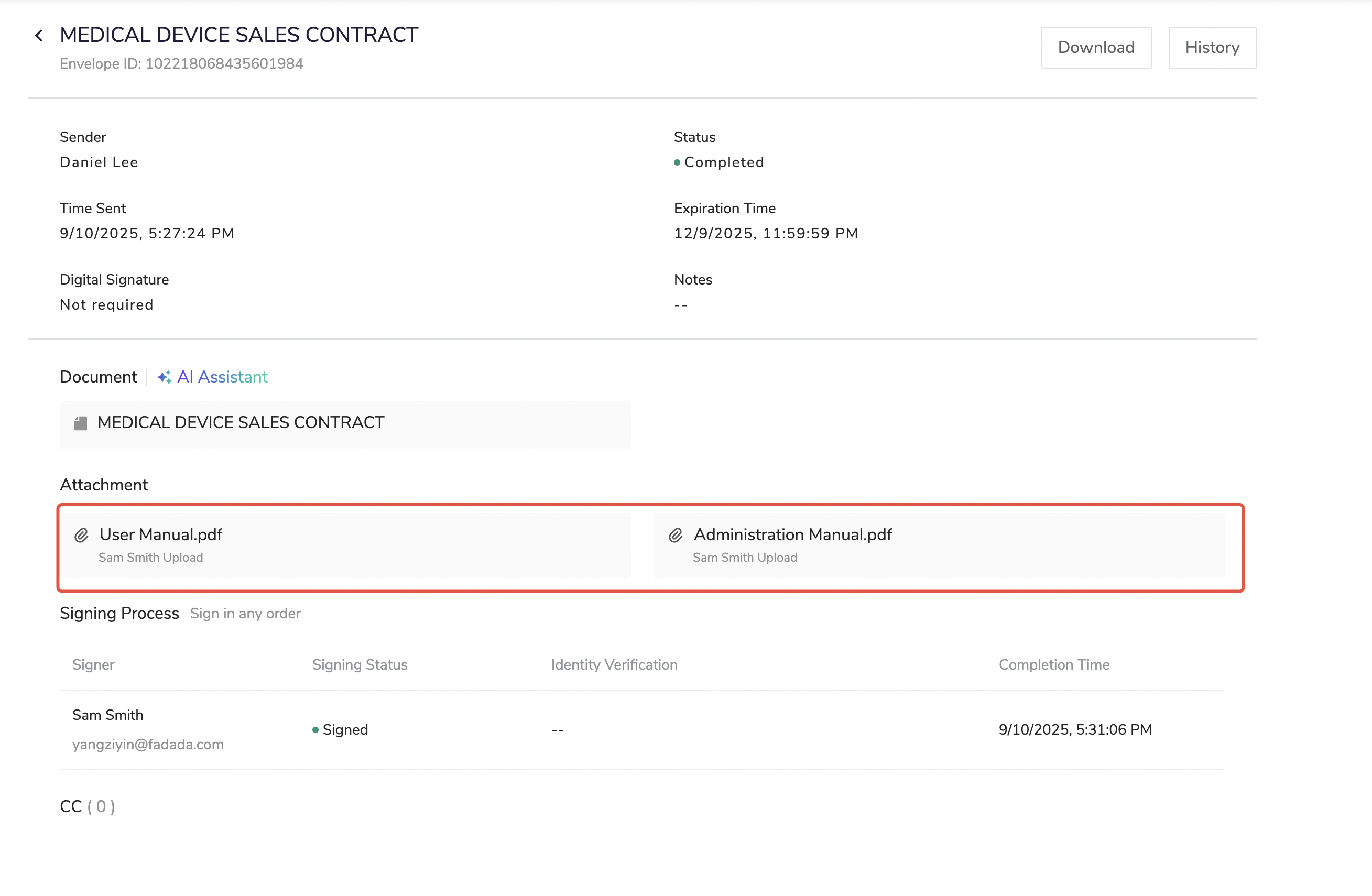
After the recipient completes signing, the sender can download the attachment from the signing completion notification email.
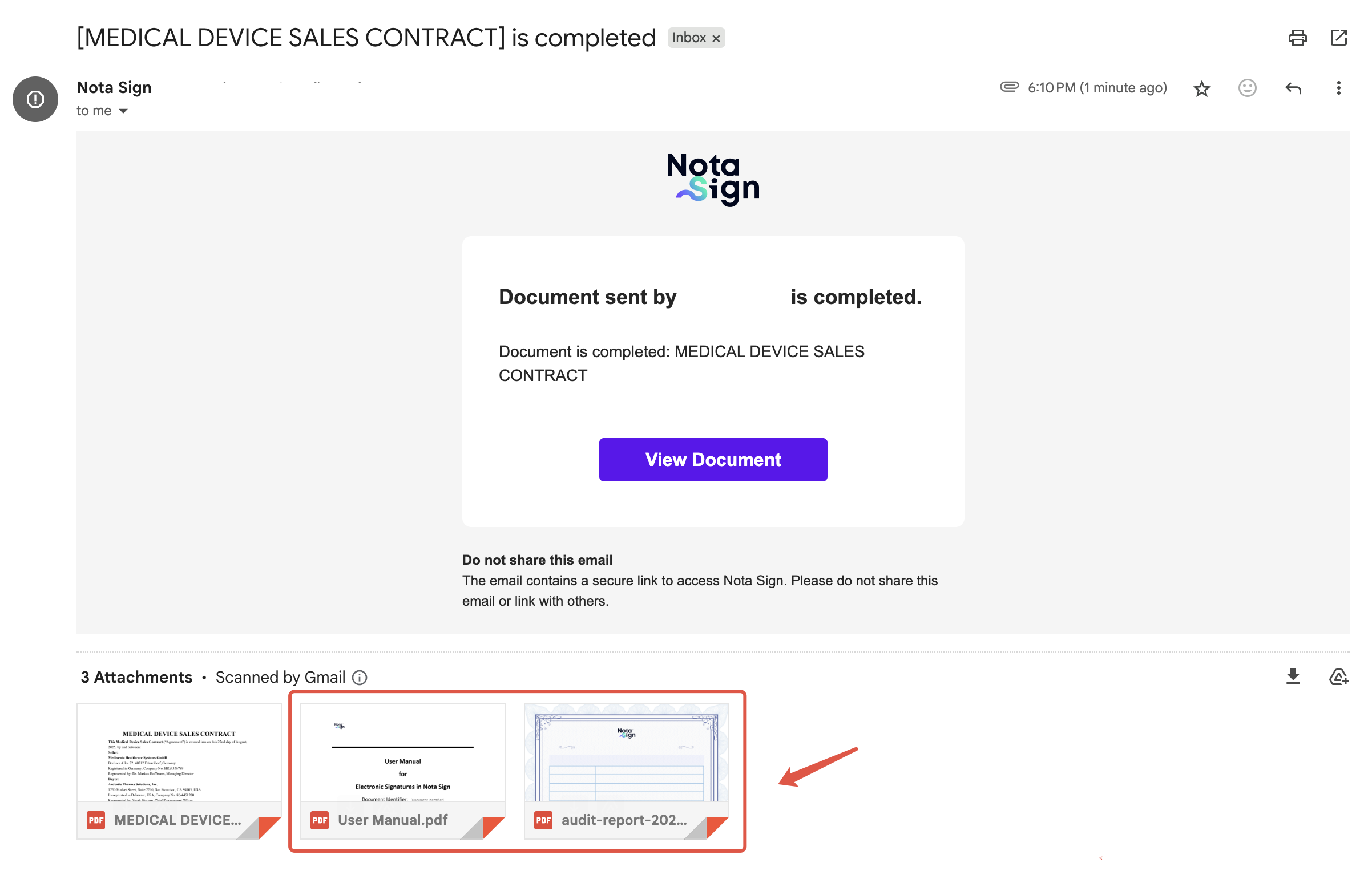
5. Downloading from the Envelope Signing Record
5.1 Click [View];
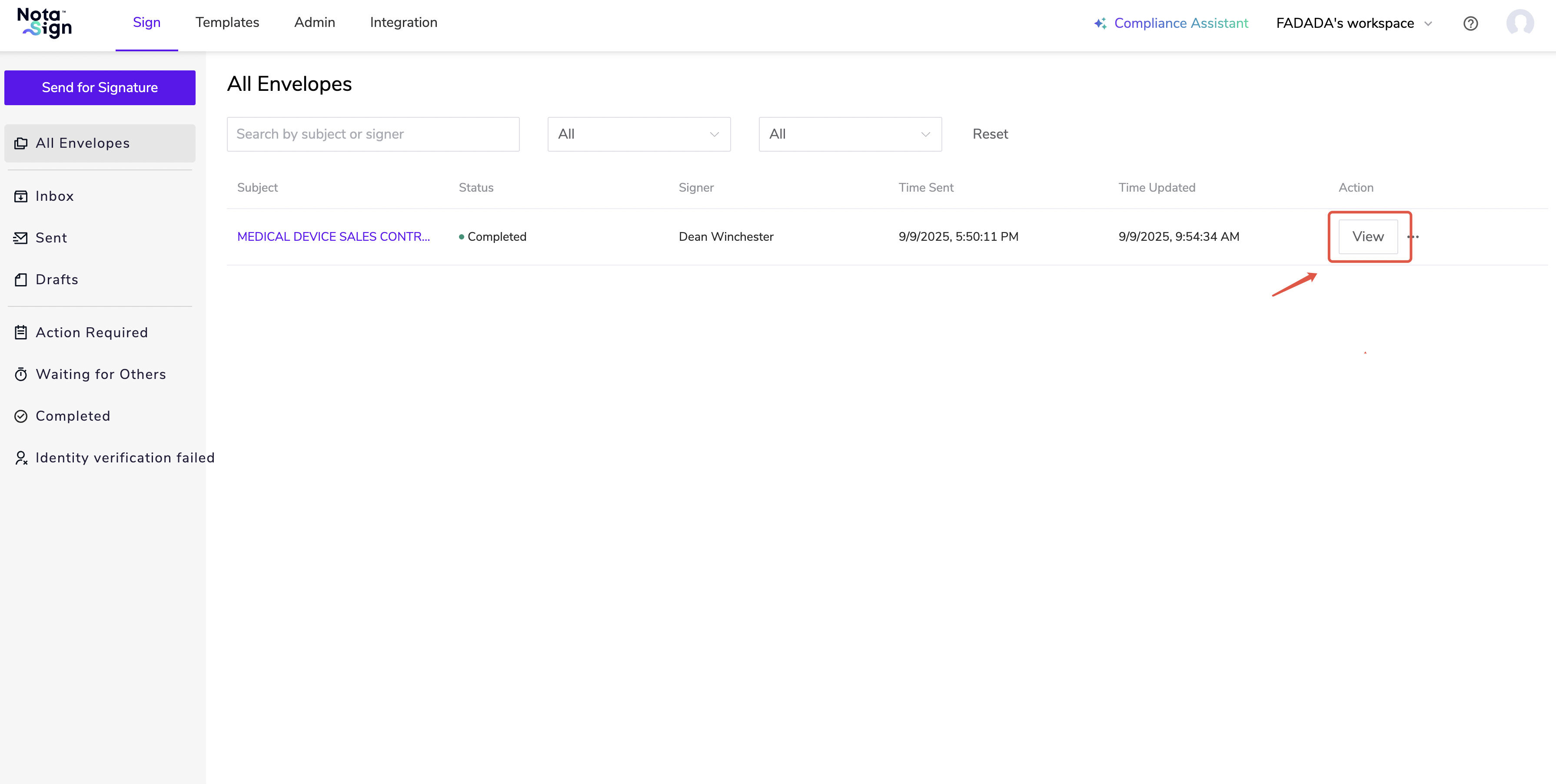
5.2 Download the attachment.
6. FAQ
6.1 What should I do if I see “Certificate already linked to another account”?
After identity verification, if the system detects that your certificate is already linked to another Nota Sign account, a certificate transfer confirmation dialog will appear automatically.
To continue signing with your current account, click [Confirm Transfer]. Once the transfer succeeds, follow the on-screen instructions to complete verification using the verification code. If you do not wish to transfer the certificate, click [Cancel] to return to the signing page.
After the transfer, the certificate will no longer be linked to the previous account. If the transfer fails, follow the on-screen instructions to try again. If the issue persists, please contact Nota Sign Customer Support or Sales for assistance.