
I. Feature Overview
Vinotek is a certification authority (CA) in Indonesia, providing Indonesian users with legally binding personal digital signature services. By using Vinotek digital certificates through Nota Sign, you can complete digital signatures that are legally recognized under Indonesian law during the signing process.
II. Step-by-Step Instructions
1. The recipient accesses the signing page via email link or inbox, agrees to the terms of use, and enters the signing process;
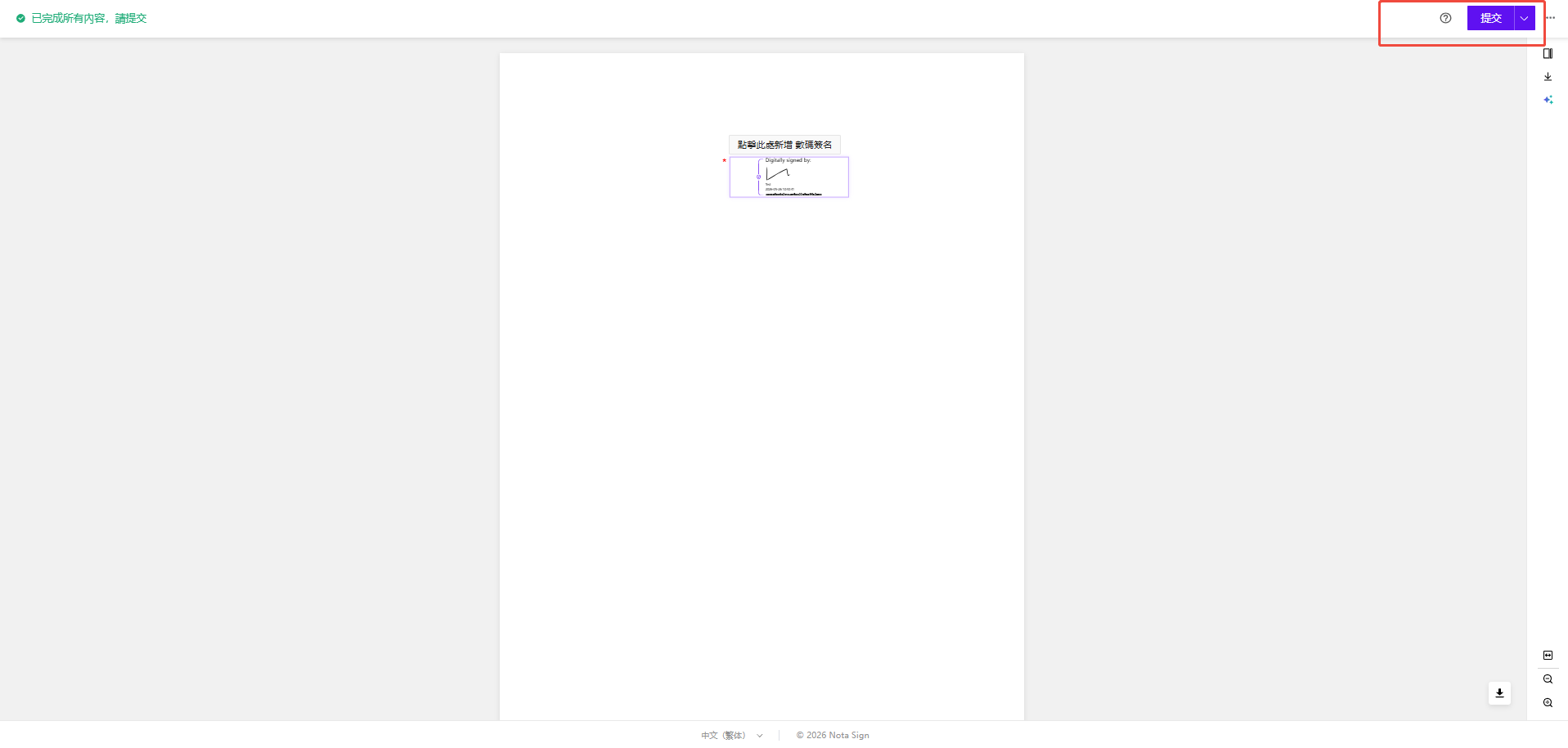
2. After completing all required fields, click [Submit];
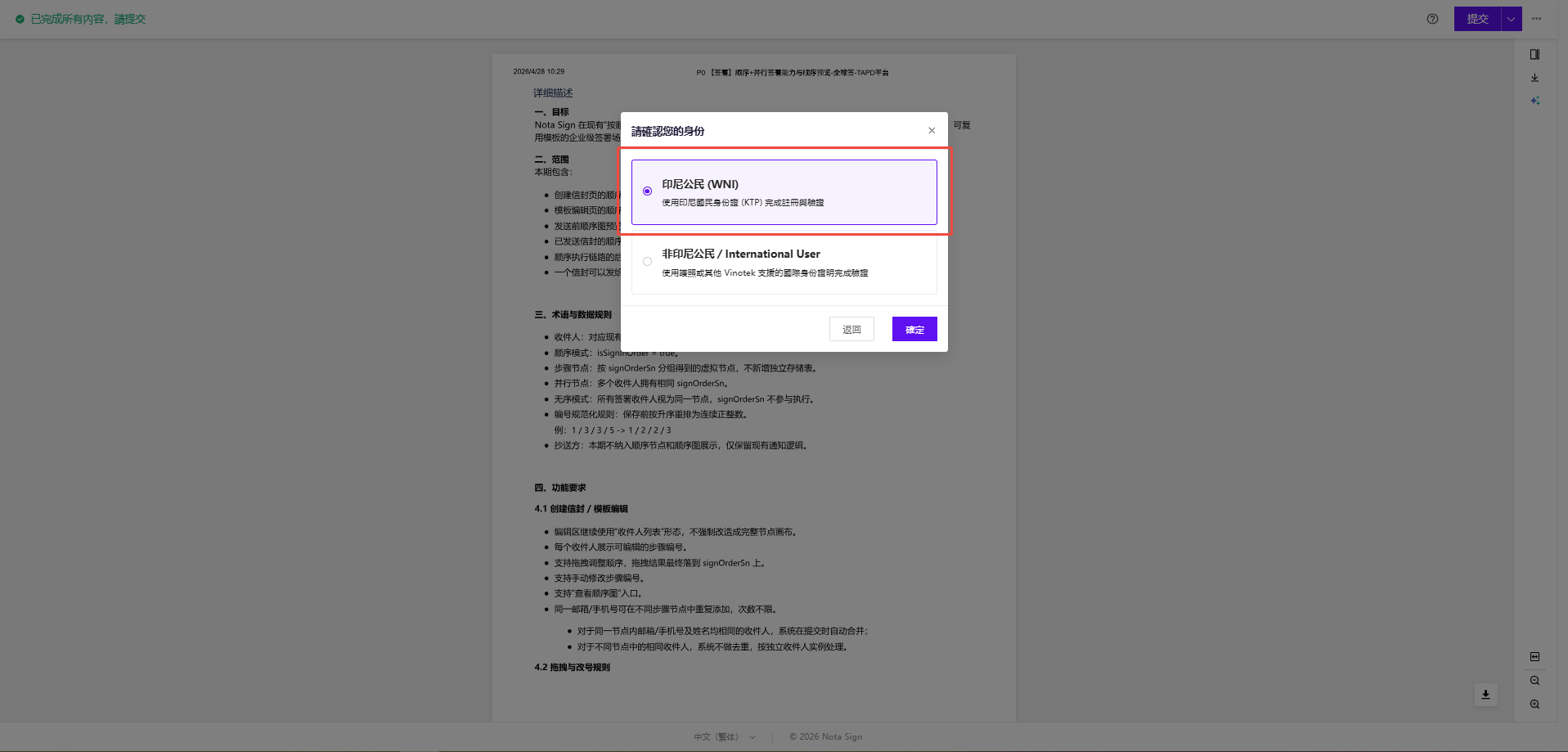
3. Supports registration and use by both Indonesian citizens and non-Indonesian citizens;
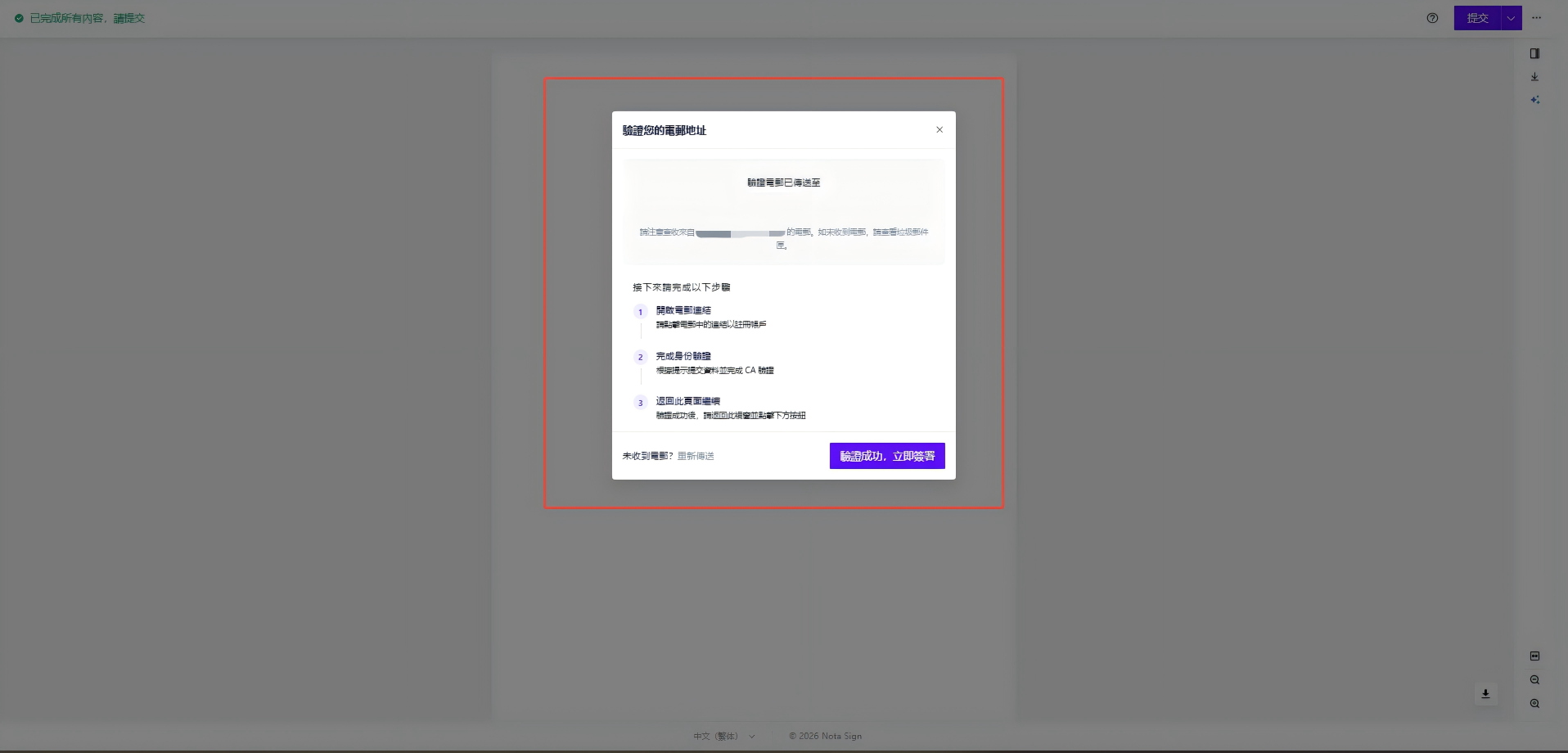
4. Follow the instructions to complete registration via email;
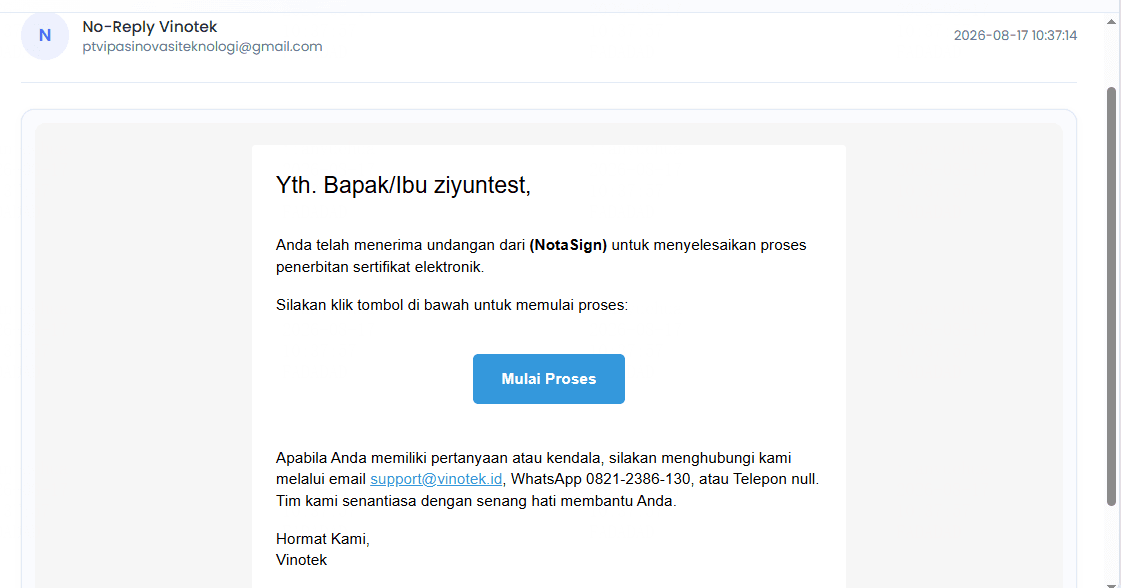
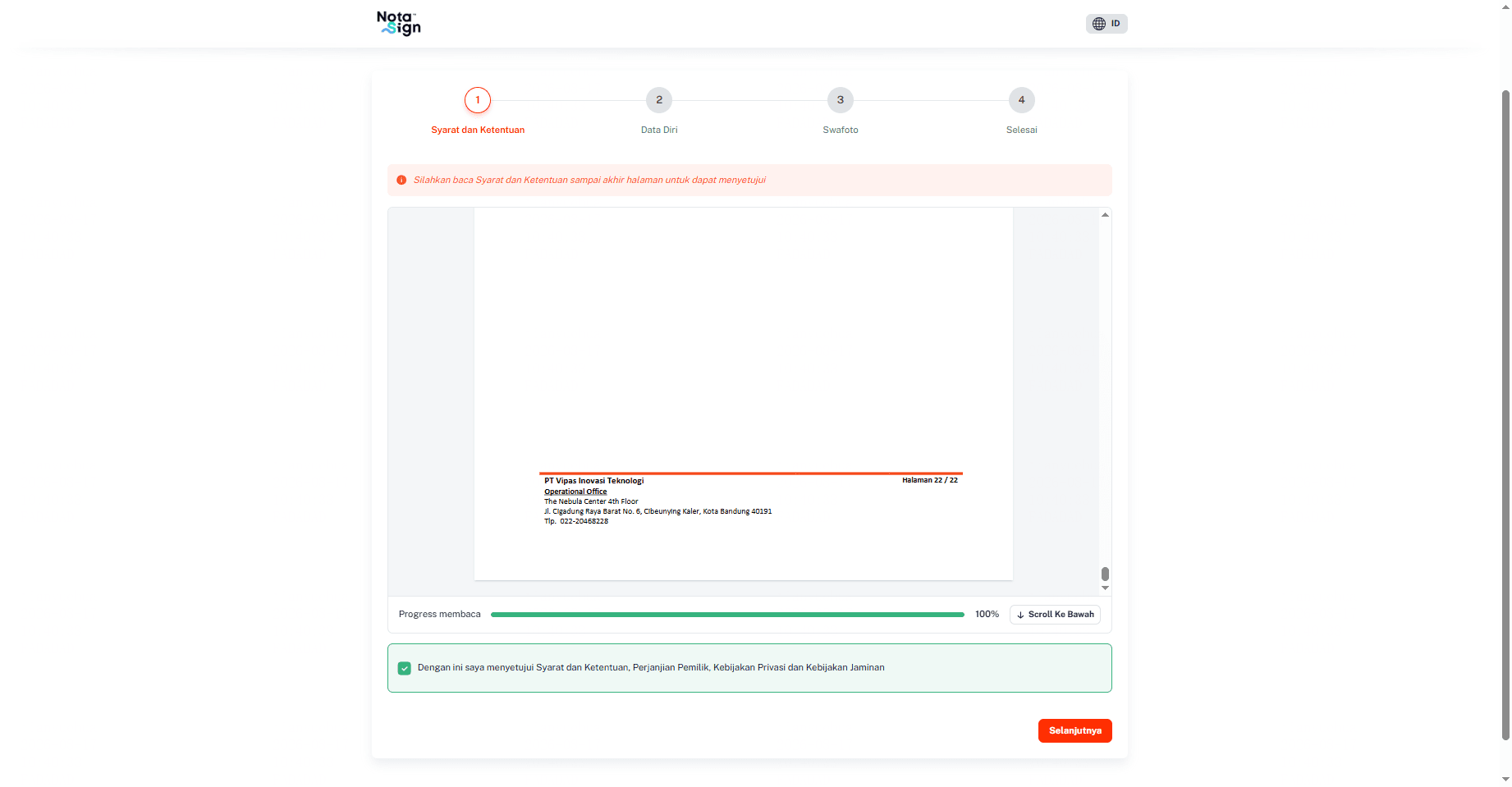
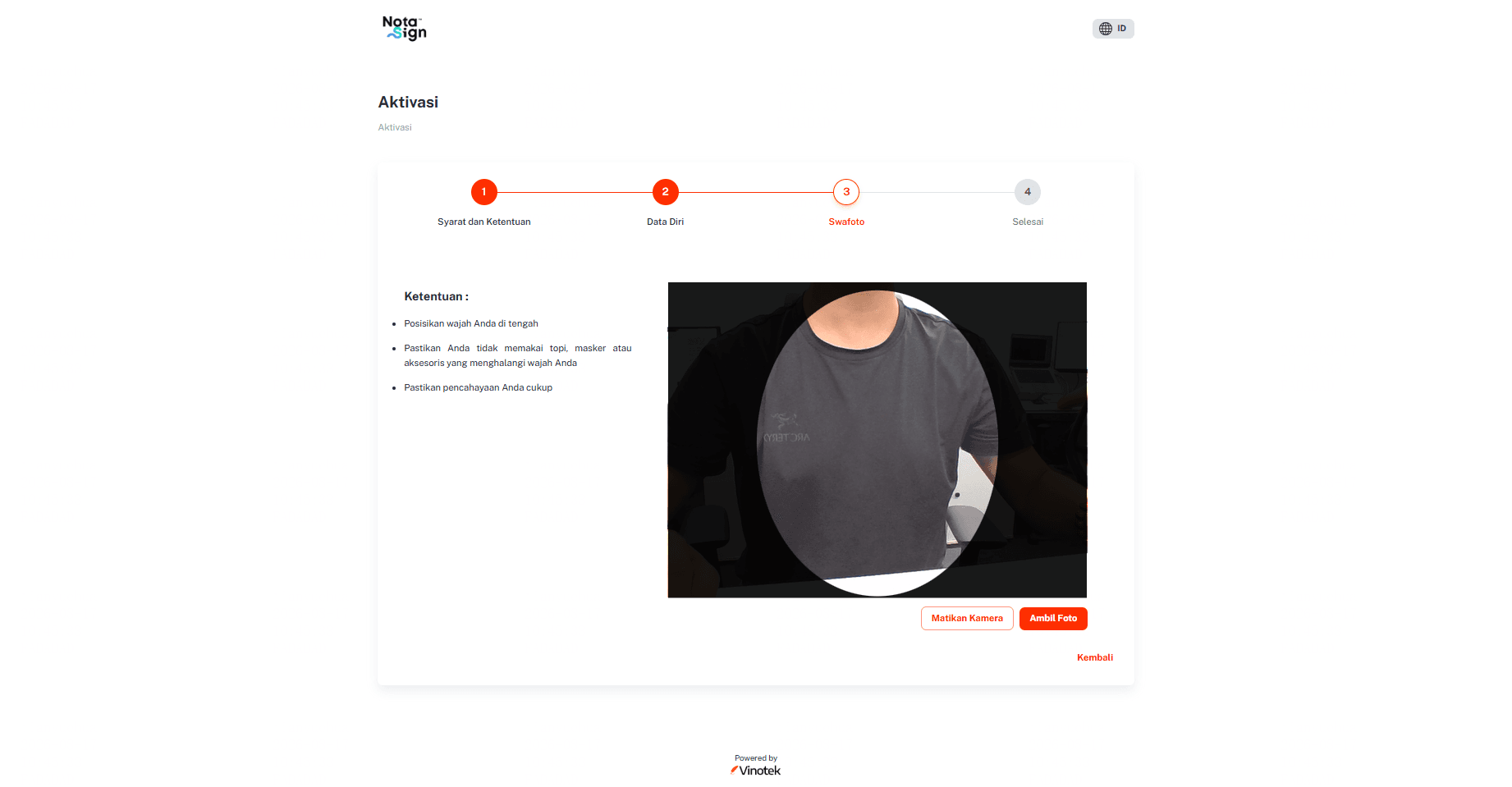
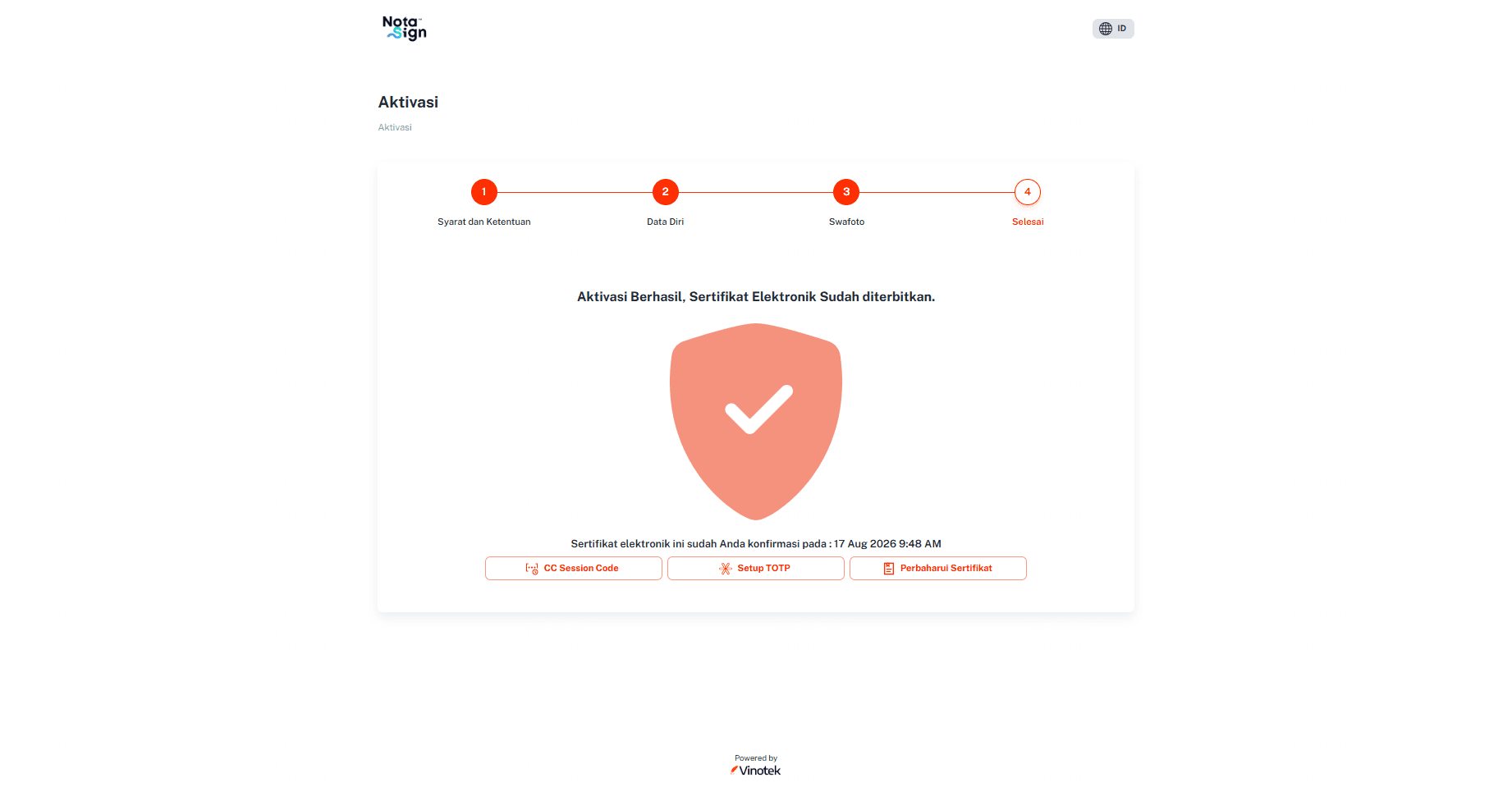
5. Click the link received in the email to enter the authentication interface, and follow the instructions to complete the authentication step by step
-
Read the user agreement and check to agree
-
Fill in personal basic information
-
Take a photo for facial verification
-
Enter your email address and input the verification code
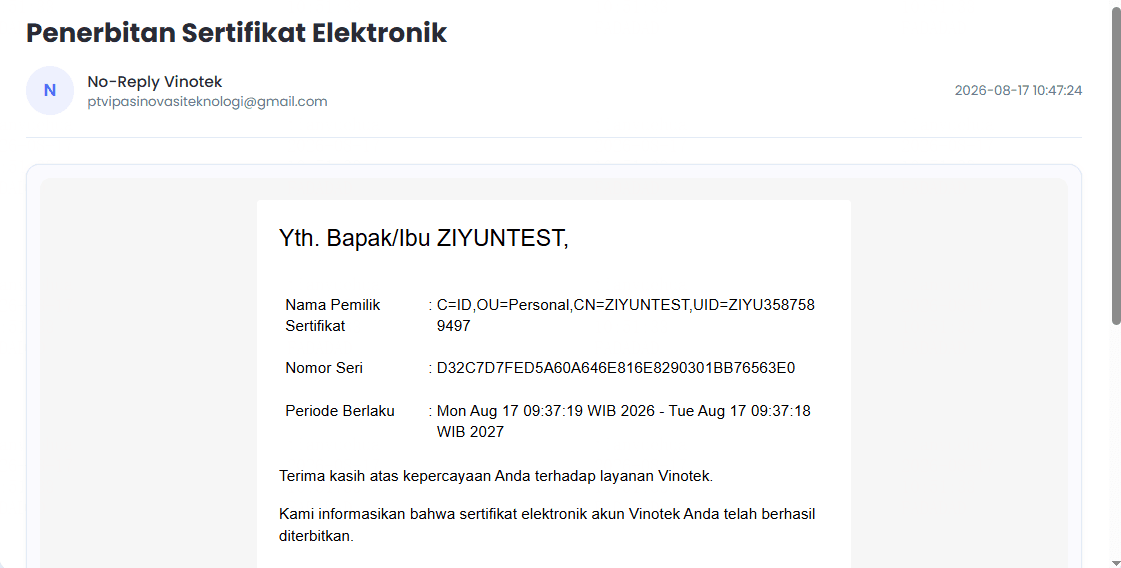
6. After the certificate application is successful, you will also receive a notification email confirming the successful application
7. Return to the signing interface to continue signing
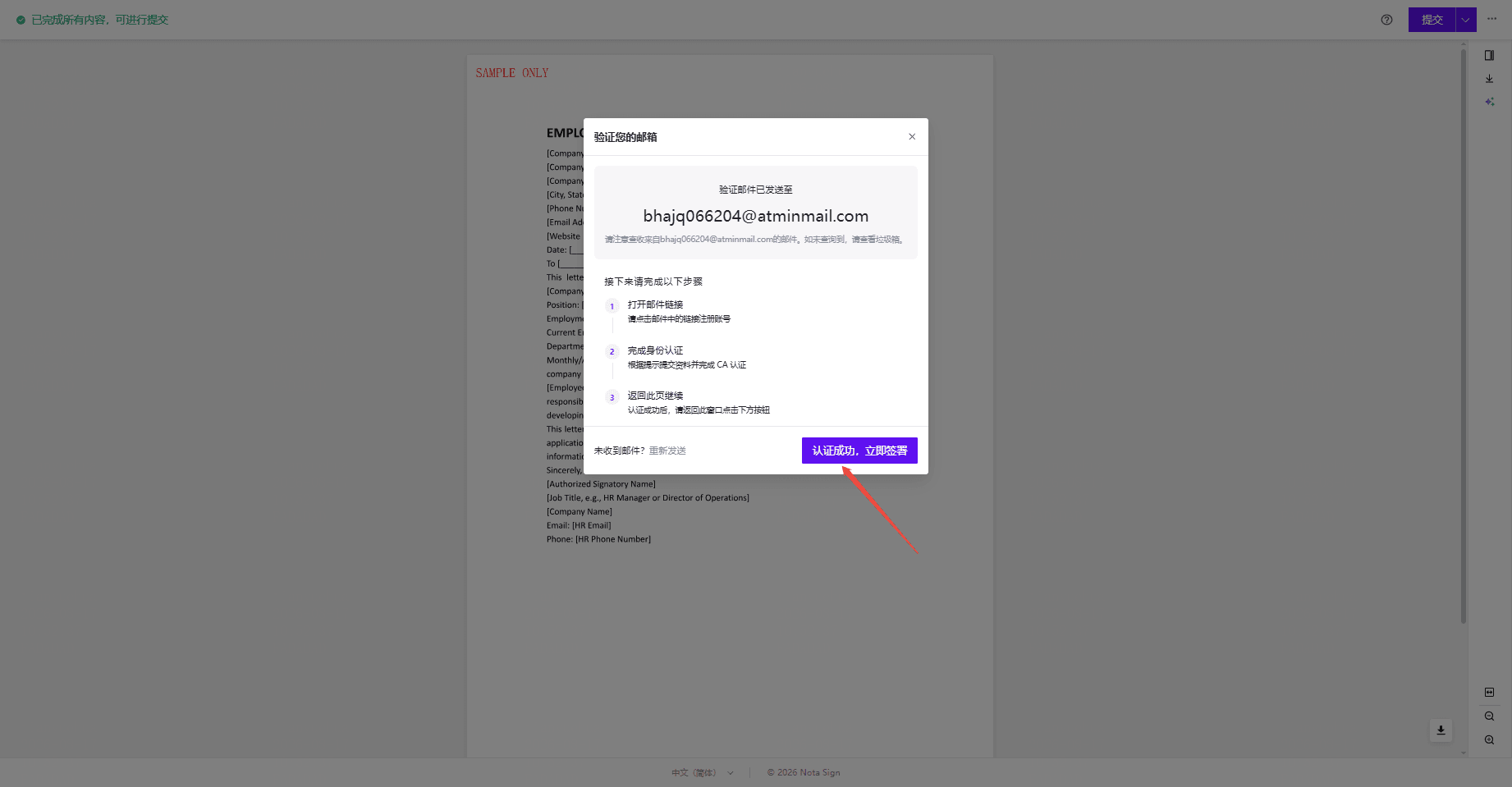
8. Enter your email address and the verification code to complete the signing
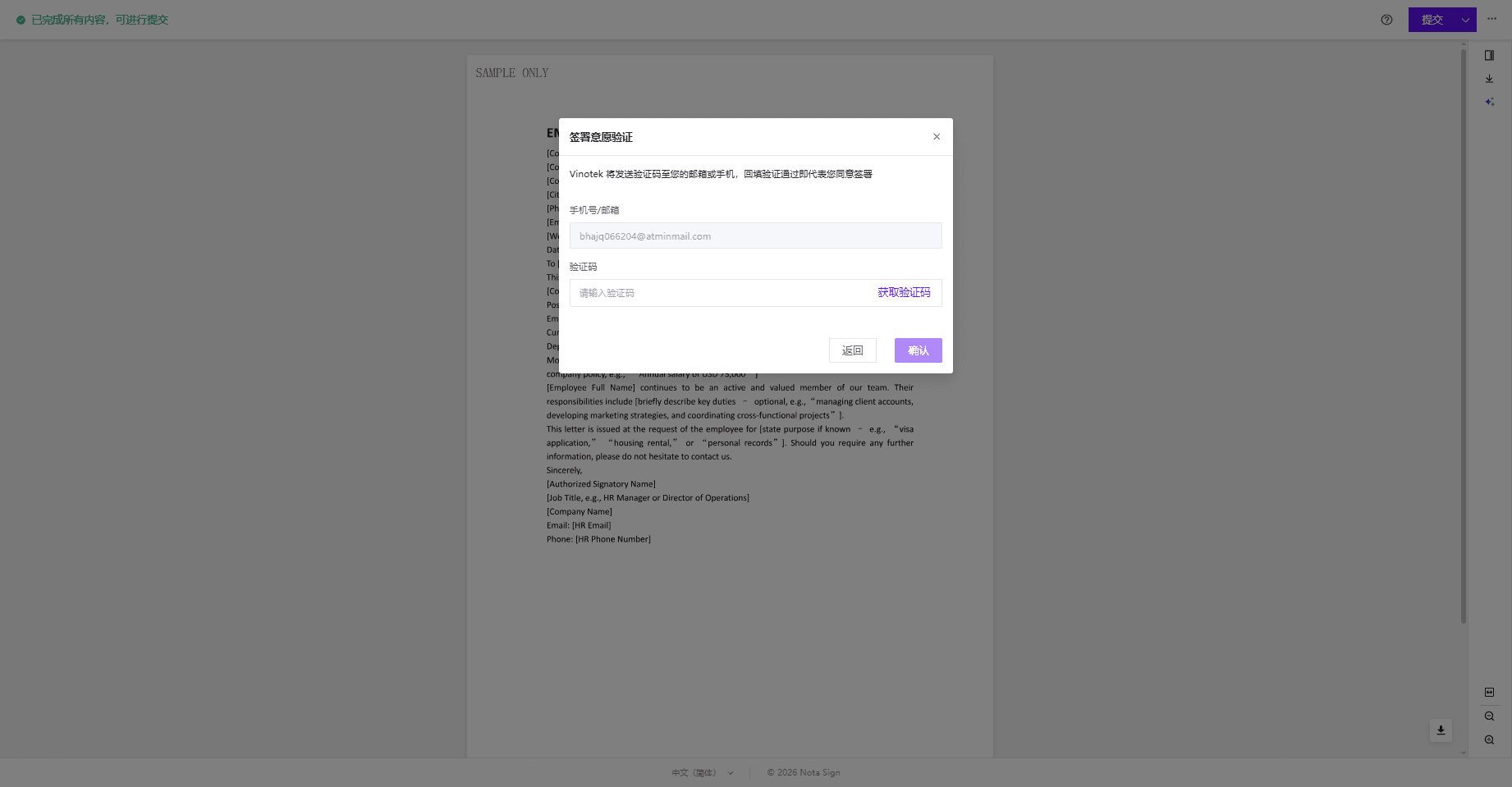
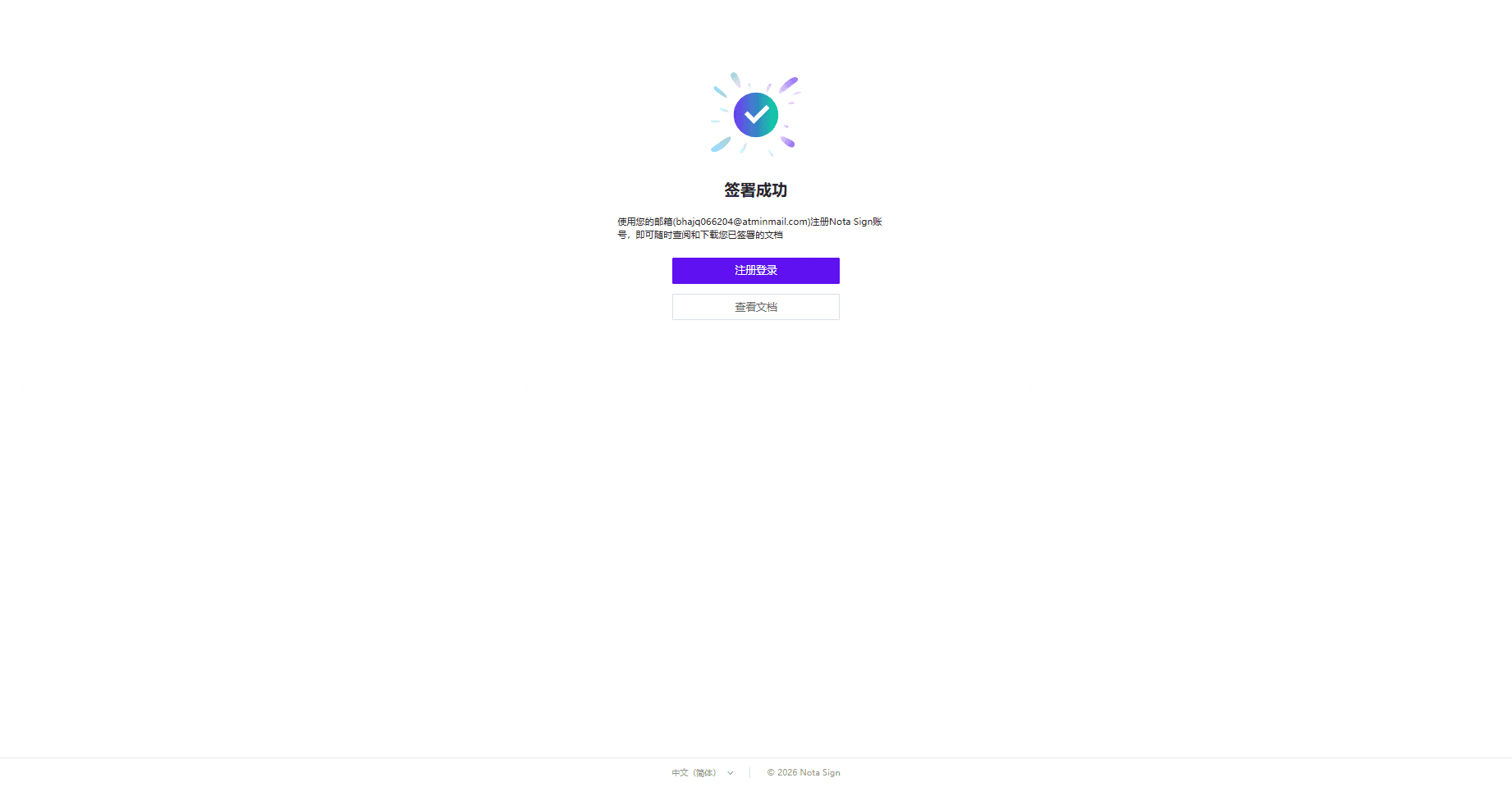
For subsequent use of the digital signature, select Vinotek, receive and enter the email verification code, and the signing is complete.