
Apply for an iCorp-One Digital Certificate
Video Tutorial:
Step 1. Fill in Basic Information
Log in to the Nota Sign workspace and click Admin > Electronic Seal.
Click Apply for a New Seal.
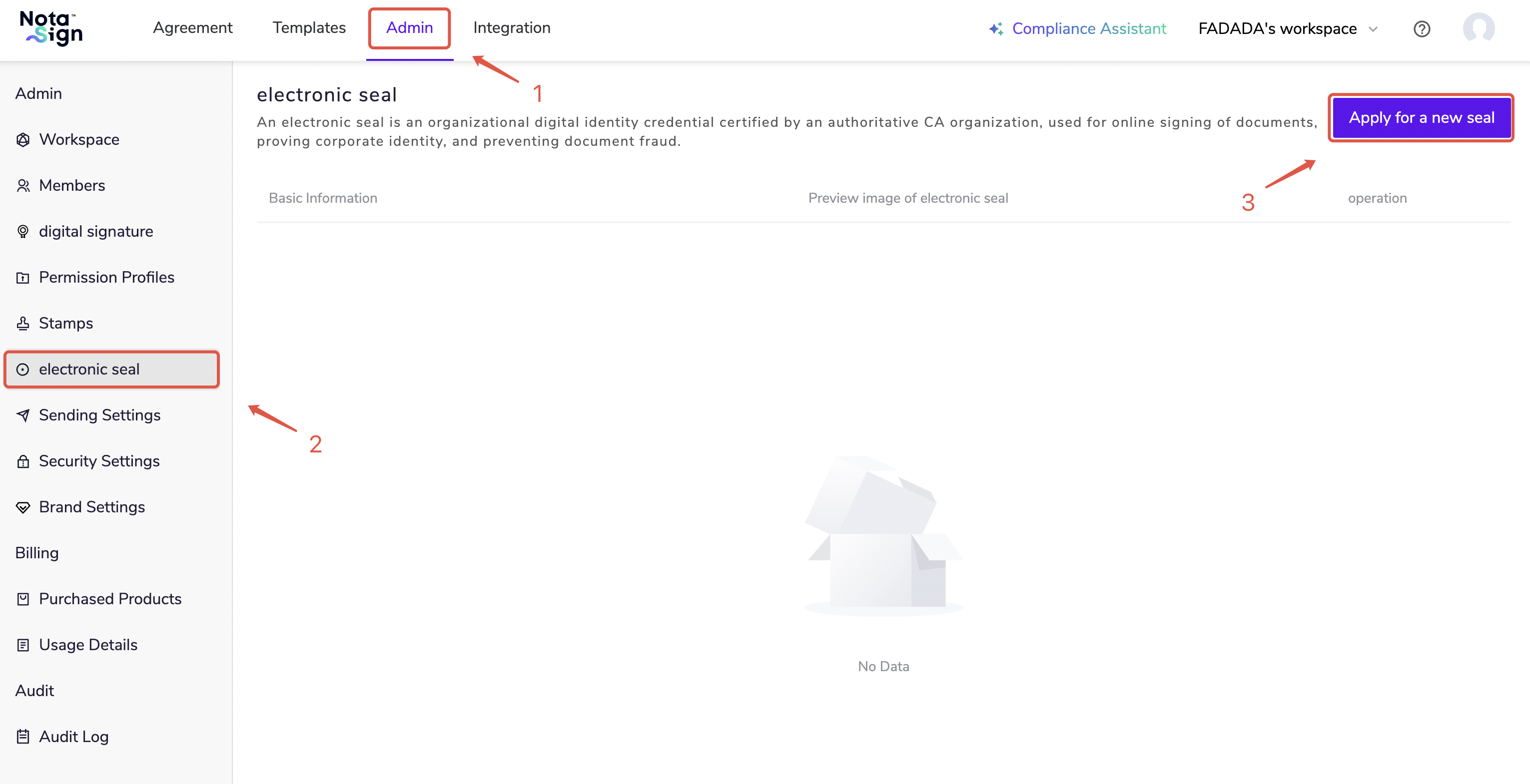
- Enter a new seal name, select the enabled trust service provider, and click Apply for a Certificate.
Step 2. Apply for an iCorp-One Digital Certificate
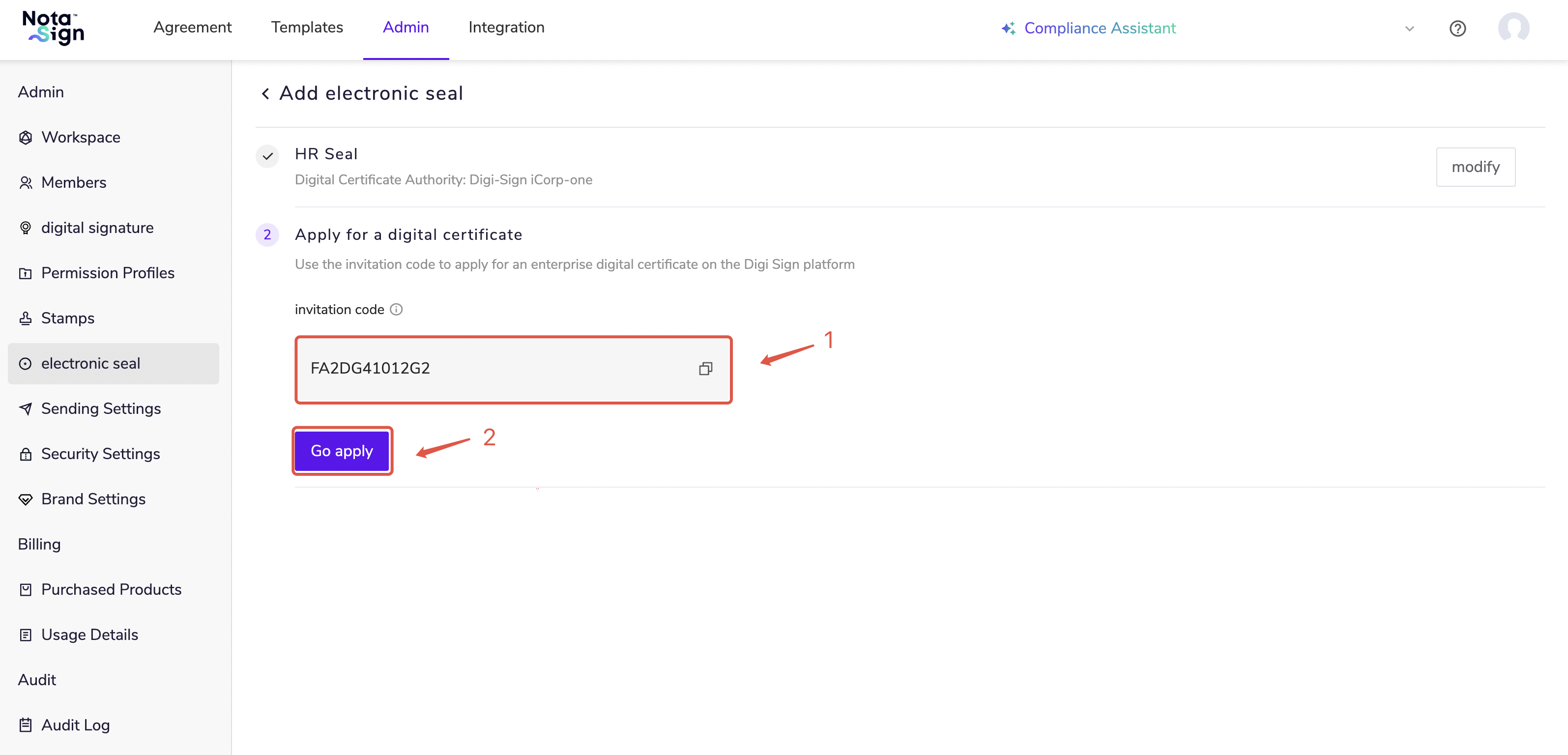
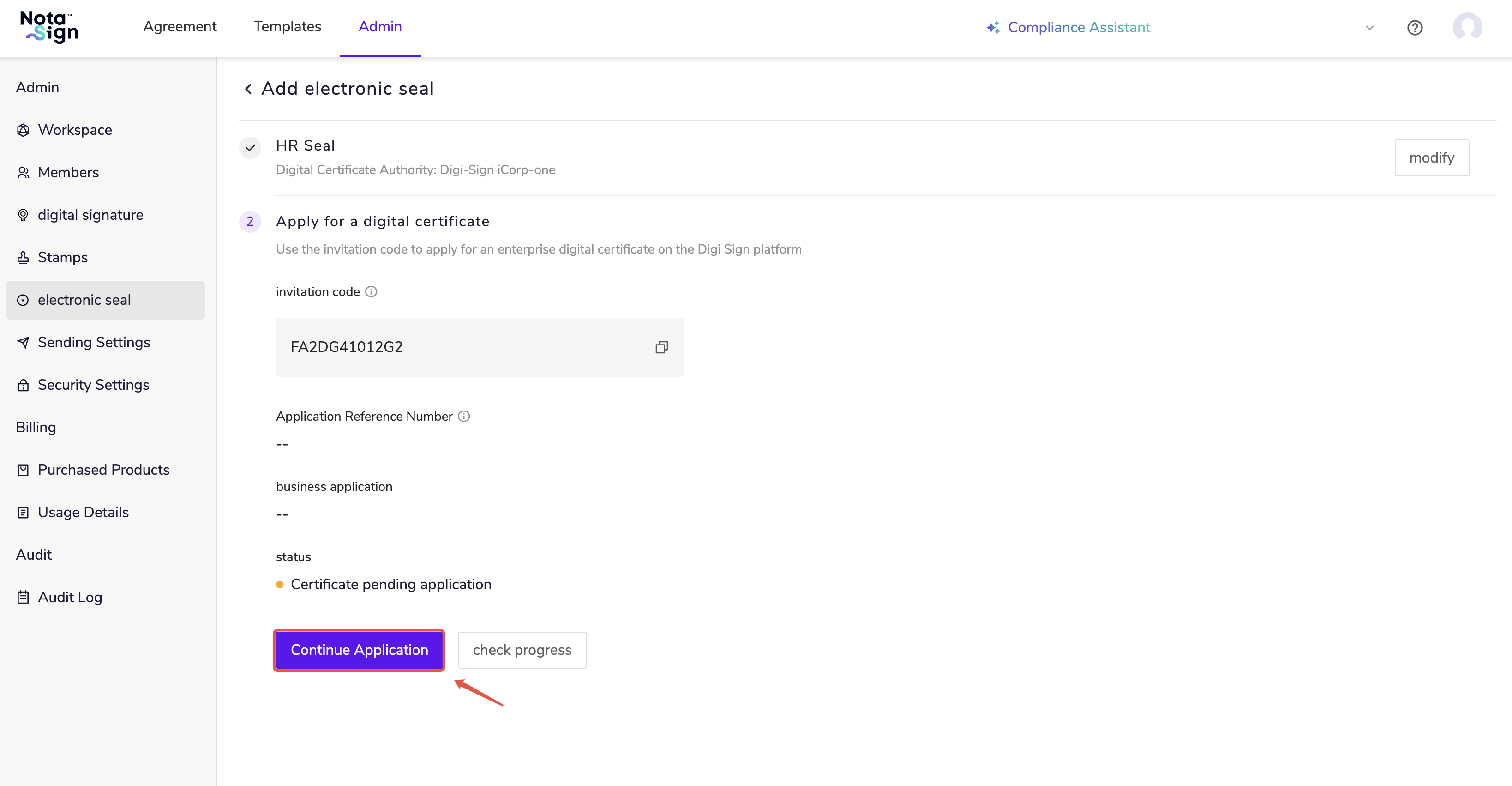
Copy the invitation code generated by the system and click Go Apply. s
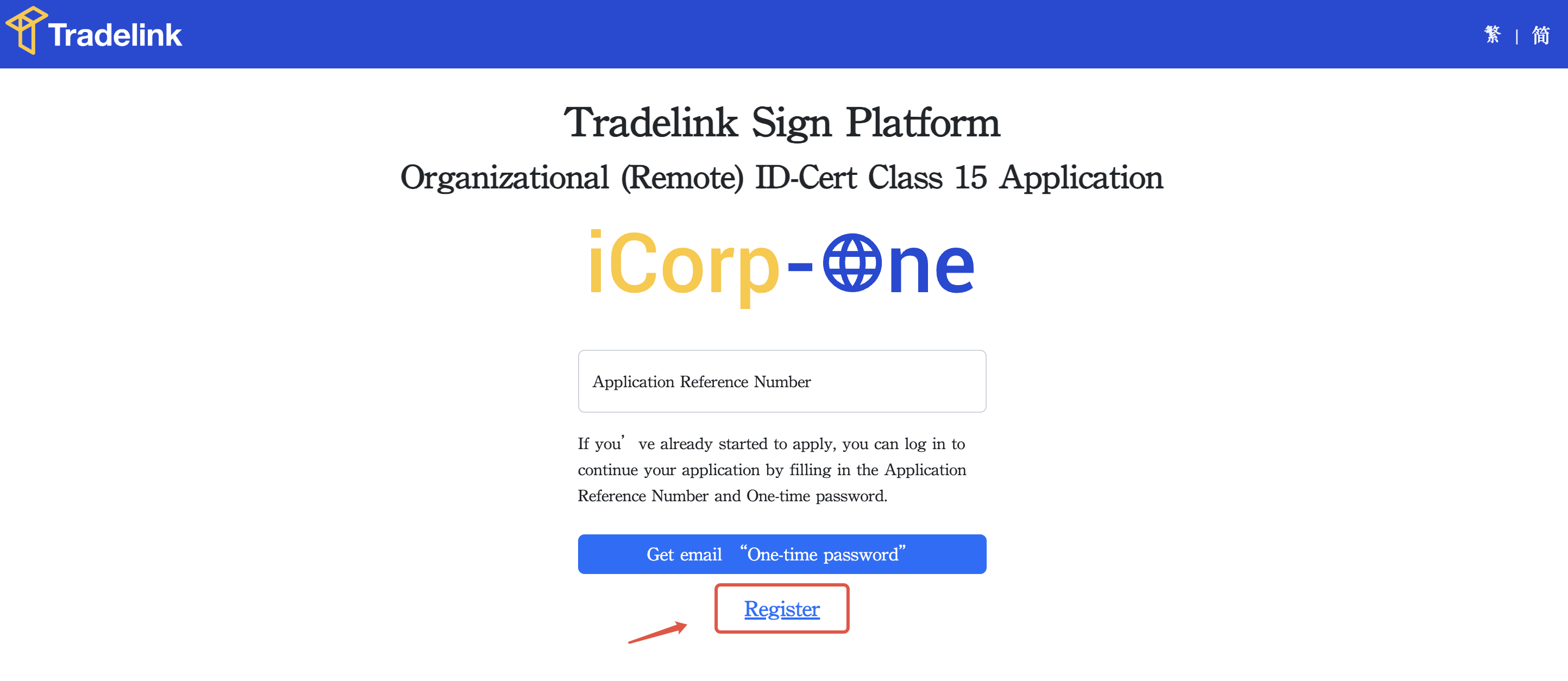
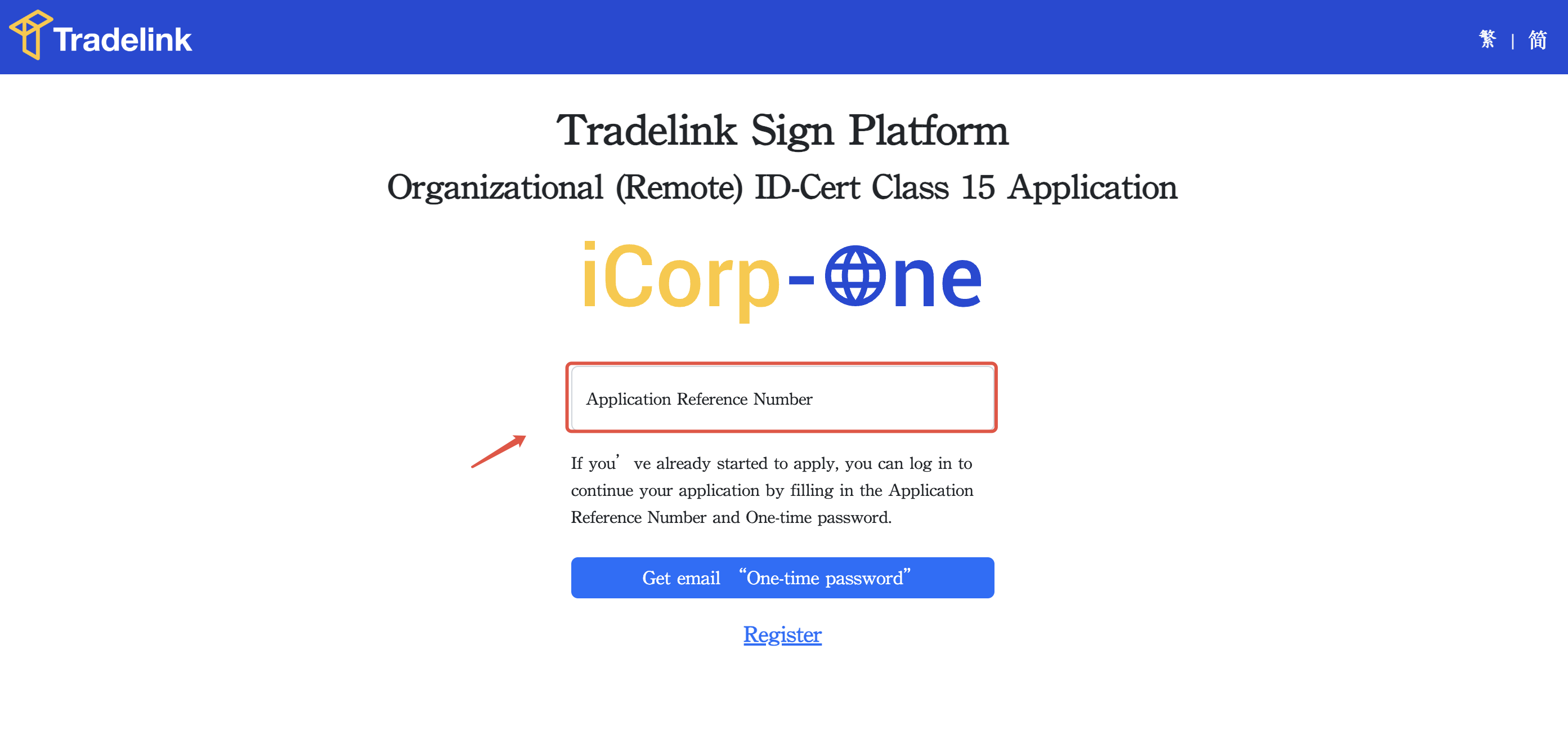
You will be redirected to the Tradelink platform. Click Register.
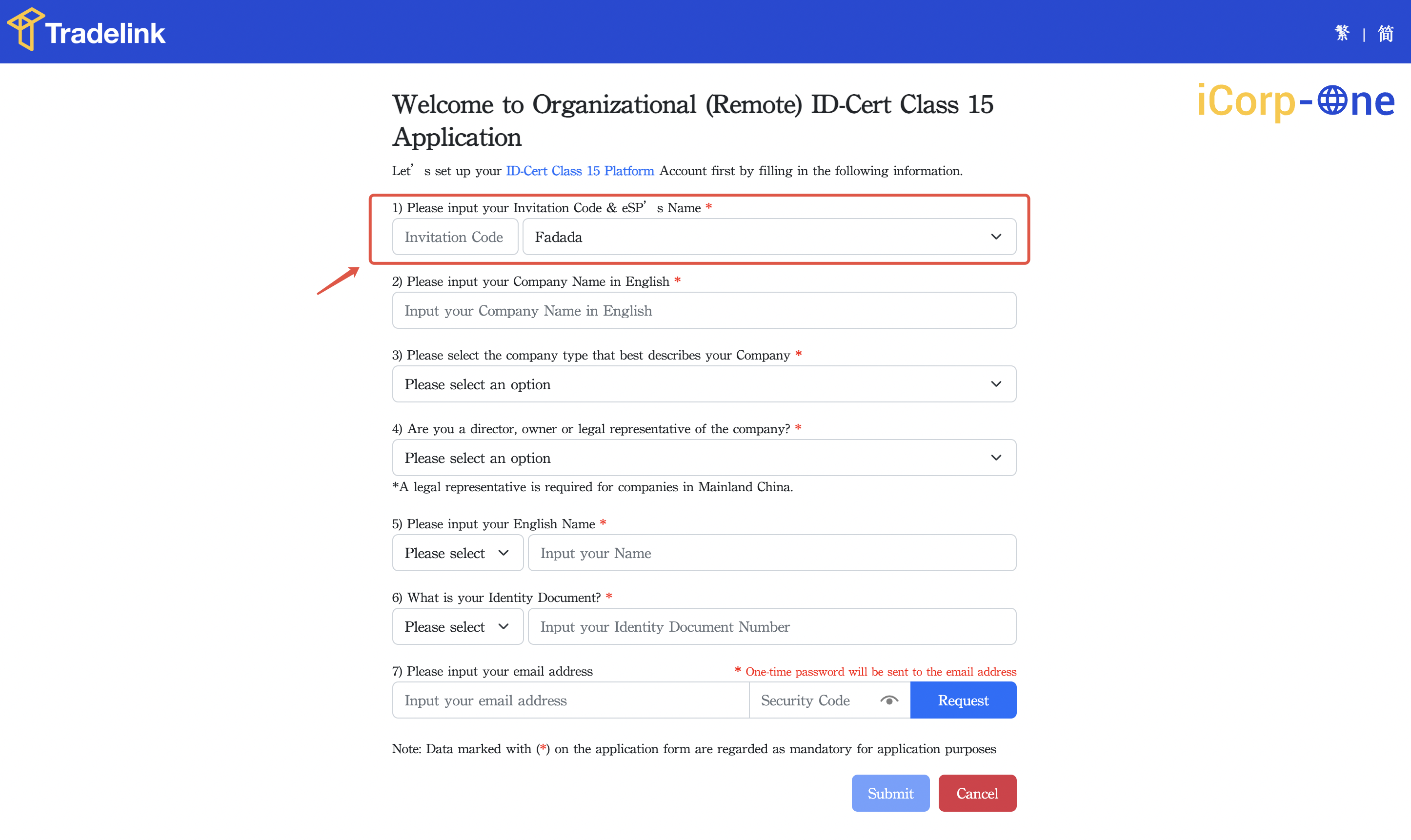
- Enter the invitation code copied from Nota Sign, select FADADA as the electronic service provider, and complete the remaining company information.
- Complete account registration to obtain the iCorp-One Application Reference Number.
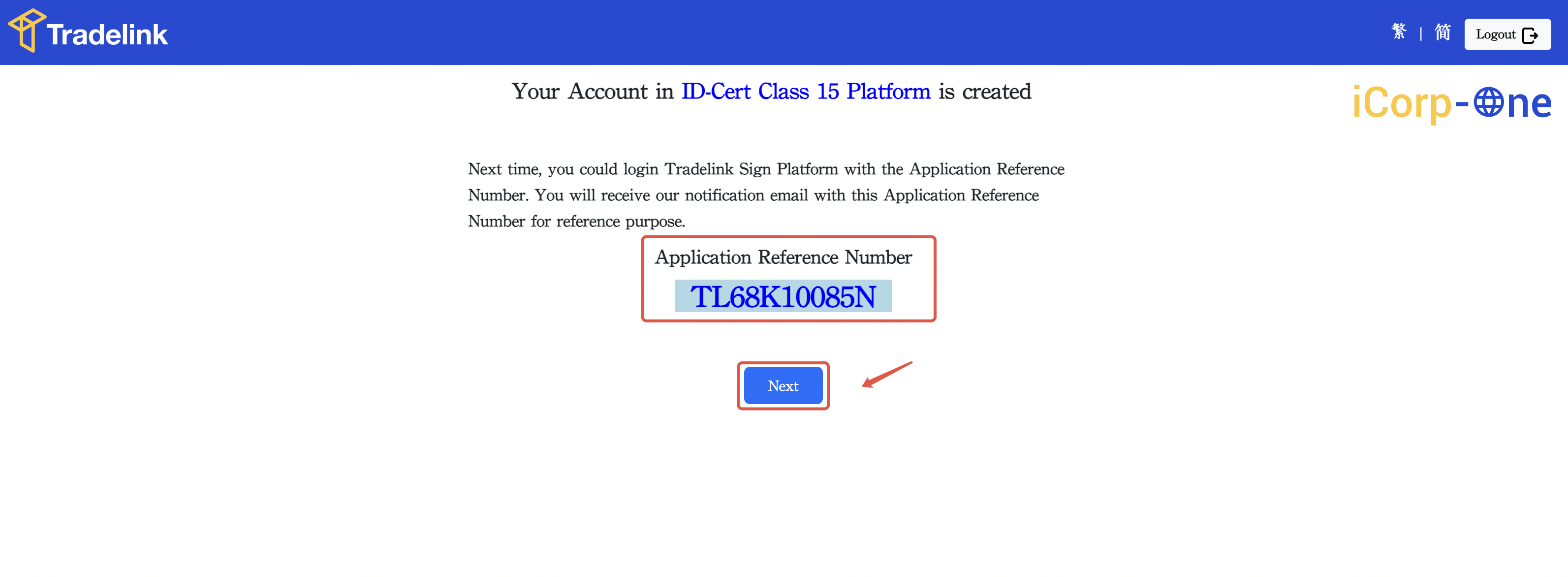
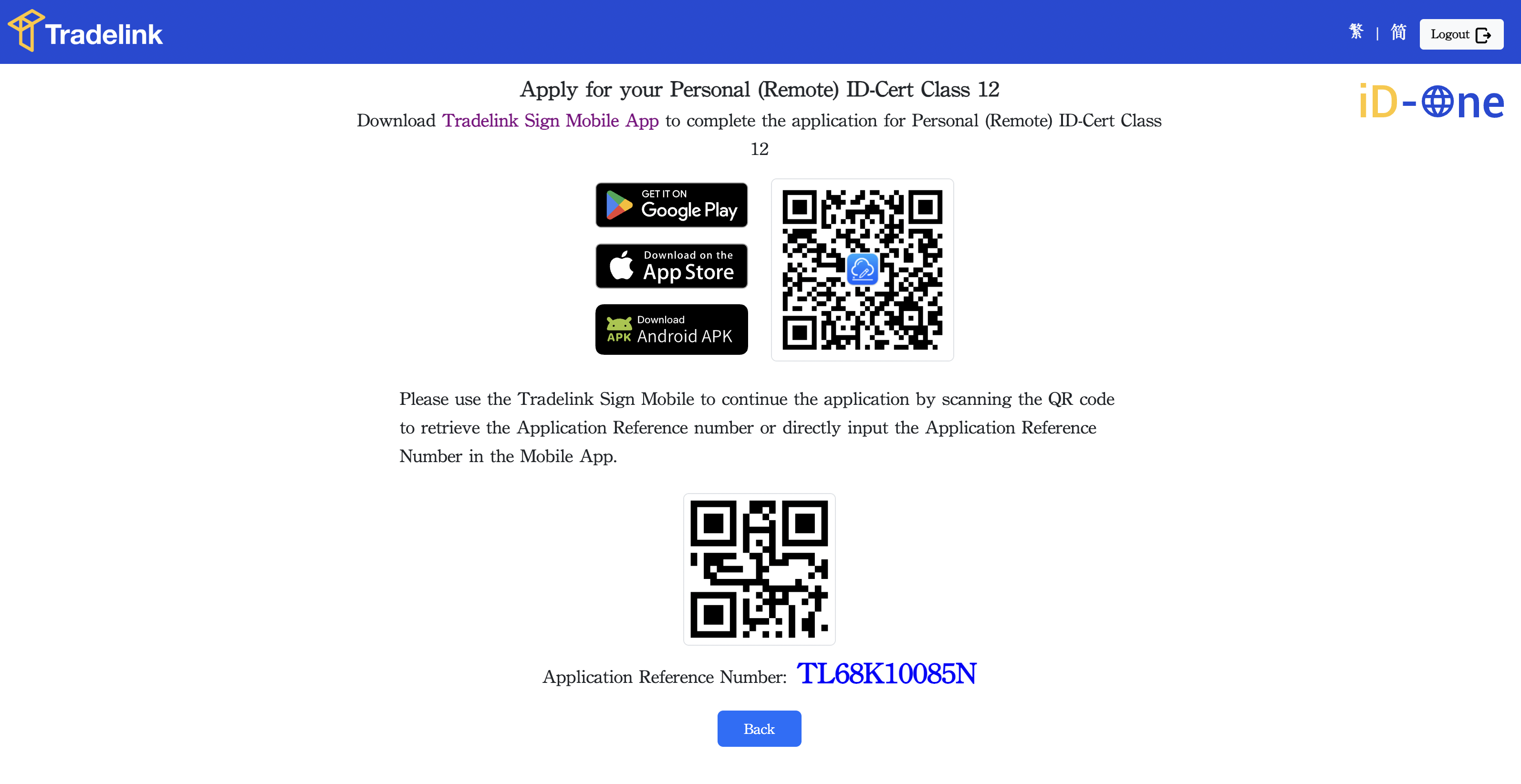
- If you do not yet have an iD-One , click Go to continue the application. For guidance, please refer to Step 2: Apply for iD-One.
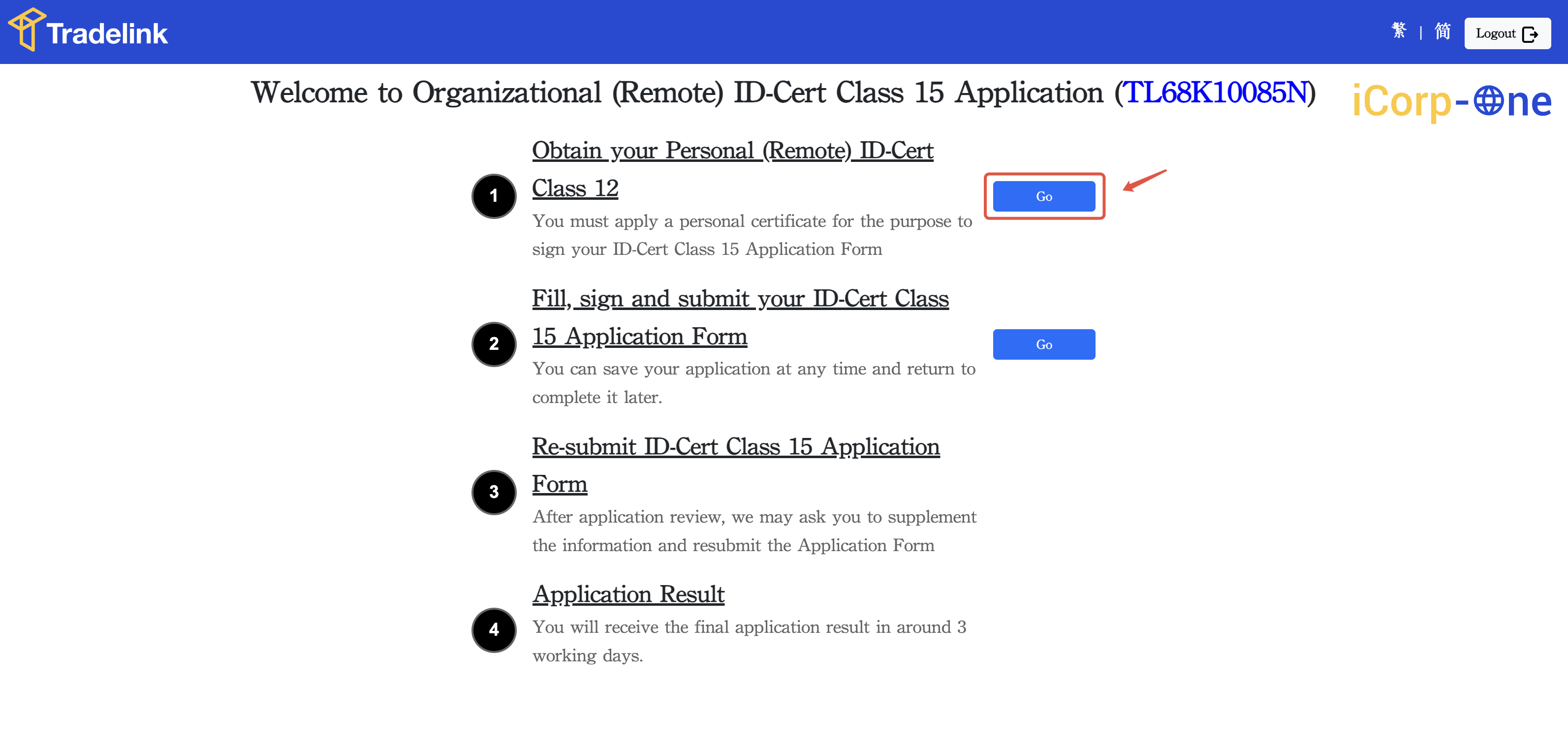
- If you already have an iD-One or have completed the application, click Go to fill in the iCorp-One Application Form and submit it according to the instructions.
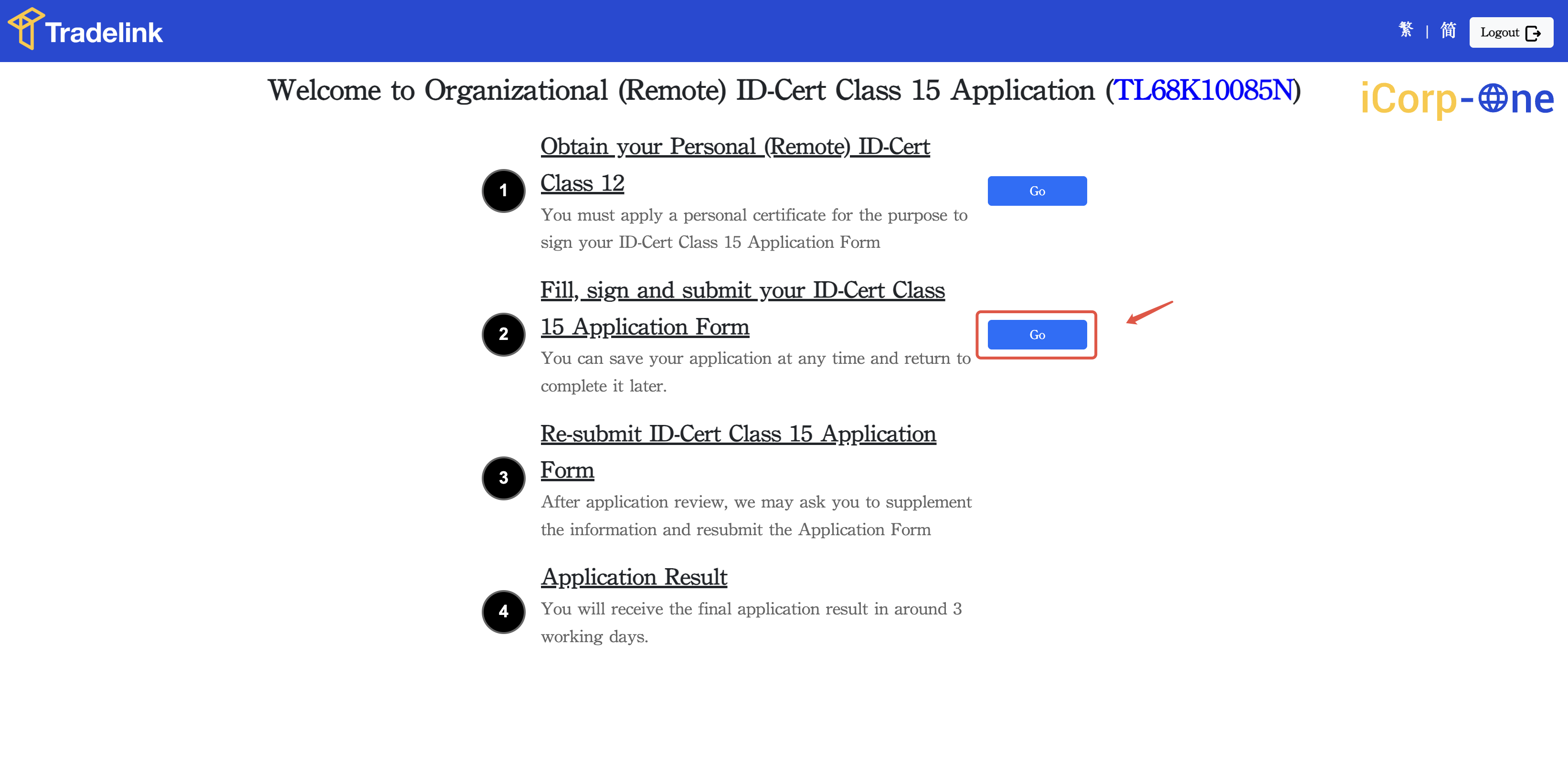
A. Fill in company basic information
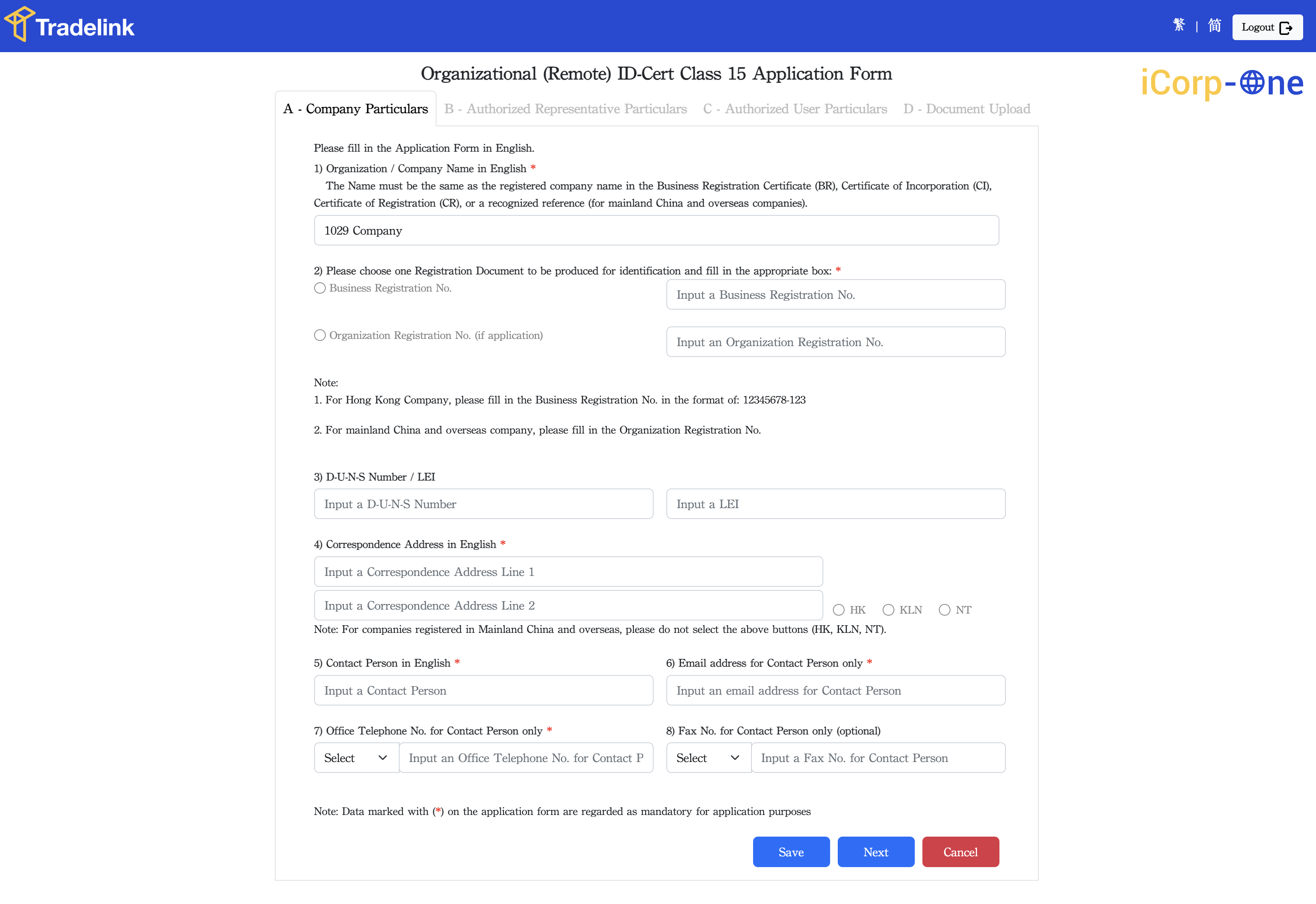
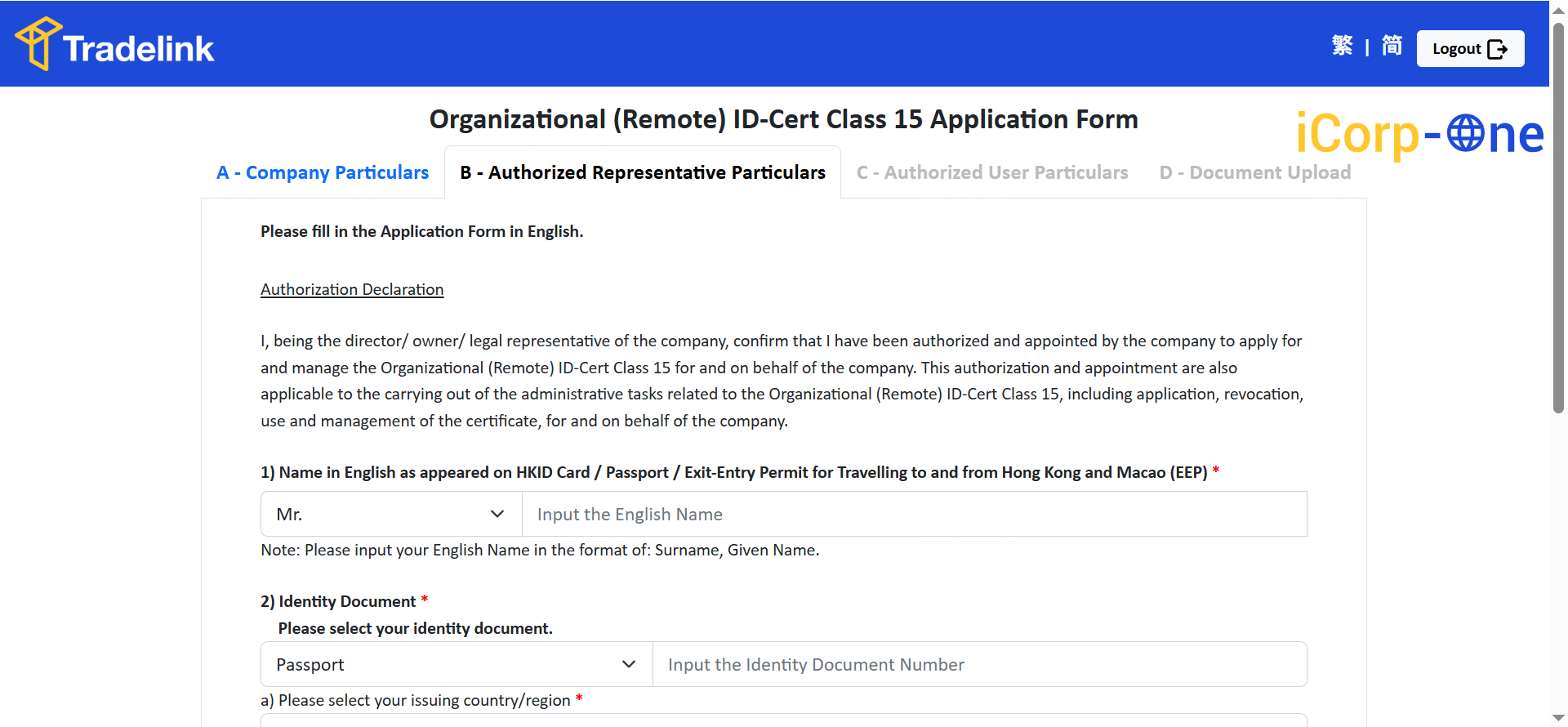
B. Fill in authorized representative information
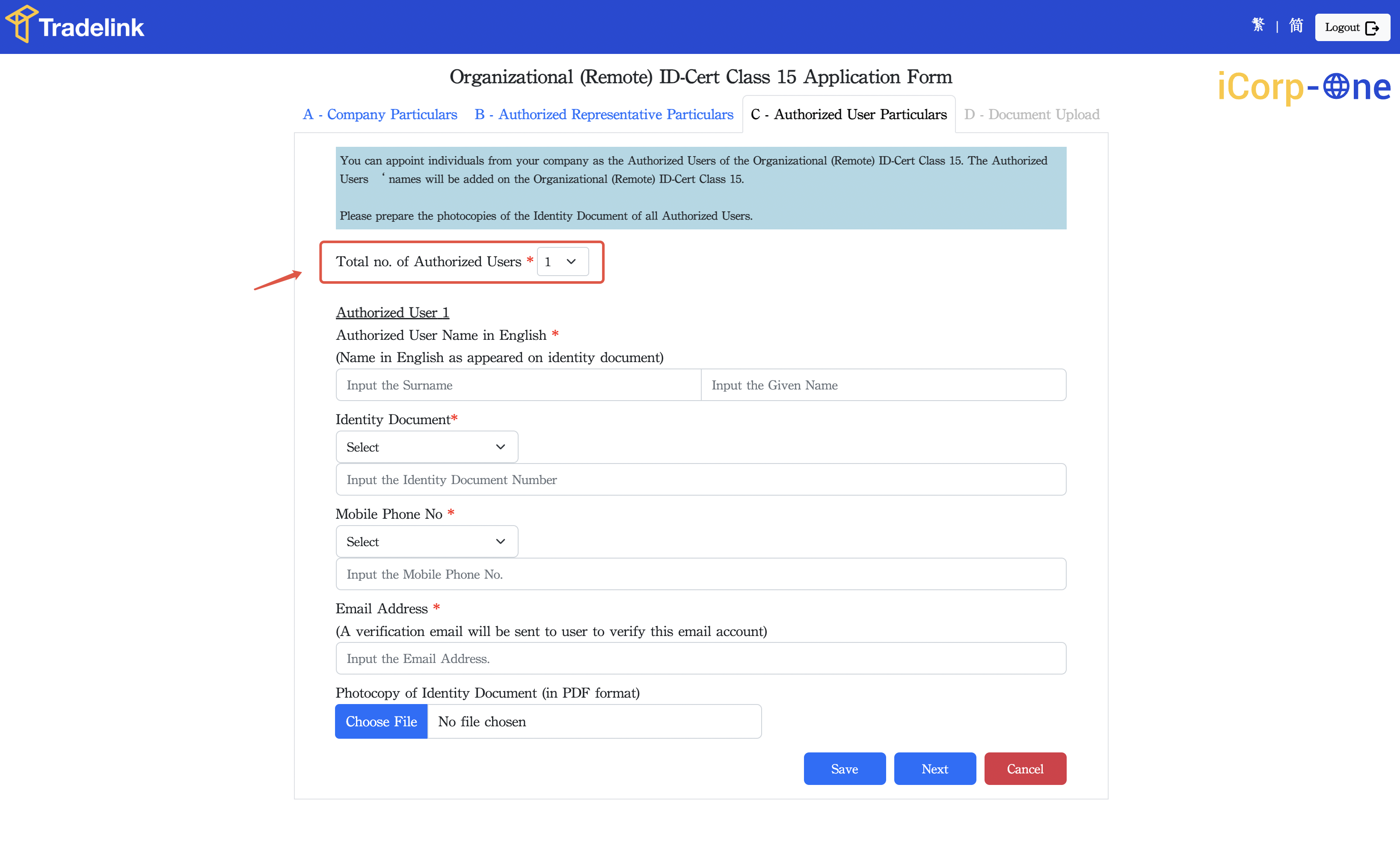
C. Fill in authorized user information
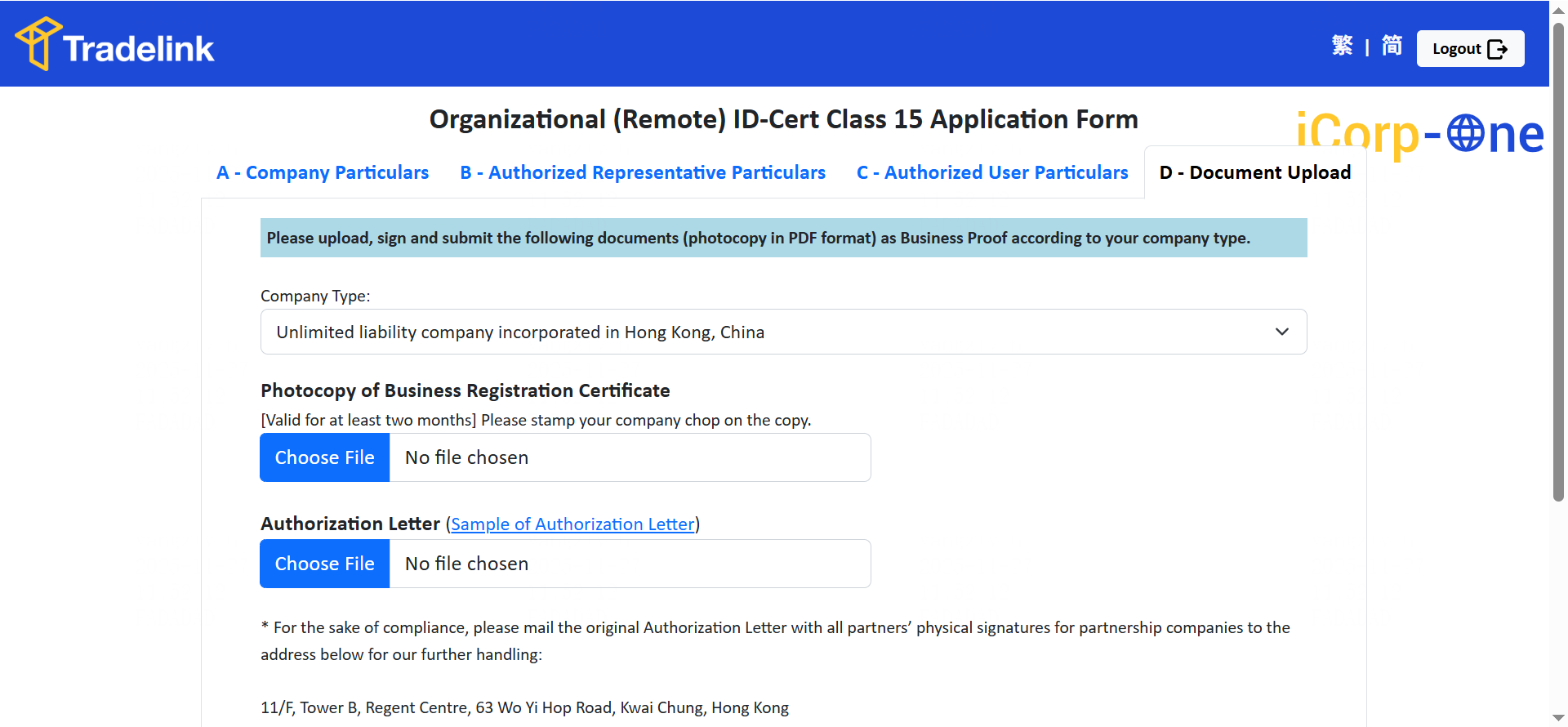
D. Upload company documents
- The authorized representative serves as the seal administrator of the enterprise, while the authorized user is the seal operator. During the application process, you will be required to fill in the information of the authorized eSealers. Once submitted, the eSealers cannot be modified. -
- If you exit the application midway, click Continue Application to return to the Tradelink platform and enter your iCorp-One Application Reference Number to resume.
- Once the certificate application is approved, you can view the seal details within Nota Sign.