
Add Electronic Seals When Sending an Envelope
Video Tutorial:
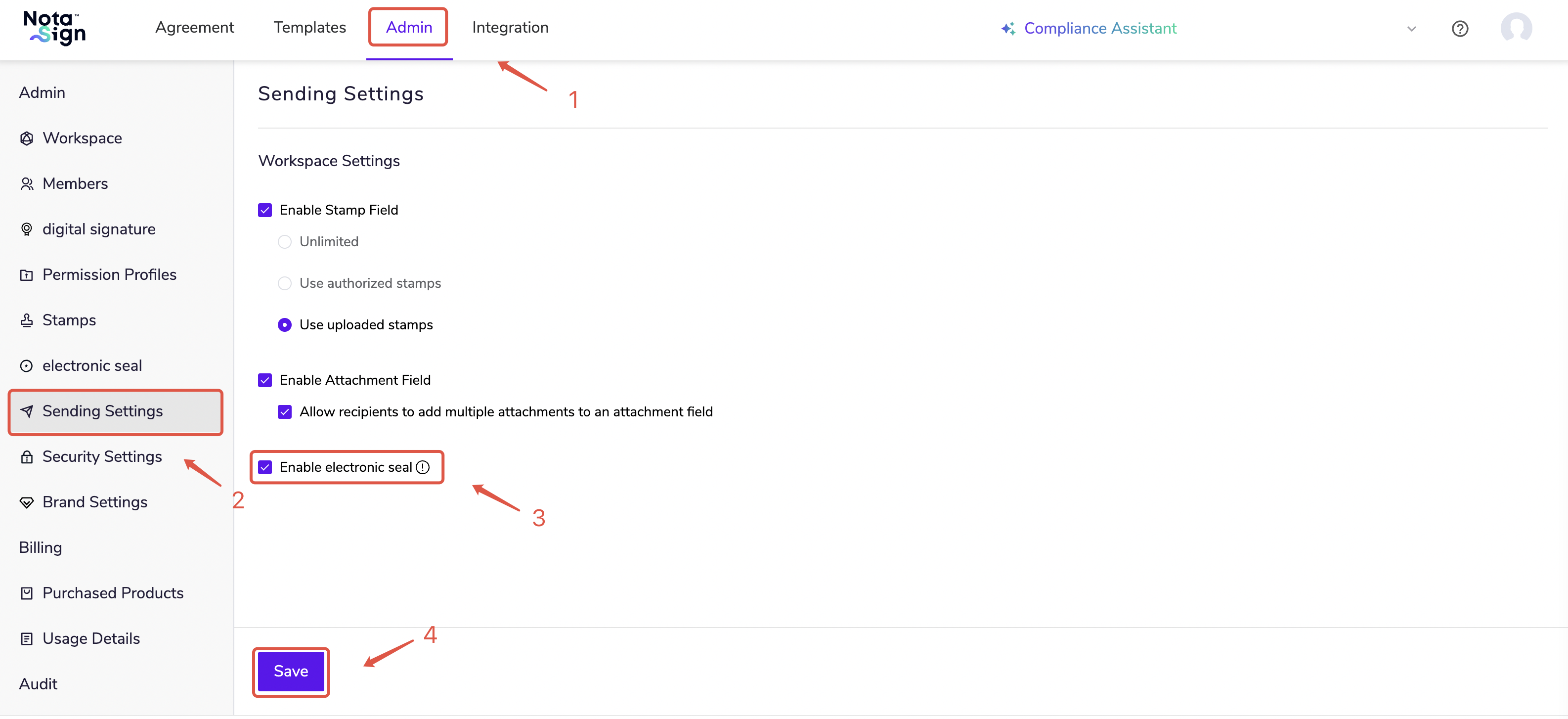
Enable Electronic Seal
Log in to the Nota Sign Workbench and click [Admin] - [Sending Settings];
Check [Electronic Seal] and click [Save].
Set Up Envelope
Log in to the Nota Sign Workbench and click [Agreement] - [Send an Envelope];
After setting up the recipient(s), click to add [Electronic Seal].
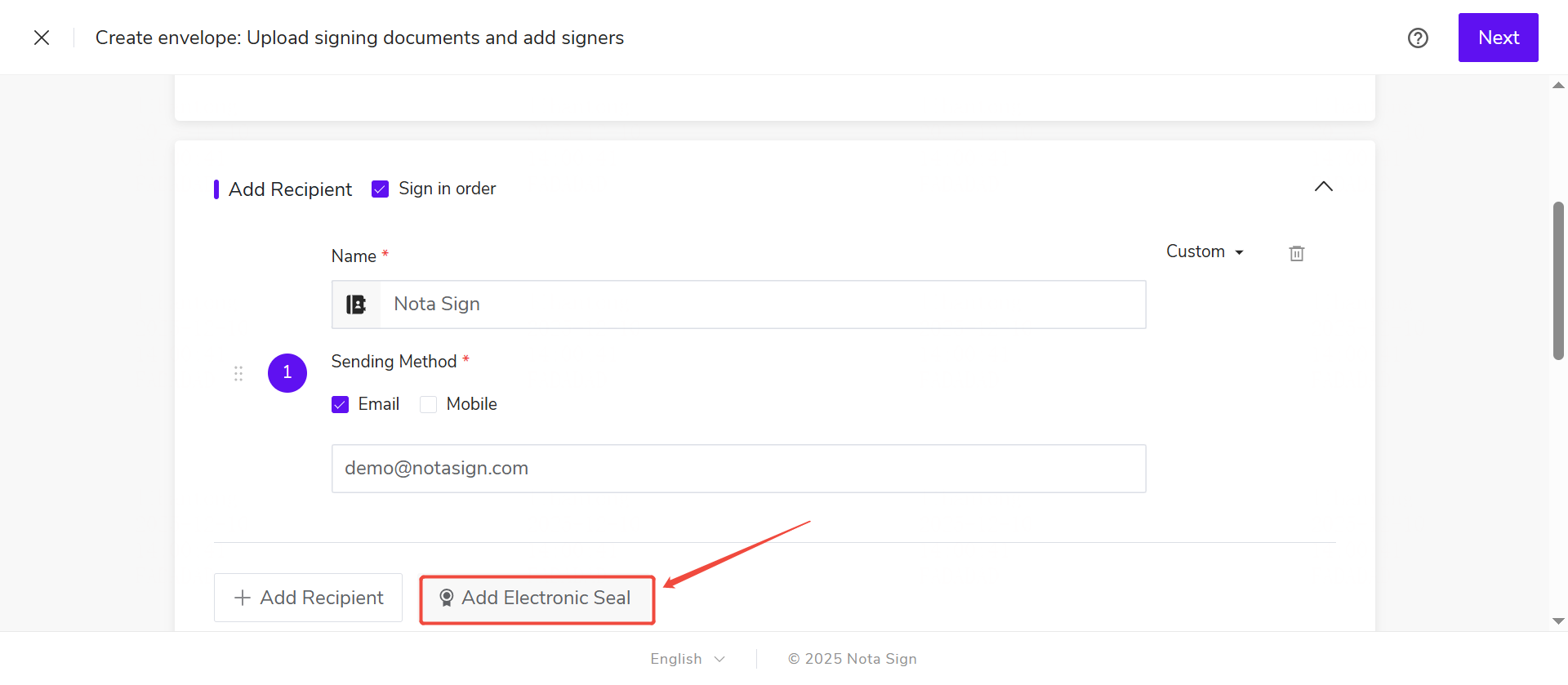
When sending an envelope, there are two ways to use an electronic seal. One is for the sender to apply the seal themselves, and the other is to designate another recipient to apply the seal.
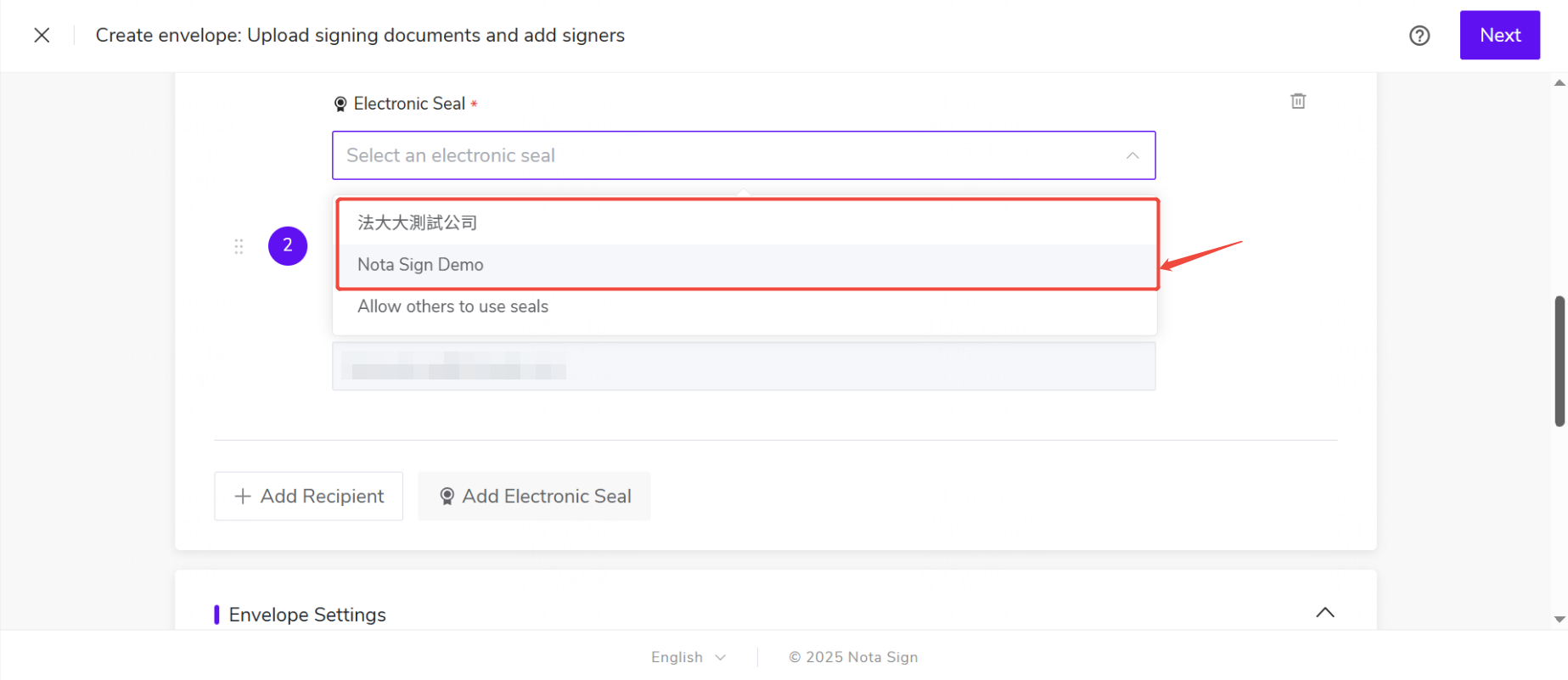
Method 1: Sender Uses the Seal Themselves
- Select the electronic seal to use from the list of authorized seals for the sender.
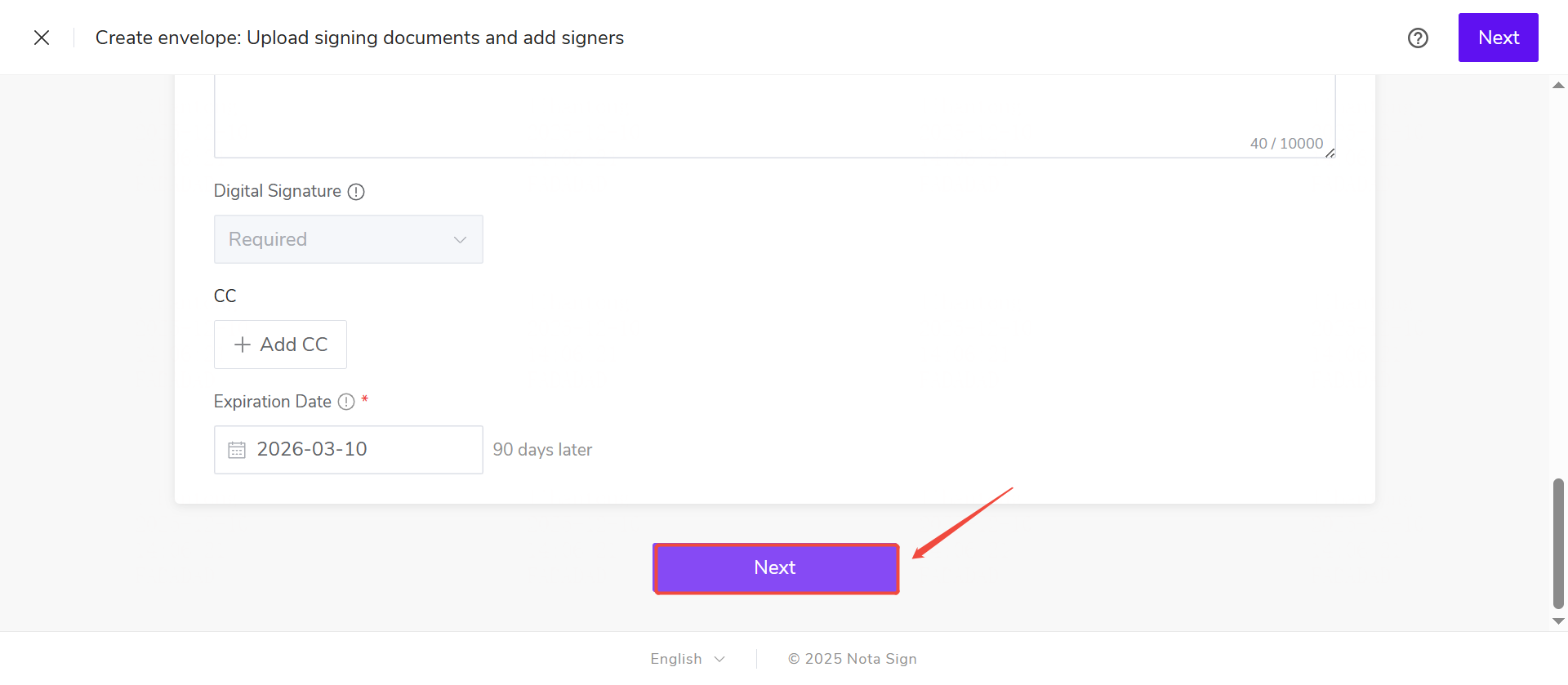
- Click [Next] at the bottom of the page to enter the Widget Settings Interface.
Method 2: Designate Others to Use the Seal
- Select "Designate Others to Use the Seal" from the list.
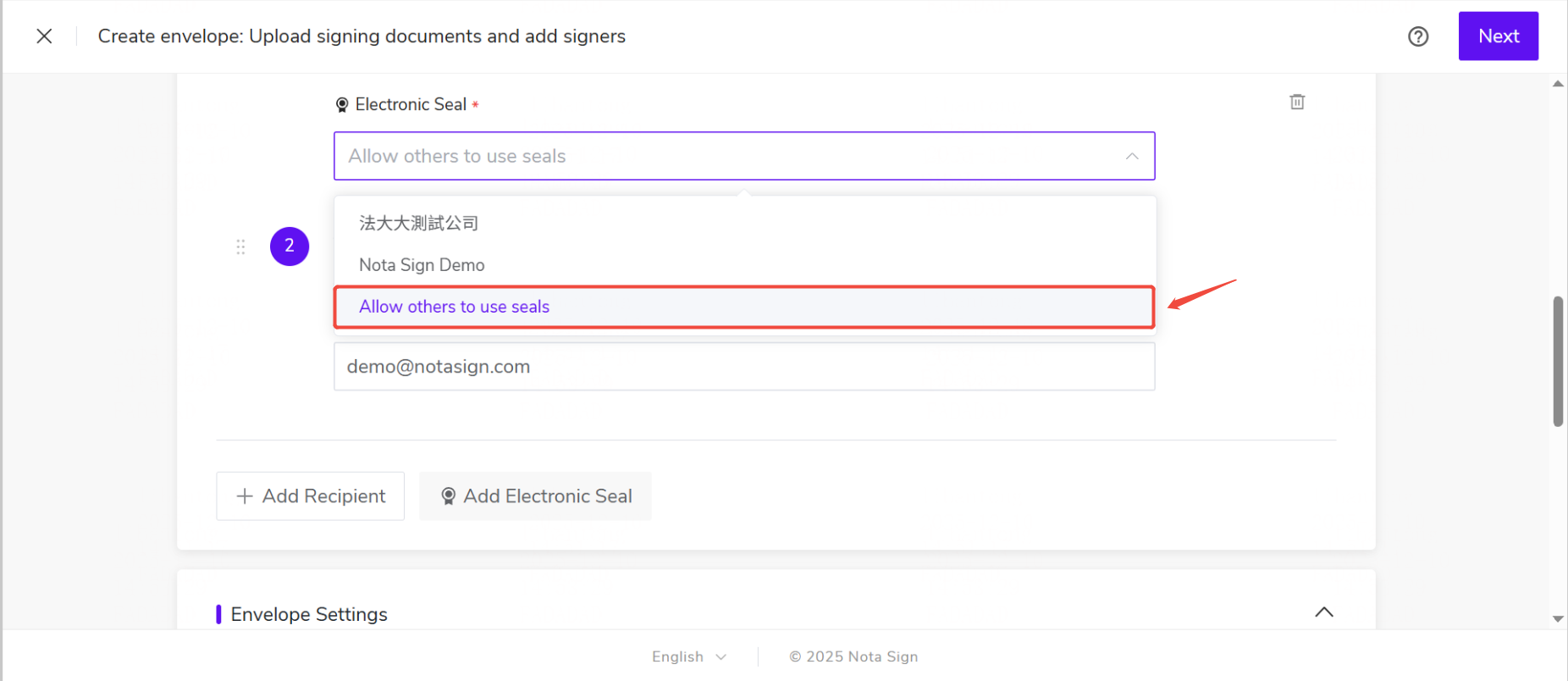
- Enter the authorized email address of the person who will use the seal.
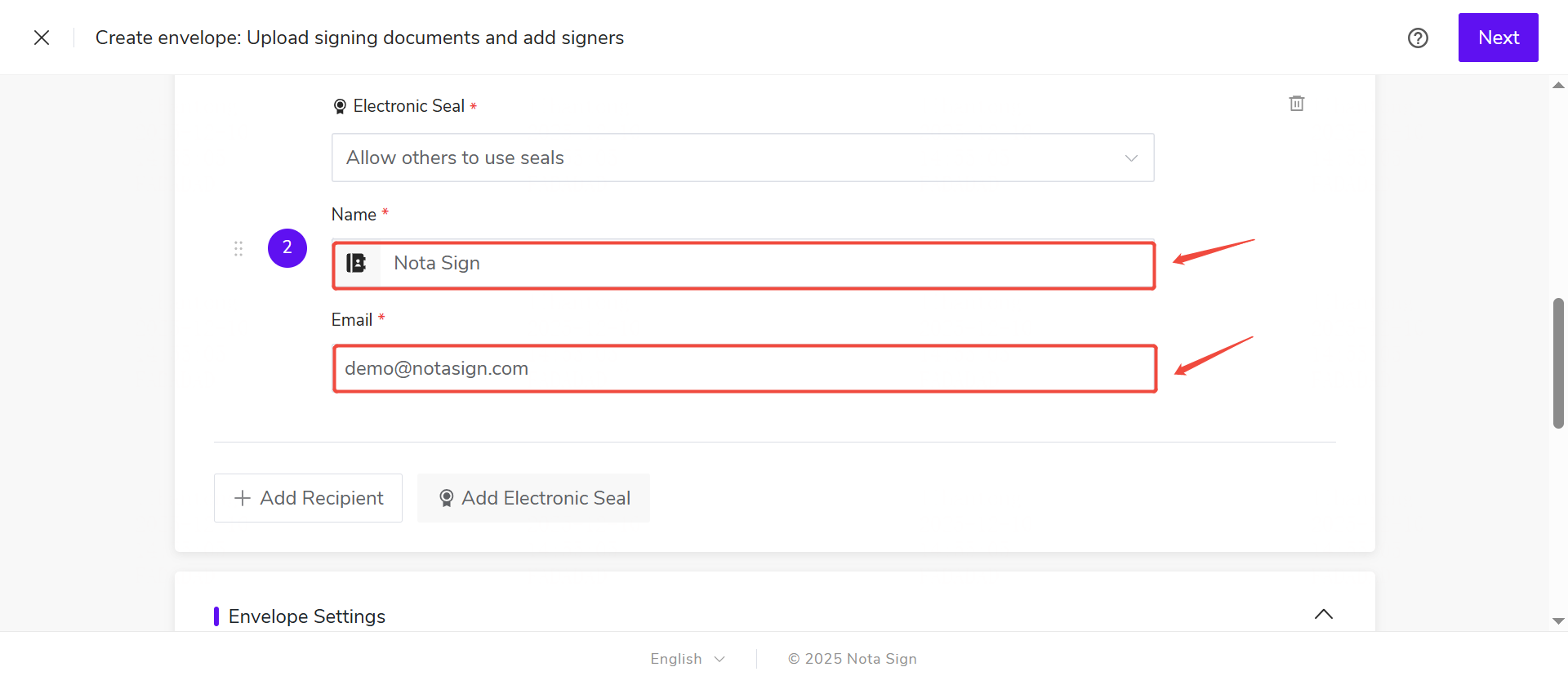
- Click [Next] at the bottom of the page to enter the Widget Settings Interface.
Set Up Electronic Seal Widgets
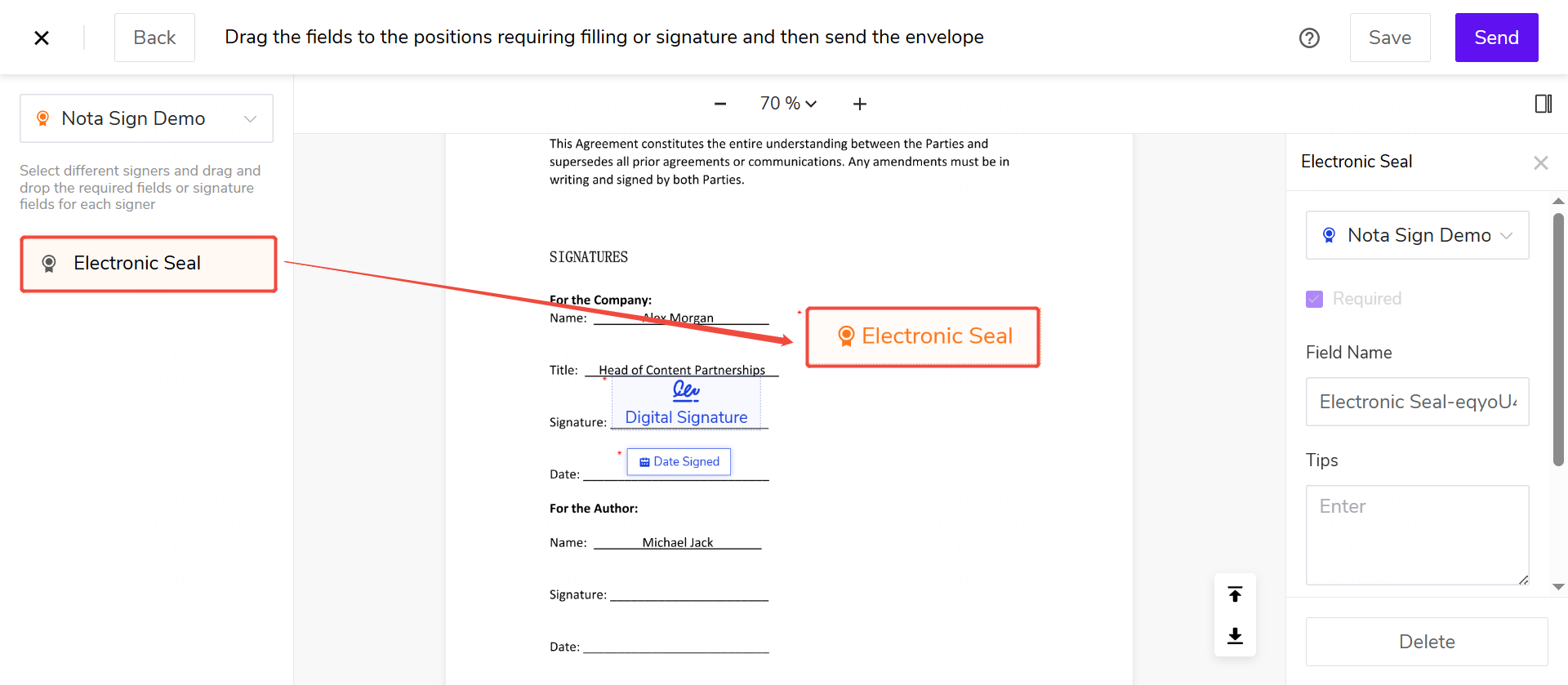
Select the widget from the left-side widget panel; drag it to the corresponding position in the main area of the document.
Send Signing Invitation
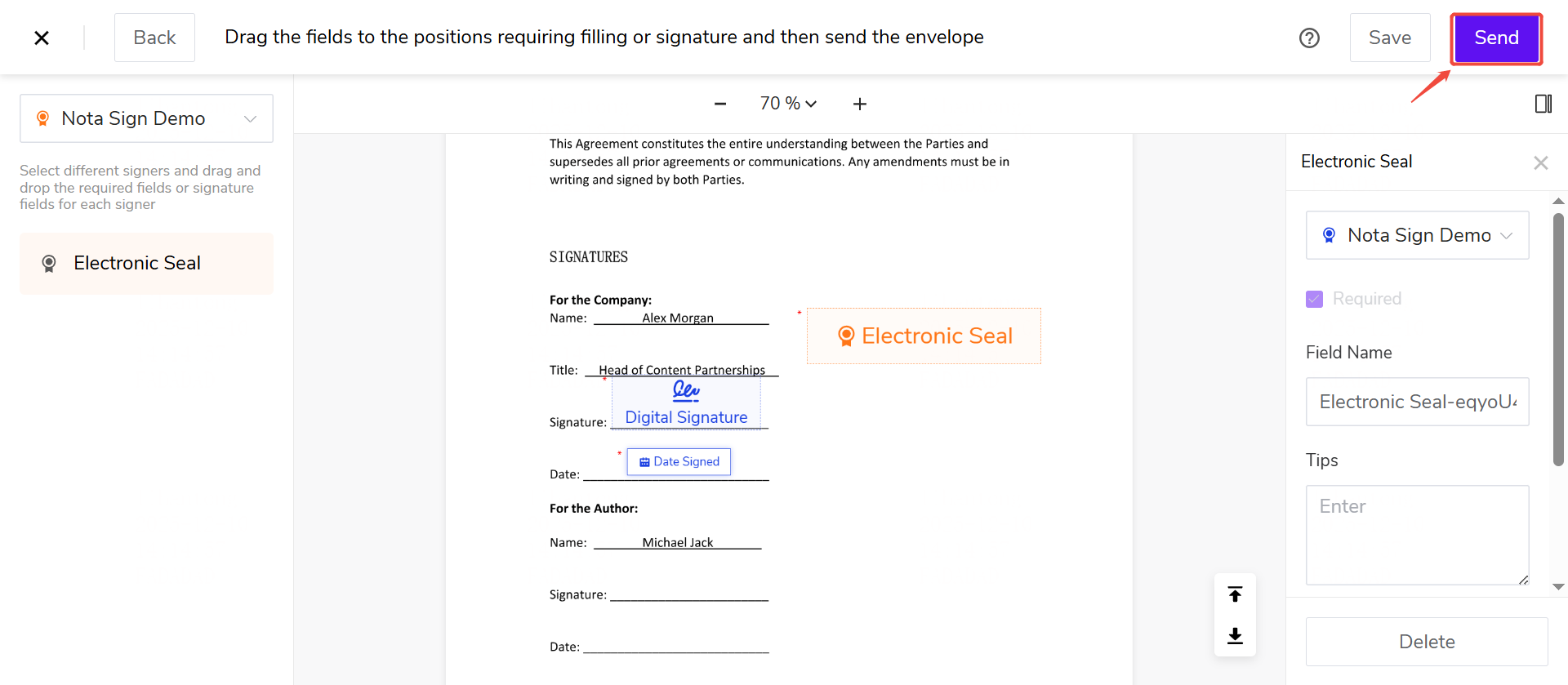
After completing the widget settings, click [Send] in the top right corner of the page to send the envelope.
The recipient(s) will receive a signing email or SMS sent by the system, and can click the link to access the document and sign it.