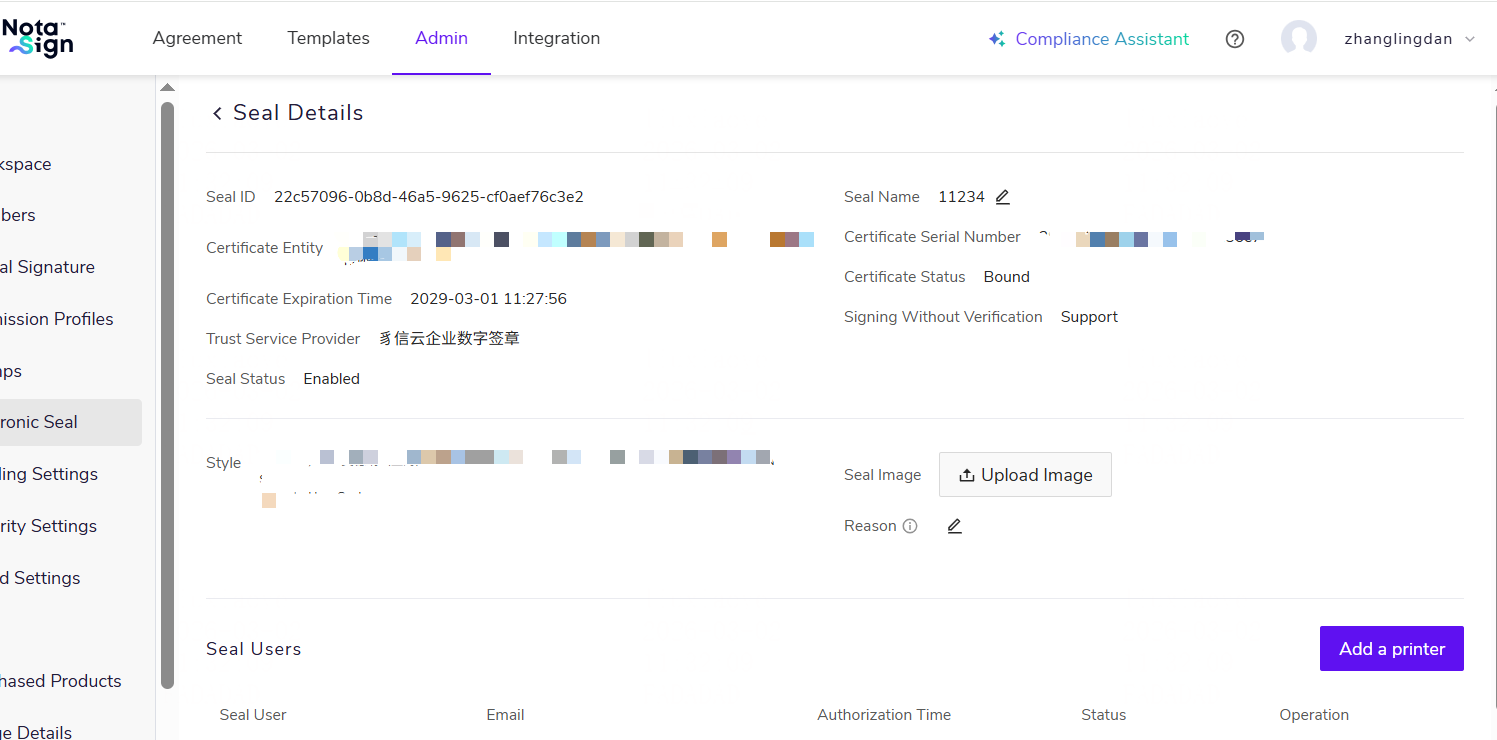
Apply for Zhixin Enterprise Digital Certificate
This function provides officially recognized electronic seal application services for companies registered in Mainland China, serving as a valid digital identity for your enterprise when signing documents.
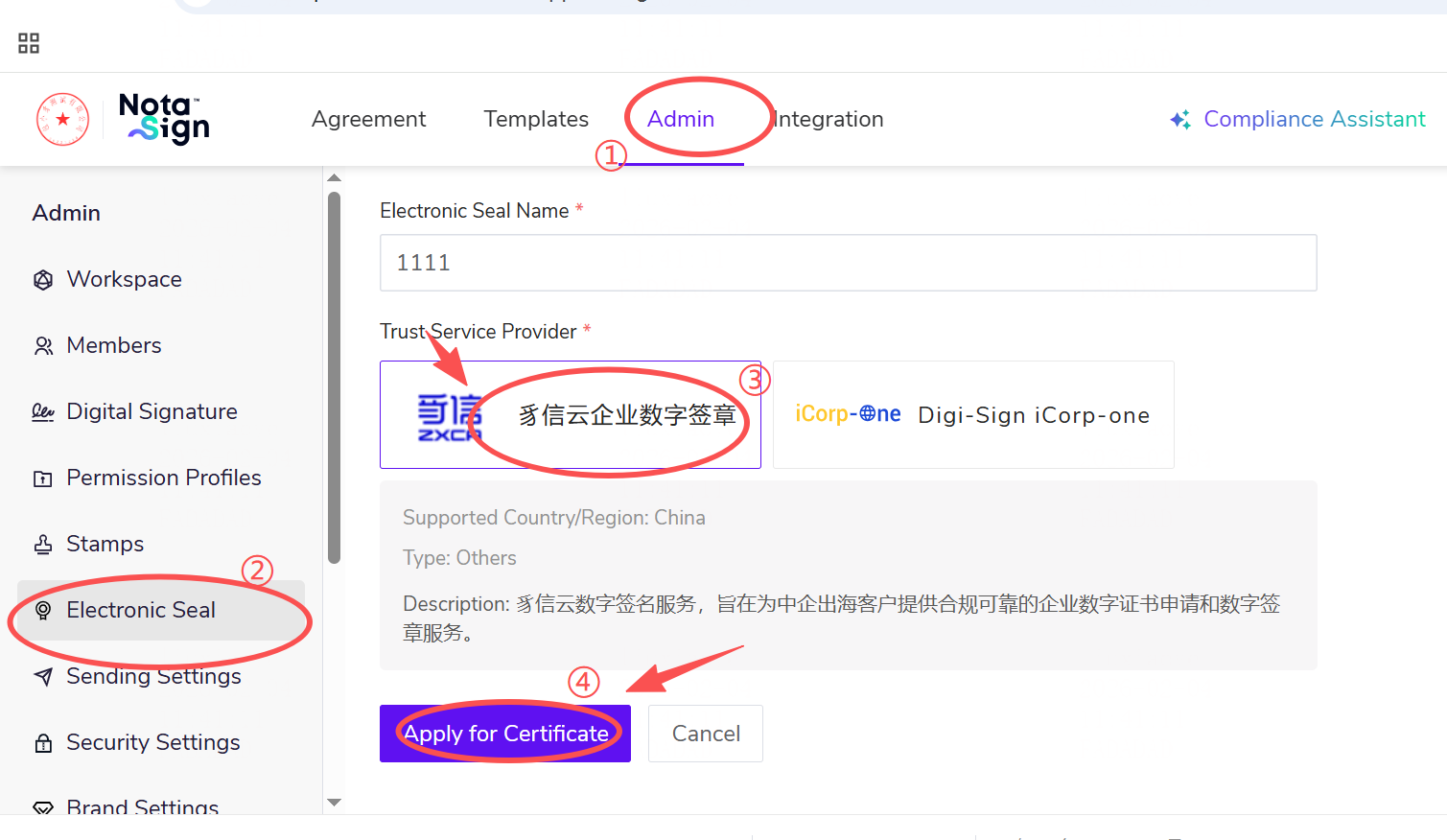
- Click on 【Admin】 in the top navigation bar, select 【Electronic Seal】 from the menu, then choose 【Trust Service Provider】 from the options below. You can select one according to your needs, and finally click 【Apply for Certificate】.
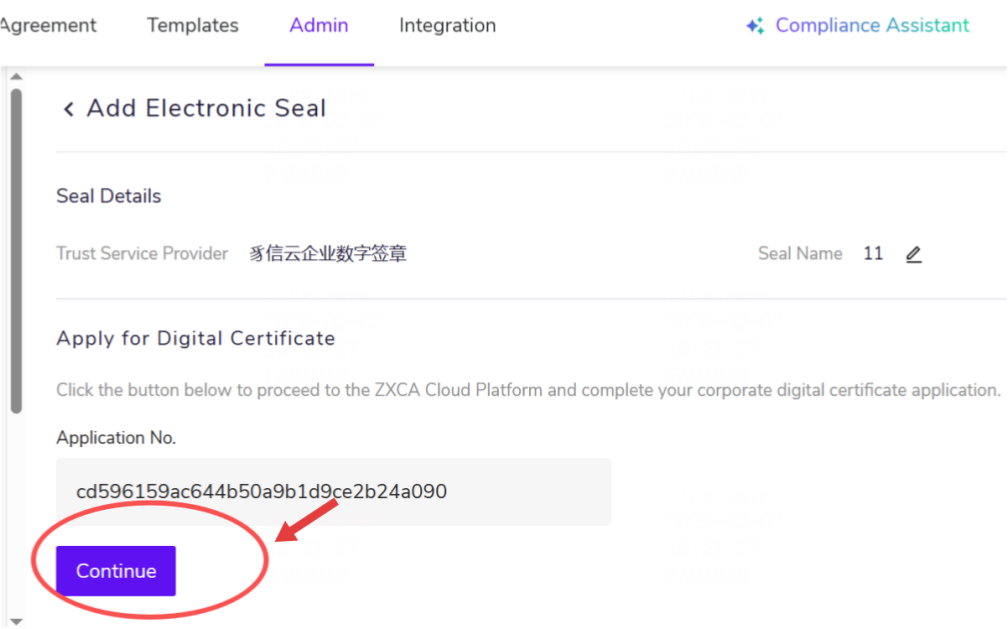
- The page will redirect and generate a 【Certificate Number】, then click 【Continue】 below.
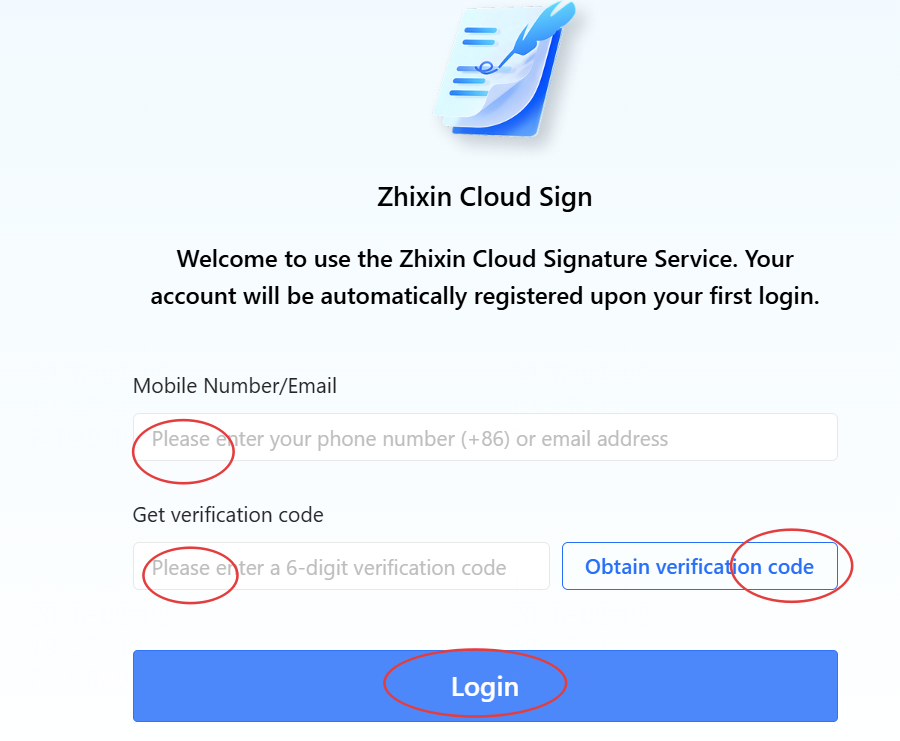
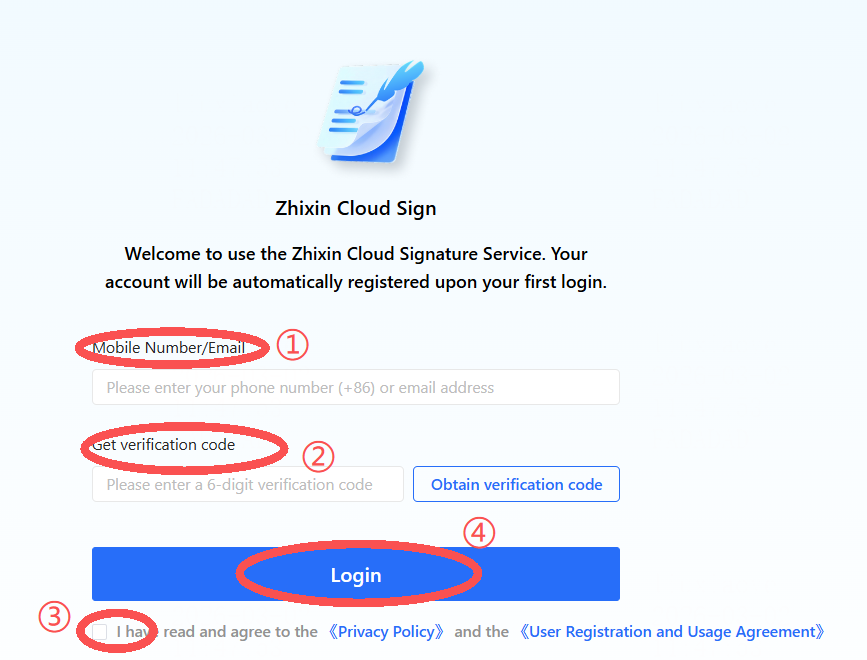
- First-time login will redirect to the Zhixin Cloud login page. Enter your mobile number/email and obtain a verification code to log in.
- After first login, you will be redirected to the personal information authorization interface. Fill in the relevant personal authentication information. There are three verification methods: 【Face Recognition Authentication】; 【Mobile Number Authentication】; 【Bank Card Authentication】. You can freely choose, agree to the relevant agreements, and then click 【Next】.
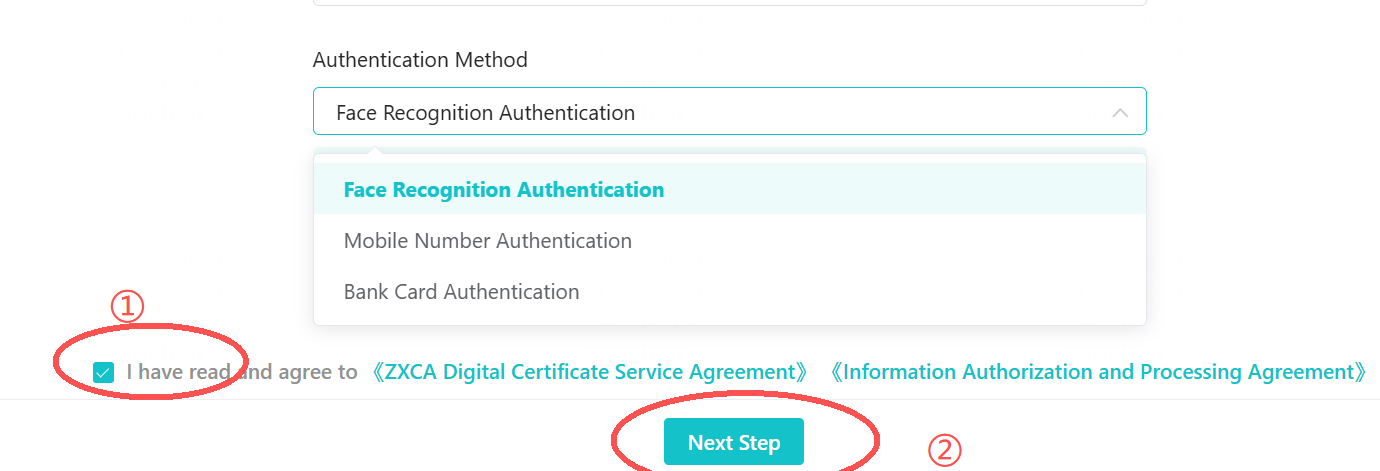
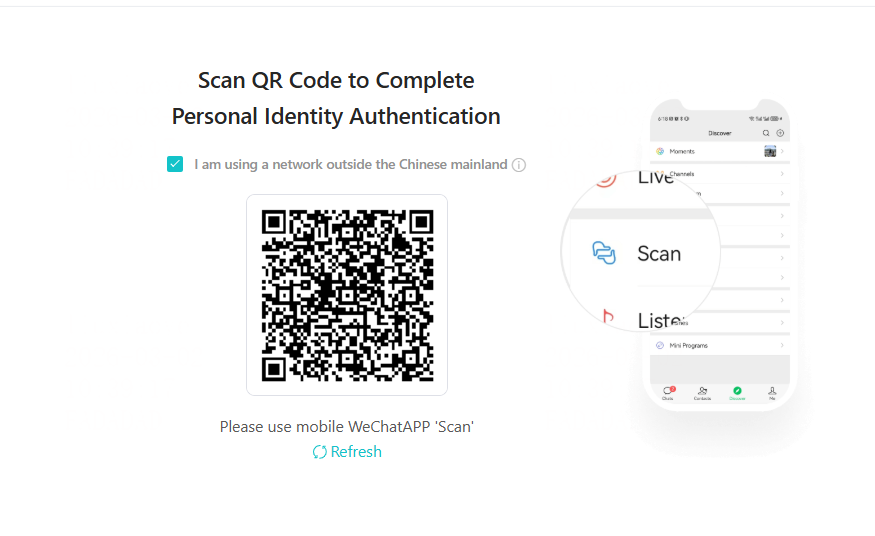
- Scan the QR code with your mobile phone to complete the personal information authorization process.
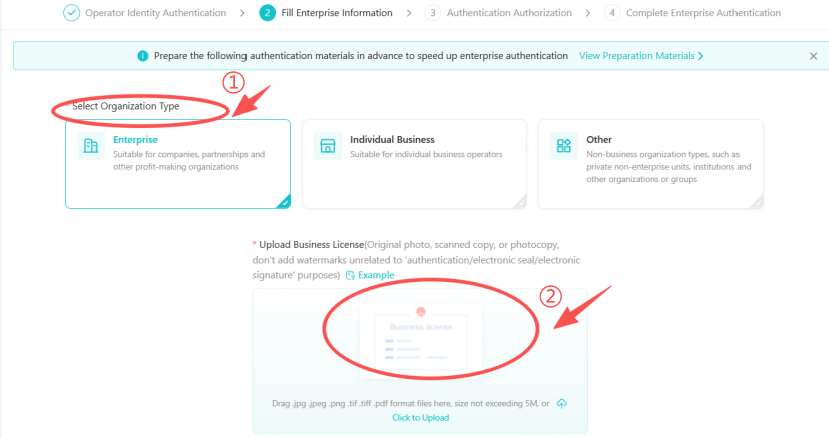
- After personal information authorization, you will automatically be redirected to the enterprise certification step. Select the organization type and upload the relevant business license. The system will automatically recognize the 【 Enterprise Full Name】, 【Unified Social Credit Code】, and 【Legal Representative】 fields and auto-fill them.
 Then click 【Next Step】, and you will automatically be redirected to the 【Authorization and Certification】 step. The system defaults to selecting 【Invite Legal Representative for Online Authorization】. You can change the authorization method in the upper right corner.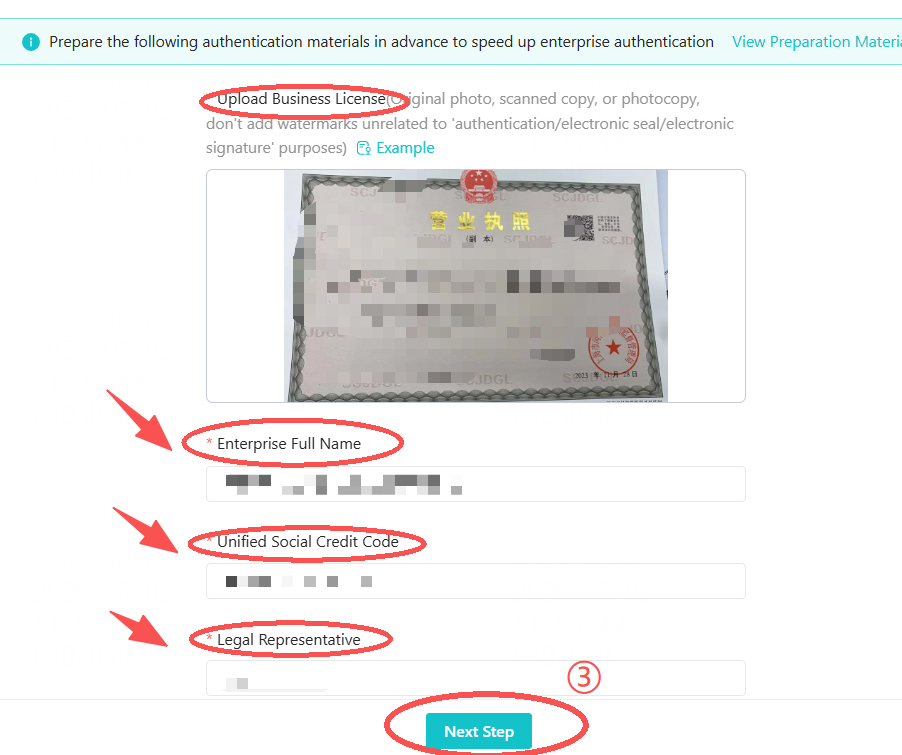
- In the upper right corner of the page, you can choose three different authorization methods, including 【Invite Legal Representative for Online Authorization】 (results available in about 3 minutes), 【Corporate Account Verification Transfer Verification】, and 【Mail Authorization Letter Original Verification】.
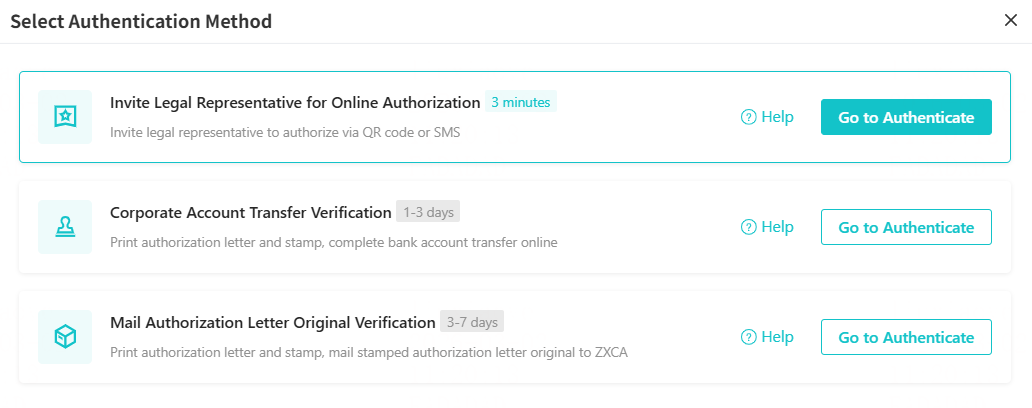
- Under the 【Invite Legal Representative Authorization】 verification method, invite the legal representative for authentication via 【QR Code Invitation】 or 【SMS Invitation】.
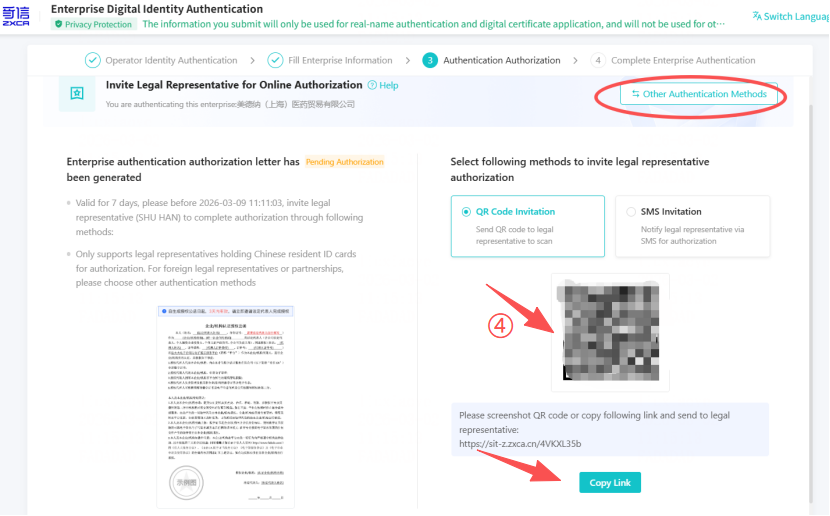
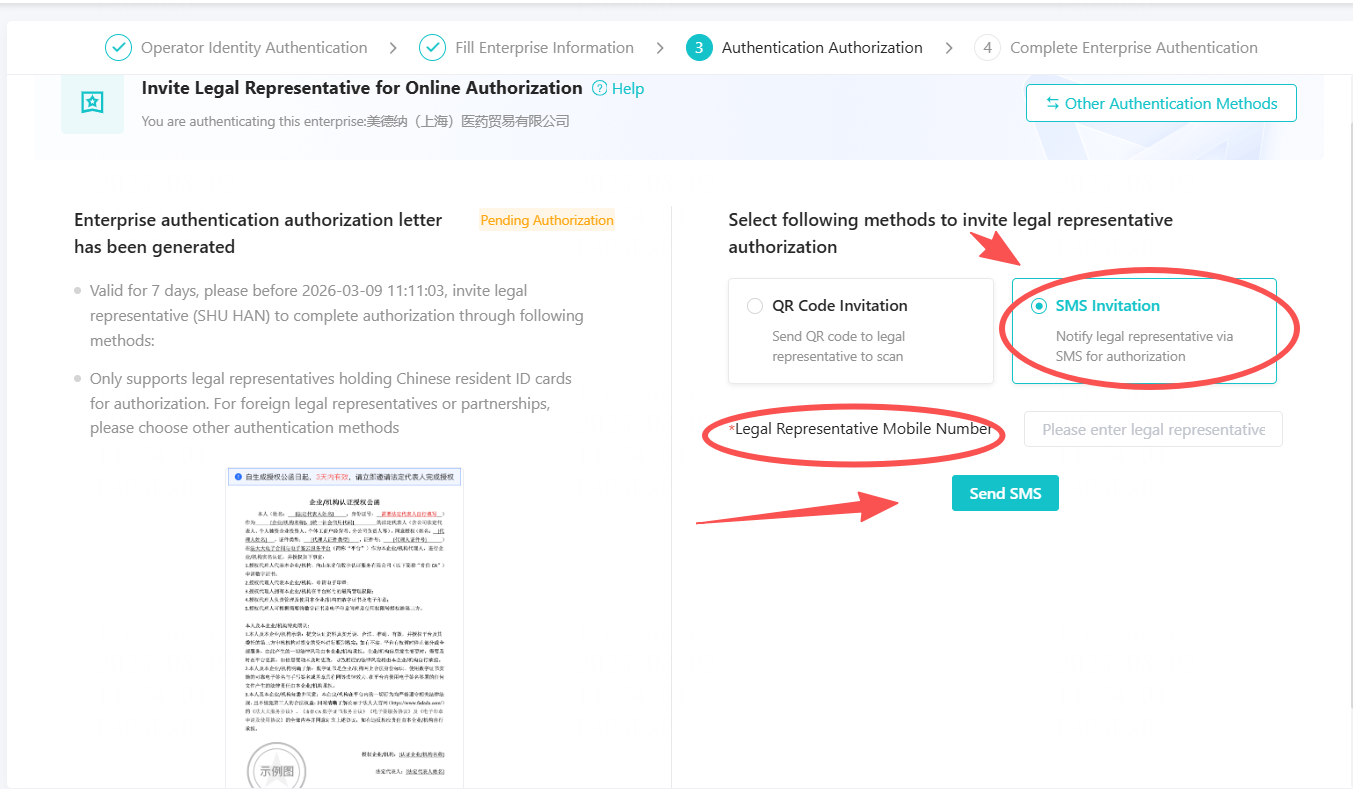 After entering the verification page, complete the operations in sequence.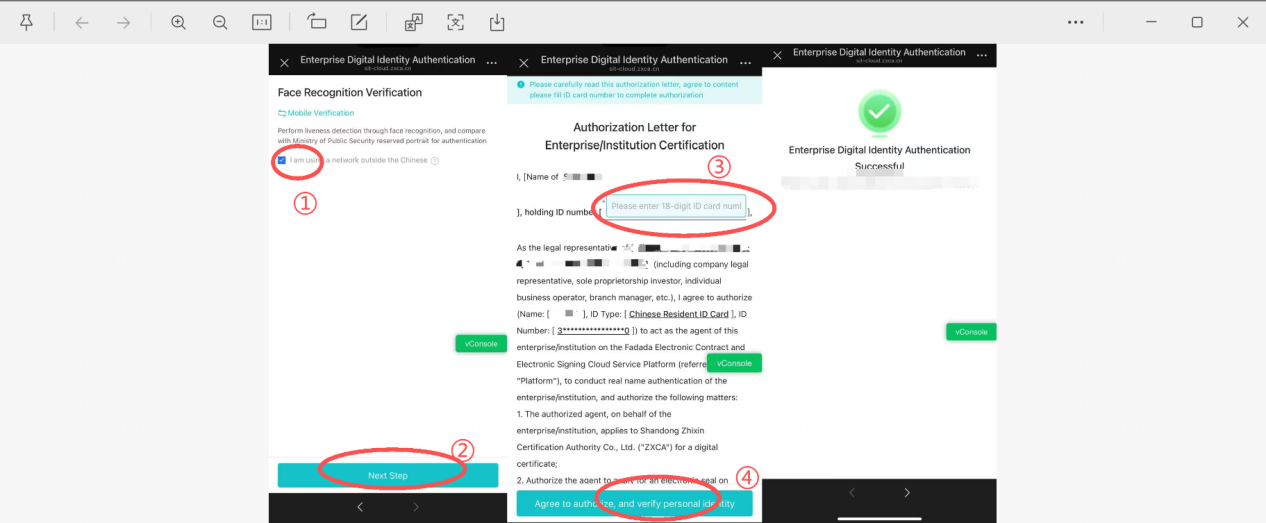
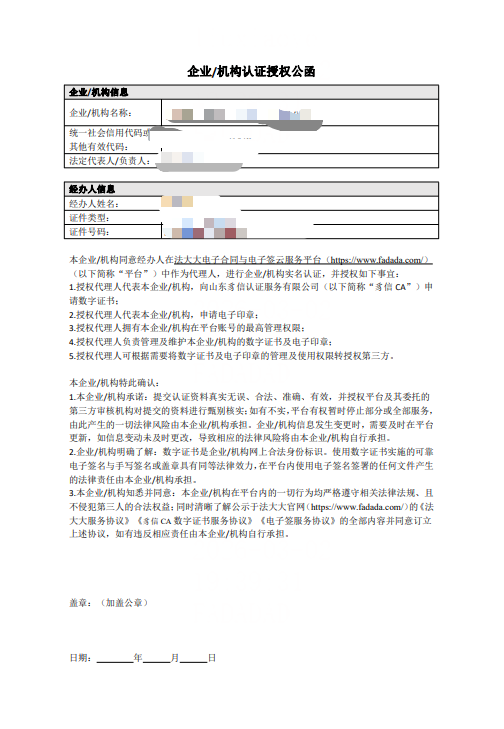
- Under the 【Corporate Account Verification Transfer Verification】 method, download the authorization letter and affix the seal. Then take a photo or scan it and upload it here to submit for verification. You can choose between two different transfer methods: "Zhixin platform will transfer a random amount to your corporate account" or "Use your company's corporate account to transfer a specified amount to the Zhixin platform". And fill in the relevant information.
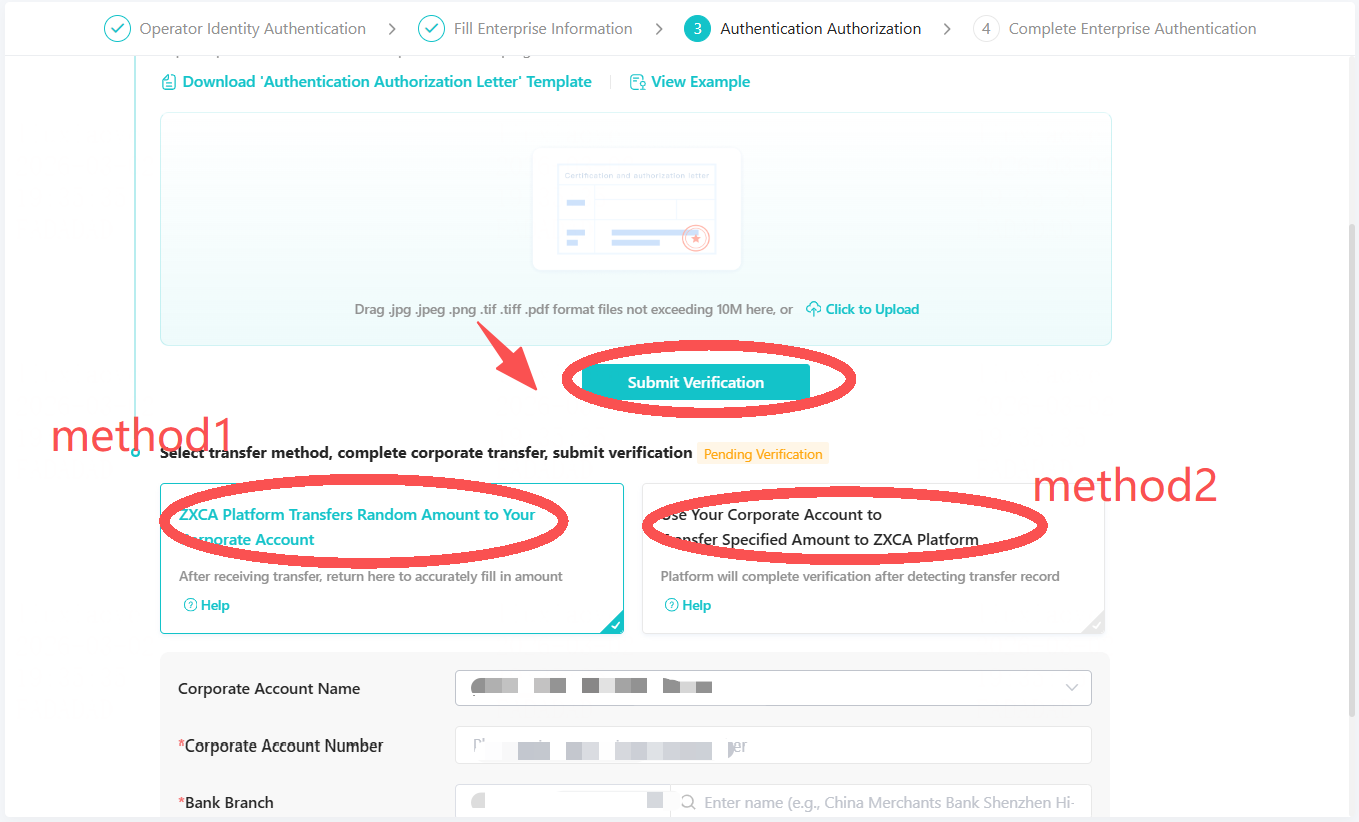 After submitting all information, wait for backend review to complete the relevant certification.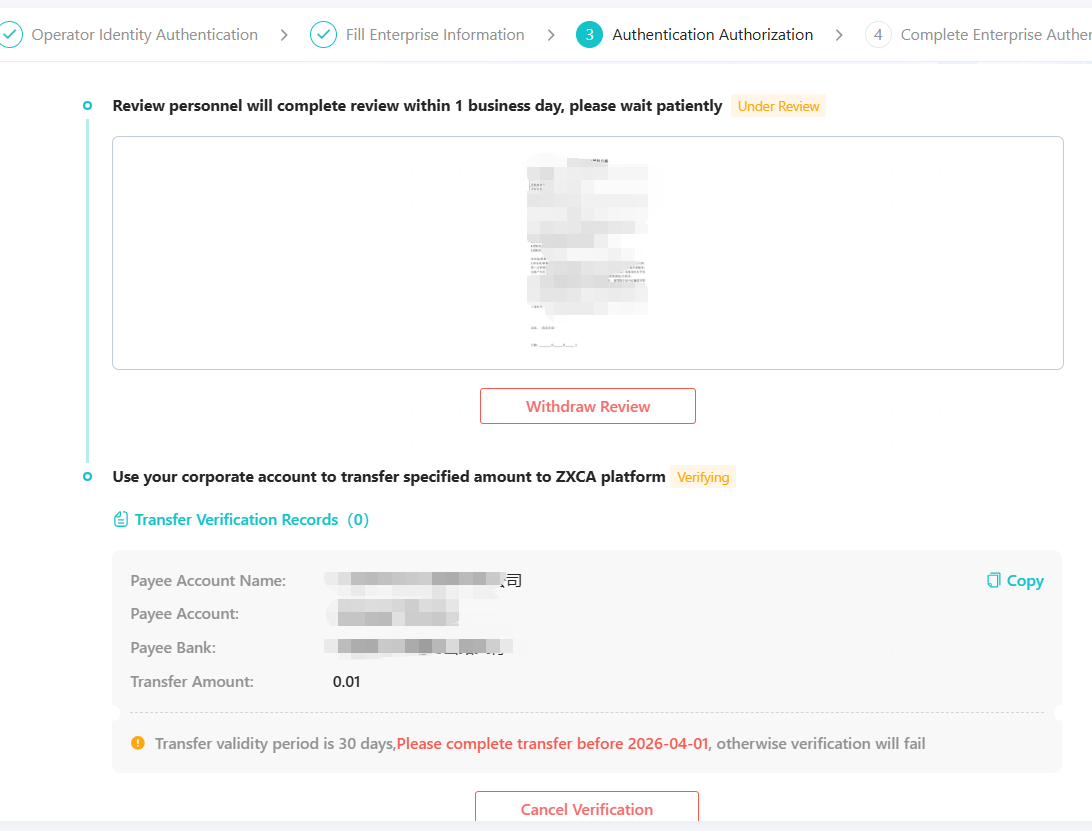
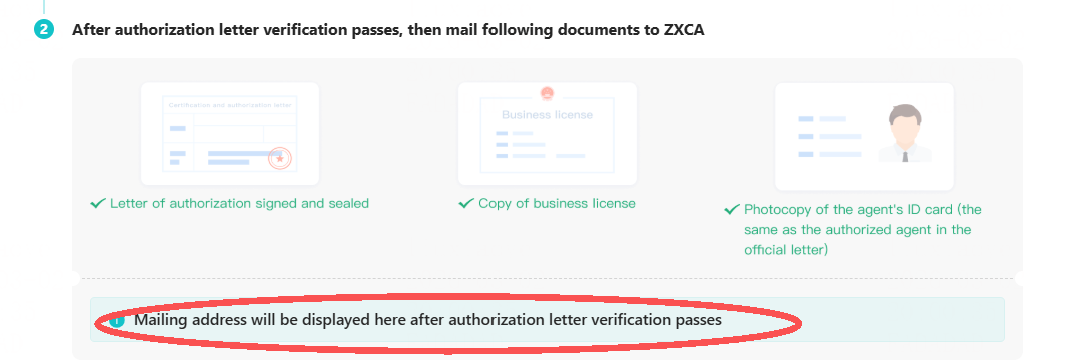
- Under the 【Mail Authorization Letter Original Verification】 method, download the authorization letter and affix the seal. Then take a photo or scan it and upload it to the system to submit for verification. After the authorization letter is verified, mail the following documents to Zhixin: 【Signed and stamped authorization letter, copy of business license, copy of the handler's ID card (must be consistent with the authorized handler in the letter)】.
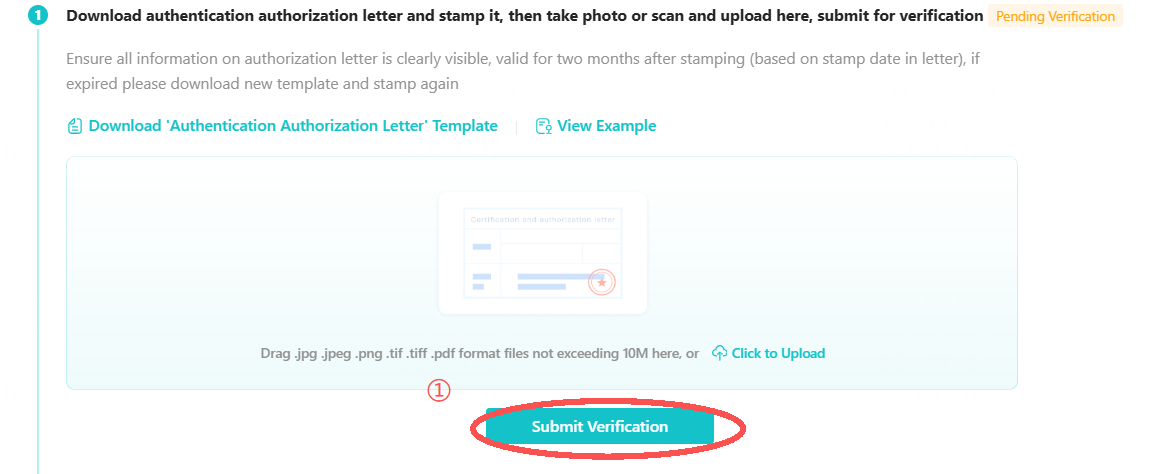
- After the authorization is confirmed to be correct, the system will automatically redirect to the Zhixin Cloud login interface. Upon successful authentication, the final authorization is completed.
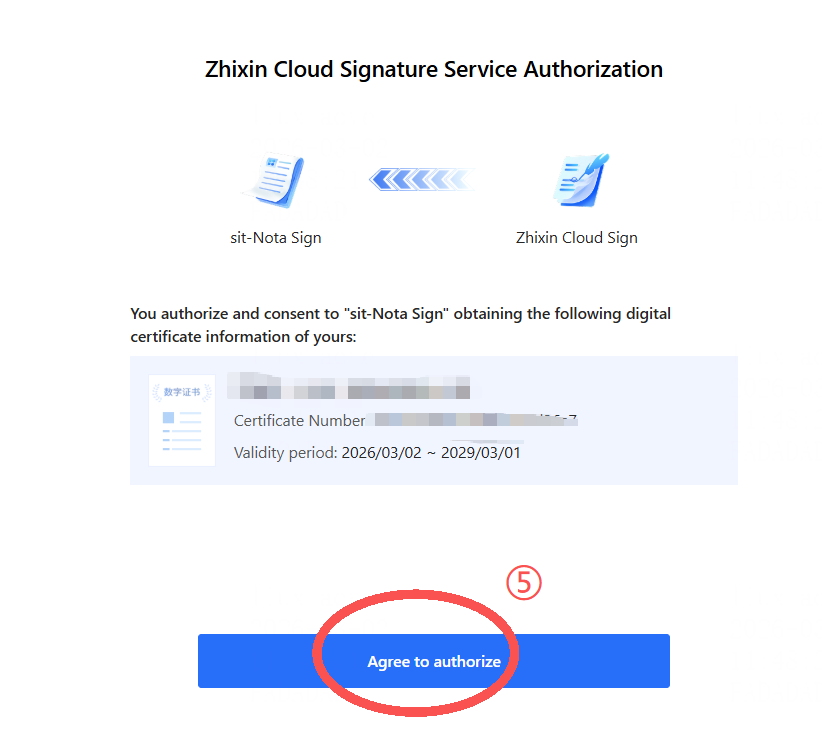
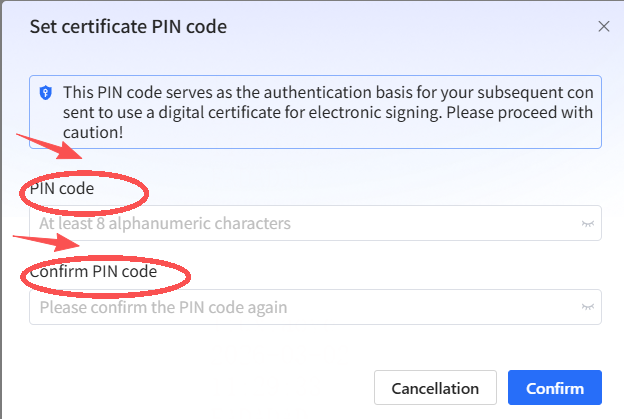
- After the initial authorization is completed, you need to set a PIN code. This PIN code will be used as the identity verification basis for your subsequent consent to use the digital certificate for electronic signatures. Please choose it carefully.
- After setting the PIN code, you will automatically be redirected to the successful application interface. The seal has been added and can be used subsequently without reapplying.