
Configuring SSO Mapping
Automatic Mapping Configuration:
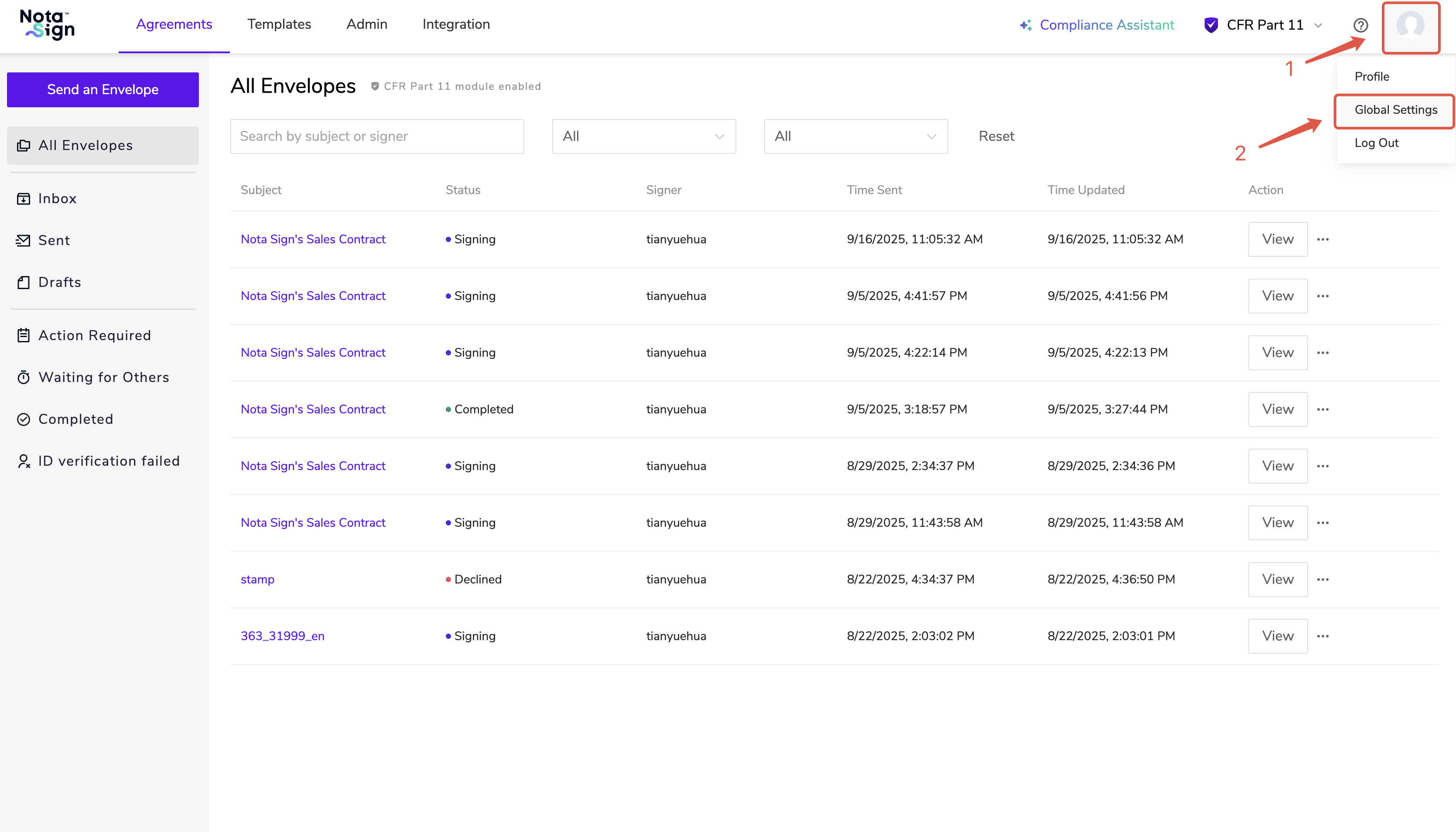
- Log in to your Nota Sign and click Global Settings;
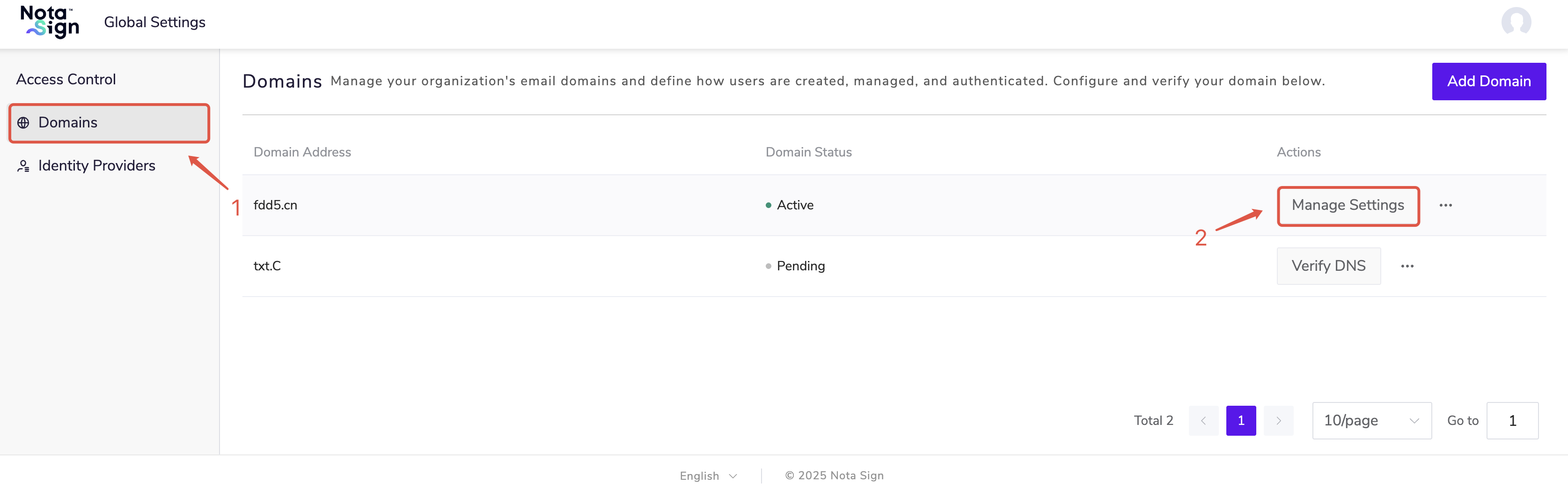
- On the Domains page, click Manage Settings;
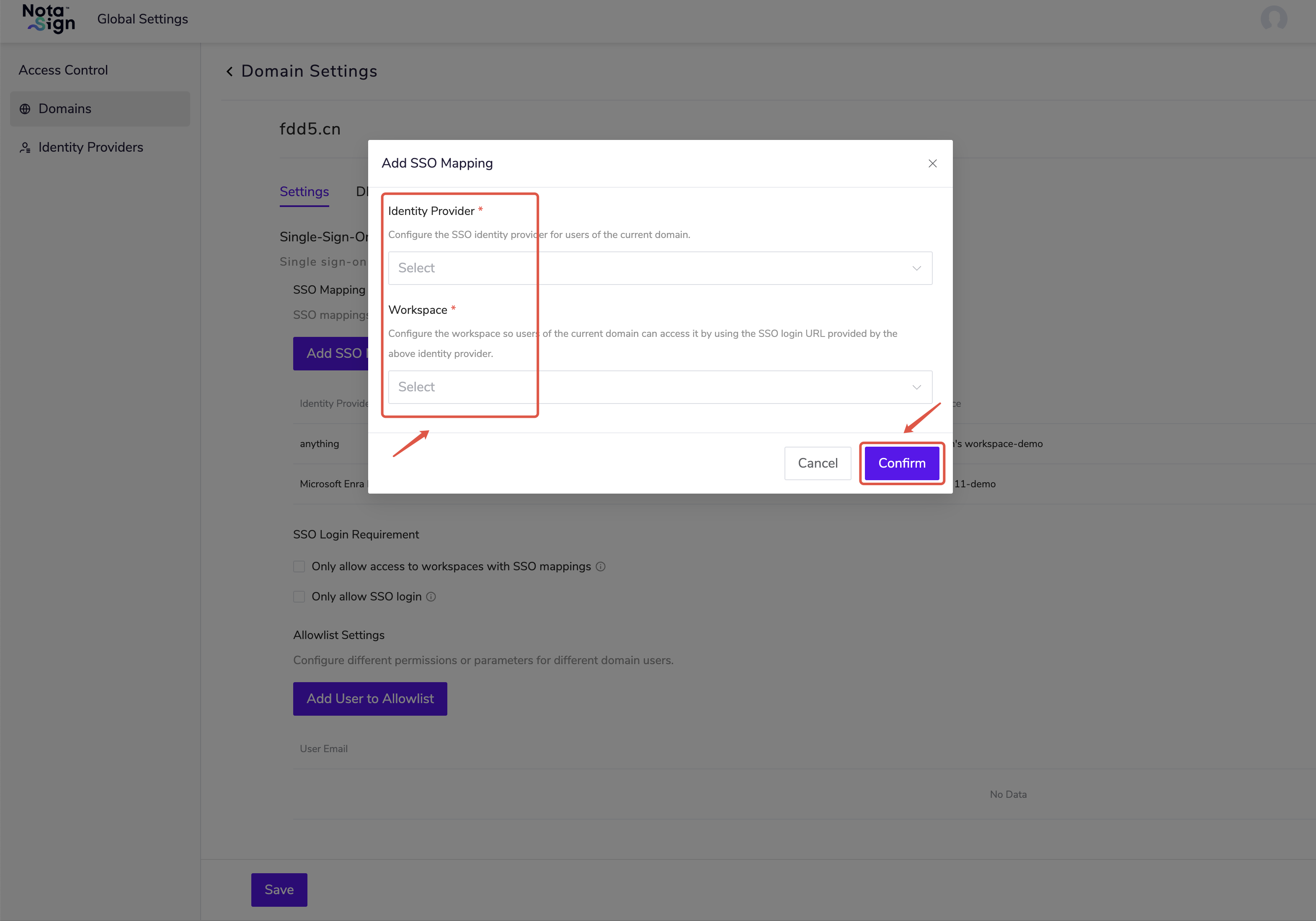
- On the Settings page, select Add SSO Mapping, and define the default workspace for members logging in under different IdP domains;
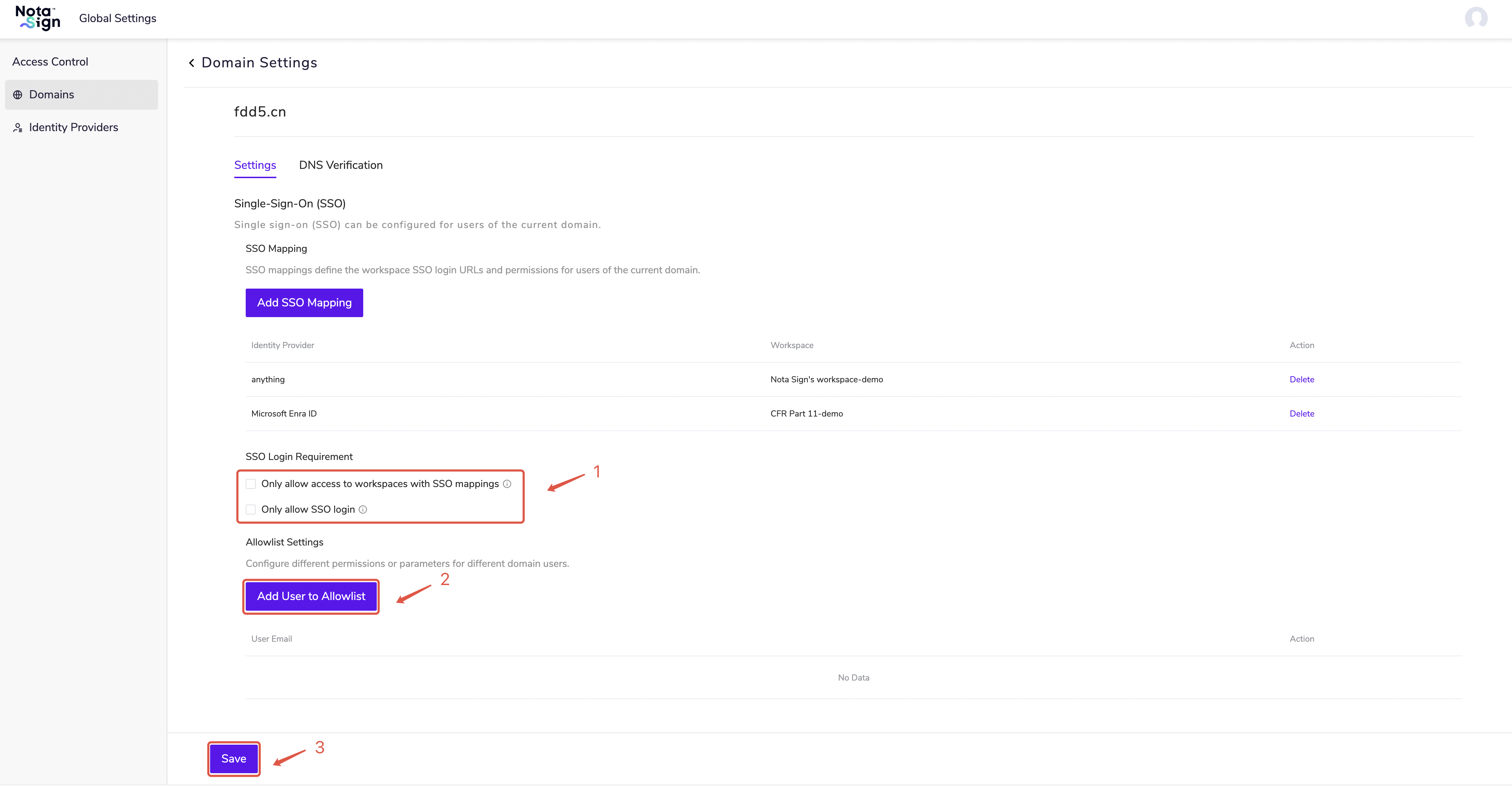
Based on your requirements, select whether to Only allow access to workspace with SSO mappings or Only allow SSO login;
Click Add User to Allowlist to configure login permissions for specific users under the IdP domain;
Click Save to complete the configuration.
- The administrator sends invitations to domain users within the corresponding workspace. Domain users who have not been invited do not have permission to access the workspace. When users log in via SSO, the system will automatically create a Nota Sign account for them. -
- When users log in via SSO, the system will automatically create a Nota Sign account for them, and based on the mapping, assign them to the designated workspace with default roles (e.g., Administrator, Sender). -
- If Only allow access to workspace with SSO mappings is checked, members will not be able to access their personal workspace.-
- If Only allow SSO login is checked, members will no longer be able to log in to Nota Sign using username and password. -