Downloading Signed Documents and Audit Reports
Method 1: From the Completion Page
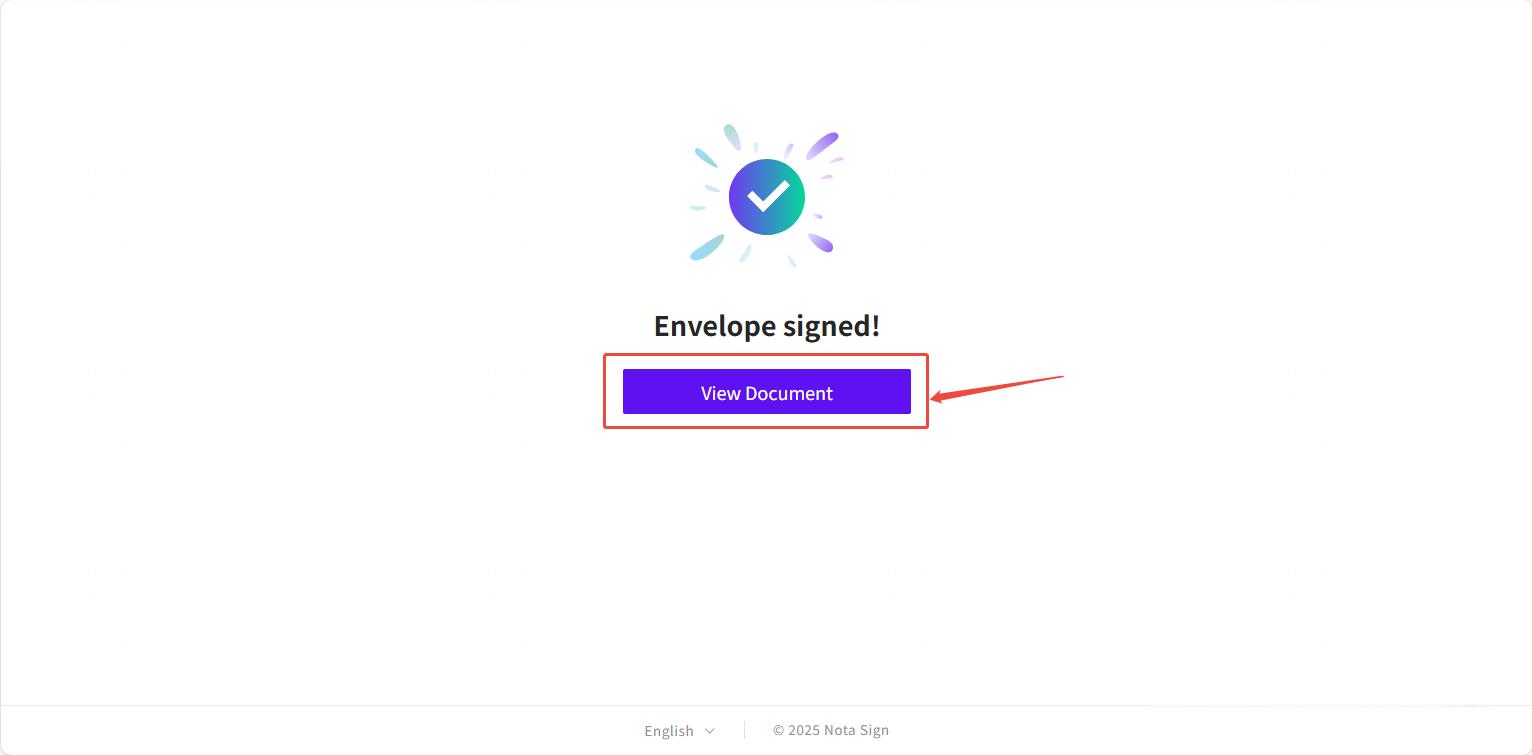
After signing, click View Document on the completion page.
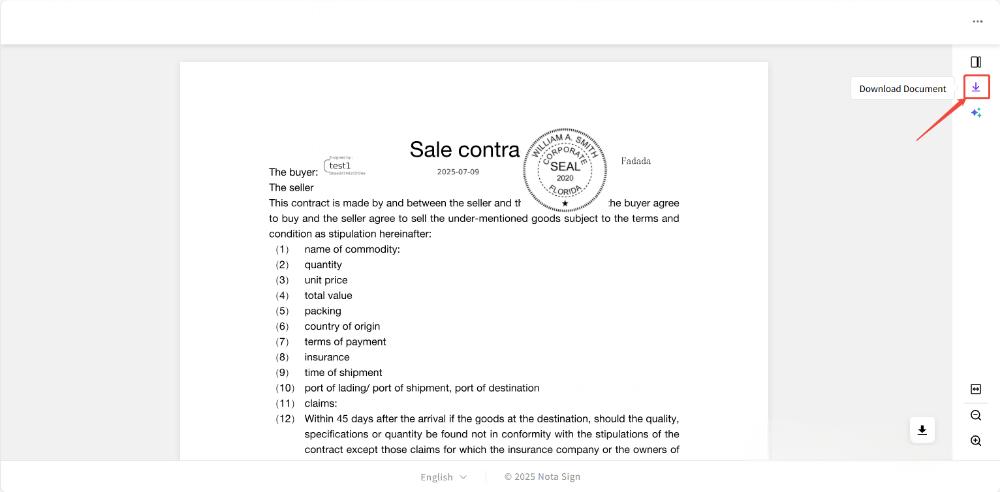
In the document viewer, click the Download button (right side) to save the signed document and signing record report.
Method 2: From the Email Attachment
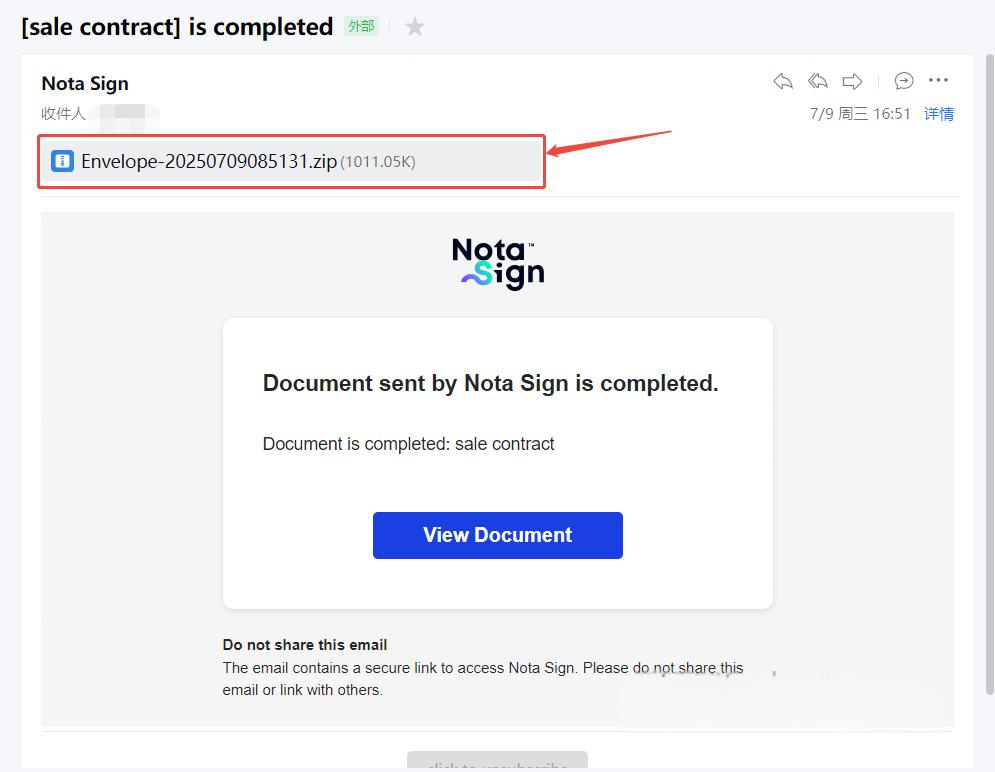
Open the completion notification email sent to the sender.
Download the attachment.
Method 3: From the Email Notification
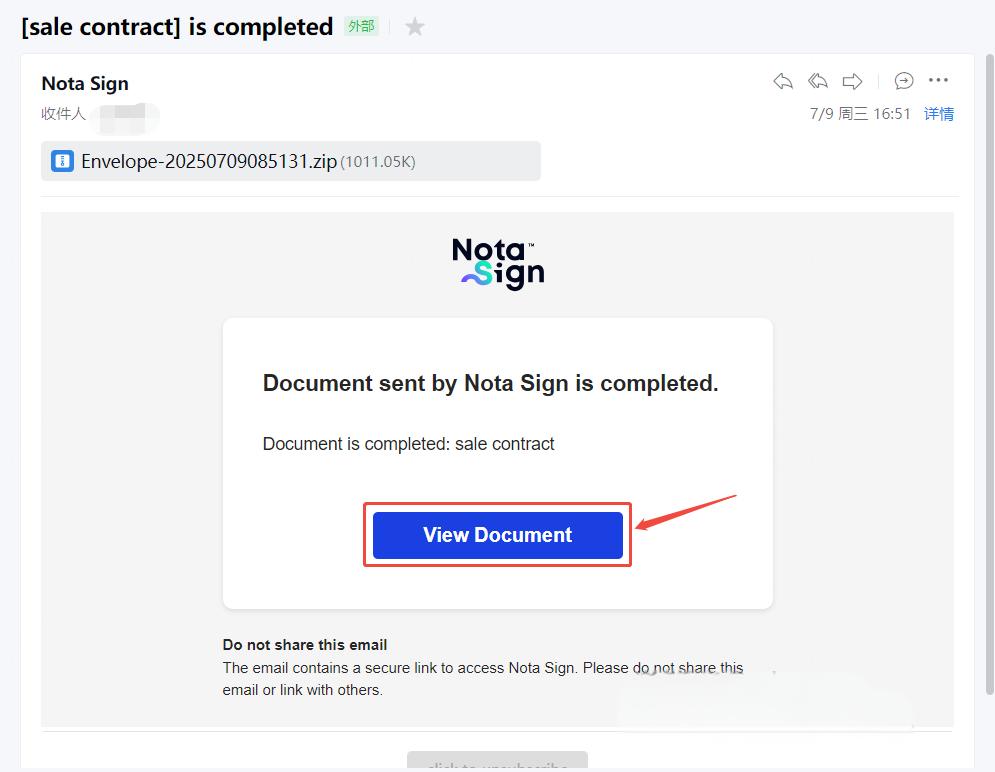
Open the completion notification email and click View Document.
In the document viewer, click the Download button (right side) to download the files.
Method 4: From the Agreements Page
Log in to Nota Sign Dashboard.
Navigate to Agreements.
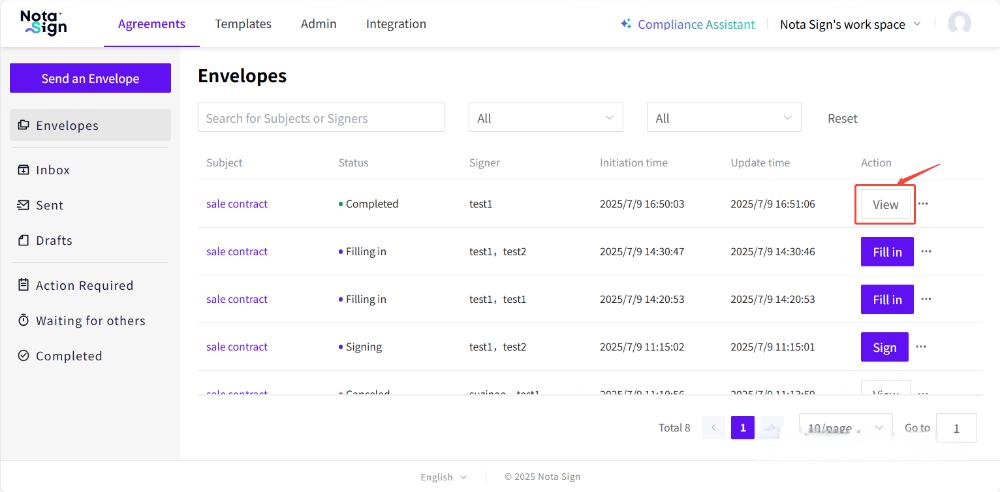
Locate the completed envelope in the list and click View.
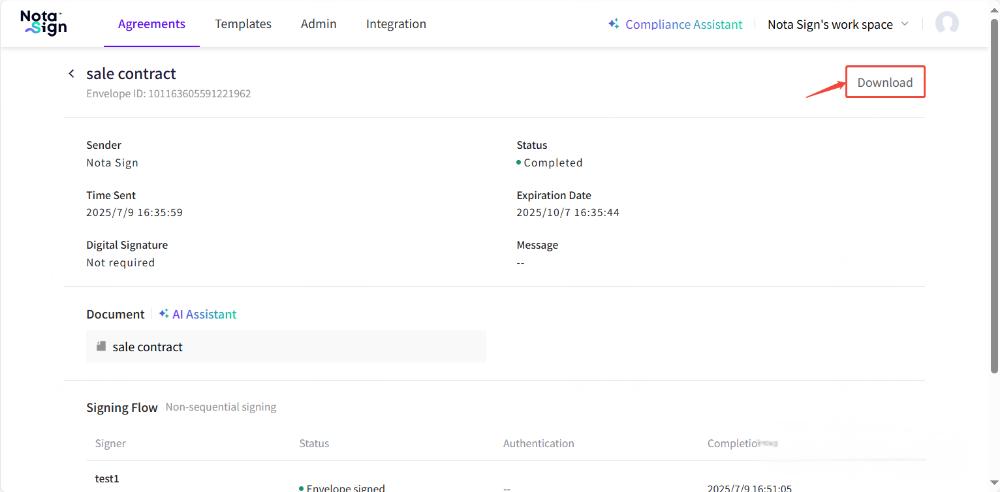
In the envelope details page, click Download (top-right corner).