
Switch Workspaces
Overview
Nota Sign supports multi-workspace management, allowing you to seamlessly switch between different teams, projects, or client environments. Whether you're collaborating across departments or managing multiple independent workflows, workspaces help you quickly isolate and access the relevant content—ensuring precise operations and clear data separation.
How to Switch Workspaces?
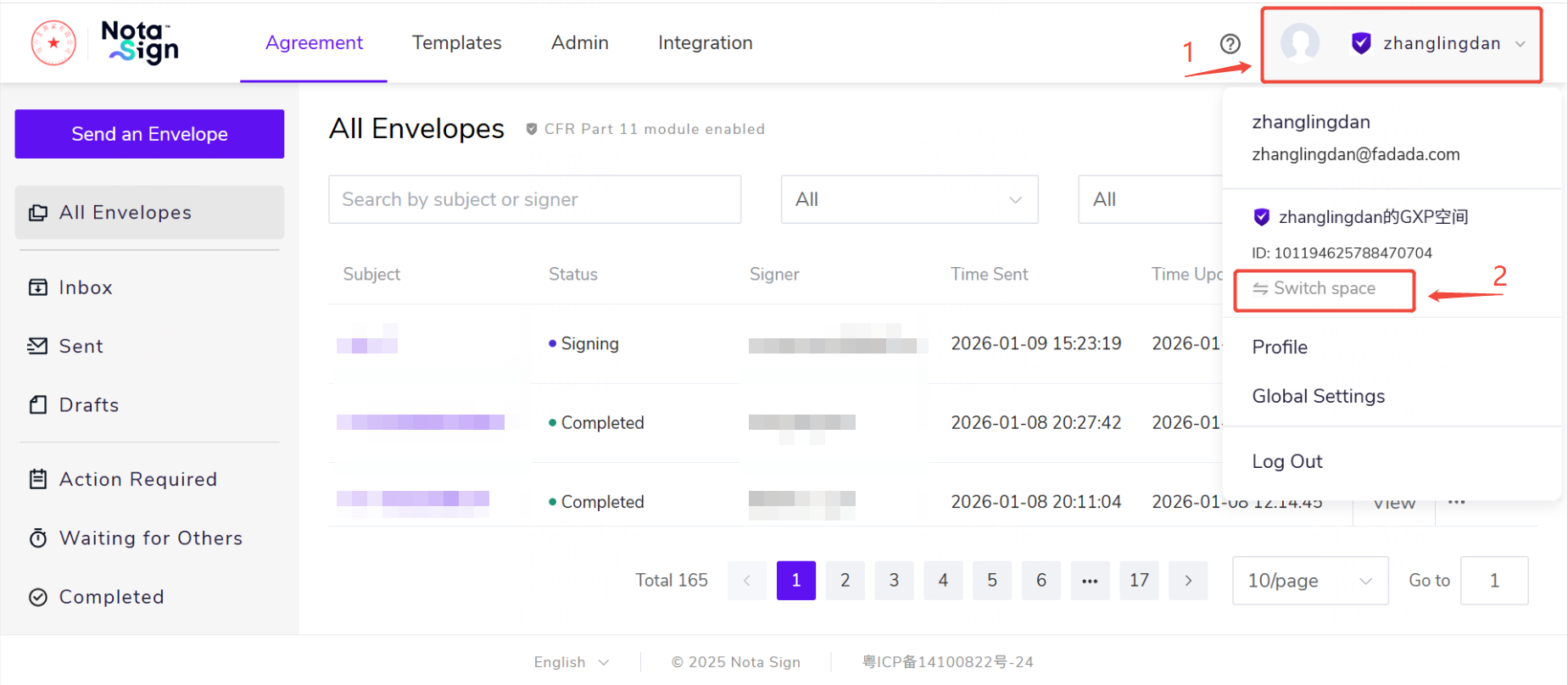
- Click your profile avatar in the top-right corner of the page, then select Switch Workspace from the dropdown menu.
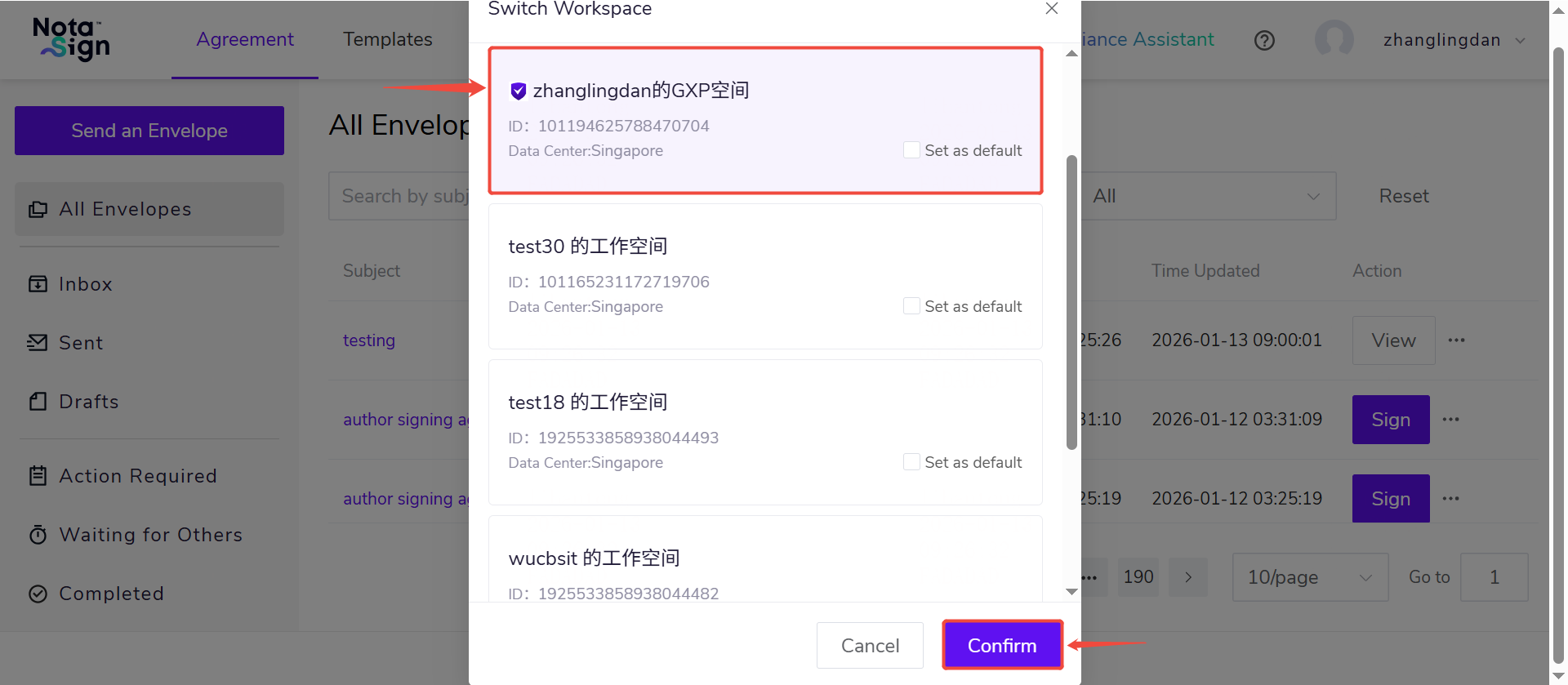
- Click the target workspace you'd like to switch to. The change takes effect immediately.
Note:
• Only workspaces where you have an assigned role (as a member or administrator) will appear in the workspace switcher.
• Switching workspaces does not affect your permissions or any work previously saved within each environment.