Signing Preferences
To better align with corporate unified management standards and reduce the operational costs and compliance risks associated with individual document sending, Nota Sign supports global Signing Preferences configuration on the admin side.
Through this feature, administrators can uniformly restrict which methods (such as hand-drawn, typed input, or uploaded images) recipients can use to complete signatures for envelopes sent within this workspace.
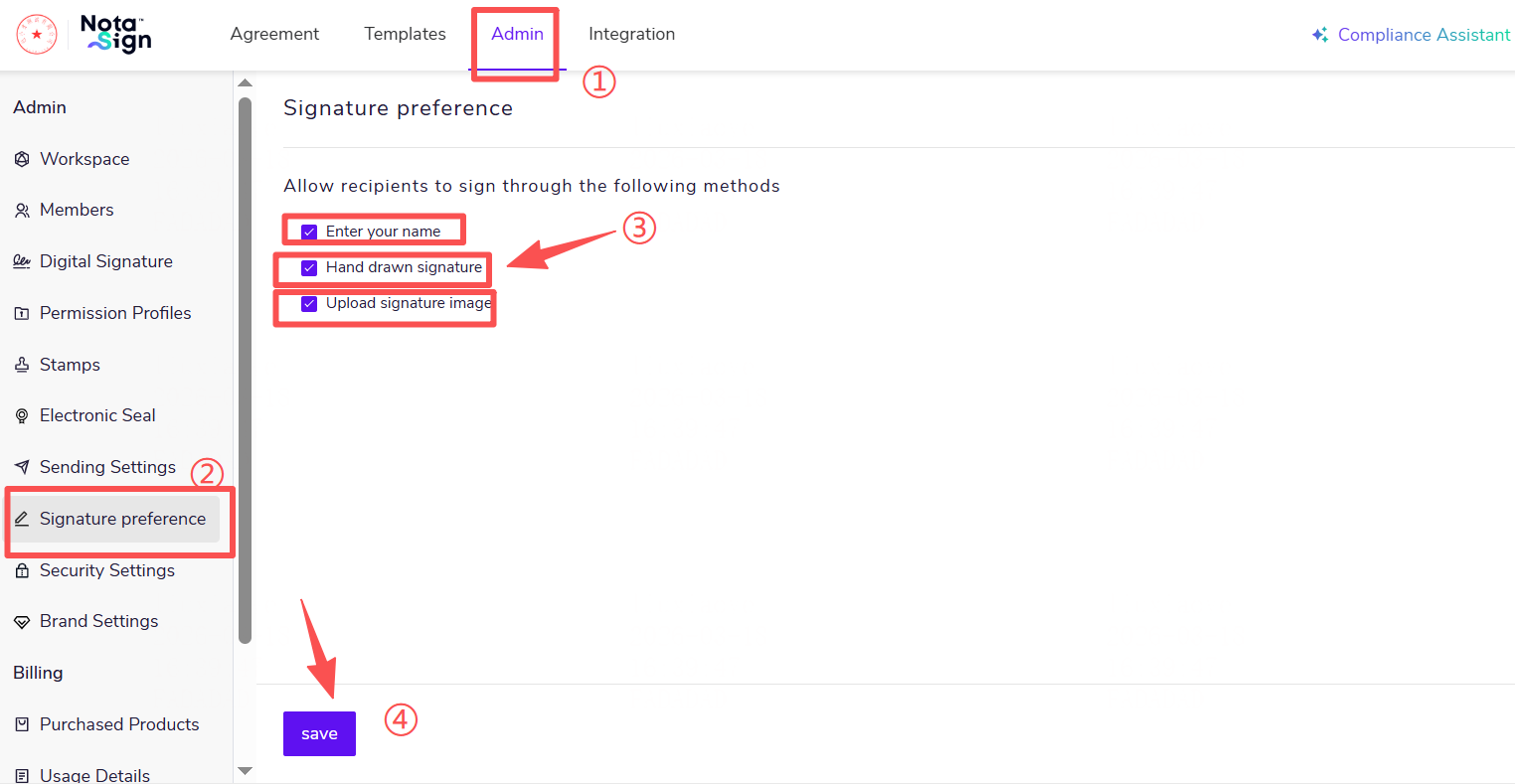
- Click Admin in the top navigation bar to enter the admin view.
- Click Signing Preferences in the left menu bar.
- Check or uncheck the signature methods you allow recipients to use:
After making changes, click the Save button at the bottom left corner of the page for the settings to take effect.
The following are multiple signature setting formats for reference:
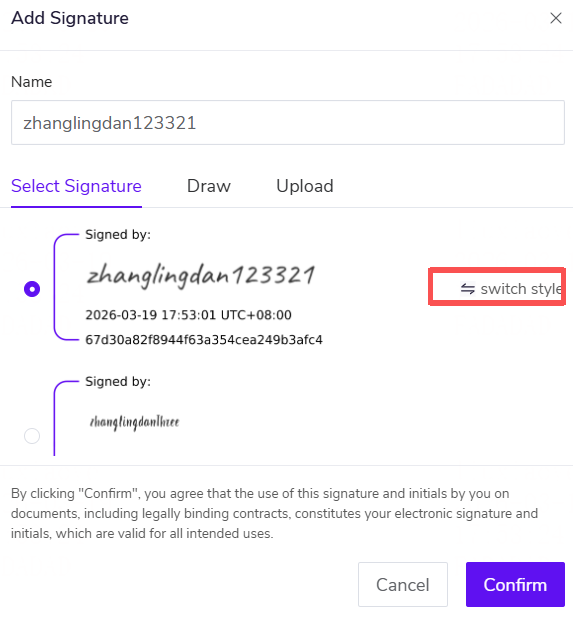
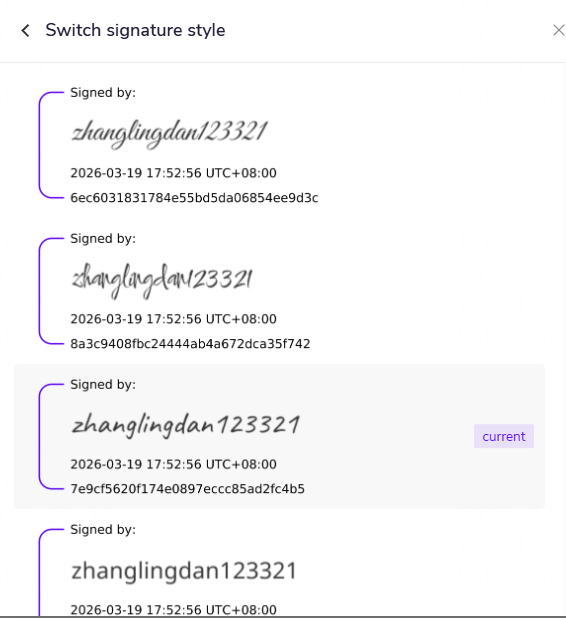
[Input Name]: Allows recipients to generate a signature by typing their name via the keyboard in the signing pop-up window. Select [Switch Style], and the system can load multiple signature styles in real-time for the recipient to choose from, allowing them to select a suitable signature style independently.
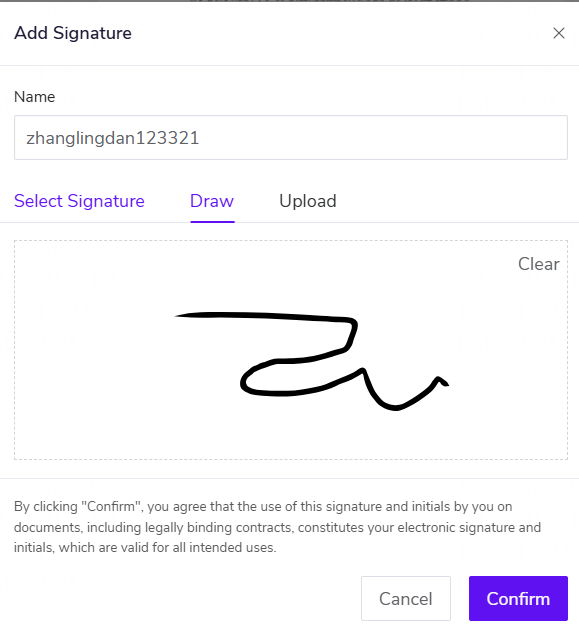
[Hand-drawn Signature]: Allows recipients to complete a signature by hand-drawing with a mouse or via touchscreen on mobile devices within the signing pop-up window.
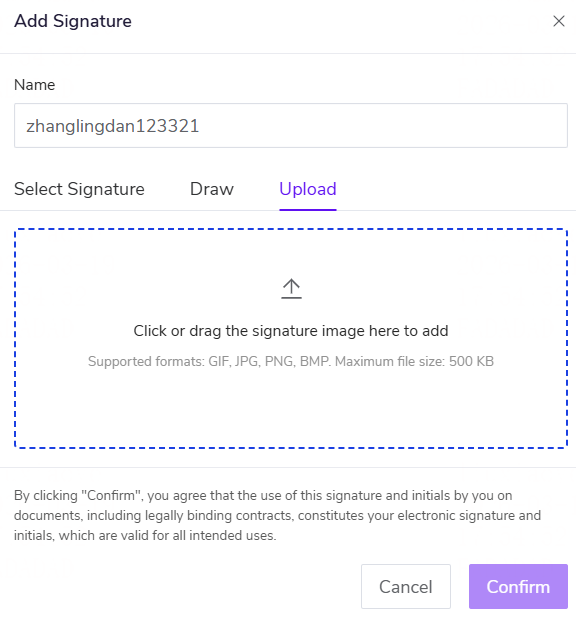
[Upload Signature Image]: Allows recipients to upload a local signature image file as their signature within the signing pop-up window.
[Landscape-Style Signature]: Allows recipients to customize their signature style within signing preferences.
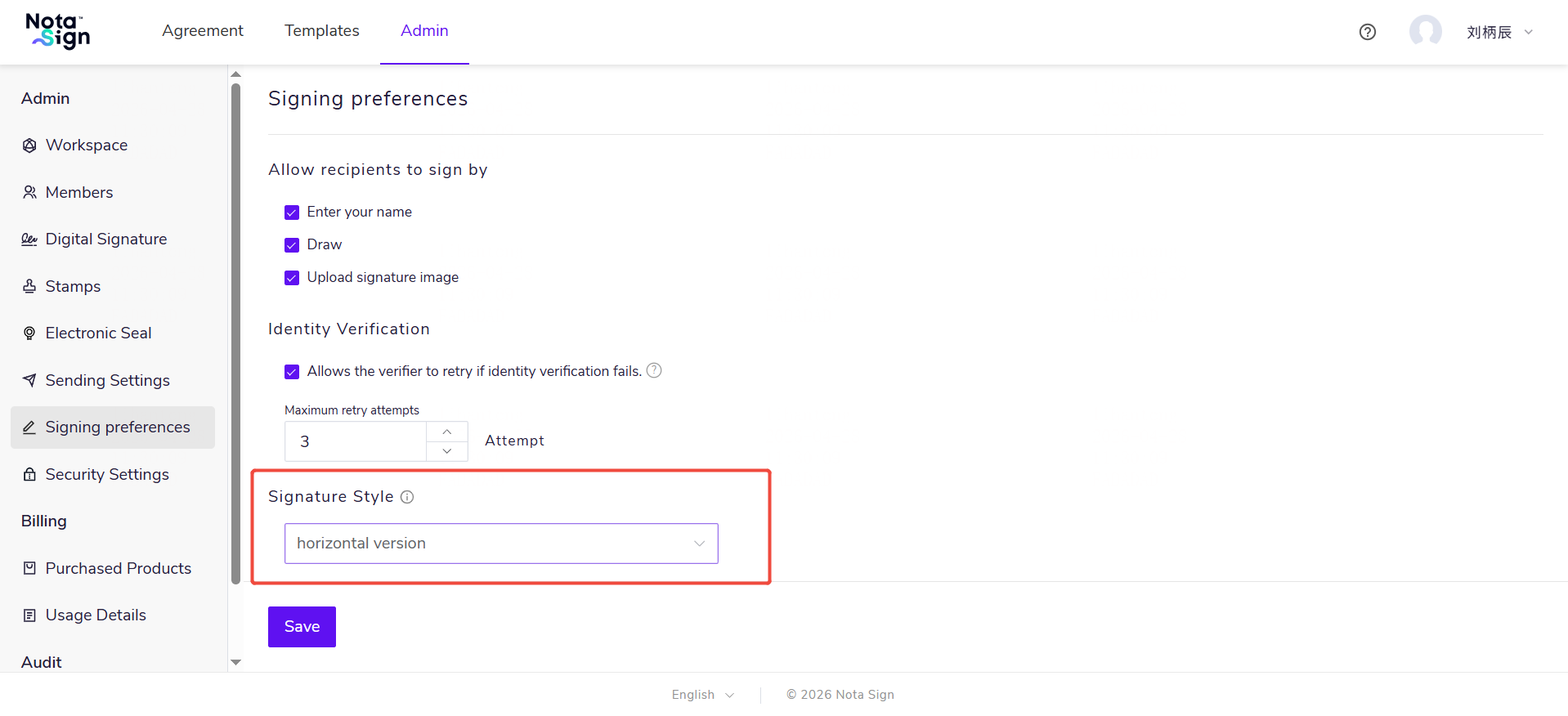
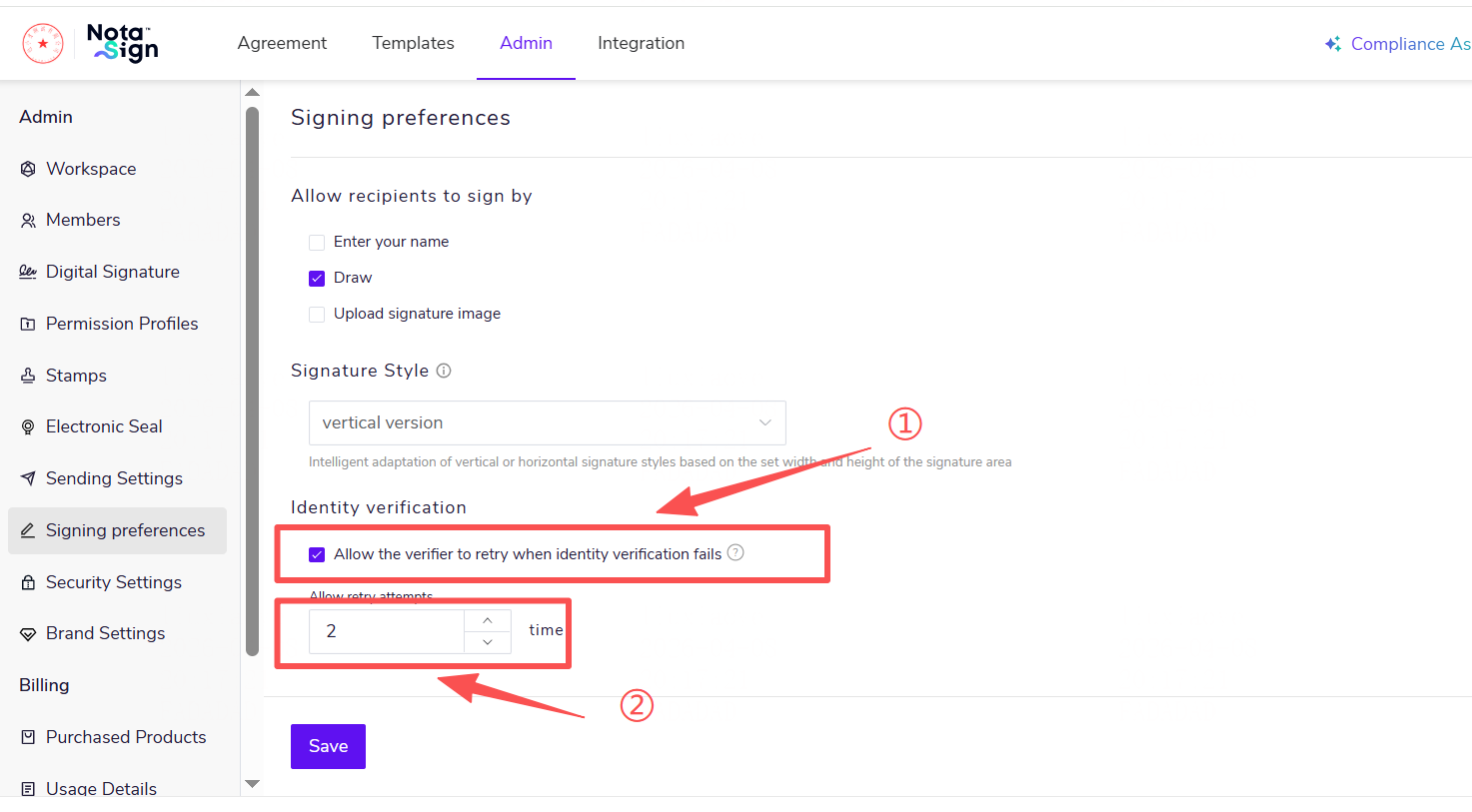
In the "Identity Verification" module, there is a control option [Whether to allow the verifier to retry when identity verification fails]. This feature is currently only applicable to the eKYC verification process.
When this switch is turned on, a number input box [Allow Retry Times] appears below.
The number of retries can be adjusted according to preference. Supports input from 1 to 5, default value is 3, freely adjustable.