SSO User Login and Signing
Login to the Nota Sign Platform
This section applies to SSO users log in to the Nota Sign platform. After the administrator sends the invitation to join the workspace, members can check the system email and join.
- Open the SSO login page. Choose the login method.
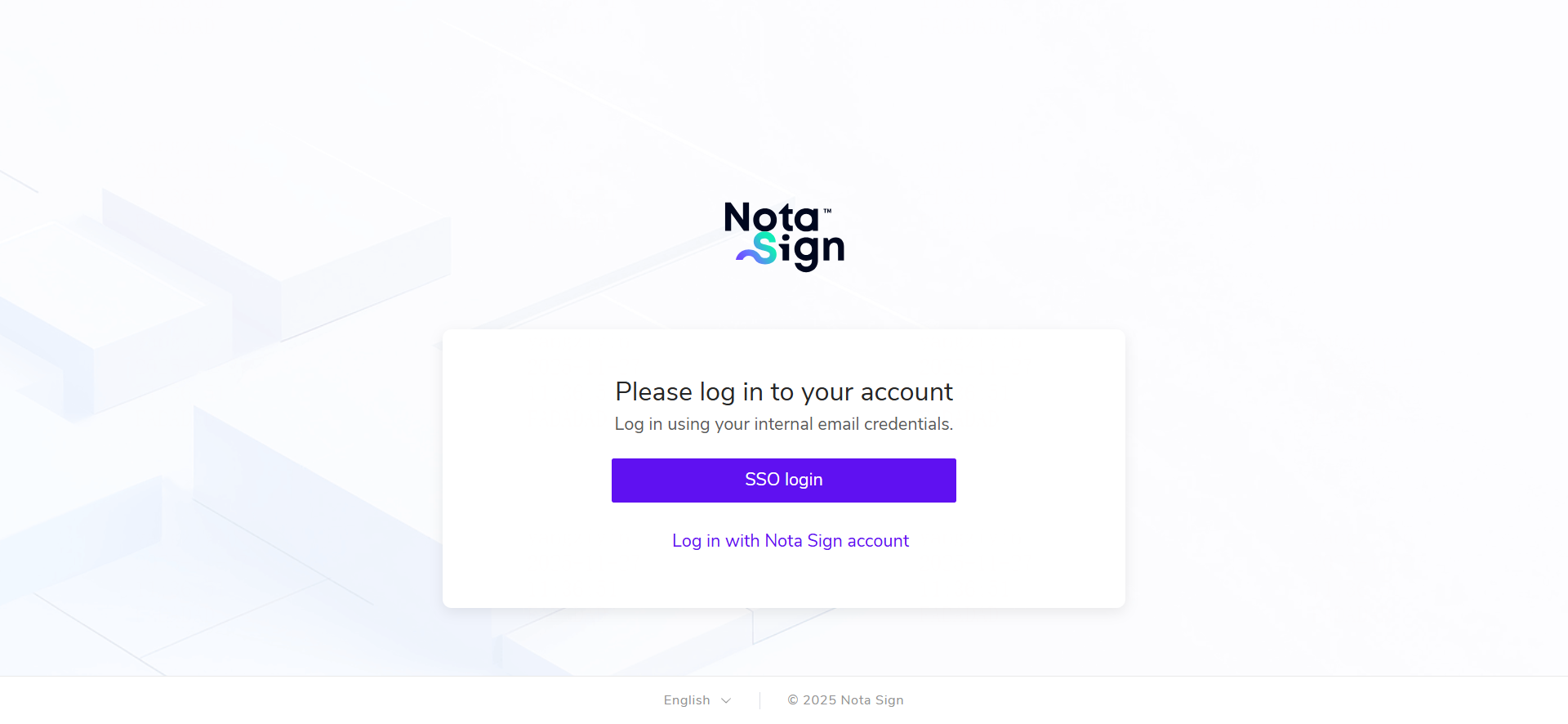
Method 1: Log in with Nota Sign Account
Open the Nota Sign Login Page and log in directly using your email and password.
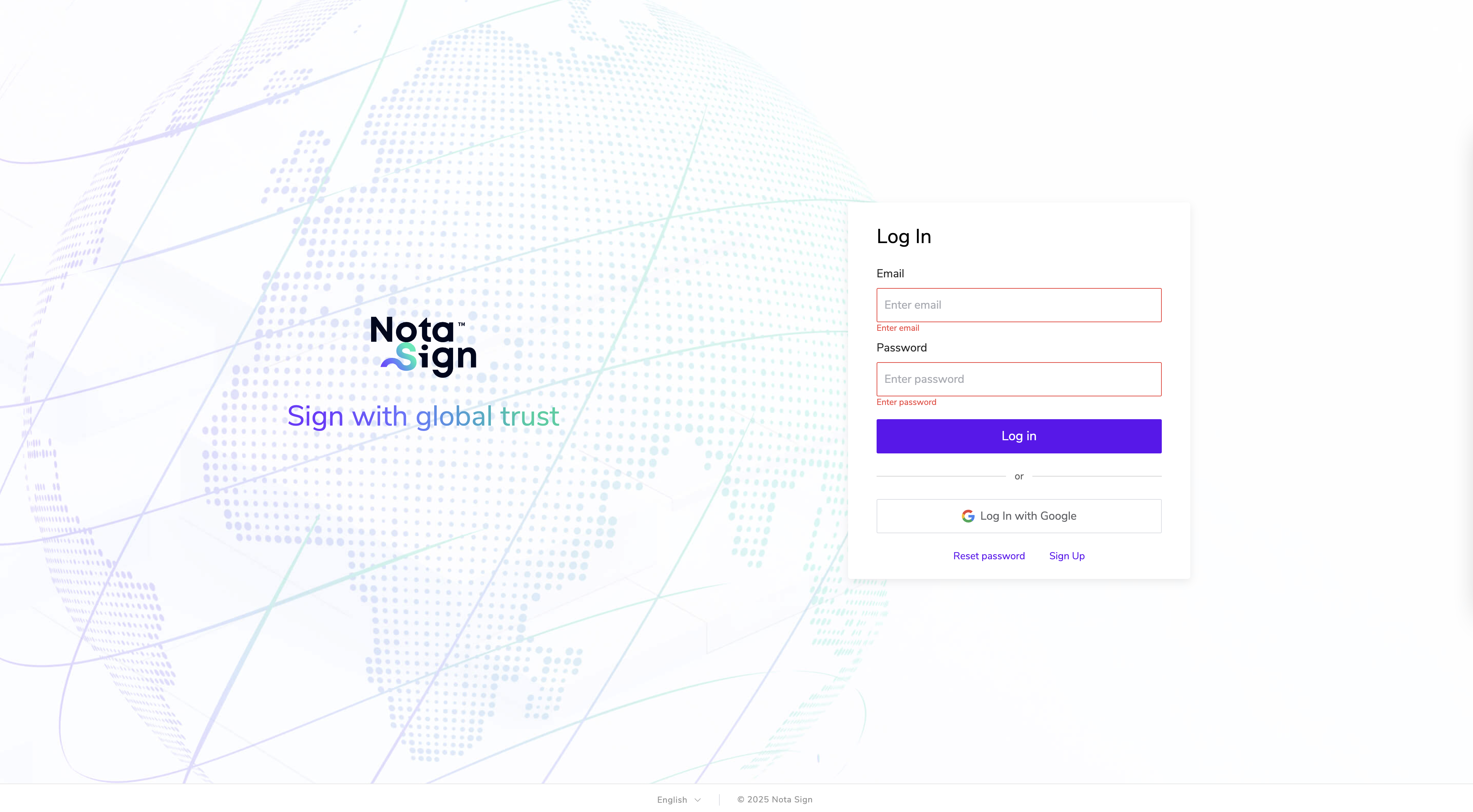
Method 2: Log in via SSO
Access through a third-party login URL (e.g., Microsoft), enter your account and password, click Login, and enter the workspace.
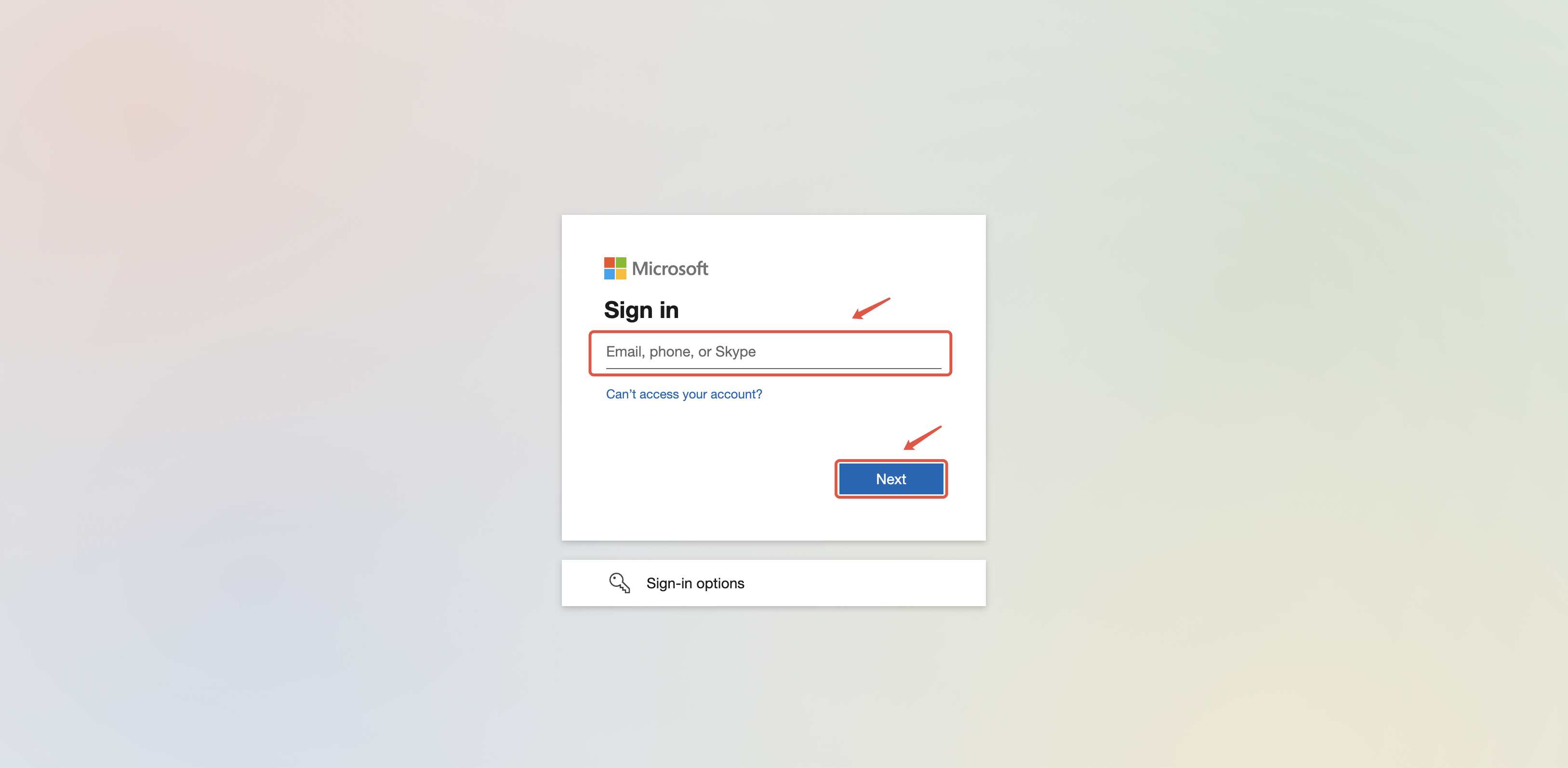
– When SSO mapping has been established and the administrator has not selected SSO login only, members can choose to log in either via SSO or with their Nota Sign account and password; When the administrator has enabled [SSO login only], users can log in only via SSO.-
Recipients Sign via SSO
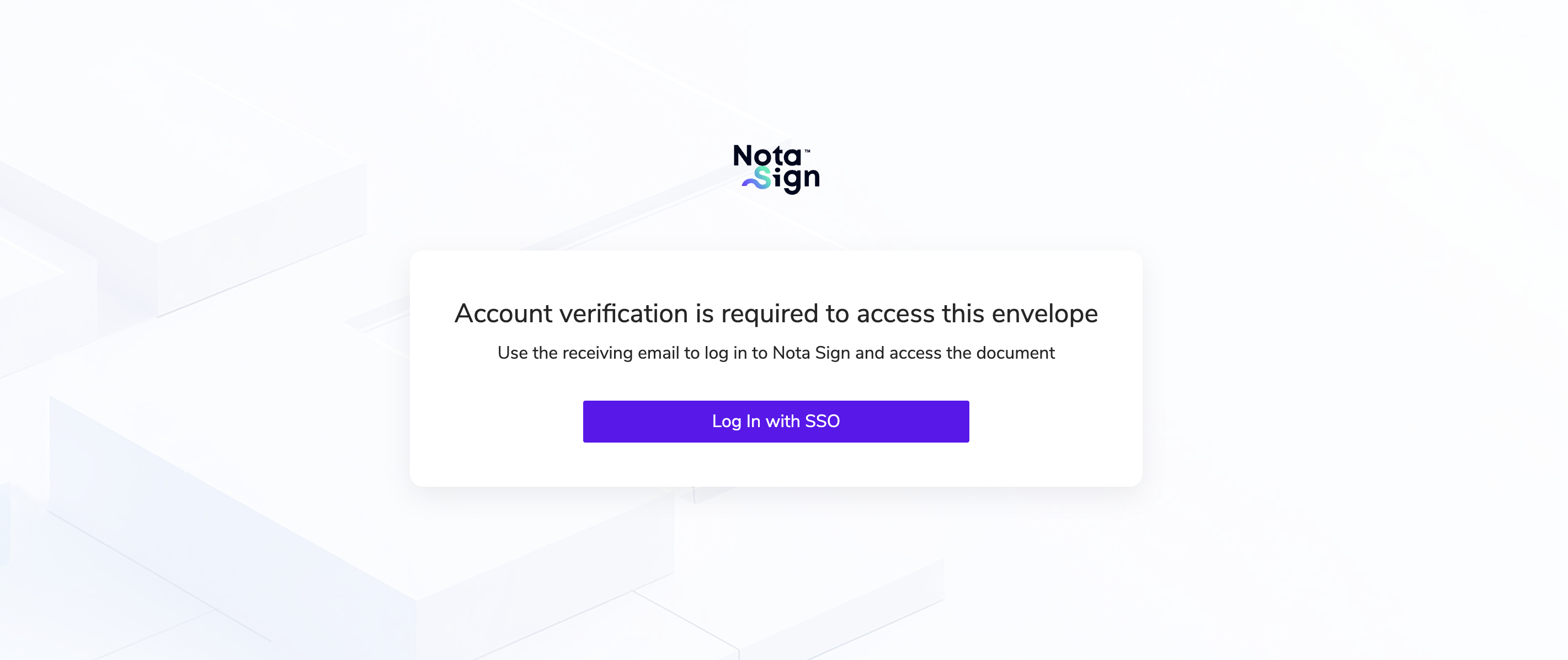
Recipients can click the signing link in the email and proceed according to the following scenarios:
The sender and recipient belong to different domains
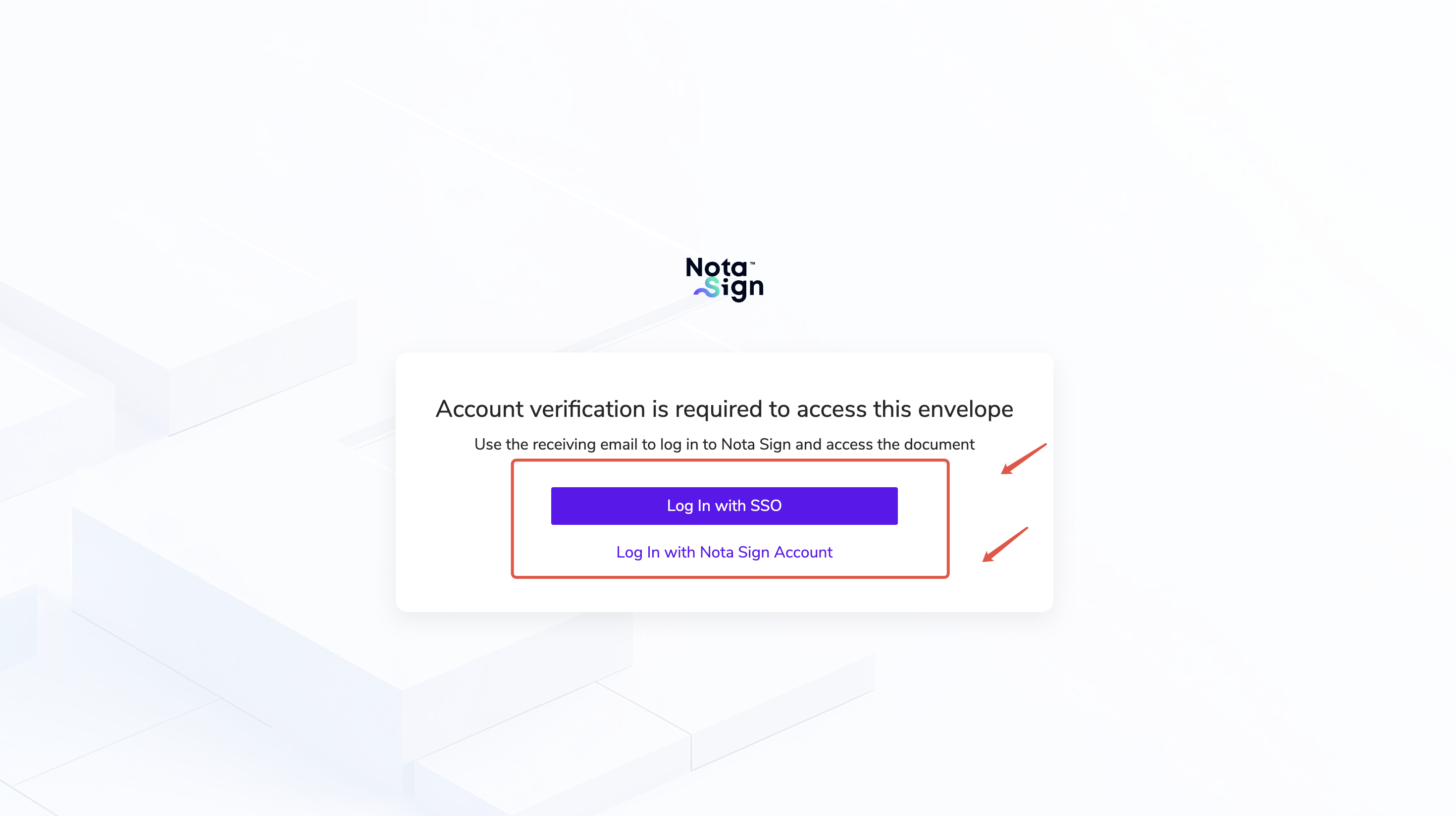
- The recipient can choose to log in via SSO or by using their Nota Sign account and password.
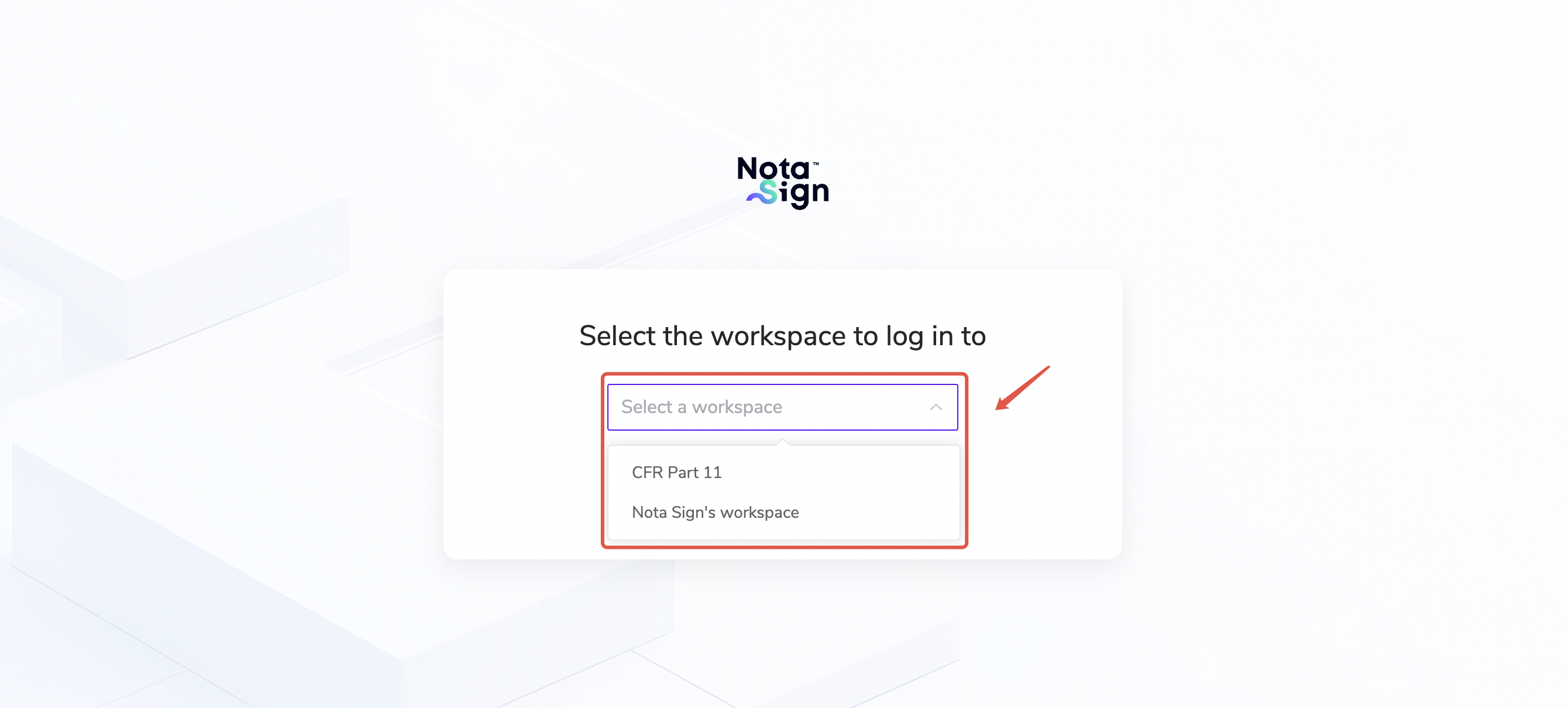
- If SSO login is selected and the recipient is allowed to access multiple workspaces, select the target workspace and click Log in.
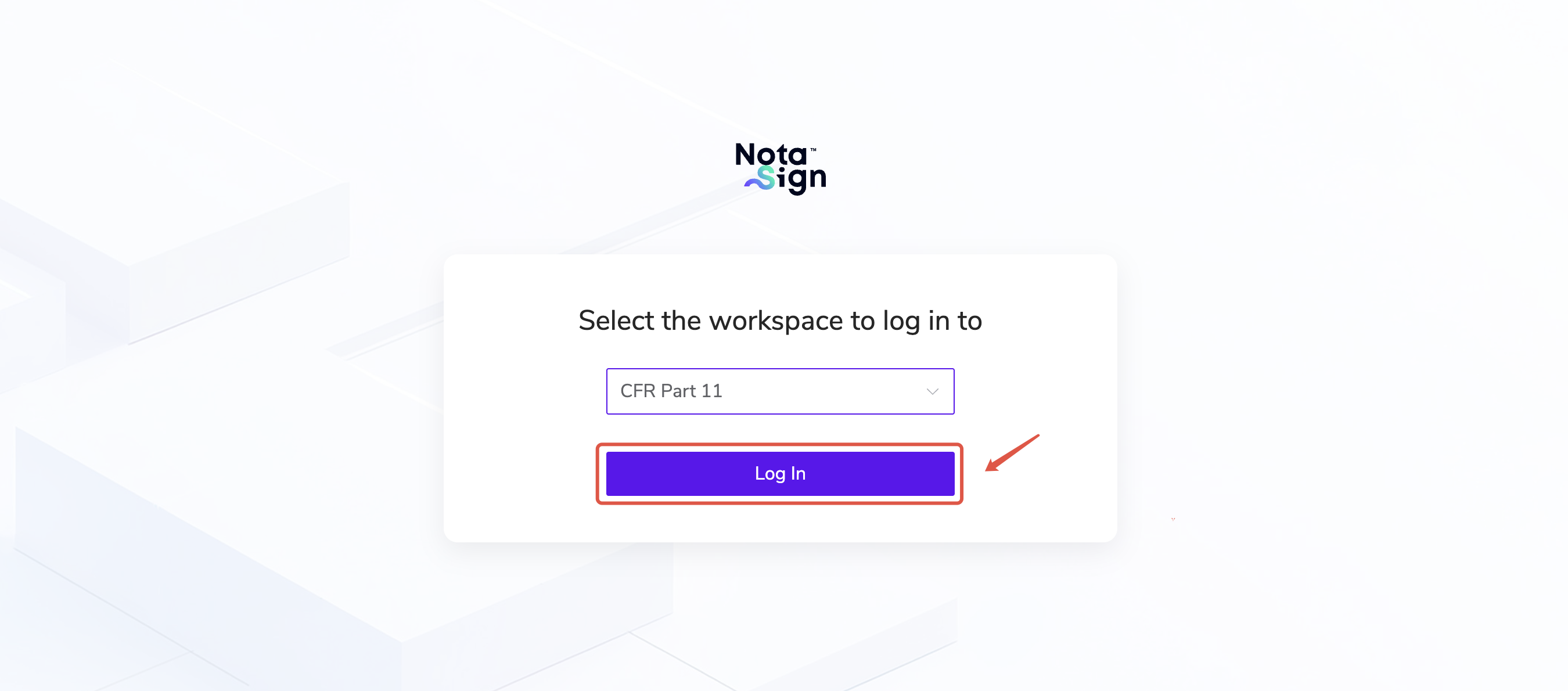
- The page will redirect to the third-party login (e.g., Microsoft). Enter the account and password, then click Next to access the signing page.
The sender and recipient belong to the same domain
- The recipient can choose to log in via SSO or by using their Nota Sign account and password.
If SSO login is selected, they will directly enter the corresponding workspace under the same domain as the sender.
The page will redirect to the third-party login (e.g., Microsoft). Enter the account and password, then click Next to access the signing page.
- ⚠️ Note: If the recipient’s workspace administrator has selected SSO login only, the recipient will not be able to log in using their Nota Sign account and password.-