Singpass Envelope Signing
Signing via Singpass (User)
- After initiation, you can select "Sign with Singpass".
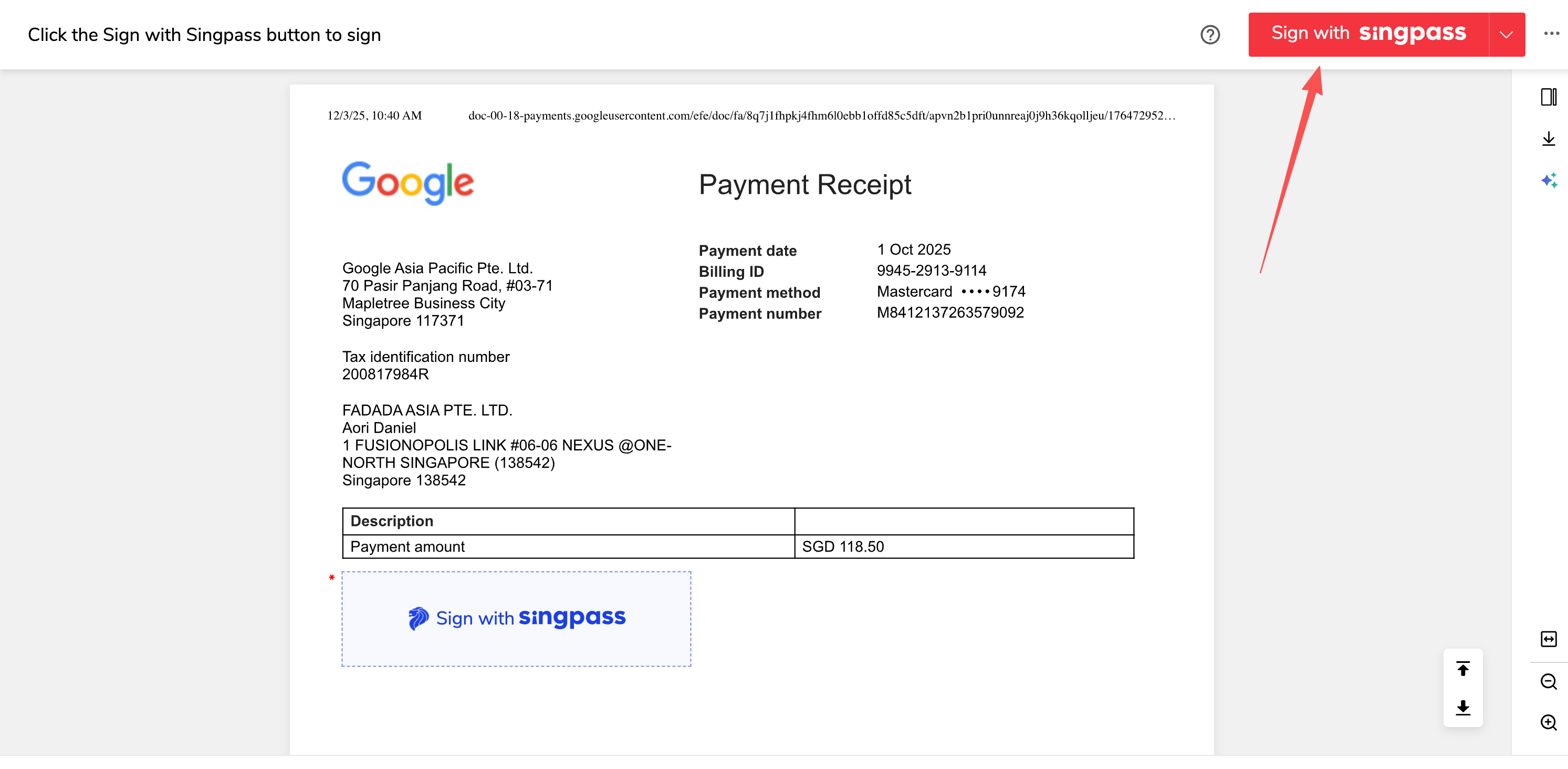
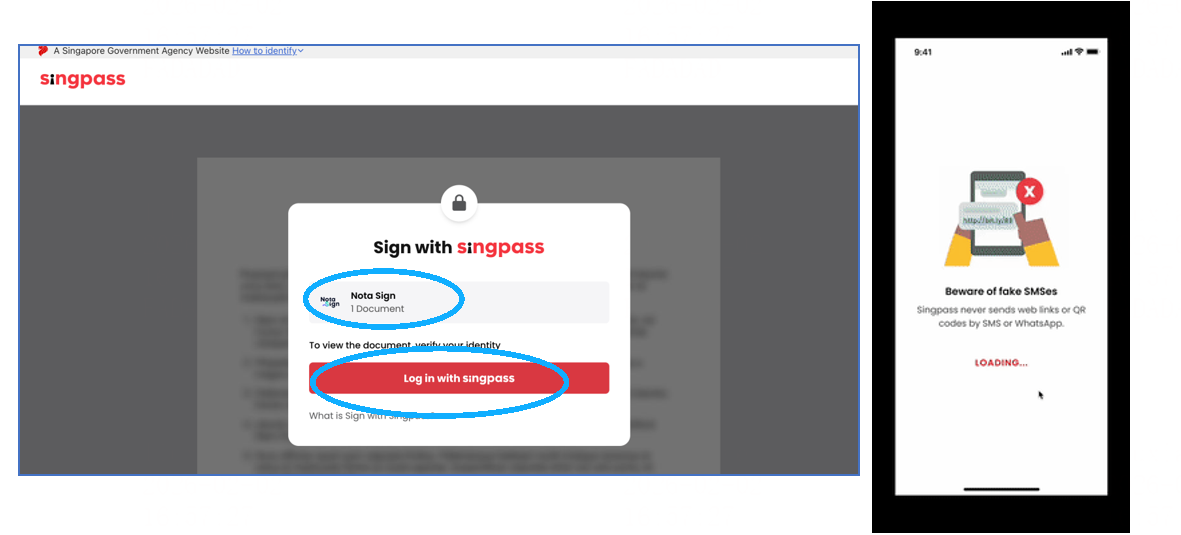
- After opening the envelope, choose to sign using Singpass. Login is required first. If you are already logged in with Singpass, NotaSign will automatically proceed to step 2.
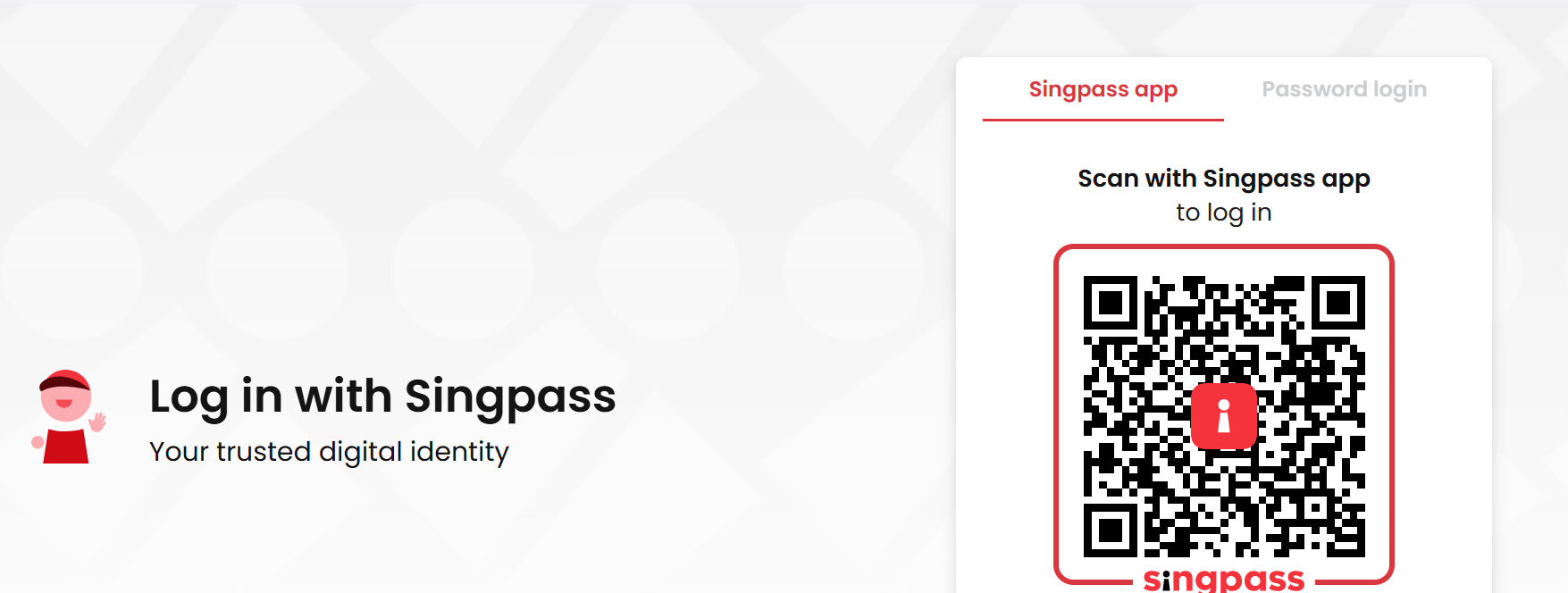
- After opening the envelope and choosing to sign using Singpass, if you are not logged in, you need to scan the QR code to bind your Singpass application.
- After successful authorization, you can review the information on both the mobile application and the web page.
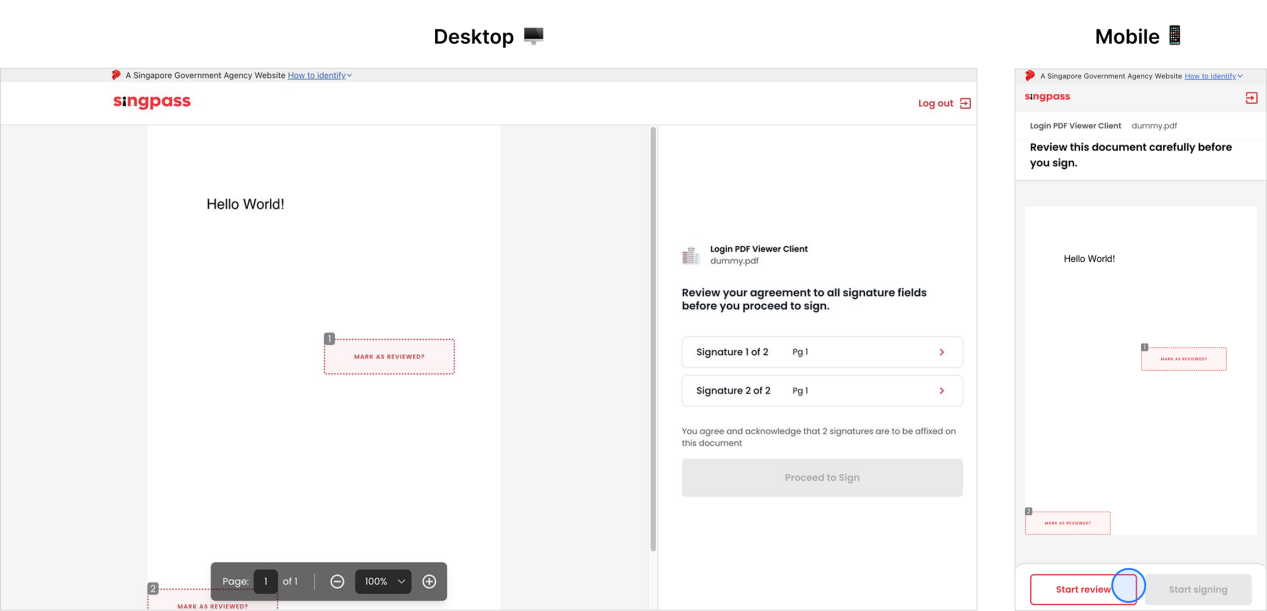
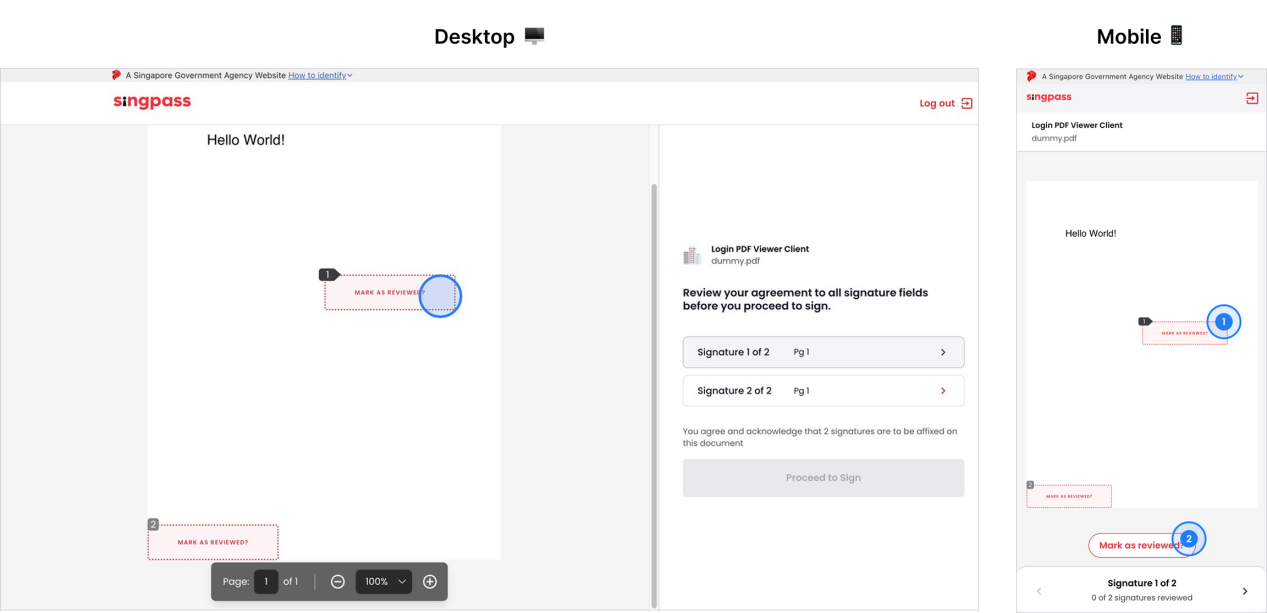
- You can click on the signature field to review it.
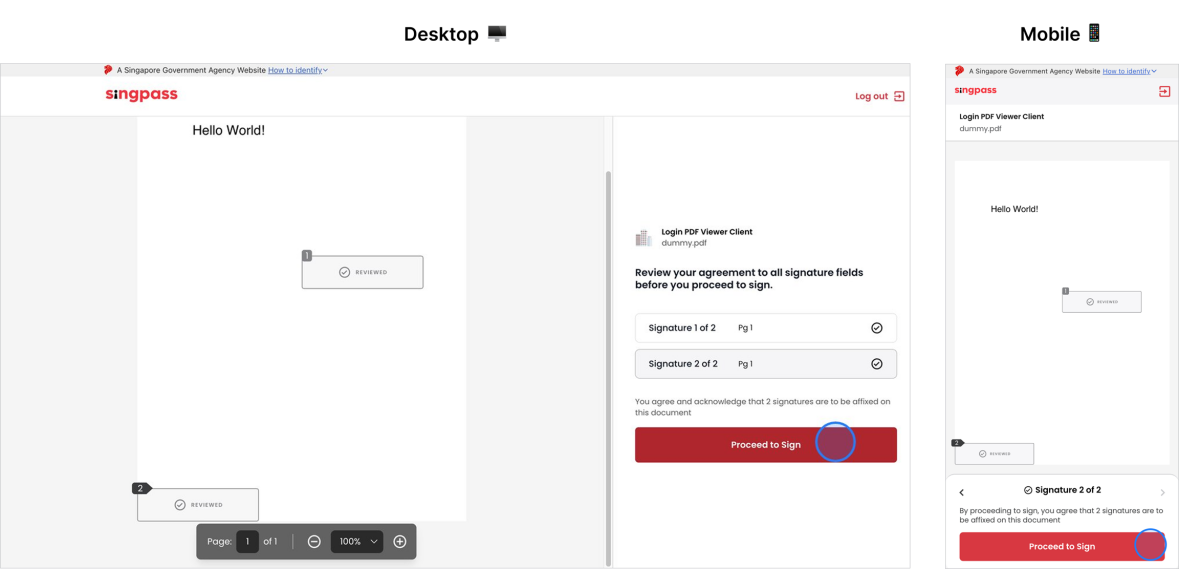
- After reviewing all fields, you can proceed with the signing operation, and the Sign button will become active.
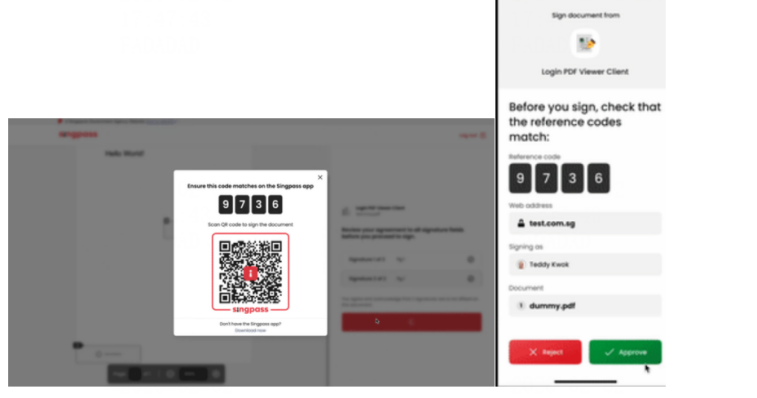
- After clicking "Continue to Sign", the webpage will redirect to show a verification code, and the application will also redirect simultaneously. The signing is successful after approving the request on the mobile device.
Viewing Singpass Signed Documents
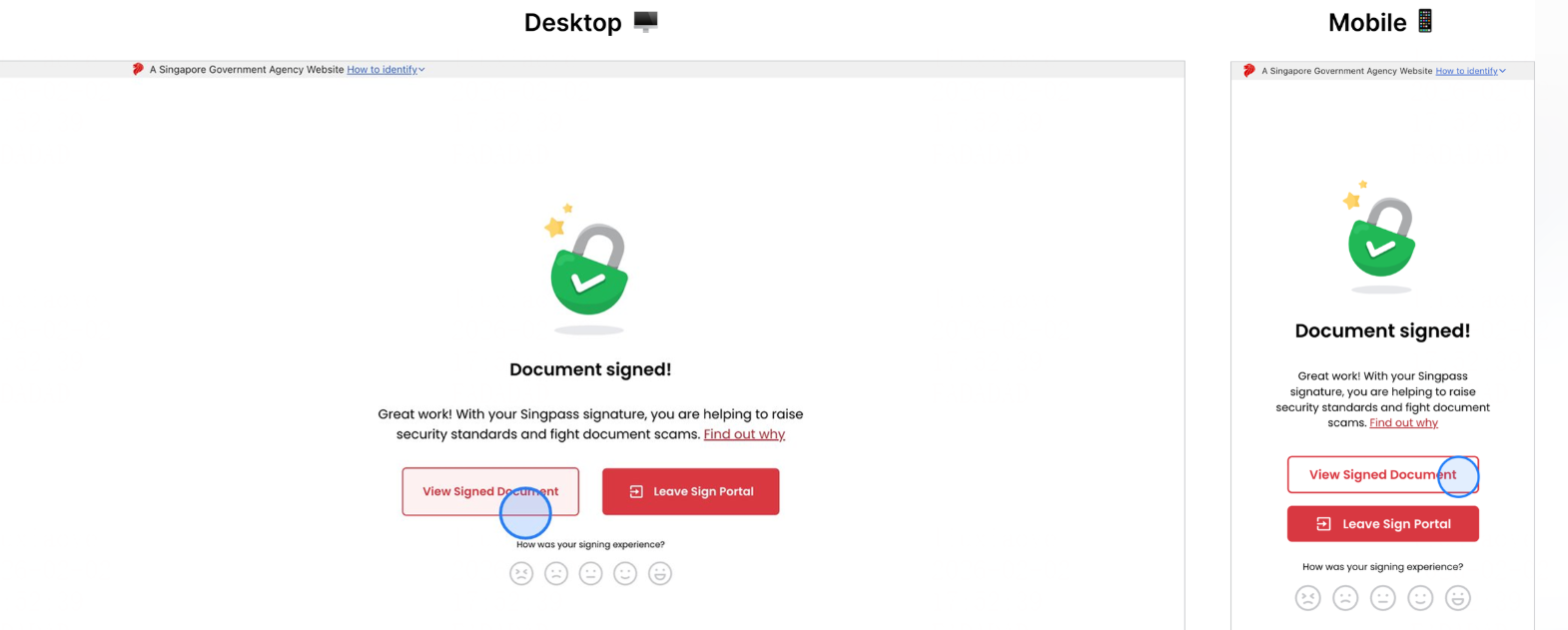
- After successful signing, view the signed document(s).