
Set Default Sequential Signing
Overview
In Nota Sign, you can choose whether to enable sequential signing by default based on your team’s or personal signing preferences. When this setting is turned on, the "Require sequential signing" option will be automatically enabled whenever you create a new envelope or template—eliminating the need to manually configure it each time and helping ensure consistency and efficiency in your signing workflows.
How to Configure
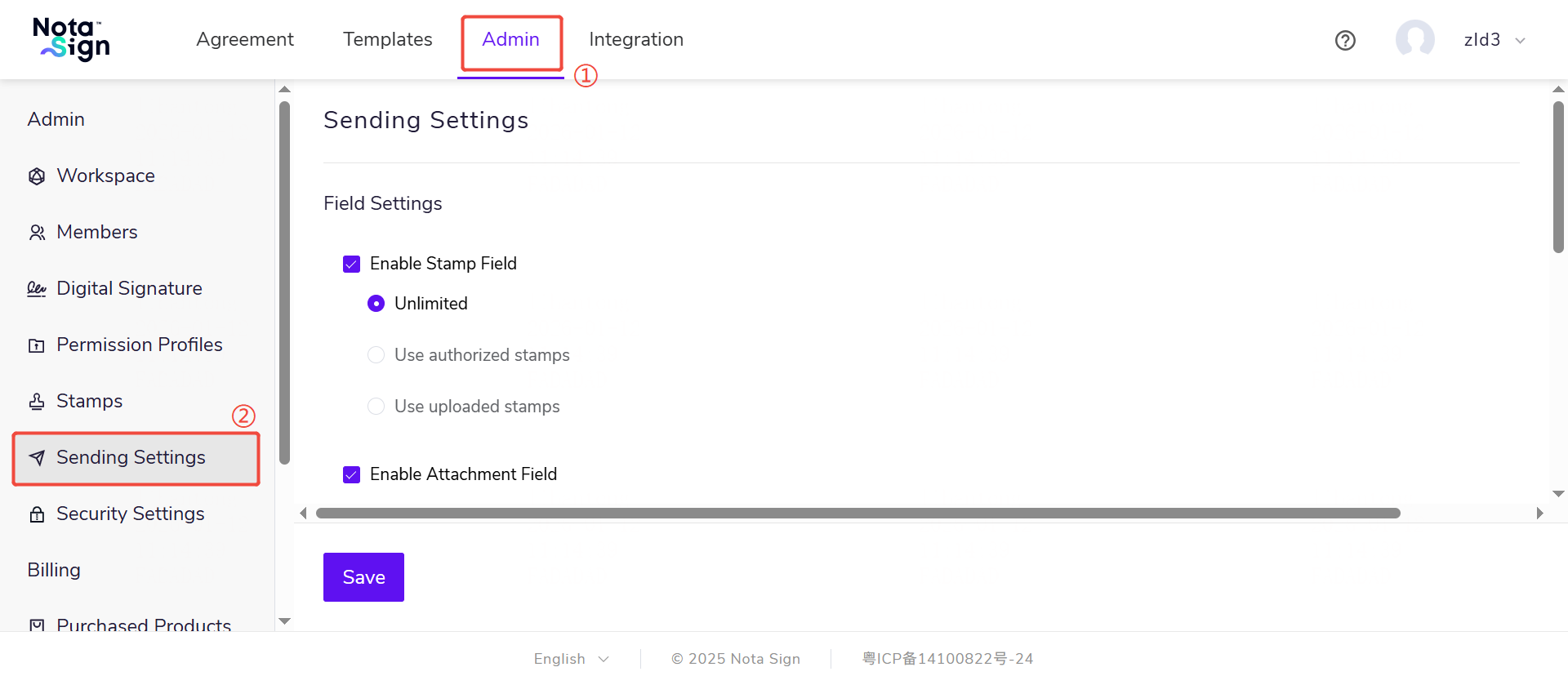
1.Go to Management → Sending Settings.
2.Under Recipient Settings, scroll to the bottom of the page and locate the "Default to sequential signing" option.
- If enabled: The "Require sequential signing" option will be on by default when creating new envelopes or templates.
- If disabled: The "Require sequential signing" option will be off by default when creating envelopes or templates.
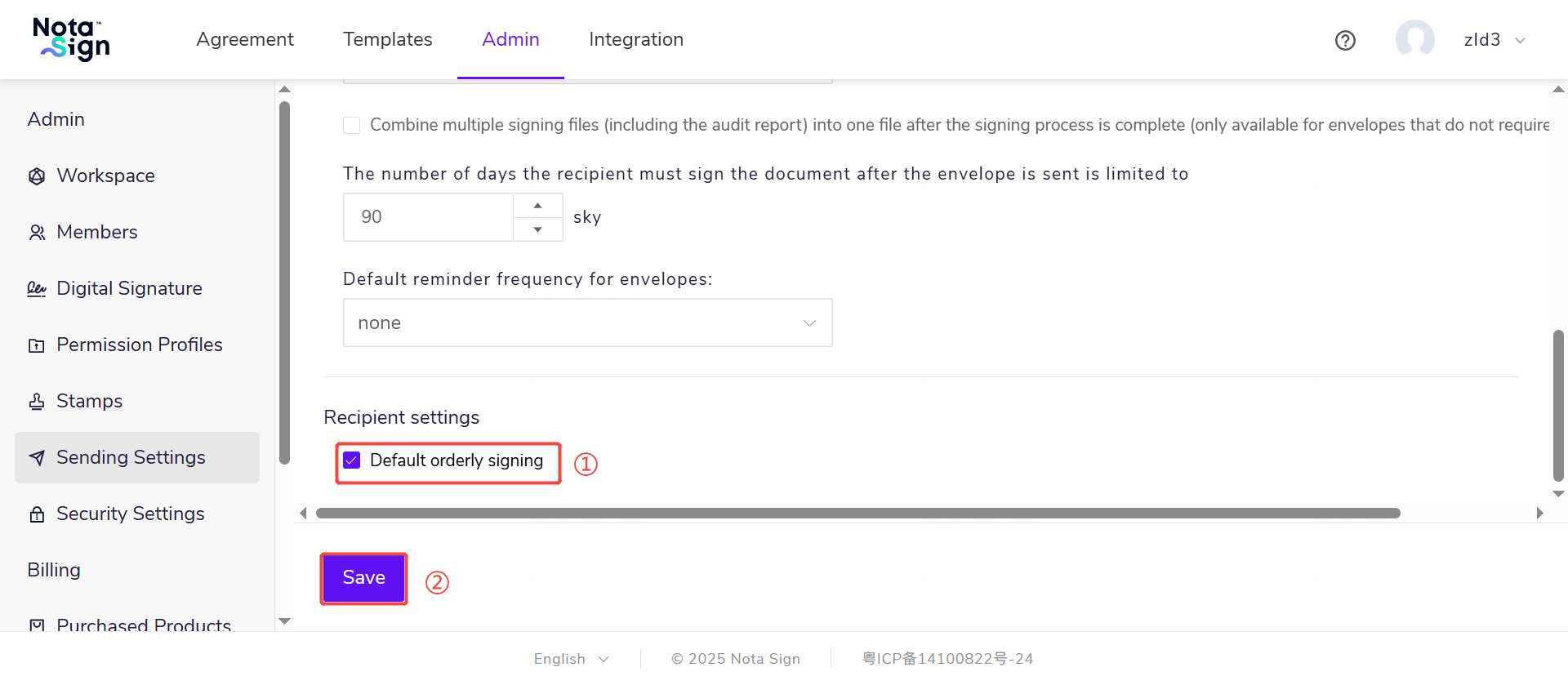
3.Click Save to apply your settings.
Note: If you create an envelope from an existing template, the signing order will be determined solely by the template’s configuration and will not be affected by this default setting.